author avatar
    Senior Program Developer
Last update by William Davis at 16 June 2026

Summary
The article examines pdf to docx python conversion methods, covering Python libraries like pdf2docx and PyMuPDF as well as dedicated desktop tools. It highlights batch processing scripts, OCR capabilities, and automated folder monitoring solutions for reliable document workflows.


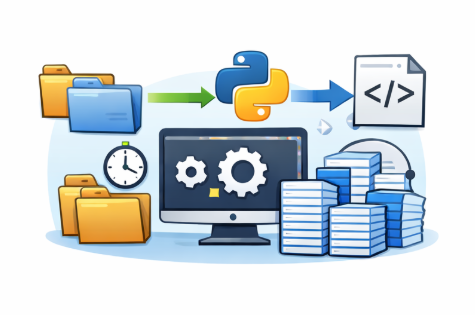
Plenty of developers and data analysts need to turn PDFs into editable DOCX files on a regular basis. PDFs are built with a fixed layout that’s perfect for viewing, but that very rigidity makes converting them into flexible Word documents a real headache.
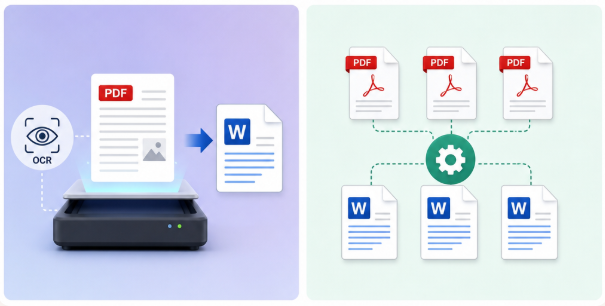
pdf to docx python
Typical tasks involve batch-processing hundreds of reports or invoices, setting up overnight document workflows, or building automated data extraction pipelines. And here’s the rub: Python scripts often choke on complex tables, embedded images, or scanned pages without a selectable text layer.
The result? Formatting gets scrambled, native OCR is absent, and you’re stuck with tedious scripting overhead. Built-in folder monitoring or simple scheduled execution? Not without extra libraries and cron jobs.
That’s a problem for developers, data analysts, freelancers, and anyone chasing automation who needs reliable batch processing with timed or hands-off execution.

Common Causes & Prerequisites: When Python scripts fail

Pure Python approaches hit real walls in production, and it’s best to know the common failure points before you run a script.
Issue TypeTypical CausePre-check / Diagnosis

Scanned PDFs

No selectable text

Open the PDF and try highlighting text; if nothing highlights, OCR is required

Complex tables/layouts

pdf2docx doesn’t have a layout engine

Convert one page first and check for shifted columns

Embedded fonts / garbled text

Font subsetting or non-standard encoding

Scan the DOCX for or random symbols

Large batch crashes

Memory or dependency conflicts

Test with 5–10 files; keep an eye on RAM usage

Pure Python approaches struggle with production batch automation. They demand significant custom code for layout preservation, OCR, and scheduling.
copy pdf text generates garbled characters
PDF text generates garbled characters while processing embedded fonts.

General Solution Approaches: Python libraries overview

ApproachBest ForKey Limitation

pdf2docx

Quick conversions of digital PDFs

Weak with complex layouts; no OCR

PyMuPDF + python-docx

Full control and custom extraction logic

Requires heavy coding for layout reconstruction

pdfplumber

Table‑centric PDFs

No DOCX output; text extraction only

Pandoc

Scriptable pipelines; multi‑format workflows

PDF→DOCX quality depends on LaTeX/PDF readers

LibreOffice CLI

Batch automation; headless conversion

Layout fidelity varies; no OCR

📘 pdf2docx

Built on PyMuPDF and python‑docx, maintained by Artifex Software and contributors.
Site: https://github.com/ArtifexSoftware/pdf2docx
Initial Release: Around 2020 (first commits and PyPI publication)
Latest Update: May 1, 2026 (v0.5.13)
Status: No longer actively maintained by Artifex; relicensed MIT for community use
FeatureSupport

Direct PDF→DOCX

Yes

OCR

No

Embedded Fonts

Partial

Complex Layouts

Moderate

Automation

Yes

XFA Forms

No

Recent Reported Issues:
- Image rotation errors after conversion Github
- Hyperlink conversion bugs and invalid OOXML output Github
- Table conversion failures and misaligned text Github
- Compatibility problems with Python 3.12 and PyInstaller packaging Github

📘 PyMuPDF + python-docx

PyMuPDF (fitz) is developed by Artifex Software. It provides low‑level PDF access; python‑docx handles DOCX generation.
Site: https://pymupdf.readthedocs.io
Initial Release: PyMuPDF bindings appeared around 2016, based on the MuPDF engine
Latest Update: April 24, 2026 (v1.27.2.3)
Status: Actively maintained by Artifex Software, frequent releases and bug fixes
FeatureSupport

Direct PDF→DOCX

No (manual coding)

OCR

No (external OCR needed)

Embedded Fonts

Read only

Complex Layouts

High control, manual

Automation

Excellent

XFA Forms

No

Recent Reported Issues:
- Formula rendering errors (black boxes) Github
- Dehyphenation broken in recent versions Github
- Crashes on XFA forms when calling page.widgets() Github
- Segfaults with shared image xrefs across pages Github

📘 pdfplumber

Created by Jeremy Singer‑Vine, now community‑maintained. Focuses on text and table extraction.
Site: https://github.com/jsvine/pdfplumber
Initial Release:2015 (first GitHub commits by Jeremy Singer‑Vine)
Latest Update: January 5, 2026 (v0.11.9)
Status: Community‑maintained, still receiving updates and bug fixes
FeatureSupport

Direct PDF→DOCX

No

OCR

No

Embedded Fonts

No

Complex Layouts

Good for tables

Automation

Yes

XFA Forms

No

Recent Reported Issues:
- Table extraction failures on specific PDFs Github
- Incorrect parsing of last table rows Github
- ResourceWarnings due to unclosed file handles Github
- Coordinate inversion bugs in text bounding boxes Github

📘 Pandoc

Created by John MacFarlane, Pandoc is a universal document converter supporting 40+ formats.
Site: https://pandoc.org
Initial Release:2006 (created by John MacFarlane)
Latest Update:March 19, 2026 (v3.9.0.2)
Status: Actively maintained, frequent releases with new format support
FeatureSupport

Direct PDF→DOCX

Yes (via LaTeX)

OCR

No

Embedded Fonts

No

Complex Layouts

Limited

Automation

Excellent

XFA Forms

No

Reported Issues:
- Regression in LaTeX header‑includes causing PDF build errors Github
- Broken links in documentation and missing ICML references Github
- DOCX conversion losing bullets when images are present Github

📘 LibreOffice CLI

LibreOffice is maintained by The Document Foundation. Its headless soffice mode is widely used for batch conversions.
Site: https://www.libreoffice.org
Initial Release: 2010
Latest Update: June 5, 2026 (LibreOffice 26.2.4)
Status: Actively maintained by The Document Foundation, regular bugfix and feature releases
FeatureSupport

Direct PDF→DOCX

Yes

OCR

No

Embedded Fonts

Partial

Complex Layouts

Moderate

Automation

Excellent

XFA Forms

No

Recent Reported Issues:
- Conversion failures in Docker/TrueNAS setups with fatal startup errors Github
- Input filter problems (–infilter argument required for PDF import) Github
- File not created errors (ENOENT) during conversion Github

Recommended Robust Solution: Renee PDF Aide for batch & automation

If you’re after reliable batch conversion, built-in OCR, and scheduled automation without the endless script debugging, Renee PDF Aide is a standout desktop solution. It handles pdf to docx python workflows smoothly and tackles the pain points most Python libraries leave behind.
Screenshot of Renee PDF Aide main conversion window, showing multiple PDF files being converted to DOCX format with OCR enabled
Renee PDF Aide - Powerful PDF Converting/Editing Tool (100 FREE Quota)

Convert to Editable Convert to Word/Excel/PPT/Text/Image/Html/Epub

Multifunctional Encrypt/decrypt/split/merge/add watermark

OCR Support Extract Text from Scanned PDFs, Images & Embedded Fonts

Quick Convert dozens of PDF files in batch

Compatible Support Windows 11/10/8/8.1/Vista/7/XP/2K

Convert to Editable Word/Excel/PPT/Text/Image/Html/Epub

OCR Support Extract Text from Scanned PDFs, Images & Embedded

Support Windows 11/10/8/8.1/Vista/7/XP/2K

Free TrialFree TrialNow 800 people have obtained the free version!

Key advantages include

- Batch processing: Add multiple files with one click and breeze through hundreds of pages.
- Speed: Convert up to 80 pages per minute.
- OCR for scanned PDFs: Three recognition modes pull text from scanned documents where pure Python would fail.
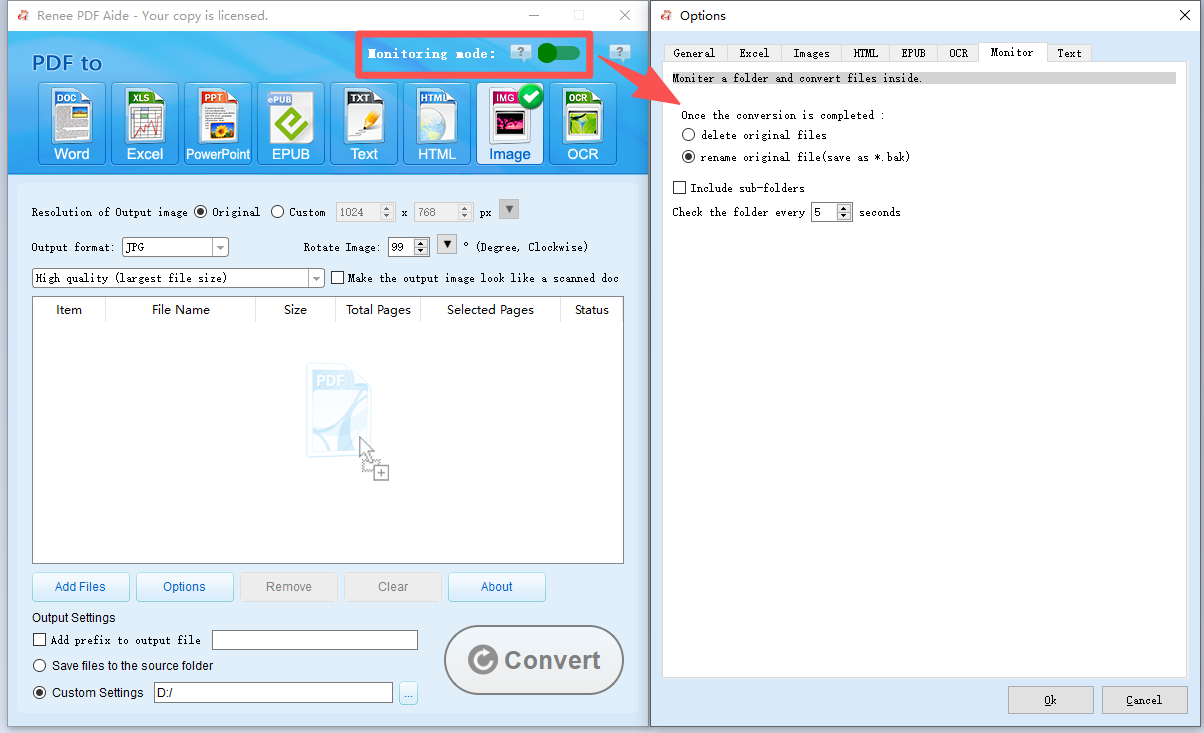
- Automation-ready: Monitoring mode watches folders every 5 seconds for new files and supports scheduled tasks.
- Local privacy: Everything stays on your machine; no file uploads, full privacy.
- Output to DOCX: Direct Word conversion with layout preservation you can count on.

Step-by-Step Operation

Prerequisite: Download and install Renee PDF Aide.
download now
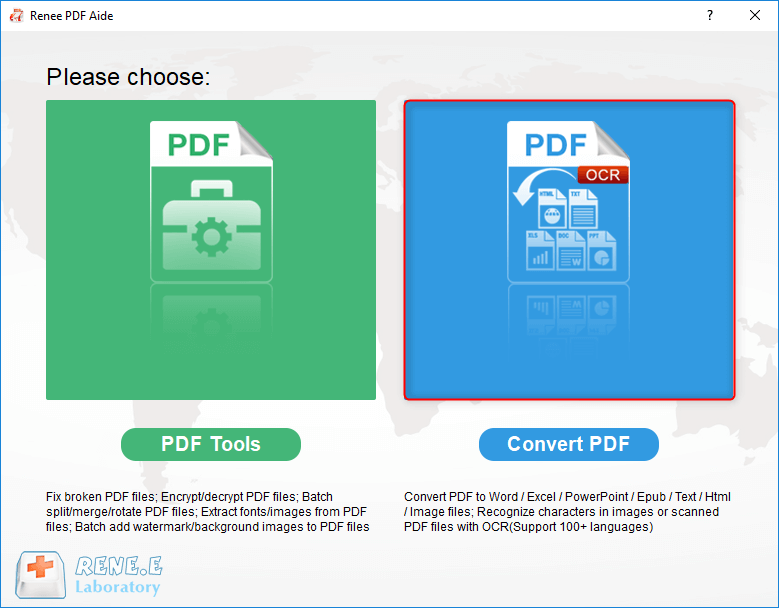
Step ①: Open Renee PDF Aide and choose Convert PDF.
select to convert pdf with renee pdf converter
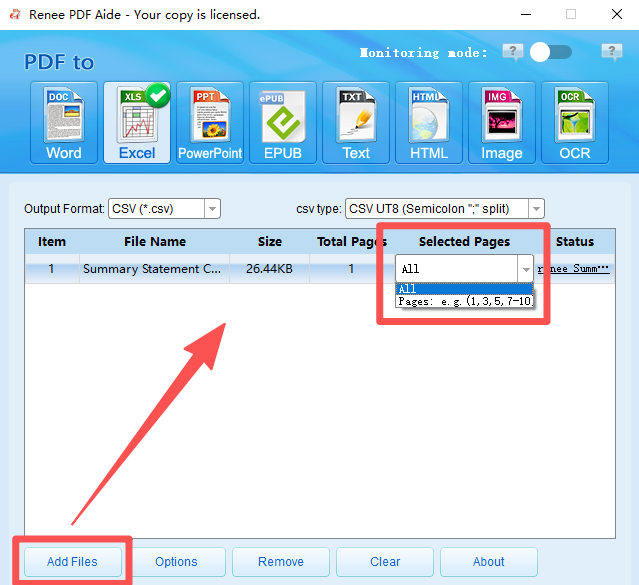
Step ②: Click Add Files to import one or more PDFs—batch conversion is built right in. If you only need certain pages, use Selected Pages to pick the range.
add files to Renee PDF Aide and select pages
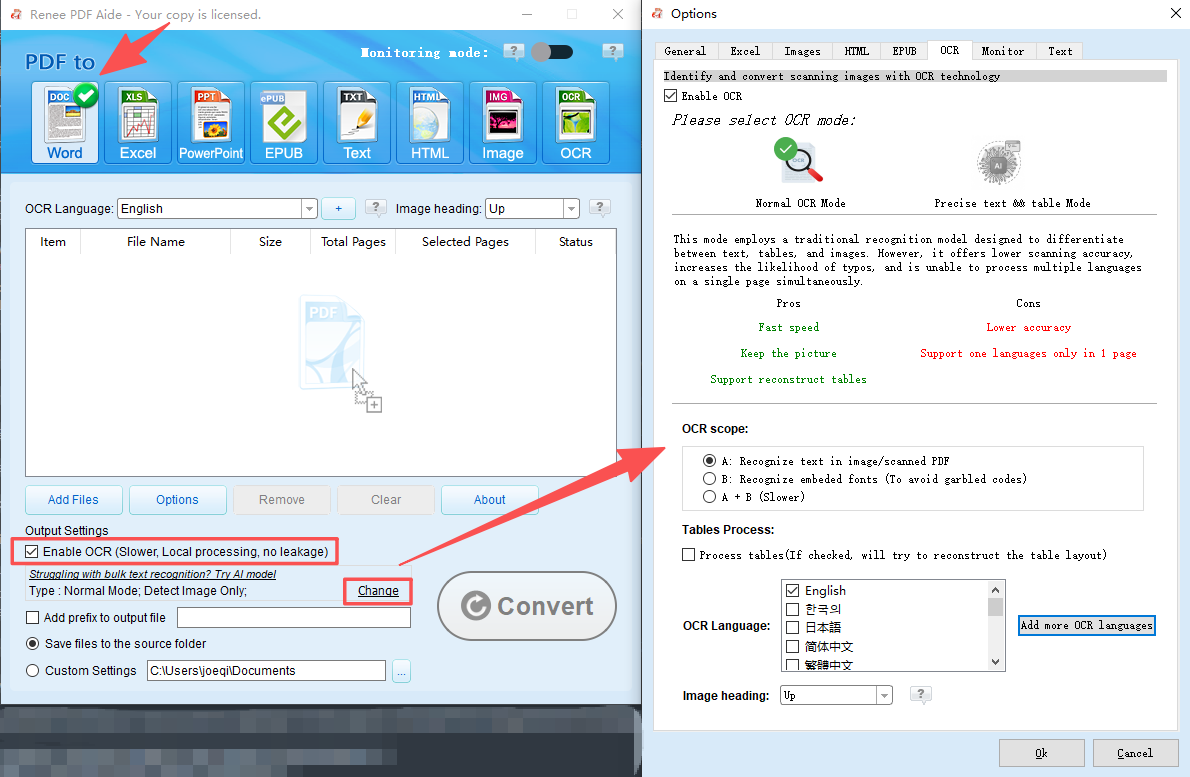
Step ③: From the top bar, pick Word as the output format. Under Options, you can tweak layout preferences such as keeping pages grouped or splitting them.
Setting scan PDF editing options before conversion using Renee PDF Converter
Step ④ (for scanned PDFs only): Turn on OCR and pick the right mode:
- Mode A: Best for pictures or scanned images—select the document language for top accuracy.
- Mode B: Use for PDFs with embedded fonts to avoid garbled characters.
- Mode A+B: Auto-detection; handles mixed content at a slightly slower pace.
If your PDF already has selectable text, skip OCR entirely.
Step ⑤: Hit Convert. Watch the Status column—once it says ‘Success,’ click the link to open each DOCX.
pdf to word convert result

Monitoring Mode(Automatic)

To set up hands-free automation, turn on Monitoring Mode. Point it to a folder (subfolders included), and new PDFs dropped in will be converted automatically every 5 seconds using whatever settings you’ve chosen.
Renee PDF monitoring mode to convert PDF file automatically
Renee PDF Aide - Powerful PDF Converting/Editing Tool (100 FREE Quota)

Convert to Editable Convert to Word/Excel/PPT/Text/Image/Html/Epub

Multifunctional Encrypt/decrypt/split/merge/add watermark

OCR Support Extract Text from Scanned PDFs, Images & Embedded Fonts

Quick Convert dozens of PDF files in batch

Compatible Support Windows 11/10/8/8.1/Vista/7/XP/2K

Convert to Editable Word/Excel/PPT/Text/Image/Html/Epub

OCR Support Extract Text from Scanned PDFs, Images & Embedded

Support Windows 11/10/8/8.1/Vista/7/XP/2K

Free TrialFree TrialNow 800 people have obtained the free version!

Alternative Method: Advanced Python script for custom automation

This approach is for when you want full control of the code and are dealing primarily with simple, native PDFs. Writing your own script lets you weave PDF conversion directly into an existing automation pipeline, no third-party GUI needed. Fair warning: you’ll need a solid handle on Python and the libraries that manage file system events.

Steps

Step 1: Install Dependencies
First, install the required libraries:

pip install pymupdf python-docx watchdog

Step 2: Write the Conversion and Monitoring Script
Create a file named pdf_to_docx_automate.py and add the following code. It handles both conversion and folder watching:

import fitz # PyMuPDF
from docx import Document
from watchdog.observers import Observer
from watchdog.events import FileSystemEventHandler
import time
import os
class PDFHandler(FileSystemEventHandler):
def on_created(self, event):
if event.src_path.endswith('.pdf'):
self.convert_pdf_to_docx(event.src_path)
def convert_pdf_to_docx(self, pdf_path):
doc = fitz.open(pdf_path)
word_doc = Document()
for page in doc:
text = page.get_text()
word_doc.add_paragraph(text)
output_path = pdf_path.replace('.pdf', '.docx')
word_doc.save(output_path)
print(f"Converted: {output_path}")
if __name__ == "__main__":
path = "watch_folder" # Create this folder
if not os.path.exists(path):
os.makedirs(path)
event_handler = PDFHandler()
observer = Observer()
observer.schedule(event_handler, path, recursive=True)
observer.start()
try:
while True:
time.sleep(1)
except KeyboardInterrupt:
observer.stop()
observer.join()

Step 3: Run the Script and Test
Launch the script from your terminal:

python pdf_to_docx_automate.py

Drop any native PDF file into the watch_folder directory, and it will automatically be converted to DOCX in the same spot.

Limitations

- No built-in OCR for scanned PDFs.
- Complex tables and images frequently end up misaligned.
- You’ll still need external scheduling via Task Scheduler or cron.
- Debugging never really ends—every PDF variation can throw a curveball.
Advantages:
  • Complete code control and customization
  • Free to use for simple native PDFs
  • Easy integration into existing Python pipelines

Disadvantages:

  • No built-in OCR for scanned documents
  • Complex tables and images often misalign
  • Requires external tools for scheduled execution
  • Heavy debugging needed for different PDF layouts

While this custom script offers flexibility, users needing reliable OCR and complex layout preservation should consider dedicated software.

Verification & Recommendations

After conversion, run through this quick checklist:
- Open the DOCX in Word and check that all text is selectable and editable.
- Inspect table structures—rows and columns intact, no unexpected merged cell shifts.
- Scan for or random characters that signal garbled text.
- Verify that every page from the original PDF made it into the output.
Use CaseRecommended Tool

Quick test on 1–2 simple PDFs

Python pdf2docx script

Scanned PDFs or complex layouts

Renee PDF Aide with OCR

Batch conversion (50+ files)

Renee PDF Aide (batch + monitoring mode)

Scheduled nightly conversions

Renee PDF Aide monitoring mode

Full code control + simple PDFs

PyMuPDF + watchdog custom script

Privacy & speed comparison:
- Python scripts: fully local, but speed varies and there’s no OCR.
- Renee PDF Aide: also fully local, speeds up to 80 pages/min, built-in OCR, and monitoring mode.
For most automated, batch, or OCR-requiring pdf to docx python workflows, Renee PDF Aide saves you hours of debugging and gives you consistent DOCX output.

Frequently Asked Questions (FAQ)

Can Renee PDF Aide handle scanned PDFs that Python scripts cannot read?

Absolutely. Renee PDF Aide’s built-in OCR (with modes A, B, and A+B) pulls text from scanned pages where libraries like pdf2docx fall flat.

Why does pdf2docx lose my table formatting or column alignment?

The library focuses on text extraction and lacks a robust layout engine. Complex tables, merged cells, or nested structures frequently break. Renee PDF Aide better preserves formatting through its dedicated conversion engine.

What is the maximum batch size or page limit in Renee PDF Aide?

There’s no hard limit. It handles hundreds of PDFs and thousands of pages, depending on your system RAM and document complexity, with conversion speeds up to 80 pages per minute.

Can I convert password-protected PDFs to DOCX with Python or Renee PDF Aide?

Python requires additional libraries like pikepdf with password parameters. Renee PDF Aide supports password-protected files—just enter the password during import.

Does Renee PDF Aide work with XFA forms (bank/government PDFs)?

Yes, it fully supports XFA format. Most Python libraries and other converters fail on XFA documents and produce error pages instead.
Error message for unsupported XFA PDF forms
Renee PDF Aide - Powerful PDF Converting/Editing Tool (100 FREE Quota)

Convert to Editable Convert to Word/Excel/PPT/Text/Image/Html/Epub

Multifunctional Encrypt/decrypt/split/merge/add watermark

OCR Support Extract Text from Scanned PDFs, Images & Embedded Fonts

Quick Convert dozens of PDF files in batch

Compatible Support Windows 11/10/8/8.1/Vista/7/XP/2K

Convert to Editable Word/Excel/PPT/Text/Image/Html/Epub

OCR Support Extract Text from Scanned PDFs, Images & Embedded

Support Windows 11/10/8/8.1/Vista/7/XP/2K

Free TrialFree TrialNow 800 people have obtained the free version!

User Comments

Page 1

Leave a Comment


Your comment has been submitted and is awaiting moderation.