author avatar
    Specialist of Customer Service Dept.
Last update by William Davis at 29 July 2026

Summary
This guide examines the technical differences between camera scanned vs flatbed scanned PDF OCR accuracy, focusing on variables such as lighting, perspective distortion, and resolution. It outlines practical preprocessing techniques and verification methods to ensure optimal text recognition across various document capture methods.

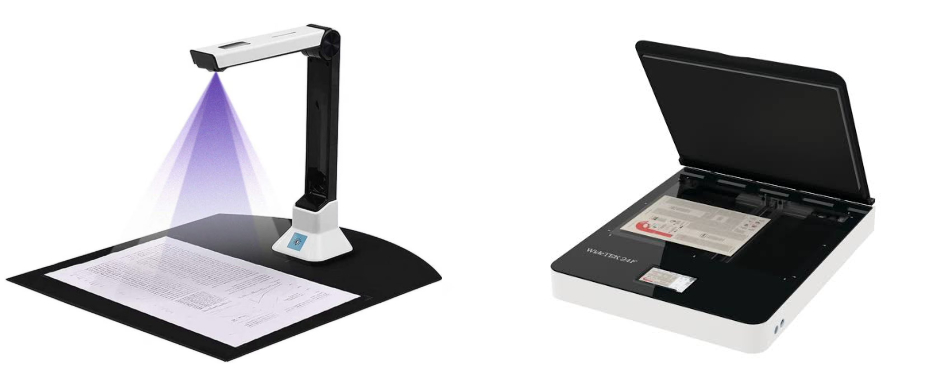

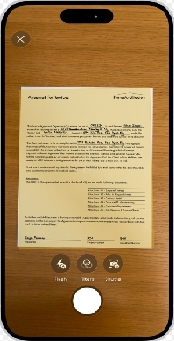
OCR engines are designed to work best with text that is clean, flat, and evenly lit. When you give them a distorted image, they often struggle—shadows and skewed angles are among the most common reasons text becomes garbled or unsearchable. Flatbed scanners provide a controlled environment: the page remains flat, lighting is consistent from below, and the sensor travels at a fixed distance. Camera scans, on the other hand, introduce variables that are tough to manage in real time.
Camera-Scanner vs Flatbed-Scanner
Consider a typical situation: you take a quick photo of a receipt, contract, or form with your phone, save it as a PDF using your OCR engine, and then discover that searching for a client’s name yields nothing—or worse, just random symbols. The difference in camera scanned vs flatbed scanned PDF OCR results isn’t just about the software; it starts with how the image is captured. Once you understand these differences, you can easily adjust your approach to dramatically boost accuracy, even without new hardware.

What usually helps OCR most: scan quality factors compared

A handful of capture qualities determine whether OCR will be successful. Perspective distortion (caused by tilting the camera instead of shooting straight down), uneven lighting (bright spots or shadows across the page), page curl near the spine, motion blur from hand movement, and low effective resolution all make things harder for the OCR engine. The table below compares how camera and flatbed methods typically perform on these factors.
FactorCamera ScanFlatbed Scan

Perspective distortion

High risk unless the phone is perfectly parallel; even a slight tilt can skew lines.

Virtually none—sensor and page are fixed at right angles.

Lighting & shadows

Dependent on ambient light; hands or the phone may cast shadows, and glossy paper can create glare.

Internal lamp provides even, repeatable illumination across the page.

Page flatness

Curved pages near bindings or folded corners often remain visible.

Lid presses the page completely flat against the glass.

Motion blur

Handheld shots can introduce micro-blur, especially in dim light.

Scanner head moves smoothly with a controlled motor.

Effective DPI

Varies with distance and lens; a 12-megapixel photo of an A4 page may deliver less than 200 DPI if not tightly framed.

True optical resolution—set 300 DPI and you get 300 DPI.

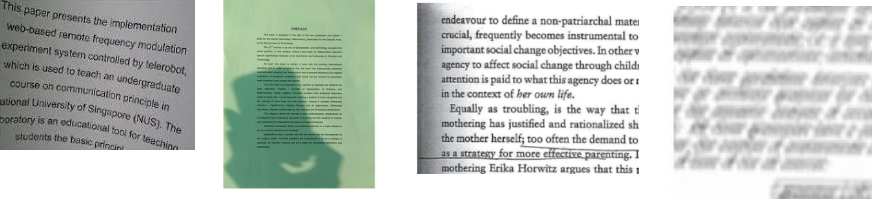
bad camera scan result
The ideal scanning resolution for OCR is 300 DPI.

Example: Estimate the approximate DPI of your scanned image

If your camera shoots 12‑megapixel photos at 4000 × 3000 pixels, but the page only fills about half of the frame, then only roughly six million pixels are actually capturing the text. In that case, the effective resolution covering the document is closer to 2000 × 1000 pixels. Using the long edge (2000 pixels) to estimate DPI for an A4 sheet:

DPI = 2000 / 11.7 ≈ 173 DPI

This happens because the camera isn’t fully using its sensor to capture the page.
The camera is not fully utilizing its pixel count
If you tightly frame the page so the document fills the entire image, the full 4000‑pixel long edge is used:

DPI = 4000 / 11.7 ≈ 341DPI

That’s nearly double the effective DPI, and it makes a significant difference in OCR accuracy.
Takeaway: Flatbed scanners deliver consistent, OCR‑ready quality right away. Camera scans can work well too, but they require a more deliberate approach and often a bit of preprocessing to avoid errors from uneven conditions.

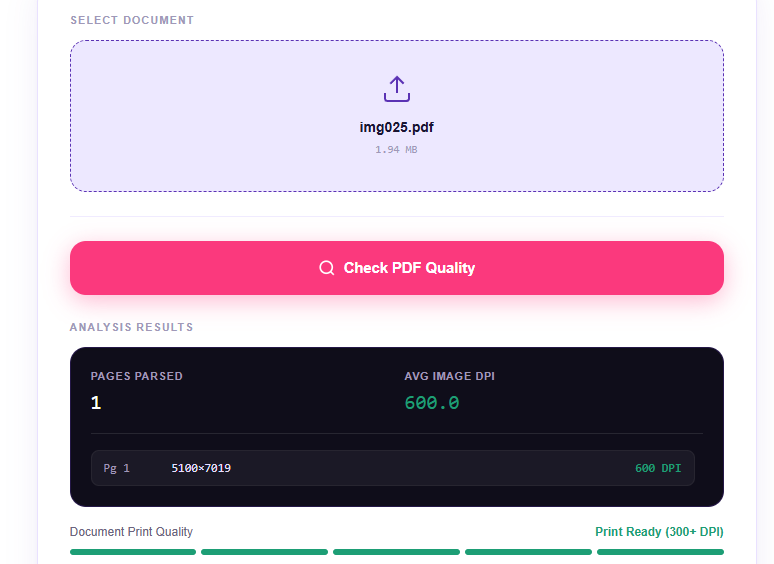
If you prefer, you can use online tools to estimate the DPI of your image, such as the ones listed below:
Snappy-Fix PDF DPI Checker window displaying page-specific DPI values to assess scan resolution for OCR accuracy.
Boost OCR Accuracy and Edit Scanned PDFs with Renee PDF Aide

Convert to Editable Convert to Word/Excel/PPT/Text/Image/Html/Epub

Multifunctional Encrypt/decrypt/split/merge/add watermark

OCR Support Extract Text from Scanned PDFs, Images & Embedded Fonts

Quick Convert dozens of PDF files in batch

Compatible Support Windows 11/10/8/8.1/Vista/7/XP/2K

Convert to Editable Word/Excel/PPT/Text/Image/Html/Epub

OCR Support Extract Text from Scanned PDFs, Images & Embedded

Support Windows 11/10/8/8.1/Vista/7/XP/2K

Free TrialFree TrialNow 800 people have obtained the free version!

How to get better OCR from camera scans and flatbed scans

To improve your camera scanned vs flatbed scanned PDF OCR results, start by mastering your capture technique and using the right post-processing tools. Whether you rely on a smartphone or a traditional flatbed scanner, optimizing your workflow ensures your final documents are fully searchable, editable, and accurate.

Preparing camera/phone scans for better OCR

1. Hold the phone parallel to the document. Keep it directly above the center, and use a tripod or brace your elbows on a table for stability.
2. Ensure even lighting. Natural daylight or two desk lamps at 45° angles on opposite sides will minimize shadows. Avoid overhead lights that cast shadows from your hands onto the text.
3. Tap to focus and check exposure. Before taking the shot, tap the screen where the text is densest to lock focus and sharpness on the letters.
4. Use your phone’s scan mode. Most phones and free scanning apps offer an automatic document mode. Enable it to auto-crop to the page edges and correct perspective as you scan.
5. Save as high-quality JPEG or PNG. Avoid heavy compression (such as low-quality messaging app sharing); fine details around letters need to be preserved.

Optimizing flatbed scans for OCR

1. Clean the scanner glass. Dust, smudges, or stray hairs will show up as dots or lines that can confuse OCR, especially across multi-page documents.
2. Close the lid completely. Even a small gap lets in ambient light, which can wash out the image and reduce contrast near the edges. Use a heavy book on the lid if scanning a thick document.
3. Set resolution to 300 DPI. This is ideal for text recognition; higher resolutions increase file size without significant OCR improvement.
4. Select the appropriate color mode. Use grayscale for documents with highlights or faint print, and pure black-and-white (bitmap) for crisp, high-contrast text. Color is only needed if you want to preserve colored highlights or logos.
Always keep the scanner glass clean—a single speck can cause repeated OCR errors across every page.

FAQ

Can a phone camera scan match a flatbed scanner for OCR?

In perfect conditions—ideal lighting, a steady phone, and a flat document—a phone scan can match flatbed OCR accuracy. However, getting those conditions right takes practice. Flatbed scanners eliminate most variables, making them more reliable for large batches or important documents.

Why does OCR fail on camera‑scanned PDFs even with a good phone?

Usually, the problem is subtle skew, uneven lighting, or slight motion blur—issues that are easy to overlook but can distort text for the OCR engine. Even with a high-megapixel phone, poor angle or shadows can ruin OCR quality.

What DPI should I use for flatbed scanning to get good OCR?

300 DPI is the standard recommendation. It offers enough detail for clear character recognition without creating unnecessarily large files. For very small print, such as footnotes or serial numbers, 400 DPI can help, but higher settings rarely improve results.
Boost OCR Accuracy and Edit Scanned PDFs with Renee PDF Aide

Convert to Editable Convert to Word/Excel/PPT/Text/Image/Html/Epub

Multifunctional Encrypt/decrypt/split/merge/add watermark

OCR Support Extract Text from Scanned PDFs, Images & Embedded Fonts

Quick Convert dozens of PDF files in batch

Compatible Support Windows 11/10/8/8.1/Vista/7/XP/2K

Convert to Editable Word/Excel/PPT/Text/Image/Html/Epub

OCR Support Extract Text from Scanned PDFs, Images & Embedded

Support Windows 11/10/8/8.1/Vista/7/XP/2K

Free TrialFree TrialNow 800 people have obtained the free version!

User Comments

Page 1

Leave a Comment


Your comment has been submitted and is awaiting moderation.