author avatar
    Technology Manager of Test Dept.
Last update by James Smith at 13 July 2026

Summary
Procedures to optimize scanned pdf for ocr involve technical steps such as deskewing, contrast adjustment, and denoising to ensure clean image preprocessing. The content covers a tool-agnostic workflow for improving document resolution and verifying text extraction accuracy across various file formats.


optimize_pdf_for_ocr
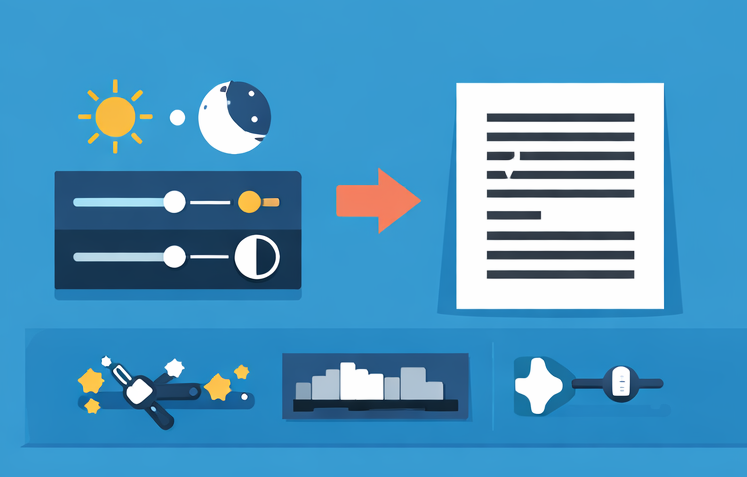
A scanned PDF is nothing more than a set of images. OCR software tries to turn those images into characters, but every speck, faded letter, or tilted line can throw off the recognition. Many users spend hours fixing garbled output simply because the input file was poor quality. In most cases, the issue lies with the scan—not the OCR tool. Before blaming the software, take a close look at the scanned image itself.
Screenshot showing garbled text result when copying from a PDF
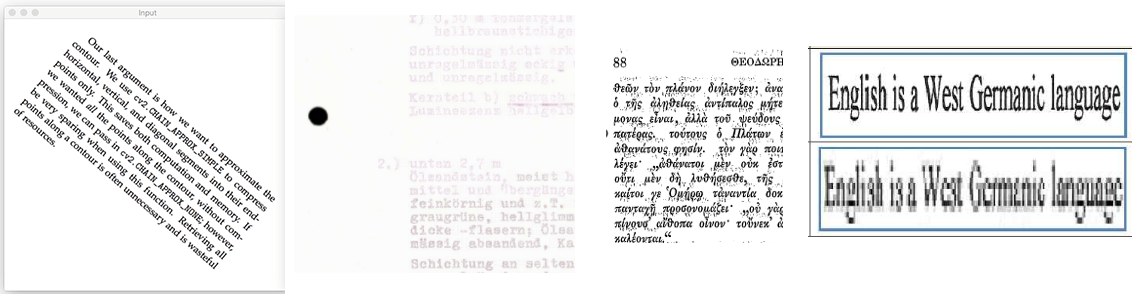
The table below connects common scan defects with their symptoms and the best ways to address them. Use it as a quick triage checklist when reviewing your scanned PDF.
Scan problemVisual symptomLikely fix

Skew (crooked text)

Rotated or slanted lines; text climbs or falls across the page

Automatic deskew before OCR

Low contrast / faded text

Light grey text on an off-white background; hard to read

Contrast enhancement or grayscale adjustment

Noise / halftone patterns

Speckled background, dust, or newspaper-like dots

Denoise or descreen filter

Low resolution

Blurry or pixelated letter shapes; strokes merge together

Rescan at 300 DPI or higher; upsampling as last resort

low_quality_text_images
If you notice any of these issues, the next sections will show you how to address them. The good news: most defects can be fixed using tools you already have or can easily access—no special hardware required.

The main ways to optimize a scanned PDF before OCR

Before getting into step-by-step instructions, it helps to know which tools and techniques address which defects. Each method targets a specific image problem, and you’ll rarely need every fix for every scan. Choose the steps that match what you found during inspection.
StepImportanceReasonSuggested HandlingRecommended Tools

Resolution

Critical

OCR engines need at least 300 DPI for standard text (10–12 pt). Anything below 200 DPI loses fine detail. Upsampling cannot restore missing data.

Always scan at 300 DPI (grayscale or B/W). If rescanning isn’t possible, upsample cautiously to 300 DPI and apply light sharpening.

Renee PDF Aide (export at full resolution), ImageMagick (batch upsample), GIMP (manual DPI check).

Deskew

High

Even a small tilt causes OCR to misread letters (e.g., “rn” → “m”).

Use automatic deskew, then fine‑tune rotation in small increments (0.2–0.5°).

ScanTailor Advanced (batch deskew), Renee PDF Aide (deskew option).

Contrast & Brightness

High

Dark text on a bright background improves recognition, especially for faded or yellowed originals.

Adjust levels/curves instead of brightness alone for better control.

GIMP (Levels/Curves), ImageMagick (batch contrast adjustment).

Denoise / Descreen

Medium

Speckles, dust, or halftone dots confuse OCR engines into false characters.

Apply light despeckle or median filters; use descreen for newspaper scans.

ScanTailor Advanced (batch despeckle/descreen), ImageMagick (noise reduction).

Crop Margins

Medium

Borders, binder shadows, and holes add irrelevant pixels that OCR may misinterpret.

Crop consistently, leaving a 2–5 mm margin to avoid clipping text.

ScanTailor Advanced (batch crop), ImageMagick (-trim for auto‑crop).

Rotate Pages

Medium

OCR requires consistent orientation; upside‑down pages reduce accuracy.

Ensure all pages are upright and aligned before OCR.

PDFsam Basic (batch rotate), Renee PDF Aide (rotate option).

File Format & Colour Mode

High

Grayscale or 1‑bit B/W yields sharper OCR. Heavy JPEG compression breaks letter shapes.

Save cleaned pages as PNG/TIFF; use lossless compression. For text‑only, convert to 1‑bit B/W.

Renee PDF Aide (“Image to PDF” merge with minimal compression), ImageMagick (batch convert to TIFF/PNG).

The following step-by-step guide draws on these fundamentals and shows how to apply them using ordinary desktop tools.
Renee PDF Aide - Powerful PDF Converting/Editing Tool (100 FREE Quota)

Convert to Editable Convert to Word/Excel/PPT/Text/Image/Html/Epub

Multifunctional Encrypt/decrypt/split/merge/add watermark

OCR Support Extract Text from Scanned PDFs, Images & Embedded Fonts

Quick Convert dozens of PDF files in batch

Compatible Support Windows 11/10/8/8.1/Vista/7/XP/2K

Convert to Editable Word/Excel/PPT/Text/Image/Html/Epub

OCR Support Extract Text from Scanned PDFs, Images & Embedded

Support Windows 11/10/8/8.1/Vista/7/XP/2K

Free TrialFree TrialNow 800 people have obtained the free version!

Optimize a Scanned PDF for Better OCR Accuracy - Step by Step

This workflow uses any PDF or image editor with basic cleanup filters. The goal is to turn each page into a crisp, noise‑free image and repackage it for OCR.

1️⃣ Inspect the Original Scan Quality

Open the PDF in a viewer that can show document properties — for example, Adobe Acrobat Reader, Foxit Reader, or even your browser’s built‑in viewer.
ToolHow It WorksWhy It’s Useful

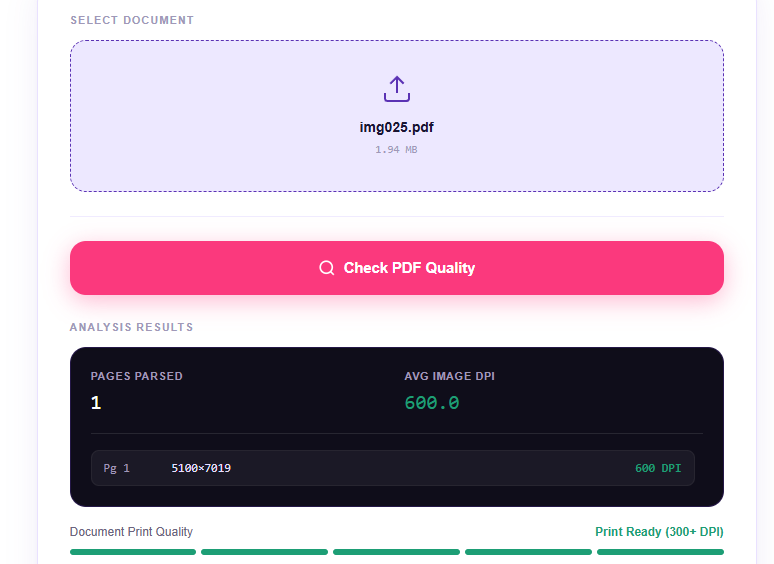
Snappy‑Fix PDF DPI Checker https://www.snappy-fix.com/tools/pdf-dpi-checker

Upload your PDF (up to 20MB). It instantly reports the DPI of every embedded image per page.

Fast, free, no installation. Gives per‑page DPI values and average resolution.

ToolsSeek PDF DPI Checker

Drag‑and‑drop your PDF. It runs locally in your browser, showing DPI_X and DPI_Y for each image plus charts.

Privacy‑friendly (no upload to server). Great for detailed analysis.

PDF dpi checker
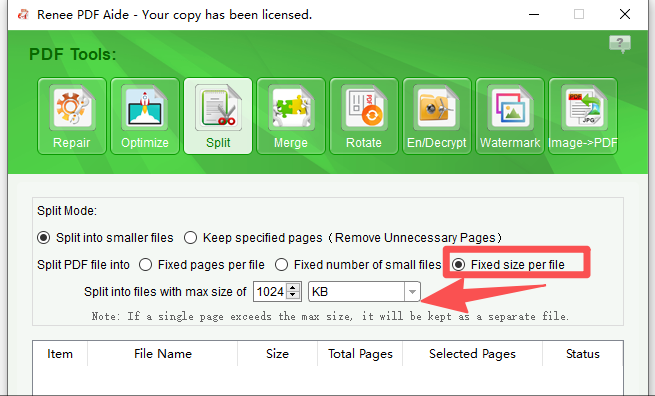
You can use Renee PDF Aide to split a large PDF into smaller files. This makes it easier to check each section individually and quickly verify scan quality or run OCR tests without processing the entire document at once.
Split the PDF into smaller files based on a maximum file size

2️⃣ Open the PDF in a Tool That Supports Image Preprocessing

Basic readers can’t deskew or denoise. You’ll need software that can export pages as high‑quality images and apply cleanup filters.Good free options include:
- Renee PDF Aide — bridges PDF and image editing with simple “PDF to Image” and “Image to PDF” tools.
- GIMP — free, cross‑platform image editor for contrast and noise adjustments.
- PDFsam Basic — free PDF splitter/merger for page extraction.
Always work on a copy of your original file.
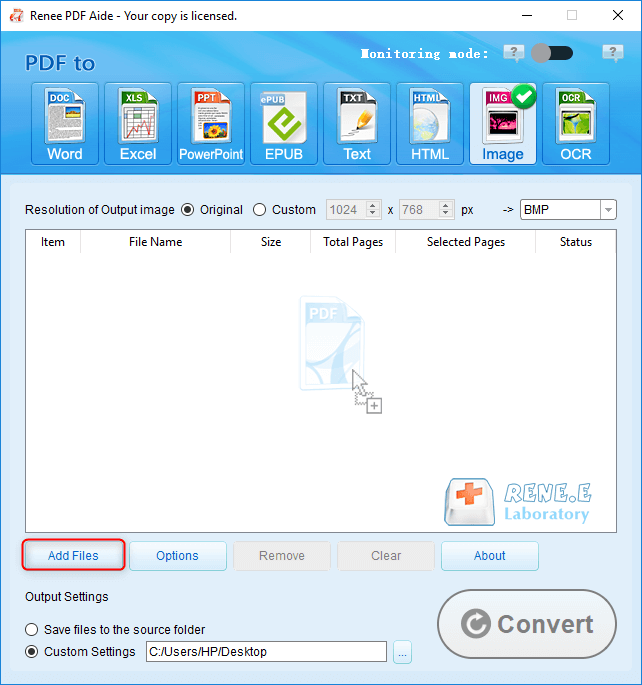
Use Renee PDF Aide’s PDF to Image feature to export each page as a full‑resolution TIFF or PNG. Then open those images in GIMP or another editor to apply sharpening or cleanup filters — even a simple “Sharpen” slider helps, but don’t overdo it.
pdf to image

3️⃣ Verify and Improve Resolution

If your images are already 300 DPI, you’re good. If they’re below 200 DPI, rescan the original document at 300 DPI (black‑and‑white or grayscale).
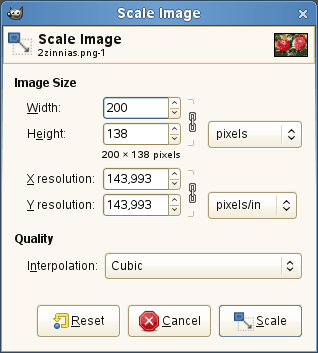
If rescanning isn’t possible, gently upsample from 200 → 300 DPI using GIMP’s Image → Scale Image → Interpolation → Cubic option, then apply a light Unsharp Mask. Upsampling only sharpens edges — it can’t restore lost detail.
gimp image quality cubic
For batch processing, please use ImageMagick with a simple command like mogrify -resize 300dpi *.png. It processes all images in a folder at once.

4️⃣Apply Deskew

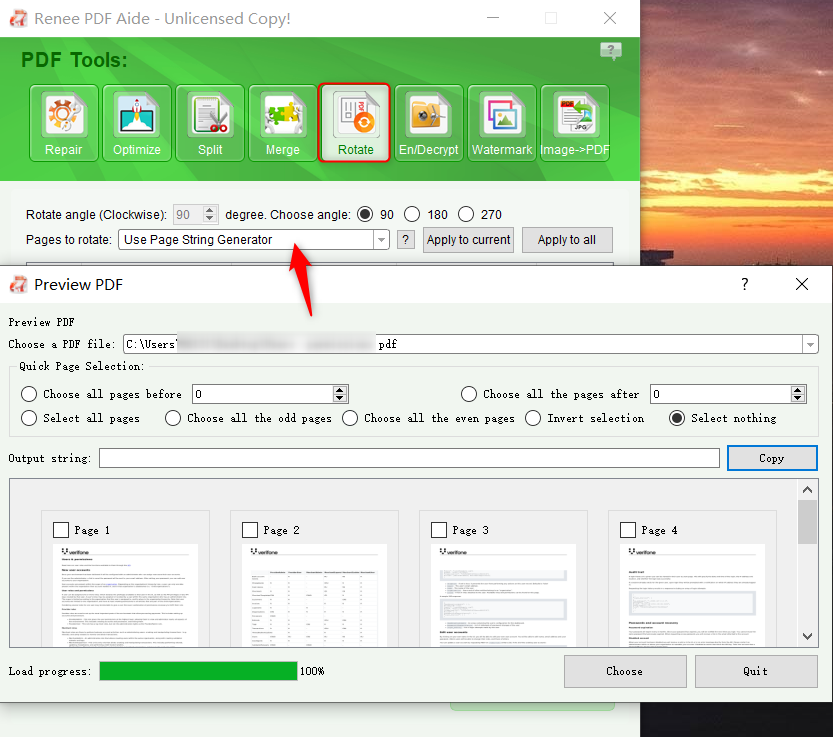
Most scanning tools and editors include automatic deskew.Try Renee PDF Aide’s “Rotate”, or in GIMP use Tools → Transform Tools → Rotate and adjust by small increments (0.2–0.5°). Straight text lines prevent OCR confusion like reading “rn” as “m”.
Rotate pdf in Renee PDF Aide

5️⃣Adjust Contrast and Remove Noise

Boost contrast so text is solid black on a clean white background.
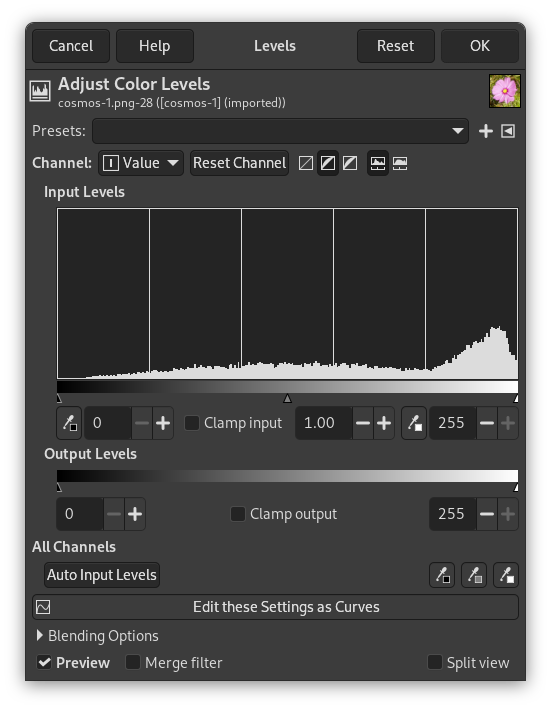
In GIMP, use Colors → Levels or Colors → Curves for better control than a simple brightness slider.
gimp colors levels
Then apply a light Despeckle or Median filter. For scans from newspapers or textured paper, use Descreen to remove dot patterns. Avoid over‑filtering — it can thin letter strokes.

6️⃣Crop Margins and Remove Artifacts

Use the crop tool to trim black borders, binder shadows, punch holes, and excess white space. Leave a small margin (2–5 mm) so no letters are clipped.
Cleaner edges help the OCR engine focus on actual text.

7️⃣Export the Cleaned Image for OCR

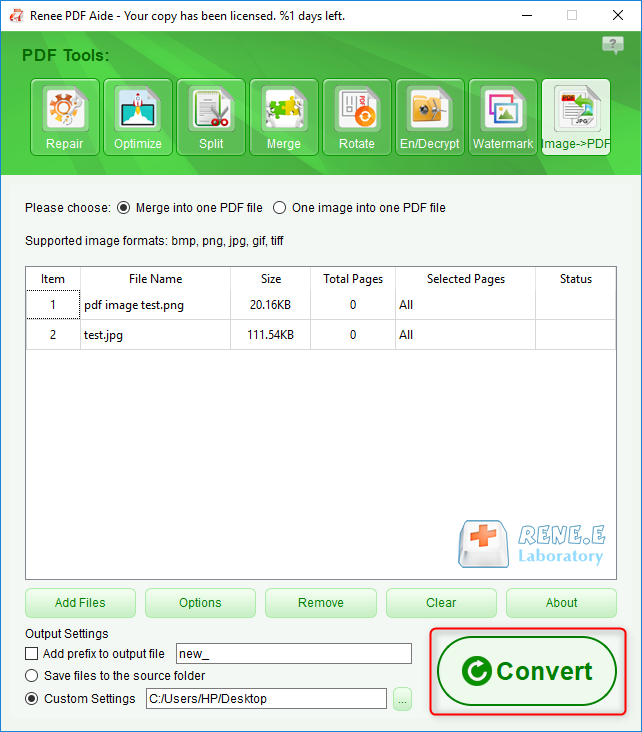
After cleanup, repackage pages as a lightweight PDF.Save each page as PNG or TIFF to avoid compression artifacts. For text‑only documents, converting to 1‑bit black‑and‑white often yields the sharpest OCR.
Use Renee PDF Aide’s Image to PDF feature to merge the cleaned images into a new PDF while preserving resolution and bit depth. Choose Minimal Compression or Lossless Output, then run your OCR engine — the results will be far more accurate than the original scan.
combine image to pdf

FAQ

What is the ideal DPI for a scanned PDF to achieve good OCR accuracy?

300 DPI is ideal for most office documents with 10–12 pt text. Lower resolutions like 150 or 200 DPI often cause thin strokes to vanish and loops to fill in, leading to frequent errors. For very small fonts or intricate symbols, 400–600 DPI may be necessary. If you must work with a low-DPI file, gentle upsampling can help, but expect reduced accuracy—especially with italic or decorative fonts.

How can I optimize a low-quality original that was scanned years ago?

Start by extracting the pages as images and working on a copy. Apply a strong contrast or black-and-white threshold to revive faded text. Use a descreen filter if the document was printed on halftone paper. Gentle upsampling to 300 DPI and light sharpening can help, but if the original scan was made at 100 DPI or less, some details may be lost forever. In those cases, manual retyping of critical sections may still be necessary.

Do online OCR tools affect document privacy, and should I avoid them for sensitive files?

Yes—uploading a scanned PDF to an online service sends your document to a third-party server, where it may be stored or processed by automated systems. For sensitive files like contracts, medical records, or financial documents, always optimize and OCR them locally using desktop software. The steps in this article keep all image processing offline, so your data stays private.
Renee PDF Aide - Powerful PDF Converting/Editing Tool (100 FREE Quota)

Convert to Editable Convert to Word/Excel/PPT/Text/Image/Html/Epub

Multifunctional Encrypt/decrypt/split/merge/add watermark

OCR Support Extract Text from Scanned PDFs, Images & Embedded Fonts

Quick Convert dozens of PDF files in batch

Compatible Support Windows 11/10/8/8.1/Vista/7/XP/2K

Convert to Editable Word/Excel/PPT/Text/Image/Html/Epub

OCR Support Extract Text from Scanned PDFs, Images & Embedded

Support Windows 11/10/8/8.1/Vista/7/XP/2K

Free TrialFree TrialNow 800 people have obtained the free version!

User Comments

Page 1

Leave a Comment


Your comment has been submitted and is awaiting moderation.