author avatar
    Senior Program Developer
Last update by Olivia Brown at 13 July 2026

Summary
This article provides a technical comparison of pdf embedded fonts vs scanned images, detailing the structural differences that impact text extraction and searchability. It outlines diagnostic procedures and specific optical character recognition modes required to process each document type accurately.


You open a PDF and see crisp, readable text. But when you try to select a sentence to copy into your notes—nothing happens. Or you press Ctrl+F to search for a figure, and the results come up empty. Suddenly, what looked like a standard digital document acts more like a static photo. This frustration often comes down to a simple but critical mix-up: treating a PDF with embedded fonts as if it were a scanned image, or vice versa.
This distinction is more than a technical detail. For businesses and legal teams, compliance or e‑discovery often requires documents to be fully searchable. Many government submissions or grant applications will reject files that lack a live text layer. If you use the wrong processing method, you risk garbled output, wasted hours on manual retyping, or a document that fails an accessibility audit. Identifying whether your file is a digital PDF with embedded fonts or a flat, image-only scan is the first step to avoiding these headaches.
Screenshot showing garbled text result when copying from a PDF

Embedded-Font PDF vs. Scanned PDF: Side-by-Side Differences

A direct comparison makes the differences unmistakable. Here’s what changes depending on whether your PDF is truly text-based or just a picture of a page:
FeatureEmbedded-Font PDF (Text‑based)Scanned PDF (Image‑only)

Text layer

Present — each character is a defined glyph

Absent — page is one big picture

Copy/search behavior

Text can be selected, copied, and searched

Text is just pixels; Ctrl+F finds nothing

OCR requirement

Not needed for extraction

OCR is mandatory to make text usable

Accessibility

Screen‑reader friendly

Inaccessible without OCR remediation

File size tendencies

Usually smaller (efficient vector fonts)

Often larger (high‑resolution images)

Text extraction reliability

Fast and accurate native extraction

OCR-dependent; accuracy varies with image quality

In short, an Embedded‑font PDF is a PDF generated from digital text (for example, exporting a Word document or saving a webpage as a PDF). The fonts used in the document are stored inside the file, but if your system doesn’t have those fonts installed, copied text may appear garbled or display incorrectly.
Scanned PDF is A PDF made by scanning paper documents. Each page is saved as an image inside the PDF.
Note: File size and extraction accuracy can vary widely. For benchmarks, see ISO 32000 (PDF specification) and OCR accuracy studies from ISRI or ICDAR.
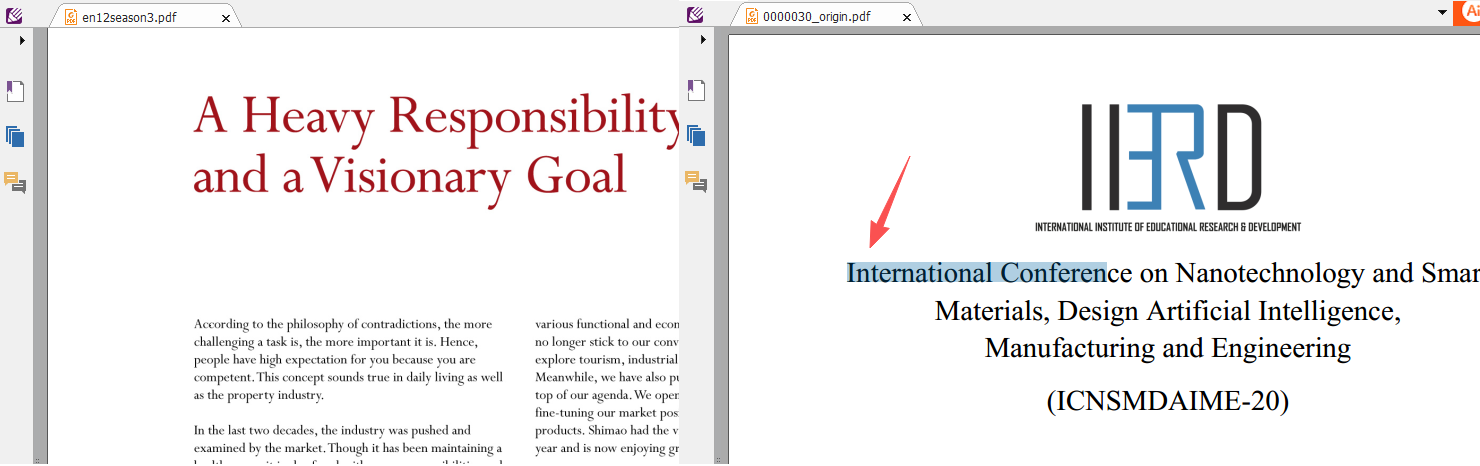
You don’t need special tools for a quick check. Try selecting a line of text with your mouse, then search for a common word with Ctrl+F. If neither works, your PDF is almost certainly a scanned image. If you can highlight text but copying it produces gibberish—random symbols, missing letters, or strange characters—your PDF likely has corrupted or non-standard embedded fonts.
Comparison: left shows scanned PDF with area selection cursor; right shows text PDF with text highlighted

When OCR Is the Right Fix — and Where Renee PDF Aide Helps

If you’ve confirmed your PDF is an image-only scan or a digital file with embedded fonts that produce garbled text, OCR (Optical Character Recognition) is the next logical step. But not all OCR tools handle this challenge equally. Using a generic “image-to-text” converter without considering the pdf embedded fonts vs scanned images distinction can result in poor output.
Renee PDF Aide – The Ultimate PDF2Excel Conversion Solution! (100 FREE Quota)

Versatile Convert to Word/Excel/PPT/Text/Image/Html/Epub

Secure 100% local conversions ensure zero risk of data leaks

Efficient Batch Process dozens of PDF files in seconds
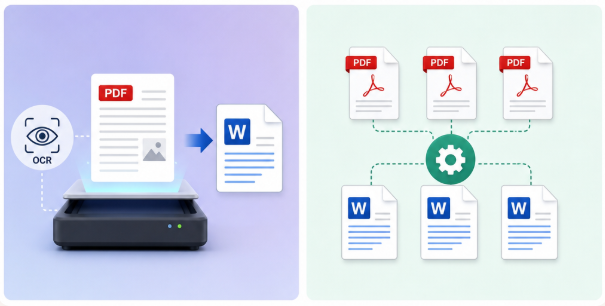
Comprehensive Seamlessly convert PDFs to Excel, PowerPoint, Text, and more

OCR Support Extract Text from Scanned PDFs, Images & Embedded Fonts

Versatile Effortlessly convert XFA, multi

Secure 100% local conversions ensure zero risk of data leaks

Efficient Batch Process dozens of PDF files in seconds

Free TrialFree TrialNow 1335621 people have obtained the free version!
Renee PDF Aide is designed to tackle this exact problem. Unlike web-based converters that require you to upload sensitive documents, Renee PDF Aide processes everything locally on your Windows PC, keeping your data private. It also offers dedicated OCR modes for different file types, so you’re not forced into a one-size-fits-all workflow. Here’s why it’s a strong fit for “digital but uneditable” PDFs:
- Privacy: All processing is done locally—no uploads, no third-party servers, no data leaving your device.
- Speed: Converts up to 80 pages per minute, even with OCR, so large jobs don’t slow you down.
- Flexible OCR modes:
- Mode A: For true scanned images.
- Mode B: For PDFs with embedded fonts that produce garbled text.
- Mode A+B: For mixed or uncertain files, letting the software automatically choose the best approach.
Renee PDF Aide also supports batch processing and aims to preserve tables, columns, and formatting—so your converted documents remain practical and easy to use.
Screenshot of Renee PDF Aide main conversion window, showing multiple PDF files being converted to DOCX format with OCR enabled

How to Check Your PDF Type

Step 1: Diagnose Your PDF Without Guesswork

Before you open any conversion tool, use this quick three-step check:
🔍 Check Method💡 What to Look For🧭 What It Means

✏️ Text Select Test

Try highlighting a word or sentence.

No highlight → Scanned PDF (image‑only).

🔎 Search Test (Ctrl+F)

Search for a visible word.

No results → No text layer → Scanned PDF.

🖼️ Zoom‑In Inspection

Zoom to 200–300%. Crisp text = vector; fuzzy text = image.

Fuzzy/blurry → Scanned PDF; sharp → Digital PDF.

Based on your results, classify your file:
📁 PDF Type📝 Description⚙️ Recommended Mode

🖨️ Scanned Image PDF

Pages are photos; no selectable text.

OCR Mode A

🔤 Digital PDF (Embedded Font Issues)

Text exists but copy‑paste becomes garbled.

OCR Mode B

🔀 Mixed / Uncertain PDF

Contains both scanned pages and digital text, or inconsistent font behavior.

OCR Mode A+B

Using the wrong mode can lead to garbled text, incomplete results, or wasted time. Diagnose first—convert second.

Step 2: Applying the Right OCR Mode in Renee PDF Aide

Once you know your file type, follow these steps to convert your PDF into a fully searchable, editable document.

1. Download and Open Renee PDF Aide

Download and install the latest version of Renee PDF Aide from the official site.
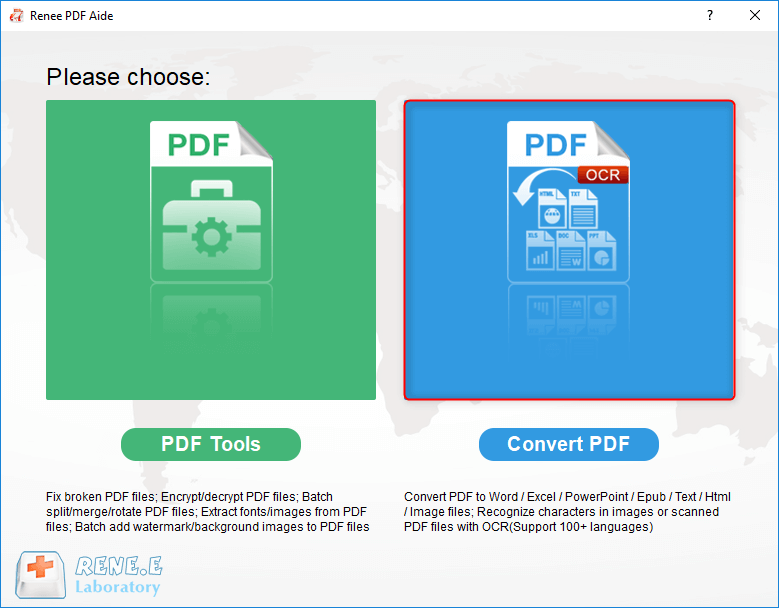
After installation, launch the program. On the main dashboard, click the “Convert PDF” module.
select to convert pdf with renee pdf converter

2. Add Your PDF Files

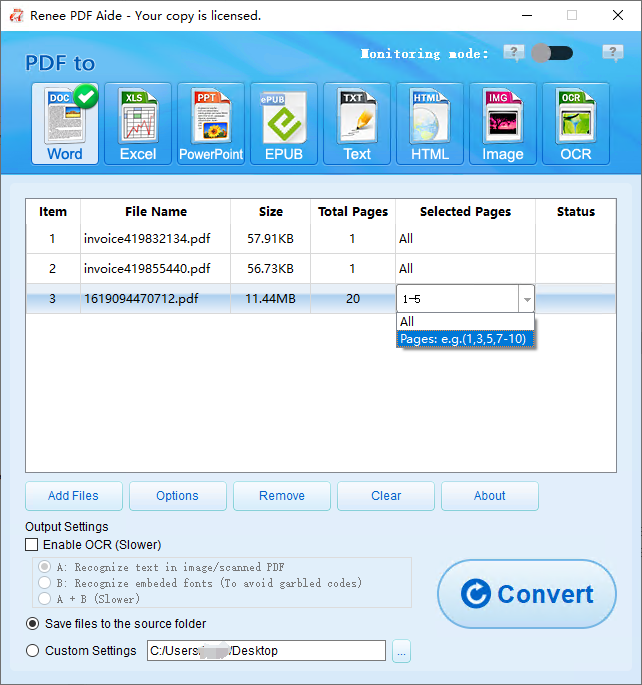
Click “Add Files” to import your PDF(s). You can add multiple files for batch conversion. Each file appears in the list, and you can use the “Selected Pages” dropdown to limit the range if needed.
PDF to Word select pages

3. Select Output Format and Enable OCR
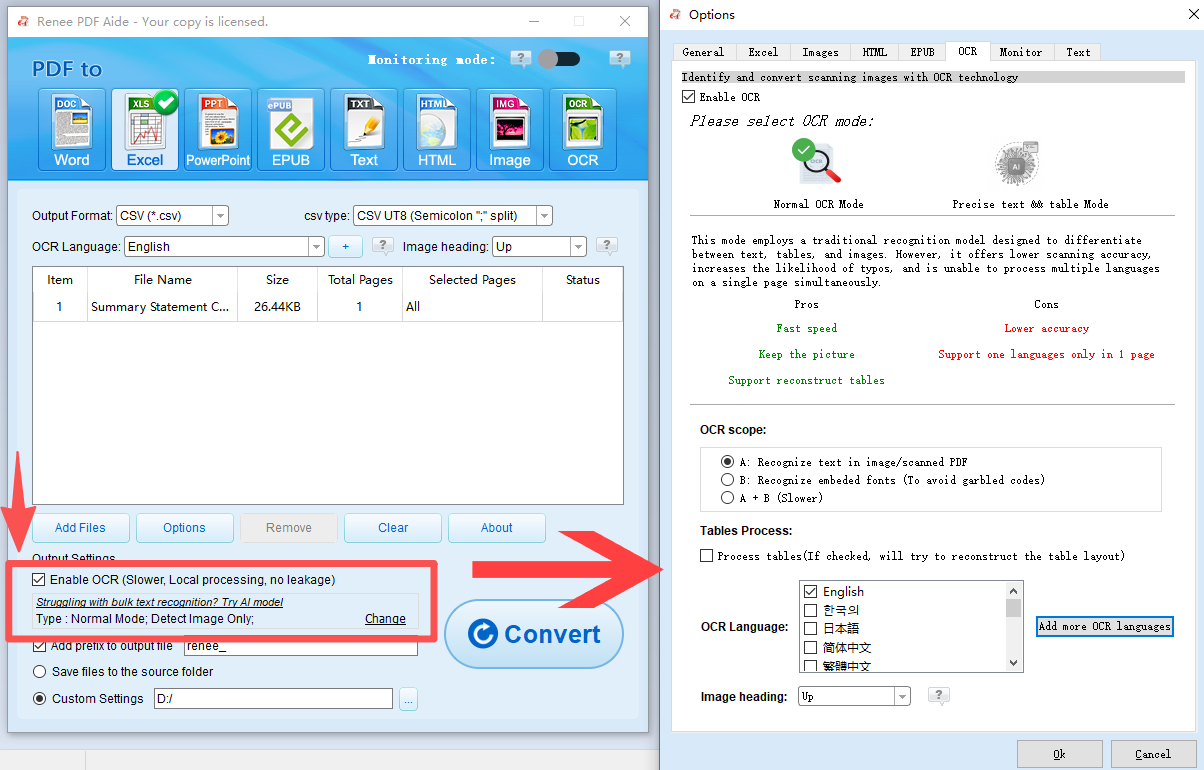
Choose your desired output format (Excel, Word, TXT, etc.) from the top menu. To ensure you get a true text layer, check the “Enable OCR box. This will display the OCR mode selection panel.
PDF Aide using OCR to convert pdf to excel or csv
Match your earlier diagnosis to the correct mode:
- Mode A: For scanned images or PDF pictures. The program uses OCR directly on the image layer. Select the correct language for better accuracy.
- Mode B: For digital PDFs with embedded fonts that produce garbled characters. The software converts those font-based regions into images, then applies OCR—bypassing the broken font encoding and recovering clean text.
- Mode A+B (slower): Use only if you’re unsure or have mixed content. The software automatically analyzes each region and applies the right method, but this takes more time.
Mode A+B is thorough but slower. Use it only when you truly can’t tell which type you have.

4. Convert and Retrieve Results

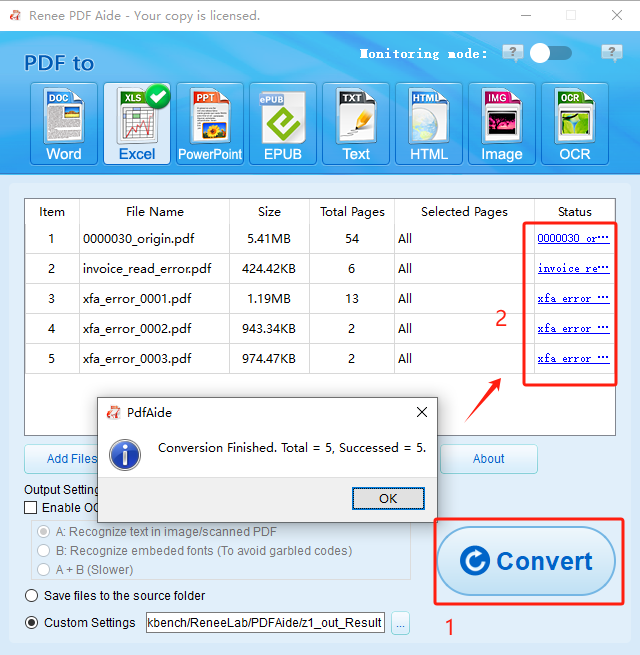
Click “Convert”. Renee PDF Aide will process your file and display a summary. Successful conversions are listed in the status column with clickable links. Open your result file to confirm the text is now selectable, searchable, and accurate.
pdf to excel convert excel
If you need to process a large batch, you can add multiple files and apply the same OCR mode to all of them at once.

How to Confirm the Output Is Now Searchable and Usable

After conversion, use this quick checklist to verify success:
- Search test: Open the converted file (Word, Excel, or TXT) and press Ctrl+F. Search for a word you know is present. If it highlights, your text layer is working.
- Copy-paste test: Select a sentence, copy it, and paste into Notepad or another plain text editor. The text should appear clean, with no strange symbols or missing characters.
- Layout check: Review tables, columns, and lists. The layout should be mostly intact; minor adjustments can usually be made in your target application.

FAQ

What is an embedded-font PDF, and how does it fundamentally differ from a scanned image‑only PDF?

An embedded-font PDF has a real text layer, with each character stored as a defined glyph inside the file. This allows you to select, copy, and search text. A scanned image-only PDF is just a photo of a page—the text is part of the image, so you can see it but not interact with it.

How can I quickly diagnose whether my PDF is a true scanned image or a digital PDF with corrupted embedded fonts without using special software?

Open your PDF in any reader. Try to select a line of text and search for a word with Ctrl+F. If neither works, it’s an image scan. If text highlights but copying produces gibberish, it’s a digital PDF with damaged or non-standard embedded fonts.

Why would I choose Mode B for a digital PDF, and what does the software actually do in this mode to fix garbled characters?

Mode B is for digital PDFs where embedded fonts are corrupted, missing, or use odd encodings that lead to unreadable text. Instead of fixing the font, the program renders the text as an image and then OCRs it, producing clean, readable output.
Renee PDF Aide – The Ultimate PDF2Excel Conversion Solution! (100 FREE Quota)

Versatile Convert to Word/Excel/PPT/Text/Image/Html/Epub

Secure 100% local conversions ensure zero risk of data leaks

Efficient Batch Process dozens of PDF files in seconds

Comprehensive Seamlessly convert PDFs to Excel, PowerPoint, Text, and more

OCR Support Extract Text from Scanned PDFs, Images & Embedded Fonts

Versatile Effortlessly convert XFA, multi

Secure 100% local conversions ensure zero risk of data leaks

Efficient Batch Process dozens of PDF files in seconds

Free TrialFree TrialNow 1335621 people have obtained the free version!

User Comments

Page 1

Leave a Comment


Your comment has been submitted and is awaiting moderation.