
Convert PDF to DOCX Offline: Complete Methods for Privacy & Accuracy

Summary
This guide explains how to convert pdf to docx offline using built-in applications, dedicated desktop software, and free alternatives for different document types. It covers method selection based on PDF origin, OCR requirements, batch processing needs, and formatting preservation to ensure reliable offline conversion results.


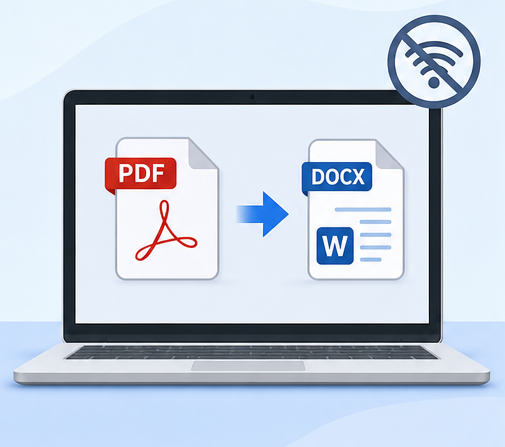
| Key Point | Offline Conversion 🖥️ | Online Conversion 🌐 |
|---|---|---|
🔒 Privacy & Security |
Files stay on your computer |
Files uploaded to website |
📶 Internet Need |
Works anytime, no connection required |
Needs stable internet |
⚡ Speed & Reliability |
Fast for big or multiple files |
Slower uploads, server delays |
📁 File Limits |
No page or size caps |
Often restricted or paywalled |
💰 Cost |
Free or one‑time purchase |
Monthly or yearly subscription |
🧠 OCR & Settings |
Full control over output |
Basic or hidden options |
👌 Best For |
Confidential docs, travel, poor connectivity |
Quick small jobs, casual use |
📄 Examples |
Contracts, IDs, invoices, medical forms, reports |
Simple PDFs, short notes |
Why offline matters
- 🔐 Protects sensitive data
- 🚫 Works without internet
- 📂 Handles large or batch files easily
- 🆓 Avoids upload limits and watermarks
- ⚙️ Gives more control over OCR and formatting
Ideal users
- 💼 Business professionals
- 🎓 Students
- ⚖️ Legal & medical staff
- 🏠 Remote workers
- 🕵️ Privacy‑focused users
- A native text PDF usually comes from software like Word, Excel, or a digital export system
- A scanned PDF is essentially a set of images wrapped inside a PDF container
- A mixed-content PDF may have selectable text on some pages and scanned image content on others
- An XFA form PDF is a more specialized format often used in structured institutional forms
| PDF Type | Characteristics | Recommended Offline Method | OCR Needed? | Formatting Expectation |
|---|---|---|---|---|
Native text PDF |
Selectable text, clean digital origin |
Microsoft Word built-in (try first) or Renee PDF Aide |
No |
Good to excellent |
Scanned/image PDF |
No selectable text, appears as pictures |
OCR-capable converter (Renee PDF Aide recommended) |
Yes |
Requires OCR for any editable text |
Mixed content PDF |
Combination of text and scanned images |
OCR-capable converter (Renee PDF Aide) |
Yes (recommended) |
Best results with OCR enabled |
XFA form PDF |
Interactive forms from banks/government |
Specialized XFA-compatible tool (Renee PDF Aide) |
Varies |
Most standard tools fail; error page appears |
Works well for vs Fails for
| Works well for | Often fails for |
|---|---|
Simple text PDFs |
Scanned PDFs |
Letters and reports |
Complex tables |
Basic formatting |
Multi-column layouts |
One-off conversions |
Batch conversion |
Small office documents |
XFA forms |
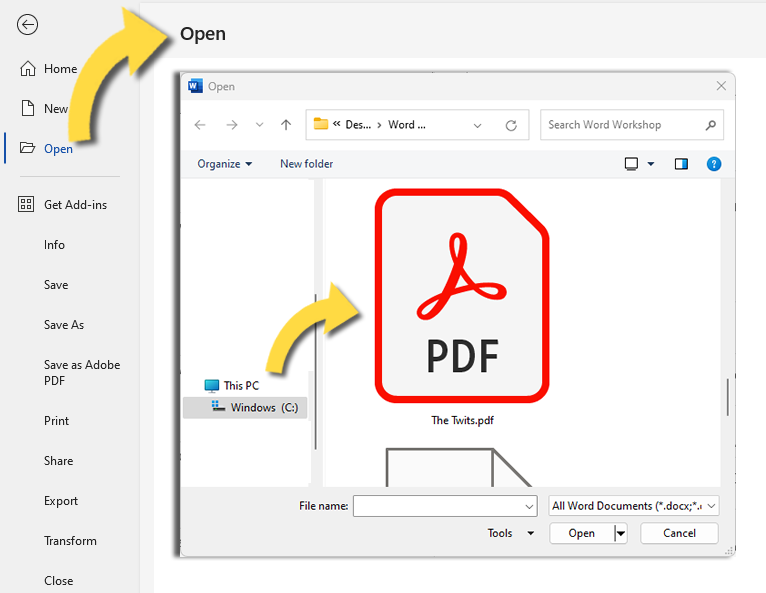
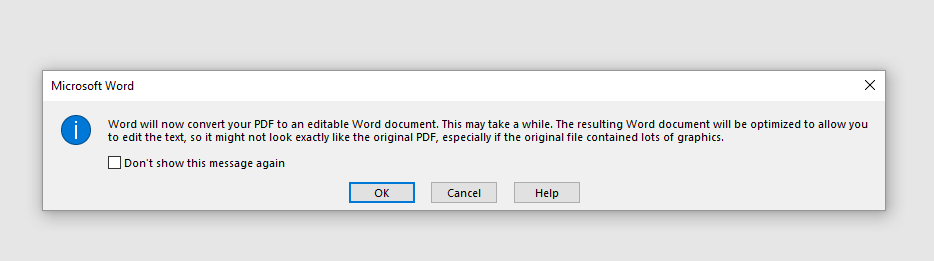
How to use Microsoft Word for offline PDF to DOCX conversion

Versatile Convert to Word/Excel/PPT/Text/Image/Html/Epub
Secure 100% local conversions ensure zero risk of data leaks
Efficient Batch Process dozens of PDF files in seconds
Comprehensive Seamlessly convert PDFs to Excel, PowerPoint, Text, and more
OCR Support Extract Text from Scanned PDFs, Images & Embedded Fonts
Versatile Effortlessly convert XFA, multi
Secure 100% local conversions ensure zero risk of data leaks
Efficient Batch Process dozens of PDF files in seconds
- Fully offline operation – sensitive files never leave your computer
- Advanced OCR technology handles scanned PDFs and image-based documents
- Batch conversion capability with speeds up to 80 pages per minute
- XFA form support for bank and government PDFs that many other tools fail to process
- Supports conversion from PDF to Word, Excel, PowerPoint, ePub, Text, HTML, JPG, TIFF, and more

- Better formatting preservation on documents with tables, columns, headers, and footers
- OCR support for scanned PDFs and image-based pages
- Batch processing so multiple PDFs can be converted in one run
- XFA compatibility, which is critical for some institutional and official forms
- Local processing, meaning no cloud upload is required
1. Launch Software and Select Conversion Mode

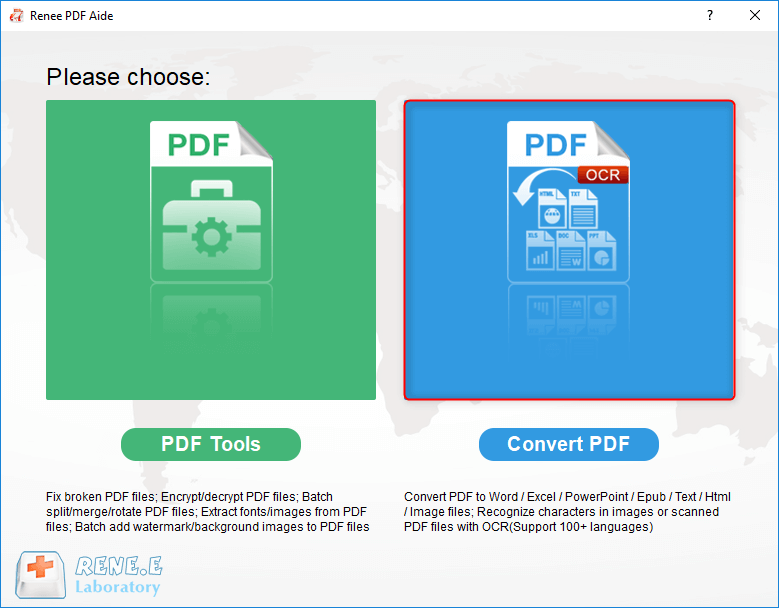
2. Add Source PDF Files
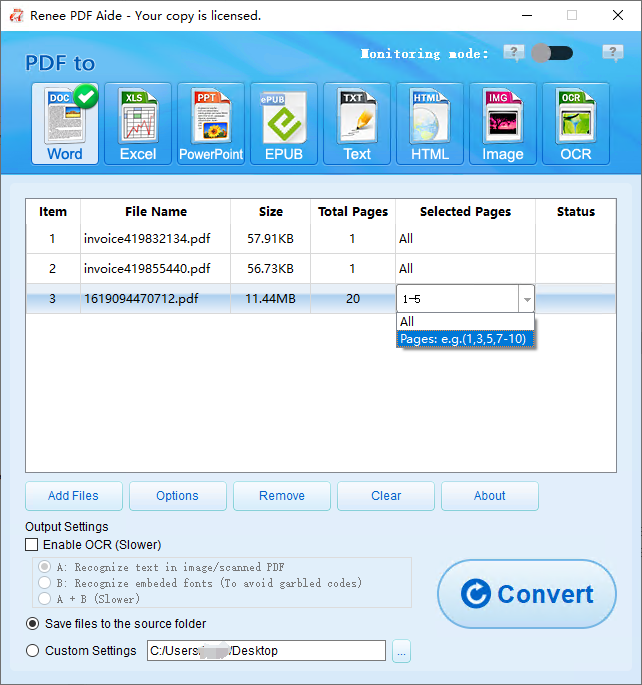
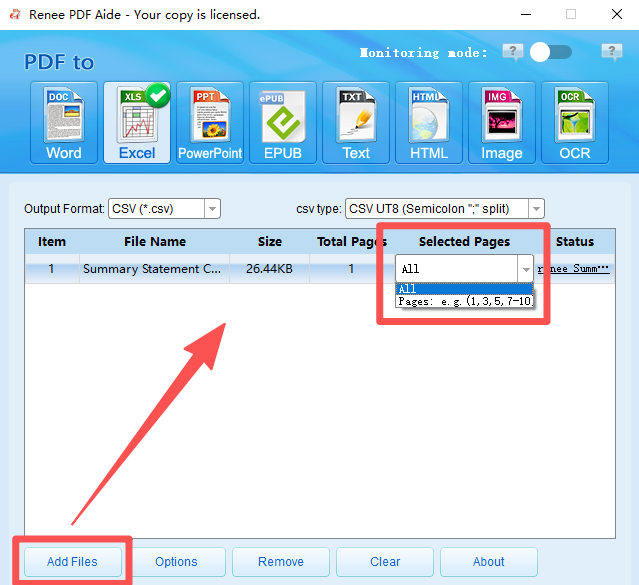
3. Choose Output Format as Word/DOCX
4. (Optional) Configure OCR Settings for Scanned PDFs
- Mode A: Recognize text in pictures or PDF scans – Best for pages that are essentially scanned images. The OCR engine reads visible text from the image layer.
- Mode B: Identify built-in fonts to avoid garbled characters – Useful when the PDF uses embedded fonts that do not convert cleanly. The software turns those fonts into image-like input and then recognizes the text.
- Mode A+B (slower) – The program automatically checks whether the page content behaves more like an image or an embedded-font PDF. This is more thorough, but it takes longer.
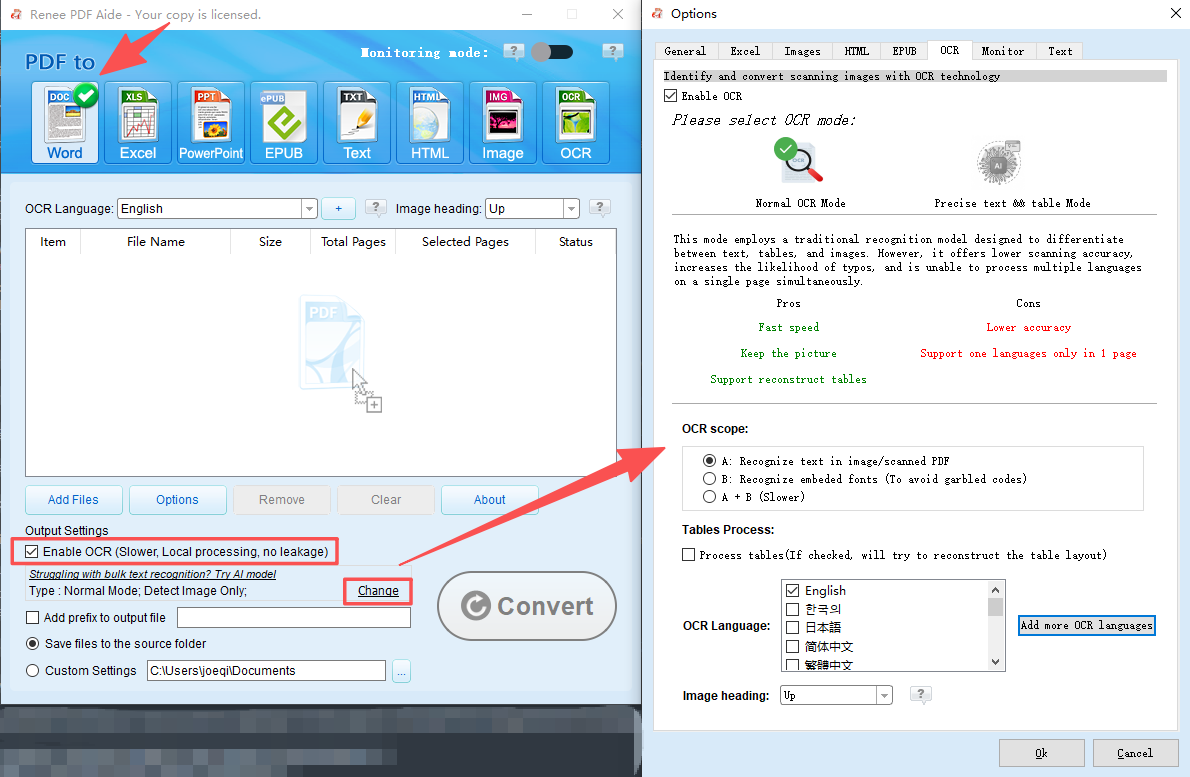
5. Adjust Advanced Options (Optional)
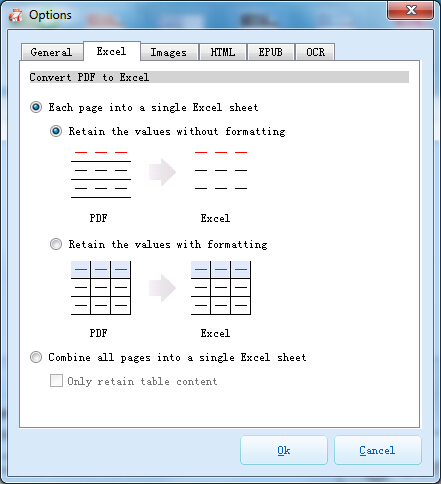
6. Start Conversion

7. Access Converted DOCX Files
Versatile Convert to Word/Excel/PPT/Text/Image/Html/Epub
Secure 100% local conversions ensure zero risk of data leaks
Efficient Batch Process dozens of PDF files in seconds
Comprehensive Seamlessly convert PDFs to Excel, PowerPoint, Text, and more
OCR Support Extract Text from Scanned PDFs, Images & Embedded Fonts
Versatile Effortlessly convert XFA, multi
Secure 100% local conversions ensure zero risk of data leaks
Efficient Batch Process dozens of PDF files in seconds
- Free to use
- Works offline
- Available on multiple platforms
Disadvantages:
- Formatting may shift on complex PDFs
- Limited OCR capability
- Not ideal for scanned or XFA PDFs
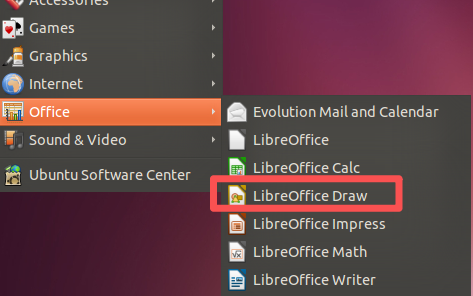
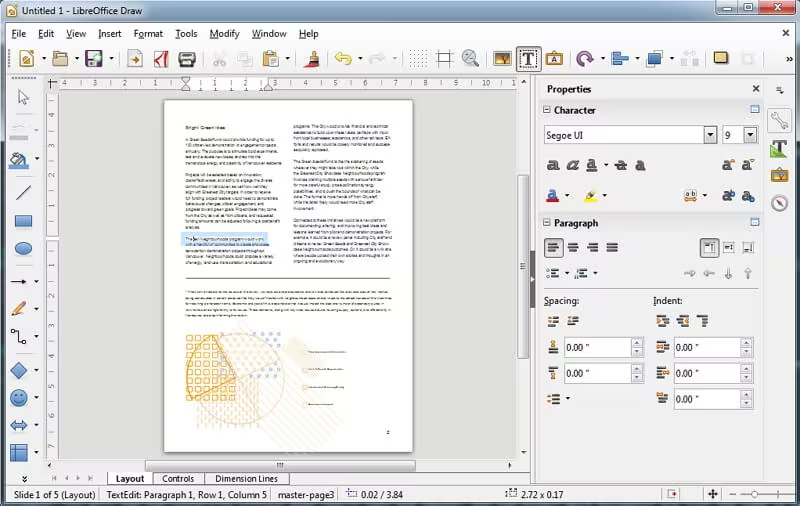
How to use LibreOffice
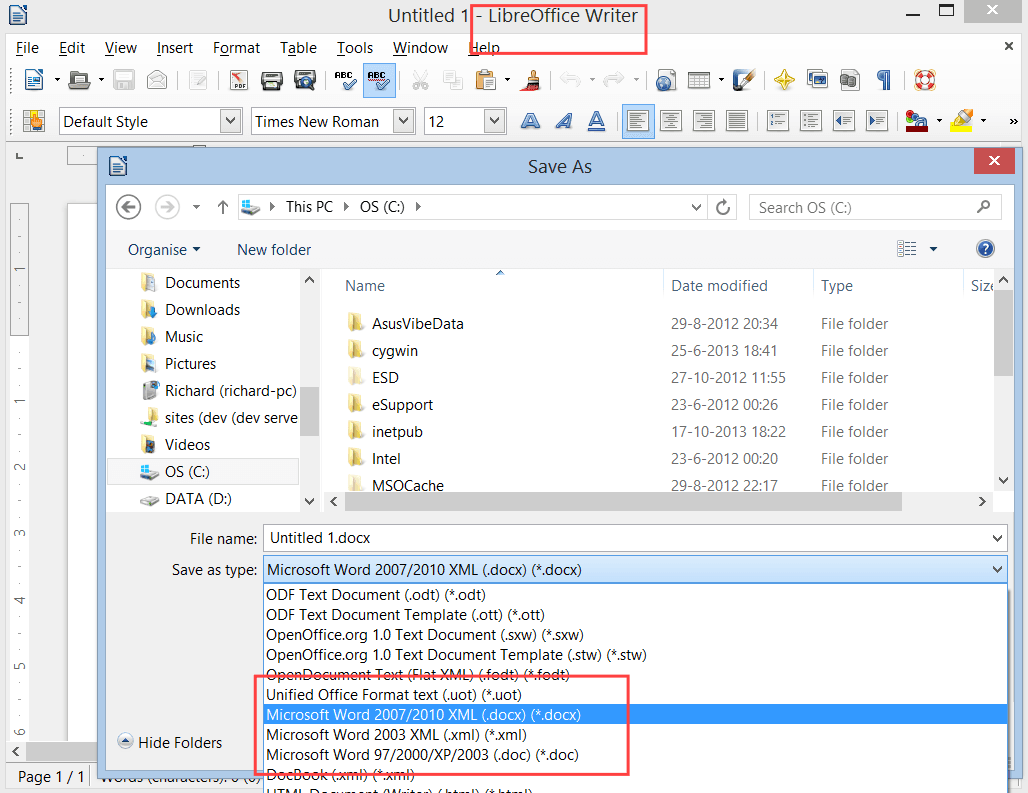

- Free desktop tool
- Works offline after installation
- Suitable for simple batch conversion on Windows
Disadvantages:
- No OCR for scanned PDFs
- Windows only
- No XFA support
| Tool | Main Features ⚙️ | Platforms 💻 | Pros 👍 | Cons 👎 |
|---|---|---|---|---|
Apryse PDF2Word |
Stand‑alone CLI app, converts PDF → Word/RTF |
Windows • macOS • Linux |
🔒 Strong privacy, 📝 Keeps formatting |
💰 Commercial license, not free |
PDF‑to‑DOC Toolkit |
Python CLI, batch convert, OCR via Tesseract |
Cross‑platform (Windows~~~~, macOS, Linux) |
🧑💻 Flexible, 🆓 Open source |
⚙️ Needs Python setup, 🧩 Extra OCR install |
Pandoc |
Universal doc converter, supports PDF → DOCX (via LaTeX/filters) |
Windows • macOS • Linux |
🌍 Widely used, 🔧 Many formats |
📄 Formatting may break, 🧑💻 Needs config |
LibreOffice CLI |
soffice command, converts PDF → DOCX |
Windows • macOS • Linux |
🆓 Free, 🖥️ GUI + CLI |
🖼️ Complex PDFs may lose layout |
Poppler + pdf2docx |
Poppler utilities + Python pdf2docx |
Windows • macOS • Linux |
⚡ Fast, 🔓 Open source |
🧑💻 Requires combo setup |

- Good for automation
- Works offline
- Useful in scripted workflows
Disadvantages:
- Steep learning curve
- Not beginner-friendly
- Formatting results can vary
| Tool/Method | Cost | OCR Support | Batch Conversion | XFA Forms | Best For |
|---|---|---|---|---|---|
Microsoft Word |
Free (with Office) |
No |
No |
No |
Simple text-only PDFs |
Renee PDF Aide |
Paid (trial available) |
Yes (Mode A/B/A+B) |
Yes (80 pages/min) |
Yes |
Scanned docs, complex layouts, privacy, batch jobs |
LibreOffice |
Free |
Limited |
Yes |
No |
Budget users, basic text PDFs |
PDF24 Desktop |
Free |
No |
Yes |
No |
Windows batch conversion for text PDFs |
Higher DPI for scanned documents
Try free methods first
If a file is large, test or split into smaller files first
Can I convert a scanned PDF to DOCX offline for free?
Does Renee PDF Aide work completely without an internet connection?
How many pages can Renee PDF Aide process in a single batch conversion?
Why does my formatting break when I open a PDF directly in Microsoft Word?
Versatile Convert to Word/Excel/PPT/Text/Image/Html/Epub
Secure 100% local conversions ensure zero risk of data leaks
Efficient Batch Process dozens of PDF files in seconds
Comprehensive Seamlessly convert PDFs to Excel, PowerPoint, Text, and more
OCR Support Extract Text from Scanned PDFs, Images & Embedded Fonts
Versatile Effortlessly convert XFA, multi
Secure 100% local conversions ensure zero risk of data leaks
Efficient Batch Process dozens of PDF files in seconds
Relate Links :
LibreOffice PDF to Word Conversion: How to Convert PDFs to Editable Word Documents

12-03-2026
Jennifer Thatcher : This guide covers libreoffice pdf to word conversion using the free office suite. It includes detailed steps for...
Save Time: Convert Multiple PDFs to Word for Business and Academic Work
22-11-2025
Jennifer Thatcher : Discover the fastest, most reliable methods to convert multiple PDFs into Word documents in just seconds. This comprehensive...
Best Bulk PDF Converter Tools: Quickly & Easily Convert Multiple Files
20-11-2025
Amanda J. Brook : Discover the best bulk PDF converter tools to save time and boost productivity. Compare top free and paid...
A Beginner’s Guide : How to Extract Text from PDFs?

02-10-2025
Ashley S. Miller : Learn how to extract text from PDF files with ease using free tools and OCR technology. This guide...



User Comments
Leave a Comment