How to Edit Bank Statement in Excel: Convert PDF to Editable Spreadsheet Easily
16 January 2026John Weaver Senior Program Developer
Last update by James Smith at 17 January 2026
Summary Learn how to edit bank statements in Excel by converting PDFs for easier organization and analysis. This guide covers secure methods, legal considerations.
Having trouble editing your bank statement PDF? You’re not alone—most statements are locked, making them frustrating to work with. The good news is that with the right tools, you can convert them to Excel in just a few minutes, giving you full control for sorting, analyzing, and organizing your finances.
This guide walks you through clear, step‑by‑step methods, including reliable desktop software like Renee PDF Aide for secure, offline conversion. It’s an ideal solution for budgeting, expense tracking, or managing personal finances—all while keeping your data safely on your own device.
Why Bank Statements Are Hard to Edit Directly
Bank statements usually come as PDF files because banks prioritize security and consistency. PDFs prevent accidental changes and ensure the document looks the same for everyone. Sstatements are scanned images or use special formats like XFA (common in banking and government documents), which makes them even harder to edit.
Regular PDF editors often fail here—they might let you add text or highlights, but they break tables, shift columns, or turn everything into a mess when you try to modify transaction details. Direct editing rarely works well and can damage the original layout.
The reliable way forward is to convert the PDF to Excel first. This turns locked tables into editable cells while keeping the structure as intact as possible, so you can sort, filter, and analyze your data without frustration.
How to Edit Bank Statement in Excel by Converting PDF Files
The most practical and lawful approach is to convert your bank statement PDF into an Excel file. Once it’s in Excel, you can safely adjust formatting, add notes, or organize transactions for personal use.
Keep expectations realistic: conversion works well for readable text-based PDFs, but scanned or complex layouts may need some cleanup afterward. The goal is clear, structured data you can actually work with—not perfect replication of the original design.
Renee PDF Aide for Editing Bank Statements in Excel
For the best balance of power, privacy, and ease of use, we highly recommend Renee PDF Aide. This isn’t just another PDF converter; it’s a comprehensive desktop solution designed to handle complex data extraction tasks with precision—perfect for turning bank statements into editable Excel files. As a local Windows executable software, it ensures your sensitive financial data stays on your computer, avoiding any upload to servers and providing superior privacy compared to online tools.
It’s particularly powerful for extracting tables from both native and scanned PDFs thanks to its built-in advanced OCR (Optical Character Recognition) technology. A key advantage is its versatility. It can convert your PDF tables directly into:
• Excel (*.xlsx)
• CSV (*.csv) (perfect for databases and data analysis)
• Markdown (ideal for AI training data or documentation)
• TXT files
• Editable Word documents
•…and many other formats.
New in 2026: Integrate with AI tools like ChatGPT for post-conversion categorization—simply paste your Excel data and prompt “Categorize these transactions by type.”
Because it runs locally on your machine, your sensitive documents never leave your computer, ensuring complete data privacy.
Renee PDF Aide – The Ultimate PDF2Excel Conversion Solution! (100 FREE Quota)
Versatile Convert to Word/Excel/PPT/Text/Image/Html/Epub
Secure 100% local conversions ensure zero risk of data leaks
Efficient Batch Process dozens of PDF files in seconds
Comprehensive Seamlessly convert PDFs to Excel, PowerPoint, Text, and more
OCR Support Extract Text from Scanned PDFs, Images & Embedded Fonts
Versatile Effortlessly convert XFA, multi
Secure 100% local conversions ensure zero risk of data leaks
Efficient Batch Process dozens of PDF files in seconds
Renee PDF Aide offers full support for the XFA format—a specialized PDF standard commonly used by banks and government agencies. In contrast, most conversion tools that lack XFA compatibility generate only an error page, as illustrated below:
To get started with Renee PDF Aide and convert your bank statement for easy editing in Excel, follow these simple steps:
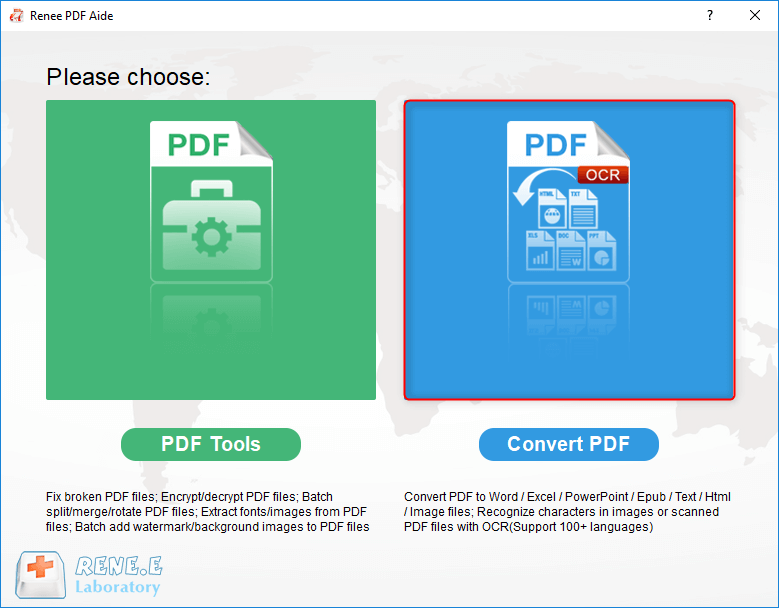
① After installing Renee PDF Aide, launch the program. Select “Convert PDF”.
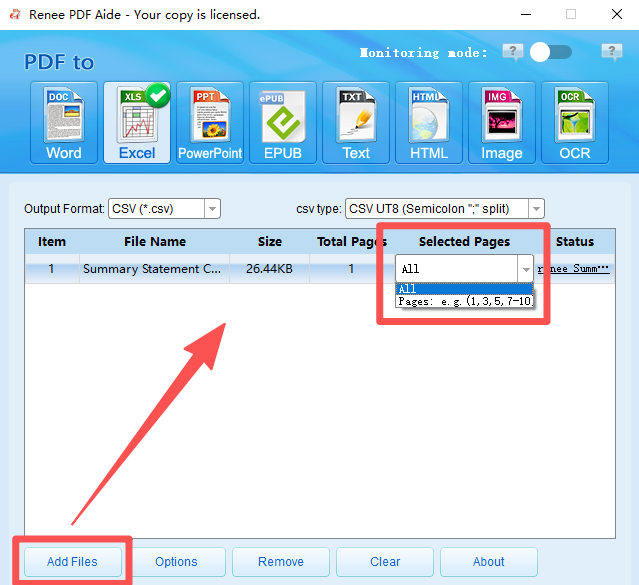
② Add the PDF files to be converted by clicking the “Add Files” button. The software supports batch conversion, allowing you to import multiple files simultaneously. Once added, the file information will appear in the conversion list. Click the “Selected Pages” list to set the pages for conversion.
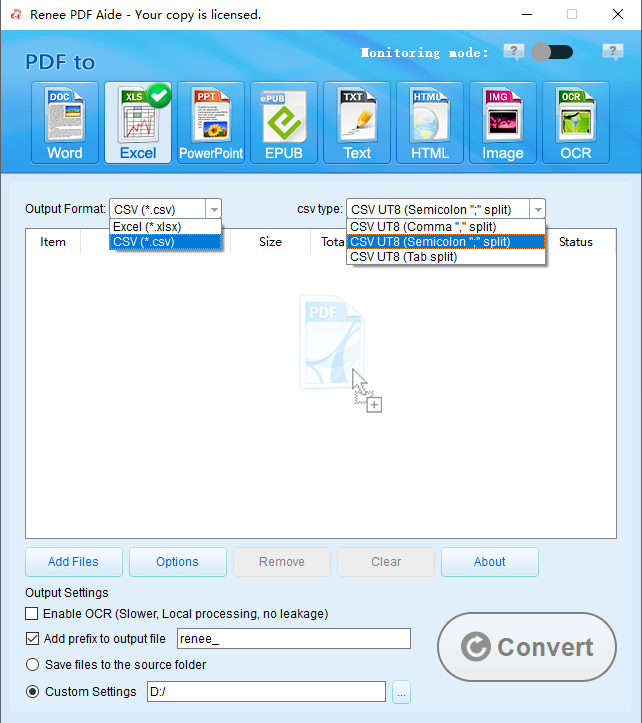
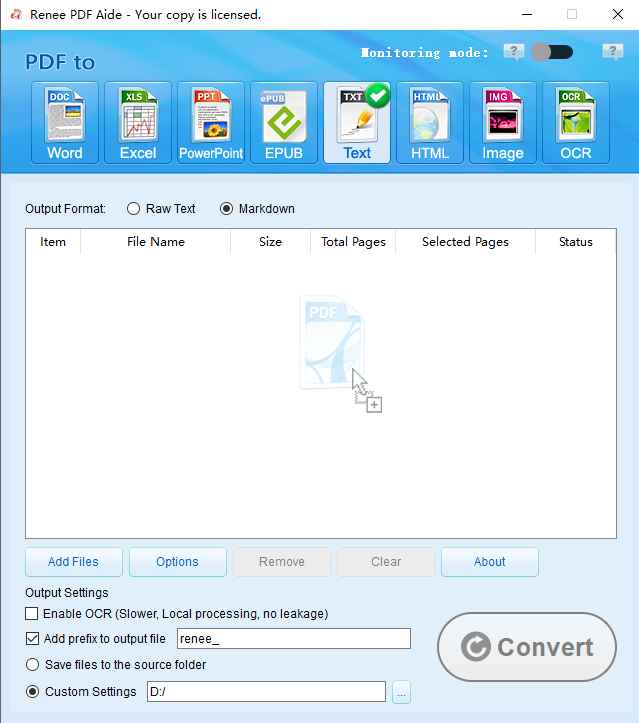
③ Select Your Output Format. On the top bar, choose your desired format. For tables, you’ll likely pick Excel, CSV in Excel tab; If you choose to convert to TXT, you may choose Markdown or TXT in TXT tab.
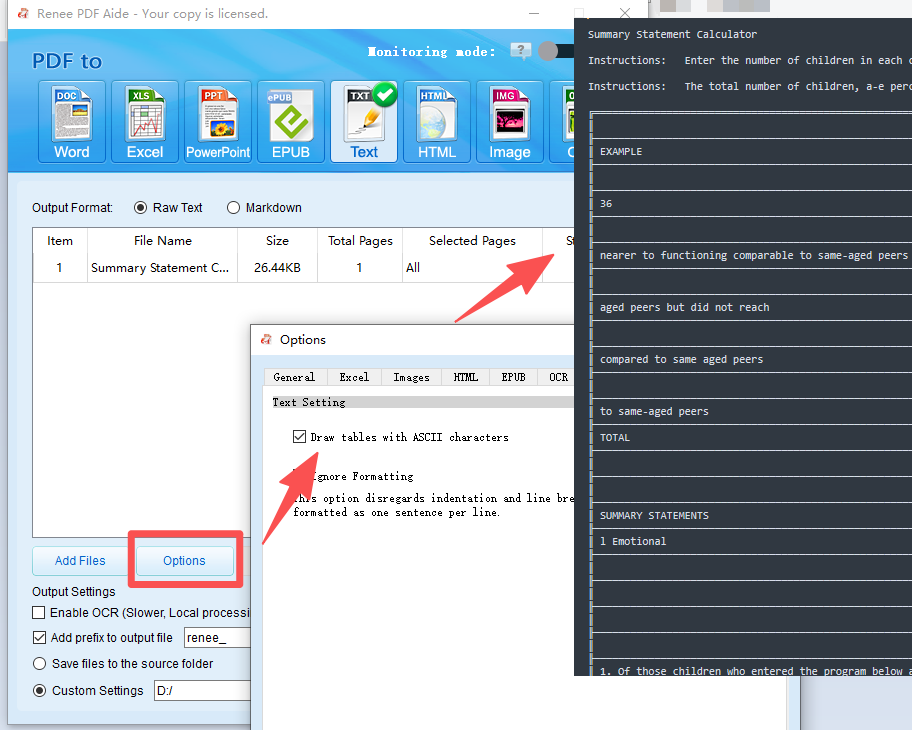
If you need to convert tables from a PDF file into ASCII format, Renee PDF Aide can handle that too.
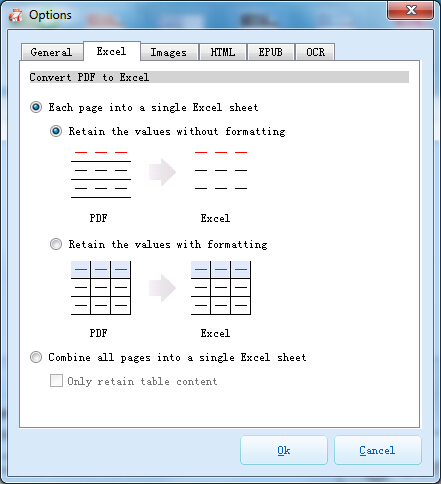
Pro Tip: Click “Options” next to the output format. For Excel, this lets you decide whether to put all pages into one sheet or create separate sheets for each page—incredibly useful for large reports.
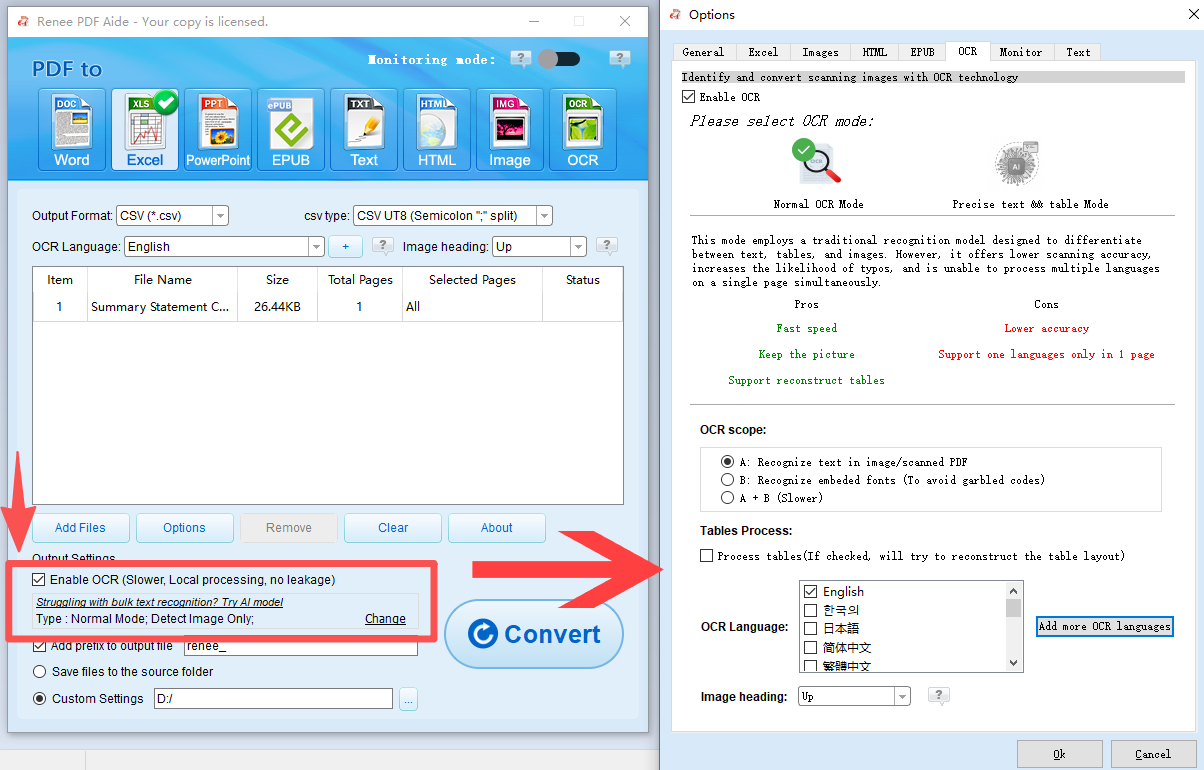
④ If your PDF file is a scanned copy (i.e., an image), please select “Enable OCR”. If your PDF is native (text-based), you can skip this step.
Understanding OCR Modes:
• A: Recognize text in pictures or PDF scans: This mode assumes the text on the PDF page is in a picture/scanned image and uses OCR (selecting the corresponding language improves results) to recognize and output the text.
• B: Identify built-in fonts (to avoid garbled characters): This mode assumes the text on the PDF page uses embedded fonts. The program converts these fonts into images, then uses OCR (selecting the corresponding language improves results) to recognize and output the text.
• A+B (slower): The program automatically determines whether the font in the file is a picture or an embedded PDF font, then converts and outputs it. This mode is time-consuming, resulting in longer conversion times.
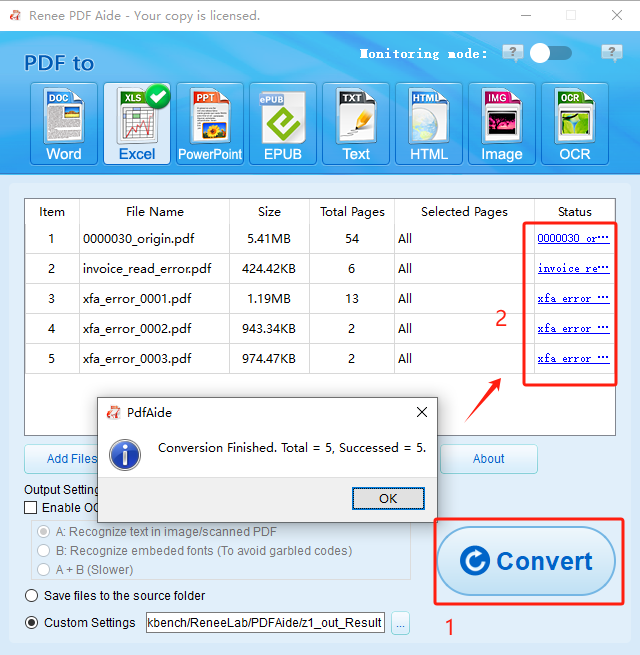
⑤ Click the “Convert” button. After conversion, a prompt will display the total number of files converted, as well as the successful ones. Your PDF table is now in a fully editable format. To access the result files, click the links in the “Status” column.
Renee PDF Aide provides a secure, fast, and highly accurate way to handle nearly any table extraction task you throw at it.
Alternative Ways to Edit Bank Statements in Excel
While Renee PDF Aide stands out for its accuracy, privacy, and handling of complex bank formats, many users look for completely free alternatives that require no payment or minimal setup. These options can work well for simpler bank statements, especially if you’re dealing with text-based PDFs and only need occasional conversions.
Method Comparison Overview
Method Name
Installation Required
Supports Scanned PDF
Privacy Risk
Suitable Usage Frequency
Online PDF to Excel Tools
No
Limited
High (files uploaded to servers)
One-time or occasional use
Desktop PDF Conversion Software
Yes
Yes
Low (local processing)
Regular or frequent use
Excel Built-in PDF Import
No
No
Very Low (local only)
Repeated analysis by experienced users
However, results vary depending on the statement’s layout, whether it’s scanned, and how sensitive your financial data is. Online tools offer speed and convenience, while built-in Excel features keep everything local. Below, we cover the two most common free approaches in detail so you can choose what fits your needs.
Using Free Online PDF Converters (e.g., iLovePDF or Smallpdf)
Online converters are the quickest way to get a bank statement into Excel without installing anything. They’re browser-based, free for basic use, and process files in seconds—ideal for one-time tasks or when you’re in a hurry. Popular choices like iLovePDF and Smallpdf have clean interfaces and support direct PDF-to-Excel conversion. They’re widely used because anyone with internet access can start immediately, and they handle standard bank PDFs reasonably well. That said, accuracy isn’t always perfect with dense tables or scanned documents, and you’ll need to manually clean up the Excel file afterward in many cases.
Website: https://www.ilovepdf.com
Advantages:
• No software installation required
• Extremely fast and simple interface
• Free for most basic conversions
• Works on any device with a browser
Disadvantages:
• Files are uploaded to third-party servers (potential privacy risk—suitable only for non-sensitive or occasional use)
• Free versions often have file size limits or daily quotas
• Lower accuracy with scanned PDFs or complex bank layouts
• May add watermarks or require sign-up for heavier use
This method gets you an editable file quickly, though you may need minor cleanup.
Using Microsoft Excel's Built-in Power Query
If you already have Microsoft Excel (available in Microsoft 365 or recent desktop versions), Power Query offers a completely free, local way to import PDF tables without third-party tools. It keeps your data on your device and integrates seamlessly for further analysis. It’s especially strong with text-based PDFs and lets you preview and select specific tables before loading.
Step-by-step instructions:
1. Open Microsoft Excel and create a new blank workbook.
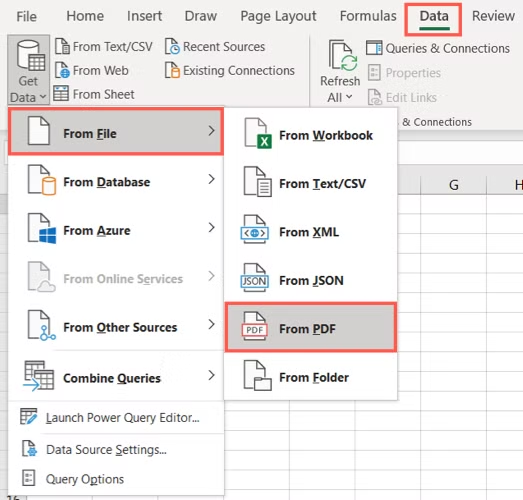
2. Go to the Data tab and click Get Data > From File > From PDF.
3. Browse and select your bank statement PDF.
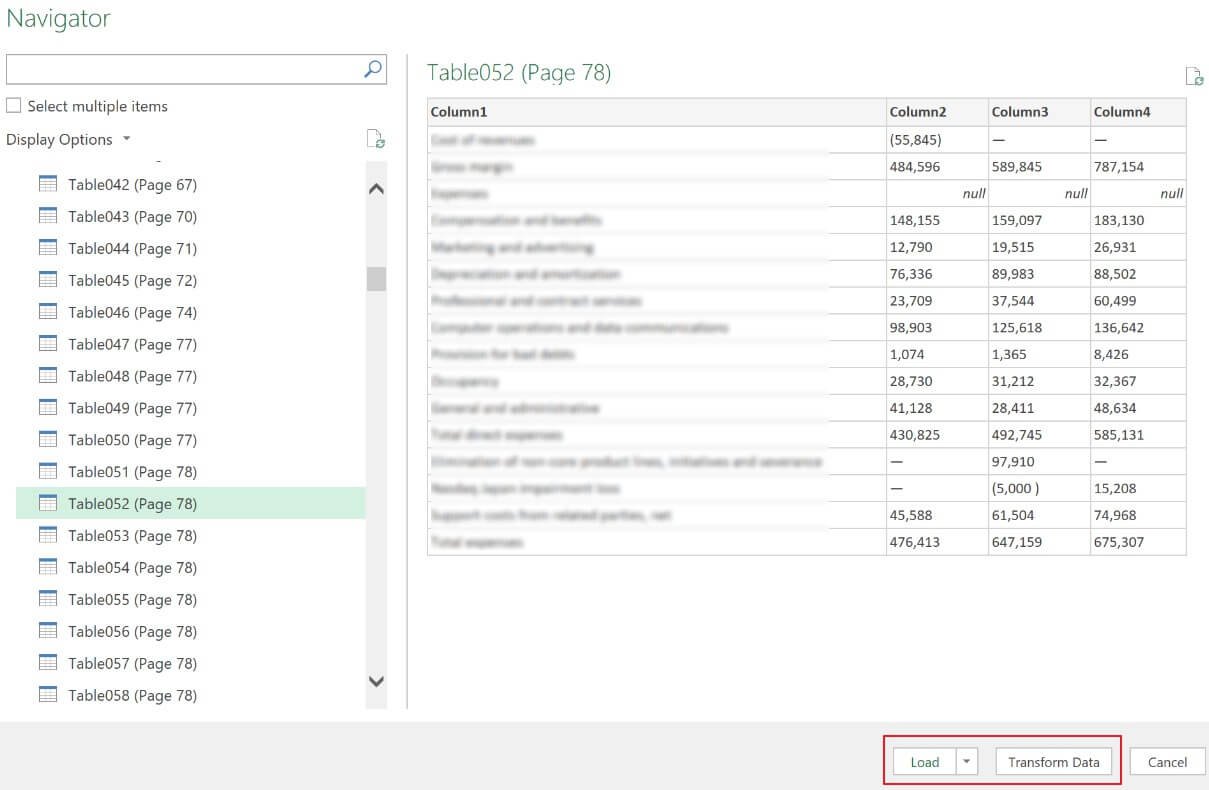
4. In the Navigator window, preview and check the tables you want to import.
5. Click Load to bring the data directly into Excel, or Transform Data to edit it first in Power Query.
6. Once loaded, use Excel tools to fix any minor issues. Preview tables to avoid importing junk data.
Advantages:
• Completely free and built into Excel
• Processes everything locally (maximum privacy)
• Powerful data transformation tools included
• Seamless integration for immediate analysis
Disadvantages:
• Requires a recent version of Excel
• Steeper learning curve for beginners
• Struggles with scanned PDFs (no built-in OCR)
• May misalign complex or irregular bank statement tables
Power Query is excellent for users comfortable with Excel who want a no-cost, private solution.
Both alternatives can be effective for straightforward needs, but for the highest accuracy and privacy—especially with tricky bank formats—Renee PDF Aide remains the top choice. Whichever method you use, you’ll soon have your statement ready for organization and analysis.
How to Edit Bank Statement in Excel for Organization and Analysis
Once your bank statement is in Excel, the real benefit comes from turning rows of transactions into clear, usable information. Excel makes it much easier to review spending, track income, and prepare simple summaries for personal budgeting or record‑keeping—all while staying within lawful personal use.
Cleaning and Structuring Bank Statement Data in Excel
Start by fixing common conversion issues. Remove extra rows or columns, correct misread dates (use Text to Columns for splitting), and format amounts as currency.
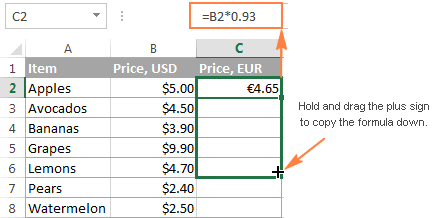
A running balance column can help: reference the starting balance in the first row, then use a formula such as =Previous Balance + Credit – Debit and fill it down.
Categorizing and Summarizing Transactions
Add a new column for categories (Food, Transport, Income, etc.). Use simple IF formulas or Excel’s Flash Fill to speed things up.
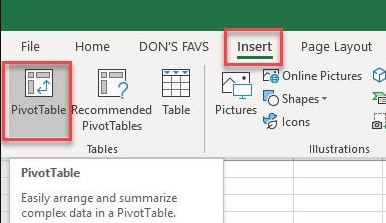
Then create a Pivot Table: select your data, Insert > Pivot Table. Drag categories to rows and amounts to values for instant totals.
Tracking Balances and Financial Trends
Chart monthly spending with a simple line or bar graph from your Pivot Table. Filter by date ranges to compare months or spot unusual spikes.
Using AI-Assisted Analysis for Deeper Insights
Modern Excel includes AI tools like Copilot (in Microsoft 365) that can suggest categories automatically, highlight anomalies, or summarize trends in plain language.
For example, ask it to “categorize these transactions” or “show my top spending areas.” Always double-check the results—AI is a time-saver, not a replacement for your judgment.
Legal Disclaimer and Risk Warning When Editing Bank Statements in Excel
Modifying bank statements to misrepresent transactions, balances, or dates for submission to lenders, landlords, employers, or officials is illegal and considered fraud. Consequences can include denied applications, damaged credit, fines, or criminal charges.
The safe, lawful techniques covered in this guide on how to edit bank statement in excel are intended only for personal organization and analysis of your own financial records. This article focuses solely on lawful data organization. Always use original, unaltered statements for any official purpose.
Frequently Asked Questions About How to Edit Bank Statement in Excel
Is it safe to upload bank statements to online converters?
Online tools are convenient, but your sensitive information is processed on their servers. For better privacy, use desktop software such as Renee PDF Aide, which handles all data locally.
Why does my converted Excel file look messy?
Scanned PDFs or complex bank layouts can confuse converters. Tools with strong OCR capabilities (like Renee PDF Aide) usually produce cleaner results, and you can always tidy up minor issues manually in Excel.
Can I convert multiple bank statements at once?
Yes. Renee PDF Aide supports batch conversion, and many online tools do as well. You can also use Excel Power Query to combine multiple imported files.
How do I add a running balance column in Excel?
If your sheet includes Date, Description, Debit, Credit, and Balance columns, enter the starting balance in the first Balance cell. In the next row, use a formula like =PreviousBalanceCell + CreditCell – DebitCell, then fill the formula down the column.
Will banks or lenders notice if I edit a statement?
Most original PDFs contain security features and metadata. Any modification may be detected by verification systems. Avoid submitting altered statements for official purposes—it carries significant risk.
What's the easiest free method for occasional use?
For quick, simple conversions, try iLovePDF’s PDF‑to‑Excel tool or Excel’s built‑in PDF import (available in Microsoft 365). For more complex bank layouts, a dedicated desktop tool generally delivers better accuracy.
Renee PDF Aide – The Ultimate PDF2Excel Conversion Solution! (100 FREE Quota)
Versatile Convert to Word/Excel/PPT/Text/Image/Html/Epub
Secure 100% local conversions ensure zero risk of data leaks
Efficient Batch Process dozens of PDF files in seconds
Comprehensive Seamlessly convert PDFs to Excel, PowerPoint, Text, and more
OCR Support Extract Text from Scanned PDFs, Images & Embedded Fonts
Versatile Effortlessly convert XFA, multi
Secure 100% local conversions ensure zero risk of data leaks
Efficient Batch Process dozens of PDF files in seconds













User Comments
Leave a Comment