author avatar
    Senior Product Manager
Last update by William Davis at 30 June 2026

Summary
A comprehensive technical overview of word 2007 doc vs docx compatibility details the structural differences between binary and Open XML file formats. Systematic troubleshooting methods, native Office configurations, and offline software solutions are outlined for resolving formatting errors in converted documents.


This article demystifies the word 2007 doc vs docx compatibility gap—especially when you’re dealing with files converted from PDF—and explains why you might see garbled text or layout errors. You’ll find step-by-step system checks, native Office fixes, offline tools like Renee PDF Aide, and a side-by-side comparison to help you choose the right method for your legacy setup. Read on for practical guidance to recover clean, editable documents without the guesswork.
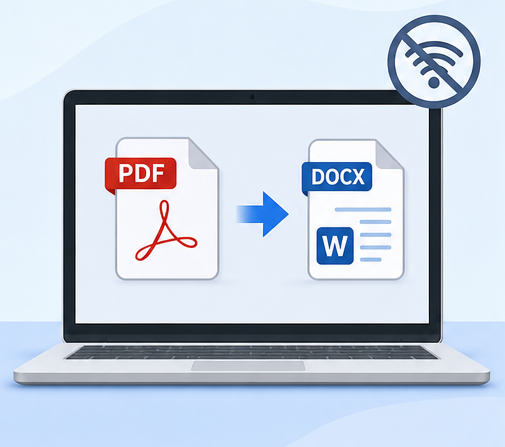
Illustration of offline PDF to DOCX conversion process without internet dependency

Understanding the .doc vs .docx Compatibility Challenge

Picture this: you receive an urgent .docx file—a contract, product sheet, or legal notice—originally a PDF, converted to Word using a third-party tool. When you open it in Word 2007, the result is a mess: scrambled text, misaligned images, or a blunt “cannot open” error. This isn’t random; it’s a direct result of how older Word versions handle the .docx format, especially when the file started life as a PDF.
Screenshot of garbled text output when copying from PDF
The root of the issue is the file structure. The classic .doc format is a single, binary file that Word 97–2003 and Word 2007 read natively. In contrast, .docx—introduced with Office 2007—uses an Open XML structure: a zipped bundle of XML files, media, and relationships. While Word 2007 was built to open .docx, early or unpatched installations often lack the full XML parsing capabilities needed for complex, non-standard documents churned out by PDF-to-Word converters. These PDF-sourced .docx files often carry unpredictable tag nesting, embedded text boxes, or broken content controls, all of which can trip up Word 2007 unless it has been updated or supplemented with the Microsoft Office Compatibility Pack.
Here’s a quick troubleshooting comparison:
Aspect.doc (Binary).docx (Open XML)

File structure

Single binary stream; opaque

Compressed package of XML, media, and relationships

Feature support in legacy context

Limited SmartArt, no content controls

Can contain SmartArt, content controls, and PDF-extracted text boxes—often broken in Word 2007 without updates

Native compatibility

Word 97–2003 and Word 2007 open natively

Word 2007 needs SP3 or Compatibility Pack; otherwise, fails or shows jumbled content

Error rate after PDF-to-docx conversion

Low if converter outputs valid binary (rare)

High; non-standard XML fragments trigger parser errors and formatting corruption

The pain point here is clear: files converted from PDF to .docx often have structures that legacy Word 2007 environments simply can’t handle—even if they open fine in Word 2010 or newer. Solutions exist at every skill level, from quick environment checks to dedicated offline conversion tools made for legacy systems.
Renee PDF Aide - Powerful PDF Converting/Editing Tool (100 FREE Quota)

Convert to Editable Convert to Word/Excel/PPT/Text/Image/Html/Epub

Multifunctional Encrypt/decrypt/split/merge/add watermark

OCR Support Extract Text from Scanned PDFs, Images & Embedded Fonts

Quick Convert dozens of PDF files in batch

Compatible Support Windows 11/10/8/8.1/Vista/7/XP/2K

Convert to Editable Word/Excel/PPT/Text/Image/Html/Epub

OCR Support Extract Text from Scanned PDFs, Images & Embedded

Support Windows 11/10/8/8.1/Vista/7/XP/2K
Free TrialFree TrialNow 800 people have obtained the free version!

Quick System Check: Is Your Word 2007 Ready for .docx Files?

Before downloading tools or attempting repairs, take two minutes to check what your Office 2007 installation can actually handle. Skipping this step often leads to repeated frustration, since the real issue may be with your system setup.
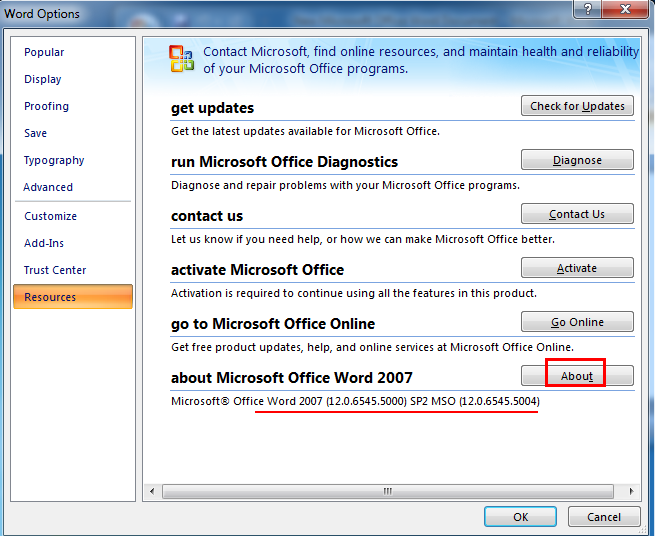
1. Check your Word 2007 version and service pack:
- Click the Office Button (top left), then Word Options.
- Select Resources, then click About. You’ll see something like “Microsoft Office Word 2007 (12.0.4518.1014)”. Look for the “SP” tag or check the build number.
word 2007 version
2. Check for the Microsoft Office Compatibility Pack:
- Open Control Panel → Programs and Features (or “Add or Remove Programs” on older Windows).
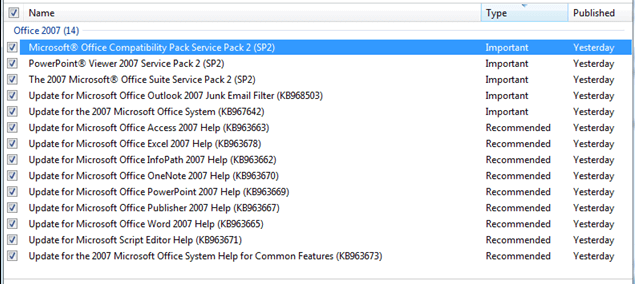
- Look for “Compatibility Pack for the 2007 Office system.” If you see it, Word 2007 may already support .docx files.
office 2007 service package
Use this table to interpret your results:
Your Word 2007 stateWhat it meansRecommended action

Word 2007 SP3 (with or without the pack)

Natively opens standard .docx files. If you still see jumbled text from a PDF-converted file, the file itself is likely damaged or contains unsupported XML.

Skip the Compatibility Pack; use a dedicated offline repair tool like Renee PDF Aide to normalize conversion-specific corruption.

Word 2007 SP2 (no Compatibility Pack)

Cannot open .docx files at all. SP2 alone never shipped native .docx support.

Install the Compatibility Pack or use a standalone converter. See "Alternative Native Solutions" below.

Word 2007 RTM / SP1

Very outdated XML handling; likely to crash on even simple .docx files.

Update to SP3 or use an offline converter that creates clean .doc output; manual workarounds are risky.

Note: Microsoft no longer provides the official Compatibility Pack download. If you get the installer from a third-party archive, always verify its integrity.
If you’re already on SP3 and your file still looks garbled, the problem is with the PDF-to-Word conversion—not your Word setup. In that case, go straight to a repair tool.

General Solutions

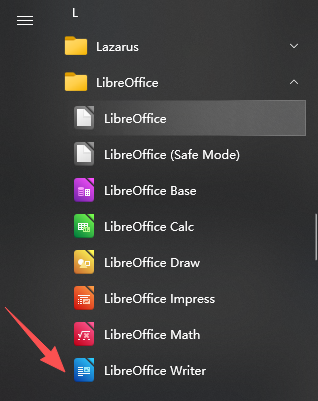
When faced with format errors after PDF conversion, many users try online converters, free office suites like LibreOffice, or Microsoft’s own “Open and Repair” function. Each has its place, but for Word 2007 users with privacy or formatting needs, their limitations become obvious:
- Online converters: Uploading sensitive contracts or financials to a third-party server is a privacy risk.
- Offline suites: Free options may open and re-save the file, but often strip headers, alter tables, or break SmartArt—details business users need.
- Microsoft Compatibility Pack: No longer officially distributed; remaining links are often dead or untrusted.

Renee PDF Aide Approach

Renee PDF Aide is the recommended offline solution for this problem because it addresses the root cause: it normalizes the messy XML that PDF-to-Word converters inject, without requiring you to hunt down old service packs or install admin-level updates. The software runs locally, preserving privacy, and is designed for output accuracy—whether you need .docx or the more universally compatible .doc format. By reconstructing the document internally, it bypasses the limitations of Word 2007’s parser, so the cleaned file opens with stable layouts and intact text—even on unpatched systems.
Screenshot of Renee PDF Aide main conversion window, showing multiple PDF files being converted to DOCX format with OCR enabled
Renee PDF Aide - Powerful PDF Converting/Editing Tool (100 FREE Quota)

Convert to Editable Convert to Word/Excel/PPT/Text/Image/Html/Epub

Multifunctional Encrypt/decrypt/split/merge/add watermark

OCR Support Extract Text from Scanned PDFs, Images & Embedded Fonts

Quick Convert dozens of PDF files in batch

Compatible Support Windows 11/10/8/8.1/Vista/7/XP/2K

Convert to Editable Word/Excel/PPT/Text/Image/Html/Epub

OCR Support Extract Text from Scanned PDFs, Images & Embedded

Support Windows 11/10/8/8.1/Vista/7/XP/2K
Free TrialFree TrialNow 800 people have obtained the free version!
If your workflow regularly involves converting PDF invoices or forms for Word 2007, Renee PDF Aide offers a consistent, offline pipeline—no fragile online services or expired installers required.

Step-by-Step Guide: Converting and Fixing Files with Renee PDF Aide

Here’s how to repair a garbled .docx or convert a problematic PDF into a Word 2007-friendly format using Renee PDF Aide:
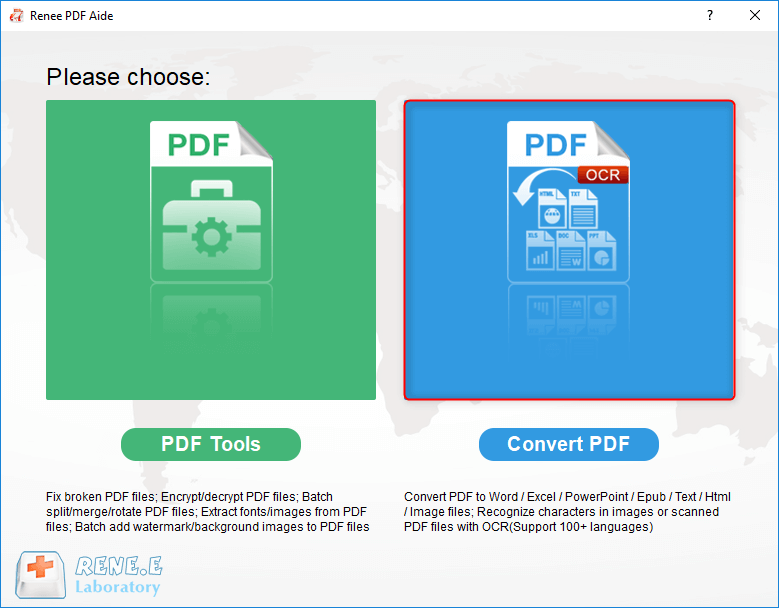
1. Launch Renee PDF Aide and select “Convert PDF” in main menu.
Select Convert PDF in Renee PDF Aide
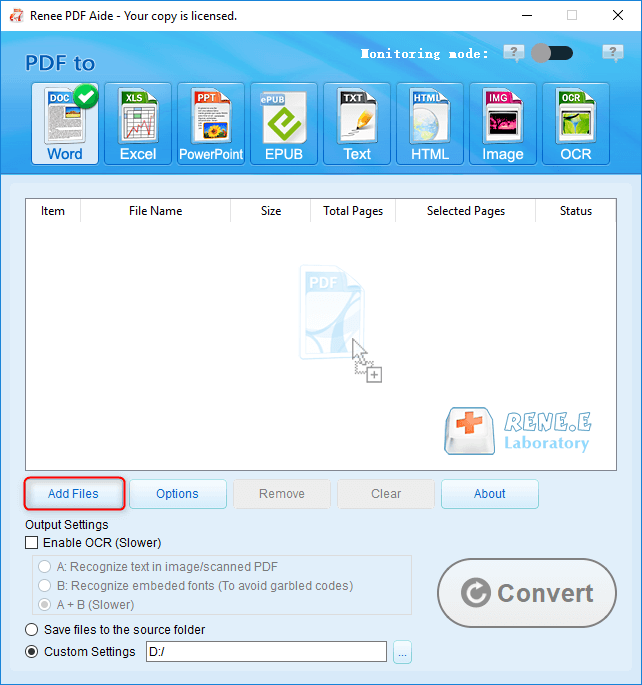
2. Add your problematic file—either the error-prone .docx or the original PDF. The software will analyze and map its structure.
add pdf files to renee pdf aide
3. Choose your output format. If you’ve confirmed your system is running Word 2007 SP3 and need modern features, choose “Word” on top of the software – Renee PDF Aide will ensure the XML is standards-compliant.
4. Select a destination folder and start the process. The software rebuilds the document, removing bad tags and fixing text box positions that were broken during PDF extraction.
5. Open the resulting file in Word 2007. Check that fonts, tables, images, and layout are intact. In most cases, the document will now behave like a native Word file.
pdf to word convert result
This workflow transforms a file that would stump Word 2007 into a predictable, editable document—no Office updates or discontinued downloads required.
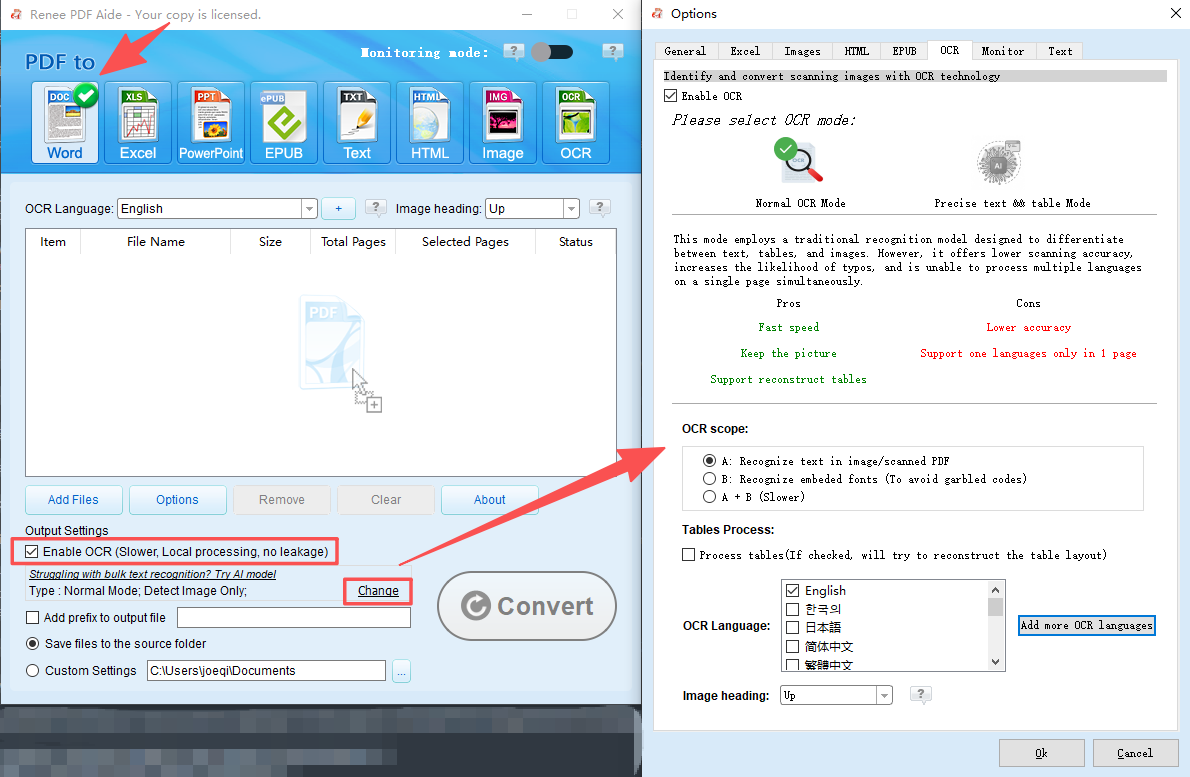
Screenshot of Renee PDF Aide showing Word (DOCX) output format selection and OCR options for scanned PDFs.
Renee PDF Aide - Powerful PDF Converting/Editing Tool (100 FREE Quota)

Convert to Editable Convert to Word/Excel/PPT/Text/Image/Html/Epub

Multifunctional Encrypt/decrypt/split/merge/add watermark

OCR Support Extract Text from Scanned PDFs, Images & Embedded Fonts

Quick Convert dozens of PDF files in batch

Compatible Support Windows 11/10/8/8.1/Vista/7/XP/2K

Convert to Editable Word/Excel/PPT/Text/Image/Html/Epub

OCR Support Extract Text from Scanned PDFs, Images & Embedded

Support Windows 11/10/8/8.1/Vista/7/XP/2K
Free TrialFree TrialNow 800 people have obtained the free version!

Alternative Native Solutions: Compatibility Pack and 'Save As'

Some organizations prefer to stay within Microsoft’s official ecosystem for reasons of compliance, security, or familiarity. While official support has ended, these paths remain usable if you have administrator rights and the right precautions in place. Always back up your original files before making changes.
Microsoft Word start screen with blank document, ready to open a PDF
Advantages:
  • Stays within the official Microsoft ecosystem.
  • Familiar workflow for long-time Office users.
  • No third-party software installation required.

Disadvantages:

  • Official Microsoft download links are retired.
  • Requires local administrator rights for installation.
  • Does not repair internally corrupted PDF-converted files.

1. Verify your Word 2007 service pack level to check compatibility.
2. Download and install the Compatibility Pack from a secure third-party archive if needed.
Example Link: https://archive.org/details/microsoft_office_2007_sp3_pro_plus
3. Use the native “Save As” function to convert opened files to .doc for future sharing.
Let’s break down each approach:

Installing the Microsoft Office Compatibility Pack

The Compatibility Pack was originally released to let Office 2003 and early Office 2007 editions open, edit, and save .docx files. Installing it enables Word 2007 SP2 (and sometimes SP1) to recognize Open XML documents, reducing “unsupported format” errors.
However, Microsoft has retired the official download page. The installer (FileFormatConverters.exe) can still be found on reputable third-party archives, but always verify its digital signature and MD5/SHA-1 hash against Microsoft’s published KB articles. Note that installation requires administrator rights, which may not be available on managed or shared machines. Without admin access, your only option is an offline converter.
https://silentdragon.com/download/Office2007CompatibilityPack/
The official Microsoft Office Compatibility Pack executable (FileFormatConverters.exe) has an MD5 checksum of 40c3c9289349265246c29407a3cbf19a.
If you have a verified copy and admin privileges, install the pack, restart Word 2007, and try opening the problematic .docx. If issues persist, the file is likely corrupted and needs repair.

Using Word 2007’s Built-in 'Save As' for Proactive Compatibility

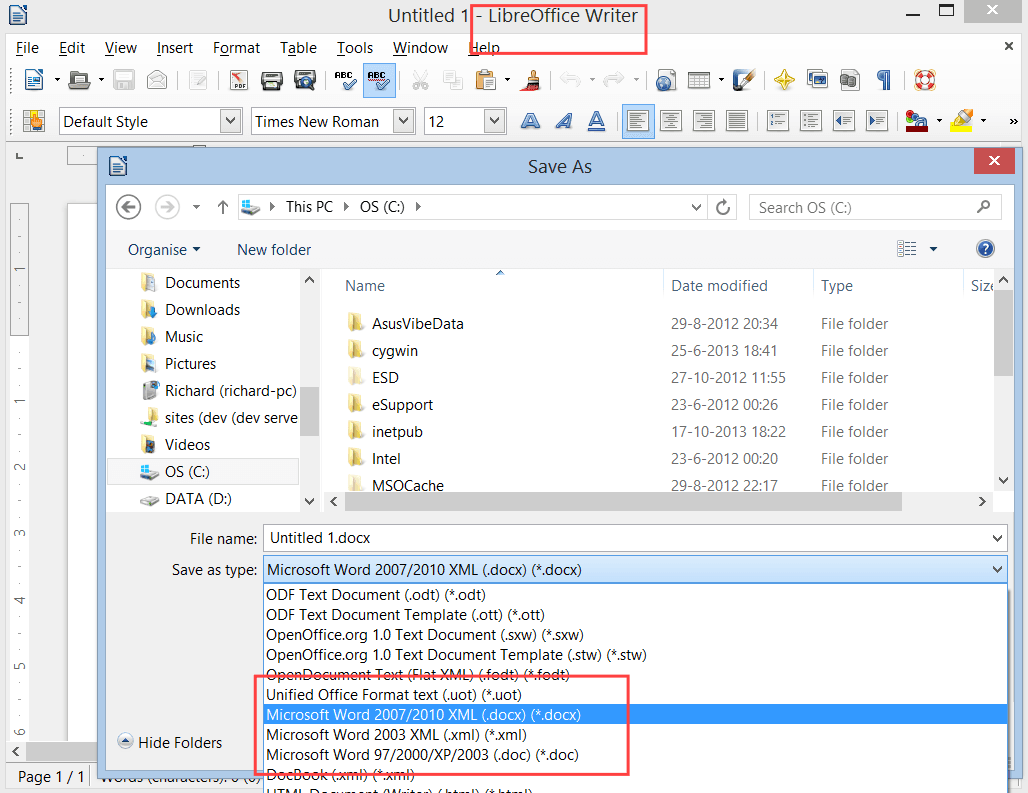
If you’ve managed to open a .docx—perhaps after repair with Renee PDF Aide or on a colleague’s updated PC—you can convert it to the older .doc format using Word 2007 itself. This is a smart habit if you frequently share files with users on Office 97–2003.
- Click Office Button → Save As.
- Choose Word 97-2003 Document (*.doc) from the “Save as type” dropdown.
- To make .doc your default, go to Word Options → Save and set “Save files in this format” to “Word 97-2003 Document (*.doc)”.

Note: Saving down to .doc can degrade or remove features exclusive to Open XML—such as SmartArt, content controls, or complex PDF-extracted text box alignments.

This method is preventive: it doesn’t repair broken .docx files that Word 2007 can’t open, but it ensures future documents are readable on older systems.

Frequently Asked Questions

Can Word 2007 open.docxfiles natively without installing any updates or the Compatibility Pack?

Yes and no. Word 2007 SP3 supports standard .docx files natively and opens most .docx files created by modern Office apps or reliable converters. Earlier versions—RTM, SP1, and SP2 without the Compatibility Pack—cannot open .docx at all. Even with SP3, a .docx produced by a faulty PDF-to-Word tool may fail due to non-standard XML. In such cases, the file needs repair, not just format recognition.

Why does a.docxfile converted from a PDF show garbled text or broken formatting in Word 2007?

PDF-to-Word converters often inject complex XML—floating text boxes, absolutely positioned images, or inline shapes to mimic the PDF layout. Word 2007’s parser, especially on older service packs, can’t handle these non-standard elements, resulting in overlapping text, missing tables, or outright corruption. Newer versions of Word are more forgiving, but for Word 2007, a dedicated repair tool is needed to produce clean, standards-compliant markup.

Is it safe to use free online converters for sensitive business or legal documents?

Generally, no. Uploading a document to a free online service means your file passes through a server that may store or analyze its content. There’s no enforceable guarantee of deletion or confidentiality. For contracts, financial data, or personal information, use an offline converter like Renee PDF Aide to ensure privacy and data control.
Renee PDF Aide - Powerful PDF Converting/Editing Tool (100 FREE Quota)

Convert to Editable Convert to Word/Excel/PPT/Text/Image/Html/Epub

Multifunctional Encrypt/decrypt/split/merge/add watermark

OCR Support Extract Text from Scanned PDFs, Images & Embedded Fonts

Quick Convert dozens of PDF files in batch

Compatible Support Windows 11/10/8/8.1/Vista/7/XP/2K

Convert to Editable Word/Excel/PPT/Text/Image/Html/Epub

OCR Support Extract Text from Scanned PDFs, Images & Embedded

Support Windows 11/10/8/8.1/Vista/7/XP/2K
Free TrialFree TrialNow 800 people have obtained the free version!

User Comments

Page 1

Leave a Comment


Your comment has been submitted and is awaiting moderation.