author avatar
    Senior Product Manager
Last update by James Smith at 23 May 2026

Summary
This guide outlines reliable methods to convert pdf to editable word across native, scanned, and complex-layout documents. It compares free online tools, built-in office options, and professional desktop software to help users select the most effective solution for their specific file type and accuracy needs.


You’ve got a PDF that looks perfect on screen. But when you try to edit it in Word? Nothing works. Text won’t budge. Tables fall apart. Images drift to random places. And if someone sent you a scanned document, you’re basically staring at a stack of pictures.
batch convert pdf files to editable word
This happens to professionals, students, and admin staff every day. Bold text, columns, and anything beyond basic paragraphs tends to scramble during conversion. Scanned PDFs are the worst because they store text as images—no actual characters for Word to recognize. The result? Hours of retyping or manually fixing broken formatting.

Quick Diagnostic: What Type of PDF Are You Dealing With?

Figure out what you’re working with, and you’ll know exactly which approach will convert PDF to editable Word without headaches.
Diagnostic QuestionWhat It MeansHow to Handle It

Can you click and drag to select text in the PDF?

The PDF is text‑based / digitally created.

Use standard converters (Word, Google Docs, online tools). Formatting usually survives. Or use Renee PDF Aide for batch processing

Does the text look like a photo when zoomed in?

The PDF is scanned — everything is stored as images.

You must use OCR. Free tools struggle; use a desktop OCR tool like Renee PDF Aide.

Does the PDF contain tables, columns, mixed fonts, or complex layout?

The PDF has a complex structure that basic converters cannot preserve.

Use a professional converter with layout reconstruction (Renee PDF Aide or similar).

Match your file to the right method, and you skip the frustration of incompatible tools.

Free and Built-in Methods: Fast but Limited

If you’re trying to convert PDF to editable Word on a budget, free options work fine for simple files. Just know where they fall short.

1. Free Online Converters (Quick for Simple PDFs)

Online converters are great for basic native PDFs when you need something fast and don’t mind uploading the file. Most let you drag and drop, then hand you a Word version in a couple minutes.
ToolFree Usage LimitsOCR in Free VersionStarting Price (Basic Plan)

Smallpdf

1–2 tasks per day; some tools require sign‑in; 7‑day free trial requires credit card

No (OCR is paid; available only during trial)

~$9/month (billed annually)

iLovePDF

Several free tasks per day; ads may appear

Yes, but basic

~$7/month (billed annually)

Adobe Acrobat Online

Requires Adobe account; limited free conversions

Yes, but slower and limited

~$13/month for Acrobat Standard

PDFCandy

1 task at a time; queue delays for free users

Yes, basic OCR

~$6/month

PDF2Go

Daily limits; ads; slower processing

Yes, but limited

~$6/month

Zamzar

2 conversions per 24 hours; file size limits

No OCR

~$6/month

Don’t upload confidential contracts, financial records, or personal data to free online tools.

How to use a free online converter:
  1. Go to a trusted PDF to Word conversion website.
  2. Click “Choose File” or drag your PDF into the upload area, then wait for processing.
  3. Download the Word file and scan it for formatting issues.
Limitations to watch for: file size caps (usually 10-50 MB), privacy risks (your document goes to their server), and lousy accuracy on tables or columns. Formatting often shifts around on anything beyond plain text.
Advantages:
  • No installation required
  • Fast for simple, small files
  • Accessible from any device with internet

Disadvantages:

  • Privacy concerns with uploaded files
  • File size and page limits
  • Poor handling of complex layouts or scanned documents
These work for casual, one-off needs. For regular use or anything important, you’ll want something more reliable.

2. Using Microsoft Word and Google Docs

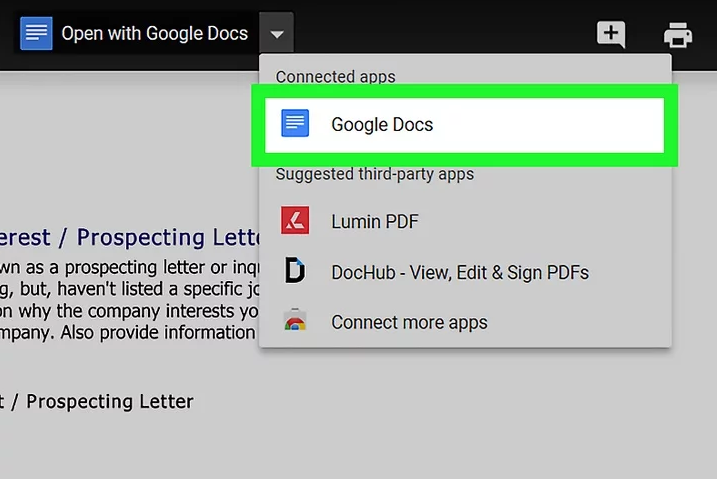
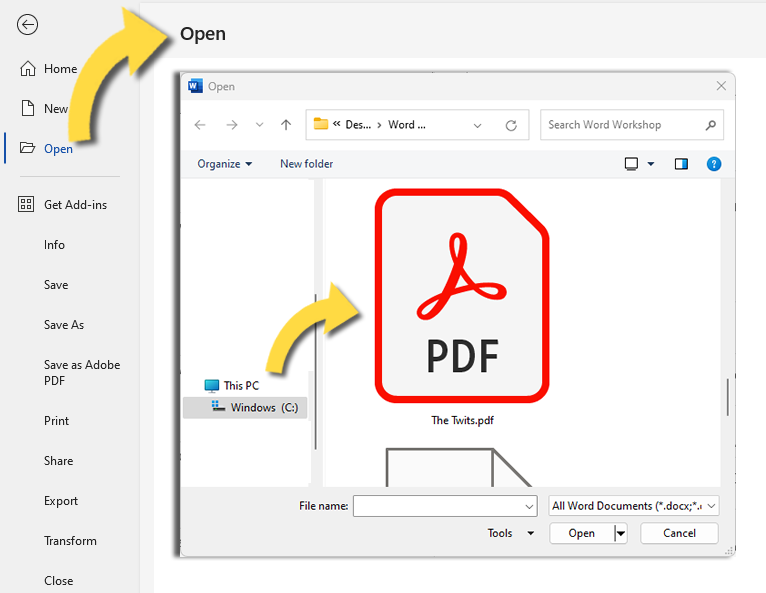
Microsoft Word has a hidden trick: File > Open and pick your PDF. Word tries to convert it to an editable .docx file. Google Docs does something similar—upload to Drive, then choose Open with Google Docs.
Methods for built-in conversion:
1. In Microsoft Word: File > Open, browse to your PDF, select it, and click through the conversion prompt.
Open PDF files PDF in Word
2. In Google Docs: Upload the PDF to Google Drive, right-click the file, and pick “Open with Google Docs.”
open with google docs
Both handle simple native PDFs okay. But throw tables, columns, or scanned content at them, and things get ugly. They don’t have real OCR, so image-based text stays locked as pictures.
Advantages:
  • Already included with Office or Google accounts
  • No additional software to install
  • Convenient for quick, simple conversions

Disadvantages:

  • Limited OCR capabilities for scanned documents
  • Formatting often breaks on complex layouts
  • No batch processing for multiple files

These are fine if you already have Office or Google and just need a quick job done. For tough files, a dedicated converter gives you way better results.

When Free Methods Fail

Free tools regularly spit out scrambled text, broken tables, missing images, or weird garbled characters—especially from scanned PDFs. Multi-column documents and forms rarely survive intact.
Once you’re spending more time cleaning up messes than you saved, it’s time to move to a proper desktop tool with real OCR and smart layout handling.

Professional Solution: Renee PDF Aide for Accurate, Editable Word Output

1. Why Upgrade to a Desktop OCR Converter

If you need to convert PDF to editable Word with professional accuracy, desktop solutions are the answer. They run locally, so your sensitive documents stay on your computer. No file size limits. Better formatting retention. And batch conversion for processing many files at once.
Renee PDF Aide brings advanced OCR technology, conversion speeds up to 80 pages per minute, and solid support for both native and scanned PDFs. It handles complex layouts, tables, and even XFA forms (the kind banks and government agencies use).
Renee PDF Aide - Powerful PDF Converting/Editing Tool (100 FREE Quota)

Convert to Editable Convert to Word/Excel/PPT/Text/Image/Html/Epub

Multifunctional Encrypt/decrypt/split/merge/add watermark

OCR Support Extract Text from Scanned PDFs, Images & Embedded Fonts

Quick Convert dozens of PDF files in batch

Compatible Support Windows 11/10/8/8.1/Vista/7/XP/2K

Convert to Editable Word/Excel/PPT/Text/Image/Html/Epub

OCR Support Extract Text from Scanned PDFs, Images & Embedded

Support Windows 11/10/8/8.1/Vista/7/XP/2K

Free TrialFree TrialNow 800 people have obtained the free version!
Beyond conversion, it also optimizes, repairs, merges, splits, and encrypts PDFs—all in one straightforward interface.

2. Who Should Use Renee PDF Aide

This is for business professionals dealing with contracts, legal staff handling sensitive files, students converting scanned textbooks, and administrators processing forms in bulk. It works well with simple native PDFs and tricky scanned documents alike.
Runs on Windows 11/10/8.1/8/7/Vista/XP/2000 (32-bit and 64-bit). Free trial available with no watermarks for everyday use.

Step-by-Step: Batch Convert PDF to Editable Word Using Renee PDF Aide

1. Before You Start: Identify Whether You Need OCR

Open your PDF and try to select some text. If you can copy words easily, it’s a native file—no OCR needed. If you can’t select text or it looks pixelated, turn on OCR for that scanned document.

2. Conversion Workflow (Four Main Steps)

Once you know whether you need OCR, follow these four steps to convert your PDF to an editable Word document.
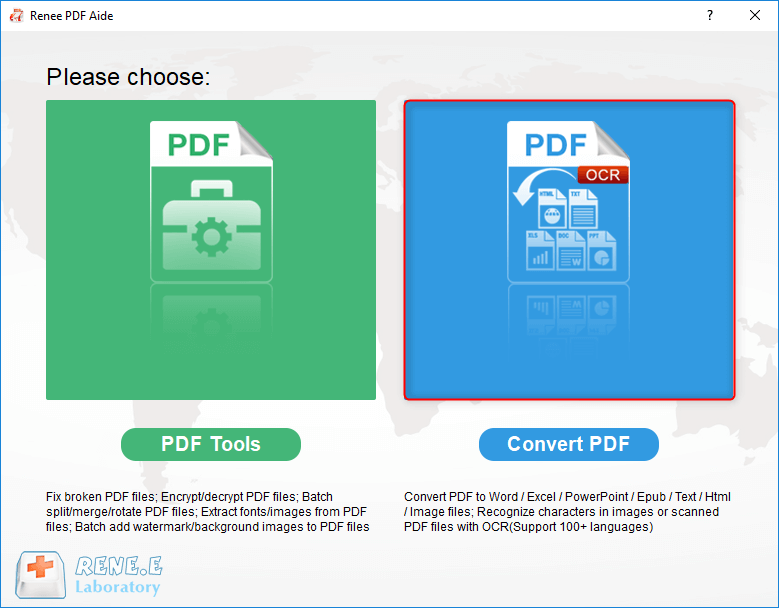
① Open Renee PDF Aide and select “Convert PDF”.
download now
select to convert pdf with renee pdf converter
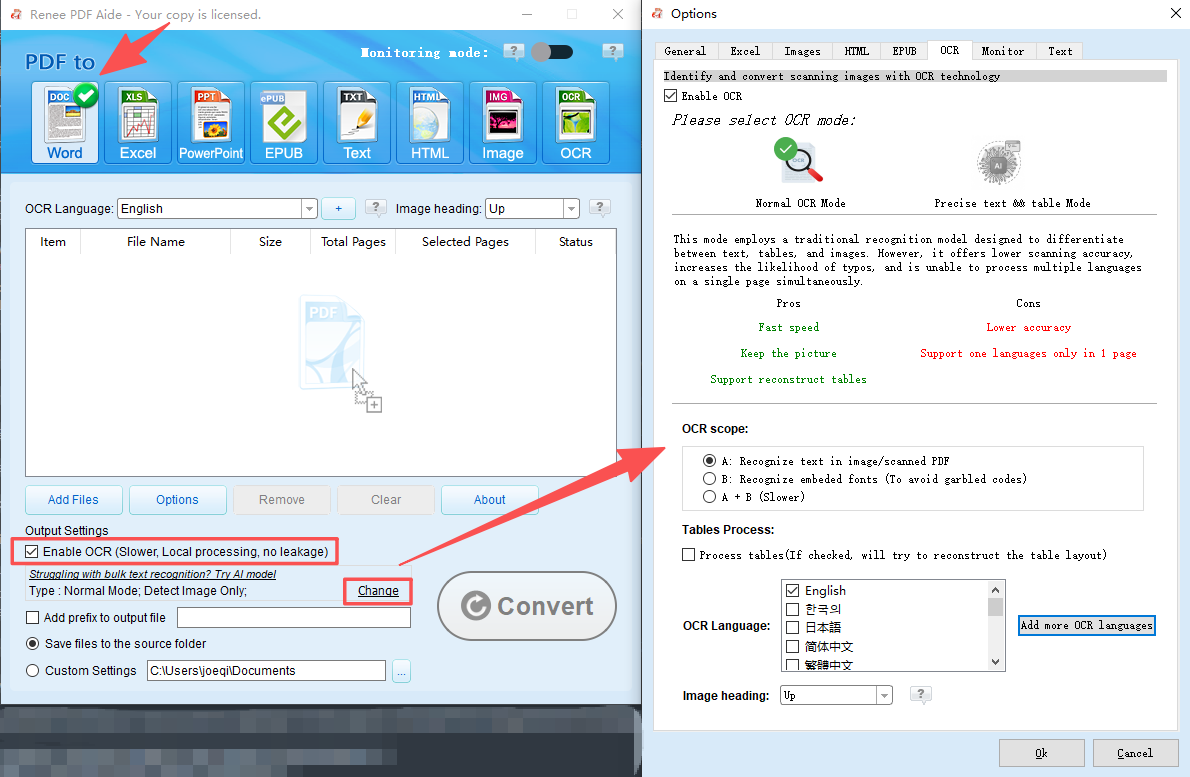
② Choose Word as your output format. For scanned PDFs, check “Enable OCR”.
how to edit a scanned pdf set before converting with renee pdf converter
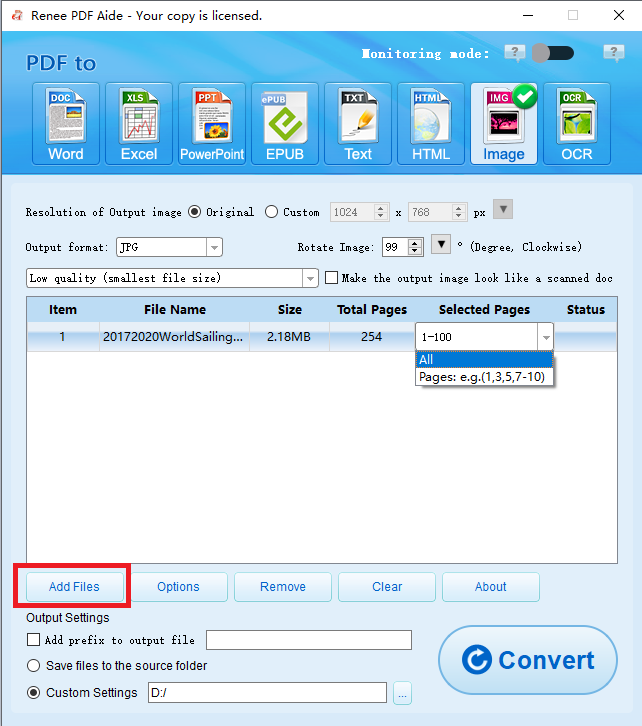
③ Click the “Add Files” button to load your PDFs (batch conversion supported). Use “Selected Pages” if you only need specific page ranges.
add pdf file and convert to image
④ Hit the “Convert” button. Check the “Status” column for links to your new editable Word files.
pdf to word convert result

3. Understanding OCR Modes (For Scanned PDFs)

Renee PDF Aide gives you three OCR modes:
  • Mode A: Best for text inside pictures or scanned images. Pick the correct language for better accuracy.
  • Mode B: Handles embedded fonts that cause garbled characters.
  • Mode A+B: Automatically detects and handles mixed content. Slower, but thorough.
For most scanned documents, stick with Mode A.

4. Pro Tips for Best Conversion Quality

Test one page first before running a whole document. Pick the right language in OCR settings. Use the Options button to fine-tune output. For large batches, process in smaller groups if needed. And always enable OCR for image-based PDFs—don’t skip it.

Method Comparison: Matching Your PDF Type to the Right Tool

The best way to convert PDF to editable Word depends on what kind of file you have and what matters most to you. Here’s how the options stack up:
PDF TypeRecommended MethodExpected AccuracyPrivacyCost

Simple native

Online or Word

Good

Low

Free

Complex layout

Renee PDF Aide

High

High

Trial / Paid

Scanned/image

Renee PDF Aide (OCR)

High

High

Trial / Paid

Bulk / Sensitive

Renee PDF Aide

High

High

Trial / Paid

For accuracy, privacy, and handling tricky files, Renee PDF Aide delivers the best all-around balance.

FAQ

Can I convert a scanned PDF to editable Word without retyping everything?

Yes. Enable OCR in Renee PDF Aide, and it recognizes text from images so you can edit normally.

Is it safe to upload confidential PDFs to free online converters?

Generally no. For anything sensitive, use a desktop tool like Renee PDF Aide that keeps everything on your computer.

Why does my converted Word file show weird symbols or garbled text?

That usually happens with scanned PDFs or mismatched OCR language settings. Pick the correct OCR mode and language in Renee PDF Aide to fix it.

What's the difference between converting a native PDF vs. a scanned PDF?

Native PDFs already contain real text and convert pretty easily. Scanned PDFs need OCR to turn those image-based letters into editable characters.

Can Renee PDF Aide handle batch conversion of multiple PDFs at once?

Yes. Add several files, and it converts them together—saves a ton of time on large jobs.
Renee PDF Aide - Powerful PDF Converting/Editing Tool (100 FREE Quota)

Convert to Editable Convert to Word/Excel/PPT/Text/Image/Html/Epub

Multifunctional Encrypt/decrypt/split/merge/add watermark

OCR Support Extract Text from Scanned PDFs, Images & Embedded Fonts

Quick Convert dozens of PDF files in batch

Compatible Support Windows 11/10/8/8.1/Vista/7/XP/2K

Convert to Editable Word/Excel/PPT/Text/Image/Html/Epub

OCR Support Extract Text from Scanned PDFs, Images & Embedded

Support Windows 11/10/8/8.1/Vista/7/XP/2K

Free TrialFree TrialNow 800 people have obtained the free version!

User Comments

Page 1

Leave a Comment


Your comment has been submitted and is awaiting moderation.