author avatar
    Technology Manager of Test Dept.
Last update by Emma Johnson at 3 June 2026

Summary
This comprehensive guide evaluates various software solutions for converting documents, highlighting the technical capabilities of a dedicated pdf to docx converter offline for handling scanned files and complex layouts. The analysis covers optical character recognition modes, batch processing features, and formatting fidelity to ensure accurate data extraction without internet connectivity.


When you just need a clean, editable Word file without risking your privacy, the search can get frustrating fast. A lot of tools that claim to be “offline” quietly push uploads, demand sign-ins, or choke on scanned PDFs, tables, columns, and funky fonts. If you’re dealing with contracts, resumes, schoolwork, office reports, or government forms, bad formatting isn’t just annoying—it wastes time and can actually cause mistakes.
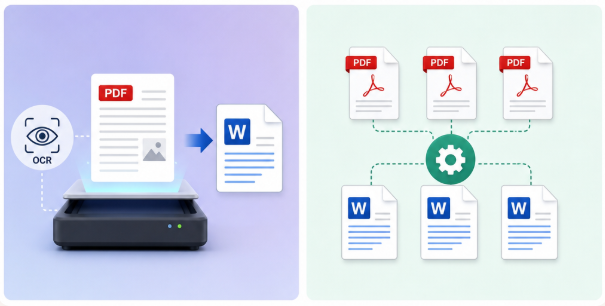
multiple pdf to docx with ocr support
Even when a PDF looks normal, it might hide embedded fonts or contain image-based pages that break simple converters. And if you’re traveling, working on a secured network, or stuck with strict data policies, online tools are simply off the table.
This guide focuses on what you actually face: you need a secure, offline solution that keeps your document structure intact and handles OCR for scanned files when necessary. We’ll help you quickly figure out what kind of PDF you have, then pick a reliable workflow that won’t leak your data or wreck your layout.

First decision: Do you really need OCR for your PDF?

A successful offline conversion starts with knowing what type of PDF you’re dealing with:

Text-based PDF

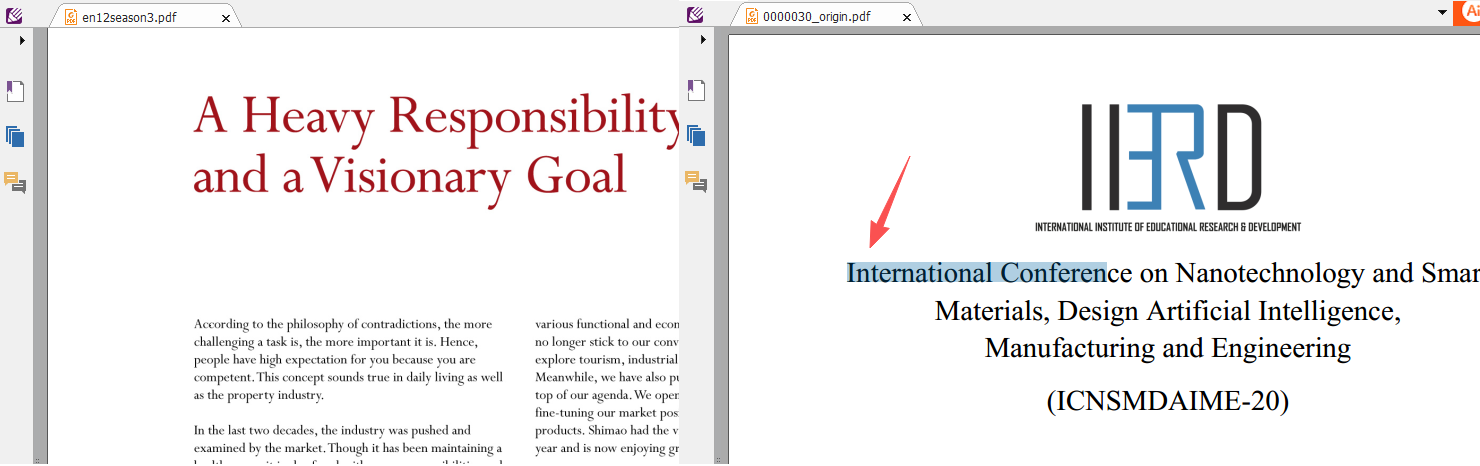
You can select or copy text directly. These usually convert cleanly without OCR.

Scanned/Image PDF

The page is essentially a picture. You can’t select text, so you must use OCR (Optical Character Recognition) to extract editable content.
not selectable vs selectable text in pdf

Embeded font PDF

The text is stored as either vector graphics or a custom font. While it appears there’s a choice, garbled characters appear when copied and pasted into other text editors. In this case, you also need OCR functionality.
copy pdf text generates garbled characters

Text PDF vs. Scanned PDF: What works offline

Text-based PDFScanned/Image PDF

Direct text selection; editable content

Pages are images; no selectable text

Works with most offline converters

Requires OCR to extract text

Higher conversion accuracy for layout and fonts

Accuracy depends on scan quality and OCR settings

Typical issues: embedded fonts causing garbled output

Typical issues: skewed pages, low DPI, mixed languages

Method 1: The most reliable offline solution — Renee PDF Aide

Renee PDF Aide is a full-featured desktop converter that runs entirely offline and is built to preserve complex layouts when turning PDFs into DOCX. It comes with advanced OCR for scanned PDFs, batch conversion, and solid handling of tables, columns, and fonts.
Renee PDF Aide – The Ultimate PDF2Excel Conversion Solution! (100 FREE Quota)

Versatile Convert to Word/Excel/PPT/Text/Image/Html/Epub

Secure 100% local conversions ensure zero risk of data leaks

Efficient Batch Process dozens of PDF files in seconds

Comprehensive Seamlessly convert PDFs to Excel, PowerPoint, Text, and more

OCR Support Extract Text from Scanned PDFs, Images & Embedded Fonts

Versatile Effortlessly convert XFA, multi

Secure 100% local conversions ensure zero risk of data leaks

Efficient Batch Process dozens of PDF files in seconds
Free TrialFree TrialNow 1335621 people have obtained the free version!
Because everything processes locally, sensitive files never leave your computer. It also supports XFA PDFs—those forms commonly used by banks and government agencies that often break in other tools.
Error message for unsupported XFA PDF forms

Step-by-step: convert PDF to DOCX offline with Renee PDF Aide

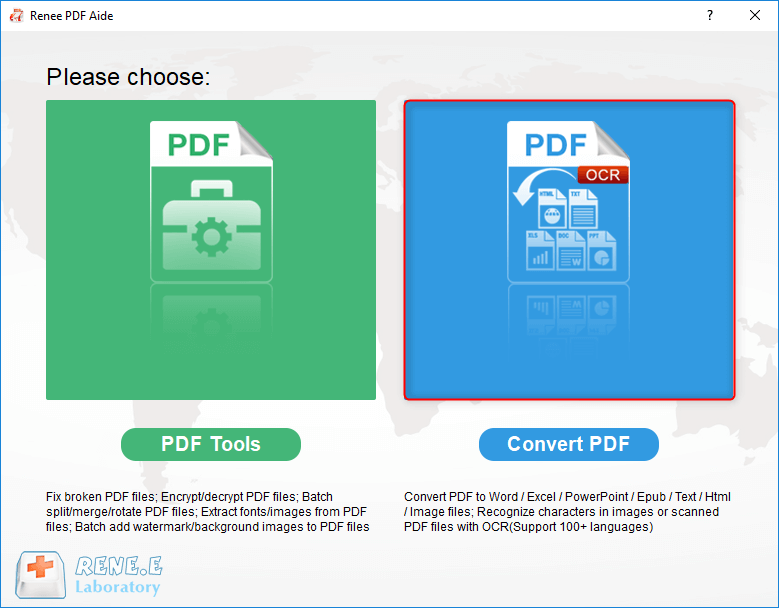
1. Install and open Renee PDF Aide → Select “Convert PDF”.
select to convert pdf with renee pdf converter
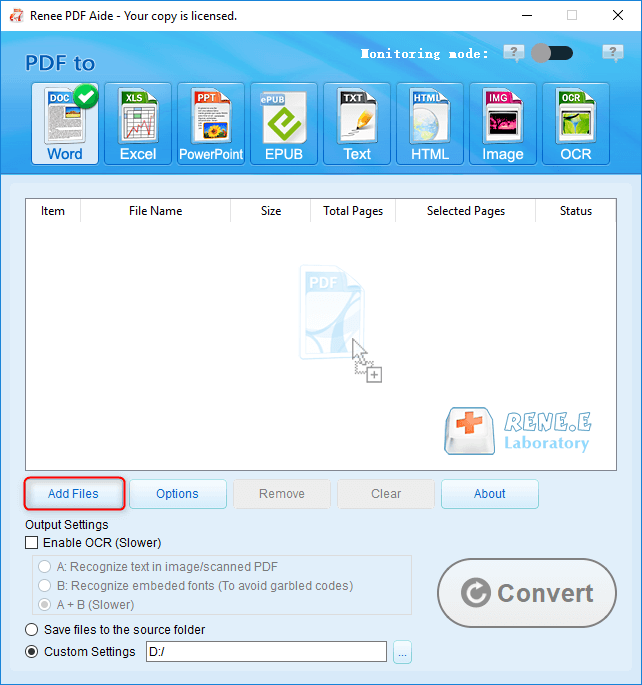
2. Click “Add Files” to import one or more PDFs. Batch conversion is supported.
add pdf files to renee pdf aide
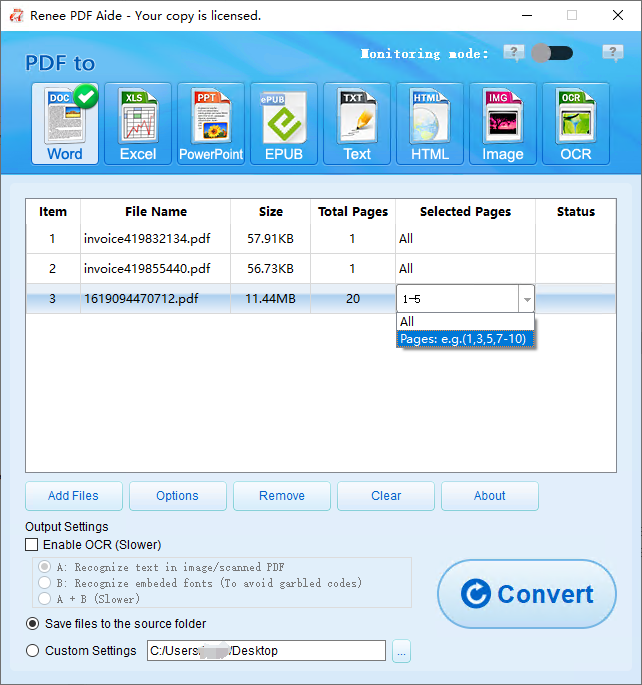
3. Click “Selected Pages” to choose specific pages if you don’t need the whole file.
PDF to Word select pages
4. On the top bar, choose the output format: select Word (DOCX).
how to edit a scanned pdf set before converting with renee pdf converter
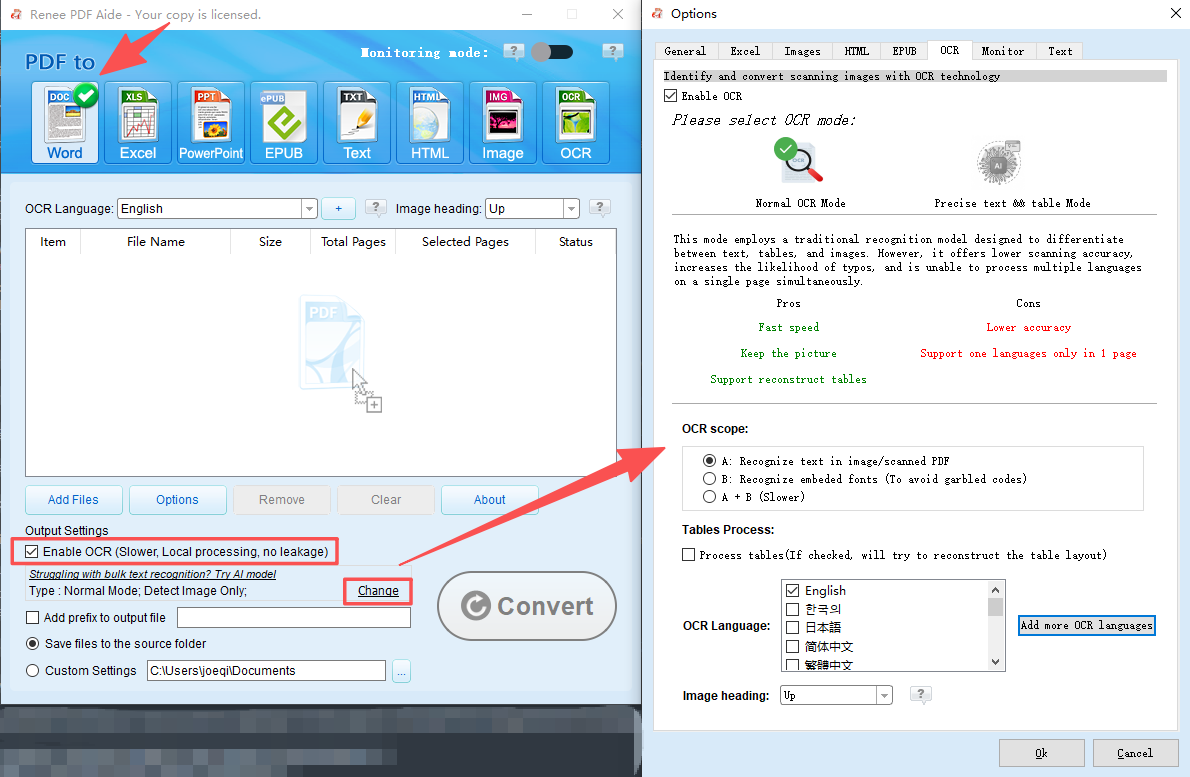
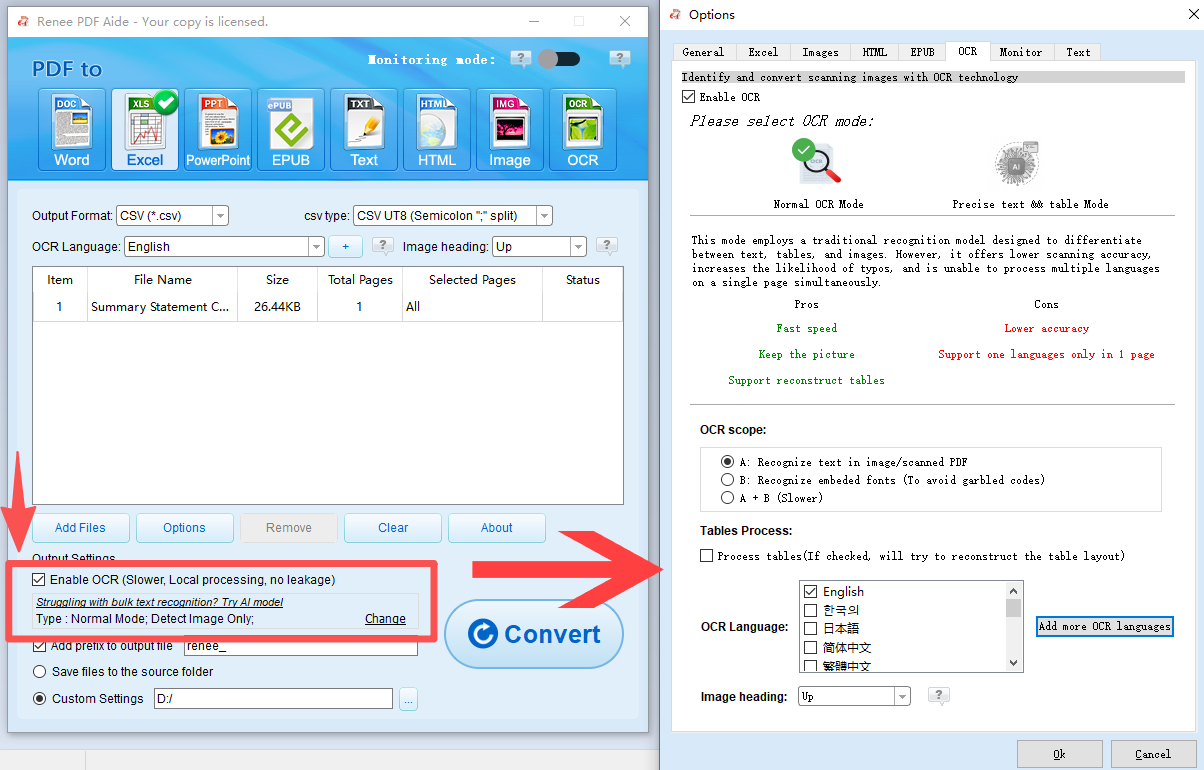
5. If your PDF is scanned or includes image-based text, check “Enable OCR”.
6. Choose the OCR mode based on your content:
- Mode A: for text in pictures or scanned images
- Mode B: for embedded fonts that cause garbled characters
- Mode A+B (slower): auto-detects and processes both
PDF Aide using OCR to convert pdf to excel or csv
7. Click “Convert”.
8. After conversion, open the links in the “Status” column to access your DOCX files.
pdf to word convert result

Understanding OCR modes

- Mode A (pictures/scans): Best when the page is clearly an image (camera scan, photocopy, etc.). Select the correct document language for better accuracy.
- Mode B (embedded fonts): Use when text looks selectable but exports as symbols or garbage due to nonstandard or embedded fonts.
- Mode A+B: Use for mixed files or when you’re not sure. It’s more thorough but takes longer.
Choosing the right OCR language significantly improves recognition accuracy, especially for diacritics, symbols, and multilingual documents.

Batch and page-range tips

- Batch conversion: Add multiple PDFs at once. Each file appears in the list, and you can start one conversion for all of them.
- Page ranges: Use “Selected Pages” to extract only what you need from large reports—this speeds up processing and cuts down on post-editing.

Method 2: Built-in workarounds (Microsoft Word and free desktop apps)

For simple, text-only PDFs, you might already have decent offline options sitting on your computer. Opening a PDF in Microsoft Word can convert it to editable text, though layout fidelity varies. Free office suites like LibreOffice or WPS Office also work locally and avoid uploads. These methods are fine if you’re converting basic content, don’t need OCR, and can live with some reformatting.
But keep in mind:
- Complex tables, multi-column layouts, and precise typography often shift or break.
- OCR for scanned PDFs is limited or nonexistent, so images of text won’t convert cleanly.
- Batch processing is hit-or-miss, and controls for page ranges and advanced formatting are minimal.

Microsoft Word approach

Microsoft Word
Microsoft Word can open many PDFs and convert them to editable Word documents without an internet connection. This is handy when you need a quick edit on a basic, text-focused file. It’s already on many PCs, so no extra software to install, and you stay fully offline.
Advantages:
  • Already installed on many PCs
  • Fully offline for local files
  • Good for simple, text-only PDFs

Disadvantages:

  • Layout can shift or break on complex files
  • No reliable offline OCR for scanned PDFs
  • Tables/columns often require manual fixing
  • Limited batch controls

Steps

1. Open Microsoft Word.
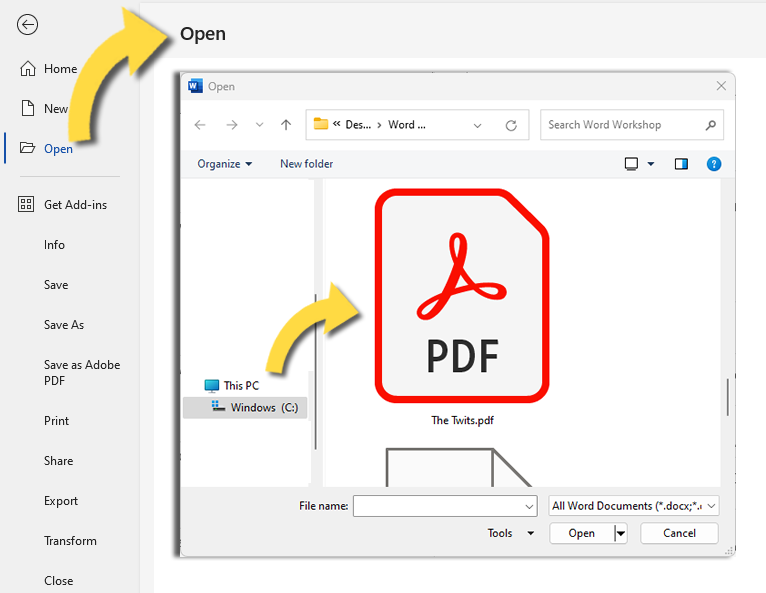
2. Press Ctrl+O and browse to your PDF file, or drag and drop the PDF into Word.
Microsoft Word File Open dialog with a PDF file selected
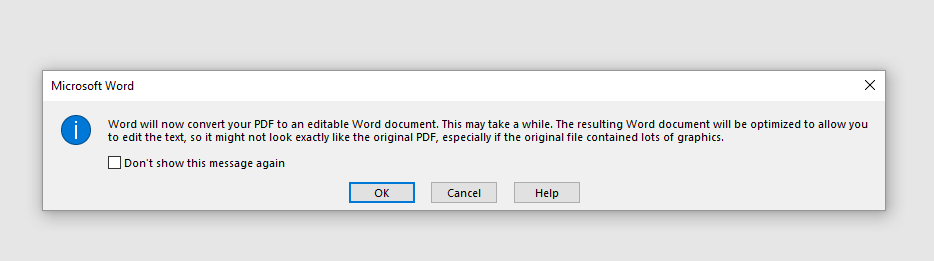
3. Word will display a notice that it will convert the PDF to an editable document; click OK.
Word conversion notification: 'Word will now convert your PDF to an editable Word document'
4. Review and fix formatting, especially tables, columns, and headers/footers.
5. Save As → Word Document (*.docx).

LibreOffice / WPS Office as free options

LibreOffice interface with an opened PDF document for editing
LibreOffice and WPS Office are popular, free office suites that run locally, making them attractive for offline workflows. They avoid uploads and handle common document formats, including basic PDF imports. For users on a tight budget, these suites can get you from PDF to an editable document with no subscriptions.
Advantages:
  • Free and offline
  • Available on many platforms
  • Works for basic text conversions

Disadvantages:

  • Weak or no built-in OCR
  • Formatting can degrade on complex PDFs
  • Limited batch/page-range controls
  • More manual cleanup required

Steps

1. Install LibreOffice or WPS Office from the official website.
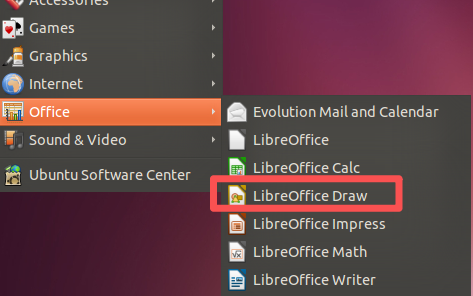
2. Open the suite and import your PDF (for example, LibreOffice Draw or the WPS PDF component).
LibreOffice opening a PDF file in Draw component
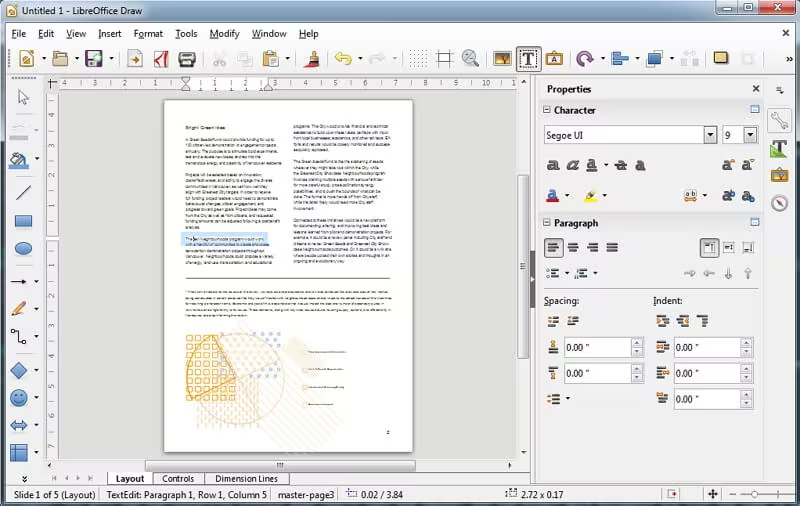
3. Review the converted document; adjust text flow and tables as needed in LibreOffice Draw.
LibreOffice Draw edit mode with an opened PDF document
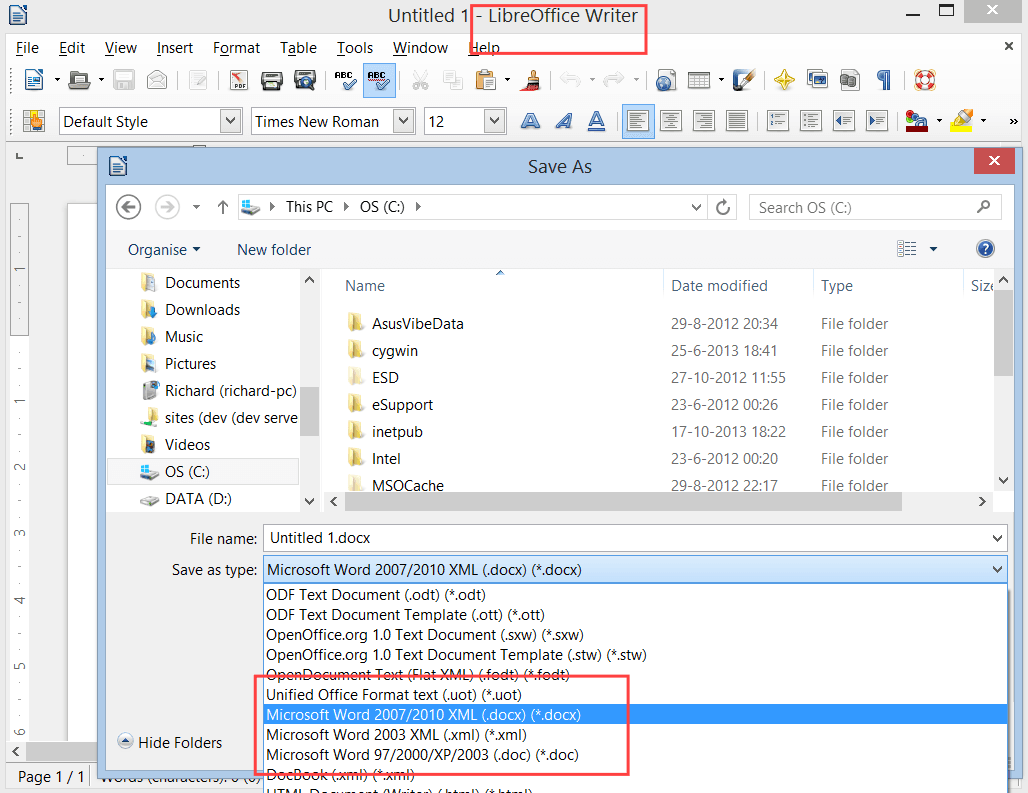
4. Export or Save As → DOCX.
LibreOffice Writer Save As dialog with DOCX format selected
5. Verify sections like bullets, headers/footers, and tables for alignment.

Quick comparison: Offline tools at a glance

ToolWorks fully offlineOCR for scanned PDFsBatch conversionFormatting fidelity on complex filesCost

Renee PDF Aide

Yes

Advanced built-in OCR (modes A/B/A+B)

Yes (multi-file, page ranges)

High; strong with tables/columns/fonts; XFA support

Paid, free trial

Microsoft Word

Yes

No reliable local OCR

Limited (manual)

Moderate to low on complex layouts

Often included/paid

LibreOffice/WPS

Yes

Limited or none by default

Limited

Moderate to low on complex layouts

Free

Note: In this set, Renee PDF Aide is the only option designed to handle scanned PDFs reliably and preserve complex layouts consistently.
Renee PDF Aide – The Ultimate PDF2Excel Conversion Solution! (100 FREE Quota)

Versatile Convert to Word/Excel/PPT/Text/Image/Html/Epub

Secure 100% local conversions ensure zero risk of data leaks

Efficient Batch Process dozens of PDF files in seconds
Comprehensive Seamlessly convert PDFs to Excel, PowerPoint, Text, and more

OCR Support Extract Text from Scanned PDFs, Images & Embedded Fonts

Versatile Effortlessly convert XFA, multi

Secure 100% local conversions ensure zero risk of data leaks

Efficient Batch Process dozens of PDF files in seconds
Free TrialFree TrialNow 1335621 people have obtained the free version!

FAQ (Frequently Asked Questions)

Can I convert scanned PDFs to Word offline without losing formatting?

Yes—use an offline converter with robust OCR and layout preservation. In Renee PDF Aide, enable OCR and choose the mode that matches your file (A for scans, B for embedded fonts, A+B for mixed). It’s designed to keep tables, columns, and fonts as intact as possible, though extremely complex layouts may still need minor touch-ups.

Is Renee PDF Aide really 100% offline? Does it upload my files anywhere?

Renee PDF Aide runs locally on your computer. Files are processed and saved on your machine—no uploads required. This makes it ideal for confidential documents and environments with strict data policies.

Will my tables, columns, and fonts stay intact after conversion?

Renee PDF Aide is designed to preserve complex structures, including tables, columns, and fonts, and it supports XFA PDFs. Fidelity depends on the source quality, but it generally delivers high-accuracy layouts compared with generic converters or office-suite imports.
Renee PDF Aide – The Ultimate PDF2Excel Conversion Solution! (100 FREE Quota)

Versatile Convert to Word/Excel/PPT/Text/Image/Html/Epub

Secure 100% local conversions ensure zero risk of data leaks

Efficient Batch Process dozens of PDF files in seconds
Comprehensive Seamlessly convert PDFs to Excel, PowerPoint, Text, and more

OCR Support Extract Text from Scanned PDFs, Images & Embedded Fonts

Versatile Effortlessly convert XFA, multi

Secure 100% local conversions ensure zero risk of data leaks

Efficient Batch Process dozens of PDF files in seconds
Free TrialFree TrialNow 1335621 people have obtained the free version!

User Comments

Page 1

Leave a Comment


Your comment has been submitted and is awaiting moderation.