author avatar
    Specialist of Customer Service Dept.
Last update by Emma Johnson at 30 June 2026

Summary
This comprehensive resource outlines the technical causes of character encoding failures and provides systematic methods to fix garbled text pdf conversion errors. The content evaluates specialized desktop OCR software, native office applications, and cloud-based platforms to determine the most effective solutions for restoring readable document formats.


Imagine opening a converted Word document and instead of crisp, readable text, you see scattered symbols, hollow squares, or complete gibberish. This isn’t just a random glitch—it’s a classic font rendering and character encoding failure that happens during PDF-to-text extraction. Most conversion tools rely on the text and font information embedded in the PDF. If that data is missing, corrupted, or mapped incorrectly, you end up with unreadable output.
Screenshot of garbled text output when copying from PDF
The main technical causes include:
- Missing system fonts: The PDF references fonts that aren’t embedded, and your computer doesn’t have them. The converter substitutes a generic font, misaligning characters.
- Corrupted or non-standard CMap tables: The PDF’s internal mapping of character codes to glyphs is damaged or uses custom encoding, which is especially common in older or multilingual documents.
- Custom fonts and ligatures: PDFs created with proprietary fonts or special ligatures often break during conversion because the software can’t reconstruct the original layout.
- Poor OCR on scanned documents: If your PDF is image-based, a basic OCR pass can misread characters, resulting in random symbols or blank boxes.
To identify your specific scenario, refer to the diagnostic table below before choosing your fix.
PDF TypeWhat You SeeBest Fix MethodRecommended Approach

Scanned / Image-based

Text cannot be selected; looks like a photo.

OCR Mode A (Recognize text in pictures)

Any standard OCR tool

Native with Embedded Fonts

Text can be selected, but renders as garbled symbols or tofu.

OCR Mode B (Identify built-in fonts)

Renee PDF Aide

Damaged / Corrupted

Error messages, missing content, or crashes.

File repair

Specialized repair tools

If your PDF looks normal but turns to gibberish after conversion, the problem lies in the font layer. In this situation, OCR Mode B is your most reliable solution.

The Recommended Solution

Renee PDF Aide and its OCR Mode B

When PDF conversion results in garbled text due to encoding errors, a typical “PDF to Word” conversion isn’t enough. The underlying text layer is compromised, so the solution is to bypass the damaged text stream entirely. By converting each page to an image and then applying a specialized OCR engine, you can extract clean text without relying on the faulty font data. This is exactly what Renee PDF Aide does with its dedicated OCR Mode B: Identify built-in fonts (to avoid garbled characters).
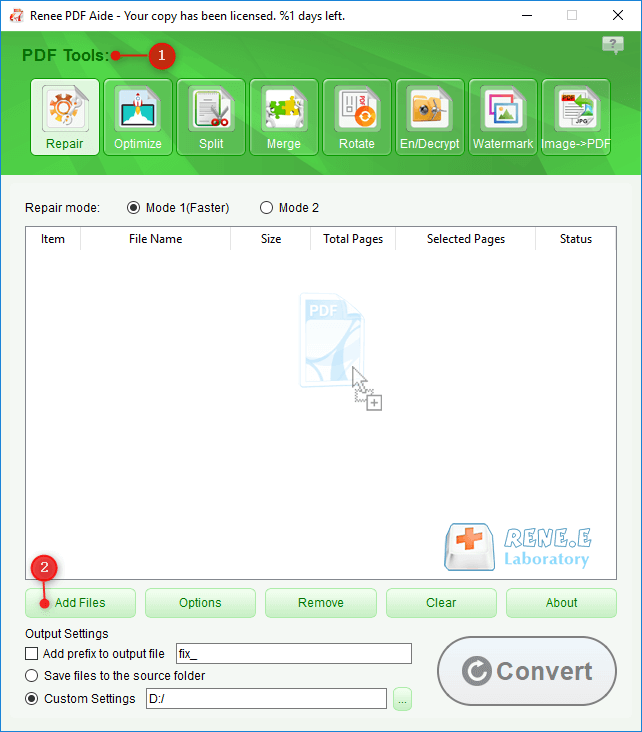
Renee PDF Aide is a comprehensive Windows desktop PDF tool designed to tackle these complex extraction issues, all while keeping your documents local and private.
Renee PDF Aide – The Ultimate PDF2Excel Conversion Solution! (100 FREE Quota)

Versatile Convert to Word/Excel/PPT/Text/Image/Html/Epub

Secure 100% local conversions ensure zero risk of data leaks

Efficient Batch Process dozens of PDF files in seconds
Comprehensive Seamlessly convert PDFs to Excel, PowerPoint, Text, and more

OCR Support Extract Text from Scanned PDFs, Images & Embedded Fonts

Versatile Effortlessly convert XFA, multi

Secure 100% local conversions ensure zero risk of data leaks

Efficient Batch Process dozens of PDF files in seconds

Free TrialFree TrialNow 1335621 people have obtained the free version!
Why Renee PDF Aide stands out for fixing garbled text:
- OCR Mode B: Instead of reading from broken font tables, the software treats embedded fonts as images, then runs precise OCR to generate clean, editable text—completely sidestepping encoding errors.
- 100% local processing: All work happens on your computer, so sensitive files never leave your device.
- Fast batch conversion: Convert up to 80 pages per minute and process multiple files in a single go.
- Versatile output: Export to Word, Excel, CSV, Markdown, HTML, Text, ePub, and more.
- XFA form compatibility: Handles specialized PDFs from banks and government agencies that most converters can’t process.
Renee PDF Aide also includes optimization, repair, merge, split, and encryption features. But when it comes to fixing garbled text and tofu boxes, OCR Mode B is your essential tool.
how to repair pdf with renee pdf converter what is ocr

Step-by-Step: Fixing Garbled Text with Renee PDF Aide

Follow these steps to restore your PDF’s text to a clean, editable state:
Renee PDF Aide – The Ultimate PDF2Excel Conversion Solution! (100 FREE Quota)

Versatile Convert to Word/Excel/PPT/Text/Image/Html/Epub

Secure 100% local conversions ensure zero risk of data leaks

Efficient Batch Process dozens of PDF files in seconds
Comprehensive Seamlessly convert PDFs to Excel, PowerPoint, Text, and more

OCR Support Extract Text from Scanned PDFs, Images & Embedded Fonts

Versatile Effortlessly convert XFA, multi

Secure 100% local conversions ensure zero risk of data leaks

Efficient Batch Process dozens of PDF files in seconds
Free TrialFree TrialNow 1335621 people have obtained the free version!
Step 1: Open and Select Module
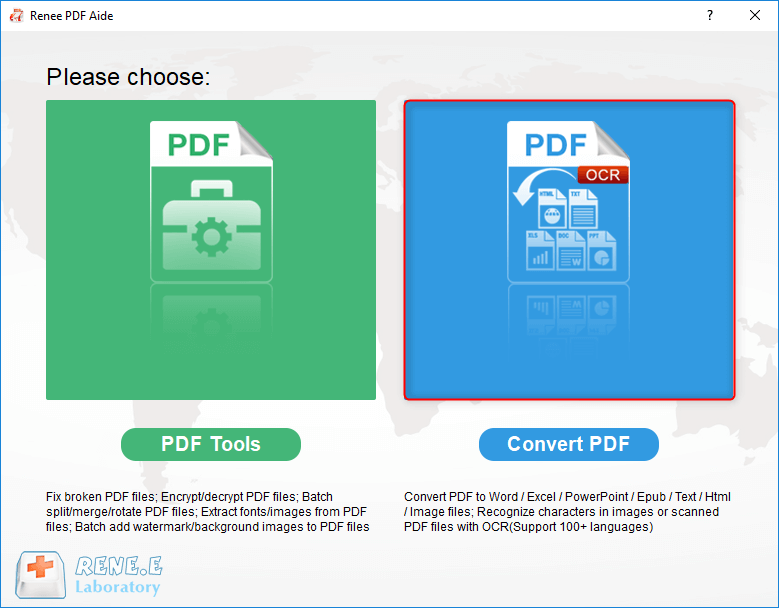
Launch Renee PDF Aide. On the main interface, click the “Convert PDF” tab to start the conversion process.
download now
select to convert pdf with renee pdf converter
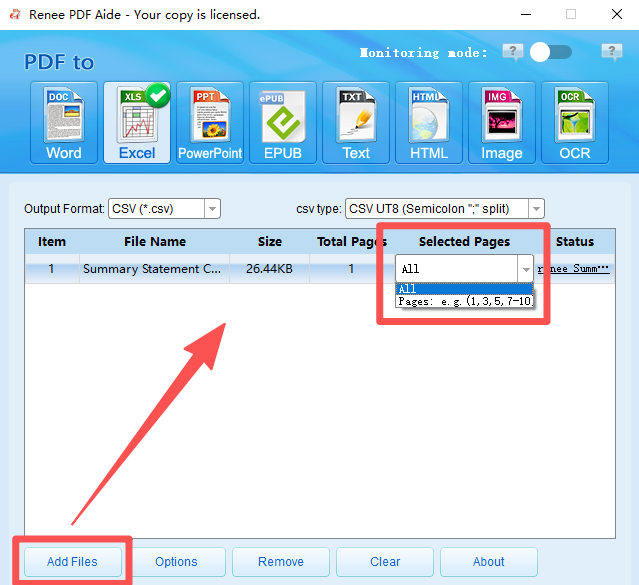
Step 2: Add Your Garbled PDF Files
Click “Add Files” to import one or more PDFs—batch conversion is supported. If you only want to fix certain pages, use the “Selected Pages” dropdown to specify the range.
add files to Renee PDF Aide and select pages
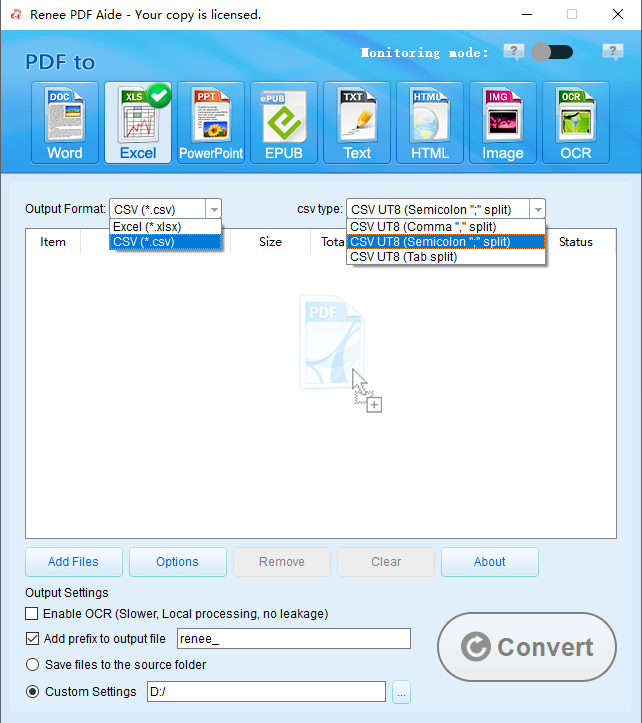
Step 3: Choose Output Format and Options
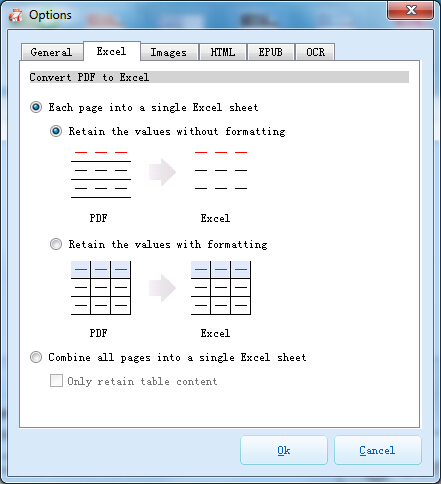
Select your desired output format (such as Word or Excel) from the top bar. Click “Options” for additional settings—such as merging all pages into one sheet for Excel or adjusting export preferences for Word.
convert pdf to excel or csv
set more requirements
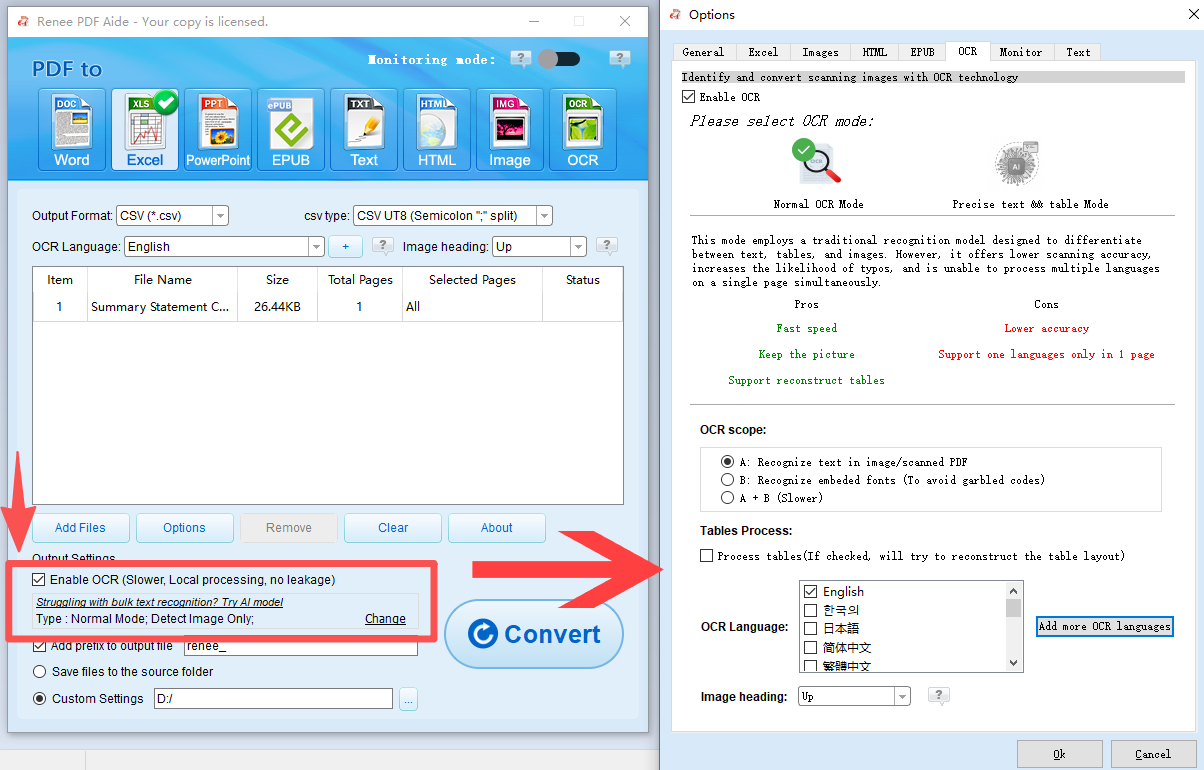
Step 4: Enable OCR and Select Mode B (Crucial Step)
Check the “Enable OCR” box. In the OCR panel, select Mode B: Identify built-in fonts (to avoid garbled characters). This mode treats embedded fonts as images and applies OCR to extract clean text, bypassing font encoding issues. Make sure to select the correct document language from the dropdown for best recognition accuracy.
PDF Aide using OCR to convert pdf to excel or csv
Step 5: Convert and Retrieve
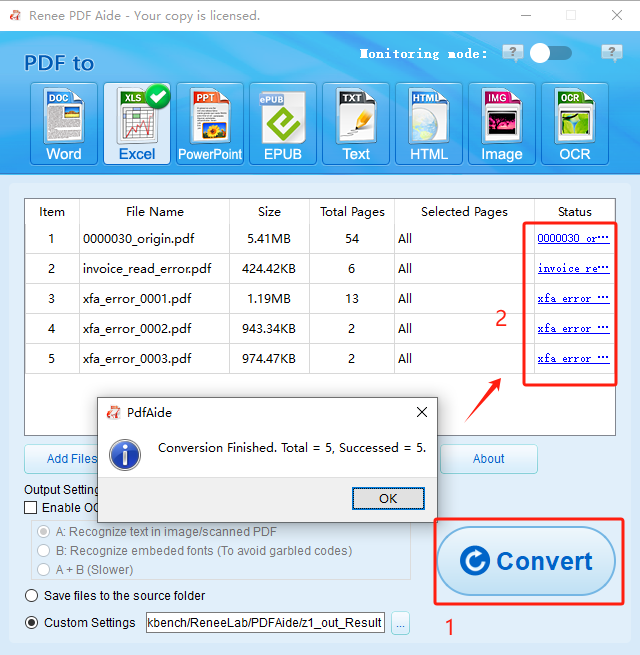
Click “Convert” to start the process. Once finished, you’ll see a summary window with conversion results. In the “Status” column, click the file link to open your newly cleaned, fully editable document.
pdf to excel convert excel
Renee PDF Aide – The Ultimate PDF2Excel Conversion Solution! (100 FREE Quota)

Versatile Convert to Word/Excel/PPT/Text/Image/Html/Epub

Secure 100% local conversions ensure zero risk of data leaks

Efficient Batch Process dozens of PDF files in seconds
Comprehensive Seamlessly convert PDFs to Excel, PowerPoint, Text, and more

OCR Support Extract Text from Scanned PDFs, Images & Embedded Fonts

Versatile Effortlessly convert XFA, multi

Secure 100% local conversions ensure zero risk of data leaks

Efficient Batch Process dozens of PDF files in seconds
Free TrialFree TrialNow 1335621 people have obtained the free version!

Alternative Methods: Online Tools and Native Software

Renee PDF Aide is the most reliable and secure way to resolve font encoding errors, but there are other options for simple or non-sensitive documents. Here’s how they compare:

Online Converters

Online services like Smallpdf, iLovePDF, and Zamzar are popular for quick, no-install conversions. While convenient, these tools rely on standard PDF parsing—they read the same broken text layer that causes garbled output. As a result, your converted file will usually look just as messy as the original, or the service might fail outright.
Privacy is another concern: uploading confidential documents to third-party servers means surrendering control over your data. Add in daily limits, file size restrictions, and the lack of advanced font recognition, and online tools are best reserved for non-sensitive, simple PDFs.
Advantages:
  • No installation required
  • Simple interface for casual use
  • Free tier available for small files

Disadvantages:

  • No garbled-text-specific fix; reuse the same broken text layer
  • Uploaded documents leave your machine—privacy risk
  • File size and daily usage limits apply
  • Cannot handle complex font encodings

Native Office & Built-in OS Options

If you have Microsoft Word or Adobe Acrobat, you can try their built-in PDF conversion features. Adobe Acrobat Pro can export PDFs to Word, but if fonts are missing or encoding is corrupted, it often replaces characters with rectangles or generic symbols. It won’t convert fonts to images or re-OCR them. Microsoft Word can open PDFs and attempt to reconstruct them, but it struggles with complex layouts, missing fonts, or non-standard encodings, often resulting in scrambled or missing text.
Advantages:
  • No extra software needed if already installed
  • Decent for standard, well-authored PDFs
  • Familiar interface

Disadvantages:

  • No dedicated ‘avoid garbled characters’ OCR mode
  • Font substitution creates tofu boxes for missing glyphs
  • Word’s PDF import heavily depends on source formatting, often fails with tables/multilingual content
  • Cannot repair corrupt encoding tables

How to try (results may vary):
Adobe Acrobat Pro: Open the PDF, then go to File > Export To > Microsoft Word > Word Document.
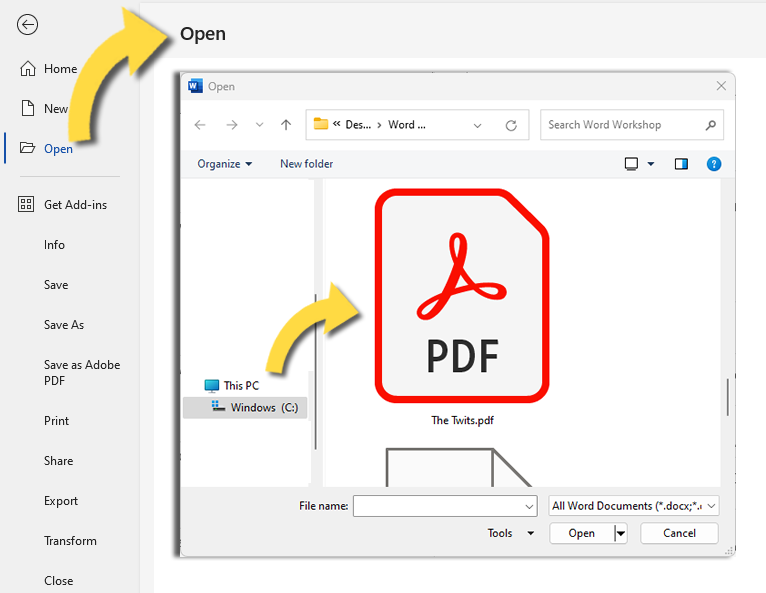
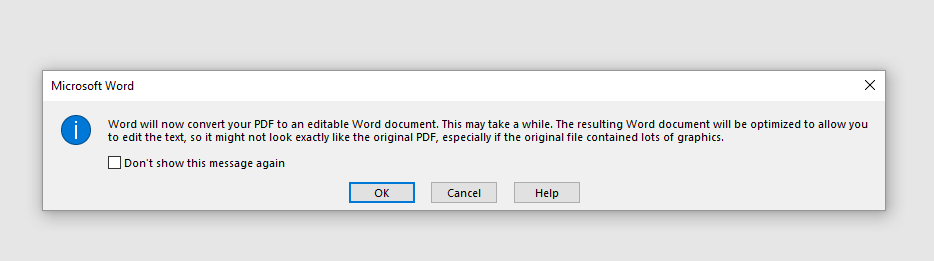
Microsoft Word: Open Word, select File > Open, and choose your PDF. Word will prompt you to convert it.
Open PDF in Microsoft word
Microsoft Word notification for PDF conversion
Browser Print-to-PDF Workaround: Open the PDF in your browser, press Ctrl+P (or Cmd+P on macOS), and save as a new PDF. Then open this new PDF in Word.
If the converted text is still garbled, your best bet is a tool that bypasses the text layer entirely—Renee PDF Aide with OCR Mode B.
Native tools are fine for quick, straightforward conversions where the PDF is already well-formed. For persistent font encoding errors, they fall short.

Comparison and Best Practices for Future Conversions

Here’s a quick comparison to help you choose the right method for your needs:
MethodGarbled Font AccuracyPrivacy (Local/Cloud)Batch SupportCost

Renee PDF Aide (Mode B)

High – bypasses encoding errors entirely

Fully local

Yes, one-click batch

Paid (free trial available)

Online Converters

Low – reuses broken text layer

Cloud (privacy risk)

Limited or subscription

Freemium / subscription

Adobe Acrobat / MS Word

Medium – good for well-encoded PDFs

Local (if installed)

Product dependent

Paid (or included with Office)

For any PDF that displays tofu boxes, scrambled symbols, or unreadable text after conversion, Renee PDF Aide offers the most accurate results—while keeping your files secure.
Renee PDF Aide – The Ultimate PDF2Excel Conversion Solution! (100 FREE Quota)

Versatile Convert to Word/Excel/PPT/Text/Image/Html/Epub

Secure 100% local conversions ensure zero risk of data leaks

Efficient Batch Process dozens of PDF files in seconds
Comprehensive Seamlessly convert PDFs to Excel, PowerPoint, Text, and more

OCR Support Extract Text from Scanned PDFs, Images & Embedded Fonts

Versatile Effortlessly convert XFA, multi

Secure 100% local conversions ensure zero risk of data leaks

Efficient Batch Process dozens of PDF files in seconds
Free TrialFree TrialNow 1335621 people have obtained the free version!

Frequently Asked Questions

What exactly does OCR Mode B do to fix garbled text and “tofu” boxes?

OCR Mode B completely bypasses the corrupted text layer. Instead of reading broken font mapping tables, it renders each page as a high-resolution image and applies OCR to extract the text. This process rebuilds the content from scratch, eliminating tofu boxes and jumbled symbols caused by encoding errors.

How do I know whether to use Mode A, Mode B, or Mode A+B for my specific PDF?

Check the diagnostic table above. Use Mode A for scanned/image-based PDFs(text cannot be selected). Use Mode B for native PDFs where text can be selected but appears garbled after conversion. Mode A+B tries both methods and is useful if you’re unsure or have a mix of scanned and embedded-font pages, though it’s slower.

Does OCR Mode B support multilingual PDFs with complex character sets?

Yes. In the OCR panel, you can select your document’s primary language from a dropdown list. For multilingual PDFs, choose the main language or the closest match. Mode B will use the appropriate language model to improve recognition accuracy, supporting scripts like Chinese, Arabic, Devanagari, and more.

What should I do if the converted text is still garbled after applying Mode B?

First, double-check that you selected the correct document language in the OCR settings. If the problem persists, verify that the PDF opens correctly in a viewer—if not, the file may be corrupted and should be repaired first. You can also try Mode A+B for a deeper scan, though it will take longer. If only a few symbols are incorrect, manual editing in the output file may be the quickest fix.
Renee PDF Aide – The Ultimate PDF2Excel Conversion Solution! (100 FREE Quota)

Versatile Convert to Word/Excel/PPT/Text/Image/Html/Epub

Secure 100% local conversions ensure zero risk of data leaks

Efficient Batch Process dozens of PDF files in seconds

Comprehensive Seamlessly convert PDFs to Excel, PowerPoint, Text, and more

OCR Support Extract Text from Scanned PDFs, Images & Embedded Fonts

Versatile Effortlessly convert XFA, multi

Secure 100% local conversions ensure zero risk of data leaks

Efficient Batch Process dozens of PDF files in seconds

Free TrialFree TrialNow 1335621 people have obtained the free version!

User Comments

Page 1

Leave a Comment


Your comment has been submitted and is awaiting moderation.