author avatar
    Technology Manager of Test Dept.
Last update by William Davis at 11 February 2026

Summary
This article explains how to compress PDF for email using a range of solutions, from free online tools and built-in software features to professional desktop applications and advanced optimization techniques. It also covers emergency workarounds like splitting, archiving, and cloud sharing when compression alone isn’t enough. Readers will find practical guidance tailored to different file types, privacy needs, and email platform limits.



Attaching a large PDF to an email only to see an error message about size limits is a common frustration. This guide on how to compress PDF for email covers a full spectrum of solutions: free online tools for quick jobs, built-in options in popular software, professional desktop tools for reliable offline work, advanced techniques for tricky files, and alternatives when compression alone isn’t enough. Read on to find the method that fits your needs and get your PDFs sent without hassle.

Major Email Providers — Attachment Limits

For convenience, here’s a quick overview of attachment limits across major email platforms:
Email PlatformMax Message Size (Total)Max Attachment SizeMax AttachmentsNotes

Gmail

25 MB

25 MB

~25

Larger files auto‑convert to Drive links

Outlook.com / Hotmail

20 MB

20 MB

~10–20

OneDrive links suggested for larger files

Yahoo Mail

25 MB

25 MB

~10

No auto cloud conversion

iCloud Mail

20 MB

20 MB

~10

Mail Drop used for larger files

Proton Mail (Free)

25 MB

25 MB

~10

Encrypted; limits vary by plan

Zoho Mail (Free)

25 MB

25 MB

~10

Business plans may differ

GMX / Mail.com

50 MB

50 MB

~10

Higher than average

AOL Mail

25 MB

25 MB

~10

Similar to Yahoo

Some GOV Sites

20 MB

1-2 MB

~10

File size can be small

Important:
  • Limits apply to the entire message size, including MIME encoding overhead (~30%).
  • A “25 MB attachment” often means the raw file must be ≤18–20 MB to send successfully.
Preface: Can PDFs be compressed effectively for email?

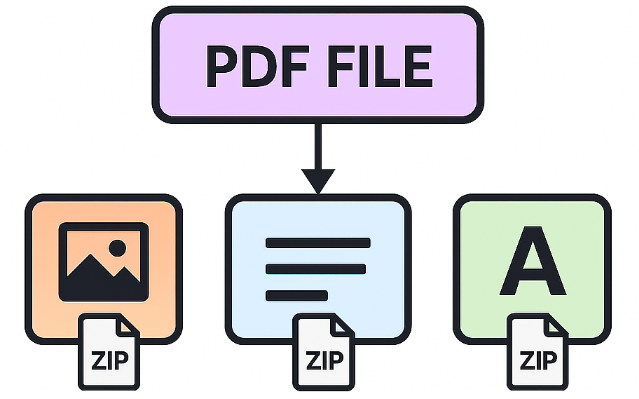
In short, most PDFs are already compressed using ZIP‑style methods, so zipping them again usually makes little difference.

PDFs can be compressed for email, but only with the right method. While a PDF isn’t a ZIP file, many of its internal components already use ZIP‑style compression, and images are often stored in formats like JPEG or JPEG2000. As a result, zipping a PDF usually provides little additional size reduction unless the file contains uncompressed data, such as raw scans. To significantly reduce file size, it’s more effective to optimize the PDF itself—by downsampling or re‑encoding images, removing unused fonts and metadata, enabling object compression, or applying OCR to scanned pages. For very large or sensitive files, splitting the PDF or sharing it via a secure link may be a better option.
the content in zip has been compress with zlib
This article walks you through practical options, starting with the fastest fixes and moving to more powerful tools, so you can choose the right approach for speed, privacy, quality, and frequency of use.

1. Quick start — Online free PDF compressors

Online PDF compressors are the go-to choice when you need to shrink a file quickly and don’t want to install anything. You simply visit a website, upload your PDF, choose a compression level (low, medium, high, or recommended), and download the smaller version in seconds. Most free services handle files up to 50–150 MB and offer decent results for text-heavy documents or moderate image content.
PlatformFree Files per DayMax File Size (Free)Total Daily CapacityTypical CompressionScanned PDF Support

Smallpdf

~2 tasks/day

5–15 MB

~30 MB

40–60%

Limited (OCR is paid)

iLovePDF

~2 tasks/day

15–25 MB

~50 MB

40–70%

Basic (OCR paid)

Adobe Acrobat Online

Limited/day

~25 MB

~25 MB

30–50%

No (OCR paid)

PDF2Go

1–2 tasks/day

~100 MB

~100 MB

30–60%

Partial

PDF Candy

1 task at a time

~500 MB

Not capped

30–60%

Limited

HiPDF

~2 tasks/day

~10 MB

~20 MB

40–60%

No (OCR paid)

Sejda PDF

3 tasks/day

50 MB

~150 MB

40–60%

Limited

Zamzar

2 conversions/day

50 MB

~100 MB

20–40%

No

These tools are ideal for occasional use and non-confidential files—think resumes, invoices, or public reports. They work well on both desktop and mobile browsers. Typical compression can reduce a 10 MB file to 2–4 MB with minimal visible quality loss, though results vary by original content.

The main trade-off is privacy: your file is uploaded to a third-party server. Free tiers often limit daily uploads, file numbers, or add watermarks on extreme compression.

Online tools are perfect for quick, one-time needs, but frequent users or those handling sensitive documents often look for more secure offline alternatives.

2. Professional desktop solution — Renee PDF Aide

When you regularly send PDFs, deal with confidential information, or need precise control and batch processing, a dedicated desktop tool is worth considering. Offline software keeps your files on your computer, offers stronger compression options, and supports additional tasks like splitting, merging, and OCR—all without upload risks or daily limits.
Renee PDF Aide stands out as a reliable Windows solution for users who want consistent results and full privacy.
Disclosure: The Windows tool below is recommended for users who need offline privacy and consistent results. Always choose the method that best fits your needs.
Renee PDF Aide is a full-featured Windows PDF suite that works entirely offline. It lets you compress, split, merge, convert, encrypt/decrypt, and repair PDFs, with OCR for scanned documents. Use it when privacy matters or when online tools can’t hit strict size limits.
Renee PDF Aide - Powerful PDF Converting/Editing Tool (100 FREE Quota)

Convert to Editable Word/Excel/PPT/Text/Image/Html/Epub

Multifunctional Encrypt/decrypt/split/merge/add watermark

OCR Support Extract Text from Scanned PDFs, Images & Embedded Fonts

Quick Convert dozens of PDF files in batch

Compatible Support Windows 11/10/8/8.1/Vista/7/XP/2K

Convert to Editable Word/Excel/PPT/Text/Image/Html/Epub

OCR Support Extract Text from Scanned PDFs, Images & Embedded

Support Windows 11/10/8/8.1/Vista/7/XP/2K

Free TrialFree TrialNow 800 people have obtained the free version!

Compress with Optimize (offline, fast)

If your PDF is made from scanned images, you can reduce its size by first converting it with OCR in Renee PDF Aide. Simply use OCR to turn the scanned pages into an editable Word, Excel, or PowerPoint file, then export it back to PDF. This removes the heavy image layers and usually results in a much smaller, cleaner PDF.
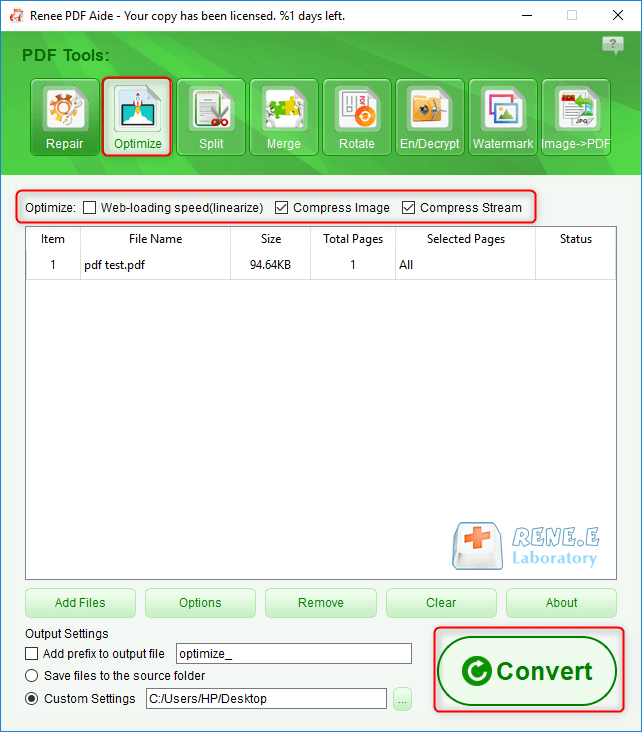
Use Optimize to reduce your PDF size without uploading to the cloud. This is ideal for email, portal uploads, and batch work.

1. Open Renee PDF Aide and click PDF Tools.
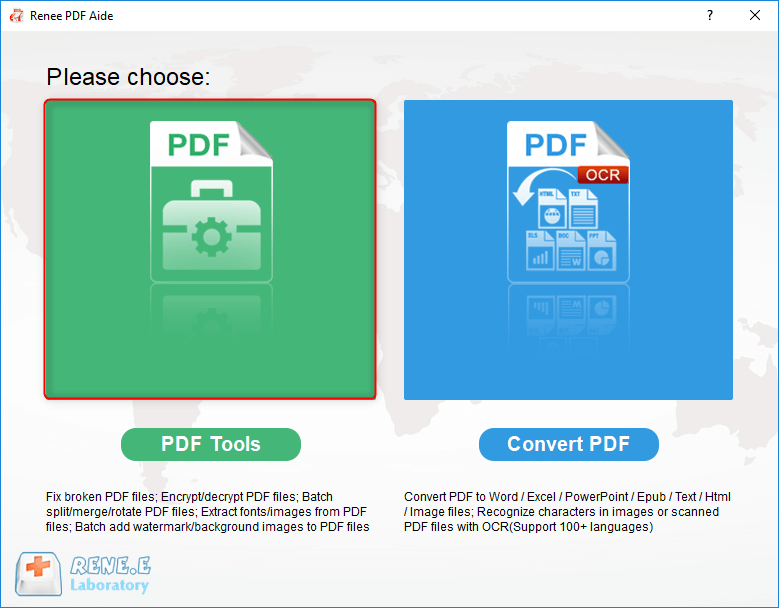
Main screen of Renee PDF Aide with PDF Tools highlighted.

2. Click OptimizeAdd File to import your PDF.

Optimize panel showing Add File and compression options of renee pdf aide
3. Choose optimization options:
  • Online page loading speed (Linearize): Improves first-page load over the web (“Fast Web View”).
  • Compress images: Downsizes and recompresses images—the biggest driver of file size.
  • Compress data stream: Further compresses internal PDF objects to shrink overall size.
4. Click Convert and review the output size. If it’s still too large, re-run with stronger image compression or lower image DPI.
If you must reach very small sizes (for example, ≤1 MB/≤500 KB/≤100 KB) and the PDF is long, move immediately to Split (below) after one Optimize pass. Then compress each part again to meet portal limits with better readability.

When target size is very small, use Split after Optimizing

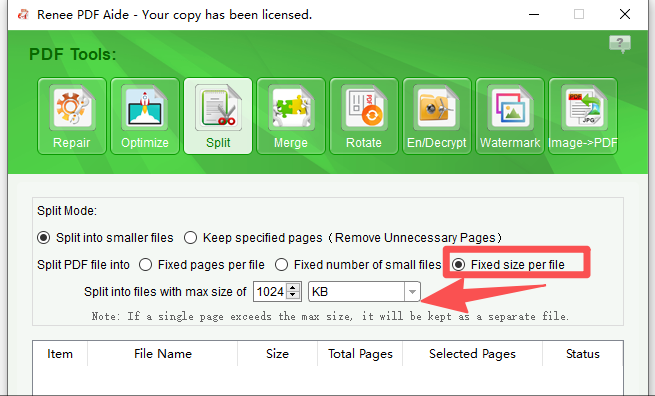
Use Split when compression alone can’t meet strict upload limits—common on some government portals and corporate systems. Splitting reduces the page count per file, which makes stricter targets achievable without over-blurring images.

1. In PDF Tools, select Split, then Add Files to import your PDF.
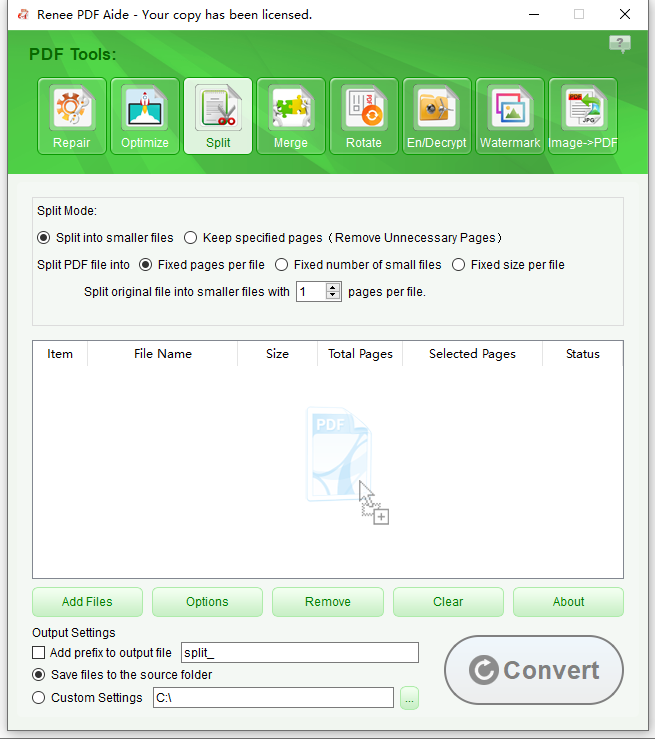
Split panel in Renee PDF Aide with options to add files

2. Choose your split mode:

split PDF file by fixed size
  • Keep specified pages: Extract only the pages or ranges you need to keep the file as small as possible.
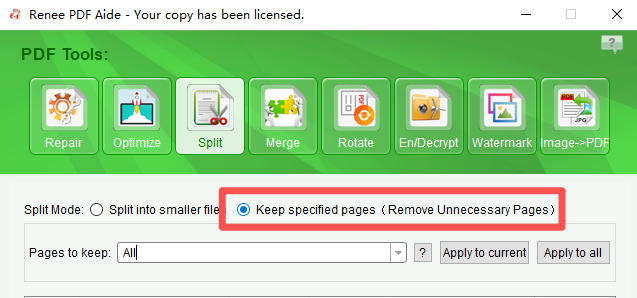
Interface for selecting specific page ranges to keep.

3. Set the output folder and click Convert to process. Then open each resulting file and run Optimize again, if needed, to reach your target with acceptable clarity.

Advantages:
  • Works fully offline for privacy
  • Batch compression and OCR for scanned PDFs
  • Flexible tools: Optimize, Split by size/pages, Encrypt/Repair

Disadvantages:

  • Windows-only
  • Paid after the trial
  • Advanced tuning options may require a short learning curve

For users who need more than occasional compression, Renee PDF Aide delivers reliable, private results without relying on internet tools.
Renee PDF Aide - Powerful PDF Converting/Editing Tool (100 FREE Quota)

Convert to Editable Word/Excel/PPT/Text/Image/Html/Epub

Multifunctional Encrypt/decrypt/split/merge/add watermark

OCR Support Extract Text from Scanned PDFs, Images & Embedded Fonts

Quick Convert dozens of PDF files in batch

Compatible Support Windows 11/10/8/8.1/Vista/7/XP/2K

Convert to Editable Word/Excel/PPT/Text/Image/Html/Epub

OCR Support Extract Text from Scanned PDFs, Images & Embedded

Support Windows 11/10/8/8.1/Vista/7/XP/2K
Free TrialFree TrialNow 800 people have obtained the free version!

3. Built‑in and Office workflows

If you prefer not to install new software, many common programs already include basic PDF compression features.
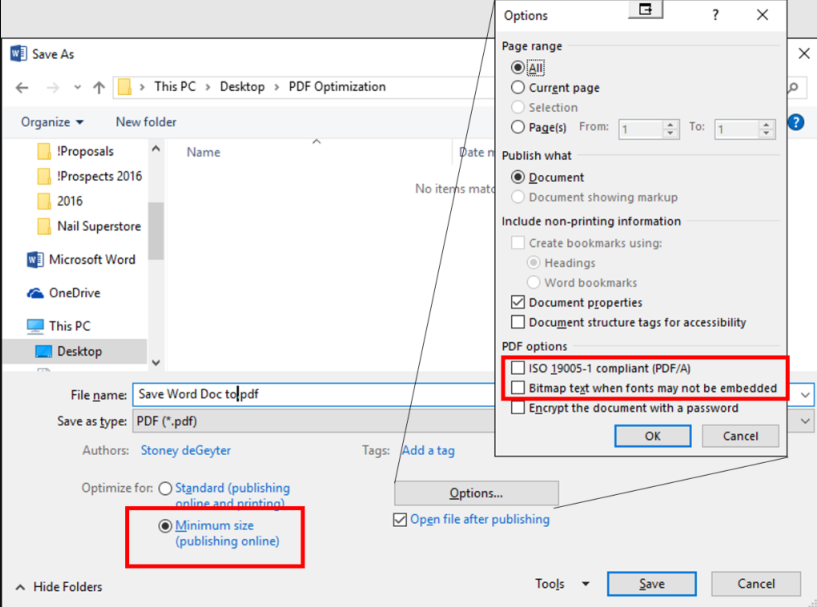
Microsoft Office (Word, PowerPoint): Open or place the content, then choose File > Save As > PDF > Minimum size (publishing online).
pdf save minimum in Office Word
macOS Preview: Open the PDF, go to File > Export, select the “Reduce File Size” Quartz filter.
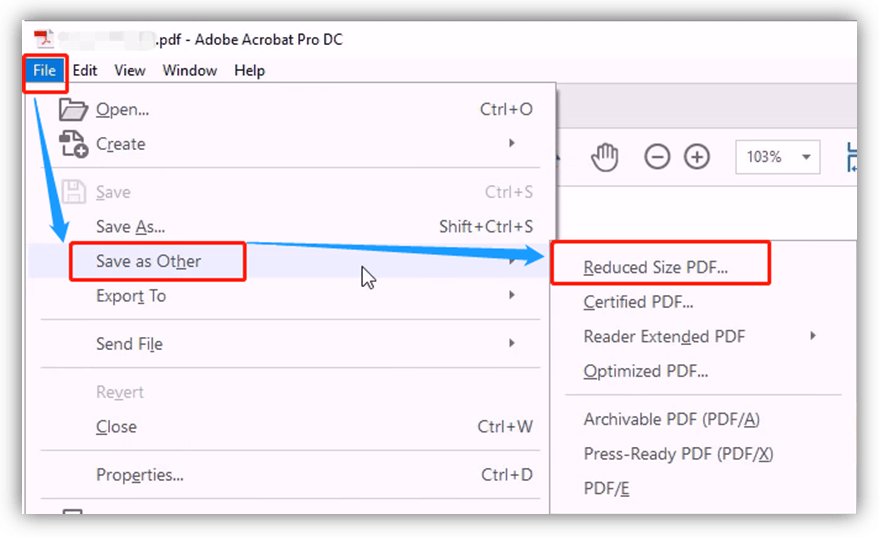
Adobe Acrobat Reader (free version): File > Save as Other > Reduced Size PDF (chooses compatibility level automatically).
adobe acrobat save reduced size pdf
These methods work well for lightly formatted or text-based PDFs and can cut size by 30–70 %. They’re completely free and private since everything stays on your device.
However, they offer limited control and often struggle with image-heavy or scanned documents, sometimes causing noticeable quality loss. They also lack batch processing and advanced options like targeted image recompression.
Built-in tools are great for occasional light optimization when you want to avoid extra downloads.

4. Advanced optimization for scanned or image‑heavy PDFs

Scanned or image-rich PDFs are the hardest to compress because high-resolution images dominate file size. Advanced techniques include:
  • Reducing image DPI (typically from 300 to 150–96 for screen viewing)
  • Increasing JPEG compression or converting to more efficient formats
  • Converting scanned pages to searchable text via OCR (removes heavy image layers)
  • Removing metadata, duplicate fonts, and unused objects
These steps can shrink a 50 MB scanned file to under 5 MB while preserving readability. The trade-off is potential loss of print quality or fine detail.
Tools that support these features include professional desktop software (like the Optimize and OCR functions covered earlier) or command-line utilities for experts. If standard methods fall short, advanced optimization is the next step before resorting to splitting.

5. Emergency alternatives and workarounds (when compression alone is insufficient)

If advanced optimization still leaves a PDF too large—or further compression hurts quality—alternative delivery methods may be more effective.
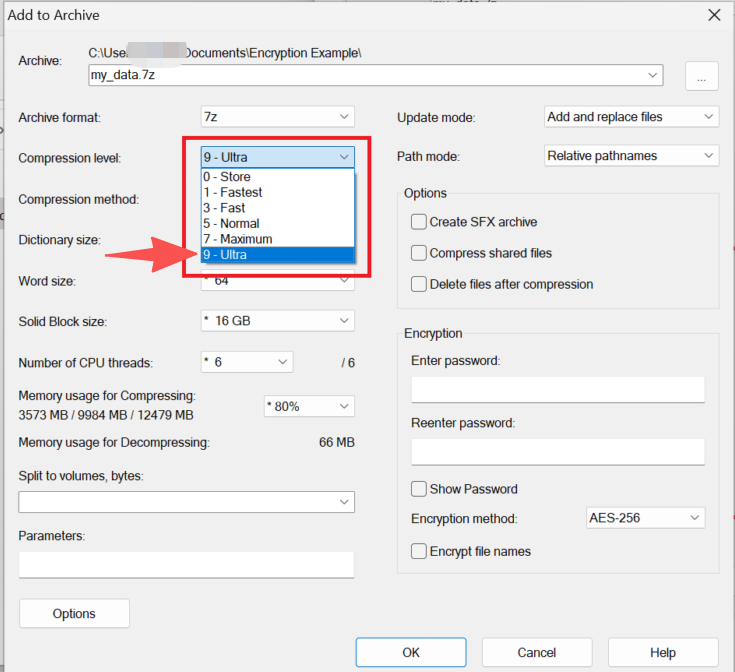
Creating a 7Z archive can sometimes reduce size slightly, but since most PDFs are already compressed, the gain is usually minimal. But ‘ultra’ compress leve may helps in some case.
compress file with 7zip using ultra level
Cloud sharing is often the most practical option. Upload the file to Google Drive, OneDrive, Dropbox, or a similar service and send a download link instead of an attachment. To avoid access issues, the file must be shared publicly or explicitly with the recipient. While this bypasses email size limits and may support passwords or expiration dates, incorrect sharing settings can expose sensitive data.
For long documents with strict per‑file limits, splitting the PDF into smaller parts is often the safest way to preserve quality.
Advantages:
  • Avoids email attachment size limits
  • Maintains quality when compression is no longer effective
  • Multiple options: split files, archives, or cloud links

Disadvantages:

  • Cloud links can expose data if permissions are misconfigured
  • Recipients may face access or download issues
  • Managing multiple files can be inconvenient

These workarounds are best used when standard compression reaches its limits. The next section compares all methods side by side to help identify the most suitable option for different scenarios.

6. Method comparison and decision guide

MethodEase of UsePrivacyCompression EffectivenessBatch SupportCostBest For

Online free compressors

Very High

Low

Medium

Limited

Free

One-off, non-sensitive files

Built-in/OS tools

High

High

Low–Medium

No

Free

Occasional light PDFs

Desktop professional (Renee PDF Aide)

Medium

High

High

Yes

Trial/Paid

Frequent use, privacy, scanned files

Advanced techniques

Low

High

Very High

Varies

Varies

Image-heavy or scanned PDFs

Alternatives (split/zip/cloud)

Medium

Varies

N/A

Varies

Mostly Free

When size limits can’t be met otherwise

Quick decision rules:
  • If the file is non-sensitive and you need it done in under a minute → use an online compressor.
  • If you already have Office or macOS tools and the PDF is simple → try built-in export options.
  • If you handle PDFs often, need privacy, or work with scans → choose an offline desktop tool like Renee PDF Aide.
  • If quality loss is unacceptable at the target size → split the document or use a cloud link.
  • If the PDF is scanned and still too large after basic compression → apply OCR first, then optimize.

7. FAQ

What are common email attachment size limits?

Gmail allows 25 MB, Outlook.com up to 34 MB for sending, and many corporate or webmail services cap at 10–20 MB. Anything larger usually requires a cloud link.

How much can I typically reduce a PDF size without noticeable quality loss?

Most users achieve 50–80 % reduction with good tools. Text-only files shrink dramatically; image-heavy files may need moderate settings to avoid blur.

Are online PDF compressors safe for confidential documents?

They are convenient but involve uploading to third-party servers. For sensitive or personal data, use offline desktop tools instead.

Can I compress PDFs directly on my phone?

Yes—many free mobile apps and browser-based online tools work well on iOS and Android for quick compression.

Will compressing a PDF make text or images blurry?

Moderate compression usually preserves readability. Extreme settings can blur images or make small text harder to read, so always preview the result.

What should I do if the compressed PDF is still too big?

Try splitting it into smaller files, running OCR if it’s scanned, or sharing via a cloud link (Google Drive, Dropbox, etc.) instead of attaching.
Renee PDF Aide - Powerful PDF Converting/Editing Tool (100 FREE Quota)

Convert to Editable Word/Excel/PPT/Text/Image/Html/Epub

Multifunctional Encrypt/decrypt/split/merge/add watermark

OCR Support Extract Text from Scanned PDFs, Images & Embedded Fonts

Quick Convert dozens of PDF files in batch

Compatible Support Windows 11/10/8/8.1/Vista/7/XP/2K

Convert to Editable Word/Excel/PPT/Text/Image/Html/Epub

OCR Support Extract Text from Scanned PDFs, Images & Embedded

Support Windows 11/10/8/8.1/Vista/7/XP/2K
Free TrialFree TrialNow 800 people have obtained the free version!

User Comments

Page 1

Leave a Comment


Your comment has been submitted and is awaiting moderation.