
How to Recover Lost Files After Factory Reset on Windows 10

Summary
Factory resetting a Windows 10 PC removes third-party applications, settings, and potentially some personal files, restoring the system to its original state with only preinstalled software and default settings. To recover lost files after a factory reset, professional data recovery software is one of the most effective options, though other methods are also available.



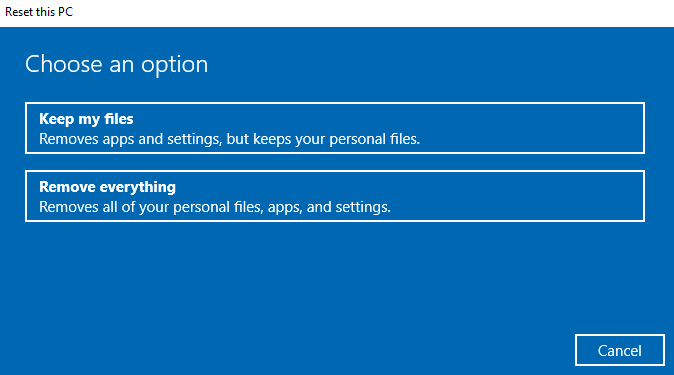
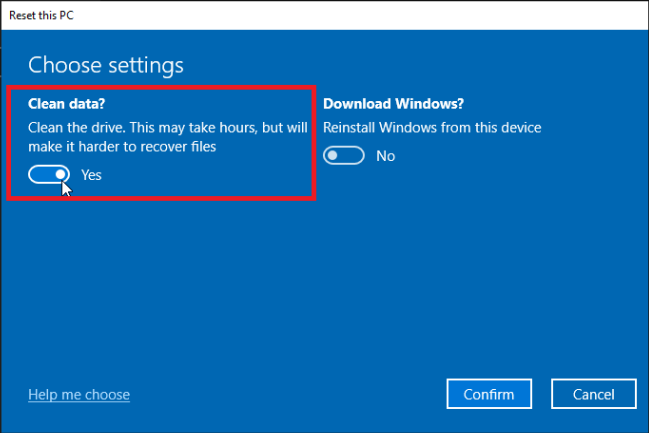
The factory reset process (also called Fresh Start in versions of Windows 10 prior to version 2004) is a useful alternative to the traditional method of reinstalling Windows because you don’t need to have a separate installation media and because you can keep some of your data by selecting the “Keep my files” option or creating a manual backup. Here’s a high-level description of what happens behind the scenes when you factory reset a Windows 10 PC:

Easy to use Only simple steps to recover data from storage devices.
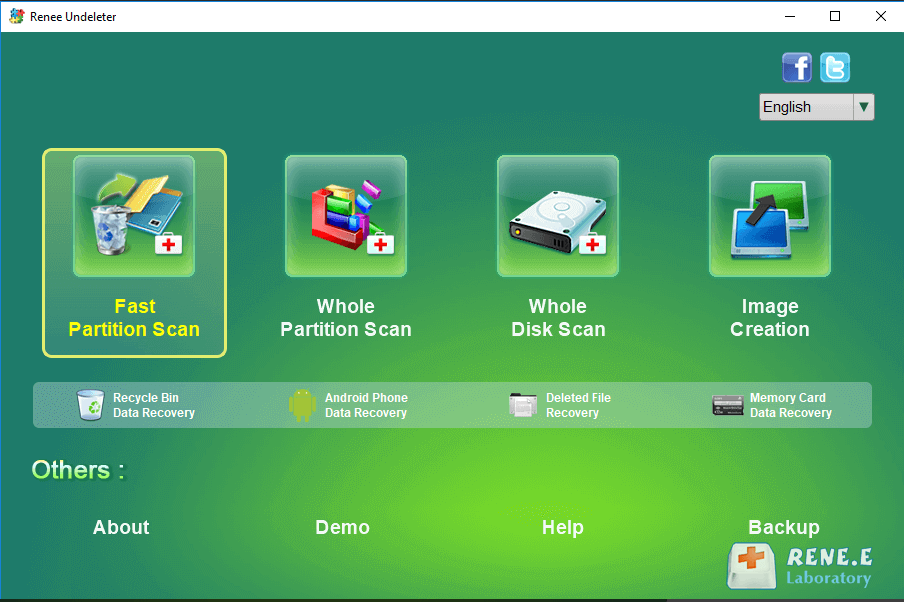
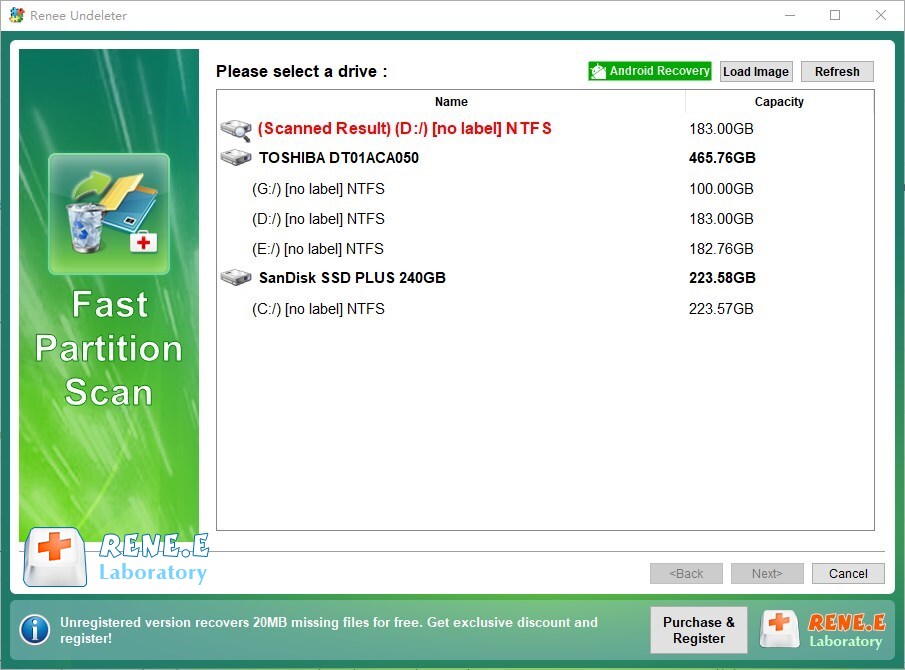
Multiple scan modes Fast partition scan, whole partition scan and whole disk scan for different recovery needs.
File types Support to recover pictures, videos, audios, documents, mails, etc.
Supported storage devices Recover data from recycle bin, SD card, external disk, etc.
Supported systems Windows 11,10, 8.1, 8, 7, Vista, XP, 2000 and Mac OS X10.6, 10.7, 10.8+.
Easy to use Only simple steps to recover data from storage devices.
Multiple scan modes - 3 scan modes for different recovery needs.
Supported storage devices Recover data from recycle bin, SD card, external disk, etc.
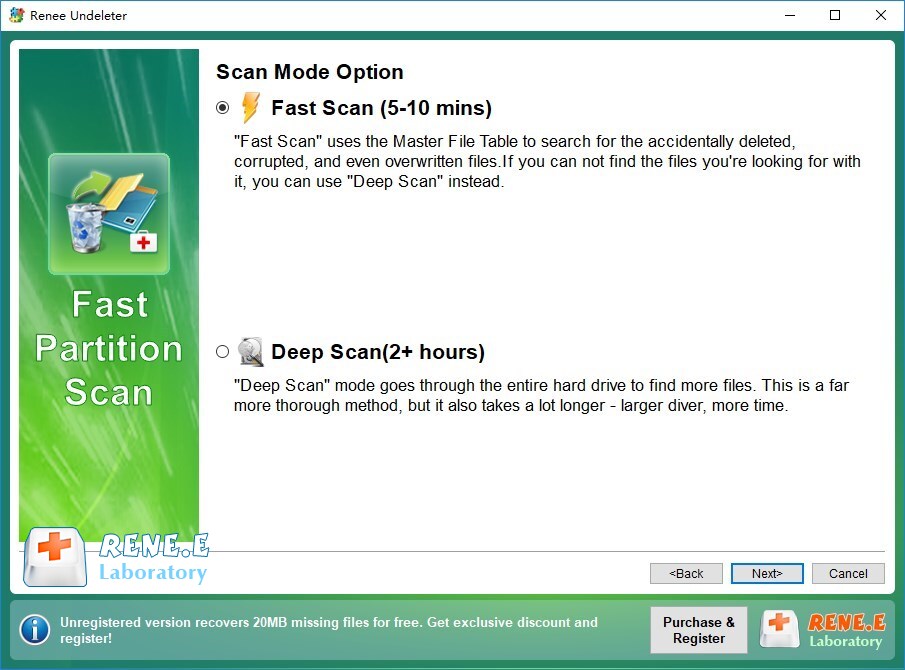
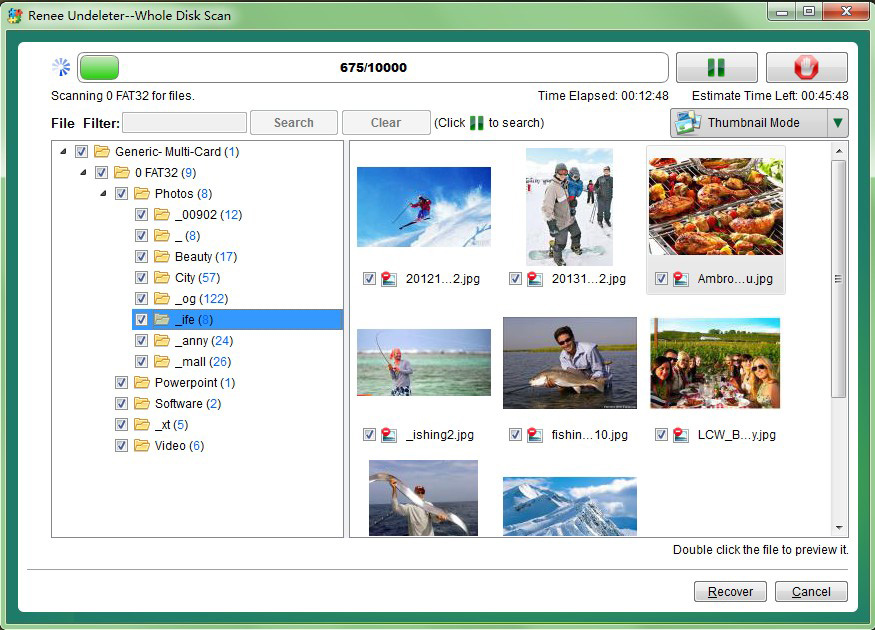
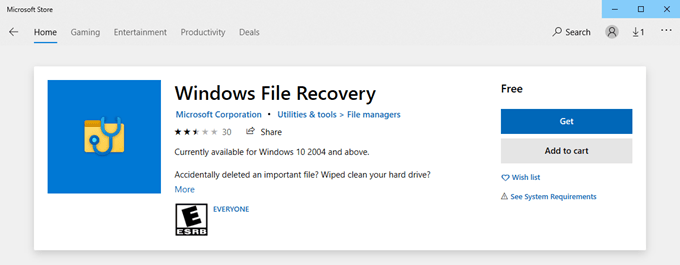
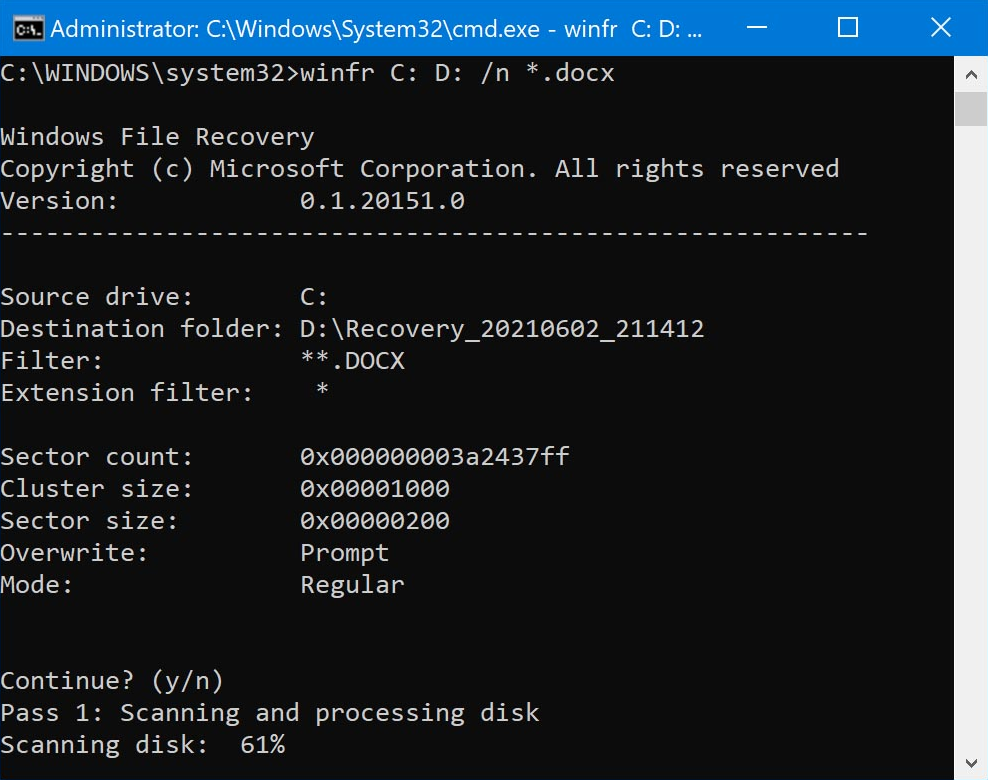
winfr C: D: /n *.docx
winfr C: D: /n *.pptx /n *.xlsx /n *.docx
Easy to use Only simple steps to recover data from storage devices.
Multiple scan modes Fast partition scan, whole partition scan and whole disk scan for different recovery needs.
File types Support to recover pictures, videos, audios, documents, mails, etc.
Supported storage devices Recover data from recycle bin, SD card, external disk, etc.
Supported systems Windows 11,10, 8.1, 8, 7, Vista, XP, 2000 and Mac OS X10.6, 10.7, 10.8+.
Easy to use Only simple steps to recover data from storage devices.
Multiple scan modes - 3 scan modes for different recovery needs.
Supported storage devices Recover data from recycle bin, SD card, external disk, etc.
Relate Links :
How to Factory Reset an iPhone 6 Without Password or Computer
19-12-2023
Ashley S. Miller : Learn how to factory reset your iPhone 6 without a password or computer using various methods like iCloud,...
Unlocking Your iPhone: How to Factory Reset iPhone 7 without Password or Computer
19-12-2023
Ashley S. Miller : Learn how to factory reset your iPhone 7 without password or computer with these easy methods, including using...
Forgot Your Gateway Laptop Password? Here's How to Factory Reset Without It
29-11-2023
Ashley S. Miller : Forgot your Gateway laptop password? Don't worry, this article will guide you through 4 easy methods to factory...
Unlocking Your iPhone 6s: Factory Reset Without a Password

29-11-2023
John Weaver : Learn how to factory reset your iPhone 6s without a password in various ways, including using iCloud's Find...


