How to Check Hard Drive Health SMART Status Before Reusing a Corrupted Disk

Summary
Predicting physical storage failure requires systematic analysis of self-monitoring thresholds to evaluate hardware lifespan and data retention capabilities. Implementing standardized diagnostic protocols to check hard drive health smart status ensures accurate identification of underlying mechanical or solid-state degradation prior to disk redeployment.
Table of contents

"Once your data is protected, it’s time to check hard drive health SMART status to decide if the physical disk is safe to format and reuse. SMART is the closest thing to a self-diagnosis system built into every modern drive."

Pre-Diagnostic Data Recovery Safely extract and secure inaccessible files from a corrupted disk before performing any SMART checks or formatting.
Supported devices SD card, SDHC, SDXC, USB flash drive, hard disk, computer, etc.
Supported file types Image, video, audio, text, email, etc.
Easy to use Recover by 3 steps and support to preview scan results.
Multiple scan modes Fast partition/whole partition/whole disk scan.
Easy to use Recover by 3 steps.
Multiple scan modes Fast partition/whole partition/whole disk scan.
Supported devices SD card/USB/hard disk, etc.
Free TrialFree TrialFree Trial 800 people have downloaded!| Method | Platform | Detail Level | Install Required | Best For |
|---|---|---|---|---|
Windows Settings / PowerShell (Built-in) |
Windows |
Basic overview |
No |
⚡ Quick drive health check |
CrystalDiskInfo (GUI) |
Windows |
Detailed SMART data |
Yes |
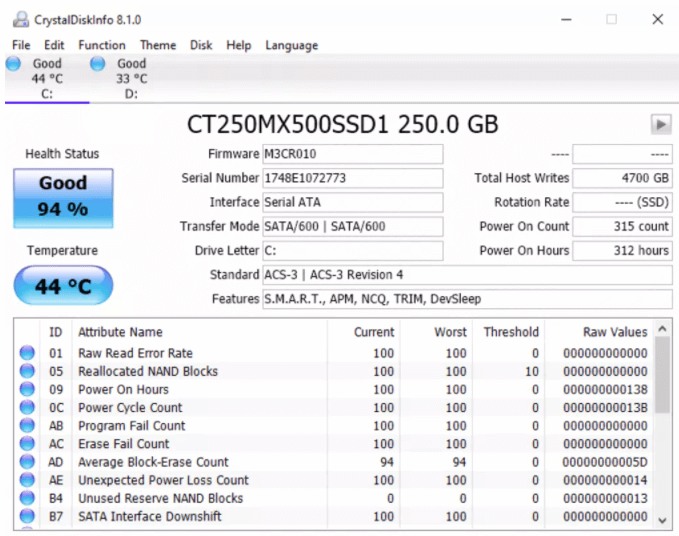
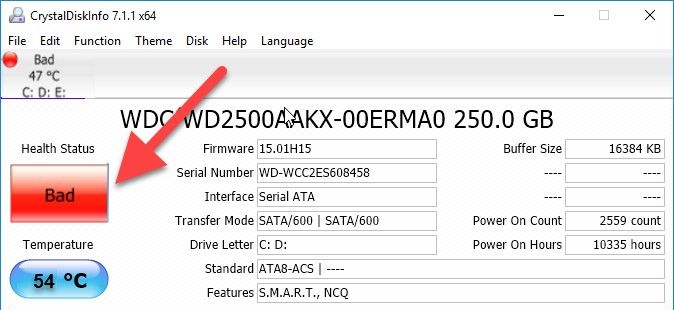
🟢 Easy-to-read health status & thresholds |
smartctl (CLI) |
Windows/macOS/Linux |
Full SMART diagnostics |
Yes |
🔧 Advanced troubleshooting & monitoring |
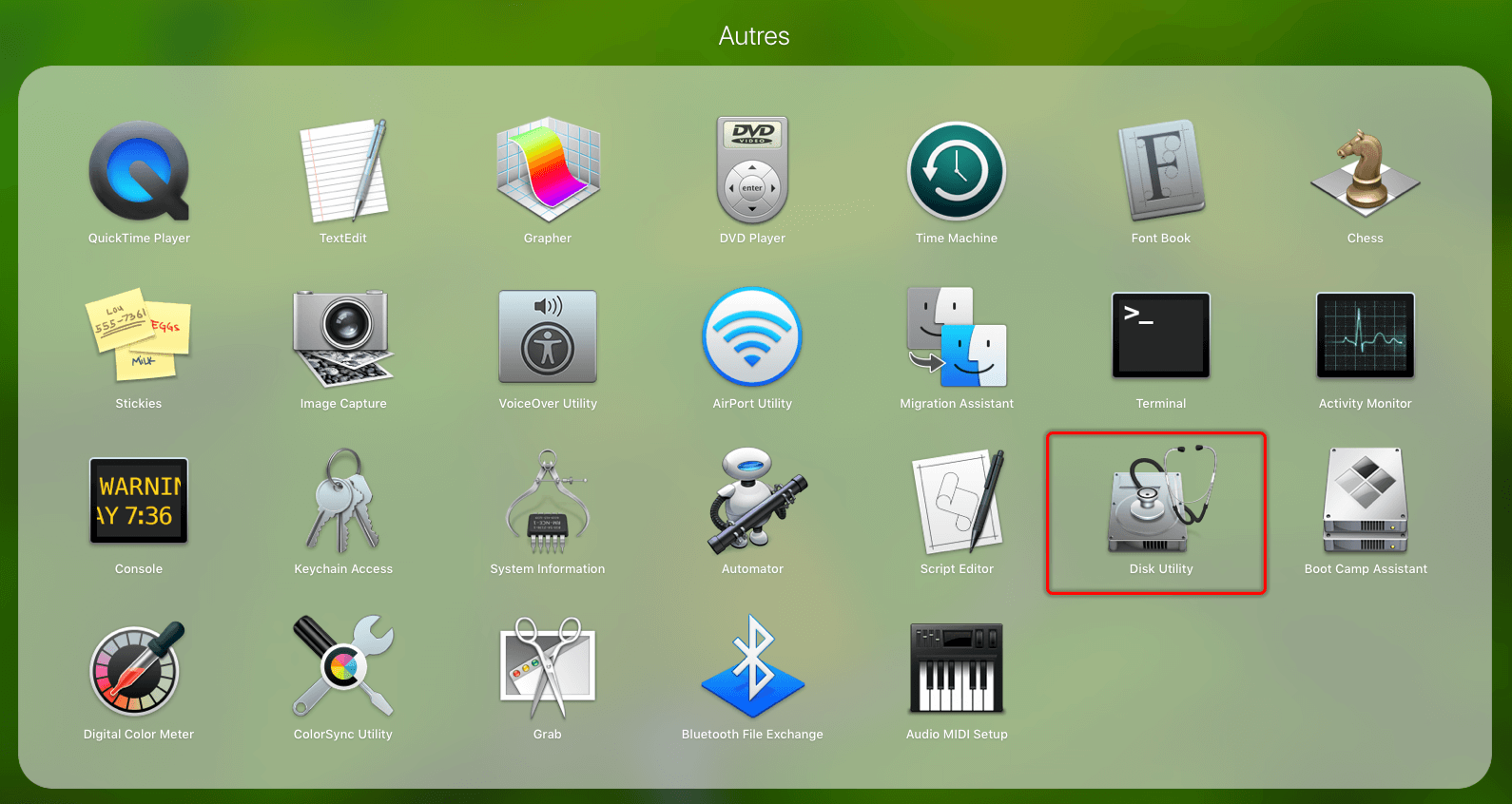
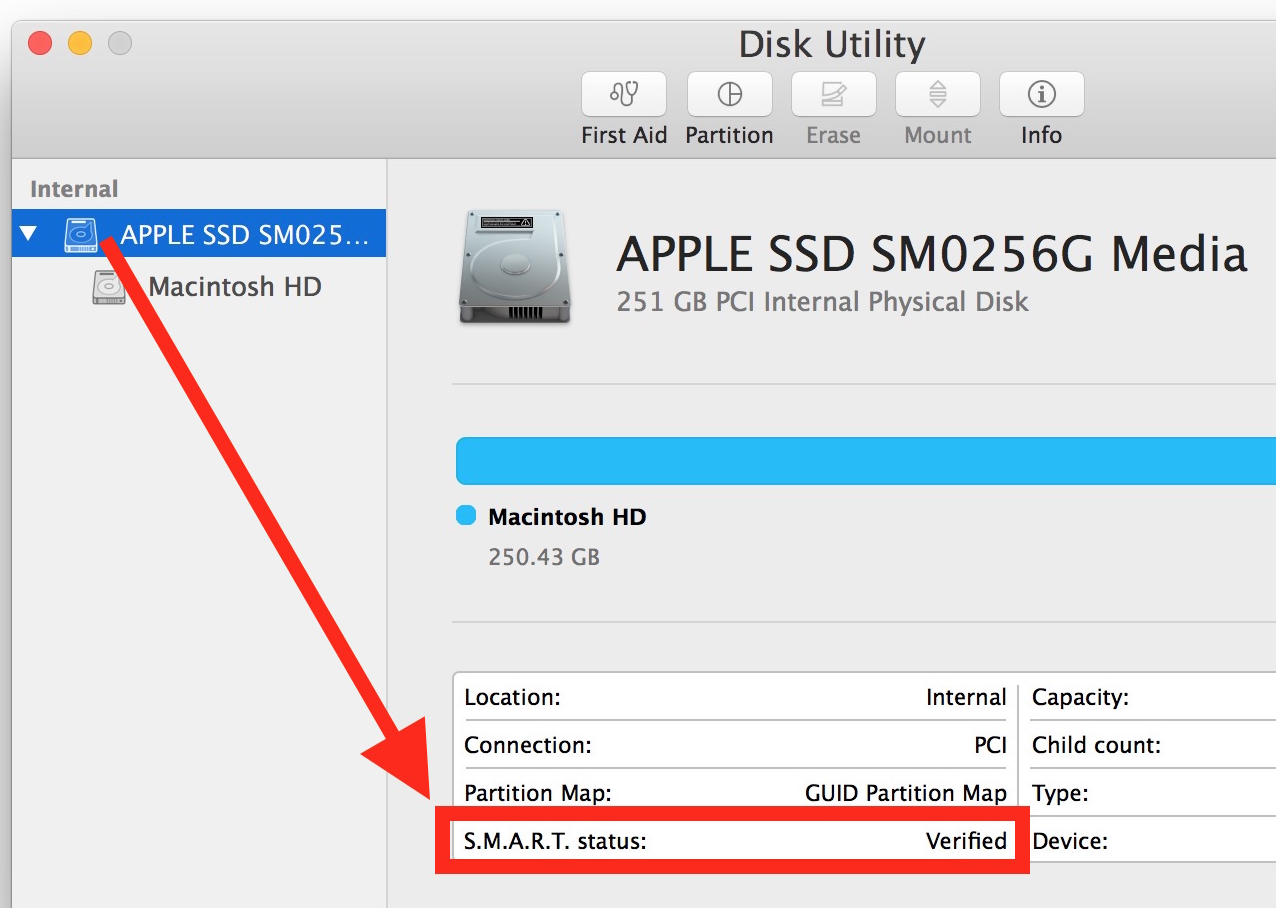
Disk Utility (Built-in) |
macOS |
Basic health status |
No |
✅ Quick Verified / Failing checks |
Option 1: Check Drive Health in Windows Settings
Option 2: Check Drive Health with PowerShell
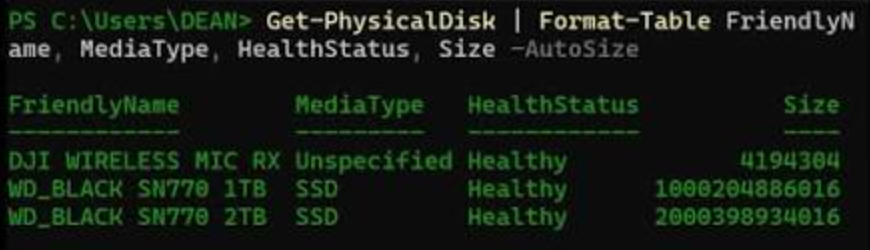
Get-PhysicalDisk | Select-Object FriendlyName, MediaType, HealthStatus
Get-PhysicalDisk cmdlet provides a high-level health assessment for each physical disk. However, it does not display individual SMART attributes, error counters, temperature readings, or other diagnostic data available through specialized tools such as CrystalDiskInfo or smartctl.
| SMART value | Meaning | Action |
|---|---|---|
Reallocated Sectors Count |
Sectors replaced by spare sectors after repeated errors |
A few stable values may be acceptable; rising values mean replace |
Current Pending Sector Count |
Sectors waiting to be reallocated or repaired |
Nonzero and rising means back up immediately |
Uncorrectable Sector Count |
Errors the drive could not fix |
Nonzero or rising means replace |
Temperature |
Drive operating temperature |
Follow drive limits; unusually high means check cooling or replace |
SSD Percentage Used / Media Wear Indicator |
How much of the SSD endurance has been consumed |
Above 90% used means plan replacement |
Why does the drive feel slow even if SMART says “Verified”?
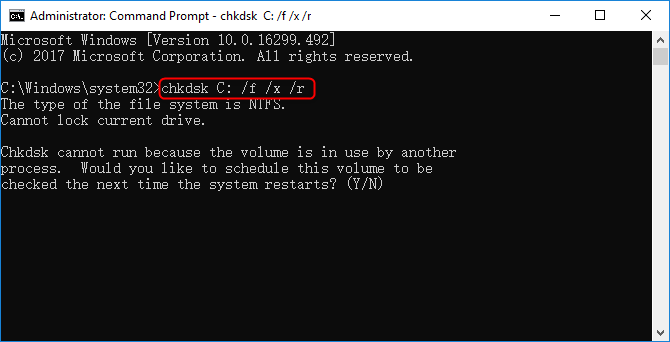
chkdsk on Windows or First Aid on macOS to check the file system. Also, try the drive on another port or computer before assuming it’s healthy.
Are non-zero reallocated sectors always a sign of failure?
Is it safe to format and reuse a drive that shows a “Caution” status?
Easy to use Only simple steps to recover data from storage devices.
Multiple scan modes Fast partition scan, whole partition scan and whole disk scan for different recovery needs.
File types Support to recover pictures, videos, audios, documents, mails, etc.
Supported storage devices Recover data from recycle bin, SD card, external disk, etc.
Supported systems Windows 11,10, 8.1, 8, 7, Vista, XP, 2000 and Mac OS X10.6, 10.7, 10.8+.
Easy to use Only simple steps to recover data from storage devices.
Multiple scan modes - 3 scan modes for different recovery needs.
Supported storage devices Recover data from recycle bin, SD card, external disk, etc.
Relate Links :
Migrate OS to Another Drive: Complete Guide to Move Windows Safely

28-05-2026
Jennifer Thatcher : This guide outlines practical methods to migrate os to another drive, covering professional migration software, manufacturer utilities, and...
Understanding S.M.A.R.T.: Self-Monitoring, Analysis, and Reporting Technology (SMART)
02-08-2024
John Weaver : S.M.A.R.T. (Self-Monitoring, Analysis, and Reporting Technology) is a hardware monitoring tool used to detect early warning signs of...
Mastering Moving C Drive to SSD: A Step-by-Step Guide

30-07-2024
Amanda J. Brook : This article provides a thorough guide for moving your C drive to an SSD, including preparation, using cloning...
Understanding and Monitoring Your SSD Health on Windows 11
26-06-2024
Jennifer Thatcher : This article highlights the integration of a new feature in Windows 11 that enables users to monitor the...



User Comments
Leave a Comment