author avatar
    Technology Manager of Test Dept.
Last update by William Davis at 28 May 2026

Summary
This guide outlines practical methods to migrate os to another drive, covering professional migration software, manufacturer utilities, and manual Windows approaches. It addresses pre-migration assessment, step-by-step cloning procedures, boot troubleshooting, and post-migration verification to ensure a successful system transfer.


If you need to migrate your OS to another drive, the main goal is usually simple: move Windows and keep your apps, settings, and files working without starting over. This guide covers the most practical options, including professional migration software, manufacturer tools, and manual Windows methods, along with fixes for common boot problems after migration. Keep reading to find the safest route for your setup and avoid the usual mistakes that make a new drive fail to boot.
migrate OS to another drive

Why You Need to Migrate Your OS to Another Drive

The OS is slowing down

When a computer takes two minutes or more to boot, freezes during normal work, or keeps showing low disk space warnings, most users are not looking for a technical project—they just want the system to work properly again. In many cases, the fastest fix is to migrate the OS to another drive instead of reinstalling Windows, reinstalling every app, and trying to rebuild all settings from scratch.

The old drive becomes the bottleneck

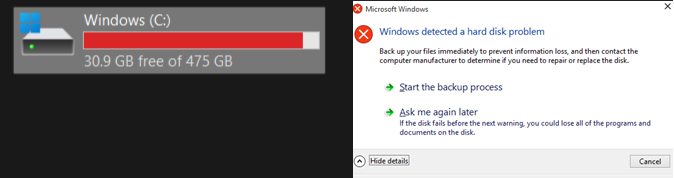
An aging hard drive often becomes the system’s main bottleneck. Windows may still load, but everything feels slow—sign‑in drags, browsers hesitate, updates fail, and file transfers crawl. In other cases, the issue is storage rather than speed. When the system drive drops below 10% free space, Windows can slow down sharply, updates may stop installing, and temporary files can trigger repeated performance dips. Some users also start seeing S.M.A.R.T. warnings, a sign that the drive is becoming unstable and may be close to failing.
Old Drive has problems (almost full or smart problem)

Pre‑Migration Checklist: Check Boot Mode and Fix Hidden System Issues

Before you move Windows to a new drive, it’s worth taking a moment to understand how your system currently boots and whether your existing installation has any underlying issues. A little preparation goes a long way toward preventing headaches during the actual migration.

Step 1: Identify Your Current Boot Mode (UEFI vs. Legacy)

Windows can boot in two different modes—UEFI or Legacy BIOS—and your migration will go much smoother if you know which one your system uses. Matching the boot mode on the new drive avoids unnecessary troubleshooting later.
You can check this directly in System Information. To open it:
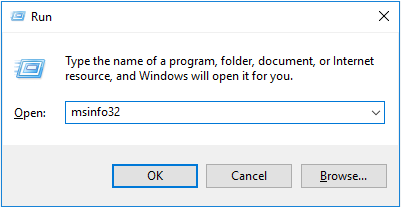
1. Press Win + R and type msinfo32.
type msinfo32
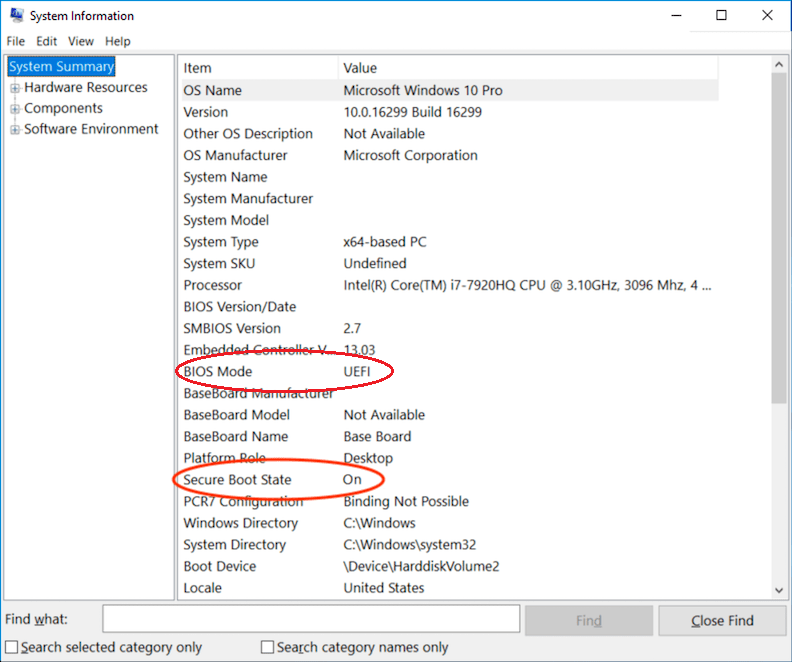
2. Look for BIOS Mode on the right side.
- If it says UEFI, your system uses modern boot firmware.
- If it says Legacy, your system uses the older BIOS style.
System Information dialog showing UEFI boot mode and Secure Boot status
Understanding this upfront helps you configure your migration tool correctly and ensures the new drive boots the same way the old one does.

Step 2: Clean Up Potential File System or Disk Errors

Even if Windows seems to run fine, hidden file system issues or minor disk corruption can cause problems during migration. Running a quick health check now helps ensure the data you clone is clean and stable.
Open an elevated Command Prompt:
1. Click Start and type cmd. Right‑click Command Prompt. Select Run as administrator.
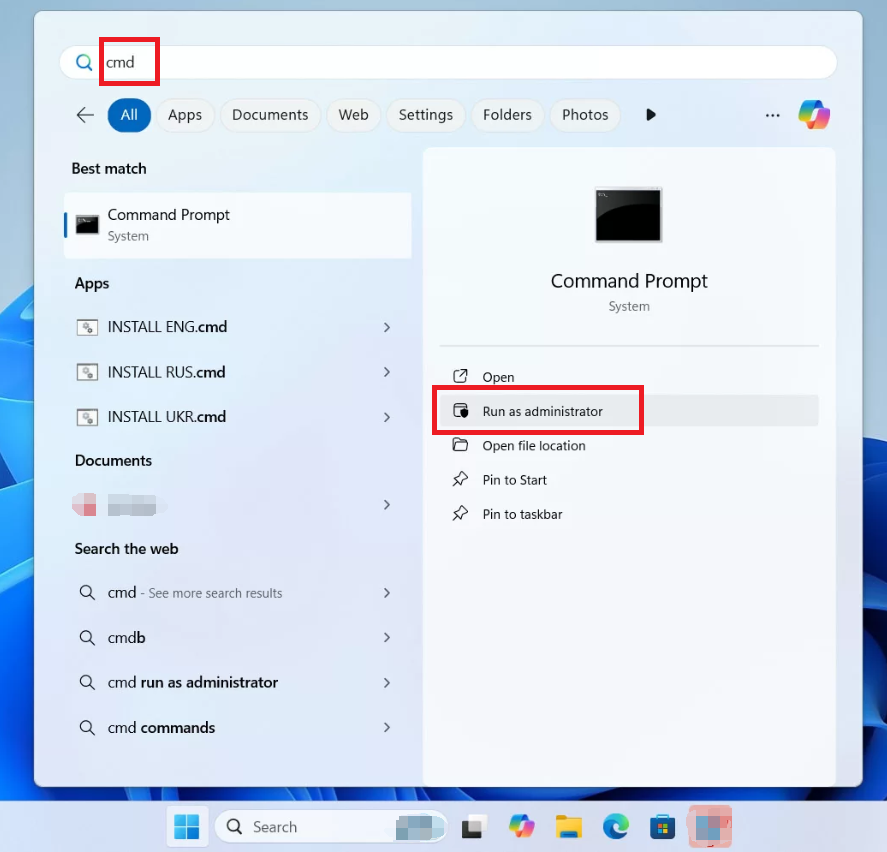
Windows 11, run cmd as administrator
2. Then run:

chkdsk C: /f

What this does:
- chkdsk scans the file system for structural issues.
- C: targets your Windows drive.
- /f tells Windows to fix any errors it finds.
If Windows asks to schedule the scan for the next restart, type Y and reboot.

Step 3: Make Sure Your Target Drive Has Enough Space

Before migrating, confirm that the new drive has more free space than the amount of data currently used on your old drive. You don’t need to match the full capacity—only the used space matters.
This simple check prevents mid‑migration failures and avoids unnecessary resizing later.

General Solutions for OS Migration

There are three main ways to migrate Windows to another drive. Each has a different balance of speed, risk, and effort. Please choose the best one that fits your need.

Disk cloning or migration software

This is the most direct option for most users. It copies Windows to the new drive while preserving installed apps, account settings, boot data, and personal files. In many cases, it is the fastest and least disruptive method. Such as Renee Becca …
Advantages:
  • Keeps your current environment intact
  • Faster than reinstalling Windows and apps
  • Often includes options for full-disk clone or OS-only migration

Disadvantages:

  • Some tools are better than others at handling boot partitions
  • You still need to choose the correct source and target drives carefully

Manufacturer tools

Some SSD brands provide their own migration utility (Such as: Samsung Data Migration, Acronis True Image WD Edition an Seagate DiscWizard). These tools are often simple and can work well for very basic upgrades.
Advantages:
  • Usually easy to use
  • Sometimes free with eligible SSD hardware

Disadvantages:

  • Often restricted to specific SSD brands
  • Limited features
  • May not include backup flexibility or advanced boot repair options

Clean install plus manual transfer

This method means installing Windows fresh on the new drive, then manually reinstalling software and moving files back.
You need to create a Windows Installation Media with Windows Media Creation Tool (https://www.microsoft.com/software-download/windows11)
Advantages:
  • Cleanest possible setup
  • Good option when the old system is heavily cluttered or damaged

Disadvantages:

  • Most time-consuming
  • Requires reinstalling apps, drivers, and preferences
  • Higher chance of missing settings or data during the move

Here is a simple comparison:
MethodSpeedKeeps Apps and SettingsComplexityBoot Handling

Disk cloning software

Fast

Yes

Low to medium

Usually good

Manufacturer tool

Medium

Usually yes

Low

Basic

Clean install + manual transfer

Slow

No

High

Fresh install, no migration boot issues

For most people, a dedicated migration tool is the best balance. It reduces manual work and lowers the chances of ending up with a non-booting new drive. That is why the next section focuses on a professional solution designed for this exact job.

Why Renee Becca Is the Recommended Tool for Safe OS Migration

When the goal is to migrate your OS to another drive without spending hours fixing partitions or boot files, a dedicated tool matters. Renee Becca is built for system and hard disk backup, restoration, cloning, and migration, so it fits both straightforward SSD upgrades and more careful system moves.
Renee Becca – Safe and Quick System Migration to SSD

Automatic 4K alignment Improves SSD performance during system migration.

Support GPT and MBR Automatically adapt to the suitable partition format.

Support NTFS and FAT32 Redeploy various files in different file systems.

Back up quickly Back up files at up to 3,000MB/min.

Overall backup schedule Support system redeployment/system backup/partition backup/disk backup/disk clone.

Automatic 4K alignment Improve SSD performance

Support GPT and MBR Intelligently adapt to a partition format

Support NTFS and FAT32 Redeploy files in different file systems
Free TrialFree TrialNow 56337 people have downloaded!
It is especially useful for users who want a reliable workflow without needing to manually rebuild Windows afterward. Instead of forcing a one-size-fits-all clone, it gives you options depending on whether you want to move only Windows or copy the entire original disk.
Renee Becca is not limited to one task. Along with system migration, it supports system backup, partition backup, hard disk backup, file backup, disk cloning, and restore operations. That broader toolkit matters because the safest migration plan is usually not just “copy and hope”—it includes a backup path and a way to recover if the old drive is unstable.
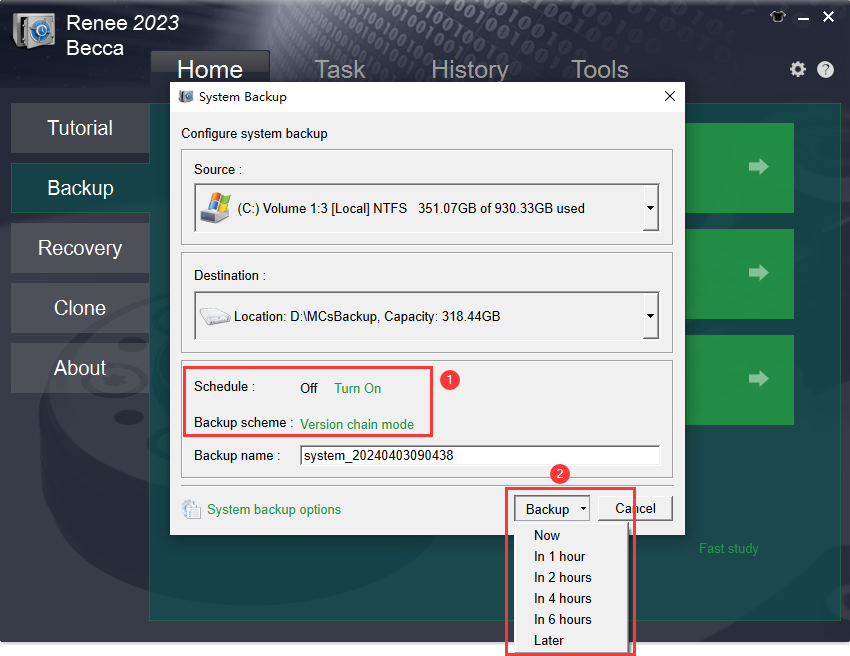
system backup start
The next section walks through the actual migration steps in the software, starting with the recommended method for moving only the Windows system.

Step-by-Step: Migrate Windows to a New Drive Using Renee Becca

Renee Becca offers two practical ways to move Windows. The best choice depends on what you want to transfer:
- Option 1: System Redeploy for moving only the Windows system only (Time saved!)
- Option 2: Hard Disk Clone for copying the whole drive including all partitions and data
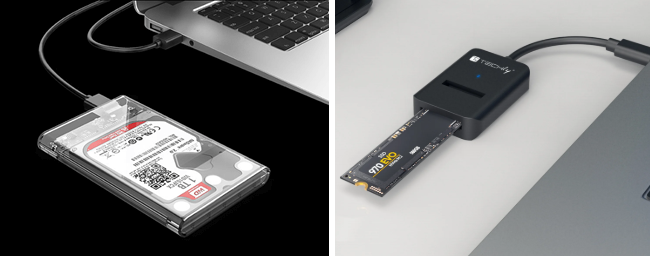
Before starting, make sure the new drive is connected properly. For an internal M.2 SSD, install it carefully in the slot. If you are connecting the target drive externally for the migration, use a USB enclosure or USB-to-M.2 adapter.
How to Install an M.2 SSD
usb ssd / disk enclosure

Option 1: System Redeploy (Recommended for OS-Only Migration)

If you only want to move Windows and keep the rest of your storage plan separate, System Redeploy is the most efficient choice. It migrates the Windows system partition to another drive, which is ideal when the target SSD is smaller than the original full disk but still large enough for the used system data.

Step 1: Download and install Renee Becca

Install the software on your current Windows system, then launch it.
download now

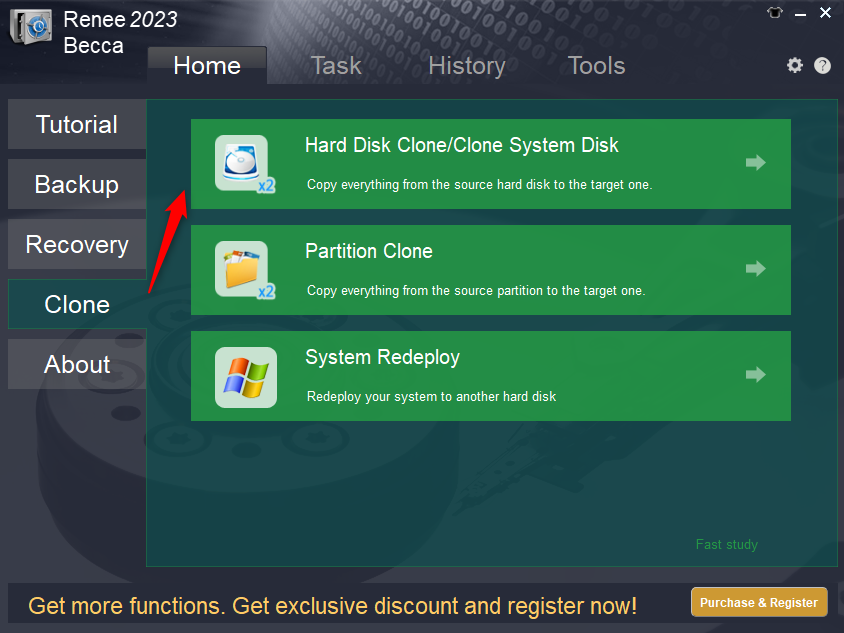
Step 2: Select System Redeploy

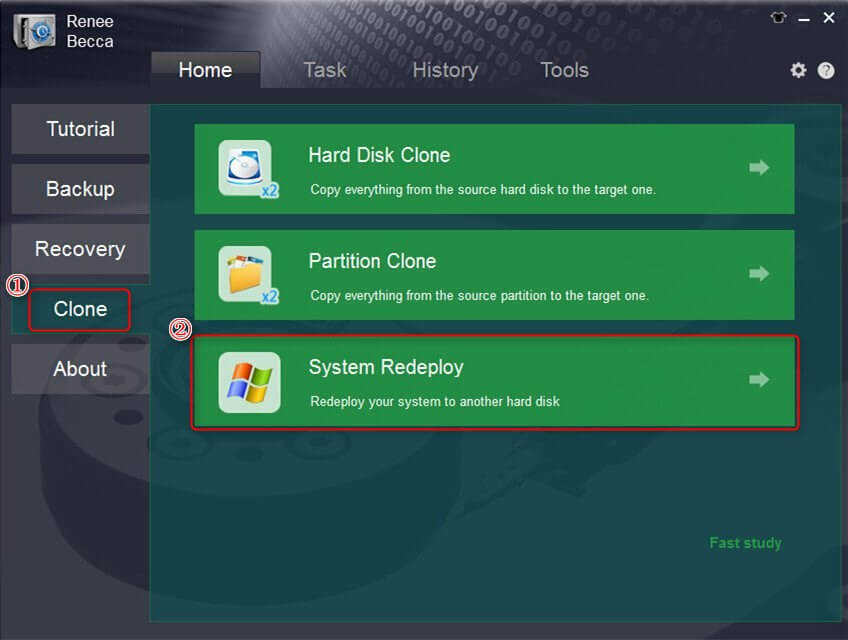
In the main interface, go to the Clone column and choose System Redeploy.
select system redeploy function in clone
This option is designed specifically for Windows migration and is usually the best fit when your goal is to move the operating system without cloning every data partition.

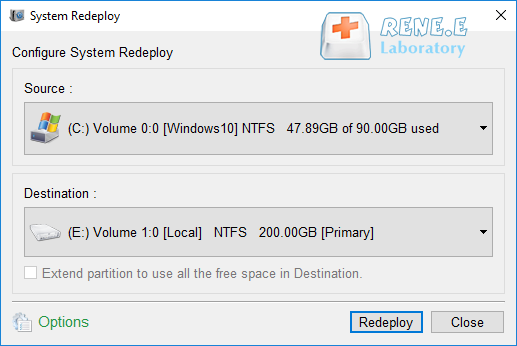
Step 3: Choose the source and target

Select your current system partition as the source and your new drive as the destination.
select a destination to redeploy system with renee becca

All data on the target drive will be erased during migration, so confirm you selected the correct destination before continuing.

Important notes before clicking start:
- The target drive must be larger than the used space on the current system partition
- If the target already contains files, back them up first
- If you want to copy every partition from the original disk, use the full clone method instead

Step 4: Click Redeploy

Start the migration by clicking Redeploy. The software will transfer Windows, installed applications, system settings, and related boot data to the target drive.

Option 2: Hard Disk Clone (For Full Drive Copy)

Use Hard Disk Clone/Clone System Disk when you want a full copy of the original disk. This includes Windows, system partitions, recovery partitions, and user data partitions. It is the better choice when you are replacing the old drive entirely.

Step 1: Open the clone function

In the main interface, go to the Clone section and select Hard Disk Clone/Clone System Disk.
renee becca disk clone

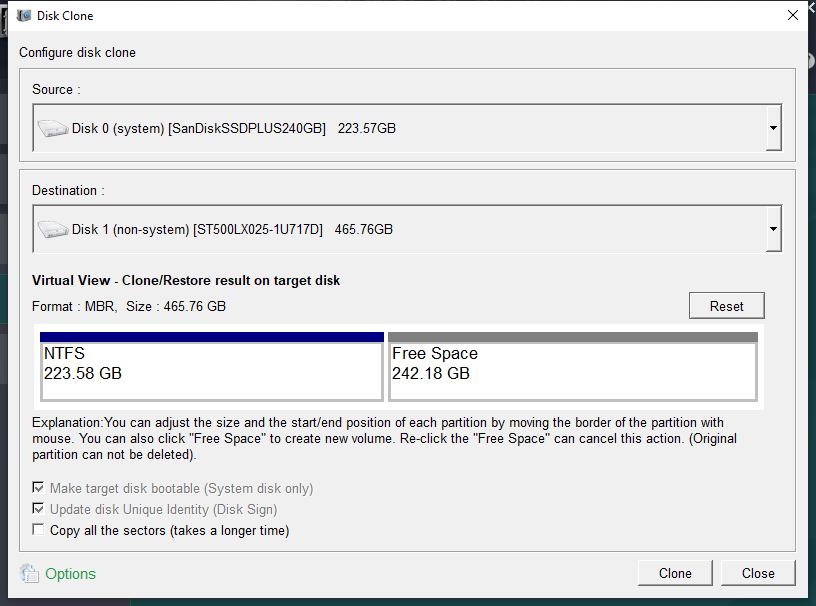
Step 2: Select source and target disks

Choose the original disk as the source and the new drive as the destination.
clone the hard disk
Take a moment here to double-check the disk sizes and labels. This is the step where users most often select the wrong target by mistake.

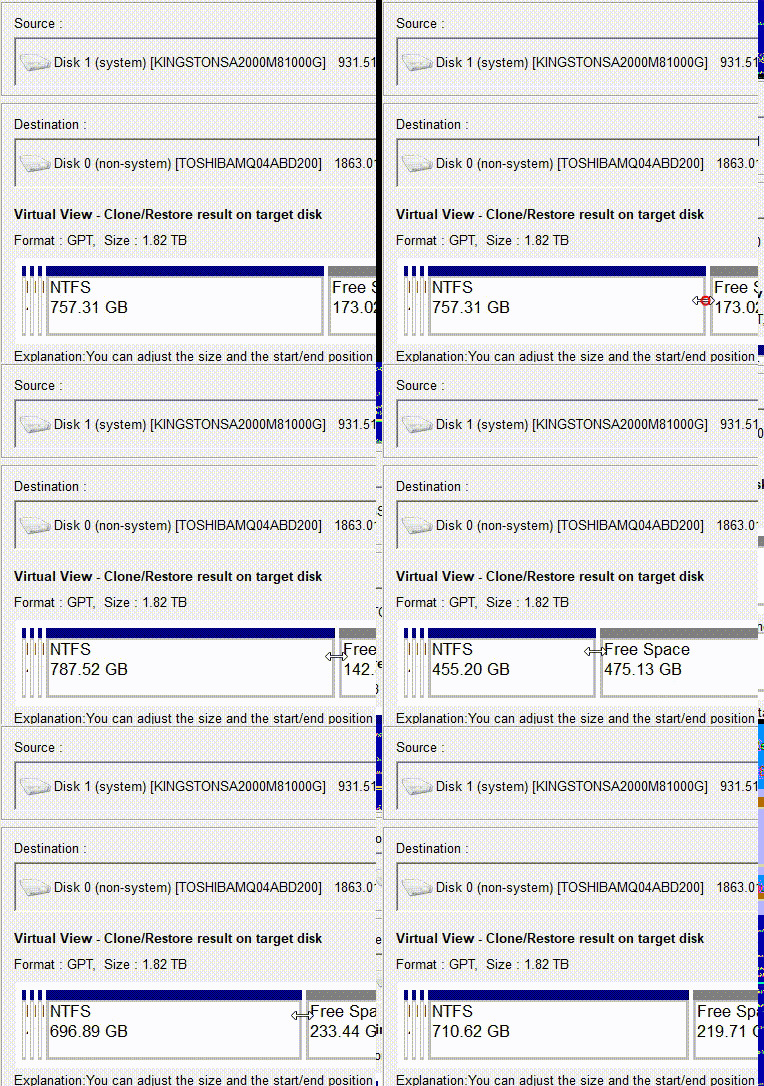
Step 3: Adjust advanced settings if needed

Before starting the clone, you can customize how the new drive is laid out.
Adjusting partition layout during clone via drag-and-drop in Renee Becca
Use these options when needed:
- Resize partitions if the new drive is larger and you want to use the extra capacity
- Copy all sectors if some software stores license information in hidden or reserved sectors
- Keep the default approach if you just want a standard usable copy and do not need an exact sector-by-sector duplicate

Use Copy all sectors when software licensing or hidden boot data may exist in reserved sectors that a standard clone could skip.

Step 4: Click Clone

Once everything looks correct, click Clone to begin.
Renee Becca – Safe and Quick System Migration to SSD

Automatic 4K alignment Improves SSD performance during system migration.

Support GPT and MBR Automatically adapt to the suitable partition format.

Support NTFS and FAT32 Redeploy various files in different file systems.

Back up quickly Back up files at up to 3,000MB/min.

Overall backup schedule Support system redeployment/system backup/partition backup/disk backup/disk clone.

Automatic 4K alignment Improve SSD performance

Support GPT and MBR Intelligently adapt to a partition format

Support NTFS and FAT32 Redeploy files in different file systems

Free TrialFree TrialNow 56337 people have downloaded!

Alternative Methods: Free Tools and Manual Approaches

If you do not want to use dedicated migration software right away, there are other ways to move Windows to a new drive. These can work, but they usually involve more limitations, more manual checks, or a greater chance of post-migration boot issues. Below are the main alternatives, ordered from easier to more complex.

Manufacturer Tools (Samsung Data Migration, WD Acronis, etc.)

Manufacturer migration tools are often the first free option users try when buying a new SSD.
VendorTool NameMain Functionality

Samsung

Samsung Data Migration

One‑click system cloning to Samsung SSDs; automatically handles partition alignment and OS migration.

Samsung

Samsung Magician

Drive management suite for firmware updates, performance optimization, and health monitoring.

Crucial

Acronis True Image for Crucial

Free Acronis‑based cloning tool for Crucial SSD owners; supports full‑disk and OS migration.

Crucial

Crucial Storage Executive

SSD management utility for firmware updates, drive health, and performance tuning.

Western Digital / SanDisk

Acronis True Image WD Edition

Free Acronis‑based cloning tool for WD and SanDisk SSDs; supports system migration and backup.

Western Digital

WD Dashboard

Drive monitoring and firmware management.

Seagate

Seagate DiscWizard

Acronis‑powered cloning, backup, and recovery tool for Seagate drives.

Seagate

SeaTools

Diagnostic utility for checking drive health before migration.

Kingston

Kingston SSD Manager

Health monitoring and firmware updates; does not include cloning features.

ADATA

ADATA SSD Toolbox

Drive health, optimization, and firmware updates; no built‑in cloning tool.

Free Cloning Software (Macrium Reflect Free, Clonezilla, etc.)

Free cloning software appeals to users who want to avoid extra cost, but there is a tradeoff: the process is often less beginner-friendly. Tools like Clonezilla can be powerful, though they expect users to understand disks, partitions, boot modes, and startup media. Some free editions of commercial tools are easier to use than command-heavy utilities, but they may still lack full support or advanced repair features.
device to device Clonezilla
Advantages:
  • Free cloning software appeals to users who want to avoid extra cost
  • Tools like Clonezilla can be powerful for users who understand disks, partitions, boot modes, and startup media
  • Some free editions of commercial tools are easier to use than command‑heavy utilities

Disadvantages:

  • Often less beginner‑friendly
  • May lack full support or advanced repair features
  • A migration may complete but the new drive might fail to boot due to bootloader issues, partition style mismatch, or firmware settings
  • Users may need to repair BCD entries manually in Windows Recovery or BIOS menus
  • More manageable for advanced users than beginners

Windows Built-in System Image + Clean Install

Windows also offers built-in imaging and installation options, but this is the most complex method in practice. Instead of direct drive-to-drive migration, you usually create a system image, install Windows on the new drive, and then restore or manually transfer data. While this can produce a clean result, it takes more time and requires significantly more attention to detail.

Comparison Table

Here is a side-by-side comparison of the main migration approaches:
MethodEase of UseBoot Issue HandlingCostSupport AvailabilityTime Required

Renee Becca

Easy

Strong

Paid

Official support available

Low

Free tools

Medium to hard

Limited

Free

Usually limited

Medium

Manufacturer tools

Easy

Basic

Often free

Limited to brand support

Low to medium

Manual method

Hard

Manual repair often needed

Low direct cost

Self-guided

High

If your priority is seamless migration without boot problems, a dedicated tool like Renee Becca is the most balanced choice. It avoids the brand restrictions of manufacturer software and the extra repair work that often comes with free or manual methods.

What to Do If the New Drive Does Not Boot After Migration

Even when the migration completes successfully, the new drive may not boot on the first try. This is one of the most common post-migration problems, and in many cases the fix is straightforward. The key is to check the boot environment in the right order instead of immediately assuming the clone failed.

Common Causes of Boot Failure

Most non-boot issues after migration come from a short list of causes:
CauseHow It Shows UpPossible BSOD CodesTypical Fixes

Incorrect BIOS Boot Order

System keeps booting from the old drive, or the new SSD never appears as the startup device

None in most cases (system simply boots the wrong disk)

Set the new SSD as the first boot device in BIOS/UEFI; disconnect old drive temporarily

UEFI / Legacy Mode Mismatch

New drive appears “not bootable,” or Windows loads into recovery mode

0x0000007B INACCESSIBLE_BOOT_DEVICE

Switch firmware mode back to the original setting (UEFI or Legacy); ensure GPT/MBR partition style matches boot mode

Missing or Damaged Bootloader

Windows logo appears briefly, then system loops into recovery; “Automatic Repair” fails

0x000000e, 0xc000000f, 0x0000007B

Rebuild BCD using Windows Recovery (bootrec /fixmbr, bootrec /fixboot, bootrec /rebuildbcd)

Secure Boot Blocking Startup

System refuses to boot after migration; Secure Boot warning or black screen

0x000000e, Secure Boot violation messages

Disable Secure Boot temporarily or re‑sign bootloader; ensure UEFI mode is enabled

Drive Letter or Partition Conflicts

Windows loads but apps fail, or system boots into the wrong Windows installation

Rarely triggers BSOD; more often causes mis‑routing of system files

Use Disk Management to correct drive letters; ensure only one active system partition exists

When to Seek Professional Help

Sometimes the issue is no longer just a boot configuration problem. It is time to stop and get help if:
- The original drive makes clicking noises
- The source or target drive disappears randomly
- The disk reports repeated read errors
- The drive has obvious physical damage
- Your top priority becomes data recovery, not just migration
At that point, repeated cloning attempts can make things worse. Protect the data first, then decide how to rebuild the system.

Frequently Asked Questions (FAQ)

Can I migrate OS to a smaller drive?

Yes, but only under the right conditions. If you use System Redeploy, you are moving only the Windows system rather than the entire original disk. In that case, the target drive does not need to be larger than the full old drive. It only needs to be larger than the used space on the system partition being migrated. If you are doing a full disk clone, the target usually needs enough capacity for all copied partitions.

Will my Windows license still work after migration?

In most cases, yes. Changing the storage drive alone usually does not invalidate Windows activation. This is especially true when the license is tied to the motherboard or linked to a Microsoft account. If activation does not carry over automatically, you can use the Windows Activation Troubleshooter after booting from the new drive.

Do I need to reinstall drivers after migration?

Usually no. Migration is designed to preserve the existing Windows environment, including installed drivers. However, when moving between storage types, such as SATA to NVMe, Windows may need to initialize the correct storage driver on the first boot. In most normal upgrades on the same computer, that process is automatic.

Does Renee Becca work with Windows 11?

Yes. Renee Becca supports Windows 11, 10, 8.1, 8, 7, and Windows Server environments. It can be used for system migration, full disk cloning, backups, and restore workflows across both newer and older Windows systems.
Renee Becca – Safe and Quick System Migration to SSD

Automatic 4K alignment Improves SSD performance during system migration.

Support GPT and MBR Automatically adapt to the suitable partition format.

Support NTFS and FAT32 Redeploy various files in different file systems.

Back up quickly Back up files at up to 3,000MB/min.

Overall backup schedule Support system redeployment/system backup/partition backup/disk backup/disk clone.

Automatic 4K alignment Improve SSD performance

Support GPT and MBR Intelligently adapt to a partition format

Support NTFS and FAT32 Redeploy files in different file systems
Free TrialFree TrialNow 56337 people have downloaded!

User Comments

Page 1

Leave a Comment


Your comment has been submitted and is awaiting moderation.