
How to Convert PDF Image to Excel: Complete Guide and Tools

Summary
This article explains multiple approaches to convert pdf image to excel using online tools, desktop software, and built‑in office applications. It outlines how OCR technology enables accurate extraction of table data from scanned or image‑based PDFs. The guide compares free converters, professional solutions, and Microsoft Office features to help identify suitable methods for different file types and workloads. It also includes practical tips, tool comparisons, and answers to common questions about conversion accuracy and limitations.

Table of contents

| Tool | Free OCR Conditions & Requirements | Usage Limits (Free Tier) | Notes |
|---|---|---|---|
Smallpdf |
OCR is available only after creating an account. A 7‑day free trial unlocks OCR, but credit card details are required during sign‑up. |
Typically 1–2 tasks per day after trial |
Trial auto‑converts to paid plan if not canceled in time. |
Adobe Acrobat Online |
OCR works after signing in with an Adobe account. No credit card required for basic use. |
Limited number of free conversions |
File size and feature access are restricted in free mode. |
LightPDF |
OCR is available without payment, but requires account login. |
Up to 5 files per day, 10 MB per file |
OCR accuracy may drop on complex tables. |
PDFgear |
OCR is available without registration or payment. |
No clearly stated daily limits |
Accuracy varies depending on document quality. |
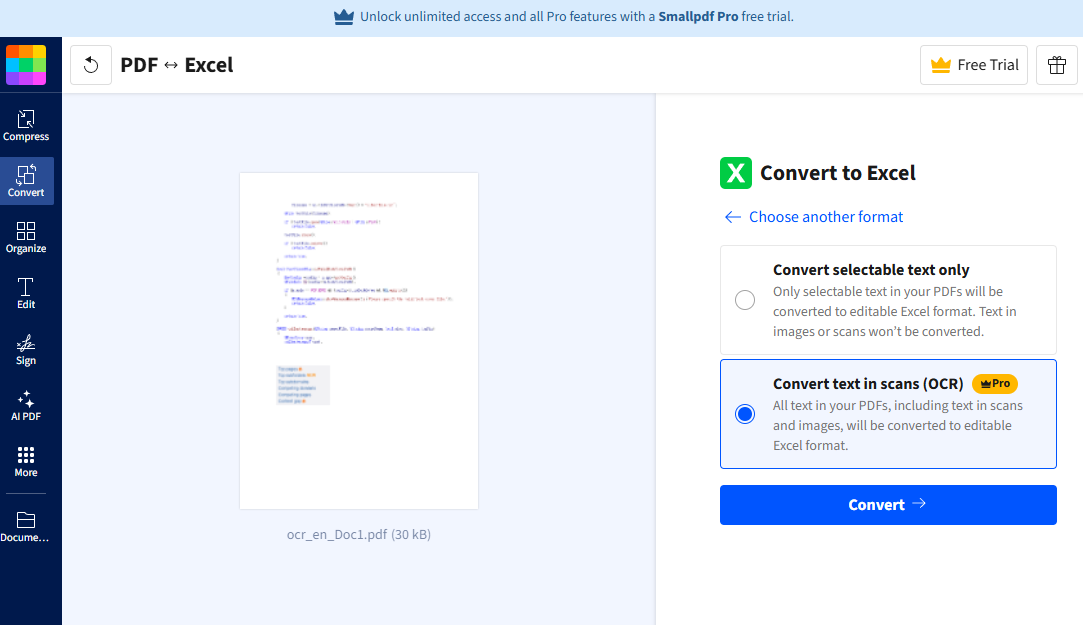
- No installation required
- Fast and convenient for occasional use
- Accessible from any device
- Free basic functionality
- Built-in OCR for scanned files
Disadvantages:
- Requires uploading files (privacy risk)
- Daily or file size limits in free tier
- May struggle with complex table layouts
- Dependent on internet connection
- Variable accuracy on poor-quality scans

Versatile Convert to Word/Excel/PPT/Text/Image/Html/Epub
Secure 100% local conversions ensure zero risk of data leaks
Efficient Batch Process dozens of PDF files in seconds
Comprehensive Seamlessly convert PDFs to Excel, PowerPoint, Text, and more
OCR Support Extract Text from Scanned PDFs, Images & Embedded Fonts
Versatile Effortlessly convert XFA, multi
Secure 100% local conversions ensure zero risk of data leaks
Efficient Batch Process dozens of PDF files in seconds

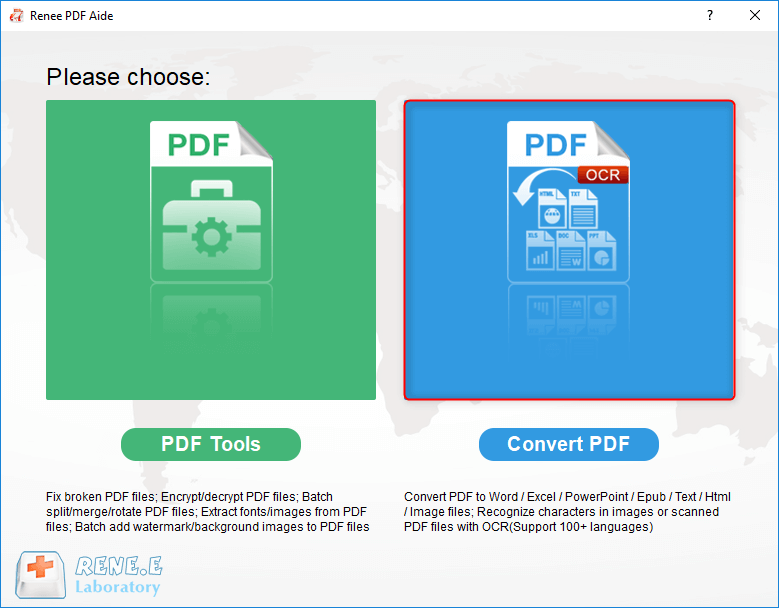
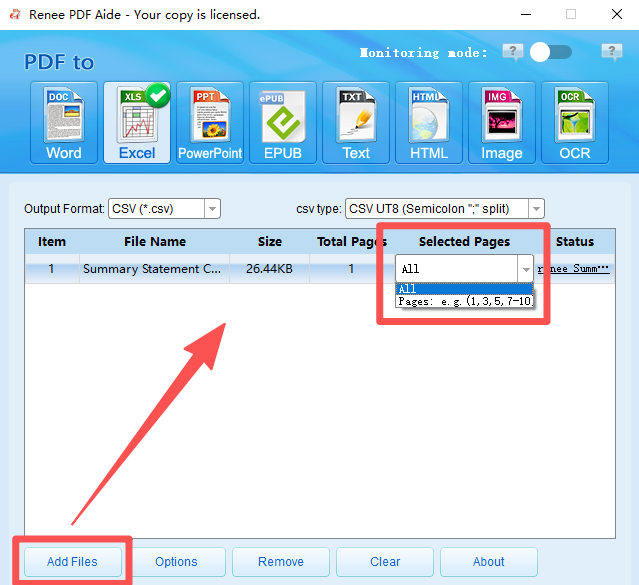
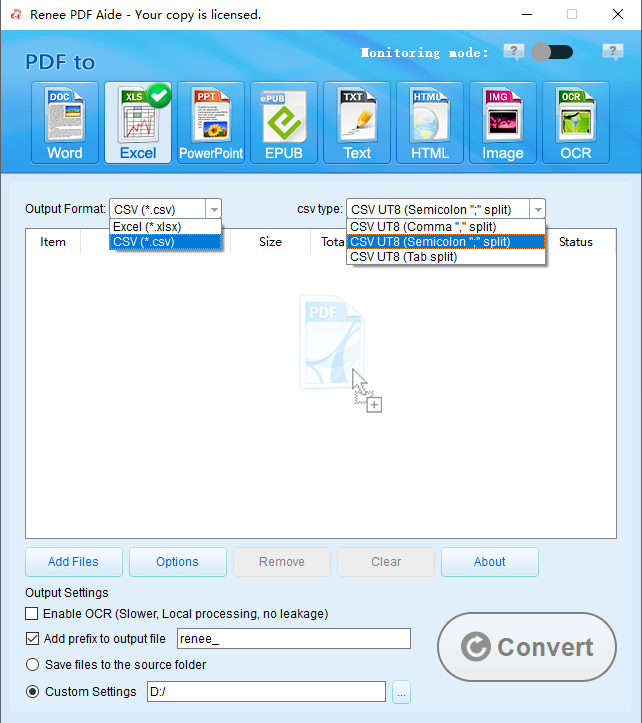
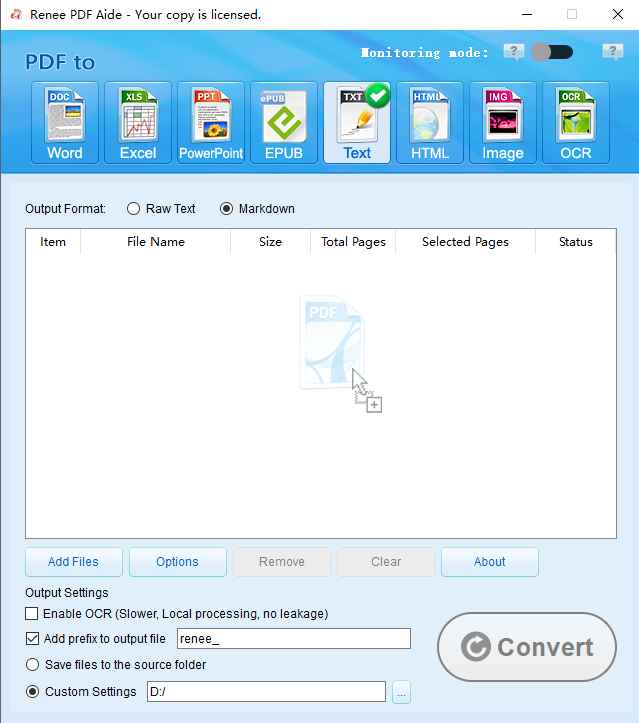
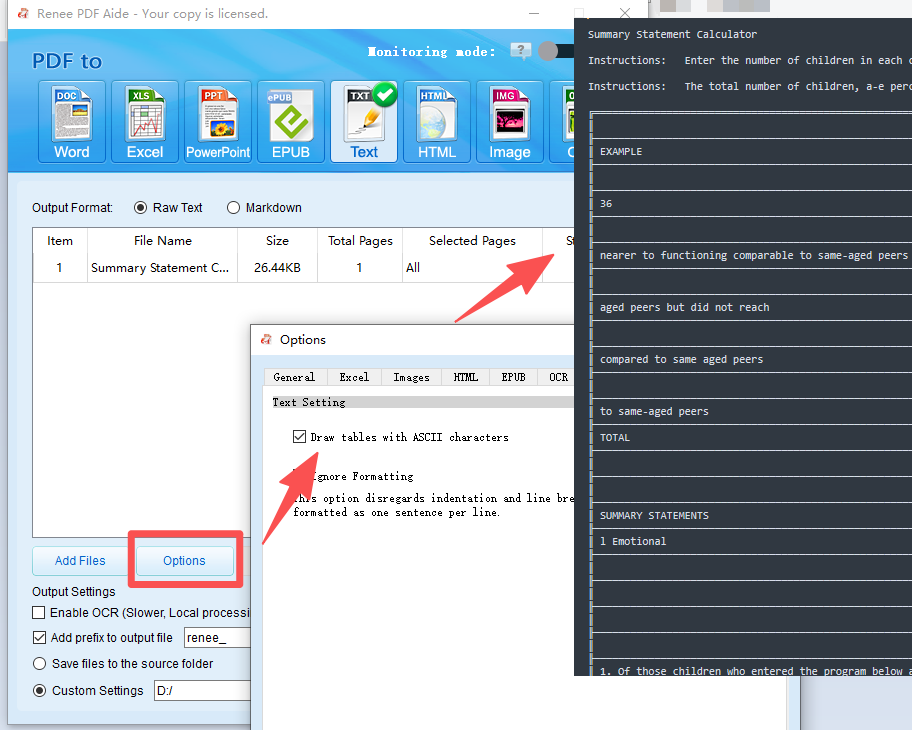
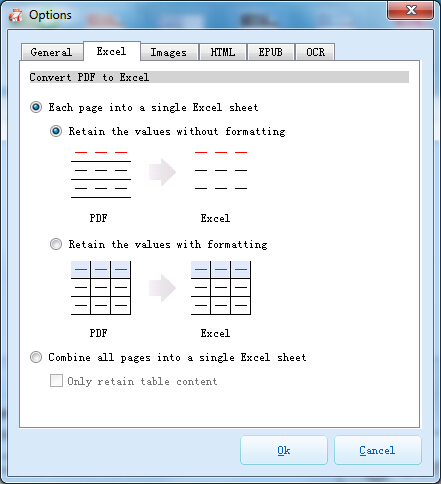
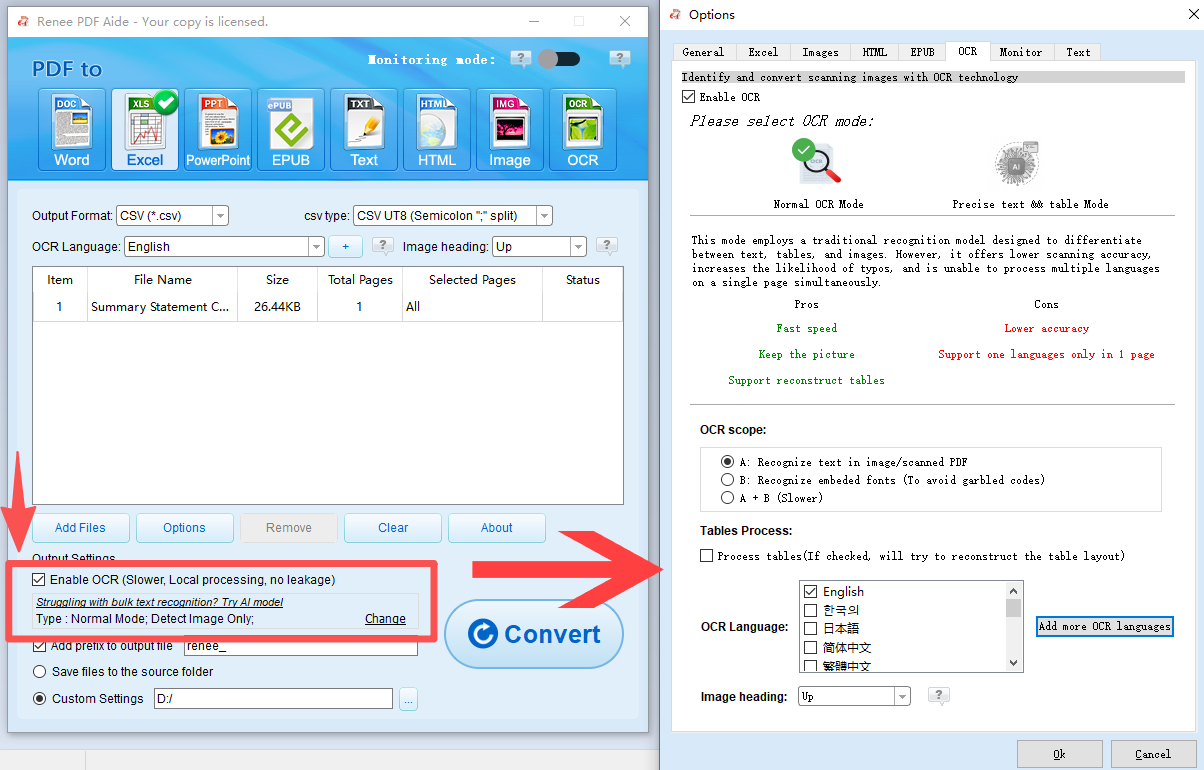
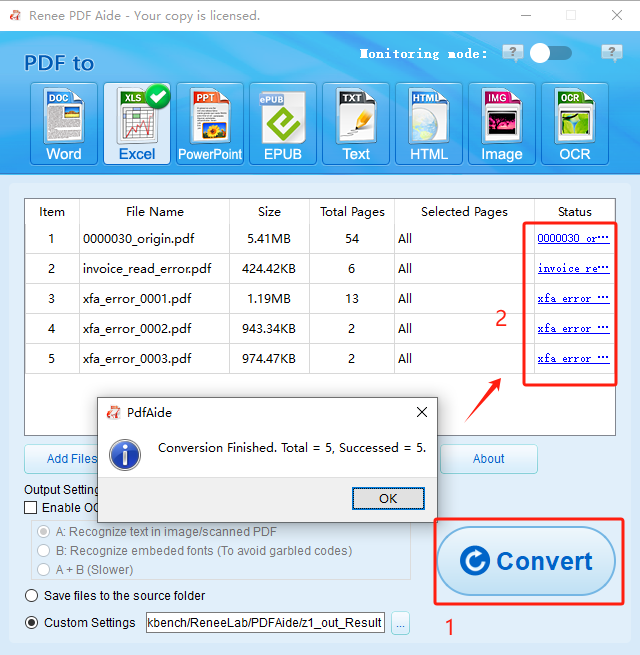
- A: Recognize text in image/scanned PDF — Uses OCR on image text (choose language for better accuracy).
- B: Recognize embeded fonts (To avoid garbled codes) — Converts embedded fonts to images, then applies OCR.
- A+B (slower) — Automatically detects and handles both cases.
Versatile Convert to Word/Excel/PPT/Text/Image/Html/Epub
Secure 100% local conversions ensure zero risk of data leaks
Efficient Batch Process dozens of PDF files in seconds
Comprehensive Seamlessly convert PDFs to Excel, PowerPoint, Text, and more
OCR Support Extract Text from Scanned PDFs, Images & Embedded Fonts
Versatile Effortlessly convert XFA, multi
Secure 100% local conversions ensure zero risk of data leaks
Efficient Batch Process dozens of PDF files in seconds
- Open OneNote (desktop version) and insert the scanned PDF or image (Insert → File Printout or Picture).
- Right‑click the inserted page or image and select “Copy Text from Picture” or “Copy Text from This Page of the Printout.”
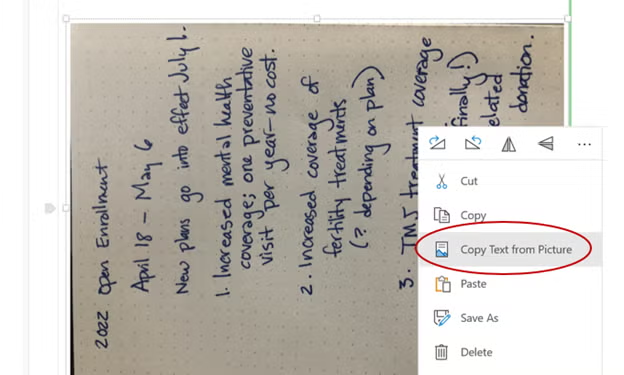
- Paste the extracted text into Excel.
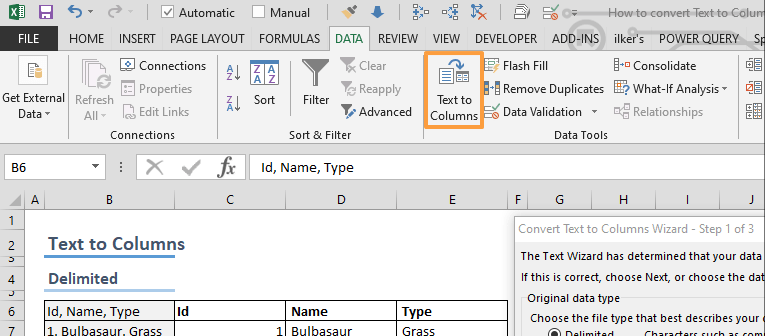
- Use Excel’s formatting tools (Text to Columns, table formatting) to clean up the data.
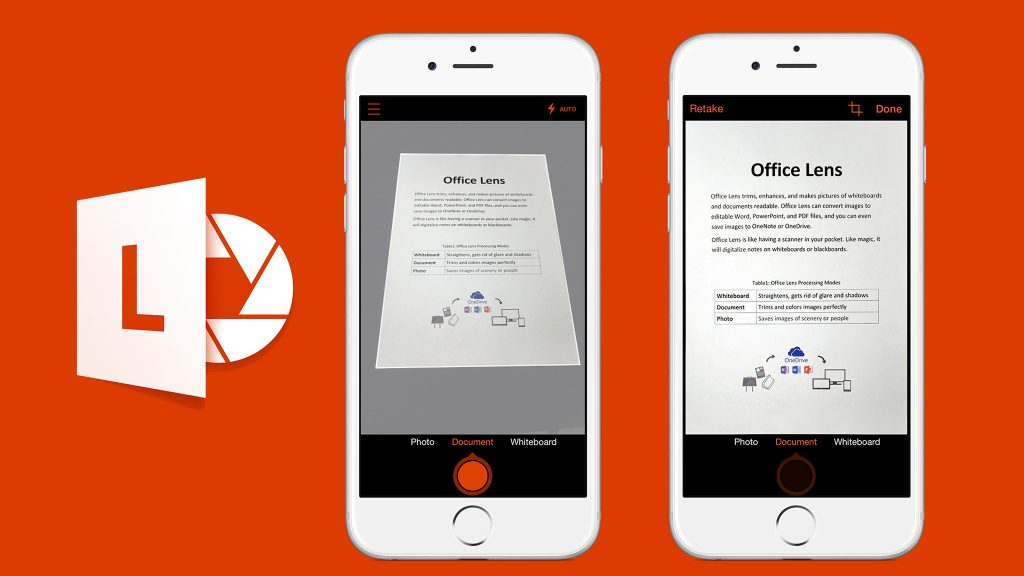
- Open Microsoft Lens on your phone and scan the document or import an image.
- Choose the Document or Table mode for better OCR accuracy.
- Export the scan as Excel, Word, or OneNote.
- Open the exported file in Excel to review and edit the data.
- No extra software if you already use Microsoft Office
- Fully local processing with OneNote
- Convenient mobile scanning with Microsoft Lens
- Good for simple tables and quick tasks
- Familiar Microsoft interface
Disadvantages:
- OCR accuracy lower than dedicated tools on complex scans
- Manual cleanup often required
- Limited batch processing
- Table structure may not be preserved
- Not suitable for large or frequent conversions
| Approach | Accuracy (Complex/Scanned Tables) | Privacy & Security | Batch Processing | Cost Structure | Ease of Use |
|---|---|---|---|---|---|
Online Tools |
Good for simple; varies on scans |
Requires upload |
Limited in free |
Mostly free with limits |
Very easy |
Renee PDF Aide (Desktop) |
Excellent with advanced OCR |
Fully local, no upload |
Full support |
One-time purchase + trial |
Simple interface |
Microsoft Office |
Fair to good (depends on version) |
Local processing |
Manual |
Subscription required |
Familiar for Office users |
Versatile Convert to Word/Excel/PPT/Text/Image/Html/Epub
Secure 100% local conversions ensure zero risk of data leaks
Efficient Batch Process dozens of PDF files in seconds
Comprehensive Seamlessly convert PDFs to Excel, PowerPoint, Text, and more
OCR Support Extract Text from Scanned PDFs, Images & Embedded Fonts
Versatile Effortlessly convert XFA, multi
Secure 100% local conversions ensure zero risk of data leaks
Efficient Batch Process dozens of PDF files in seconds
Start with a High‑Quality Source File
- Use scans with a resolution of 300 DPI or higher whenever possible.
- Make sure pages are straight, well‑lit, and free of shadows or background noise.
- If the PDF was scanned from paper, rescan it rather than relying on a blurry copy.
Test with a Small Sample First
- Convert one or two pages before processing a full report.
- Check column alignment, number formatting, and missing values.
- Adjust OCR or layout options based on the test result, then run the full conversion.
Choose the Right Tool for the Workload
- Use online tools for quick, one‑off conversions with simple tables.
- Switch to desktop software for frequent conversions, large files, or complex layouts.
How accurate is OCR when converting scanned PDF images to Excel?
Are there file size or page limits with free tools?
Do these tools support multiple languages?
Can I convert PDF images to Excel offline?
What if the converted table formatting is messed up?
Versatile Convert to Word/Excel/PPT/Text/Image/Html/Epub
Secure 100% local conversions ensure zero risk of data leaks
Efficient Batch Process dozens of PDF files in seconds
Comprehensive Seamlessly convert PDFs to Excel, PowerPoint, Text, and more
OCR Support Extract Text from Scanned PDFs, Images & Embedded Fonts
Versatile Effortlessly convert XFA, multi
Secure 100% local conversions ensure zero risk of data leaks
Efficient Batch Process dozens of PDF files in seconds
Relate Links :
LibreOffice PDF to Word Conversion: How to Convert PDFs to Editable Word Documents

12-03-2026
Jennifer Thatcher : This guide covers libreoffice pdf to word conversion using the free office suite. It includes detailed steps for...
How to Compress PDF for Email: Practical Options from Quick Fixes to Professional Tools
11-02-2026
Jennifer Thatcher : This article explains how to compress PDF for email using a range of solutions, from free online tools...
How to Edit Bank Statement in Excel: Convert PDF to Editable Spreadsheet Easily

17-01-2026
John Weaver : Learn how to edit bank statements in Excel by converting PDFs for easier organization and analysis. This guide...
Best Multiple PDF to Excel Converters : From Online Platforms to Desktop Apps
24-11-2025
Jennifer Thatcher : In daily office work, converting dozens or even thousands of table-heavy PDF files into Excel is a common...



User Comments
Leave a Comment