author avatar
    Technology Manager of Test Dept.
Last update by Emma Johnson at 3 February 2026

Summary
Learn the best way to mirror hard drive to SSD in 2026 without reinstalling Windows. This authoritative guide covers easy steps for a seamless, safe migration—ensuring your data, settings, and programs remain exactly as they were.


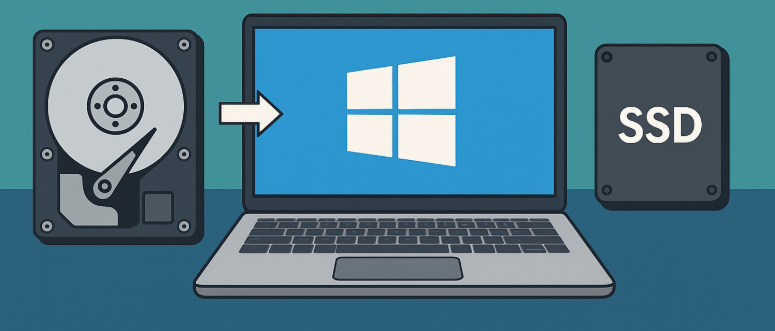
If your computer feels sluggish—with long boot times, loud spinning noises from the old hard drive, or frequent freezes—it’s probably time for an SSD upgrade. Many users search for mirror hard drive to SSD because they want to keep everything exactly as it is: Windows settings, installed programs, documents, and photos—without the hassle of starting from scratch. Reinstalling the OS and all your software can take hours or even days, and it’s easy to overlook something important.The good news is that “mirroring” in this context almost always means performing a one-time disk clone (also called migration). This process copies everything to the new SSD so you can swap drives and boot directly from it—delivering dramatically faster performance while preserving your setup.Before you begin cloning, follow this quick preparation checklist:
Connect the SSD properly—internally via SATA or PCIe slot, or temporarily via USB adapter/enclosure for laptops.
Back up important data to another drive or cloud service, just in case.
Check capacity: The SSD must have enough space for all used data on the current drive (you can clean up junk files or shrink partitions if needed).
Ensure stable power and reliable cables to avoid interruptions during cloning.
Note that terms like “clone,” “migrate,” and “mirror” are often used interchangeably—the recommended method for upgrades is cloning.
Mirror Hard Drive to SSD

Easiest recommended solution: Renee Becca

For most people, the simplest and most reliable way to mirror hard drive to SSD is with Renee Becca—a straightforward, professional-grade tool designed specifically for system migration and disk cloning. Its clean interface and guided options make it ideal for beginners who want a quick, successful result without technical complications.
Renee Becca – Safe and Quick System Migration to SSD

Automatic 4K alignment Improves SSD performance during system migration.

Support GPT and MBR Automatically adapt to the suitable partition format.

Support NTFS and FAT32 Redeploy various files in different file systems.

Back up quickly Back up files at up to 3,000MB/min.

Overall backup schedule Support system redeployment/system backup/partition backup/disk backup/disk clone.

Automatic 4K alignment Improve SSD performance

Support GPT and MBR Intelligently adapt to a partition format

Support NTFS and FAT32 Redeploy files in different file systems

Free TrialFree TrialNow 56337 people have downloaded!
Install the new SSD: Insert the drive at a 30-degree angle, then press down and secure with the provided screw.
How to Install an M.2 SSD
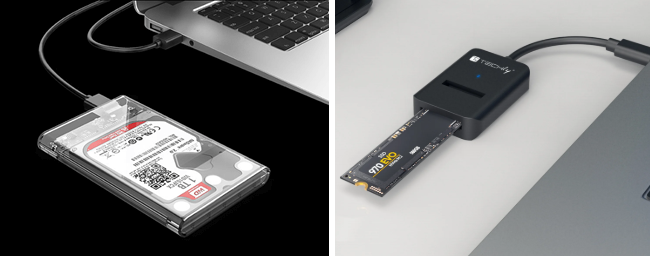
If you’re connecting an external drive temporarily for cloning purposes, use a USB-to-M.2 adapter or external enclosure to connect your new SSD via USB.
usb ssd / disk enclosure
For a complete SSD upgrade involving system migration, Renee Becca provides the most reliable and efficient solution. This professional-grade software makes it incredibly convenient to migrate your Windows system to a new hard disk, transforming it into a fully functional system drive.
Step 1: Download and install Renee Becca on your PC/laptop.
Step 2: Use suitable functions to transfer your data and system.
You have two main options:
Function NameFeatureSuitable For
Hard Disk Clone/Clone System DiskCreates an exact copy of the selected disk, supports adjusting partition size by moving the partition boundary with the mouse, and enables starting the cloned hard disk.Complete SSD Replacement
System RedeploySupports migrating only the Windows system partition to another hard disk.Dual-Drive Configuration, HDD-to-SSD Migration
Option 1: Clone the Entire Drive Using the “Hard Disk Clone” Feature
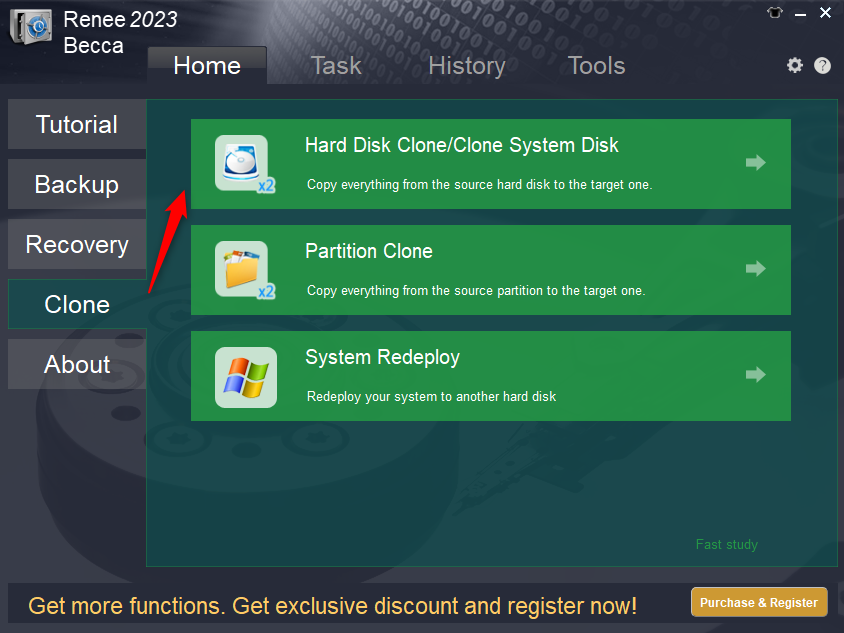
If your original drive contains both system and data partitions, select “Hard Disk Clone/Clone System Disk” under the “Clone” section.
renee becca disk clone
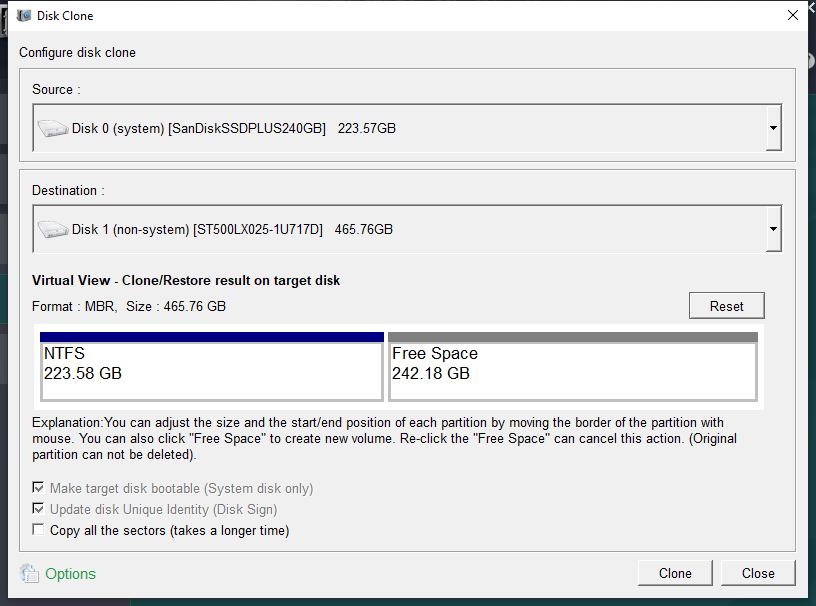
1. Configure Source and Destination Drives.
Choose your current hard drive as the source and the new SSD as the destination. Double-check to avoid mistakes.
clone the hard disk
2. Configure Advanced Settings and Begin Cloning. After selecting the desired option, then click Clone to start.
Renee Becca offers useful options:
Copy all sectors (including reserved areas that may contain license data).
Universal compatibility with HDDs, SSDs, and USB devices.
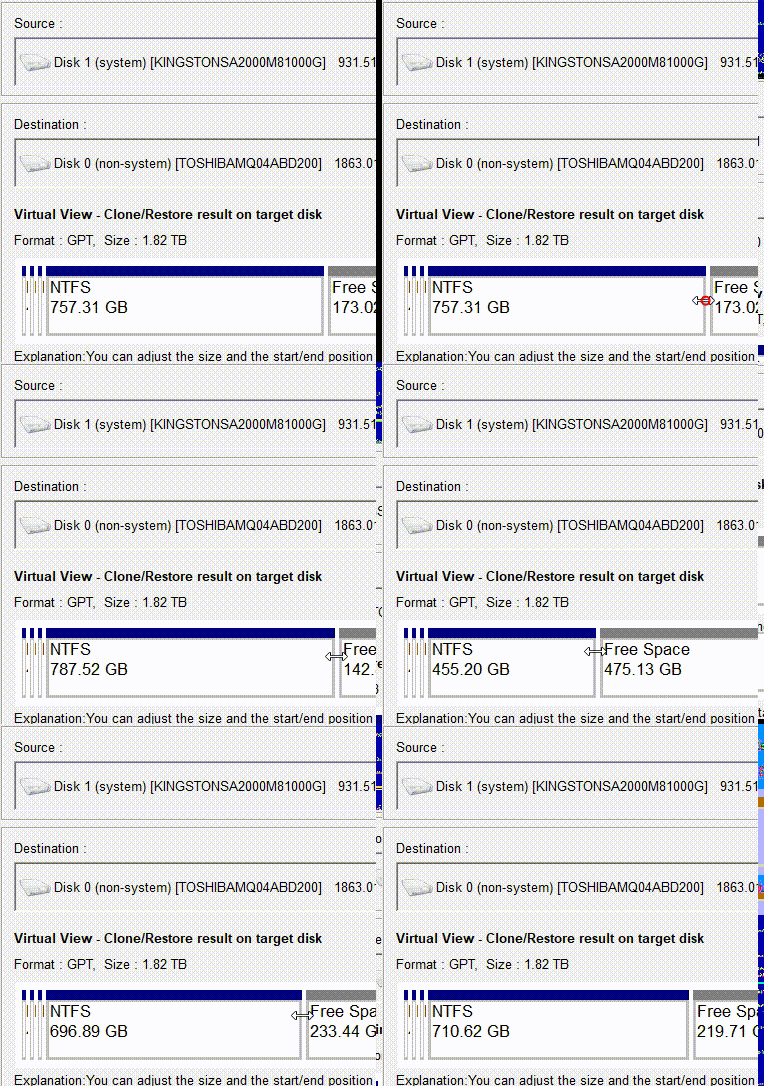
Customizable partition resizing—drag edges to adjust layout.
adjust partitions
Option 2: For system-only cloning, use the ‘System Redeploy’ function
This method works best when you only need to mirror a single partition. If your system has just one main drive (the C: drive), or you only want to clone the C: drive, this approach will save you a significant amount of time.
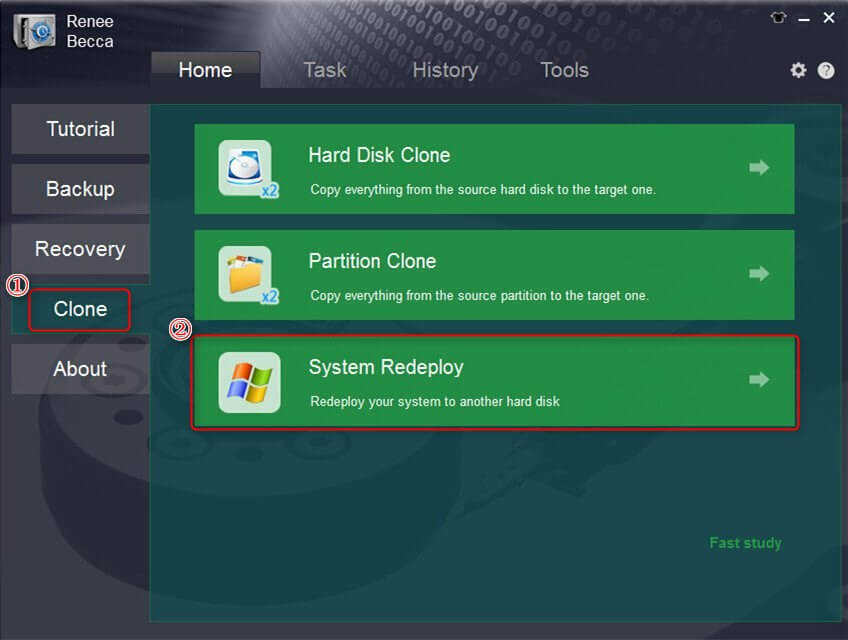
1. Select “System Redeploy” under the “Clone” column.
select system redeploy function in clone
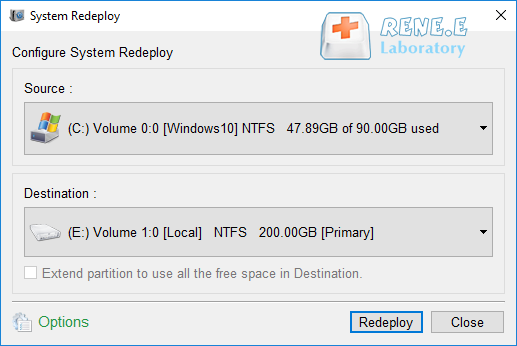
2. Choose the new SSD as target and current system partition as source. Click Redeploy to begin.
select a destination to redeploy system with renee becca
Step 3: Wait for completion
The process may take 30 minutes to several hours depending on data size. The new SSD will be bootable once finished.
Important Note: The target SSD capacity must exceed the used space on the source. All data on the target will be erased—always confirm selections and back up first.
Step 4: Verify the new drive
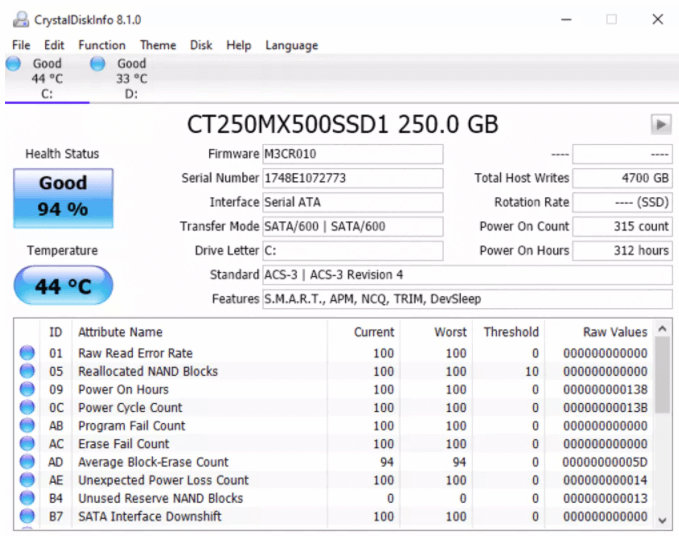
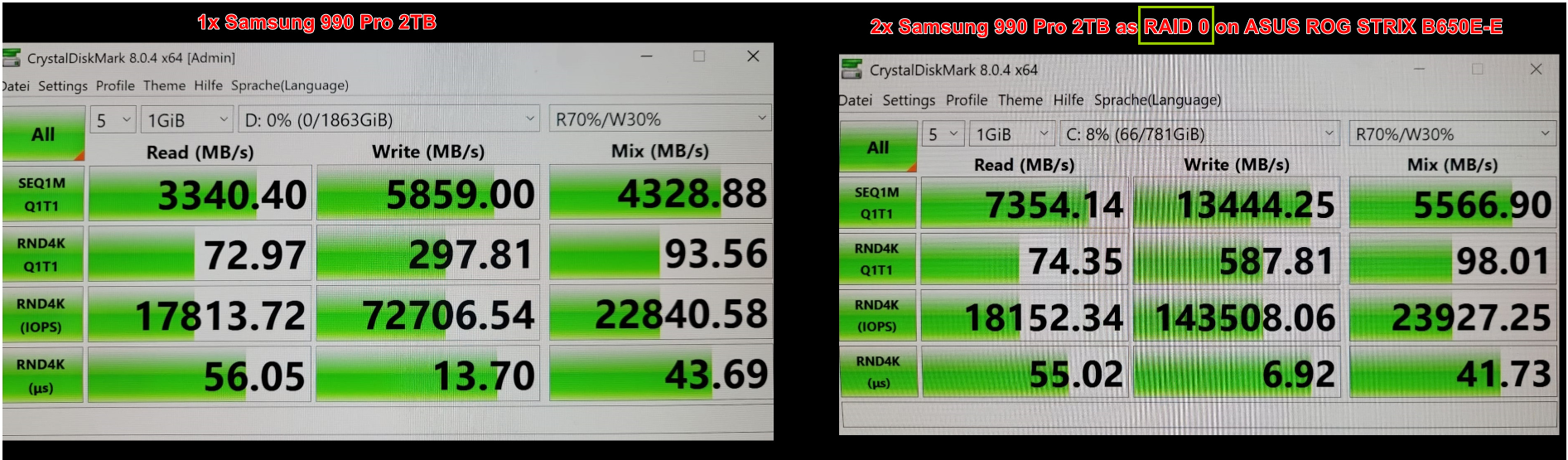
Use free tools like CrystalDiskInfo to check health and CrystalDiskMark to confirm speed improvements.
how to check ssd health with crystaldiskinfo
raid 0 speed

Brand‑Specific Disk Cloning Tools

After covering the easiest all‑in‑one solution (Renee Becca), it’s worth looking at brand‑specific disk cloning tools. Many SSD manufacturers offer free migration software designed specifically for their own drives.If your new SSD brand matches the software, these tools usually provide the smoothest and safest upgrade experience without needing to reinstall Windows or applications.
Brand‑specific cloning tools only work when both the source and target drives are from the same manufacturer. If you need to clone data between different brands, these tools won’t function. In that case, you’ll need to use a general‑purpose cloning solution such as Renee Becca.

Quick Comparison: Popular Brand‑Specific Cloning Tools

SSD BrandOfficial ToolDownload LinkKey Limitation
SamsungSamsung Data Migration / Magicianhttps://www.samsung.com/semiconductor/minisite/ssd/download/tools/Works only when the target drive is a Samsung SSD
CrucialStorage Executive (Acronis OEM)https://www.crucial.com/support/storage-executiveRequires at least one Crucial drive
Western Digital / SanDiskAcronis True Image WD Editionhttps://support-en.wd.com/app/products/downloads/softwaredownloadsOnly supports WD or SanDisk SSDs
SeagateDiscWizardhttps://www.seagate.com/support/downloads/discwizard/Requires a Seagate drive to be connected

Samsung SSD Migration Tools

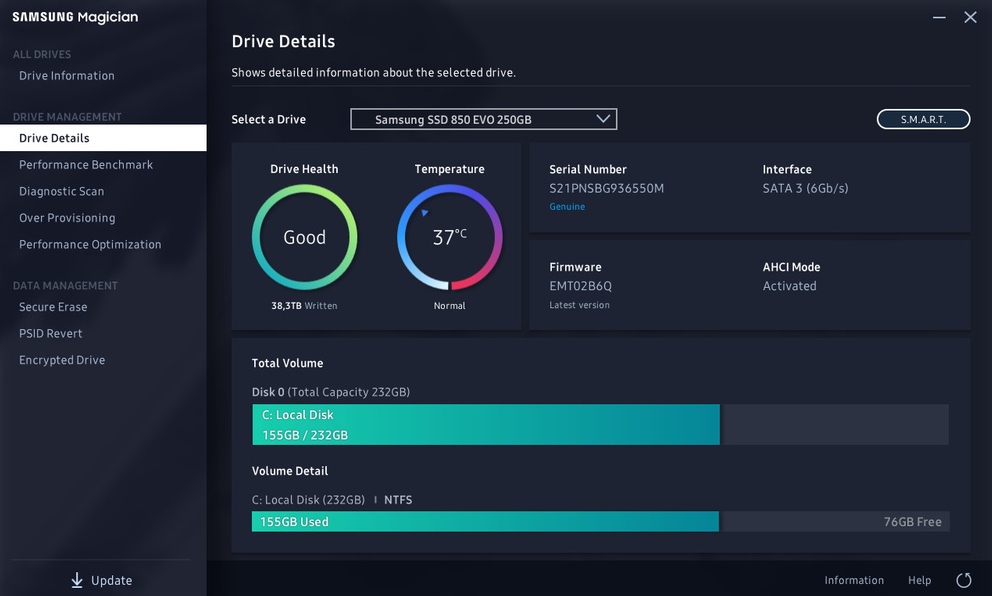
Samsung provides Samsung Data Migration and Samsung Magician, both optimized for Samsung SSDs.
Best for: Upgrading from HDD or older SSD to a Samsung SSD
Download: https://www.samsung.com/semiconductor/minisite/ssd/download/tools/
Limitations: Target disk must be a Samsung SSD
Samsung Magician interface

Crucial Storage Executive

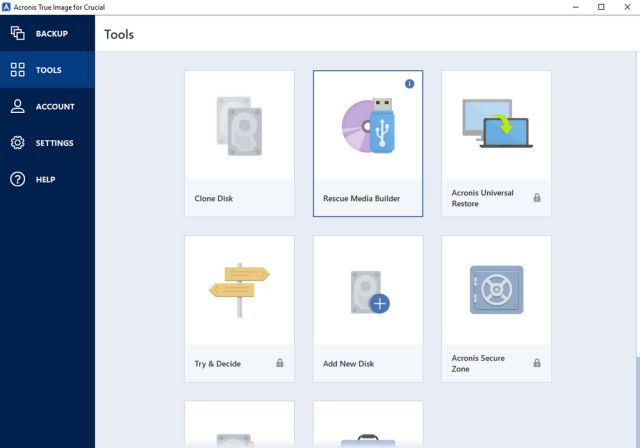
Crucial bundles Acronis True Image for Crucial, offering reliable cloning with minimal setup.
Best for: Crucial SSD upgrades
Download: https://www.crucial.com/support/storage-executive
Limitations: Requires at least one Crucial drive installed
Acronis True Image for Crucial

Western Digital / SanDisk Tools

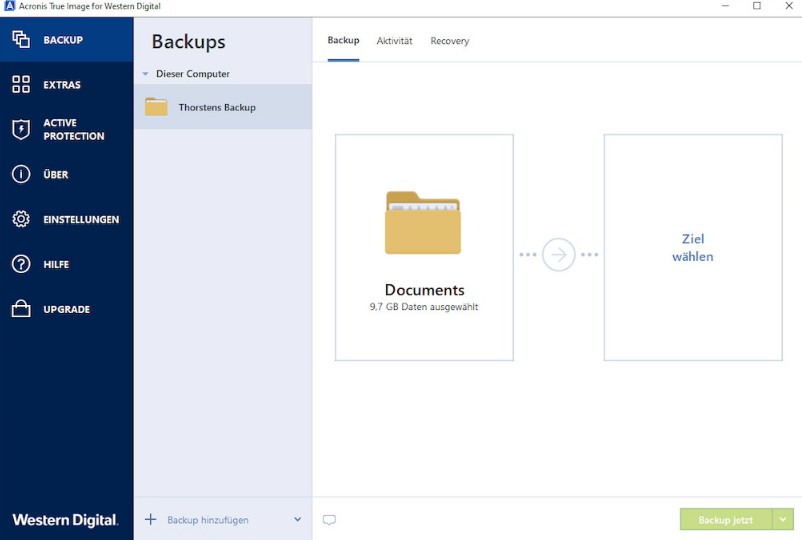
WD and SanDisk provide a customized Acronis True Image WD Edition.
Best for: WD or SanDisk SSD migrations
Download: https://support-en.wd.com/app/products/downloads/softwaredownloads
Limitations: Will not run without a WD or SanDisk drive
Acronis True Image for Western Digital

Seagate DiscWizard

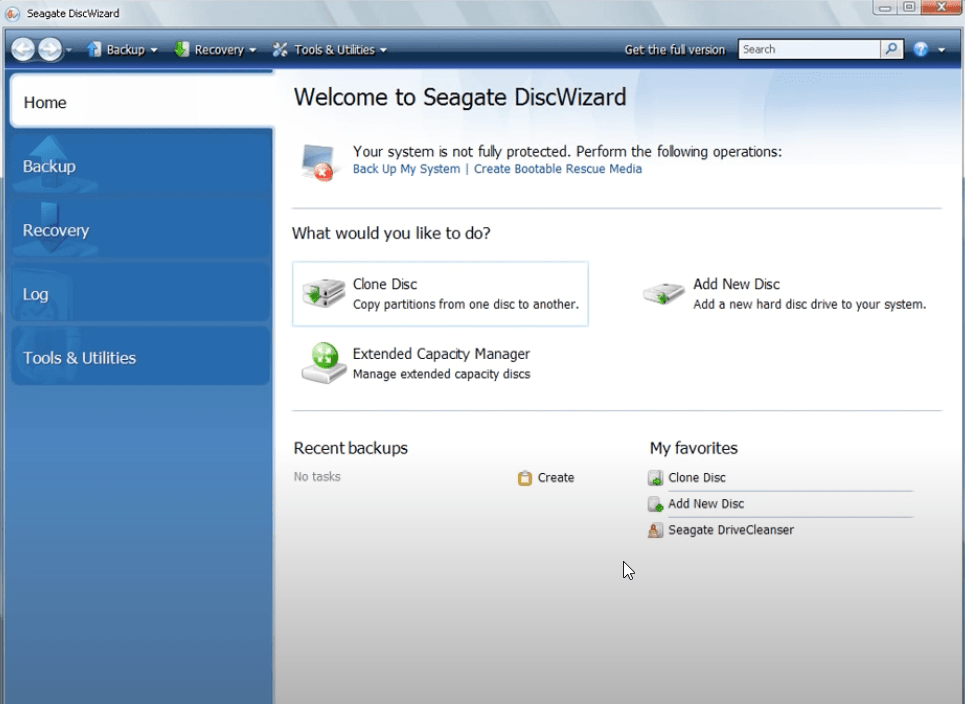
Seagate’s DiscWizard is a rebranded Acronis tool tailored for Seagate drives.
Best for: Seagate SSD or HDD upgrades
Download: https://www.seagate.com/support/downloads/discwizard/
Limitations: Requires a Seagate drive connected
Seagate DiscWizard
Advantages:
  • Free official tools from SSD manufacturers
  • Optimized compatibility and stability
  • Simple guided steps ideal for beginners
  • Often include firmware and health monitoring

Disadvantages:

  • Usually limited to the same SSD brand
  • Fewer advanced partition options
  • May fail with complex disk layouts or mixed brands

Brand‑specific cloning tools are an excellent choice when your new SSD matches the manufacturer. They’re free, reliable, and beginner‑friendly. However, if your source and target drives are from different brands—or you need more flexibility—third‑party tools like Renee Becca remain the better option.Next, we’ll explore advanced and open‑source cloning tools for power users and fallback scenarios.

Advanced / Fallback Options: Open‑Source Tools

In the previous section, we covered brand‑specific disk cloning tools, which are usually the safest choice when your SSD brand matches. However, there are situations where those tools won’t work—especially when Windows can’t boot, the disk layout is unusual, or you need a completely free, no‑restriction solution.That’s where open‑source cloning tools come in. These tools run outside of Windows and are commonly used by IT professionals, system administrators, and advanced users.

Common Open‑Source Disk Cloning Tools (Quick Overview)

Tool NameTypical Use CaseBest For
ClonezillaOffline disk‑to‑disk cloningUnbootable systems, full disk migration
RescuezillaClonezilla with a GUIUsers who want Clonezilla power with visuals
GParted LivePartition managementManual partition resizing and repair
PartimageLegacy partition backupsOlder Linux file systems
Why focus on Clonezilla?
Among these options, Clonezilla remains the most mature, actively maintained, and widely trusted open‑source cloning solution. It supports modern file systems, large disks, and both HDD‑to‑SSD and SSD‑to‑SSD migrations. While it lacks a graphical interface, its reliability and flexibility make it the go‑to fallback tool when everything else fails.
device to device Clonezilla

Current Status of Clonezilla

Clonezilla is actively maintained and widely used in enterprise environments, schools, and repair shops worldwide. It supports modern hardware, UEFI systems, GPT disks, and popular file systems such as NTFS, FAT32, ext4, and more.Although its text‑based interface hasn’t changed much over the years, its core cloning engine remains extremely stable and dependable, which is why it’s still recommended for recovery and emergency scenarios.
Advantages:
  • Completely free and open‑source
  • Works even when Windows cannot boot
  • Supports many file systems and advanced recovery scenarios
  • Reliable for full disk and batch cloning

Disadvantages:

  • No graphical interface (text‑based only)
  • Requires creating bootable USB media
  • Higher risk of mistakes if disks are selected incorrectly
  • Not beginner‑friendly for casual users

Open‑source tools like Clonezilla are powerful fallback solutions when standard cloning software fails or Windows won’t start. They offer unmatched flexibility and reliability—but require patience and careful attention.For most everyday upgrades, graphical tools remain easier. Once cloning is complete, the next step is ensuring everything works correctly. In the following section, we’ll cover common post‑clone issues and how to fix them.

Post‑Clone Issues and How to Fix Them

Even when the cloning process completes successfully, a few minor issues can still show up afterward. These are common and usually easy to resolve. The sections below cover the most frequent problems and practical fixes that work well for both U.S. and Indian users.

Computer Won’t Boot From the New SSD

If the system doesn’t start after cloning, the issue is usually related to boot settings rather than the clone itself.
• Enter BIOS/UEFI during startup (commonly F2, Delete, F10, or Esc, depending on the manufacturer).
• Set the new SSD as the first boot device.
• Confirm that the boot mode matches the original setup:
• UEFI systems should use UEFI + GPT
• Older systems may require Legacy/CSM + MBR
• Check Secure Boot settings. Temporarily disabling Secure Boot can help during troubleshooting.
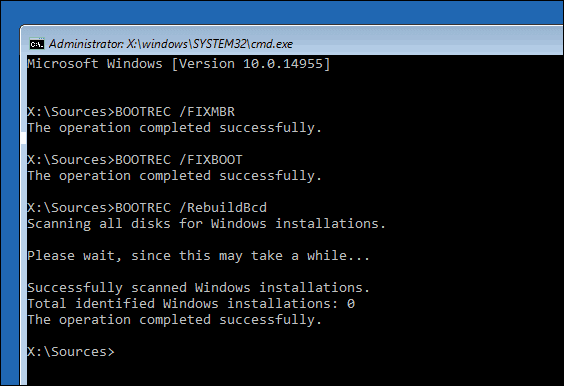
• If Windows still won’t load, boot from a Windows Recovery USB, open Command Prompt, and run:

bootrec /fixmbr

bootrec /fixboot

bootrec /rebuildbcd

BOOTREC FIXBOOT
These commands rebuild the boot records without affecting personal data.

SSD Feels Slow or Underperforming

An SSD that feels no faster than the old hard drive usually points to configuration issues.
• Verify 4K partition alignment, which is critical for SSD performance. Disk management tools such as MiniTool Partition Wizard can check this easily.
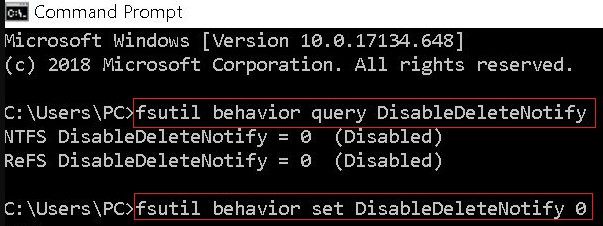
• Make sure TRIM is enabled in Windows. Open an Administrator Command Prompt and run:

fsutil behavior query DisableDeleteNotify

A result of 0 means TRIM is already enabled. If it’s disabled, enable it with:

fsutil behavior set DisableDeleteNotify 0

fsutil behavior query DisableDeleteNotify

Problems When Cloning to a Smaller SSD

Cloning to a smaller SSD only works if the used space on the source drive fits.
• Delete unnecessary files and uninstall unused programs before cloning.
• Use cloning software that supports intelligent or sector‑aware cloning, which copies only used data instead of the entire disk.
• Avoid tools that require a strict sector‑by‑sector copy when downsizing.

Windows Activation Message Appears

Seeing an activation prompt after cloning is normal in some cases.
• Windows usually reactivates automatically once it detects the same hardware.
• If activation doesn’t happen on its own, go to: Settings → Update & Security → Activation
• Use the built‑in Activation Troubleshooter and sign in with the Microsoft account originally linked to the license.

System Still Boots From the Old Drive

If both the old drive and the new SSD are connected, the system may continue booting from the original disk.
• Power off the computer and temporarily disconnect the old HDD or SSD.
• Boot using only the new SSD to confirm everything works correctly.
• Once verified, reconnect the old drive and format it for storage or backups.
These post‑clone issues are common and rarely indicate a failed migration. With the right checks and adjustments, the new SSD should boot cleanly and deliver the performance upgrade you expect.
Final checklist:
• Before: backup everything, connect SSD correctly, verify capacity.
• After: confirm boot success, check speed and health, update drivers/firmware.
Once everything works, format the old hard drive and use it for extra storage or backups. Choose the method that best fits your comfort level and equipment—you’ll enjoy much faster performance in no time.

Conclusion

For most users, start with a simple graphical tool like Renee Becca or your SSD brand’s official software—these deliver reliable results with minimal effort. Only move to advanced open-source options if you have specific needs or technical experience.

Frequently Asked Questions

What’s the difference between cloning and real-time mirroring?

Cloning is a one-time copy for drive replacement. Real-time mirroring (RAID 1) keeps two drives synced continuously but isn’t recommended for HDD-to-SSD upgrades as it limits speed to the slower drive.

Can I clone a larger hard drive to a smaller SSD?

Yes, as long as the used space on the old drive is less than or equal to the SSD capacity. Clean up files or shrink partitions first if needed.

How long does the cloning process take?

Typically 30 minutes to a few hours, depending on data size and connection speed (USB is slower than internal SATA).

Do I need to reinstall Windows after cloning?

No—that’s the main benefit. A proper clone includes the OS and boot records.

What if the clone fails midway?

Restart the process with a fresh connection. Always keep a separate backup of critical files.

Is it safe to format the old hard drive after cloning?

Yes, but only after confirming the SSD boots perfectly and all data is accessible.
Renee Becca – Safe and Quick System Migration to SSD

Automatic 4K alignment Improves SSD performance during system migration.

Support GPT and MBR Automatically adapt to the suitable partition format.

Support NTFS and FAT32 Redeploy various files in different file systems.

Back up quickly Back up files at up to 3,000MB/min.

Overall backup schedule Support system redeployment/system backup/partition backup/disk backup/disk clone.

Automatic 4K alignment Improve SSD performance

Support GPT and MBR Intelligently adapt to a partition format

Support NTFS and FAT32 Redeploy files in different file systems
Free TrialFree TrialNow 56337 people have downloaded!

User Comments

Page 1

Leave a Comment


Your comment has been submitted and is awaiting moderation.