author avatar
    Senior Program Developer
Last update by Emma Johnson at 18 August 2025

Summary
Learn how to unformat your SD card and efficiently recover deleted files on your Windows PC. This step-by-step guide offers proven solutions for users to restore lost data after accidental SD card formatting.



If you’ve just accidentally formatted your SD card and lost precious photos from your last family vacation, important work documents, or videos from your drone adventures, don’t panic—recovery is often possible! This guide is tailored for users like you who need step-by-step instructions to retrieve files from a formatted SD card using trusted tools on a Windows computer. Whether it was a quick mistake on your camera, phone, or another gadget, we’ll cover reliable recovery methods, precautions to avoid further data loss, and tips to prevent this from happening again.
Common situations where this happens include:
  • Accidentally formatting an SD card in a digital camera during a photo shoot or family event, leading to lost memories.
  • Formatting a phone’s SD card (especially on Android devices) while trying to free up space or fix errors, only to lose important files like vacation videos or work documents.
  • Premature formatting without backing up data from drones, game consoles, or portable media players.
  • Technical glitches, such as a device prompting a format due to corruption, and the user complying without checking contents.
To help you navigate this smoothly, we’ll start by clarifying what “unformatting” really means, then move into immediate steps you should take, followed by detailed recovery options using software and built-in Windows tools.

Can You Recover Files from a Formatted SD Card?

The idea of “unformatting” an SD card might suggest simply reversing the format, but that’s not quite how it works. Formatting essentially clears the file system’s metadata, which is like the map that tells your device where files are stored and how to access them. That said, your actual files might still be there on the card, waiting to be recovered, as long as nothing new has overwritten them. Recovery depends a lot on the type of format that was done. Here’s a breakdown of the main types in a table for clarity:
Format TypeFeaturesRecovery Possibility

Quick Format

Only erases the metadata (like the file table), without touching the actual data sectors. It's faster and doesn't check for errors.

High – Files are often fully recoverable with software that scans for file signatures, as long as no new data is written to the card.

Full Format

Overwrites every sector on the card and scans for bad blocks, making it a thorough process that can take longer.

Low – Data is usually overwritten, so recovery is tough. If the process was interrupted early, some fragments might be salvageable, but don't count on it.

SD_ERASE Command

Actively wipes specific data blocks to prepare them for future writes, similar to how TRIM works on SSDs for optimization. This is encountered in situations like when certain devices (e.g., some cameras or Android phones) use secure erase features during formatting, or if advanced formatting tools invoke it to ensure data is permanently deleted for privacy or performance reasons. It's not common in basic quick formats but can happen with "secure format" options or in enterprise-level data wiping.

Very Low – Once triggered, the data blocks are deliberately cleared, making recovery almost impossible, even right after formatting.

While you can’t literally unformat the card to its pre-format state, recovering your lost files is frequently achievable if you act fast and keep the card untouched.

Steps to Take Right After Formatting an SD Card by Mistake

Realizing you’ve formatted your SD card can be stressful, but what you do next is crucial for getting your data back. These initial actions help preserve whatever files are still recoverable and set you up for success in the recovery process. By handling the card carefully from the start, you’ll avoid common pitfalls that could make things worse.
* Stop Using the SD Card Right Away: Any new activity, like saving files or even just exploring the card, risks overwriting the data you want to recover. Take it out of the device and keep it safe.
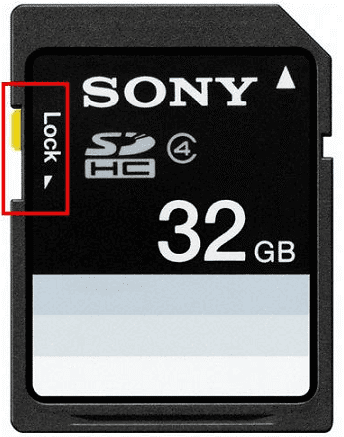
* Use Write-Protection: Flip the write-protect switch on your SD card if it has one, especially during key transfers, to block unintended changes.
sd card lock to fix a sandisk sd card that wont format
* Begin Recovery as Soon as Possible: Time is on your side here—the quicker you start, the less chance there is for accidental overwrites or further issues.
* Don’t Install Anything on the SD Card: Always put recovery software or other apps on your computer’s main drive to prevent them from writing over your lost files.
* Make a Backup Image First: Use a program like Win32 Disk Imager(Or using the “Image Creation” function in Renee Undeleter) to create a full copy of the SD card’s contents. This way, you can experiment with recovery on the image without touching the original card.
Following these steps carefully will boost your chances of a successful recovery and help transition smoothly into using tools to get your files back.

Method 1 : Recover Files from a Formatted SD Card with Recovery Software

When it comes to pulling files back from a formatted SD card, dedicated data recovery software is your best bet. Renee Undeleter stands out as a solid choice because of its easy-to-use setup and strong scanning features. It’s great for scenarios like retrieving photos from your camera, videos from a drone flight, or documents stored on your phone’s SD card after an unintended format.

What Makes Renee Undeleter a Good Option?

Renee Undeleter is a dependable tool built for recovering files lost from accidental formats, deletions, or drive problems. It shines when dealing with formatted SD cards, supporting the restoration of various file types such as images, videos, and docs. The software includes four key modes: Fast Partition Scan for speedy retrievals, Whole Partition Scan aimed at formatted areas, Whole Disk Scan for thorough checks, and Image Creation to snapshot your card’s state before diving into recovery. This setup is perfect for handling data loss on SD cards from cameras, phones, or similar gadgets.
Renee Undeleter - Powerful Data Recovery SoftwareRenee Undeleter data Recovery software

Easy to use Only simple steps to recover data from storage devices.

Multiple scan modes Fast partition scan, whole partition scan and whole disk scan for different recovery needs.

File types Support to recover pictures, videos, audios, documents, mails, etc.

Supported storage devices Recover data from recycle bin, SD card, external disk, etc.

Supported systems Windows 11,10, 8.1, 8, 7, Vista, XP, 2000 and Mac OS X10.6, 10.7, 10.8+.

Easy to use Only simple steps to recover data from storage devices.

Multiple scan modes - 3 scan modes for different recovery needs.

Supported storage devices Recover data from recycle bin, SD card, external disk, etc.

Free TrialFree TrialFree Trial

3000 users have downloaded Renee Undeleter and found data back!

Steps to Retrieve SD Card Data Using Renee Undeleter
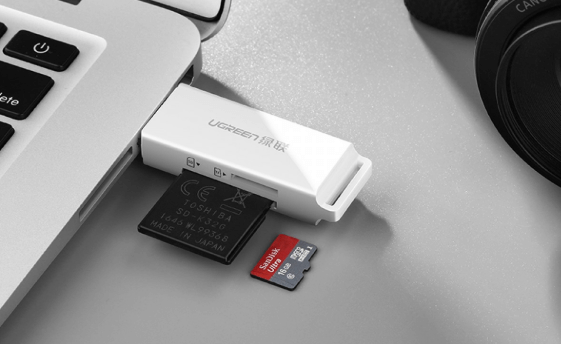
Here’s how to use Renee Undeleter to recover your files from the formatted SD card:
Step 1: Hook up your SD card to the computer via a card reader. Download and set up Renee Undeleter on your PC—make sure it’s on the hard drive, not the SD card, to steer clear of overwriting anything.
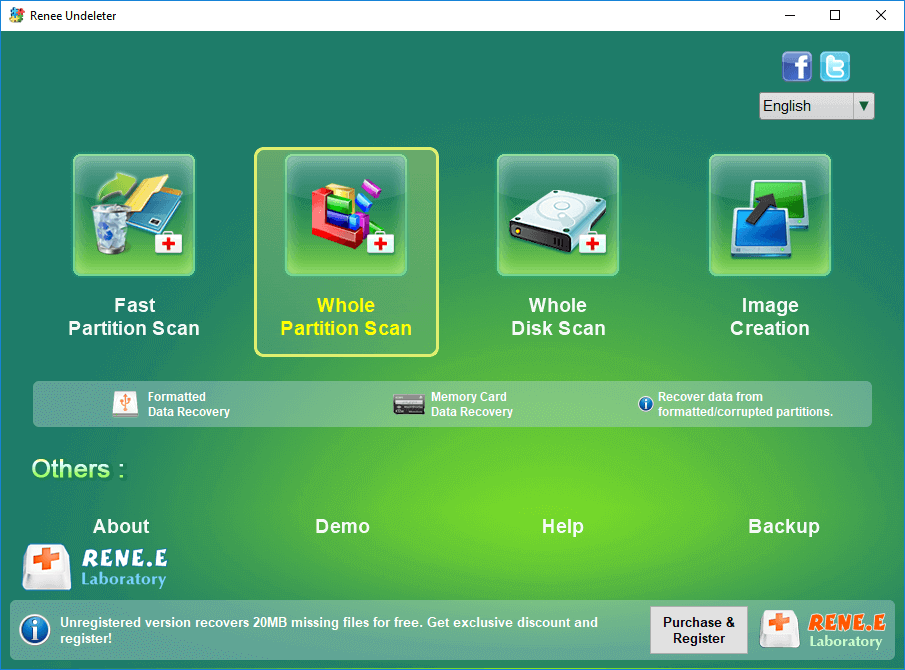
Open the program and pick Whole Partition Scan from the home screen to focus on formatted sections.
how to recover deleted pictures from the SD card when it is connected to pc
Note: Remember, installing the software on the SD card could erase the very data you’re after.
select whole partition scan in renee undeleter to recover deleted video from sd card
Renee Undeleter Recovery Modes
- Fast Partition Scan: Handles files lost from deletions or clearing the recycle bin.
- Whole Partition Scan: Pulls data from formatted or hard-to-access partitions, making it suitable for SD card recovery.
- Whole Disk Scan: Does a deep dive across the whole drive to find and restore data.
- Image Creation: Generates a backup copy of the SD card so you can recover without risking the original.
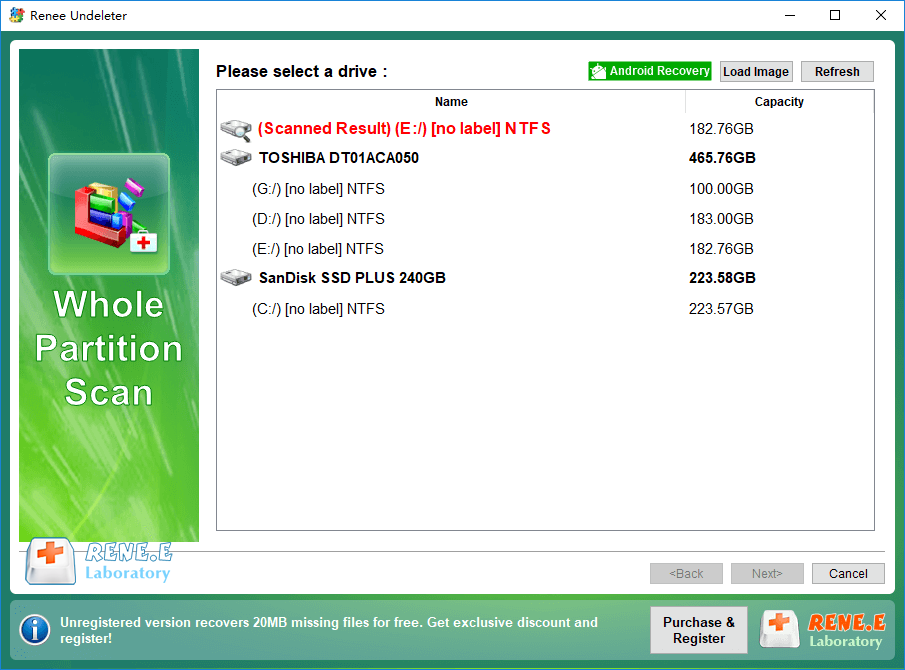
Step 2: Pick your SD card from the available partitions and hit Next to kick off the scan.
Renee Undeleter Whole Partition Scan
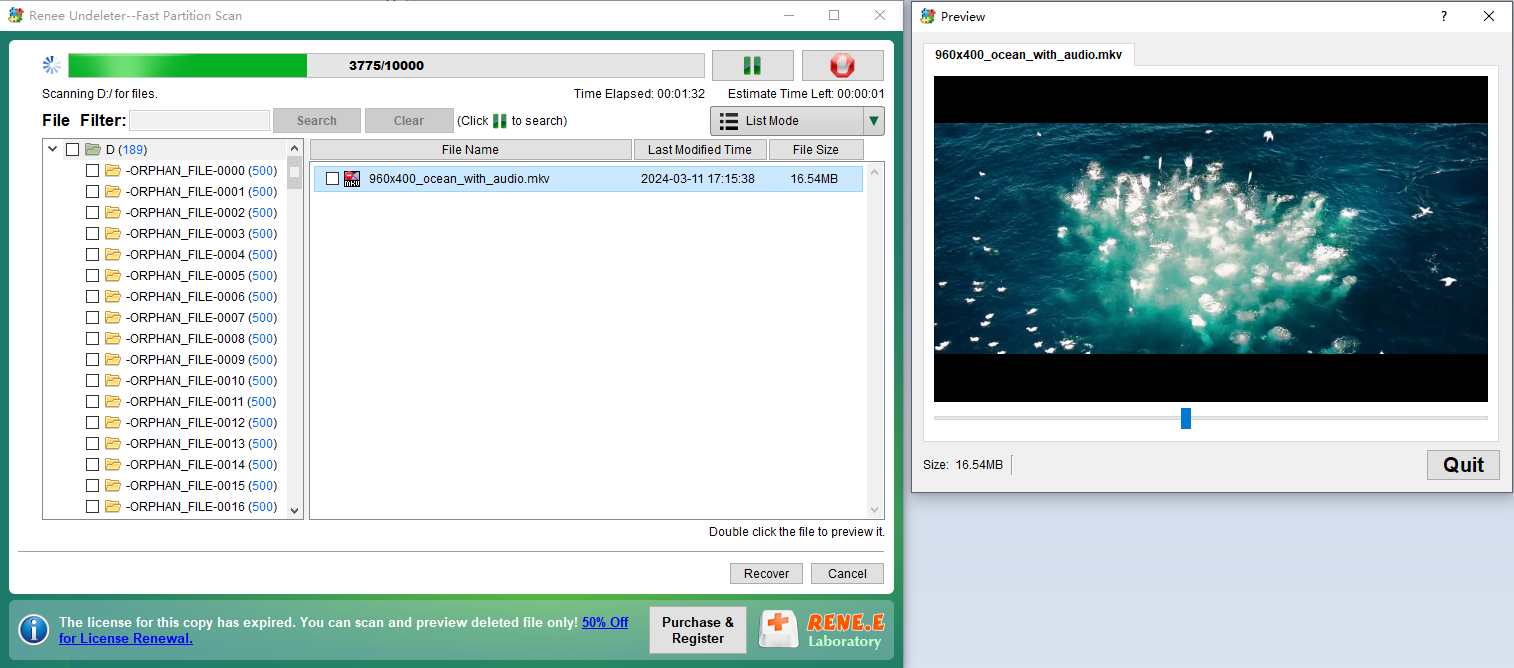
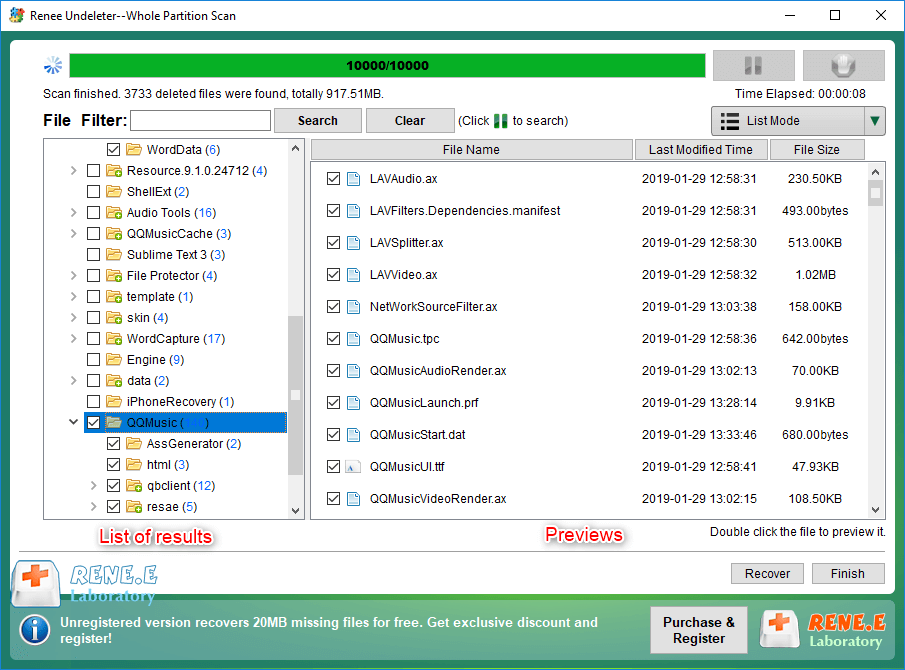
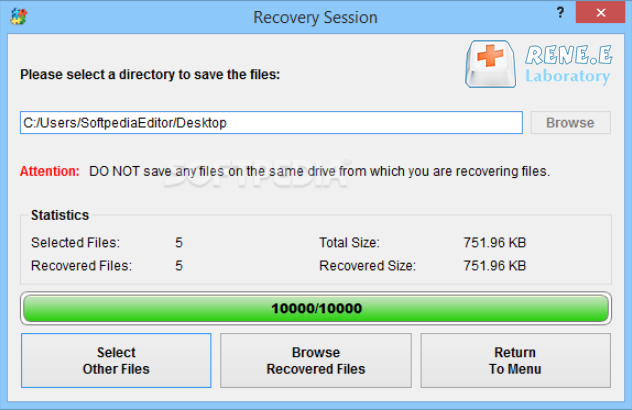
Step 3: Let the scan run its course—the time it takes will vary based on the card’s size. You can preview files by double-clicking them while it’s scanning. If you find what you need early, select those files and click Recover to pause the scan and save them. Or, wait until it’s done, then choose your files and hit Recover. Always save to another spot, like your computer’s drive, to keep the SD card safe from overwrites.
preview deleted mkv video file
preview and select the files to recover in renee undeleter
Note: For optimal results, direct recovered files to a different drive rather than back to the SD card.
recover the whole disk data
With its straightforward interface and flexible scan choices, Renee Undeleter is a reliable pick for recovering from a formatted SD card, particularly when you need to salvage important memories or files without hassle.
If software like Renee Undeleter isn’t enough or you prefer using built-in Windows features, there are command-line options available that can help recover files or repair the card. These methods are handy for users comfortable with the command prompt and can sometimes uncover hidden or corrupted data.

Method 2 : Recover and Repair a Formatted SD Card Using Windows Built-in Commands

Windows offers some powerful built-in tools via the Command Prompt that can assist in file recovery and SD card repair without needing third-party software. Tools like Windows File Recovery (a Microsoft app you can download from the Microsoft Store), chkdsk for disk checks, and attrib for managing file attributes can be effective.

Using Windows File Recovery for File Retrieval

Windows File Recovery is a command-line tool designed to recover deleted or lost files from drives, including formatted SD cards. It supports modes like default (for NTFS), segment (for recent deletions), and signature (for formatted drives, scanning by file types).
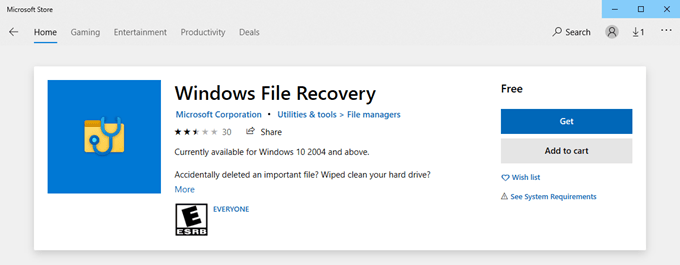
1. First of all, Windows File Recovery requires installation first—search for it in the Microsoft Store and install it.
windows file recovery in store
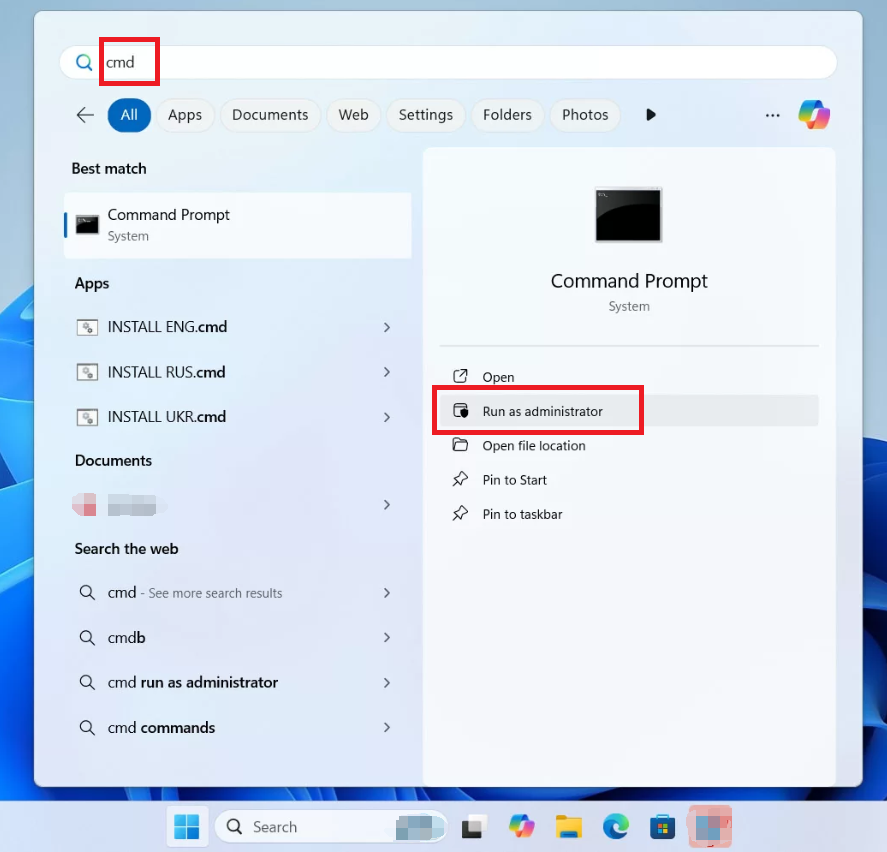
2. Always run Command Prompt as an administrator (right-click and select “Run as administrator”) for the command to work properly.
Windows 11, run cmd as administrator
3. Example command for signature mode (best for formatted cards):

winfr X: C:\Recovered /extensive /x /y:JPG,PNG,MP4,DOCX

- Here, “X:” is the source drive (your SD card).
- “C:\Recovered” is the destination folder (create it first on your PC).
- “/extensive” enables deep scanning.
- “/x” activates signature mode.
- “/y:JPG,PNG,MP4,DOCX” specifies file types to recover (add or remove as needed, separated by commas).
Run the command, confirm with “Y” when prompted, and wait for it to finish. Recovered files will appear in the destination folder, often in subfolders like $RECYCLED.

Using chkdsk to Repair the SD Card

chkdsk scans and fixes file system errors on the card, which might make files accessible again after formatting issues.
1. First, run Command Prompt as an administrator (right-click and select “Run as administrator”) for the command to work properly.
2. Example command:

chkdsk X: /f /r

- “X:” is your SD card’s drive letter.
- “/f” fixes errors.
- “/r” locates bad sectors and recovers readable data.
This might take time; if prompted, type “Y” to schedule it for the next restart if the drive is in use.
These commands provide a no-cost way to attempt recovery or repair, but remember to back up any found files immediately. If they don’t yield results, third-party software might be the next step.

How to Reformat an SD Card After Recovery

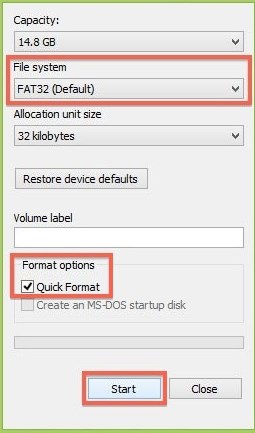
Once you’ve recovered your files, reformatting the SD card can get it back in working order or switch its file system to something like FAT32 or exFAT for wider device compatibility, such as with cameras or phones. This step helps ensure smooth performance and lowers the chance of ongoing issues. Here’s the process to reformat and resolve any lingering format-related problems:
1. Insert the SD Card: Slide the SD card into your PC’s built-in slot or connect it through a USB reader.
2. Open File Explorer: Head to “This PC,” find your SD card, right-click on it, and choose Format from the menu.
Windows format volume/partition
3. Choose File System: In the Format dialog, pick FAT32 or exFAT from the File System list. These work well for SD cards in handheld devices.
4. Set Allocation Unit Size: Go with 4096 bytes for the unit size. For easier future recoveries, enable the Quick Format checkbox.
Format the SD card
5. Start Formatting: Hit Start, then OK to confirm the warning and proceed.
Renee Undeleter - Powerful Data Recovery SoftwareRenee Undeleter data Recovery software

Easy to use Only simple steps to recover data from storage devices.

Multiple scan modes Fast partition scan, whole partition scan and whole disk scan for different recovery needs.

File types Support to recover pictures, videos, audios, documents, mails, etc.

Supported storage devices Recover data from recycle bin, SD card, external disk, etc.

Supported systems Windows 11,10, 8.1, 8, 7, Vista, XP, 2000 and Mac OS X10.6, 10.7, 10.8+.

Easy to use Only simple steps to recover data from storage devices.

Multiple scan modes - 3 scan modes for different recovery needs.

Supported storage devices Recover data from recycle bin, SD card, external disk, etc.

Free TrialFree TrialFree Trial

3000 users have downloaded Renee Undeleter and found data back!

Tips to Avoid SD Card Formatting Problems in the Future

Preventing the need for recovery starts with good habits that safeguard your data on SD cards. By incorporating these practices, you’ll reduce the risk of accidental formats and keep your files secure over time.
* Regular Backups: Make it a routine to copy your SD card’s files to your computer or a cloud service right after adding or changing anything.
* Double-Check Before Formatting: Always review what’s on the SD card before hitting format to confirm you’re not wiping out something vital.
* Safe Ejection: Properly eject the SD card from any device to prevent corruption that might lead to format prompts.
safe eject or unmount sd card

FAQ

Can you recover files from a formatted SD card?

Recovering files from a formatted SD card is possible in many cases, especially if it was a quick format and you haven’t written new data to it yet. Data recovery software scans for remaining file signatures and can often restore photos, videos, or documents. However, success drops if it was a full format or if the card has been used since.

How do I recover data from a formatted SD card on my phone?

Direct recovery on a phone is tricky because most phones don’t have advanced tools for this. Instead, connect the SD card to a Windows PC using a reader and use software like Renee Undeleter or Windows File Recovery. If you had cloud backups enabled on your phone, check services like Google Photos or Drive to download synced files that might have been saved before the format.
use sd card reader to connect to the computer

How do I change an SD card back from internal to portable storage after formatting?

If your SD card was set as internal storage on an Android device and got formatted, you can revert it by going into Settings > Storage > Storage Settings, selecting the card, choosing Format as portable, and tapping Format. Always back up any remaining data first, as this will erase everything again to make the switch.

What should I do if my SD card shows as empty after formatting but I know files were there?

This is common after a format, as the metadata is wiped. Stop using the card immediately and run a deep scan with recovery software. Tools like Whole Disk Scan in Renee Undeleter can search beyond the visible file system. If that doesn’t work, try chkdsk in Command Prompt to fix potential errors making it appear empty.

Is it safe to use free recovery software for a formatted SD card?

Free versions of recovery software can be effective for basic needs, but they often limit the amount of data you can recover or lack advanced features. Paid options like Renee Undeleter provide full access to deep scans and previews, which are crucial for formatted cards. Always download from official sites to avoid malware.

How long does it take to recover files from a large SD card?

Recovery time varies based on the card’s size— a 128GB card might take 30 minutes to a few hours for a full scan, depending on your computer’s speed and the scan depth. Preview options in software let you recover files as they’re found, so you don’t always have to wait for the entire process to finish.
Renee Undeleter - Powerful Data Recovery SoftwareRenee Undeleter data Recovery software

Easy to use Only simple steps to recover data from storage devices.

Multiple scan modes Fast partition scan, whole partition scan and whole disk scan for different recovery needs.

File types Support to recover pictures, videos, audios, documents, mails, etc.

Supported storage devices Recover data from recycle bin, SD card, external disk, etc.

Supported systems Windows 11,10, 8.1, 8, 7, Vista, XP, 2000 and Mac OS X10.6, 10.7, 10.8+.

Easy to use Only simple steps to recover data from storage devices.

Multiple scan modes - 3 scan modes for different recovery needs.

Supported storage devices Recover data from recycle bin, SD card, external disk, etc.

Free TrialFree TrialFree Trial

3000 users have downloaded Renee Undeleter and found data back!

User Comments

Page 1

Leave a Comment


Your comment has been submitted and is awaiting moderation.