author avatar
    Specialist of Customer Service Dept.
Last update by William Davis at 1 September 2025

Summary
Struggling with the 'drive is not accessible' error? This authoritative guide offers six proven solutions to restore access and recover your data, ensuring you avoid data loss.



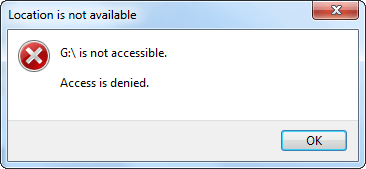
If you’re seeing an error like “Drive is not accessible” or “Access denied” when trying to open your hard drive, USB, or external storage, you’re likely dealing with a frustrating issue that could put your files at risk. Whether it’s a critical work document, cherished photos, or essential backups, this guide is designed to help you regain access and recover your data quickly and safely. We’ll walk you through step-by-step solutions to address common causes like connection issues, permissions, encryption, or file system errors, ensuring you can get your drive working again without losing important data.
volume is not accessible
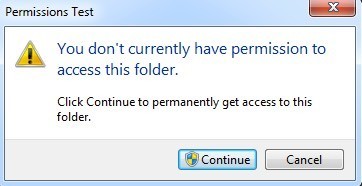
no authority to access folder
This article starts with data recovery to protect your files before attempting repairs, as some fixes may erase your data. If your files aren’t critical, you can skip to the recovering section. Each solution is tailored to address the specific reasons behind the “drive is not accessible” error, making it easier for you to find the right fix.

Recovering Data from an Inaccessible Drive

When a drive is inaccessible, you can’t simply copy files as usual. You’ll need specialized data recovery software to scan and retrieve your data.

First, confirm the drive is recognized in Disk Management:

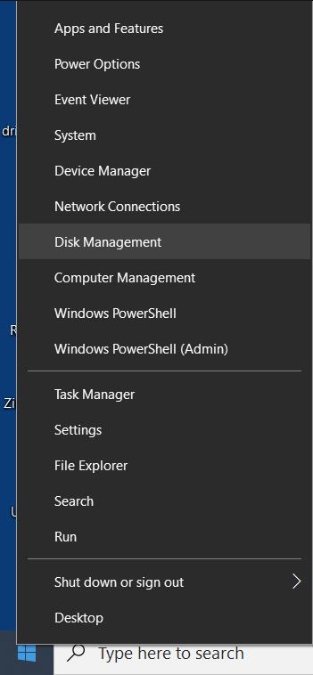
1. Press Windows + X to open the Power User menu.
2. Select Disk Management from the list.
Open Disk Management
3. Check if your external drive appears with the correct storage capacity.
If the drive shows up with the expected size, proceed with recovery. If it’s missing or displays an incorrect size, it may indicate hardware failure—consider contacting a professional data recovery service instead of proceeding.
Many recovery tools are available for Windows, but choosing one that handles inaccessible external drives effectively is key. For this guide, we recommend Renee Undeleter, a reliable and user-friendly tool with a strong track record for recovering files from problematic drives.

Using Renee Undeleter to Retrieve Files from an Inaccessible Drive

Renee Undeleter is a robust data recovery tool designed to restore files from drives that Windows cannot access. Its intuitive interface is beginner-friendly, yet it offers advanced features for complex recovery tasks. Supporting over 400 file formats and compatible with NTFS, FAT32, and exFAT file systems, it’s ideal for recovering data lost due to deletion, corruption, or formatting.
Renee Undeleter - Powerful Data Recovery SoftwareRenee Undeleter data Recovery software

Easy to use Only simple steps to recover data from storage devices.

Multiple scan modes Fast partition scan, whole partition scan and whole disk scan for different recovery needs.

File types Support to recover pictures, videos, audios, documents, mails, etc.

Supported storage devices Recover data from recycle bin, SD card, external disk, etc.

Supported systems Windows 11,10, 8.1, 8, 7, Vista, XP, 2000 and Mac OS X10.6, 10.7, 10.8+.

Easy to use Only simple steps to recover data from storage devices.

Multiple scan modes - 3 scan modes for different recovery needs.

Supported storage devices Recover data from recycle bin, SD card, external disk, etc.

Free TrialFree TrialFree Trial

3000 users have downloaded Renee Undeleter and found data back!

The tool includes specialized modes for inaccessible partitions, making it perfect for this scenario. Acting promptly is critical—delaying recovery risks overwriting your data, reducing the chances of success.

Here’s how to use Renee Undeleter to recover your files:

Step 1: Download, Install, and Launch Renee Undeleter
Download the software from its official website and install it on a different drive than the inaccessible one to avoid overwriting data. Launch the program after installation.
Step 2: Select Fast Partition Scan
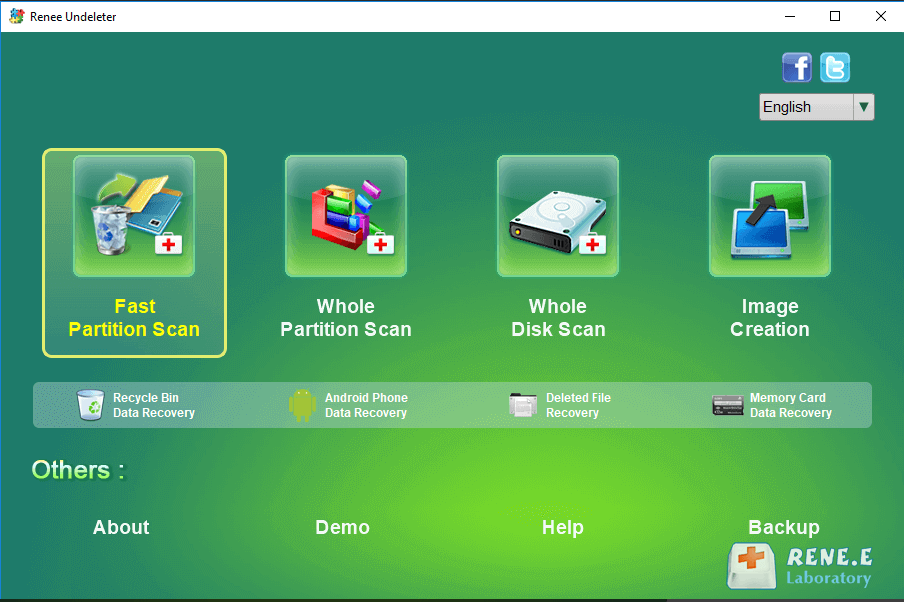
From the main interface, choose Fast Partition Scan, ideal for recovering files lost due to deletions or emptied recycle bins.
Key Tip: Avoid saving new data to the affected drive to prevent overwriting your lost files.
Renee Undeleter, select Fast Partition Scan
Data Recovery Features of Renee Undeleter
  • Fast Partition Scan: Quickly retrieves files lost from deletions or cleared recycle bin.
  • Whole Partition Scan: Recovers data from inaccessible or formatted partitions.
  • Whole Disk Scan: Conducts a comprehensive scan of the entire disk for maximum recovery.
  • Image Creation: Creates a backup mirror of the partition for safe recovery.
Step 3: Choose the Affected Partition
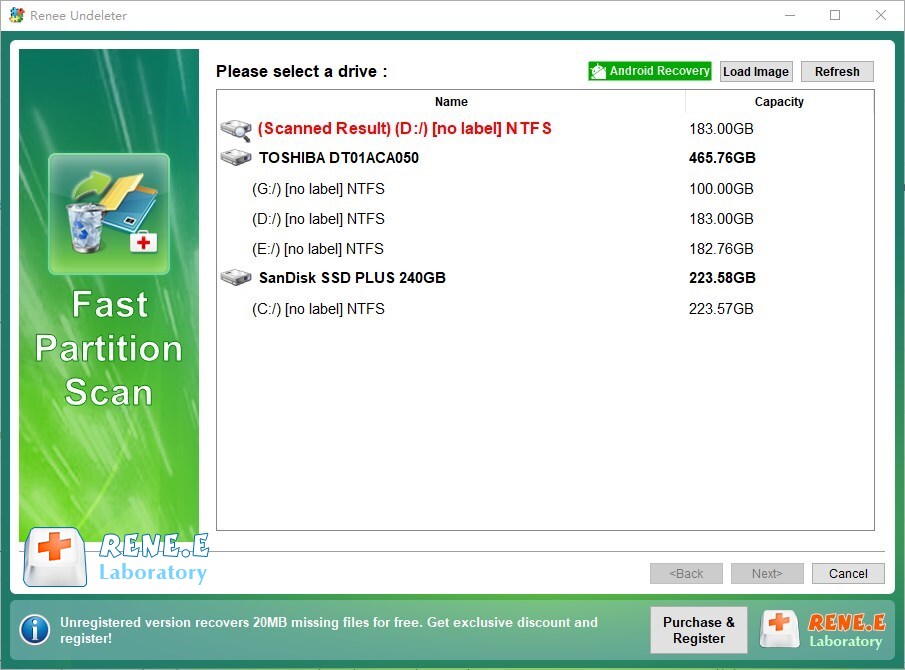
Select the partition on your inaccessible drive, then click Next to proceed.
Select partition to scan for fast partition scan
Step 4: Perform a Fast Scan
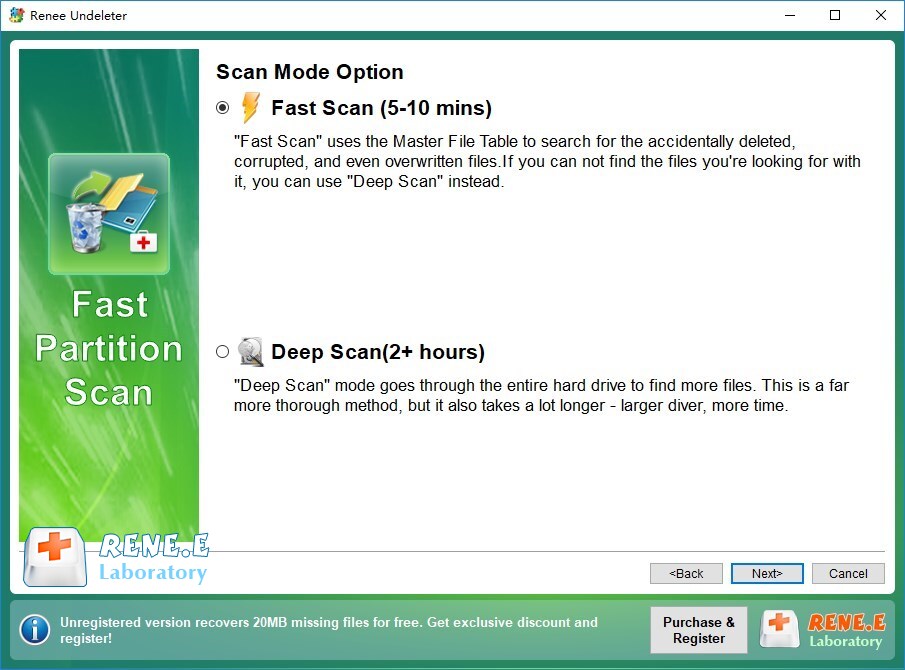
Select Fast Scan and click Next. This scans the first 30GB of the partition, often sufficient for quick recoveries. If no files are found, switch to Deep Scan for a more thorough search, though it takes longer.
Select Fast scan in Fast Partition Scan
Step 5: Preview and Recover Files
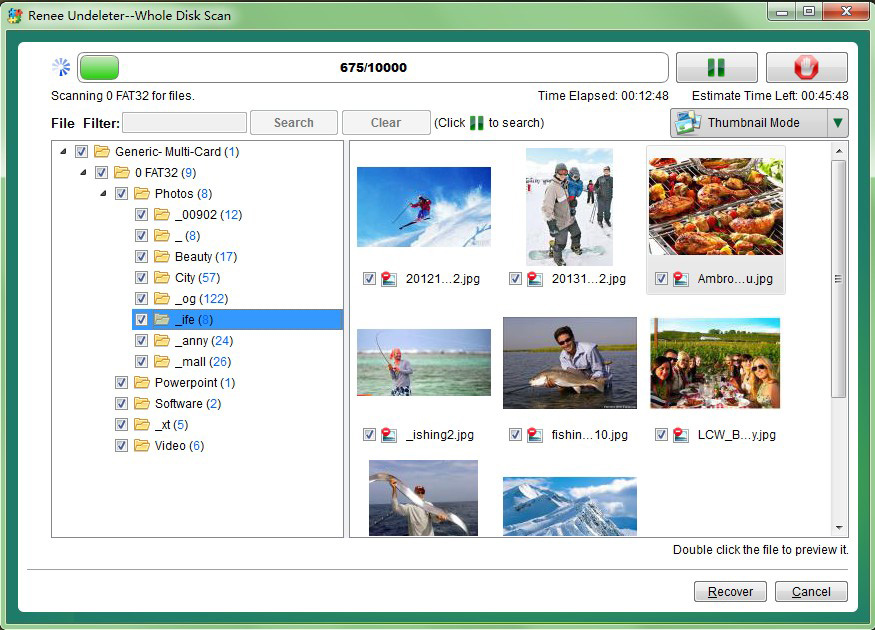
After the scan, double-click files to preview them and verify their integrity. Select the files you want, then click Recover to save them to a different drive (not the inaccessible one).
Preview before recovery
Expert Tip: If Fast Scan doesn’t locate your files, try Deep Scan for a complete drive analysis. Always save recovered files to a separate disk to avoid data loss.
Renee Undeleter - Powerful Data Recovery SoftwareRenee Undeleter data Recovery software

Easy to use Only simple steps to recover data from storage devices.

Multiple scan modes Fast partition scan, whole partition scan and whole disk scan for different recovery needs.

File types Support to recover pictures, videos, audios, documents, mails, etc.

Supported storage devices Recover data from recycle bin, SD card, external disk, etc.

Supported systems Windows 11,10, 8.1, 8, 7, Vista, XP, 2000 and Mac OS X10.6, 10.7, 10.8+.

Easy to use Only simple steps to recover data from storage devices.

Multiple scan modes - 3 scan modes for different recovery needs.

Supported storage devices Recover data from recycle bin, SD card, external disk, etc.

Free TrialFree TrialFree Trial

3000 users have downloaded Renee Undeleter and found data back!

Using Renee Undeleter significantly increases your chances of recovering files from an inaccessible drive. Act quickly to avoid further corruption. With your data safely recovered, you can proceed to repair the drive without worrying about permanent data loss.

Transition: Moving from Recovery to Repair

Once your data is secure, you can focus on fixing the drive itself. The following solutions address the root causes of the “drive is not accessible” error, starting with simple checks and progressing to more advanced fixes. These steps are designed to restore your drive’s functionality while minimizing the risk of further issues.

Repairing an Inaccessible Hard Drive

With your data safely recovered, it’s time to troubleshoot and restore your drive’s functionality. The solutions below begin with simple, non-invasive fixes and progress to more complex steps. We aim to avoid formatting unless absolutely necessary, as it erases all data.

Common Causes of an Inaccessible Drive

Before diving into solutions, understanding why your drive is inaccessible can help you choose the right fix and prevent future issues. The table below summarizes common causes, their explanations, and the corresponding solutions.
CauseExplanationSolution

Faulty Connection

Loose cables, damaged USB ports, or faulty hardware prevent the drive from connecting properly.

Inspect and replace cables or try different ports (Solution 1).

Permission Issues

This is often caused by a drive or resource owned by another user or system, where the file or folder is not shared with the "Everyone" group.

Adjust ownership to grant access (Solution 2).

Encryption Lock

Encryption (e.g., BitLocker) restricts access without the correct key.

Disable encryption using the recovery key (Solution 3).

Drive Letter Conflict

A conflicting drive letter assigned by Windows causes access issues.

Assign a new, unique drive letter (Solution 4).

File System Errors

Corruption from improper ejection or power failures disrupts the file system.

Run CHKDSK to repair errors (Solution 5).

Severe Corruption/Format

The file system is incompatible or too damaged to read.

Format the drive as a last resort (Solution 6).

Solution 1: Check the Drive’s Connection

Start with the basics—a faulty connection is a common reason for an inaccessible drive. A worn-out cable, damaged USB port, or loose connection can prevent your drive from being recognized.
A worn-out cable, damaged USB port
Try these steps:
  • Use a different USB cable or port.
  • Connect the drive to another computer to rule out system-specific issues.
  • Confirm the drive appears in Disk Management, even if it’s inaccessible.
These simple checks can save time and effort by identifying hardware-related issues early.

Solution 2: Modify Drive Ownership to Restore Access

If your drive appears in File Explorer but displays an “Access is denied” error, the issue may stem from ownership restrictions. This often happens when you receive a drive from another user, inherit a drive with a different user account, or access it on a new Windows system where your account lacks the necessary permissions. Adjusting ownership grants your account full access to the drive’s contents.
This solution is most effective for NTFS-formatted drives, commonly used for external storage, but less so for FAT32 or exFAT.
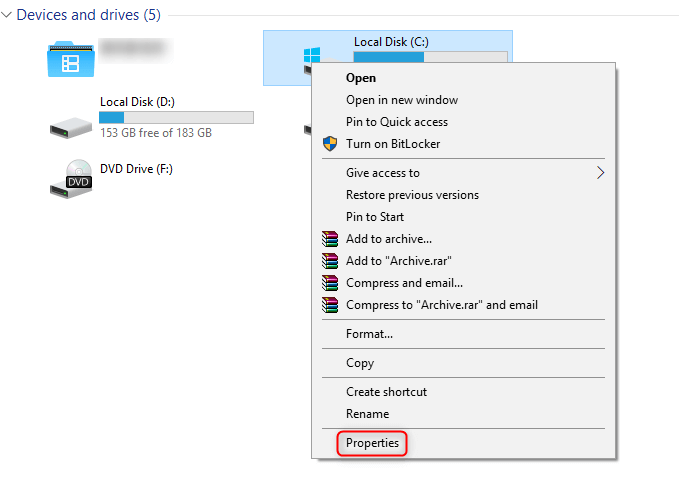
1. Open File Explorer and locate your external drive on the left.
2. Right-click and select Properties.
Open drive properties
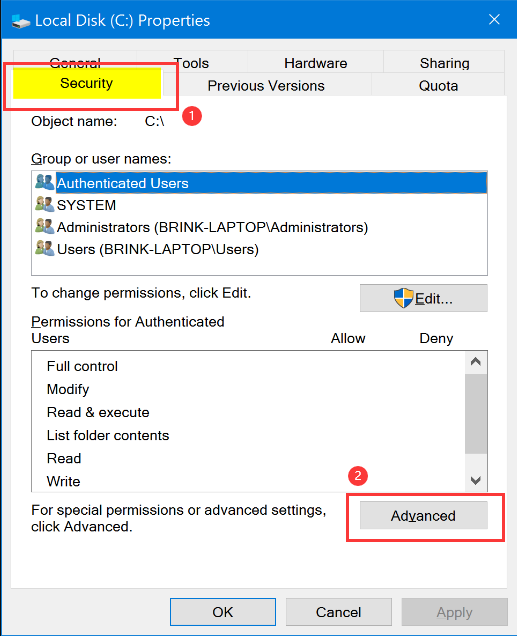
3. Go to the Security tab and click Advanced.
Open drive security tab
4. In the Advanced Security Settings, click Change next to the Owner field.
Change owner
5. Click Select a principal.
6. Enter your Windows username, click Check Names, and then OK.
Click check names button
7. In the settings, check Full control under Permissions and click OK.
8. To apply ownership changes to all files and subfolders within the target drive, enable “Replace owner on subcontainers and objects“(in Windows 10) or “Replace all child object permission entries with inheritable permission entries from this object“(in Windows 11) in the advanced security settings.
Replace owner on subcontainers and objects in security tab
Enable “Replace owner on subcontainers and objects” in Windows 10.
9. Click OK again to close the Properties window. Your drive should now be accessible.

Solution 3: Disable Encryption to Unlock the Drive

If your drive is inaccessible due to encryption, such as Device Encryption (Windows Home) or BitLocker (Windows Pro/Enterprise), you’ll need the decryption key to access it. Encryption issues can arise if the key is lost or if the encryption data becomes corrupted, preventing your system from reading the drive. Disabling encryption can restore access.
1. Press Windows Key + S and search for Device Encryption (Home) or Manage BitLocker (Pro/Enterprise).
2. For Windows Home, toggle Device Encryption to Off to decrypt the drive.
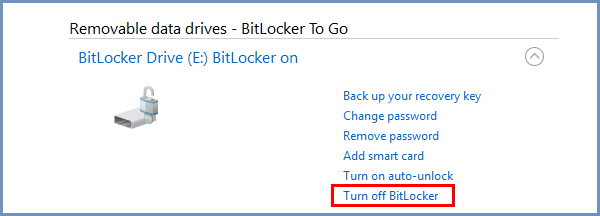
3. For Pro/Enterprise, locate your drive in BitLocker To Go and select Turn off BitLocker.
Turn off BitLocker setting
4. Enter your BitLocker recovery key when prompted. If you’ve lost it, follow the on-screen guidance or check your Microsoft account to retrieve it.

Solution 4: Reassign a Drive Letter to Resolve Conflicts

A drive letter conflict can make your drive inaccessible if Windows assigns it a letter already in use (e.g., the same as your system drive). Reassigning a unique drive letter can fix this issue.
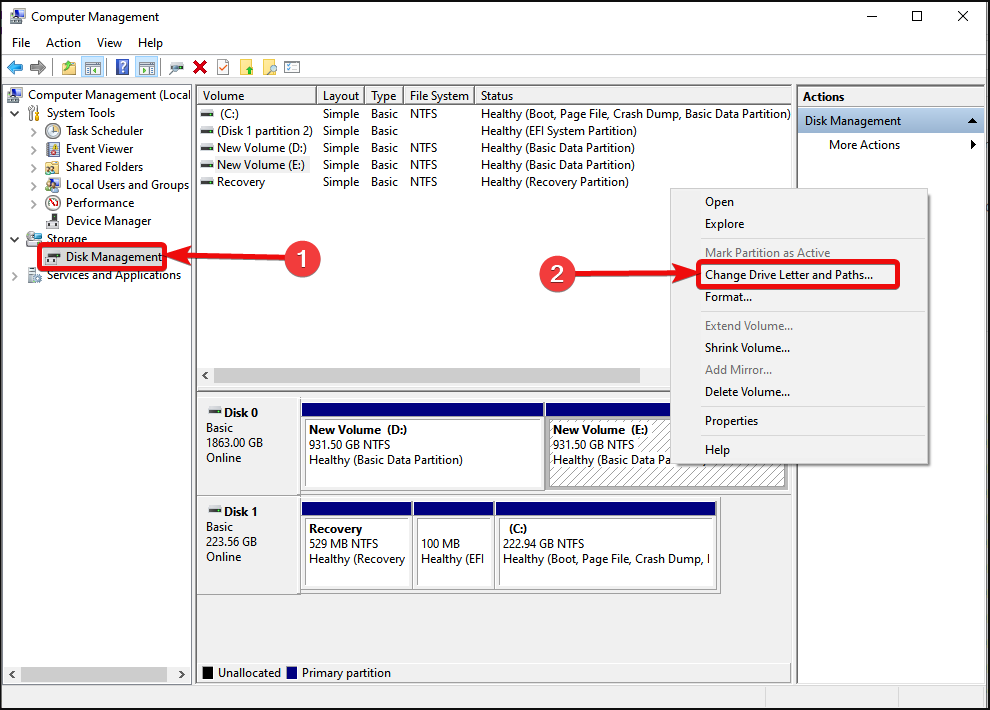
1. Press Windows + X and select Disk Management.
2. Right-click your external drive and choose Change Drive Letter and Paths.
Change drive letter
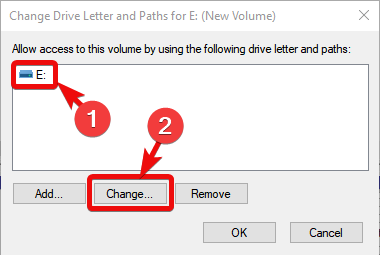
3. Click Change.
Change drive letter button
4. Select an unused letter from the dropdown.
5. Click OK. If a warning about programs using the old letter appears, click Yes.
6. Check if the drive appears in This PC. If it’s still inaccessible, restart your computer to apply the change.

Solution 5: Scan and Fix File System Errors

File system errors, often caused by improper ejection, power outages, or malware, can render a drive inaccessible. Windows’ built-in CHKDSK tool can scan and repair these issues by checking the file table and directories.
Caution: CHKDSK may delete corrupted files during repairs. If your data isn’t backed up, recover it first using the steps in the recovery section.
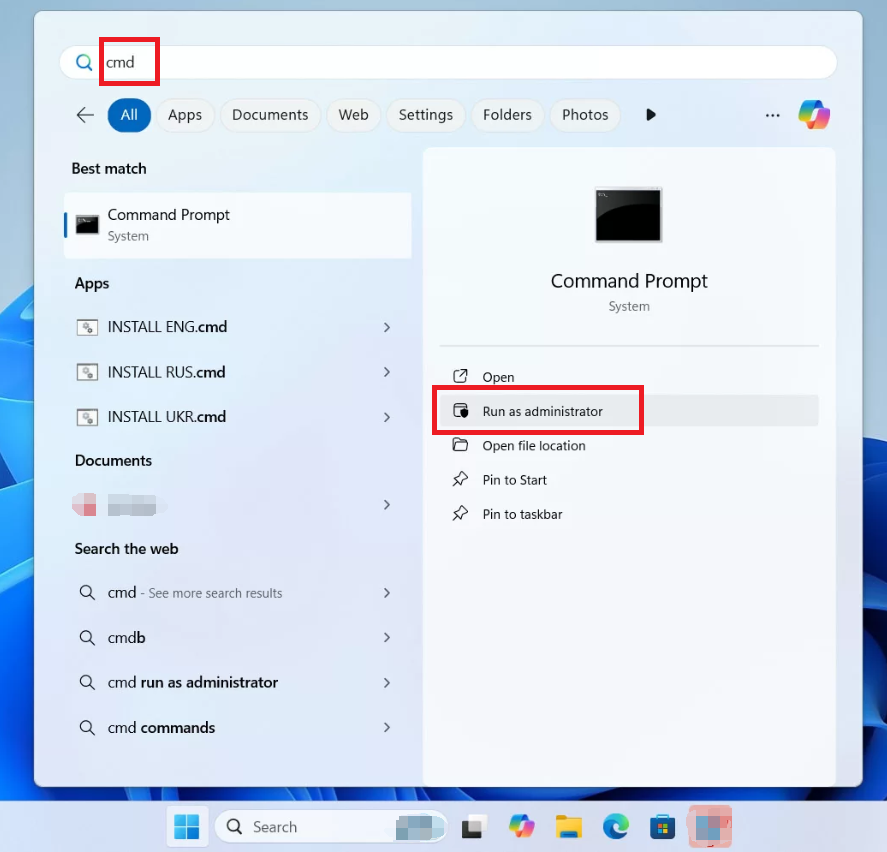
1. Search for cmd in Windows, right-click Command Prompt, and select Run as administrator.
Run cmd on Windows 11
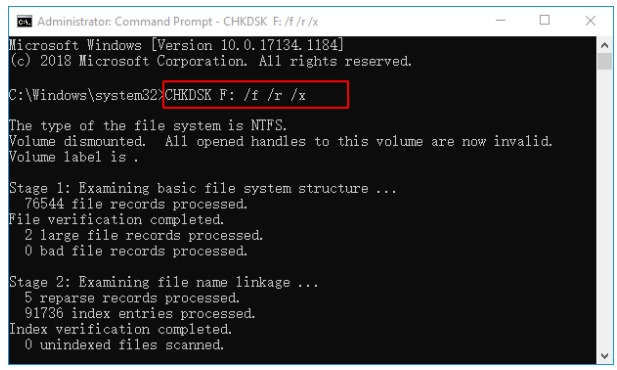
2. Type

chkdsk X: /f /r

(replace X with your drive letter; /f fixes errors, /r recovers data from bad sectors).
Run chkdsk command
3. Press Enter and wait for the scan to complete. Larger drives or severe issues may take longer. Review the summary, then try accessing the drive.
CHKDSK command result

Solution 6: Format the Drive as a Last Resort

If all else fails, formatting the drive may be necessary to restore functionality. This is required when the file system is incompatible with Windows or too corrupted to repair. Formatting creates a new file system, making the drive usable again, but it erases all data.
Important: Recover your data first using the steps in the recovery section if your files are critical.
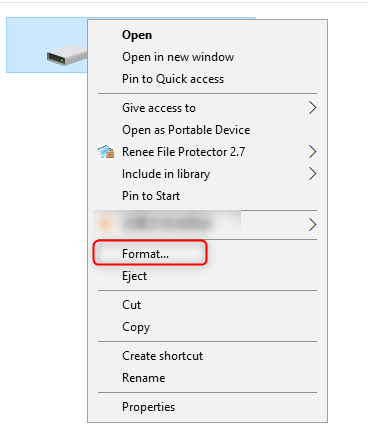
1. In File Explorer, locate the drive under This PC.
2. Right-click and select Format.
recover data from formatted sd card select to format sd card if you dont't know how to repair a undetected micro sd card
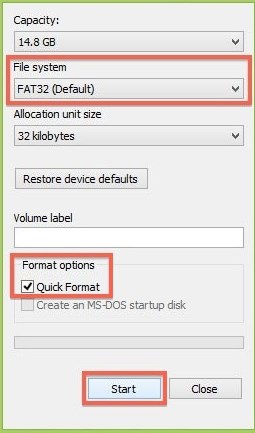
3. Choose a file system (e.g., NTFS or exFAT) and keep Quick Format checked for speed (uncheck for a thorough format).
Format the SD card
4. Click Start, confirm the data loss warning, and wait for completion. The drive should now be accessible.

Solution 7: Update or Reinstall Drivers
Outdated or corrupted drivers in Windows can prevent your drive from being recognized. Updating or reinstalling USB or disk controller drivers can resolve this.
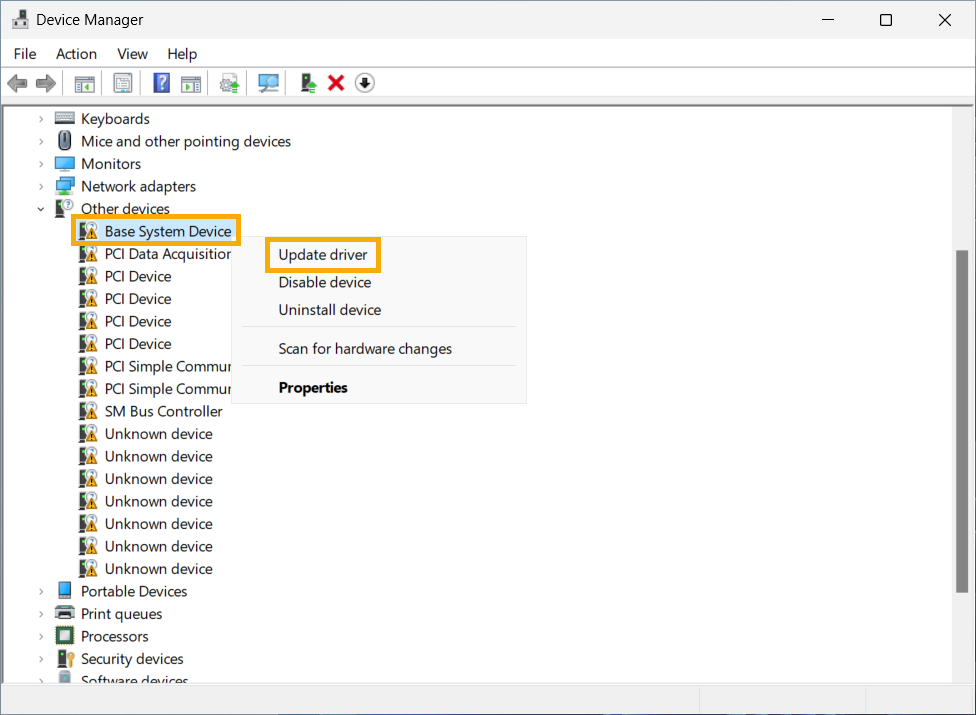
1. Press Windows + X and select Device Manager.
2. Expand Disk drives and Universal Serial Bus controllers.
3. Right-click your drive or USB controller, select Update driver, and choose Search automatically for drivers.
Update driver in Device Manager
4. If no update is found, select Uninstall device, then reconnect the drive to reinstall the driver automatically.

Why Does a Drive Become Inaccessible?

Understanding why your drive became inaccessible helps you prevent future issues and decide if it’s time to replace the drive. Common causes include:
🔒 Permission Restrictions: Windows user account lacks access, showing “Access denied.” Check ownership settings.
🔌 Improper Handling: Unplugging without ejecting or frequent plugging/unplugging corrupts data, causing errors or unresponsiveness.
🗃️ Incompatible File Systems: Drives formatted for other operating systems (e.g., macOS) prompt “Format now?” messages.
🖱️ Connection Issues: Faulty cables or ports lead to intermittent detection. Test with other devices or cables.
🦠 File System Corruption: Malware, power failures, or errors cause slow performance, garbled files, or format prompts.
🔨 Physical Damage: Drops or power surges cause clicking noises or failure to spin up—seek professional help.

Frequently Asked Questions (FAQs)

Why does my drive show 'Access denied' even though it’s listed in File Explorer?

This typically occurs when your user account lacks the necessary permissions, often because the drive was used on another system or by a different user. To fix this, adjust the drive’s ownership to your account, as outlined in Solution 2. Ensure you’re logged in as an administrator to make these changes.

Can I recover data from a drive that’s physically damaged?

If your drive makes clicking noises, overheats, or fails to appear in Disk Management, it may be physically damaged. Software like Renee Undeleter won’t work in these cases. Contact a professional data recovery service to assess and retrieve your data safely.

What should I do if my drive prompts me to format it?

A “Format now?” prompt often indicates an incompatible or corrupted file system. Avoid formatting until you’ve recovered your data using a tool like Renee Undeleter (see the recovery section). After securing your files, format the drive as described in Solution 6.

Why does my drive work on one computer but not another?

This could be due to permission issues, encryption, or a drive letter conflict. Try adjusting ownership (Solution 2), disabling encryption (Solution 3), or assigning a new drive letter (Solution 4). Also, check the connection with a different cable or port (Solution 1).

How can I prevent my drive from becoming inaccessible again?

Always safely eject the drive before unplugging, avoid power interruptions, and protect it from physical damage. Regularly back up your data to another drive or cloud storage to minimize the risk of data loss in case of future issues.

Conclusion

An inaccessible drive is a common issue, but with the right approach, it’s often fixable. Simple steps like checking connections, reassigning drive letters, or adjusting permissions can restore access quickly. If formatting is unavoidable, this guide ensures you can recover your data first, preventing stressful losses.
To keep your drive healthy, always eject it safely, avoid physical shocks, and protect it from power surges. Even the best drives wear out over time, so regular backups and careful handling will extend its life and keep your data safe until you’re ready for a replacement.
Renee Undeleter - Powerful Data Recovery SoftwareRenee Undeleter data Recovery software

Easy to use Only simple steps to recover data from storage devices.

Multiple scan modes Fast partition scan, whole partition scan and whole disk scan for different recovery needs.

File types Support to recover pictures, videos, audios, documents, mails, etc.

Supported storage devices Recover data from recycle bin, SD card, external disk, etc.

Supported systems Windows 11,10, 8.1, 8, 7, Vista, XP, 2000 and Mac OS X10.6, 10.7, 10.8+.

Easy to use Only simple steps to recover data from storage devices.

Multiple scan modes - 3 scan modes for different recovery needs.

Supported storage devices Recover data from recycle bin, SD card, external disk, etc.

Free TrialFree TrialFree Trial

3000 users have downloaded Renee Undeleter and found data back!

User Comments

Page 1

Leave a Comment


Your comment has been submitted and is awaiting moderation.