
Recover Data from a CFexpress Card: Complete Recovery Guide

Summary
This article outlines structured methods to recover data cfexpress card content using software-based recovery, open‑source tools, and professional services. It explains how different failure scenarios affect recoverability and compares available recovery approaches. The guide also includes workflow considerations, technical factors, and prevention practices relevant to CFexpress media.



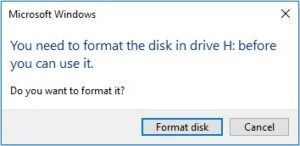
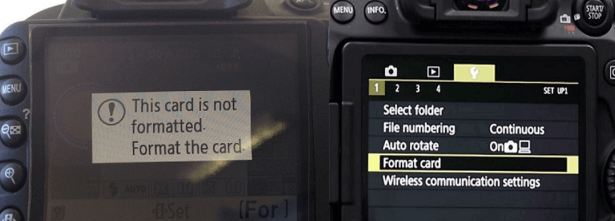
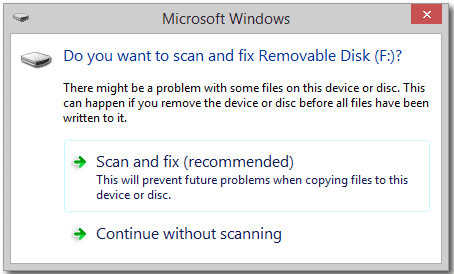
Common CFexpress data-loss scenarios
- Accidental deletion in-camera or on a computer (including “cut” operations).
- Quick format (often done in-camera to “fix” a prompt).
- File system corruption (card mounts but folders are missing, or shows as empty).
- Overheating or power loss during recording (especially with high-bitrate video).
- Improper ejection (removing the card while writing/reading).
- Card not recognized (reader/cable/port issues, or deeper card/controller problems).
Beginner-friendly checks (safe diagnostics)
What types of data can typically be recovered
- RAW photos (varies by camera: CR3/NEF/ARW, etc.)
- Professional video containers like MXF
- High-bitrate camera formats such as XAVC
- RED footage (R3D)
- JPEG/HEIF and standard media exports
- It can work even when the card mounts but appears empty or asks to be formatted.
- It helps you preview and selectively recover files (depending on the tool and file type).
- It’s safer when you first create a byte-by-byte image and scan that image instead of the original card.

Easy to use Only simple steps to recover data from storage devices.
Multiple scan modes Fast partition scan, whole partition scan and whole disk scan for different recovery needs.
File types Support to recover pictures, videos, audios, documents, mails, etc.
Supported storage devices Recover data from recycle bin, SD card, external disk, etc.
Supported systems Windows 11,10, 8.1, 8, 7, Vista, XP, 2000 and Mac OS X10.6, 10.7, 10.8+.
Easy to use Only simple steps to recover data from storage devices.
Multiple scan modes - 3 scan modes for different recovery needs.
Supported storage devices Recover data from recycle bin, SD card, external disk, etc.
What is Renee Undeleter?
Easy to use Only simple steps to recover data from storage devices.
Multiple scan modes Fast partition scan, whole partition scan and whole disk scan for different recovery needs.
File types Support to recover pictures, videos, audios, documents, mails, etc.
Supported storage devices Recover data from recycle bin, SD card, external disk, etc.
Supported systems Windows 11,10, 8.1, 8, 7, Vista, XP, 2000 and Mac OS X10.6, 10.7, 10.8+.
Easy to use Only simple steps to recover data from storage devices.
Multiple scan modes - 3 scan modes for different recovery needs.
Supported storage devices Recover data from recycle bin, SD card, external disk, etc.
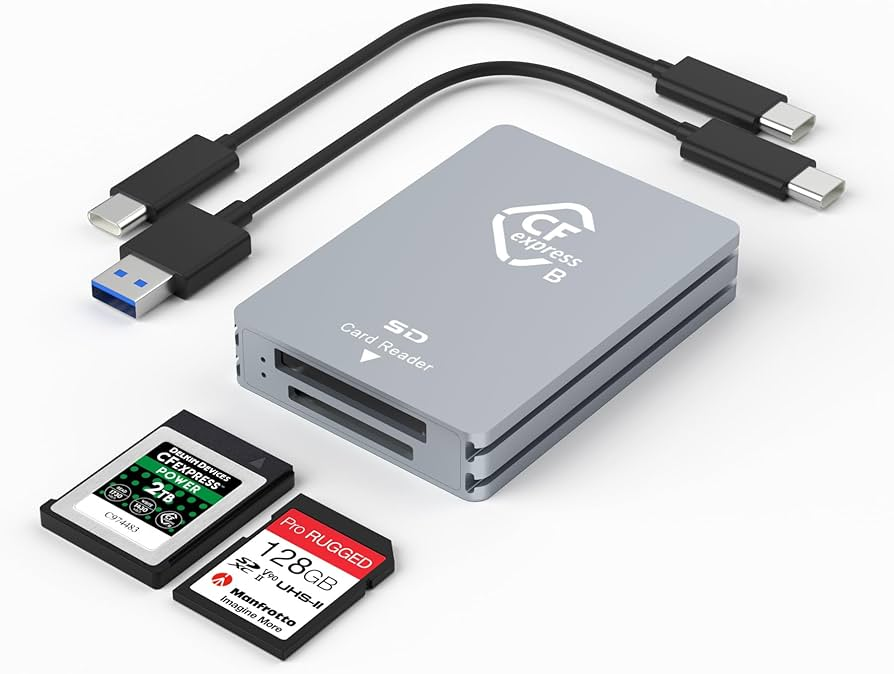
How to recover CFexpress (and SD card) data with a byte-by-byte backup
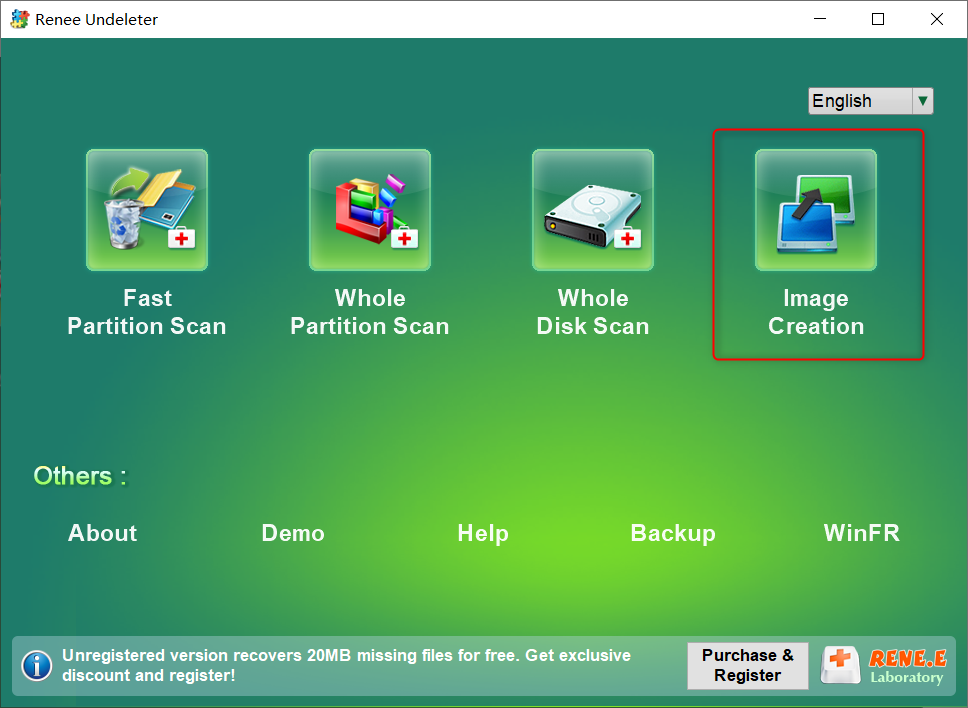
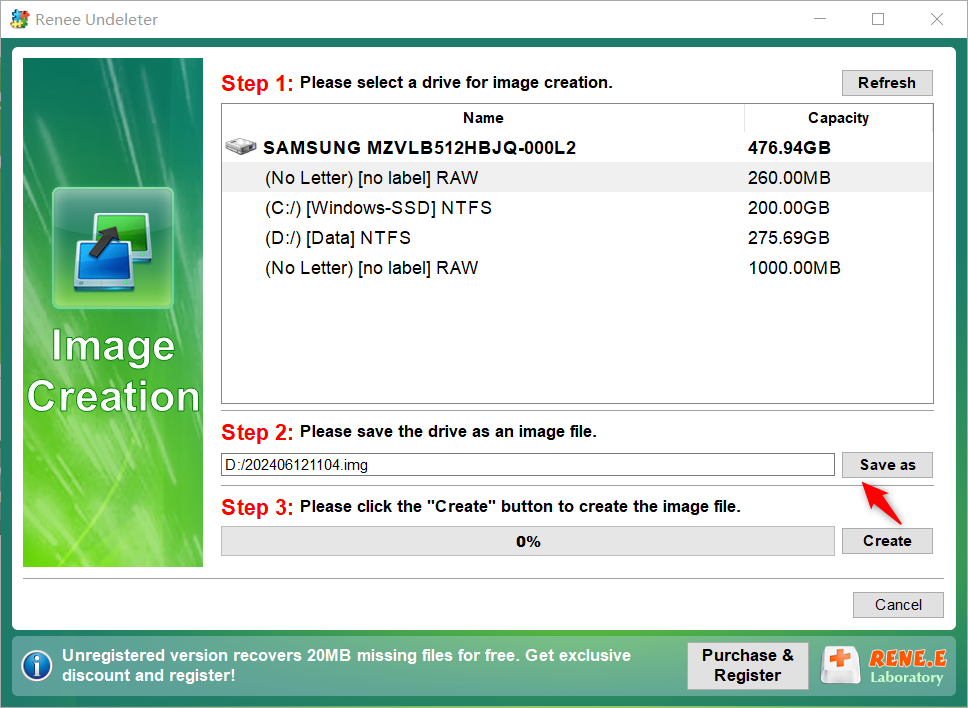
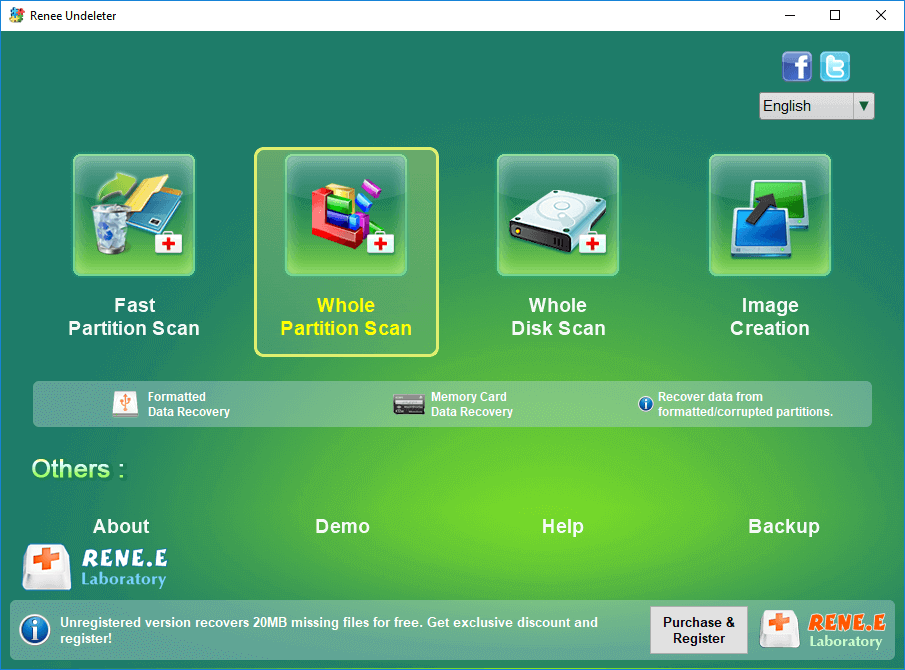
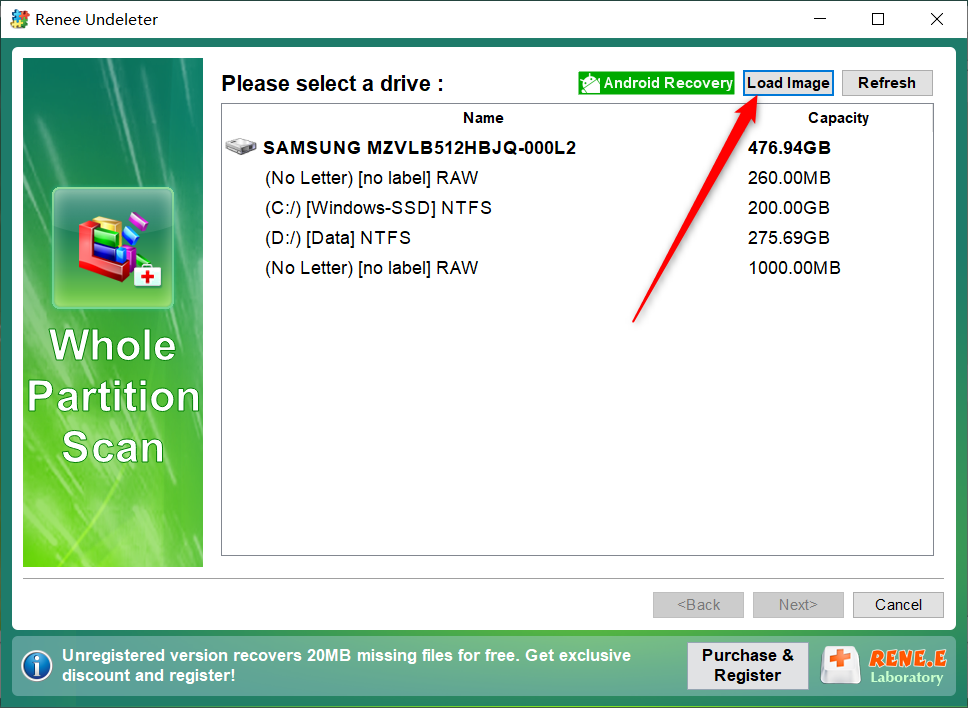
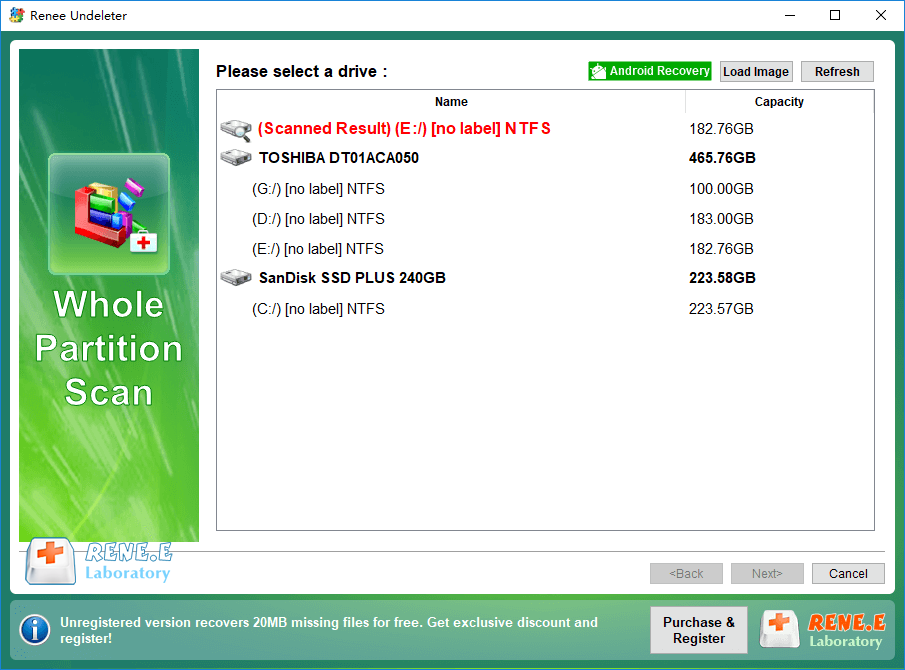
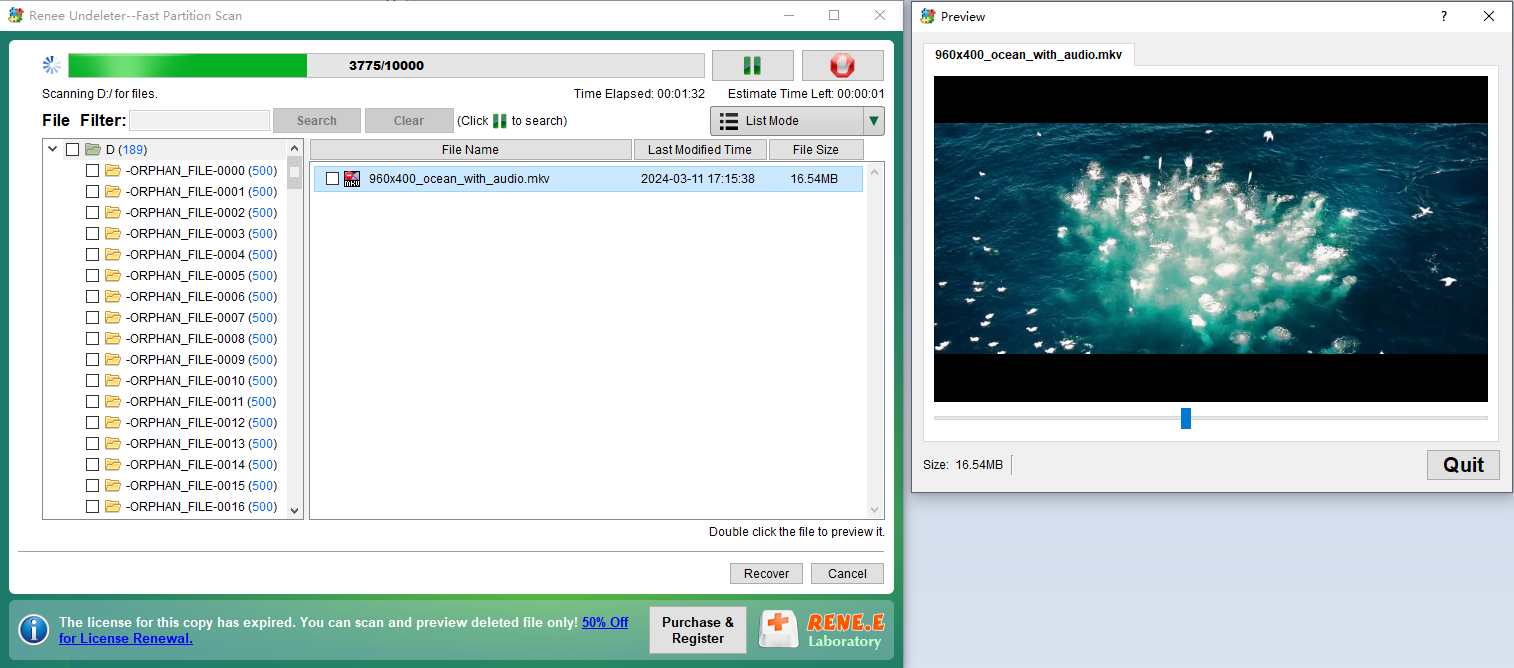
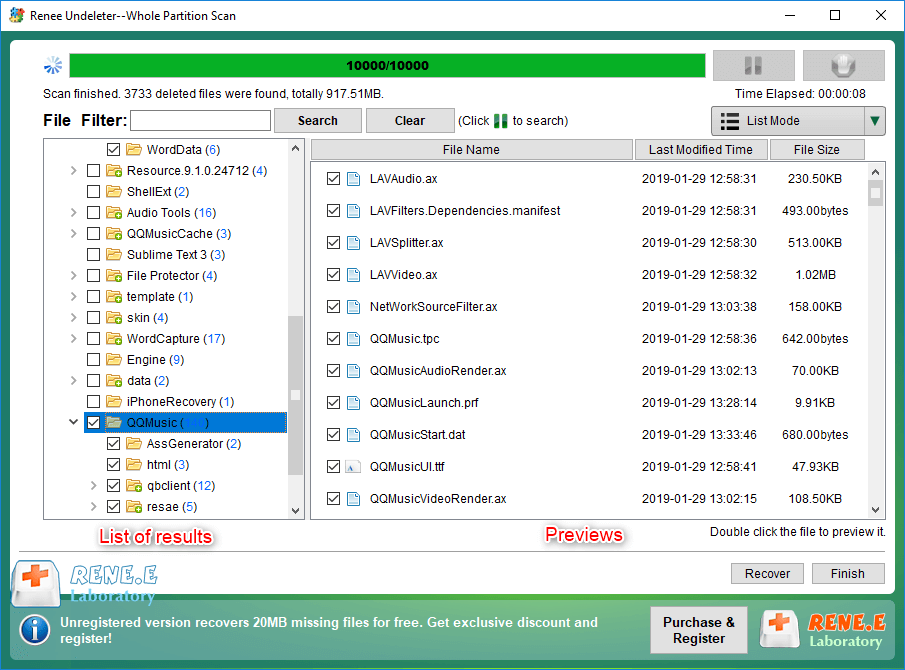
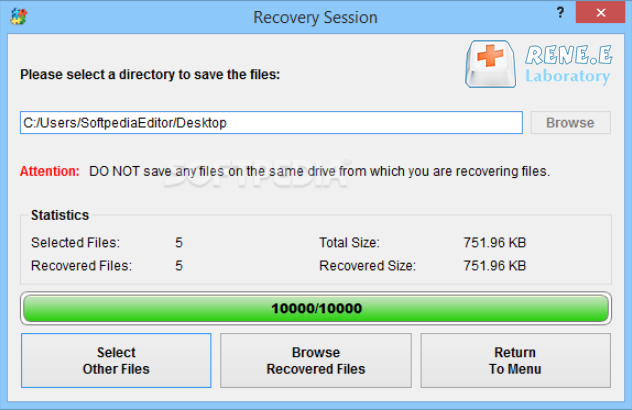
Easy to use Only simple steps to recover data from storage devices.
Multiple scan modes Fast partition scan, whole partition scan and whole disk scan for different recovery needs.
File types Support to recover pictures, videos, audios, documents, mails, etc.
Supported storage devices Recover data from recycle bin, SD card, external disk, etc.
Supported systems Windows 11,10, 8.1, 8, 7, Vista, XP, 2000 and Mac OS X10.6, 10.7, 10.8+.
Easy to use Only simple steps to recover data from storage devices.
Multiple scan modes - 3 scan modes for different recovery needs.
Supported storage devices Recover data from recycle bin, SD card, external disk, etc.


- Free and widely available
- Can recover files even when the file system is badly damaged
- Useful as a secondary method to cross-check results
Disadvantages:
- Interface and workflow can be technical
- Often loses original filenames/folder structure
- Video recovery may be incomplete for fragmented clips
- Limited preview and filtering compared with guided recovery suites
Easy to use Only simple steps to recover data from storage devices.
Multiple scan modes Fast partition scan, whole partition scan and whole disk scan for different recovery needs.
File types Support to recover pictures, videos, audios, documents, mails, etc.
Supported storage devices Recover data from recycle bin, SD card, external disk, etc.
Supported systems Windows 11,10, 8.1, 8, 7, Vista, XP, 2000 and Mac OS X10.6, 10.7, 10.8+.
Easy to use Only simple steps to recover data from storage devices.
Multiple scan modes - 3 scan modes for different recovery needs.
Supported storage devices Recover data from recycle bin, SD card, external disk, etc.
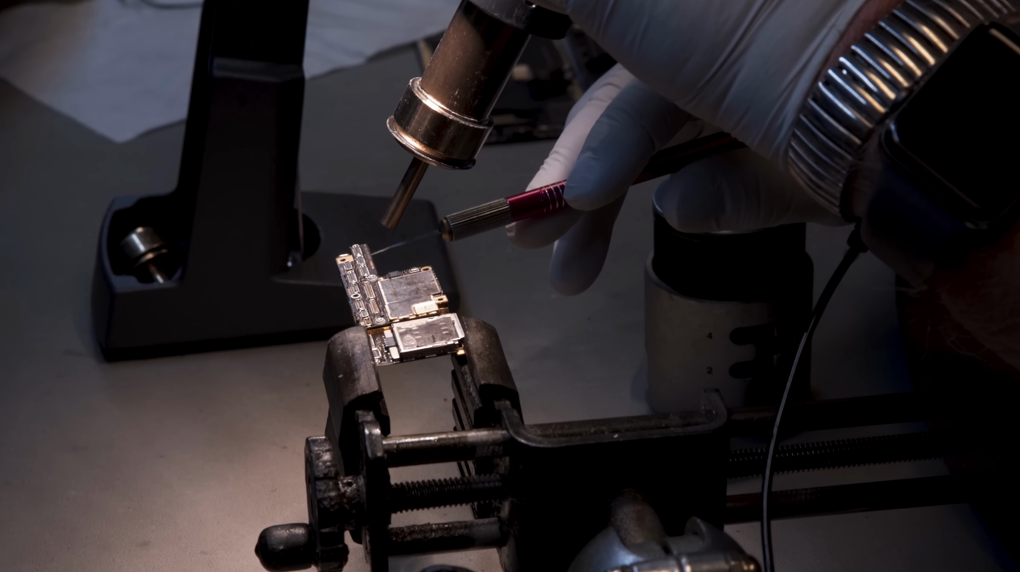
- Physical damage (bent pins in reader slot contacts, cracked casing, water exposure)
- Controller failure (card not recognized consistently or at all)
- Severe corruption where repeated read attempts cause disconnects
- Cases where data may have been wiped by SSD-like behavior (e.g., TRIM-related scenarios) after certain operations
What to compare when choosing a lab
- Cost range: request a written estimate and ask what it includes (diagnostics, return media, shipping).
- Citation sources will be required for published pricing ranges.
- Turnaround time: standard vs expedited tiers.
- Cleanroom / advanced capability: ask whether they handle controller-level failures and what equipment they use.
- Policies: look for clear “no data, no fee” (or equivalent) terms and privacy handling.
Typical Pricing and Turnaround Time
| Region | Typical Price Range (local currency / ~USD) | Standard Turnaround | Rush / Emergency Turnaround | Notes & Example Providers |
|---|---|---|---|---|
|
United States |
$200 – $1,000+ (simple logical: $200–500; physical/chip-off: $600–1,400) |
3–7 business days |
24–48 hours (+$50–200 fee) |
Flat-rate camera-card options common. Blizzard Data Recovery: $375 (small) to $775 (512 GB). FlashFixers: $95–$800+. Platinum Data Recovery & DriveSavers specialize in CFexpress. |
|
Europe (EU/UK) |
€199 – €800+ (~$220–$880) (software: from €199; hardware: from €299) |
5–10 business days |
24–48 hours (surcharge) |
DataHelp.eu (Czech Republic, ships EU-wide): clear tiers. UK labs like Data Clinic or Ontrack run £150–£650. Pickup often free in many countries. |
|
Japan |
¥22,000 – ¥150,000+ (~$145–$1,000+) (logical: ¥22k–¥50k; severe physical: ¥55k–¥220k) |
2–7 business days |
1 business day (+¥24k express fee) |
Shibuya Data: ¥24k logical / ¥48k physical + ¥13k diagnosis. Kumanan PC Net and A1 Data (Japan’s biggest) quote by capacity and severity. Fast domestic shipping. |
|
Taiwan |
NT$1,000 – NT$30,000 (~$30–$940) (memory cards often NT$1k–$6k; heavy physical higher) |
1–3 business days |
Same-day or next-day possible |
East Jin / 東進 and Gianthang quote low for flash cards. Many shops cap simple CFexpress jobs at NT$3k–15k. Very competitive local pricing. |
|
Mainland China |
¥800 – ¥5,000+ (~$110–$700) (simple: ¥800–2k; physical: ¥2k–5k+) |
1–5 business days |
24 hours common in big cities |
Lenovo service centers and specialist labs (Beijing/Shanghai/Guangzhou) list flash recovery from ¥1,200. Professional outfits like CNDR handle CFexpress routinely at lower labor costs. |
- Get a free quote first — ship the card (use tracked, insured mail) and most labs will diagnose in 1–2 days with no obligation.
- Rush jobs cost extra everywhere but are widely available for photographers/videographers on tight deadlines.
- Success rates for CFexpress are high (85–95% at good labs) when the NAND chips aren’t totally fried.
- Always ask if they have actual CFexpress experience — not every shop does, since these cards are newer and faster than regular SD/CF.
- Highest success rate for hardware-level failures
- Can recover data even when the card is not recognized by any device
- Professionals can rebuild complex video formats and fragmented footage
Disadvantages:
- More expensive than DIY software
- Turnaround time may take several days
- Requires shipping the card, which adds time and cost
| Method | Difficulty | Cost | Success likelihood | Supported file types | Risk level |
|---|---|---|---|---|---|
|
Professional recovery software (DIY) |
Low–Medium |
Paid |
Medium–High |
Often broad: photos + many video types |
Low (if recovering to another drive and avoiding overwrites) |
|
Open-source tools (DIY) |
Medium–High |
Free |
Low–Medium |
Often strong for common signatures; structure may be lost |
Medium (more manual steps; easier to make mistakes) |
|
Professional recovery lab |
High |
High |
Medium–High |
Best chance for hardware/controller issues |
Lowest for the user; best for non-detected cards |
Easy to use Only simple steps to recover data from storage devices.
Multiple scan modes Fast partition scan, whole partition scan and whole disk scan for different recovery needs.
File types Support to recover pictures, videos, audios, documents, mails, etc.
Supported storage devices Recover data from recycle bin, SD card, external disk, etc.
Supported systems Windows 11,10, 8.1, 8, 7, Vista, XP, 2000 and Mac OS X10.6, 10.7, 10.8+.
Easy to use Only simple steps to recover data from storage devices.
Multiple scan modes - 3 scan modes for different recovery needs.
Supported storage devices Recover data from recycle bin, SD card, external disk, etc.
Can I recover 8K RAW video or long clips if the CFexpress card is fragmented?
Why does my CFexpress card show up as “RAW” in Disk Management/Disk Utility?
My CFexpress card keeps getting corrupted—what can I do to prevent it after recovery?
What’s the difference between CFexpress Type A and Type B for recovery?
Will recovery still work if TRIM (or TRIM-like behavior) occurred on CFexpress?
Easy to use Only simple steps to recover data from storage devices.
Multiple scan modes Fast partition scan, whole partition scan and whole disk scan for different recovery needs.
File types Support to recover pictures, videos, audios, documents, mails, etc.
Supported storage devices Recover data from recycle bin, SD card, external disk, etc.
Supported systems Windows 11,10, 8.1, 8, 7, Vista, XP, 2000 and Mac OS X10.6, 10.7, 10.8+.
Easy to use Only simple steps to recover data from storage devices.
Multiple scan modes - 3 scan modes for different recovery needs.
Supported storage devices Recover data from recycle bin, SD card, external disk, etc.
Relate Links :
Lost Your Nikon Photos? Quick Recovery Tips & Best Tools Revealed

23-10-2025
Ashley S. Miller : Learn expert nikon photo recovery techniques tailored for users. Discover top software and best practices to quickly restore...
Recover Photos from Your Sony Camera: Bring Back the Moments That Matter

22-07-2025
Jennifer Thatcher : You didn't brave wind, rain, or midnight shoots for nothing. Whether it’s a once-in-a-lifetime sunset or a split-second...
Sony XQD Card Data Recovery: A Comprehensive Guide
22-09-2024
Ashley S. Miller : Sony XQD cards are known for their reliability and performance, making them popular among photographers and videographers. Despite...
Best Practices : Recover Deleted Pictures from Sony Cybershot Camera on Windows 10/11
20-09-2024
Ashley S. Miller : Photos may disappear from Sony cameras due to accidental deletion, failing SD cards, virus infections from connected computers,...



User Comments
Leave a Comment