
Lost Your Nikon Photos? Quick Recovery Tips & Best Tools Revealed


Summary
Learn expert nikon photo recovery techniques tailored for users. Discover top software and best practices to quickly restore lost Nikon photos from SD cards after accidental deletion or formatting—no professional needed.



- Accidental formatting: This tops the list for Nikon users. Formatting an SD card in your Nikon D850 or Coolpix, thinking it’s empty, wipes all data instantly. Or perhaps a family member borrowed your Nikon and hit the format button by mistake. Either way, it wipes out everything, but the good news is recovery is often possible if you act fast.
- Unintentional deletions: A quick delete of a folder during a review on your camera can erase photos you didn’t mean to lose. This is especially common after a long shoot when you’re tired and scrolling quickly.
- Memory card errors: SD cards in Nikon cameras may display “card error” or “SD card not recognized,” become inaccessible, or fail due to wear, corruption, or physical damage such as drops. For instance, if you’re a travel photographer using your Nikon on the go, a sudden power loss during transfer could corrupt files.
| Card Type | Compatible Nikon Models | Typical Lifespan (100 shots/day) | Read/Write Speed | Best Use Cases & Durability |
|---|---|---|---|---|
| SDXC UHS-I (e.g., SanDisk Extreme PRO) | D3500, D5600, D7500, Z50, Zfc, COOLPIX series | 5–7 years | Read: ~200 MB/s, Write: ~140 MB/s | Great for hobbyists, indoor/outdoor use. Many are waterproof, shockproof, temp-proof. |
| SDXC UHS-II (e.g., Lexar Professional 1667x, Kingston Canvas React Plus) | Z6II, Z7II (secondary slot), D500 | ~5–8 years | Read: 250–300 MB/s, Write: 150–250 MB/s | Ideal for burst shooting, 4K video. Good balance of speed and cost. Ruggedized versions handle outdoor travel. |
| XQD (Sony G Series, Lexar Professional) | D4, D5, D500, D850, Z6, Z7 | 7–10 years | Read: ~440 MB/s, Write: ~400 MB/s | Extremely durable, designed for pro use. Excellent for sports, wildlife, and field work. Resistant to shock, temp swings, and static. |
| CFexpress Type B (Sony CEB-G, ProGrade Cobalt, Nikon MC-CF660G) | Z6II, Z7II, Z8, Z9, D6 | 7–10 years | Read: 1500–1700 MB/s, Write: 1200–1500 MB/s | Best for 8K RAW video, ultra-fast bursts. Built for extreme outdoor conditions: waterproof, heat/cold resistant, vibration-proof. |
| CFexpress Type A (Sony CEA-G) | Z6III, Z8 (with firmware update) | 7–10 years | Read: 800–900 MB/s, Write: 700–800 MB/s | High-speed bursts, 8K video. Compact and durable for travel. |
⏳ Lifespan Considerations
- Flash memory wears out after a certain number of write/erase cycles.
- At 100 photos/day (~36,500/year), even consumer SD cards can last over 5 years before noticeable degradation.
- Pro-grade XQD/CFexpress cards, with higher endurance, often last a decade or more under this workload.

Easy to use Only simple steps to recover data from storage devices.
Multiple scan modes Fast partition scan, whole partition scan and whole disk scan for different recovery needs.
File types Support to recover pictures, videos, audios, documents, mails, etc.
Supported storage devices Recover data from recycle bin, SD card, external disk, etc.
Supported systems Windows 11,10, 8.1, 8, 7, Vista, XP, 2000 and Mac OS X10.6, 10.7, 10.8+.
Easy to use Only simple steps to recover data from storage devices.
Multiple scan modes - 3 scan modes for different recovery needs.
Supported storage devices Recover data from recycle bin, SD card, external disk, etc.
Why Choose Renee Undeleter?
- Local Windows Software: Runs offline, keeping your sensitive photos private.
- Preview Before Recovery: See NEF/JPEG files before restoring, saving time.
- Versatile Modes: Handles simple deletions to complex formatted card recoveries.
- Disk Image Backup: Safely creates a card image to avoid further data loss.
Usage Steps
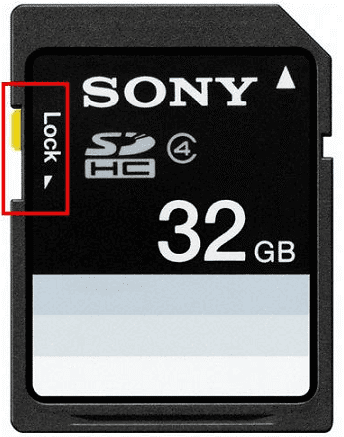
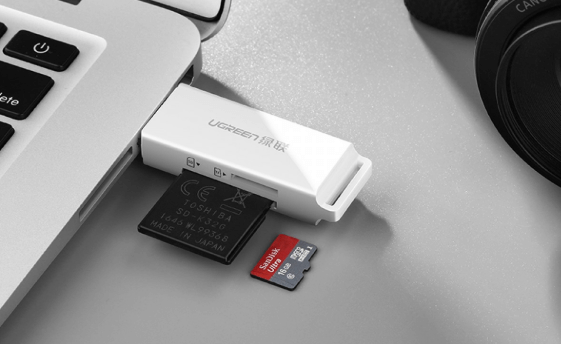
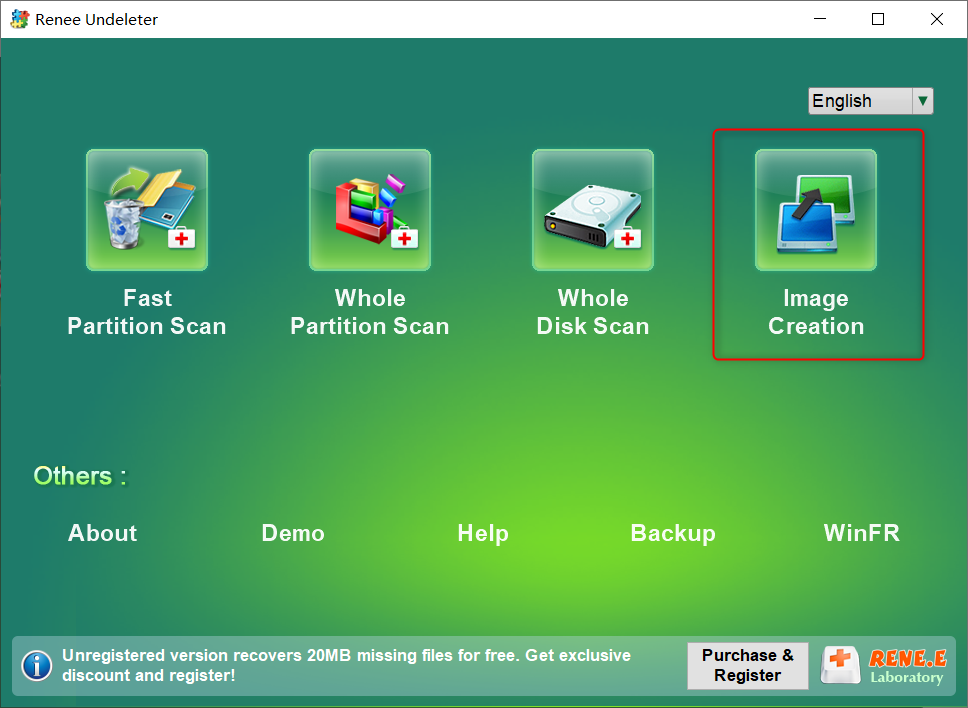
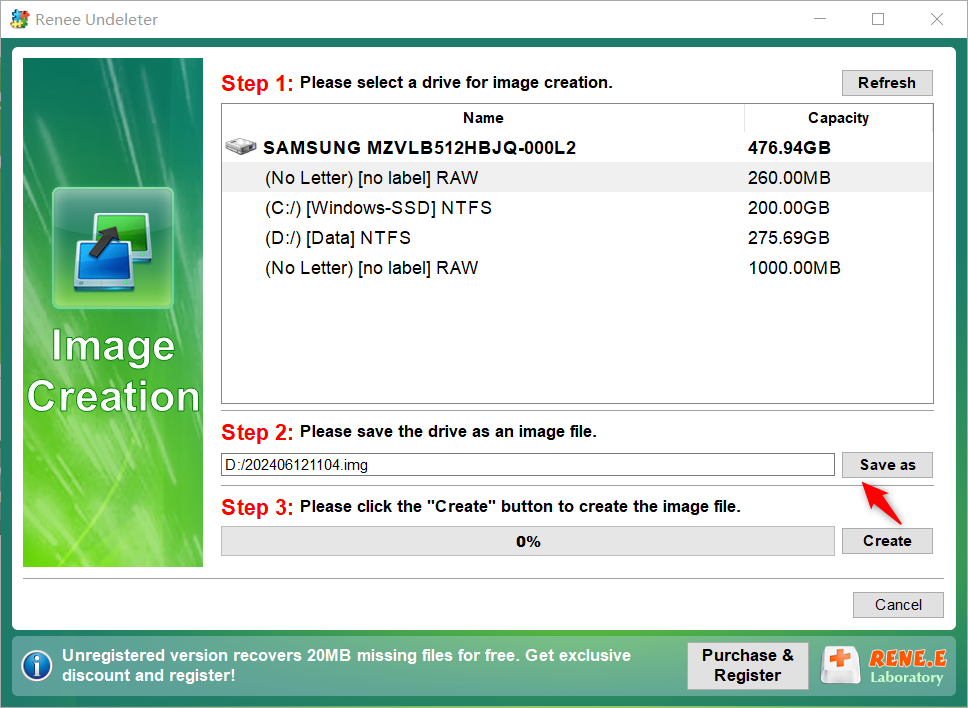
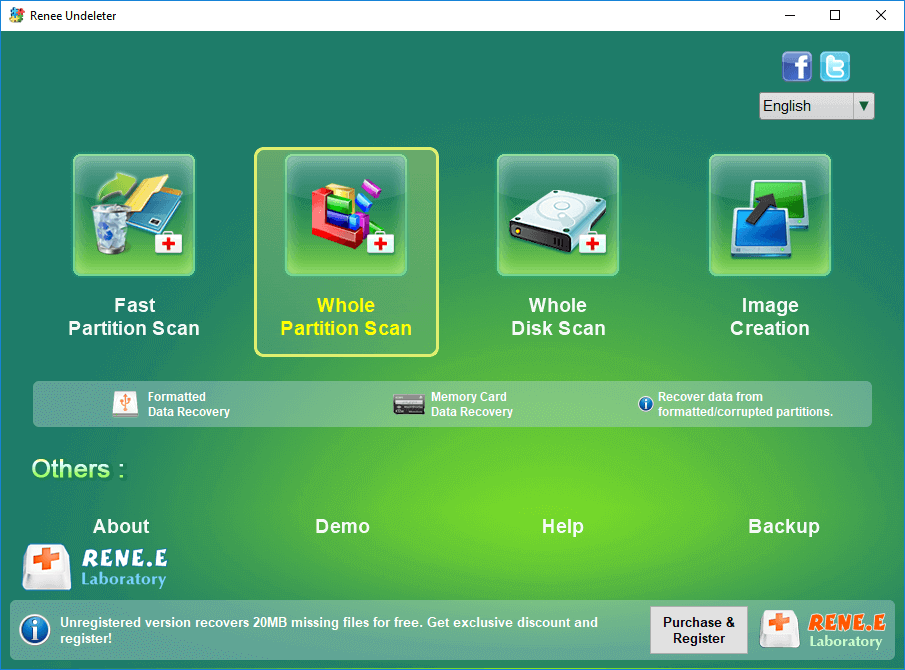
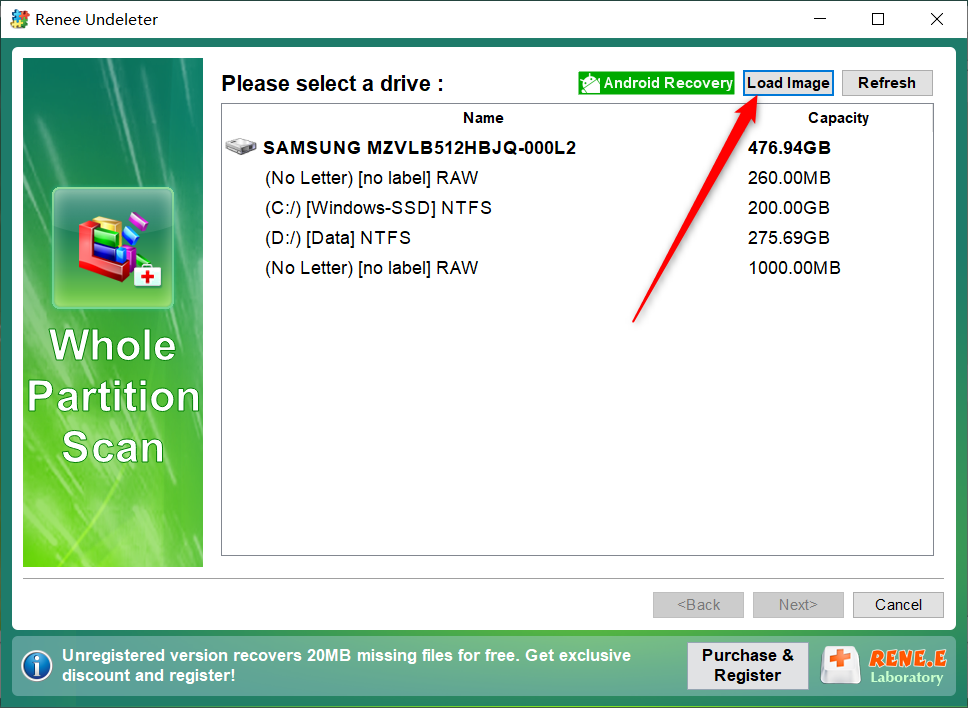
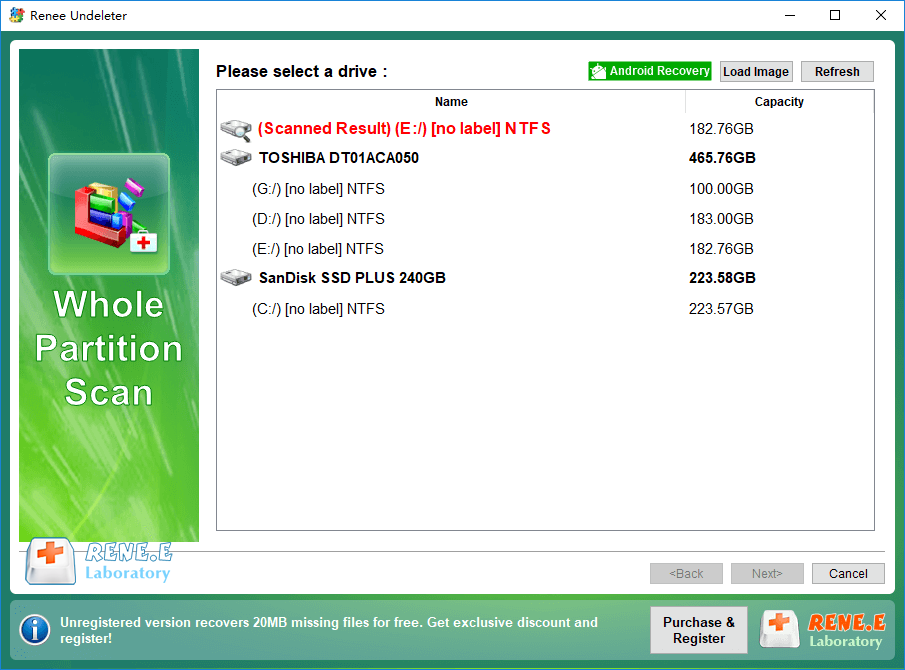
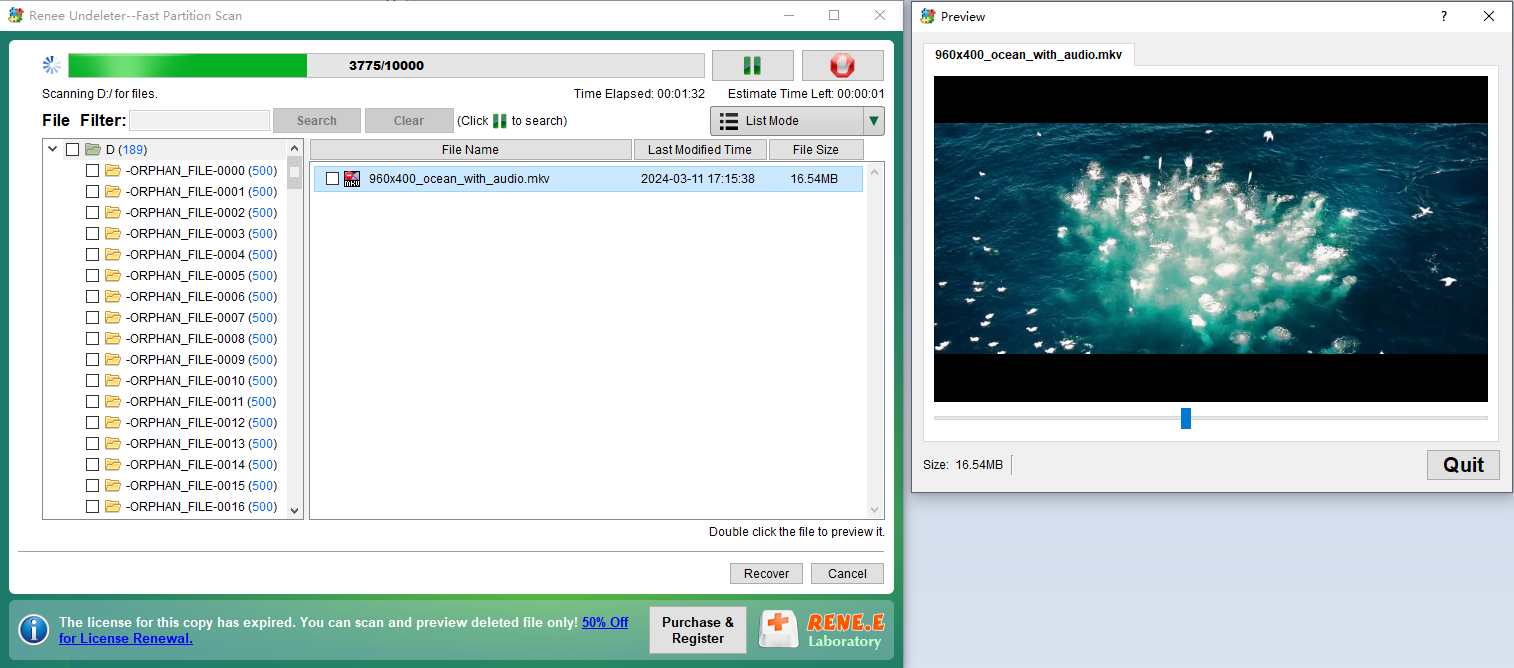
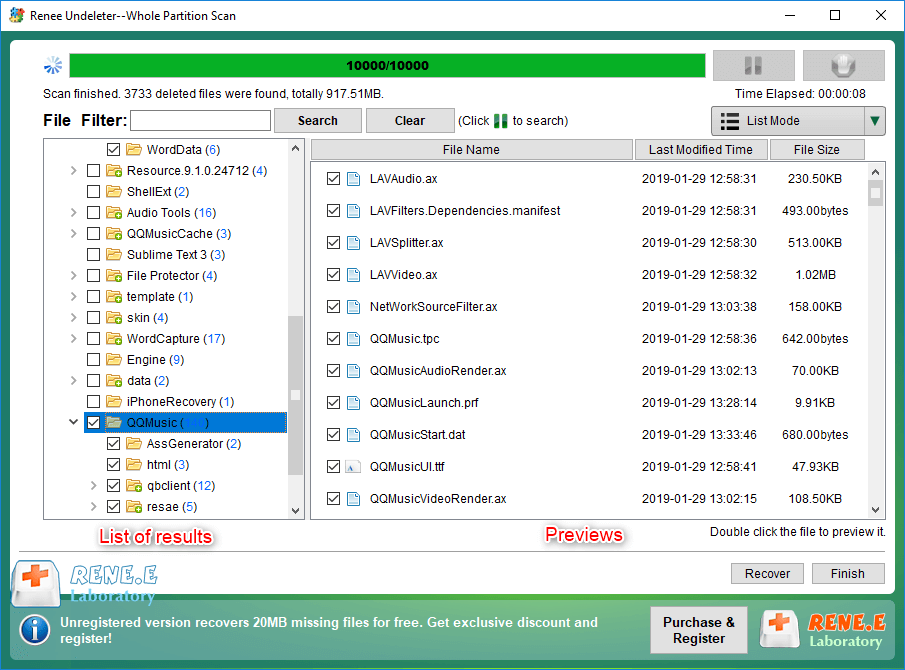
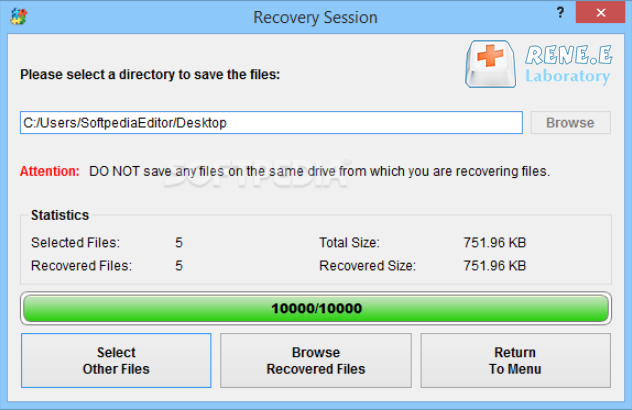
Easy to use Only simple steps to recover data from storage devices.
Multiple scan modes Fast partition scan, whole partition scan and whole disk scan for different recovery needs.
File types Support to recover pictures, videos, audios, documents, mails, etc.
Supported storage devices Recover data from recycle bin, SD card, external disk, etc.
Supported systems Windows 11,10, 8.1, 8, 7, Vista, XP, 2000 and Mac OS X10.6, 10.7, 10.8+.
Easy to use Only simple steps to recover data from storage devices.
Multiple scan modes - 3 scan modes for different recovery needs.
Supported storage devices Recover data from recycle bin, SD card, external disk, etc.
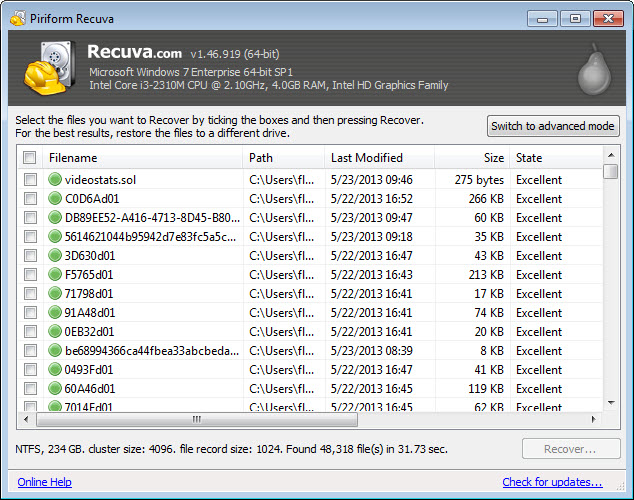
Advantages and Disadvantages
- Free with no recovery limits.
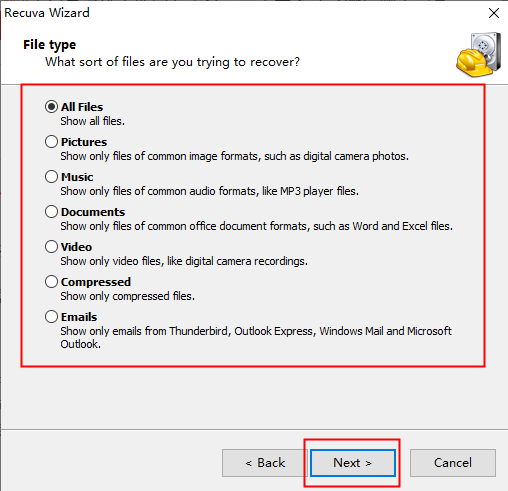
- Easy Wizard for quick Nikon photo scans.
- Portable version avoids installation.
Disadvantages:
- Limited advanced features like disk imaging.
- Struggles with heavily corrupted files.
- Windows-only.
Usage Steps

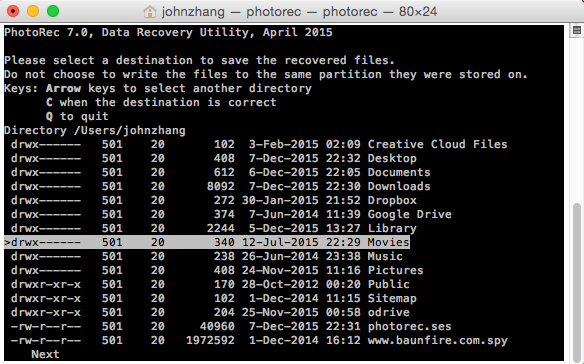
Advantages and Disadvantages
- Free and open-source
- Recovers from corrupted/formatted SD cards.
- Supports Windows, Mac, Linux.
- Strong for Nikon RAW file carving.
Disadvantages:
- Command-line interface—challenging for beginners.
- No file previews before recovery.
- Slower on large cards.
Usage Steps
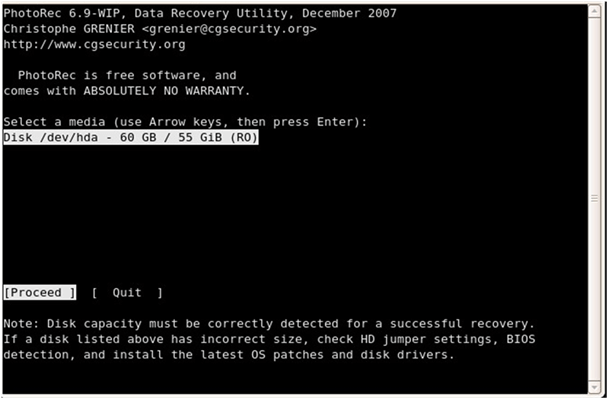


1. Try Opening the File in a Different Viewer
- Install an alternative photo viewer that supports Nikon formats:
- GIMP – a free, open-source editor that handles a wide range of image formats.
- Nikon ViewNX-i – Nikon’s official software, built specifically for NEF and JPEG files from Nikon cameras.
- Insert your SD card into your computer and locate the problematic photo.
- Open the file using one of the installed programs:
- If the image loads successfully, the problem likely lies with your default viewer—not the file itself.
- If the image still won’t open, it may be partially corrupted or require further recovery steps.
2. Try Converting the File Format
- Use a free online converter (such as Convertio or ILoveIMG, after searching for “NEF to JPEG converter.”).
- Upload the corrupted file (be mindful of privacy if the photos are sensitive).
- Download the converted JPEG and try opening it.
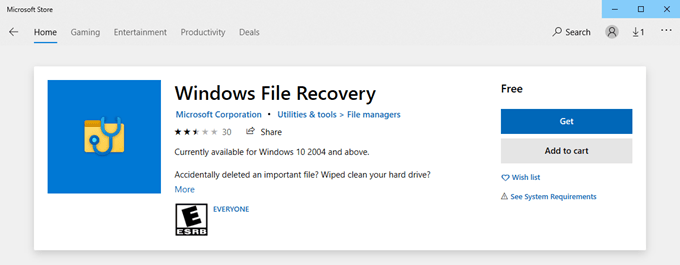
Step‑by‑Step Instructions
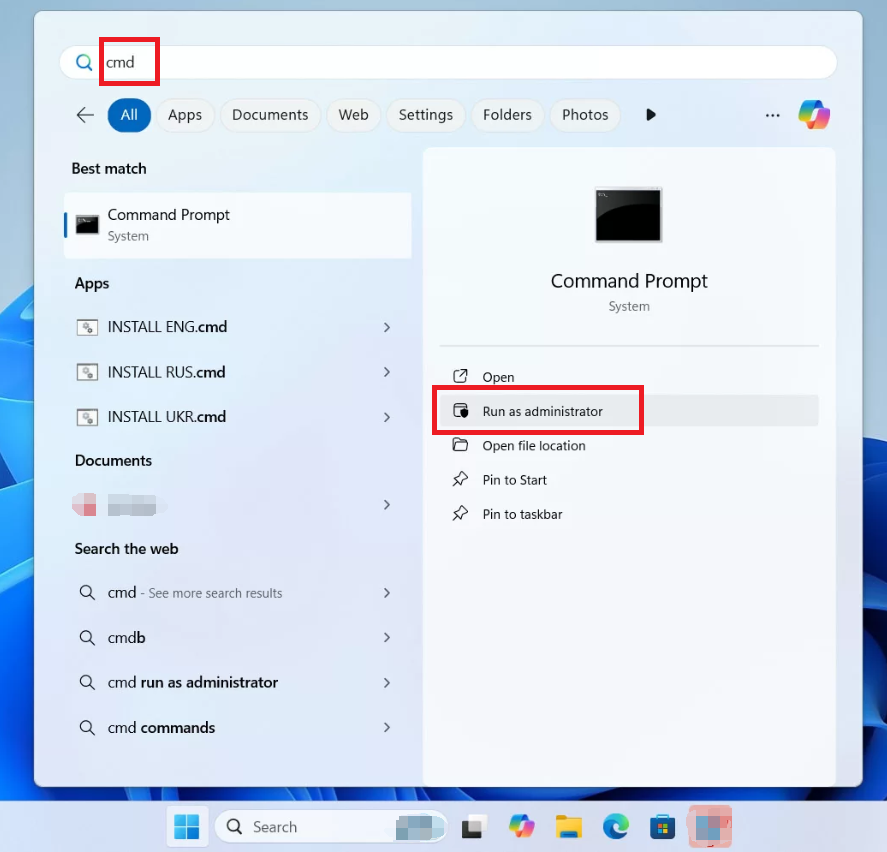
- Press Win + S, type cmd, right‑click Command Prompt, and choose Run as administrator.
winfr : /n
winfr D: C:\recovery /n *.jpg /n *.nef
- D: = your SD card drive letter
- C:\recovery = folder where recovered files will be saved
- /n *.jpg /n *.nef = file types to recover (JPEG + Nikon RAW)
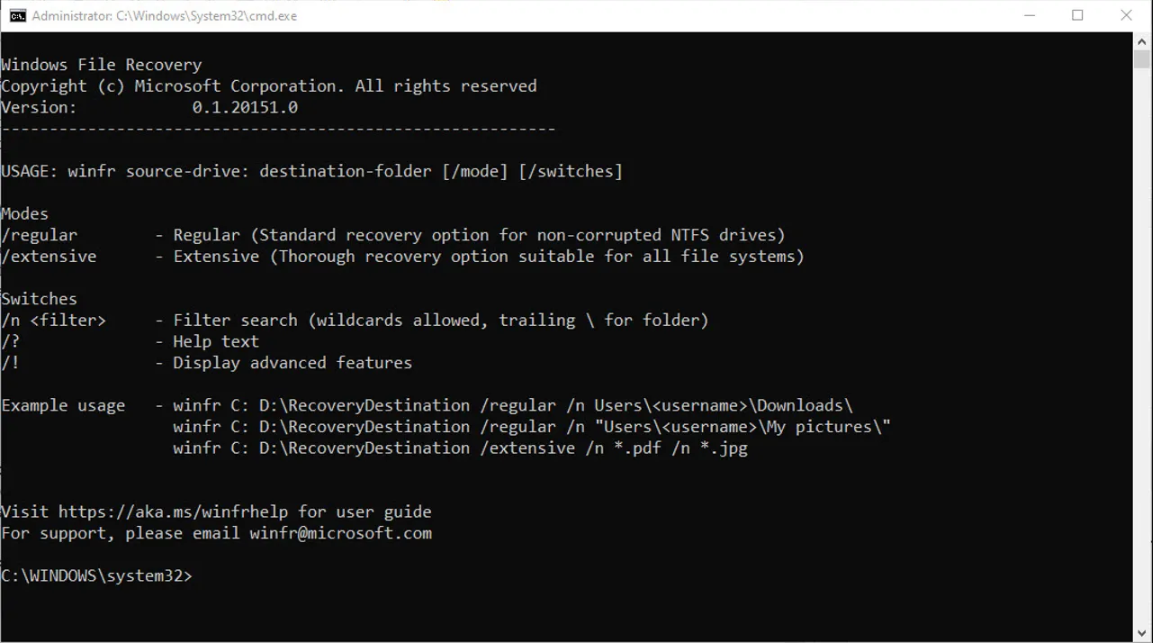
- Change the source drive letter if your SD card mounts differently.
- Add or remove file patterns depending on what you need (e.g., /n *.tif).
- For formatted cards, consider using Segment or Signature modes (/r or /x) for deeper scans.
- The tool will ask for confirmation. Press Y to start.
- Recovery progress will display in the terminal.
Example Workflow
- You accidentally formatted a 64GB SD card from your Nikon Z6.
- Insert the card, note it shows up as D:.
- Run:
winfr D: C:\Recovered /r /n *.nef
- This command performs a segment scan for NEF files and saves them to C:\Recovered.
Alternative: Fixing Minor Errors with CHKDSK
chkdsk E: /f
- Replace E: with your SD card’s drive letter.
- This attempts to repair logical errors on the card.

Step‑by‑Step Guide
- Copy the corrupted NEF file to a safe folder.
- Always work on the copy, never the original.
- Launch HxD.
- Open the corrupted NEF file.
- Open a healthy NEF file from the same camera and settings (this ensures the headers match).
- In HxD, the header is the first few hundred bytes (usually the first 512 bytes).
- Scroll through both files side by side. The healthy file should have a clean, consistent pattern, while the corrupted one may look incomplete or scrambled.

- Select the first 512 bytes from the healthy file.
- Copy them (Ctrl+C).
- Switch to the corrupted file and paste over its first 512 bytes.
- Save the edited corrupted file under a new name (e.g., repaired.NEF).
- Try opening it in Nikon ViewNX-i or another NEF‑compatible viewer.
- The corruption may go deeper than the header.
- As a fallback, run the file through Adobe DNG Converter. Sometimes it can extract usable image data even from partially damaged NEFs.
⚠️ Important Notes for Beginners
- Practice first: Try this process on test files before working on important photos.
- Be patient: Hex editing is very precise—one wrong overwrite can make the file unusable.
- Not a guaranteed fix: This method works only if the corruption is limited to the header.
Can I recover photos from a formatted Nikon SD card?
Is it safe to use free software for Nikon photo recovery?
What if my Nikon photos are corrupted and won’t open?
How long does Nikon photo recovery take?
- A quick scan (e.g., Renee Undeleter) on a 64GB card usually takes 10–30 minutes.
- A deep scan of a formatted card can take several hours.
- Free tools like PhotoRec work too, but they may be slower and don’t always show previews.
Will recovery work on older Nikon models like the D3000?
Can I prevent future Nikon photo loss?
- Back up regularly to cloud storage or an external drive after every shoot.
- Use reliable SDXC cards for professional work.
- Enable Nikon’s auto‑backup features if your model supports them.
- Avoid removing cards mid‑transfer, which can cause corruption.
- Use dual card slots (on models like the Nikon D850) to create instant duplicates.
Easy to use Only simple steps to recover data from storage devices.
Multiple scan modes Fast partition scan, whole partition scan and whole disk scan for different recovery needs.
File types Support to recover pictures, videos, audios, documents, mails, etc.
Supported storage devices Recover data from recycle bin, SD card, external disk, etc.
Supported systems Windows 11,10, 8.1, 8, 7, Vista, XP, 2000 and Mac OS X10.6, 10.7, 10.8+.
Easy to use Only simple steps to recover data from storage devices.
Multiple scan modes - 3 scan modes for different recovery needs.
Supported storage devices Recover data from recycle bin, SD card, external disk, etc.
Relate Links :
Comprehensive Guide to CFast Card Data Recovery

31-08-2024
Amanda J. Brook : This guide covers essential information on recovering data from CFast cards, which are specialized memory cards used by...
How to Recover Deleted Photos from SD Card

24-05-2022
Jennifer Thatcher : Mistakenly deleted photos from SD Card or format the SD card? Renee Undeleter helps you recover all deleted...
How to Recover NEF Files from Your SD Card: Top Methods That Work
04-09-2025
Ashley S. Miller : Learn how to recover NEF files from your SD card with straightforward, proven methods. This guide explains what...
Introduction of Speed, Capacity and Class of Different Types of SD Card
30-05-2019
Amanda J. Brook : SD card is familiar to every one since it has been used in many aspects, such as in...



User Comments
Leave a Comment