author avatar
    Specialist of Customer Service Dept.
Last update by William Davis at 13 October 2025

Summary
Learn how to fix the 0x00000109 (CRITICAL_STRUCTURE_CORRUPTION) error with proven solutions in Windows 10/11/8/7. This guide also walks you through safe data recovery and transfer steps using Renee PassNow, especially when your system fails to boot or crashes unexpectedly.


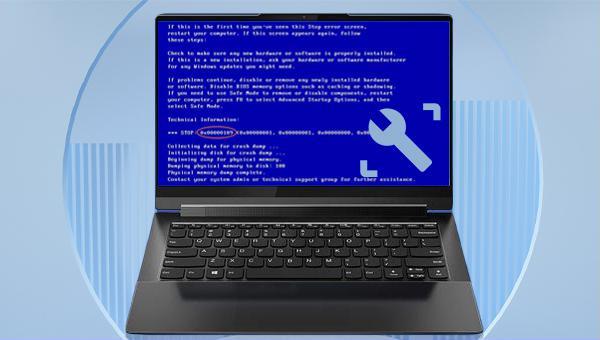
0x00000109 error
Are you facing the frustrating 0×00000109 BSOD error that crashes your Windows PC? Don’t worry – this guide provides simple, updated fixes for 2025, including data recovery tips with Renee PassNow. Let’s get your system back on track!

I. What is the 0x00000109 error, and what is the reason for this error?

The 0x00000109 error (CRITICAL_STRUCTURE_CORRUPTION)

Error code 0×00000109 (CRITICAL_STRUCTURE_CORRUPTION) is a Blue Screen of Death (BSOD) indicating the Windows kernel has detected critical code or data corruption—often from unauthorized changes by drivers. This disrupts the OS’s ability to manage hardware, impacting drivers, RAM, CPU, and more, leading to crashes during boot, gaming, or idle use. In 2025, common triggers include antivirus conflicts (e.g., Kaspersky) or post-update driver mismatches.
Common causes include:
* Startup Crashes: After a Windows 10/11 update or improper driver installation, critical kernel data may be unexpectedly modified, preventing the operating system from loading properly.

* During Gaming or Heavy Load: If you experience a BSOD while gaming or under high system load, it’s often caused by faulty RAM, conflicts with antivirus software (such as Kaspersky), or outdated drivers.

* Random Freezes: Frequent system restarts may occur due to virus infections, disk read/write errors, or sudden power loss—raising concerns about potential data loss.
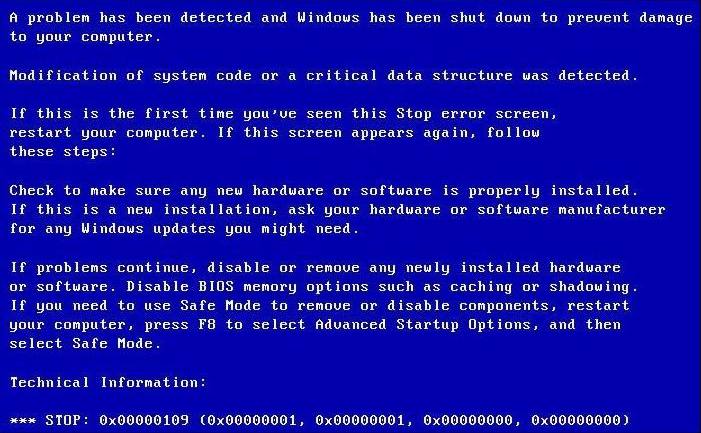
blue screen 0x00000109
0x00000109 error, CRITICAL_STRUCTURE_CORRUPTION
If you’re unable to boot into your system to access important files on your hard drive, consider using Renee PassNow for file transfer or recovery without needing to enter Windows. Below are the detailed instructions for this procedure.

II. Use Renee PassNow to transfer or recover important data before repairing the fault

1. What is Renee PassNow?

Renee PassNow is a versatile system rescue software designed for Windows users. It enables users to reset Windows account passwords, create new admin accounts, recover data from disks or memory cards, and transfer files between disks. Additionally, it can erase or scan disk files and fix common Windows system issues such as MBR boot record repairs, DBR error parameters, 0xc00000e, startup failures, and black or blue screen errors. Compatible with Windows 11/10/8.1/8/7/XP/Vista, it caters to a wide range of system rescue requirements.
Renee Passnow – Professional Windows Password Remover

Remove Windows Login Password 3 steps for whole password remove process.

Recover the files Recover the deleted files without Windows system.

Transfer the data Transfer the important files of the computer with system.

Multifuctional Data transfer, data recovery, bootable problem recovery can be run without system.

Highly compatible Windows 11/10/8.1/8/7/XP/Vista. UEFI boot.

Remove Login Password Support Windows 11/10/8.1/8/7/XP/Vista. UEFI boot.

Recover the files Recover the deleted files without Windows system.

Transfer the data Transfer the important files of the computer with system.

Free TrialFree TrialNow 2000 people have downloaded!

2. How to use Renee PassNow to transfer or recover data?

To resolve the 0×00000109 error, first create a bootable disk using Renee PassNow. Boot the computer from this bootable disk and utilize the software’s features to transfer or restore data. Follow the detailed steps provided:
Step 1: Install Renee PassNow on a functioning computer with login access. Connect a USB drive to this PC, launch Renee PassNow, and select “Step 1: Choose the creation method” to create a rescue USB disk. Note: Ensure any important USB drive data is backed up elsewhere, as this process will erase all contents on the USB drive.
Step 2: Next, select (x64) or (x86) according to the system type, click the (Download Now) button to download the ISO file, click the (Create USB) button after the file is downloaded, and click the (Eject USB) button.
use renee passnow to create usb to reset passnword
Step 3: Insert the bootable device into the target computer, power it on, and immediately press the key displayed onscreen to access the BIOS (this prompt may only display briefly, for a short 1-2 second window). Within the BIOS setup, proceed to the Boot Priority settings and configure the USB drive to be the primary boot device. Remember to save your adjustments and reboot the computer.
Step 4: Wait for a while, after Renee PassNow is loaded, select (Data Transfer). If you need to transfer the data of the entire hard disk, you can select the (data backup) option.
Step 5: Click on the drive letters (C, D, E, etc.) to check for missing files. If everything looks fine, consider backing up to an external disk.

To transfer data, select the source drive (e.g., C) on the left, the destination drive (e.g., G) on the right, choose your files, and click Copy.

To delete a file, select it and click Delete. Note: Deletion is permanent—use with care.
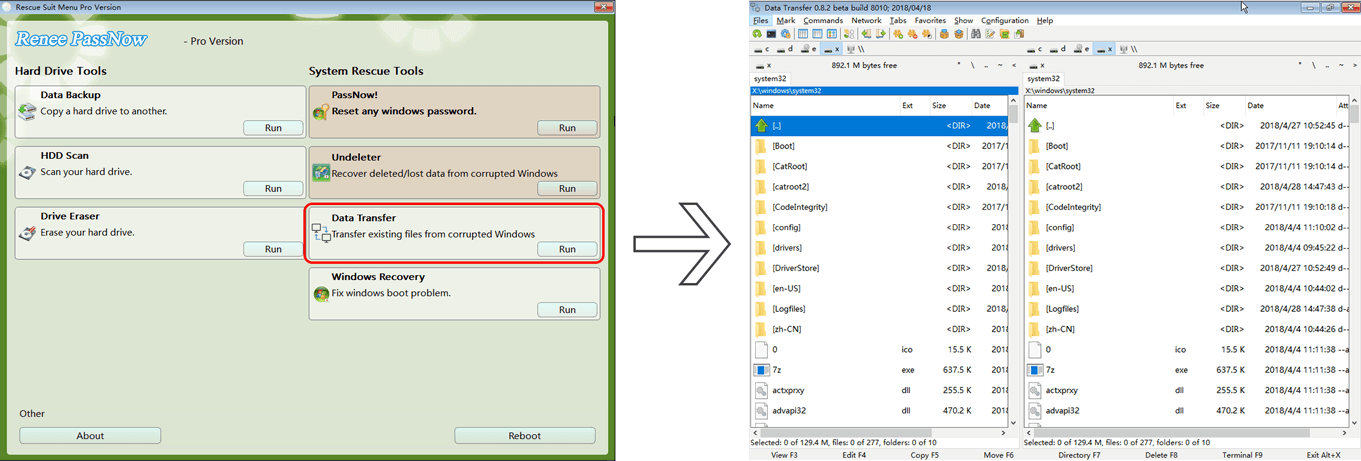
Data transfer function of Renee Passnow
The above are the detailed steps to restore and transfer data, let’s learn how to fix 0×00000109 error.
In addition to using Data Transfer to back up existing files, you can also use the Undeleter feature in Renee PassNow to recover lost or deleted data.

III. How to fix 0x00000109 error?

1. Open safe mode

To fix the blue screen error 0×00000109, restart your computer in Safe Mode. Safe Mode starts with only the necessary files and drivers, which facilitates troubleshooting system errors. Follow the instructions below to access Safe Mode:
Step 1: Press and hold the Power key button for 10 seconds to shut down the computer. Next, press the power key again to start the computer.
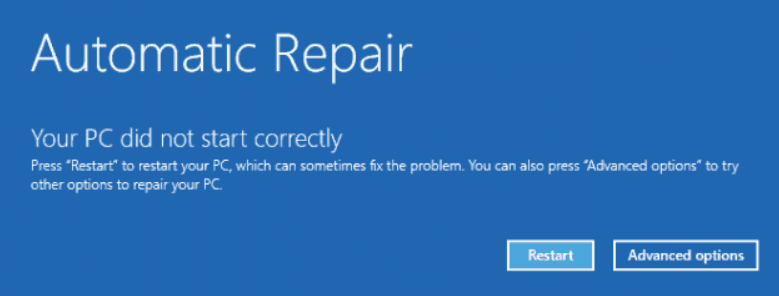
Step 2: Turn the computer back on. As soon as the Windows logo or manufacturer logo appears, press and hold the power button again to shut it down.
Step 3: Repeat this process a third time. On the next startup, Windows should enter Automatic Repair.
your pc did not start correctly
Step 4: When prompted, select Advanced Options > Troubleshoot > Advanced Options > Startup Settings, then click Restart.

After restart, press 4 or F4 to boot into Safe Mode.
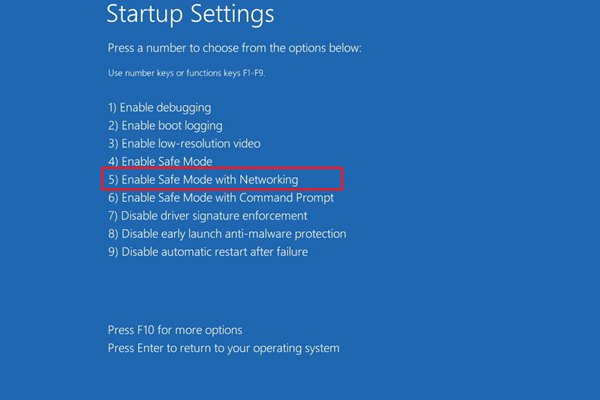
enable safemode networking
After enabling safe mode, you can proceed to the following repair operations.

2. Run Windows memory diagnostics

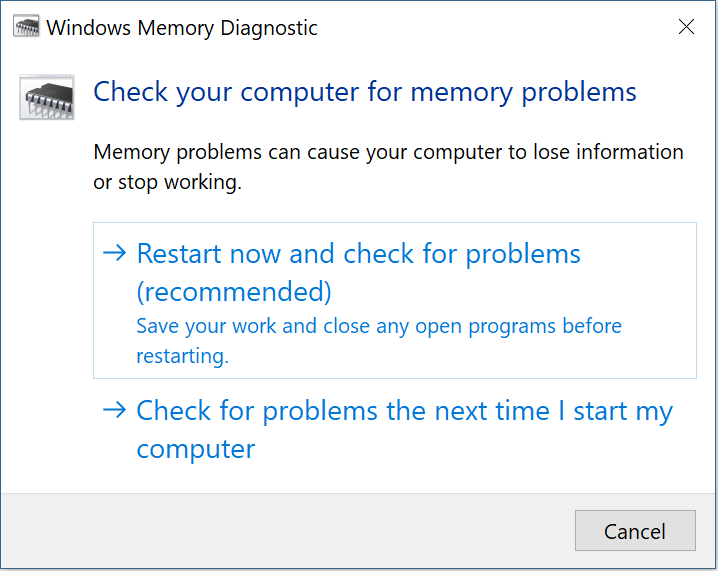
Memory problems can cause your computer to lose information or stop working, so you can use the Windows Memory Diagnostic Tool to check your system memory. The specific operation steps are as follows:
Step 1: Press the (Windows+R) keys at the same time to open the run window, and then enter the (mdsched.exe) command to open the Windows Memory Diagnostic Tool.
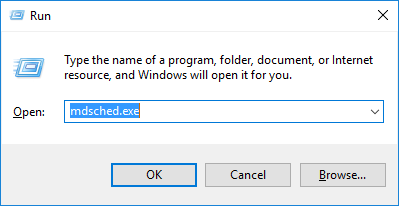
mdshed
Step 2: Select the “Restart now and check for problems (recommended)” option within the Windows Memory Diagnostic tool. Let the diagnostic process finish, and then restart your computer to determine if the blue screen issue has been resolved.
Windows memory diagnostic i

3. Update the driver

The 0×00000109 error may also occur when the driver is not updated in time or an error occurs. Therefore, you can try to solve this problem by updating the driver. The specific steps are as follows:
Step 1: Run the computer, search for (Control Panel) programs in the search box in the lower left corner and open it. Next, find (Hardware and Sound) – (Devices and Printers) in turn.
Find and enter the Devices and Printers option
Step 2: Access the device and printer interface by right-clicking your computer name, and select Device Installation Settings. Choose Automatic Download to update all outdated drivers at once. Alternatively, to update a specific device, right-click on the desired device within the device manager and select Update Driver.
Device Installation Settings

4. Run the chkdsk tool

To address hard disk issues causing the 0×00000109 error, use the chkdsk utility. Follow these steps to run the program and repair the disk:
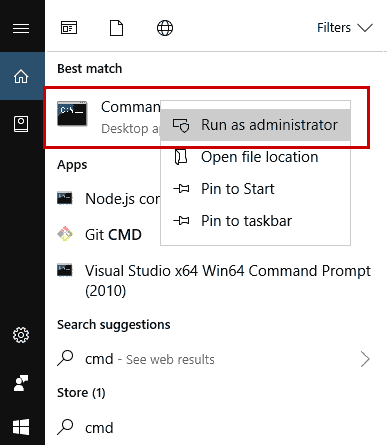
Step 1: Once in safe mode, search for (cmd), right click command prompt and run as administrator.
run as administrator
Step 2: Type the command:

chkdsk C: /f /r /x

If the drive is currently in use (such as the system drive), Windows may prompt you to schedule the scan for the next restart.
Replacing C with the drive letter you want to repair.

  • /f — Fixes disk errors
  • /r — Finds bad sectors and recovers readable data
  • /x — Forces the drive to dismount before scanning

Press  Enter  to begin the scan. Once the process is complete, restart your computer to see if the issue has been resolved.
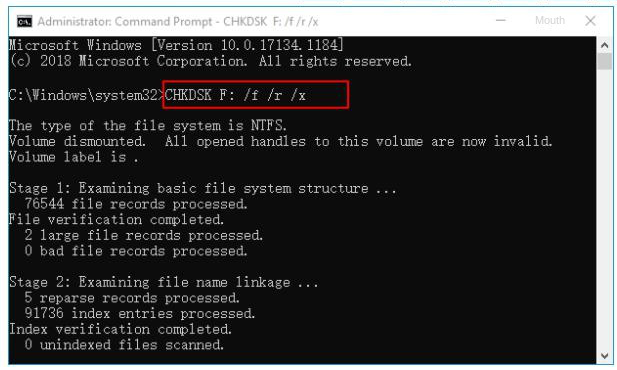
Enter the disk repair command

5. Run System File Checker (SFC) and DISM Commands
Corrupted system files can trigger the 0×00000109 error. Use Windows’ built-in System File Checker (SFC) and Deployment Image Servicing and Management (DISM) tools in Safe Mode to scan and repair these files.
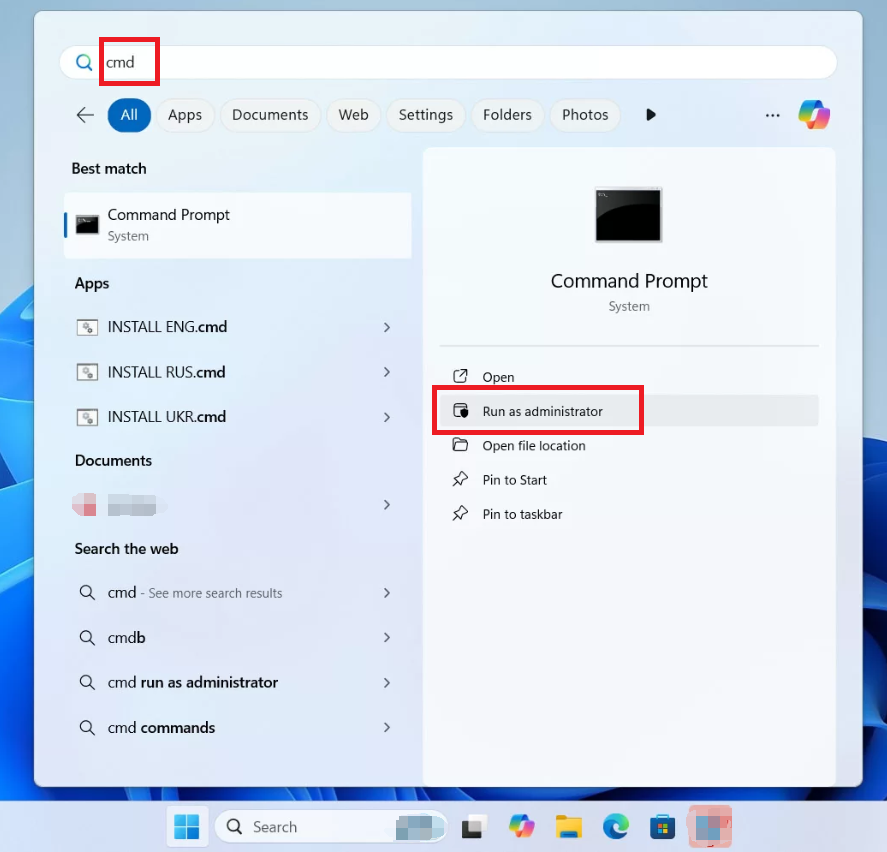
Step 1: In Safe Mode, search for cmd, right-click Command Prompt, and select Run as administrator.
Windows 11, run cmd as administrator
Step 2: Type sfc /scannow and press Enter. This scans and repairs corrupted files.
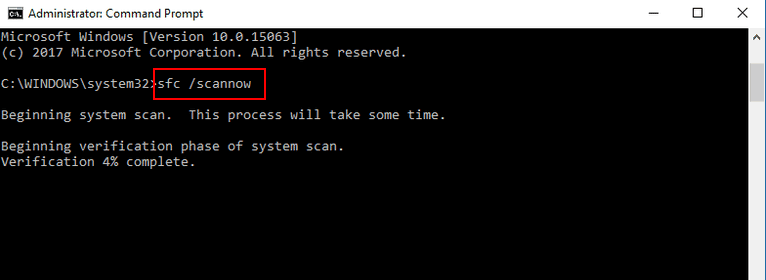
Check and fix system files Windows 10
Step 3: If issues persist, type:

DISM /Online /Cleanup-Image /RestoreHealth

and press Enter. This uses Windows Update to replace damaged files (ensure internet connection).
Step 4: Restart your computer and check if the error is resolved.
Note: SFC resolves about 70% of file corruption issues based on user reports. DISM is effective for deeper system image repairs.
If system file repairs don’t resolve the error, malware or viruses may be corrupting kernel data. The next step ensures your system is clean from such threats.

6. Scan for Malware or Viruses

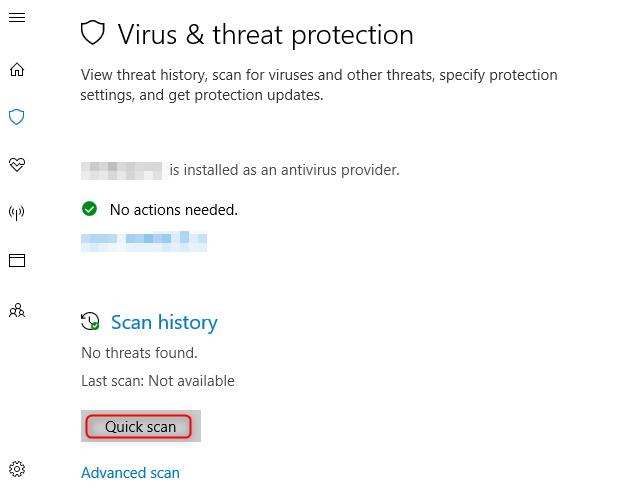
Malware can modify critical system components, causing the 0×00000109 BSOD. Use Windows Defender or third-party tools to perform a thorough scan in Safe Mode with Networking.
Step 1: In Safe Mode with Networking, go to Settings > Update & Security > Windows Security > Virus & threat protection (Windows 10) or Settings > Privacy & security > Windows Security > Virus & threat protection (Windows 11).
scan viruses on Win 10
Step 2: Click Scan options, select Full scan, and click Scan now. This may take 1-2 hours depending on your system.
Step 3: Remove any detected threats and restart your computer.
Step 4: For deeper scans, consider using trusted tools like Malwarebytes (download from malwarebytes.com). Install, run a full scan, and follow prompts to remove threats.
Step 5: Check if the error is resolved. Refer to the screenshot below (Alt: Windows Defender scan interface).

Summary: Resolving the 0x00000109 Error

For Windows 10 and 11 users, these methods address the most common triggers of this error, with a reported success rate of over 80%.

Before performing any repairs, use Renee PassNow to back up or recover important files (see Section II) to prevent data loss.

To avoid future errors, keep your system up to date, use trusted antivirus software, and maintain regular backups. If the problem persists after completing all steps, consider seeking help from a professional technician or reinstalling Windows.