
Git Restore vs Checkout vs Reset vs Revert: Which Command Recovers Deleted Files?

Summary
This technical reference outlines the functional distinctions within git restore vs checkout vs reset vs revert regarding repository scope and history modification. The content categorizes appropriate command selection based on specific recovery states, risk levels, and data preservation requirements.
Table of contents


reset --hard wiped your working directory, or you accidentally overwrote important edits with checkout. The git restore vs checkout vs reset vs revert debate only adds to the confusion: all four can “undo” something, but using the wrong one can erase hours of effort for good. If you’ve ever stared at your terminal, unsure which command will actually bring back your deleted file without damaging your repo’s history, this guide is for you. Here, you’ll learn what each command really does—so you can recover confidently.
| Command | Scope (Working Tree / Index / HEAD) | History Rewritten? | Risk Level | Best Use Case |
|---|---|---|---|---|
|
Working tree, index |
No |
Low |
Safely discard unstaged edits or unstage files |
|
Working tree |
No |
Low |
Legacy way to restore a file from a commit; |
|
Index, HEAD (with options) |
Yes (can rewrite local history) |
High if |
Undo local commits; optionally keep/discard changes |
|
HEAD (creates new commit) |
No (preserves history) |
Low on shared branches |
Undo a pushed commit by adding a canceling commit |
git reset), old commits become unreachable and may be garbage-collected. On shared branches, this can cause serious divergence. For commits already pushed, always use git revert.
git reset --hard deletes uncommitted files. In these cases, a dedicated data recovery tool is your best (and sometimes only) chance.
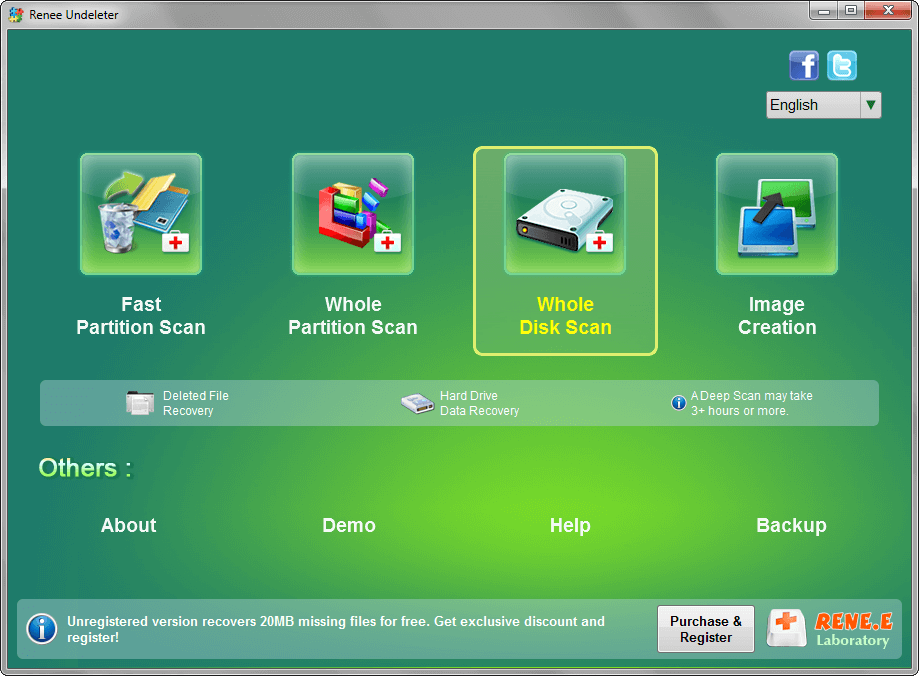
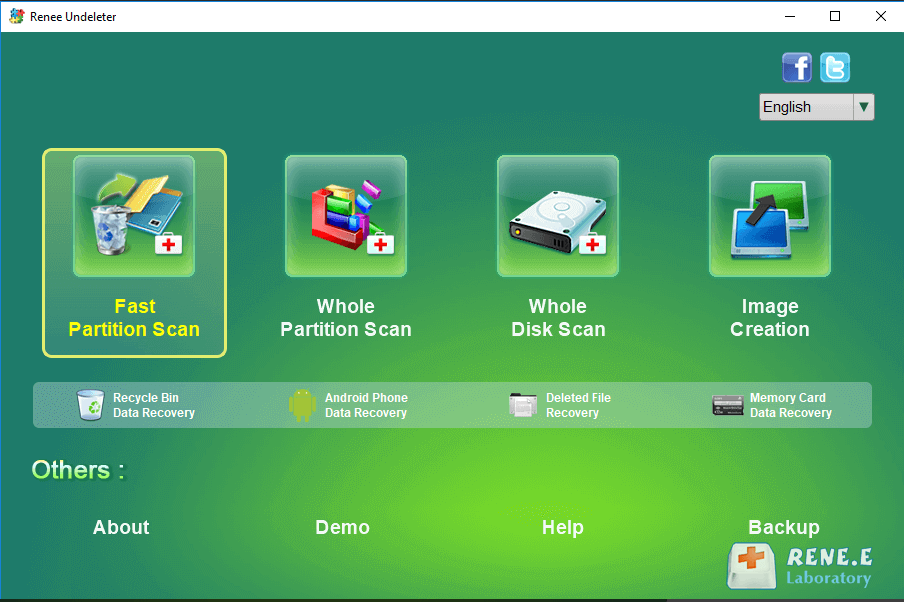
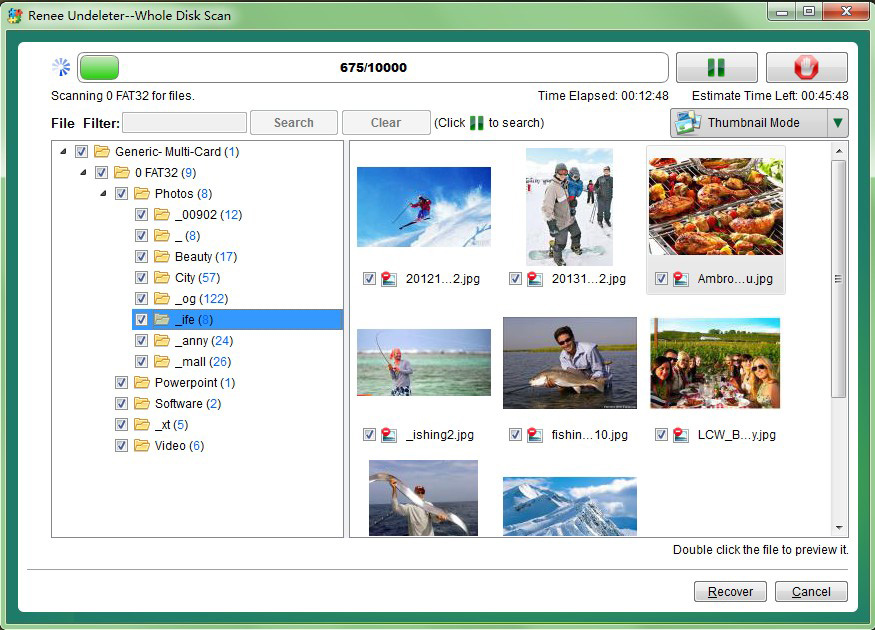
- Four distinct scan modes for different loss types
- Recognizes over 400 file formats via signature scanning
- Multi‑file system support (NTFS, FAT, exFAT, macOS, Linux)
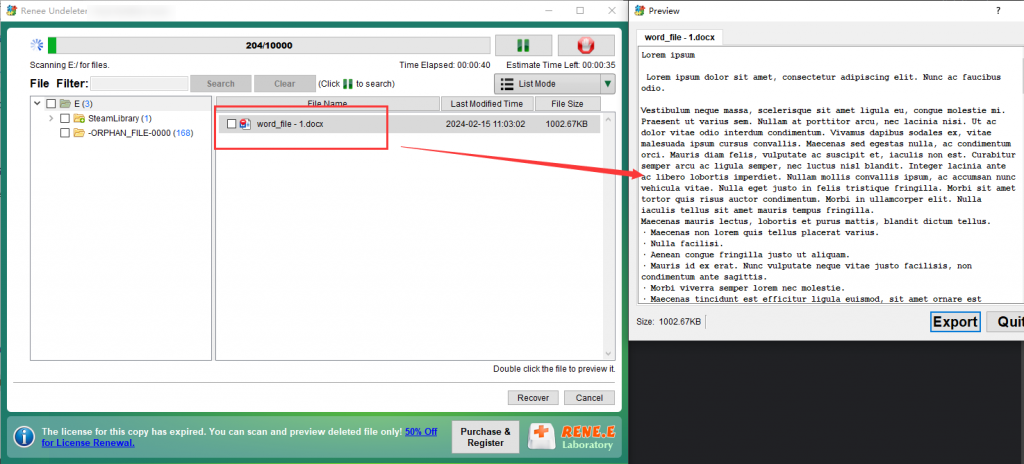
- Built‑in file preview before recovery
- Image Creation backs up a damaged drive first
Disadvantages:
- Must not be installed on the same drive you want to recover from
- USB‑connected drives scan slower due to latency
- Deep scan can be time‑consuming for large partitions
- Backup images need a free partition of equal size
- Recovery not guaranteed for severely overwritten data

Strong to recover Recover data from the storage devices sustaining many bad sectors.
Supported devices SD card, SDHC, SDXC, USB flash drive, hard disk, computer, etc.
Supported file types Image, video, audio, text, email, etc.
Easy to use Recover by 3 steps and support to preview scan results.
Multiple scan modes Fast partition/whole partition/whole disk scan.
Easy to use Recover by 3 steps.
Multiple scan modes Fast partition/whole partition/whole disk scan.
Supported devices SD card/USB/hard disk, etc.
Free TrialFree TrialFree Trial 800 people have downloaded!git restore {file}
HEAD if the file isn’t staged).
git add and want to move it back to the working tree while keeping your changes.
git restore –staged {file}
git reset –soft HEAD~1
--soft flag moves HEAD back one commit but leaves both your working tree and index unchanged, so everything stays ready for a new commit.
git revert
git restore –source=HEAD –staged –worktree {file}
--source=HEAD retrieves the file from the latest commit, --staged updates the index, and --worktree restores the working copy. The legacy equivalent is:
git checkout HEAD — {file}
Can I undo a git reset --hardafter running it?
git reflog, find the commit hash before the reset, and use git reset --hard to go back. This only restores changes that were committed. Uncommitted files deleted by --hard are gone from Git’s perspective and require file recovery software.
Is git restore safe to use on a shared remote branch?
git restore only changes your local working tree or index; it never rewrites commit history or affects the remote branch. It’s safe to use, but remember that any discarded local edits can’t be recovered.
What is the difference between git reset and git revert in plain English?
git reset moves your current branch pointer backward, effectively erasing commits from the timeline (though they linger in the reflog until garbage-collected). It rewrites history. git revert creates a new commit that undoes the changes of a previous commit—keeping the history intact. For shared work, always use git revert.
Easy to use Only simple steps to recover data from storage devices.
Multiple scan modes Fast partition scan, whole partition scan and whole disk scan for different recovery needs.
File types Support to recover pictures, videos, audios, documents, mails, etc.
Supported storage devices Recover data from recycle bin, SD card, external disk, etc.
Supported systems Windows 11,10, 8.1, 8, 7, Vista, XP, 2000 and Mac OS X10.6, 10.7, 10.8+.
Easy to use Only simple steps to recover data from storage devices.
Multiple scan modes - 3 scan modes for different recovery needs.
Supported storage devices Recover data from recycle bin, SD card, external disk, etc.
Relate Links :
Lost Files? Easy Ways to Unformat Your SD Card and Restore Data
18-08-2025
John Weaver : Learn how to unformat your SD card and efficiently recover deleted files on your Windows PC. This step-by-step...
How to Restore a Missing D: Local Disk Drive on Your Computer

11-09-2024
Ashley S. Miller : The article discusses how to restore a missing D: disk drive on a computer by first determining whether...
Understanding Restore Points in Windows

30-07-2024
Jennifer Thatcher : The article explains the concept of restore points in Windows operating systems, emphasizing their importance in reverting a...
Is System Restore an Effective Solution for Recovering Deleted Files?
17-05-2024
John Weaver : Learn about the capabilities of System Restore and whether it can effectively recover deleted files. From understanding what...



User Comments
Leave a Comment