author avatar
    Senior Program Developer
Last update by William Davis at 10 August 2026

Summary
Diagnostic procedures and third-party software solutions to recover untracked deleted file Git data after accidental workspace clearance are detailed in this technical overview. The content scope encompasses filesystem scanning techniques, IDE local history retrieval, and preventative version control practices.


Recover Deleted Untracked Files That Git Never Committed
You might have been resolving a merge conflict, switching branches in haste, or running a cleanup command without fully checking what would be erased. Suddenly, a file you spent days working on is gone. Git shows nothing—no commit, no stash, no history. You’ve just lost an untracked file. The first question is always: can Git bring it back? The short answer is no, but that doesn’t mean you’re out of options. This guide will walk you through what to check before you panic, explain why Git can’t help with truly untracked files, and show how a tool like Renee Undeleter can recover deleted data directly from your disk.

Can Git recover a deleted untracked file? What is and isn’t possible

Short Answer: Git cannot recover a file it never tracked, staged, or stored as an object.

Recovery Limits

Tracked files — Fully recoverable using git restore or git checkout because Git has history for them.
Untracked files — Git has no record of these files. Recovery must be done outside Git, such as through Windows File History or third‑party data recovery tools.

Typical Causes of Loss

- Running git clean -fd
- Switching branches
- Manual deletion
- Using git reset --hard

Check this first: was the file ever committed, staged, stashed, or only local?

Before concluding that the file is truly lost, review the table below. Many users assume “I didn’t commit it” means “Git knows nothing about it,” but Git might still have a record if the file was ever staged or if your IDE’s local history captured it.
File StateGit RecoverabilityNext Action (TortoiseGit Equivalent)

Never committed & never staged (true untracked)

Not recoverable through Git

Check your IDE’s local history or use OS-level recovery tools.

TortoiseGit: No recovery option — use external recovery software.

Staged (git add) but not committed

Potentially recoverable

Run git fsck --lost-found to locate dangling blobs.

TortoiseGit: Use Repository → Check for lost commits/blobs or Show Log → Recover Lost Commits.

Committed & later deleted

Fully recoverable

Use git restore or git checkout to bring the file back.

TortoiseGit: Right-click → Show Log → Revert changes from commit or Restore file from revision.

Stashed

Recoverable

Run git stash list and apply or pop the stash.

TortoiseGit: Right-click → Stash → Show Stashes → Apply/Pop Stash.

Listed in .gitignore

Not recoverable through Git

Treat as untracked; use IDE or OS recovery tools.

IDE local history available

Recoverable via editor

Check your IDE’s local history panel (e.g., VS Code or IntelliJ).

TortoiseGit: Not applicable — use IDE’s built-in history viewer.

Quick diagnostic commands

- git status: Check the current working tree state.
- git stash list: Look for stashed work.
- git fsck --lost-found: Search for staged-but-uncommitted objects.
If none of these reveal your file, you’re dealing with a true untracked deletion. At this point, you’ll need to look outside Git.

Recovery options before using file recovery software

When trying to recover an untracked deleted file in Git, your safest first step is to check local backups. Before installing any third-party tool, rule out the simplest options:
1. Recycle Bin / Trash: If you deleted the file through your operating system’s GUI, check the Recycle Bin or Trash for the file.
2. IDE / Editor Local History: Editors like VS Code (Timeline), IntelliJ/Android Studio (Local History), and Eclipse keep snapshots of file changes. Right‑click the parent folder and look for a history or local history option—this is often the fastest way to restore recent edits.
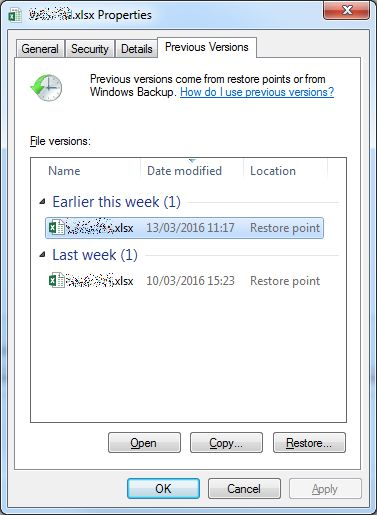
3. OS Backups: Windows File History (“Previous Versions” on the file or folder) and macOS Time Machine can restore older copies if they were enabled before deletion.
Folder properties window with Previous Versions tab
4. Cloud Sync Versioning: If your file was in a Dropbox, OneDrive, Google Drive, or iCloud Drive folder, check the service’s version history through the web interface.

Important: Stop using the disk immediately. Every new write increases the risk of overwriting the deleted file’s data and reduces your chances of recovery.

If none of these options recover your file, it’s time for a filesystem-level scan. This is where Renee Undeleter comes in.

When Renee Undeleter is the right recovery method

Why Git and quick checks may fail

Truly untracked files leave no trace in Git, and IDE or OS backups aren’t always enabled. In these cases, scanning the disk for file signatures is the most reliable fallback.

How Renee Undeleter solves the untracked-file problem

Renee Undeleter is a professional data recovery tool designed to retrieve lost files from hard drives, SSDs, USB drives, and memory cards. It works directly with the underlying file system and raw disk data, making it possible to recover untracked deleted file Git cases where Git itself can’t help. The software can:
- Recognize over 400 file formats using signature scanning, even when the file system table no longer references the file.
- Recover data from NTFS, FAT, exFAT, macOS (HFS+), and Linux (ext) file systems.
- Guide you through a simple three‑stage workflow: Choose scan mode → Preview files → Recover to a safe location.
Recover Deleted Files Instantly with Renee UndeleterRenee Undeleter data Recovery software

Easy to use Only simple steps to recover data from storage devices.

Multiple scan modes Fast partition scan, whole partition scan and whole disk scan for different recovery needs.

File types Support to recover pictures, videos, audios, documents, mails, etc.

Supported storage devices Recover data from recycle bin, SD card, external disk, etc.

Supported systems Windows 11,10, 8.1, 8, 7, Vista, XP, 2000 and Mac OS X10.6, 10.7, 10.8+.

Easy to use Only simple steps to recover data from storage devices.

Multiple scan modes - 3 scan modes for different recovery needs.

Supported storage devices Recover data from recycle bin, SD card, external disk, etc.

Free TrialFree TrialFree Trial

3000 users have downloaded Renee Undeleter and found data back!

Built-in scan modules

- Fast Partition Scan: Retrieves files lost from accidental deletion or Recycle Bin clearance.
- Whole Partition Scan: Recovers files from inaccessible or formatted partitions.
- Whole Disk Scan: Performs a full disk analysis when partition information is missing or damaged.
- Image Creation: Creates a byte‑accurate backup of a partition so you can attempt recovery from the image instead of a failing drive.

Warning: Never install the software on the drive containing the lost data. Installing to the same drive can overwrite the very sectors you’re trying to recover.

How to recover the deleted file with Renee Undeleter step by step

The workflow below uses the Fast Partition Scan module, which is ideal for files deleted from a normally working file system. If your drive has been formatted or is inaccessible, switch to Whole Partition Scan or Whole Disk Scan after Step 1:

1. Install safely and select scan mode

Download Renee Undeleter onto a computer or external USB drive that does not contain the lost data.
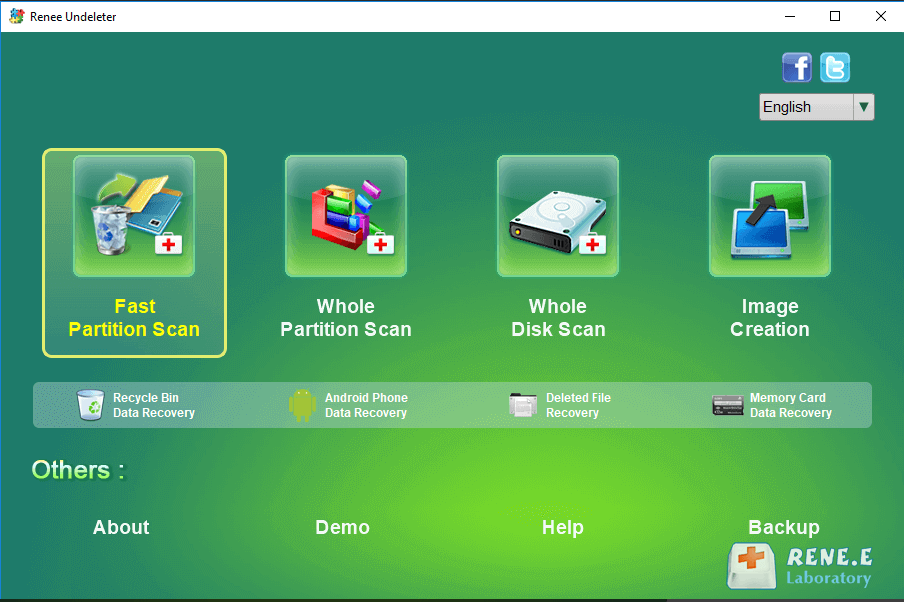
Launch the software. On the main interface, select Fast Partition Scan.
Renee Undeleter, select Fast Partition Scan

2. Select the target partition and start scanning

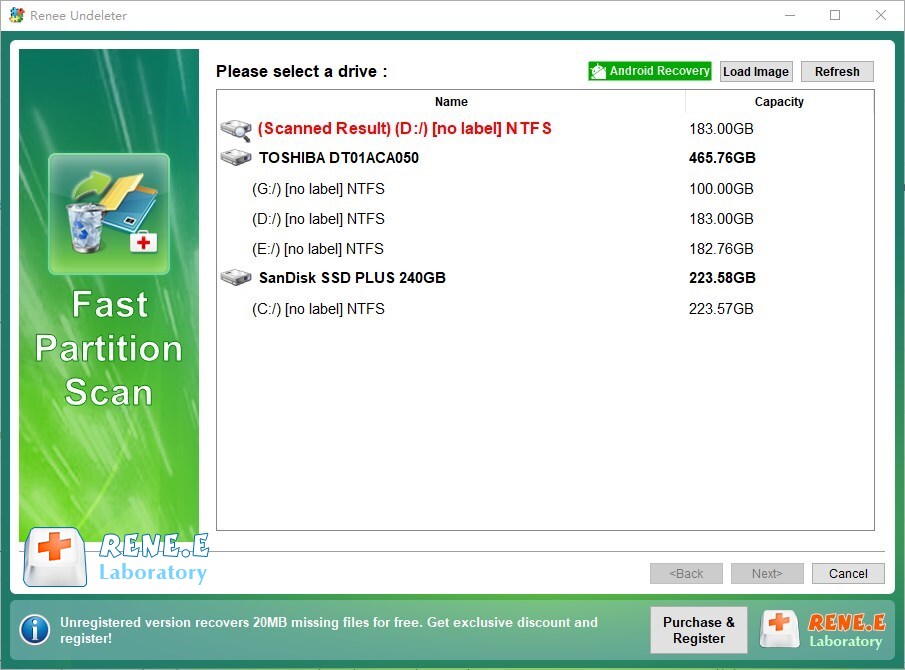
- In the next window, select the drive letter or partition where the untracked file was located and click Next.
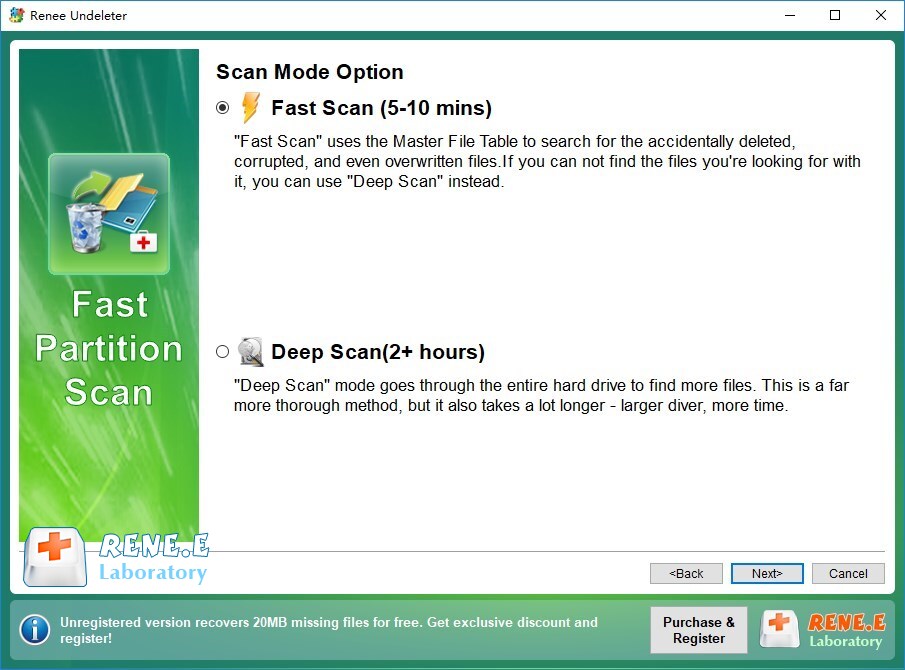
- Choose the Fast Scan option (covers the first 30 GB of the partition). If the file isn’t found, rerun the scan with Deep Scan for a more thorough search—this will examine every sector, though it takes longer.
select partition to scan for fast partition scan
Select Fast scan in Fast Partition Scan

3. Preview and select files

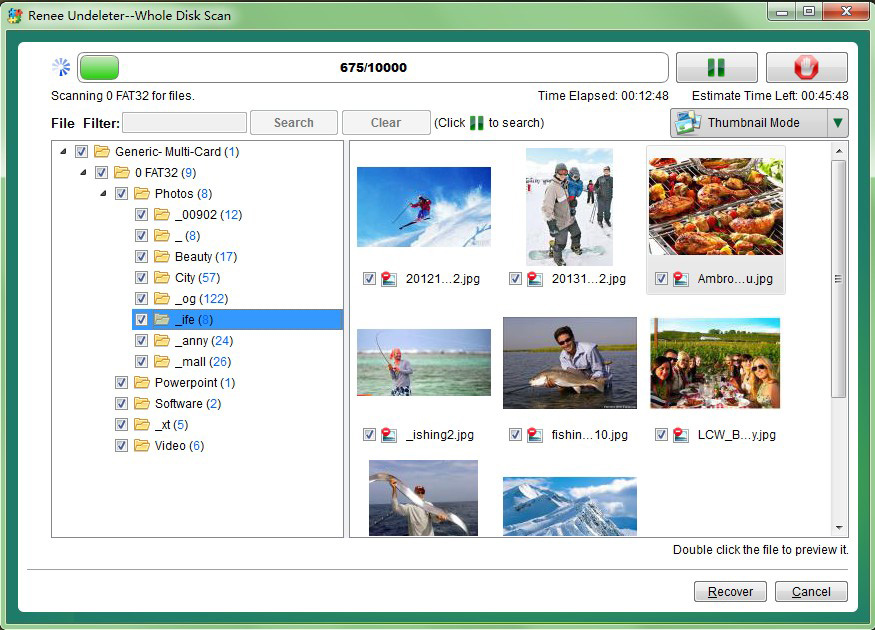
- Wait for the scan to finish. Renee Undeleter will display a list of recoverable files and folders.
- Double‑click any file to preview its contents—code, text, images, and many other formats are supported.
- Check the boxes next to the files you want to recover.
preview before recovery

4. Recover to a safe location

- Click the Recover button at the bottom right.
- Click Browse and choose a different drive as the save destination. Never recover files back to the same drive they were lost from.
- Wait for the recovery process to complete. Your file should now be restored and usable.
recover the whole disk data
After recovery, open the file, check its size and modification date, and—if it’s code—compile or run a quick syntax check to confirm its integrity.

FAQ

Can I recover a file deleted bygit clean -fd?

No—Git never stored the file. You’ll need to use OS-level recovery tools or file recovery software like Renee Undeleter that can read raw disk data.

What if the file was staged but never committed — can Git still find it?

Possibly. Run git fsck --lost-found right away. If a dangling blob matches your file’s content, you can recover it from the .git/lost-found/other/ directory.

Are ignored files (.gitignore) recoverable by Git?

No. Git ignores these files entirely and keeps no record of them. Treat them as untracked and use a recovery tool to scan the disk.

My IDE has local history — is that better than file recovery software?

For recent changes, IDE local history is often faster and more reliable. Check it first. If the history doesn’t go back far enough, file recovery software is your next best option.
Renee Undeleter - Powerful Data Recovery SoftwareRenee Undeleter data Recovery software

Easy to use Only simple steps to recover data from storage devices.

Multiple scan modes Fast partition scan, whole partition scan and whole disk scan for different recovery needs.

File types Support to recover pictures, videos, audios, documents, mails, etc.

Supported storage devices Recover data from recycle bin, SD card, external disk, etc.

Supported systems Windows 11,10, 8.1, 8, 7, Vista, XP, 2000 and Mac OS X10.6, 10.7, 10.8+.

Easy to use Only simple steps to recover data from storage devices.

Multiple scan modes - 3 scan modes for different recovery needs.

Supported storage devices Recover data from recycle bin, SD card, external disk, etc.

Free TrialFree TrialFree Trial

3000 users have downloaded Renee Undeleter and found data back!

User Comments

Page 1

Leave a Comment


Your comment has been submitted and is awaiting moderation.