author avatar
    Technology Manager of Test Dept.
Last update by Emma Johnson at 10 May 2026

Summary
This comprehensive guide addresses the bsod critical_process_died error by prioritizing data recovery before any system repair attempts. It outlines a structured workflow covering software fixes, hardware diagnostics, and final recovery options to resolve the 0x000000EF stop code safely.


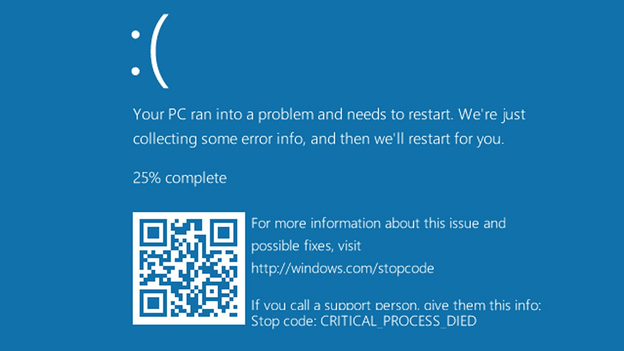
You’ll usually run into the CRITICAL_PROCESS_DIED blue screen (BSOD) in one of three ways. Maybe your PC crashes right after you turn it on, trapping you in a boot loop before you even see the login screen. Or perhaps it suddenly restarts while you’re gaming, browsing, or working on a document, with zero warning. In other cases, the system freezes for a moment, flashes the blue screen, and then refuses to start back up normally—leaving your work or personal files stuck behind an inaccessible system.
Critical Process Died ntoskrnl.exe BSOD Windows 10
This stop code (0x000000EF) has a pretty straightforward meaning: a critical Windows system process—something like csrss.exe, services.exe, wininit.exe, or svchost.exe—died when it shouldn’t have. Windows shuts down on purpose to prevent even more data corruption. The situation feels urgent because your system is either partially or completely unusable, and if you start trying random fixes without preparation, you could lose your data for good.
Critical first rule: Stop all repair attempts right now. That means no disk checks, no repeated forced restarts, and no Startup Repair until you’ve secured your personal files.

This guide follows a safe, step‑by‑step approach: backup first → software fixes → hardware diagnostics → final recovery.

Quick Diagnosis: Is This a Software or Hardware Problem? (Comparison Table)

Use this table to get a rough idea of what might be going wrong before you try any fixes.
Symptom / TriggerLikely Software CauseLikely Hardware Cause

Crash started immediately after Windows Update or driver installation

High probability

Low probability

Random crashes during gaming, video editing, or high-load tasks

Possible

High probability (overheating, RAM, PSU)

Frequent crashes even after clean boot or Safe Mode

Moderate

High (failing RAM or storage)

BSOD appears only on specific actions (e.g., opening certain apps)

High (corrupted app or system file)

Low

Computer won't boot at all, no recovery options work

Moderate

High (drive failure, motherboard)

CHKDSK or SFC reports corruption but returns after repair

Low (unless malware)

High (failing drive)

Think of this table as a starting point, not a final answer. Work through the software fixes first unless the hardware symptoms are obvious. Only move on to hardware diagnostics if the software methods fail, or if the table really points toward a hardware issue.

First Priority: Recover Personal Files Before Any Repair Attempt

Here’s the rule you absolutely must follow: never run SFC, DISM, CHKDSK, Startup Repair, or Windows Reset without securing your personal files first. Those repair tools write directly to your disk. They can overwrite your data, corrupt already damaged files, or even make professional recovery impossible later.
If you don’t back up first, here’s what you typically lose: documents, photos, downloads from your C:\Users folder, desktop items, browser‑saved files and bookmarks, project files, work documents, personal media, and game saves. The good news? Even when Windows won’t boot, your hard drive usually still holds all that data—you just need the right bootable tool to reach it.
One reliable tool that can boot from a USB and help you transfer files is Renee PassNow. The steps below show exactly how to use Renee PassNow to back up your data before any repairs.
Renee Passnow – Professional Windows Password Remover

Remove Windows Login Password 3 steps for whole password remove process.

Recover the files Recover the deleted files without Windows system.

Transfer the data Transfer the important files of the computer with system.

Multifuctional Data transfer, data recovery, bootable problem recovery can be run without system.

Highly compatible Windows 11/10/8.1/8/7/XP/Vista. UEFI boot.

Remove Login Password Support Windows 11/10/8.1/8/7/XP/Vista. UEFI boot.

Recover the files Recover the deleted files without Windows system.

Transfer the data Transfer the important files of the computer with system.

Free TrialFree TrialNow 2000 people have downloaded!

1 How Renee PassNow Enables Safe File Transfer When Windows Won't Boot

Renee PassNow is the recommended pre‑repair data protection solution. It creates a bootable environment that runs completely outside Windows, so you don’t need a working OS on the computer you’re trying to fix.
It does two main things:
  • Data Transfer – Copies whole partitions or selected folders (Documents, Pictures, Desktop, etc.) to an external drive.
  • Undeleter – Recovers files that have already been deleted or accidentally lost.

It works with Windows 11, 10, 8.1, 8, 7, Vista, and XP. Keep in mind: Renee PassNow is not a BSOD fix tool. Think of it as a safety layer you use before you attempt any repairs.

2 Step-by-Step: Creating a Renee PassNow Bootable USB

Step 1: On a working computer, download and install Renee PassNow.
download now
Step 2: Insert a USB drive.
A heads‑up: everything already on this USB will be erased during creation.

Step 3: Launch Renee PassNow and select “Create a Live USB” under “Step 1: Choose the creation method”. Choose the system type (x64 or x86) that matches your target computer. Click Download Now to get the ISO file, then click Create Live USB after the download finishes.
use renee passnow to create usb to reset passnword
Step 4: Click Eject USB when it’s done. Hang onto this USB for future emergencies.

3 Step-by-Step: Booting from Renee PassNow USB and Transferring Files

Step 1: Plug the Renee PassNow USB into the crashed computer.
Boot the target PC with the created password reset USB/CD/DVD.
Step 2: Power on and immediately start tapping the BIOS or boot menu key. Common keys: F12 for Dell, F9 for HP, F2 or DEL for most others.
Brand / BIOSBoot Menu KeyBIOS Key

Dell

F12

F2

HP

F9

Esc / F10

Lenovo (Consumer)

F12

F2 or Fn+F2

Lenovo (ThinkPad)

Enter then F12

Enter then F1

ASUS

Esc or F8

DEL or F2

Acer

F12

DEL or F2

MSI

F11

DEL

Gigabyte / Aorus

F12

DEL or F2

ASRock

F11

DEL or F2

Step 3: In the boot menu or BIOS Boot Priority, select the USB drive as the first boot device. Save the changes and reboot.
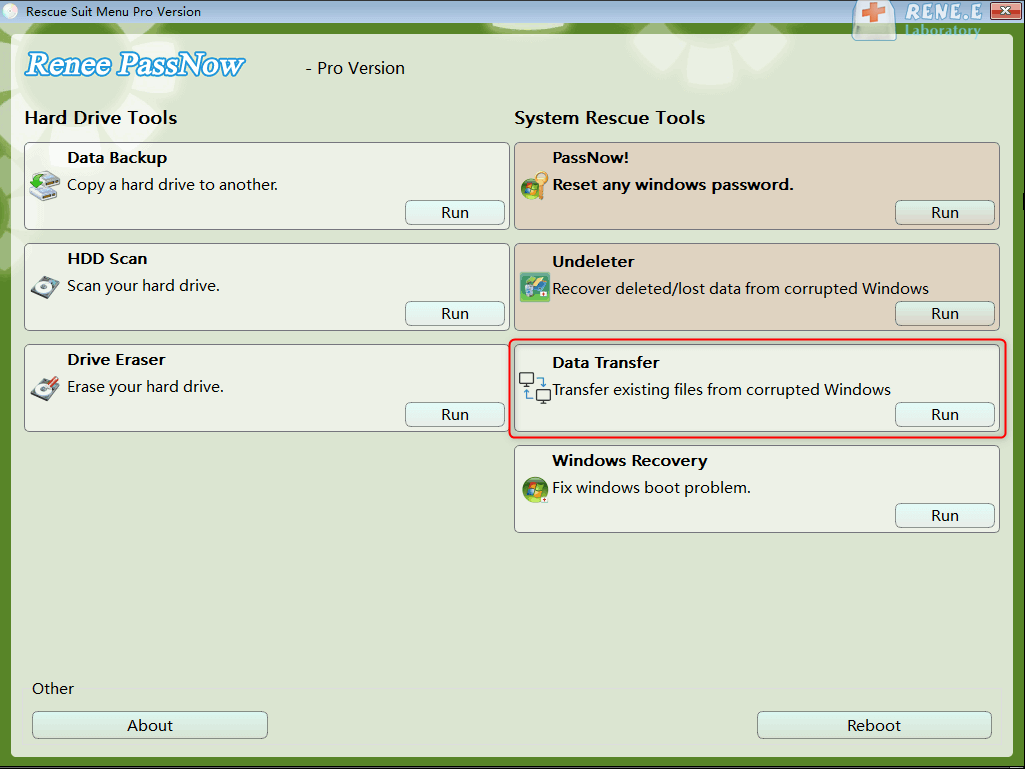
Step 4: Wait for Renee PassNow to load, then select “Data Transfer” from the main screen.
data transfer
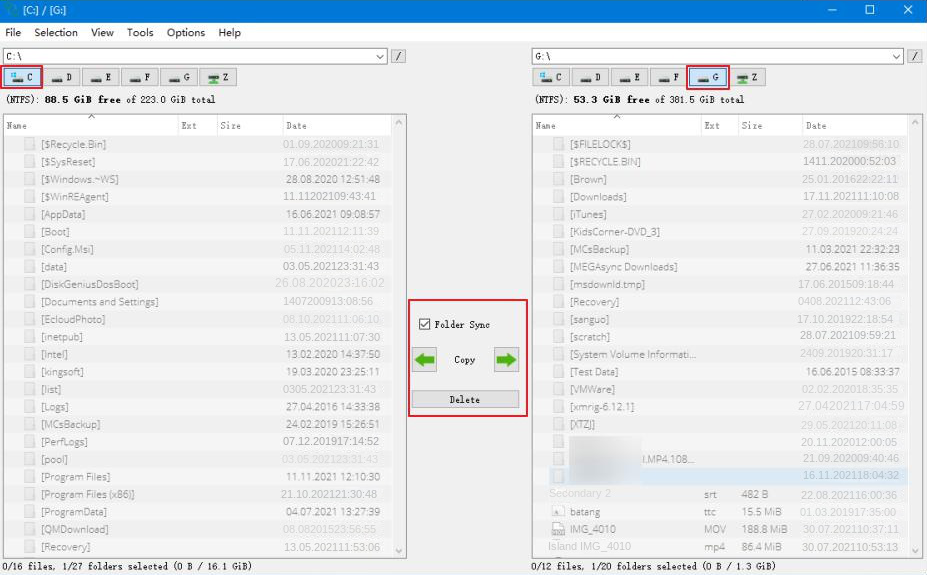
Step 5: Click through the drive letters (C, D, E, etc.) to figure out which one holds your user data. It’s usually C:.
Step 6: Pick the source drive on the upper left and your destination drive (external USB or secondary drive) on the upper right.
Step 7: Navigate to C:\Users\YourUserName\ and select the folders you want to transfer—Documents, Pictures, Downloads, Desktop, Videos, Music.
LocationWhat It Stores

C:\Users\YourUserName\Documents

Personal documents (Word, PDF, spreadsheets)

C:\Users\YourUserName\Pictures

Photos, screenshots, image libraries

C:\Users\YourUserName\Downloads

Browser and app downloads

C:\Users\YourUserName\Desktop

Items shown on the desktop

C:\Users\YourUserName\Videos

Videos, screen recordings

C:\Users\YourUserName\Music

Music files, audio projects

transfer data interface
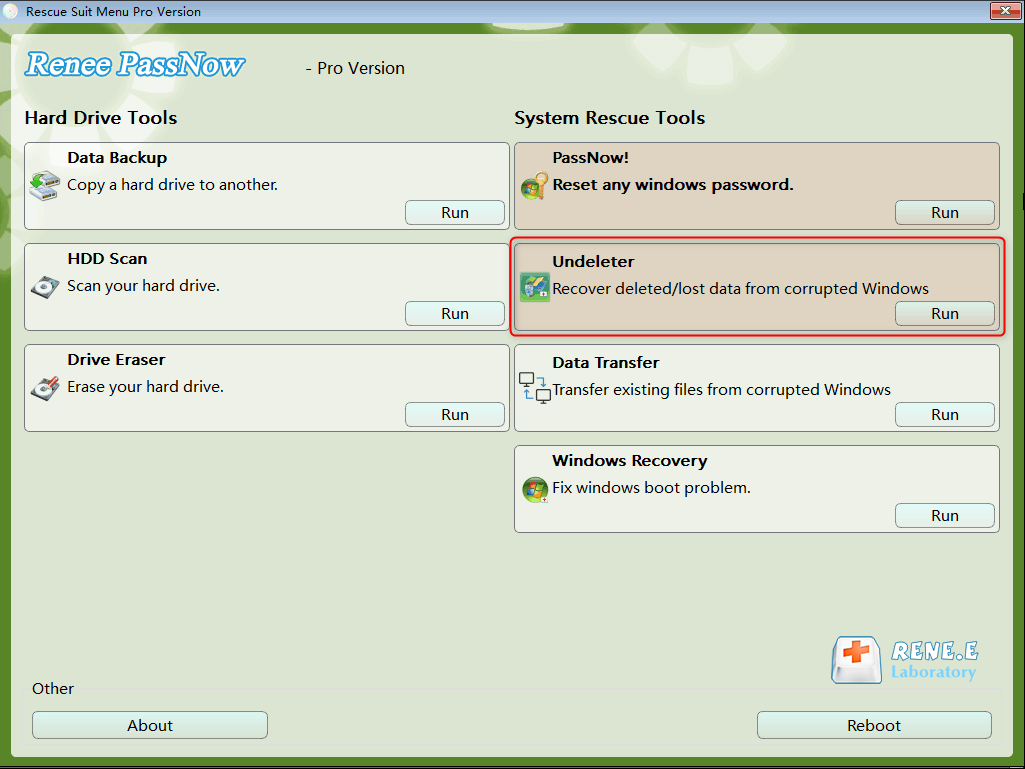
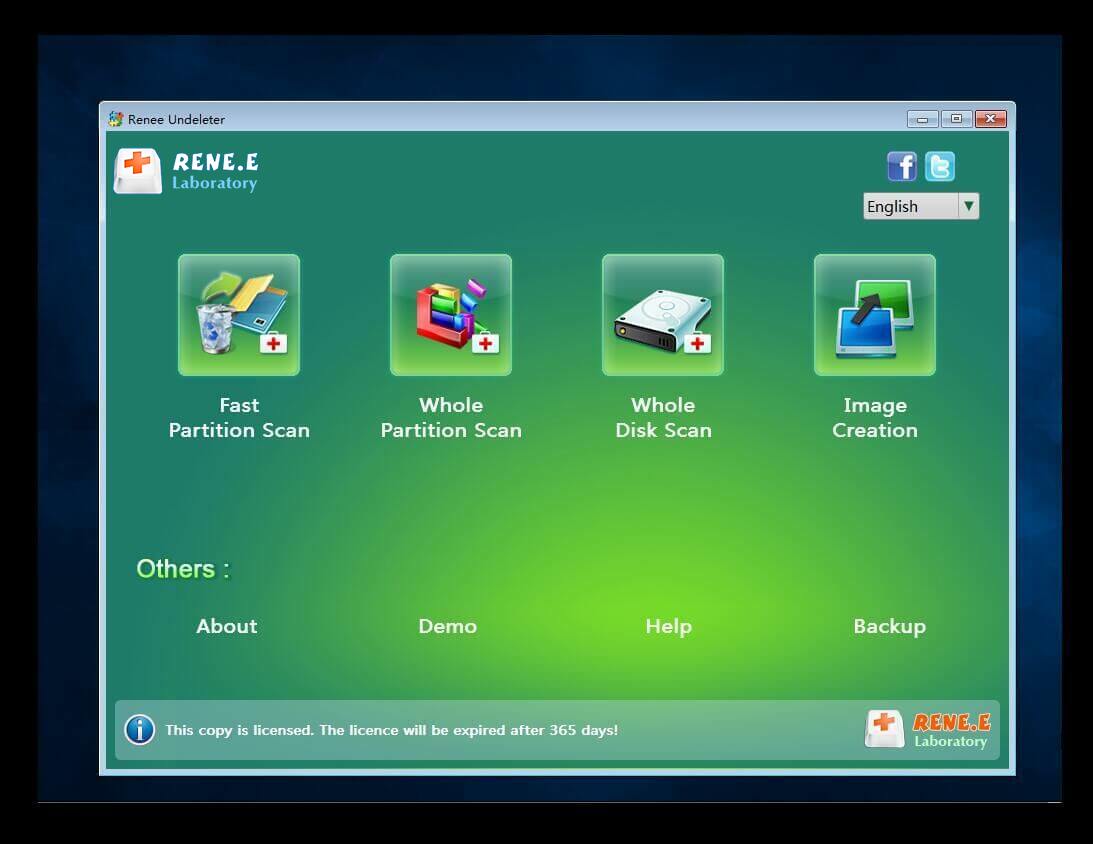
Step 9: If some files are already missing or deleted, close Data Transfer and open “Undeleter” instead. Scan the source drive, preview what you find, and recover to an external disk.
data recovery function in Renee PassNow
scan the whole partition with renee passnow recovery function to reinstall windows 7
Step 10: Once the transfer is done, safely eject the USB and power off the computer before moving on to the repair sections.
Renee Passnow – Professional Windows Password Remover

Remove Windows Login Password 3 steps for whole password remove process.

Recover the files Recover the deleted files without Windows system.

Transfer the data Transfer the important files of the computer with system.

Multifuctional Data transfer, data recovery, bootable problem recovery can be run without system.

Highly compatible Windows 11/10/8.1/8/7/XP/Vista. UEFI boot.

Remove Login Password Support Windows 11/10/8.1/8/7/XP/Vista. UEFI boot.

Recover the files Recover the deleted files without Windows system.

Transfer the data Transfer the important files of the computer with system.

Free TrialFree TrialNow 2000 people have downloaded!

Fix 1 : Software Fix Methods for CRITICAL_PROCESS_DIED (From Least to Most Invasive)

These methods assume you’ve already backed up your data using Renee PassNow. Follow them in order. If one fails, just move on to the next—don’t repeat attempts that haven’t worked.

1 Entering Safe Mode and Running Built-in Windows Repair Commands

This approach works if you can still reach Advanced Startup Options or Safe Mode.

How to Enter Safe Mode on Windows 10 and 11
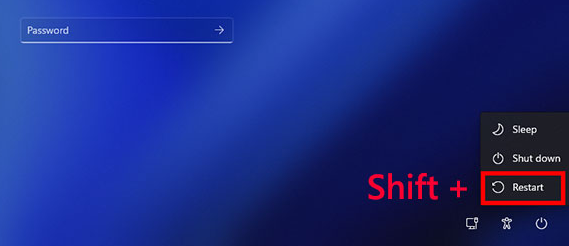
If you can get to the sign‑in screen:
1. Hold the Shift key while clicking the Power icon, then choose Restart.
Windows, shift + restart
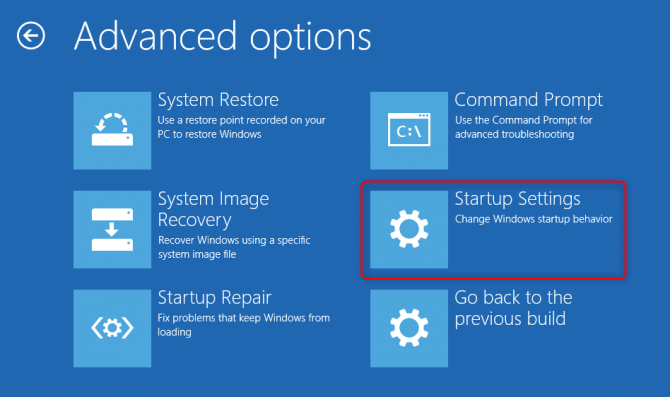
3. After the PC restarts to the Choose an option screen, go to Troubleshoot > Advanced options > Startup Settings > Restart.
select startup settings in advanced options
4. When the PC restarts again, press 4 or F4 for Safe Mode, or 5 or F5 for Safe Mode with Networking.
If you can’t reach the sign‑in screen (boot loop or blank screen):
  1. Power off the PC completely, then turn it back on. As soon as you see the Windows logo or manufacturer logo, press and hold the Power button for 5–10 seconds to force shut down.
  2. Repeat this power‑on / force‑shutdown cycle three times in a row.
  3. On the fourth startup, Windows should show the Automatic Repair screen. Click Advanced options > Troubleshoot > Advanced options > Startup Settings > Restart, then press 4 or F4.
For Windows 7 / 8 / 8.1 (older systems):
- Restart your PC and repeatedly tap the F8 key before the Windows logo appears. Select Safe Mode from the Advanced Boot Options menu.
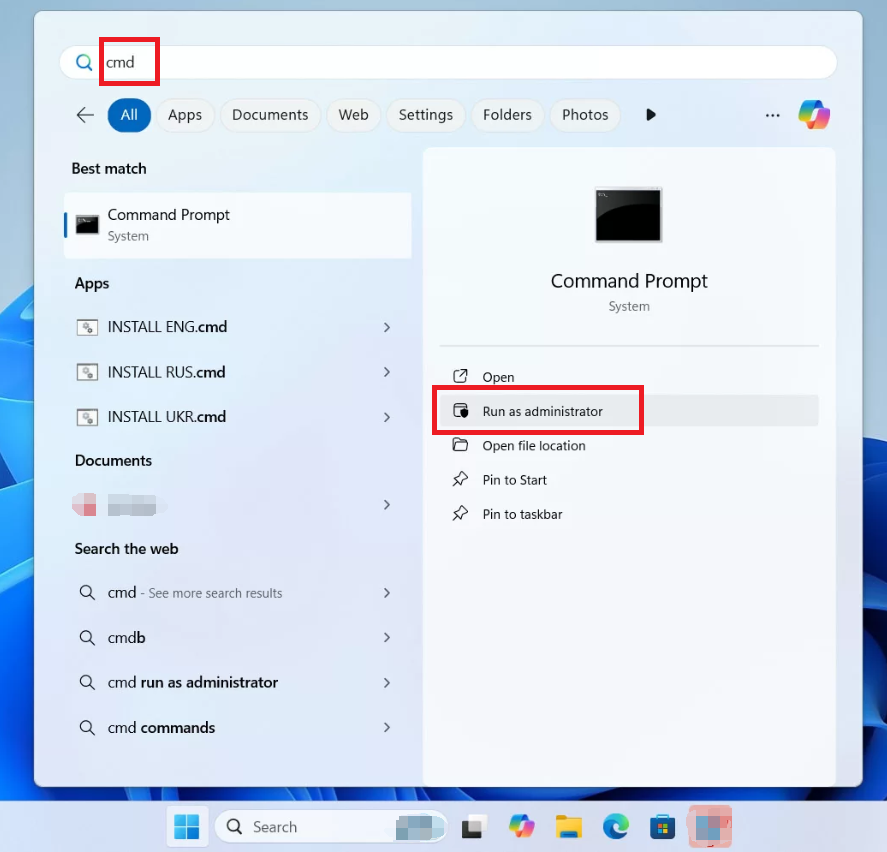
Once you’re in Safe Mode, open an elevated Command Prompt and run these commands in order:
Windows 11, run cmd as administrator

SFC /SCANNOW

This checks and repairs system file integrity. Run it first.

DISM /Online /Cleanup-Image /RestoreHealth

This repairs the system image. Run it second. It needs an internet connection.

CHKDSK /f /r

This scans the disk for bad sectors and fixes file system errors. Run it last—it might take a few hours.
If you can’t boot into Safe Mode at all, skip ahead to the bootrec commands.

2 Roll Back Recent Windows Updates or Problematic Drivers

If your system started crashing right after a Windows Update or a new driver installation, try rolling those changes back.Boot into Safe Mode first.

For Windows Updates:

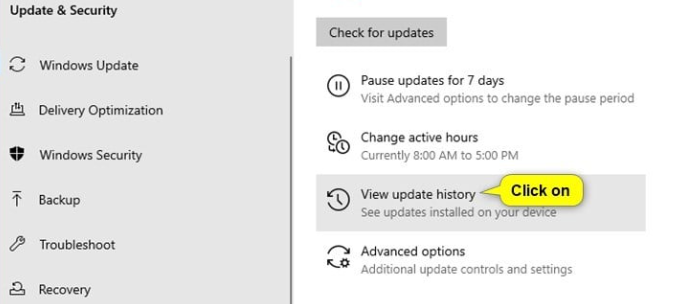
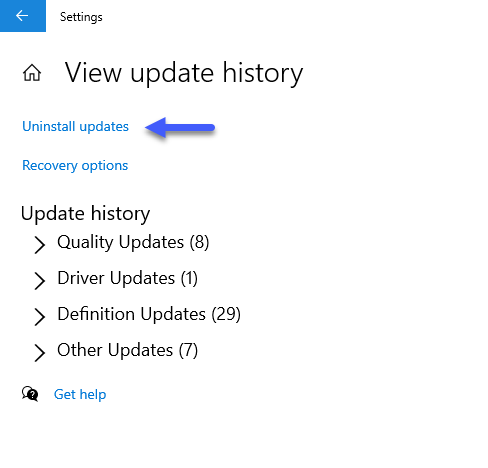
Go to Settings → Windows Update → Update history → Uninstall updates and remove the most recent patches.
view Windows update history
Windows Uninstall updates

For drivers:

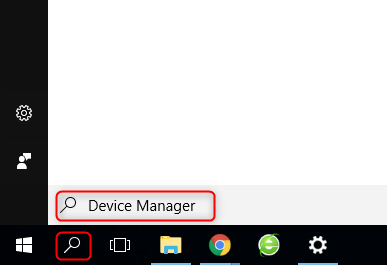
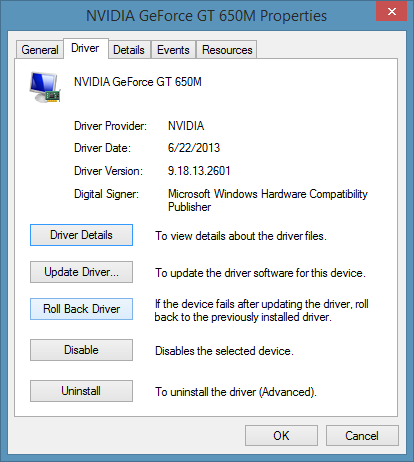
Open Device Manager, right‑click the device that was recently updated,
Open device manager
select Properties → Driver → Roll Back Driver.
Windows Properties → Driver → Roll Back Driver
If System Restore is enabled on your PC, you can also use it to revert both updates and drivers in a single step.

3 Bootrec Commands for Completely Unbootable Systems

Use this when Windows won’t start, Safe Mode is inaccessible, and you have no restore points. You’ll need bootable media (a Windows installation USB/DVD) to get to a Command Prompt.

Got a Windows installation USB/DVD

If you don’t already have a Windows installation disc or bootable USB, you’ll need to create one using Microsoft’s Media Creation Tool on another working computer. This tool allows you to download the official Windows installation files and create a bootable USB drive that can be used for system repair or recovery.
create windows 11 installation media USB
You may download this tool from :
Windows 10: https://www.microsoft.com/software-download/windows10
Windows 11: https://www.microsoft.com/software-download/windows11

Run these commands in order:

bootrec /fixmbr

Writes a compatible MBR to the system partition. Safe, no data loss.

bootrec /fixboot

Writes a new boot sector. Also safe.

bootrec /scanos

Scans for Windows installations. Just a diagnostic.

bootrec /rebuildbcd

Rebuilds the Boot Configuration Data. Only run this after you’ve confirmed the detected Windows installations.
Reminder: Only attempt these commands after you’ve confirmed your data is backed up via Renee PassNow Data Transfer.

Fix 2 : When Software Fixes Fail, Hardware Diagnostics

Escalate to hardware diagnostics only after every software method in Fix 1 has failed. The usual hardware suspects are failing RAM, a failing storage drive, overheating, or an unreliable power supply.

1 Testing RAM for Errors

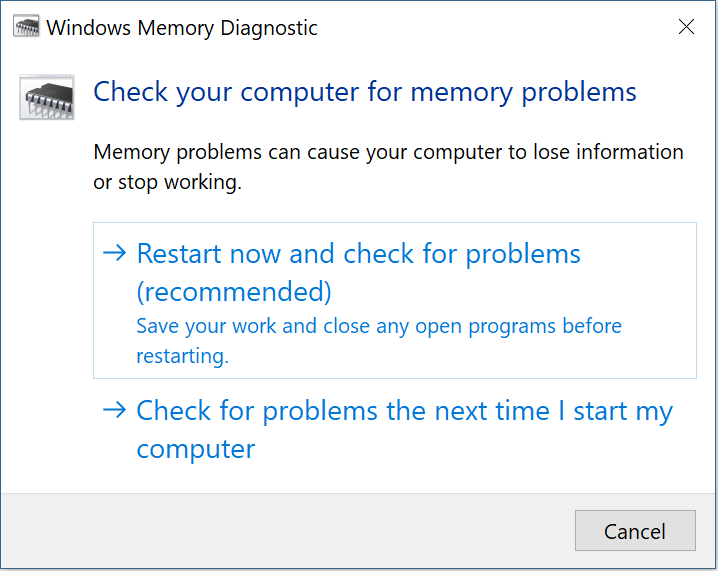
Two ways to go about this. If your system can partially boot, run Windows Memory Diagnostic by press Win + R and typing mdsched.exe into the dialog.
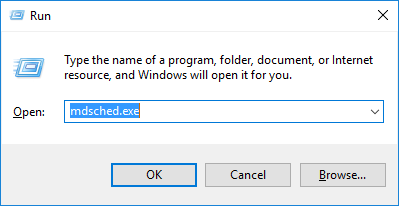
mdshed
For a much more thorough test, create a MemTest86 bootable USB on another computer, then test your RAM sticks one at a time.
Windows memory diagnostic i

2 Checking Hard Drive or SSD Health

Use diagnostic tools from your drive manufacturer—SeaTools for Seagate, WD Dashboard for Western Digital, Samsung Magician for Samsung—or check the S.M.A.R.T. status from a bootable environment like Renee PassNow. If you see persistent bad sectors, that usually means physical failure, not just logical corruption. In that case, replace the drive and restore from your backup.

Fix 3 : Final Recovery Options - System Restore, Reset, or Clean Install

Strong warning: Only use this section if you have successfully backed up your personal files using Renee PassNow.

OptionWhat It DoesData Risk LevelSuccess Rate

System Restore

Reverts system settings to an earlier point; keeps personal files

Low (requires existing restore point)

Medium–High

Reset PC – Keep my files

Preserves your C:\Users folder but removes apps and settings

Moderate (can fail and lose data)

Medium

Reset PC – Remove everything

Deletes all data on the system drive

High (requires full backup)

High

Clean install from USB

Complete wipe and fresh Windows installation

Very High (requires full backup)

Highest

Even the “Keep my files” option can fail and wipe your data—backup is not optional. Before you start, double‑check the key personal file locations listed in the table from Section 3. After any Reset or Clean Install, you’ll need to reinstall all your applications.

Preventing CRITICAL_PROCESS_DIED from Returning

Once you’ve fixed the issue, a few simple habits can help keep it from coming back:
  • Keep regular system image backups—weekly, or at least before any major change.
  • Turn on System Restore and create manual restore points before Windows Updates or driver installations.
  • Update your drivers, but avoid beta versions or unofficial ones.
  • Monitor your drive health with S.M.A.R.T. tools every 3–6 months.
  • Test your RAM with MemTest86 once a year (or more often if you’re seeing random crashes).
  • Keep a Renee PassNow USB handy for emergency booting and data access, and update it to the latest version now and then.
  • Run sfc /scannow and DISM /Online /Cleanup-Image /RestoreHealth on a quarterly basis, just as proactive maintenance.
If crashes keep coming back after a successful repair, that’s a strong signal of hardware failure. At that point, you’re looking at replacing a component.

FAQ

Does CRITICAL_PROCESS_DIED mean my CPU or hard drive is permanently broken?

Not necessarily. Plenty of cases are caused by corrupted system files, bad drivers, or Windows Updates. Hardware failure becomes more likely only after you’ve tried all the software fixes and nothing works.

Can I recover files without a second working computer to create a bootable USB?

You’ll need access to some working Windows PC—a friend’s computer, a library machine, or a work laptop—to create the Renee PassNow USB. Without another computer, there’s really no practical alternative.

Why does CHKDSK or SFC run successfully but the BSOD returns after a few days?

That usually points to an underlying hardware issue, like a failing drive or bad RAM, that corrupts files again after you’ve repaired them. It can also mean a recurring driver conflict.

Will resetting Windows with 'Keep my files' keep my personal data safe?

Not guaranteed. The process can fail or hit errors that cause data loss. Always back up your personal files with Renee PassNow before resetting.

Can overheating cause this specific stop code?

Yes. An overheating CPU or GPU can make your system unstable enough to kill critical processes. Check your temperatures in the BIOS or with hardware monitoring tools.
Renee Passnow – Professional Windows Password Remover

Remove Windows Login Password 3 steps for whole password remove process.

Enable/Create Administrator One click for creating new administrator and enable the disabled account.

Widely Use New version supports UEFI boot model, which can be used on more computers, laptops and even surfaces.

Multifuctional Data transfer, data recovery, bootable problem recovery can be run without system.

Highly compatible Windows 11/10/8.1/8/7/XP/Vista.

Remove Login Password Support Windows 11/10/8.1/8/7/XP/Vista.

Enable/Create Administrator One click for creating new administrator and enable the disabled account.

Easy to use No need of any professional knowledge or password reset disk.

Free TrialFree TrialNow 2000 people have downloaded!

User Comments

Page 1

Leave a Comment


Your comment has been submitted and is awaiting moderation.