author avatar
    Technology Manager of Test Dept.
Last update by Emma Johnson at 17 March 2026

Summary
This article analyzes the critical_process_died ntoskrnl exe Blue Screen of Death error in Windows environments. It outlines common crash scenarios, underlying causes, and structured solution categories ranging from basic checks to system recovery and reinstallation options.



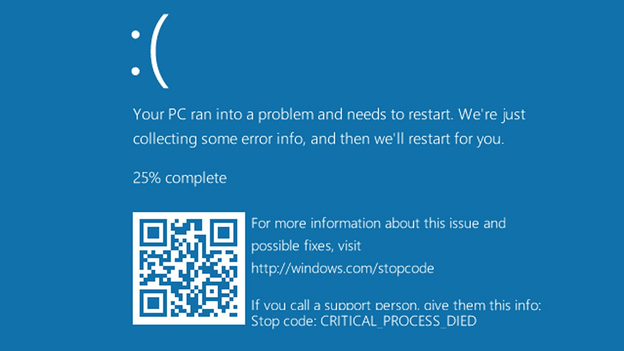
The CRITICAL_PROCESS_DIED Blue Screen of Death (BSOD) stop code (technically 0x000000EF) appears when a critical Windows system process terminates unexpectedly, forcing an immediate shutdown to prevent further damage.
Critical Process Died ntoskrnl.exe Windows 10
The error often lists ntoskrnl.exe (the Windows kernel executive) as the faulty module because the kernel is involved in almost every operation; however, it is rarely the root cause itself and usually points to a faulty driver, corrupted system file, hardware issue, or recent software change that destabilizes the kernel. This critical_process_died ntoskrnl exe issue can manifest in various disruptive ways.
Common scenarios include:
  • Boot loop or repeated restarts right after login.
  • Post-Windows Update crash (especially after feature or security patches).
  • Gaming or high-load crashes (when graphics/storage drivers are stressed).
  • New hardware installation (RAM, SSD, GPU, or motherboard changes).

Important note on support status: Windows 10 reached end of support on October 14, 2025. Microsoft no longer provides security updates, technical assistance, or fixes for this operating system. You cannot expect official Microsoft help, and many repair paths must be performed manually by the user. Before executing any method in this article, perform a full data recovery and backup/transfer operation first to prevent permanent data loss.

Comparison of Symptoms, Causes, and Solution Paths
SymptomLikely CauseGeneral Solution Path

BSOD on every boot

Corrupted system files or drivers

Safe Mode → SFC/DISM → Driver rollback

Crashes during games

Graphics/storage driver conflict

Driver update/rollback or hardware test

Post-update instability

Faulty Windows Update or component

Update rollback or system reset

After new RAM/SSD

Hardware incompatibility or failure

Memory/disk diagnostics + reseat parts

Random crashes under load

Overheating, failing HDD/SSD, malware

Hardware diagnostics + clean install

refer:
https://learn.microsoft.com/en-us/windows-hardware/drivers/debugger/bug-check-0xef–critical-process-died
https://support.microsoft.com/en-us/windows/use-the-system-file-checker-tool-to-repair-missing-or-corrupted-system-files-79aa86cb-ca52-166a-92a3-966e85d4094e

Quick Checks Before Advanced Fixes

Before using any repair tools or running system commands, start with these safe, non‑destructive checks. They don’t change system files or personal data and can sometimes resolve—or at least narrow down—the cause of a critical_process_died ntoskrnl exe BSOD with minimal effort.
1. Perform a full power cycle

Shut the computer down completely. Unplug the power cable, and if you’re using a laptop, remove the battery if it’s removable. Wait about 2–3 minutes, then reconnect everything and power the system back on. This clears residual power and can resolve temporary hardware or firmware glitches.

2. Disconnect all external devices

Remove all non‑essential peripherals, including USB drives, printers, external hard drives, webcams, and secondary monitors. Leave only the keyboard and mouse connected. Faulty or incompatible devices can sometimes trigger kernel‑level crashes during startup.

3. Try booting into Safe Mode

Restart the system and hold Shift while selecting Restart, or use the recovery menu to enter Safe Mode. If Windows starts successfully in Safe Mode, the problem is likely caused by a third‑party driver, startup program, or recent software change rather than core system files.
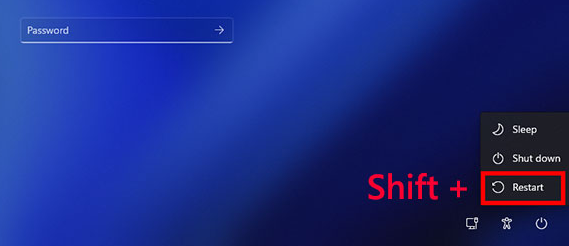
Windows, shift + restart
These checks usually take just a few minutes and carry virtually no risk. However, they won’t fix severe system corruption or failing hardware. If the blue screen continues to appear, the next priority should be backing up important data before moving on to more advanced repair methods.

Using Renee PassNow for Data Recovery or Data Backup

Before performing ANY subsequent repair steps (including Safe Mode commands, driver rollbacks, or Windows Reset), back up or transfer all important data using Renee PassNow.
This is the safest first action because the tool runs outside Windows in a bootable environment, allowing you to access and copy files even when the system is stuck in BSOD loops or completely unbootable. Prioritizing this step is crucial when facing the critical_process_died ntoskrnl exe error to avoid data loss during troubleshooting.

Renee PassNow is most effective in these situations:

  • Repeated BSOD prevents normal or Safe Mode boot.
  • Built-in Windows tools (SFC, DISM, Recovery) are inaccessible.
  • You need to clone/transfer data to an external drive before risky repairs.
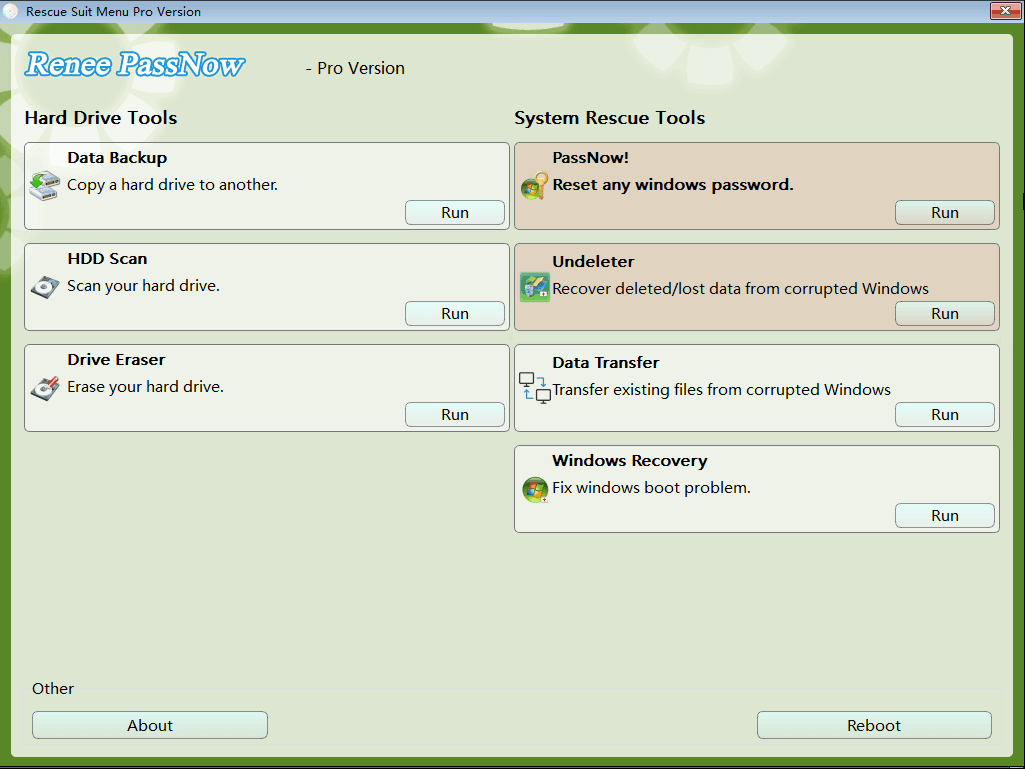
functions of Renee PassNow

Main features of Renee PassNow for recovery/backup:

  • Data Transfer & Backup: Copy files, folders, or entire partitions from a non-booting drive to another internal/external disk without starting Windows.
  • Disk Cloning: Create a full backup image of your hard drive (including OS, programs, and personal files) to an external device.
  • Undeleter / Data Recovery: Recover deleted or lost files from corrupted disks (photos, documents, etc.) with preview support.
  • Windows Recovery: Fixes common boot failures and general BSOD issues (MBR, DBR, black screen, etc.) in minutes.
It works via a simple bootable USB/CD created on any working computer; supports Windows 10/11 and runs in a PE/Linux environment.
Renee Passnow – Professional Windows Password Remover

Remove Windows Login Password 3 steps for whole password remove process.

Recover the files Recover the deleted files without Windows system.

Transfer the data Transfer the important files of the computer with system.
Multifuctional Data transfer, data recovery, bootable problem recovery can be run without system.

Highly compatible Windows 11/10/8.1/8/7/XP/Vista. UEFI boot.

Remove Login Password Support Windows 11/10/8.1/8/7/XP/Vista. UEFI boot.

Recover the files Recover the deleted files without Windows system.

Transfer the data Transfer the important files of the computer with system.

Free TrialFree TrialNow 2000 people have downloaded!
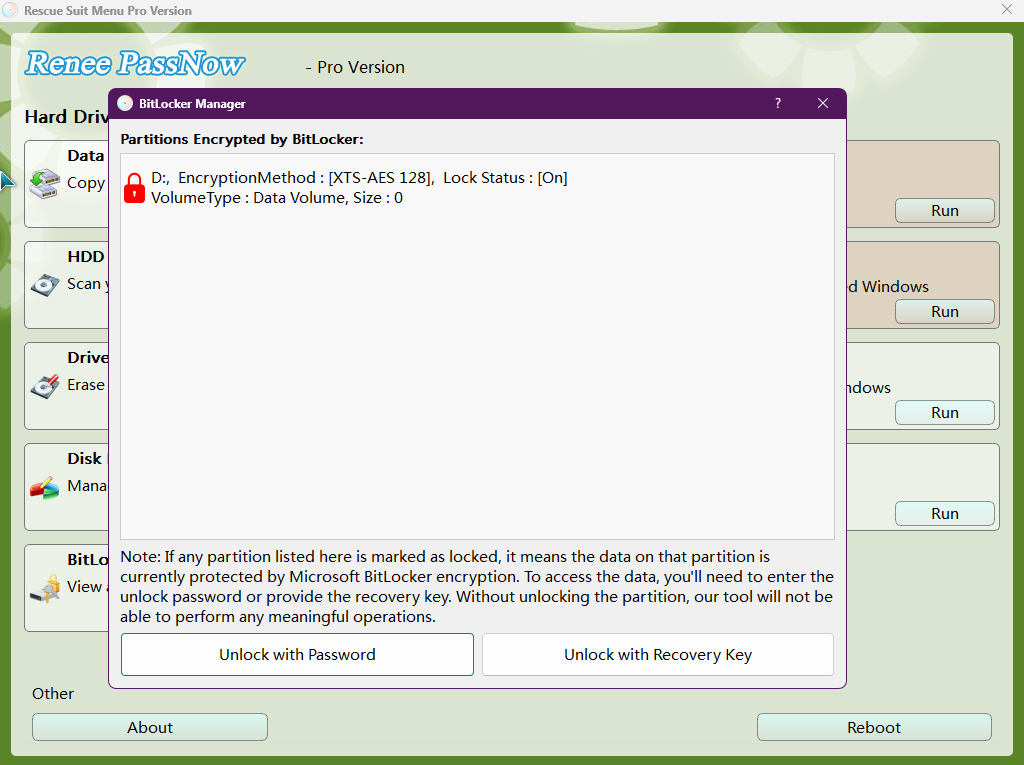
In addition, Renee PassNow supports Bitlocker:
unlock Bitlocker with Bitlocker Manager

Repair Methods

If you have already backed up your data and the PC still won’t boot normally, you can access the Windows Recovery Environment (WinRE) to fix the issue.

To create WinRE media:

Required if your built-in Windows Recovery Environment is broken
1. On another working Windows PC, download the Media Creation Tool from the official Microsoft page:
  • https://www.microsoft.com/software-download/windows10
  • https://www.microsoft.com/software-download/windows11
2. Run the tool, choose “Create installation media for another PC”, select Windows 10, and make a bootable USB flash drive (minimum 8 GB, completely empty).
3. Insert the USB into the affected PC, enter BIOS/UEFI (usually F2, Del, or F10), set USB as first boot device, and boot to access repair options.

1. Repairing System Files with Built‑in Windows Tools

SFC (System File Checker) and DISM (Deployment Image Servicing and Management) are built‑in Windows utilities designed to detect and repair corrupted system components. File‑level corruption is a common trigger behind ntoskrnl.exe‑related crashes in the critical_process_died ntoskrnl exe BSOD, especially after interrupted updates, improper shutdowns, or malware activity. When used correctly, these tools are safe and do not affect personal files.
Prerequisites
You must be able to access Safe Mode with Command Prompt or the Windows Recovery Environment (WinRE). If Windows cannot boot normally, installation media may be required.
Advantages:
  • Free and built-in
  • No third-party software required
  • Can repair system corruption without data loss
  • Effective for update-related issues

Disadvantages:

  • May fail if system image is severely damaged
  • Requires WinRE or bootable media if Windows won’t start
  • Cannot fix hardware or driver-level problems
  • Limited to Windows system files

Step 1: Boot into WinRE or Safe Mode with Command Prompt
If Windows still boots (even briefly):
1. Restart the PC.
2. Hold Shift, then select Restart from the power menu.
Windows, shift + restart
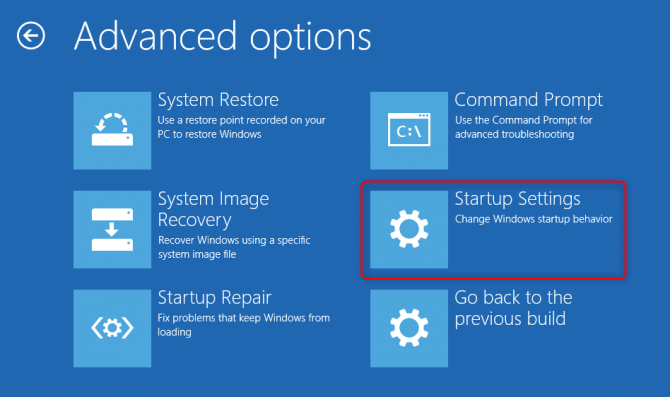
3. Navigate to Troubleshoot → Advanced options → Startup Settings → Restart.
select startup settings in advanced options
4. Press 6 or F6 to select Safe Mode with Command Prompt.
If Windows does NOT boot at all:
1. Power on the PC and interrupt the startup process three times in a row by holding the power button to force shutdown while Windows is loading.
2. On the next startup, Windows should automatically enter the Windows Recovery Environment (WinRE).
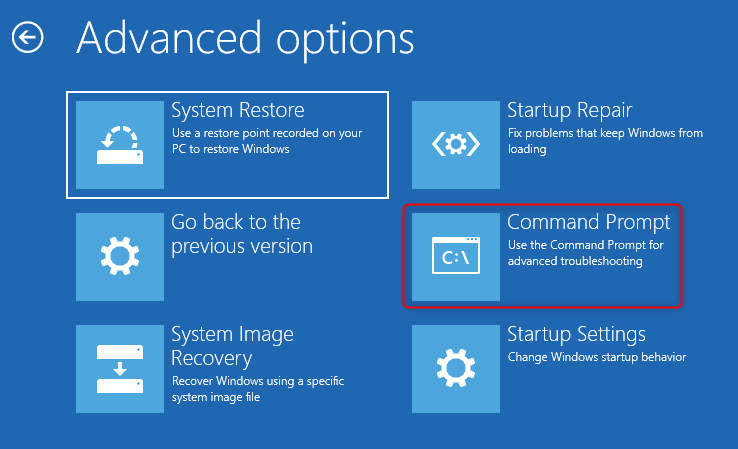
3. Select Troubleshoot → Advanced options → Command Prompt.
command prompt
4. Choose your Windows user account and enter the account password if prompted.

If you do not have the administrator account password, please use the Windows Password reset function or Windows Account creation function.

Renee Passnow – Professional Windows Password Remover

Remove Windows Login Password 3 steps for whole password remove process.

Recover the files Recover the deleted files without Windows system.

Transfer the data Transfer the important files of the computer with system.

Multifuctional Data transfer, data recovery, bootable problem recovery can be run without system.

Highly compatible Windows 11/10/8.1/8/7/XP/Vista. UEFI boot.

Remove Login Password Support Windows 11/10/8.1/8/7/XP/Vista. UEFI boot.

Recover the files Recover the deleted files without Windows system.

Transfer the data Transfer the important files of the computer with system.
Free TrialFree TrialNow 2000 people have downloaded!
5. Command Prompt will open in WinRE, allowing you to run repair commands offline.
If the internal Windows Recovery Environment (WinRE) does NOT load at all:
1. On another working computer, create a Windows installation USB using the official Microsoft Media Creation Tool.
create windows 11 installation media USB
2. Insert the USB drive into the affected PC and power it on.
3. Enter the BIOS/UEFI setup (commonly by pressing F2, F12, Del, or Esc during startup).
4. Set the USB drive as the first boot device, then save changes and restart.
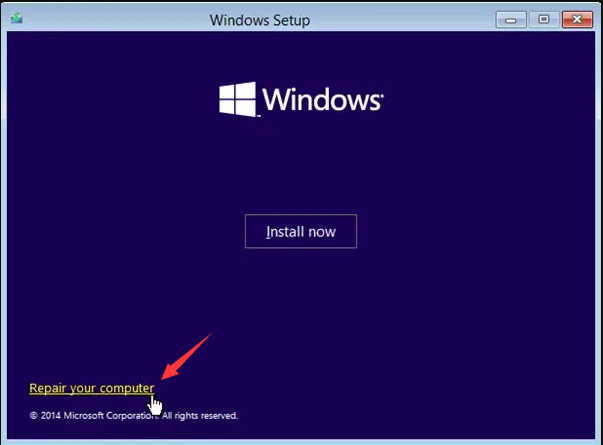
5. When the Windows Setup screen appears, select Repair your computer (do not choose Install).
windows installation repair your computer
6. Navigate to Troubleshoot → Advanced options → Command Prompt to access recovery tools.

Step 2: Run DISM to Repair the Windows Image

Once Command Prompt opens, type the following command and press Enter:

DISM /Online /Cleanup-Image /RestoreHealth
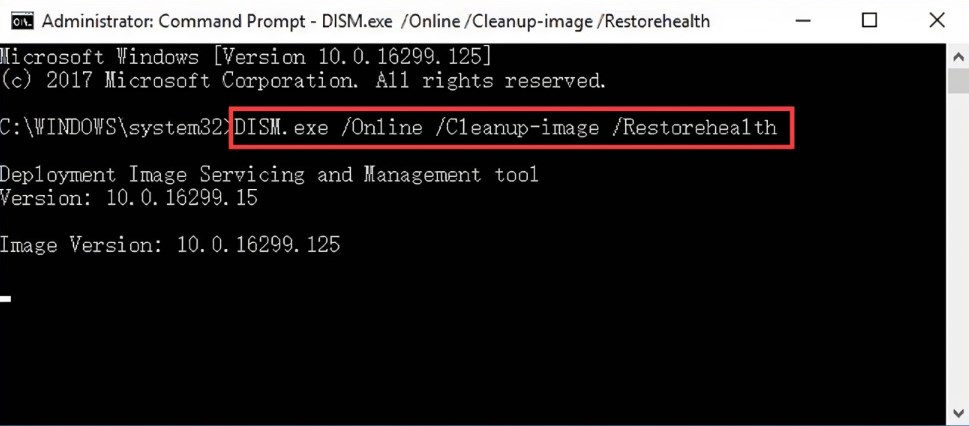
run DISM command
This process may take 10–30 minutes depending on system condition. Do not close the window or restart the PC during the scan.
If DISM reports missing source files, use an installation USB as the repair source:

DISM /Image:C:\ /Cleanup-Image /RestoreHealth /Source:X:\sources\install.wim

(Replace X: with the drive letter of your Windows installation media.)
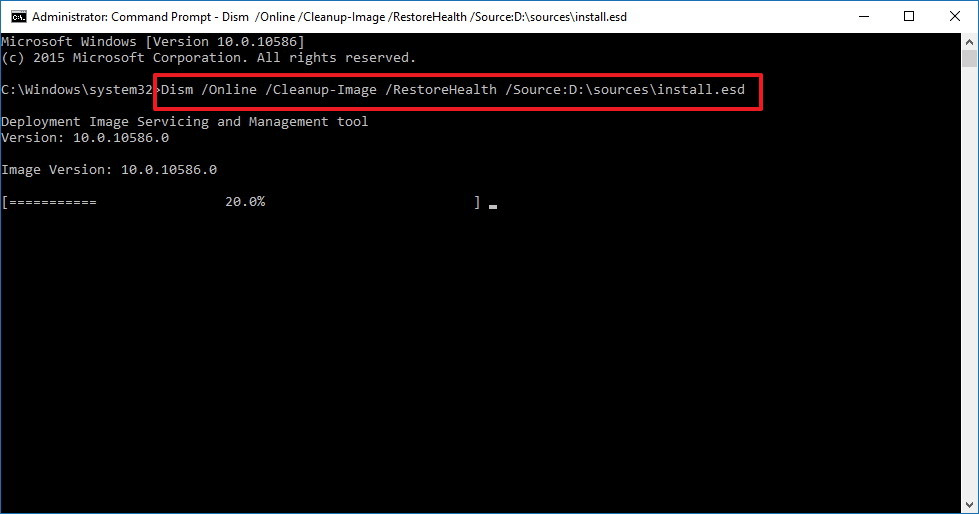
Dism /Online /Cleanup-Image /RestoreHealth

Step 3: Run System File Checker (SFC)

After DISM completes successfully, run:

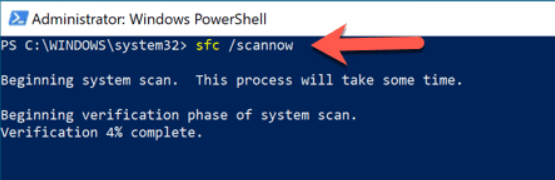
sfc /scannow

powershell sfc scannow
SFC scans protected system files and replaces corrupted versions automatically. This step typically takes 5–15 minutes.

Step 4: Restart and Verify Stability

Restart the computer normally and monitor system behavior:
  • If the BSOD no longer appears, the issue was likely caused by system file corruption.
  • If crashes continue, the root cause is more likely related to drivers or hardware, and further troubleshooting is required.
If these commands succeed but the critical_process_died ntoskrnl exe error returns, deeper issues like drivers may be involved—proceed to the next method for further troubleshooting.

2. Driver and Update Rollbacks to Address Root Causes

Faulty or incompatible drivers (especially graphics, storage controllers, or chipset) are the most frequent trigger for critical_process_died ntoskrnl exe with ntoskrnl.exe. Recent Windows updates can also introduce conflicts that cause kernel instability. Rolling back problematic elements often resolves the issue without full reinstallation, making this a targeted approach for software-induced BSODs.
Typical drivers involved: NVIDIA/AMD GPU, Intel/AMD chipset, SATA/NVMe storage, and network adapters.

Comparison Checklist of Drivers to Inspect/Rollback

Driver TypeCommon Culprit ExamplesHow to Check/Rollback

Graphics

NVIDIA GeForce, AMD Radeon

Device Manager → Display adapters → Properties → Roll Back Driver

Storage

Intel RST, Standard SATA AHCI

Device Manager → Storage controllers → Roll Back or Update

Chipset

Intel/AMD Chipset Device

Device Manager → System devices → Properties → Roll Back

Network

Realtek/Intel Ethernet/Wi-Fi

Device Manager → Network adapters → Roll Back Driver

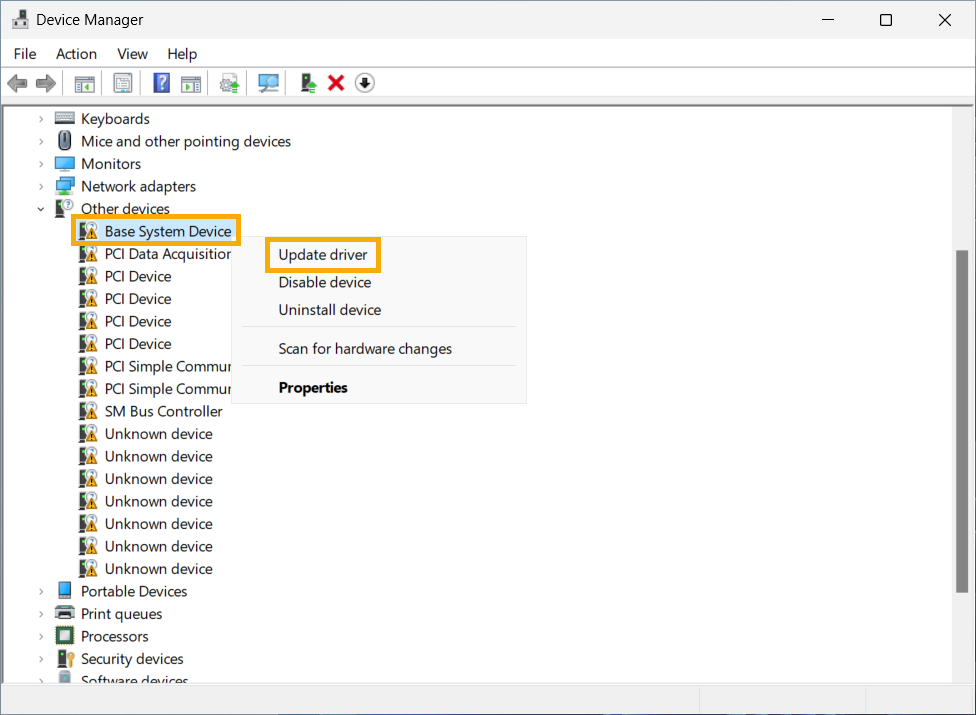
right-click the device with an outdated or faulty driver (usually a faulty device will have a yellow exclamation mark icon)
Advantages:
  • Targets common root cause
  • Reverses recent changes quickly
  • Preserves installed software
  • No data loss risk

Disadvantages:

  • Requires identifying correct driver
  • May need multiple attempts
  • Does not fix hardware faults
  • Rollback option may be unavailable

1. Boot into Safe Mode (or WinRE → Troubleshoot → Advanced → Startup Settings).
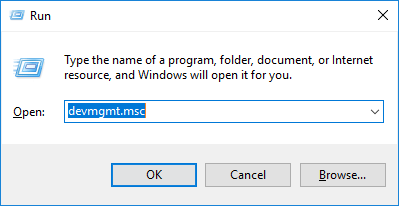
2. Open Device Manager (devmgmt.msc), expand categories like Display adapters, right-click suspected driver (e.g., NVIDIA graphics), select PropertiesDriver tabRoll Back Driver if available.
open device manager
3. For recent updates: Settings → Update & Security → View update history → Uninstall updates (target KB numbers linked to crash timing).
4. Restart normally and test stability.
This method frequently resolves critical_process_died ntoskrnl exe crashes tied to software conflicts—move to hardware checks if issues continue after driver adjustments.

3. Hardware Diagnostics for Persistent BSOD Issues

If blue screen crashes start appearing after upgrading RAM or an SSD, or only occur under heavy system load, a hardware-related failure may be contributing to the CRITICAL_PROCESS_DIED (ntoskrnl.exe) error.
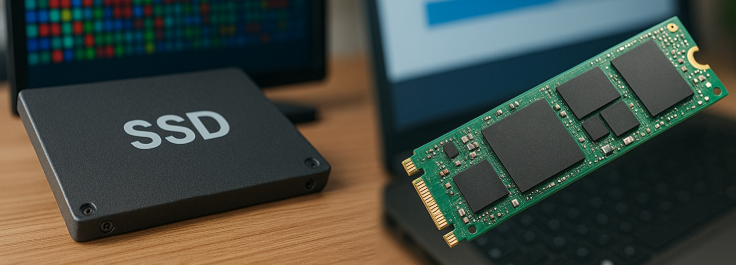
RAM or degrading SSDs
Failing components—most commonly defective RAM or a degrading SSD—can destabilize the Windows kernel and trigger crashes that reference ntoskrnl.exe. Running targeted hardware diagnostics helps determine whether the root cause is physical rather than software-related. These steps require care and should be performed methodically.
  • Memory Diagnostic: Tests for bad RAM modules.
  • Disk Diagnostic (chkdsk or manufacturer tools): Checks SSD/HDD for bad sectors.
These require higher technical comfort and should only be run after full data backup. Reseat components or test with minimal hardware (one stick of RAM, onboard graphics) if comfortable.
Hot Topic - ADsProfessional Data Backup & Restore Software - Renee Beccadata bacup software Renee Becca

Provides multiple functions like backup, restore, clone, system migration.

Clone all data (including system) in HDD to smaller SSD or larger HDD. Disk could boot PC after clone finished.

Supports to migrate Windows to SSD with a few clicks.

4K alignment will be processed when clone disk, migrate system, restore disk or system.

Backup & restore system/disk/folder. Auto backup plans are available.

Provides functions like backup, restore, clone, system migration.

Clone all data (including system) in HDD to smaller SSD or larger HDD.

Backup & restore system/disk/folder. Auto backup plans are available.

Compatible with: Windows 10 / 8.1 / 8 / 7 / Vista / XP / 2008 / 2012(32bit/64bit) / Server 2008

Free TrialFree Trial

5000 people have downloaded and made the disk clone successfully!

Step 1: Test System Memory with MemTest86
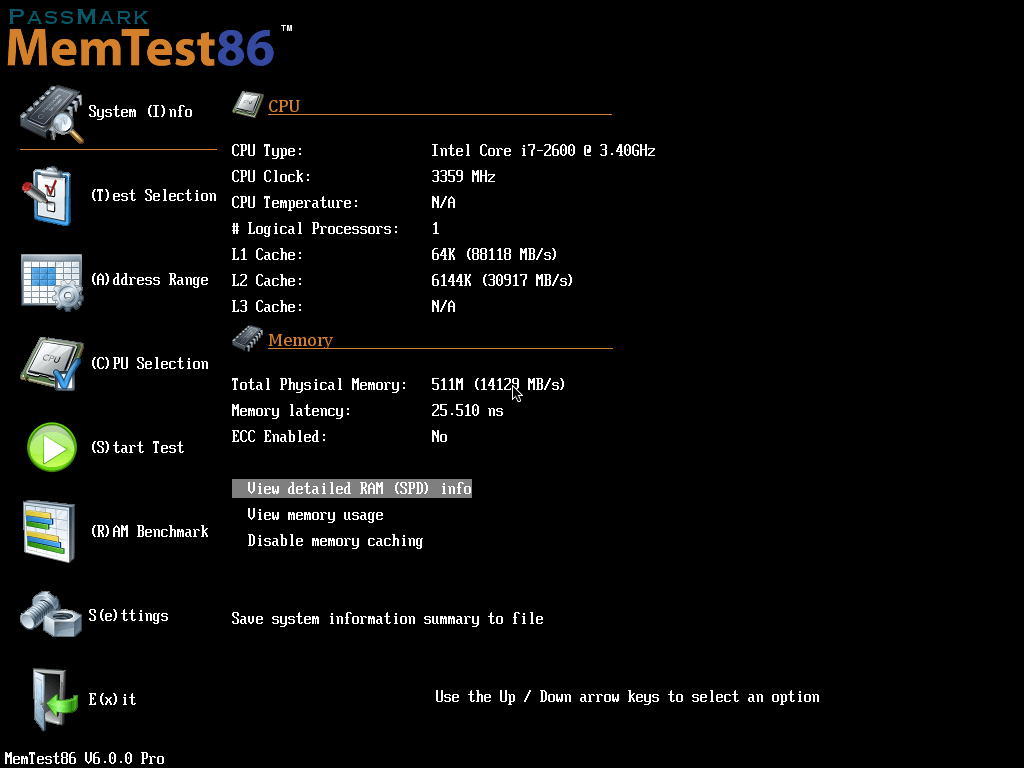
Windows’ built-in memory test is limited. For reliable results, use MemTest86, an industry-standard tool for detecting faulty RAM.
memtest 86
  • Download MemTest86 and create a bootable USB drive. Link: https://www.memtest86.com/
  • Boot the system from the USB and allow the test to run.
  • Let it complete at least one full pass (multiple passes are recommended for intermittent issues).
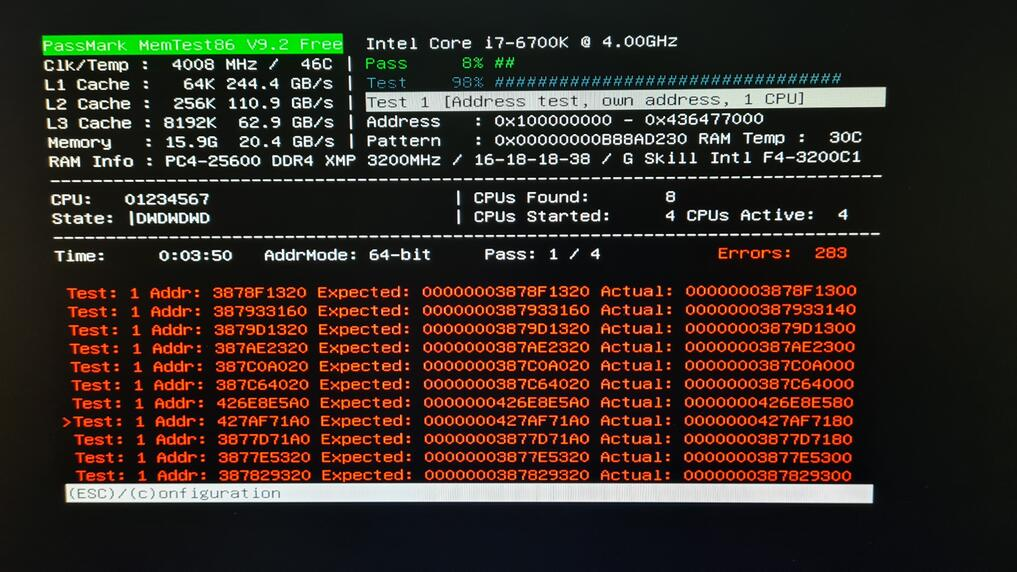
If your memory has error, memtest86 will list them.
memtest86 error
Even a single reported error usually indicates a bad memory module.

Step 2: Check Disk Health Using CHKDSK or Manufacturer Tools

File system corruption or failing sectors on an SSD/HDD can also cause kernel crashes.
1. Boot into Windows Recovery Environment (WinRE) using the same method described in Method 1.
2. Open Command Prompt and run CHKDSK:

chkdsk C: /f /r

If prompted, allow the scan to run at the next system restart.
For SSDs, also consider using the manufacturer’s diagnostic utility:
  • Samsung Magician (Samsung SSDs)
  • Crucial Storage Executive
  • Western Digital Dashboard

Step 3: Reseat Hardware Components

Reseat RAM/SSD physically if accessible, then retest system stability.

Step 4: Replace Faulty Components if Errors Are Found

If diagnostics report errors:
  1. Replace the defective RAM stick or storage device.
  2. Avoid continued use of failing hardware, as it can lead to data corruption or permanent system damage.
Hardware issues confirmed at this stage usually cannot be fixed through software. If failures persist or you are unsure about component replacement, seeking professional repair assistance is strongly recommended.
Advantages:
  • Identifies hardware faults directly
  • Free built-in tools available
  • Prevents unnecessary software fixes
  • Guides replacement decisions

Disadvantages:

  • Time-consuming tests (hours for RAM)
  • Requires physical access/reseating
  • Cannot fix detected issues
  • May miss intermittent problems

Final Method : Resetting or Reinstalling Windows as a Last Resort

When everything else fails, reset or clean-install Windows 10. The critical_process_died ntoskrnl exe error may persist due to irrecoverable corruption, making this a definitive but impactful step.
Decision Table: Reset vs. Clean Install
OptionKeeps Personal Files?Fixes Deep Corruption?Data Risk LevelBest For

Reset This PC (Keep files)

Yes (optional)

Partial

Low

Driver/software issues

Reset This PC (Remove everything)

No

High

Medium

Widespread corruption

Clean Installation from USB

No

Highest

High (unless backed up)

Persistent hardware/driver conflicts

Use Renee PassNow (as described earlier) to back up data first—this significantly reduces risk in both options.
Renee Passnow – Professional Windows Password Remover

Remove Windows Login Password 3 steps for whole password remove process.

Recover the files Recover the deleted files without Windows system.

Transfer the data Transfer the important files of the computer with system.

Multifuctional Data transfer, data recovery, bootable problem recovery can be run without system.

Highly compatible Windows 11/10/8.1/8/7/XP/Vista. UEFI boot.

Remove Login Password Support Windows 11/10/8.1/8/7/XP/Vista. UEFI boot.

Recover the files Recover the deleted files without Windows system.

Transfer the data Transfer the important files of the computer with system.

Free TrialFree TrialNow 2000 people have downloaded!

Frequently Asked Questions

Q1: Is ntoskrnl.exe really the cause of the BSOD?

A: No—ntoskrnl.exe is almost always just the reported module. The real culprit is usually a third-party driver or hardware issue. Investigating further with the steps above helps identify the actual trigger.

Q2: Since Windows 10 is no longer supported, should I upgrade to Windows 11?

A: If your hardware meets Windows 11 requirements (TPM 2.0, Secure Boot, compatible CPU), upgrading is strongly recommended for continued security updates. Otherwise, stay on 10 with extra caution.

Q3: Can I run SFC/DISM without booting into Windows?

A: Yes—boot from the Windows 10 installation USB and choose “Repair your computer” → Command Prompt. This allows full access to repair tools even in unbootable states.

Q4: Will resetting Windows delete my games and programs?

A: The “Keep my files” option preserves personal data but removes installed apps; you will need to reinstall programs afterward. Always back up first to minimize disruption.

Q5: What if hardware diagnostics point to bad RAM or SSD?

A: Replace the faulty component. Always test one module at a time and use manufacturer tools (e.g., MemTest86 for RAM, CrystalDiskInfo for SSD) after backing up with Renee PassNow.
If the BSOD persists after all steps, the issue may require professional hardware repair. Always prioritize data safety with Renee PassNow before any advanced action.
Renee Passnow – Professional Windows Password Remover

Remove Windows Login Password 3 steps for whole password remove process.

Recover the files Recover the deleted files without Windows system.

Transfer the data Transfer the important files of the computer with system.

Multifuctional Data transfer, data recovery, bootable problem recovery can be run without system.

Highly compatible Windows 11/10/8.1/8/7/XP/Vista. UEFI boot.

Remove Login Password Support Windows 11/10/8.1/8/7/XP/Vista. UEFI boot.

Recover the files Recover the deleted files without Windows system.

Transfer the data Transfer the important files of the computer with system.

Free TrialFree TrialNow 2000 people have downloaded!

User Comments

Page 1

Leave a Comment


Your comment has been submitted and is awaiting moderation.