author avatar
    Technology Manager of Test Dept.
Last update by James Smith at 23 May 2026

Summary
This article outlines maxtor hard drive recovery methods covering data loss, corruption, and drive accessibility issues. It reviews software-based recovery, system utilities, and formatting considerations used to restore files from Maxtor storage devices.



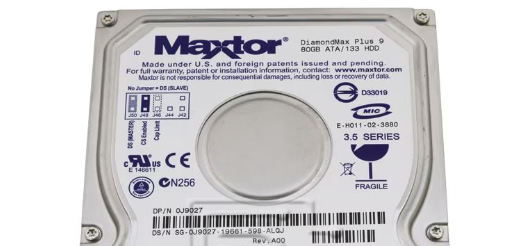
Maxtor hard drives remain a solid option for backups and essential files, though they are not as widely used today as some other brands. Like any storage device, however, they are prone to data loss from accidental deletion, formatting errors, corruption, or gradual wear. If you are searching for reliable maxtor hard drive recovery options, the good news is that most logical issues can be addressed at home with the right tools and careful steps.
maxtor hard drive
This guide focuses on practical DIY solutions tailored for maxtor hard drive recovery on Windows PCs. You will learn how to retrieve lost files safely and explore proven ways to repair failing or corrupted drives, increasing your chances of restoring everything from documents and photos to videos and backups.

Since Maxtor was acquired by Seagate (2006) and no longer provides its own dedicated data‑recovery or disk‑repair utilities, all the tools used in this article are general‑purpose solutions.

Maxtor Data Recovery Possibilities by Scenario

Maxtor drives can experience data loss for many different reasons, ranging from simple logical mistakes to deeper system or hardware‑related issues. Identifying the specific failure type is essential, since recovery success and the safest recovery method depend heavily on the underlying cause, as outlined in the table below.
Failure CategoryScenario (Examples)Recovery LikelihoodWhy Recovery Is Possible or LimitedRecommended Recovery Method

Logical Errors

Accidental file deletion, emptied Recycle Bin

90–95%

File data remains on disk until overwritten

Data recovery software (fast or partition scan)


Quick format of Maxtor drive

80–90%

File system reset, data blocks still intact

Deep scan or whole partition scan


File system corruption causing Windows boot failure (e.g., BSOD 0x0000007B, 0x00000024)

75–85%

Metadata damaged, raw data still readable

Create disk image → recovery scan


Deleted or lost partition

80–90%

Partition table removed, data structure preserved

Partition recovery or full disk scan


Malware or ransomware file damage

60–80%

Files hidden or partially corrupted

Malware removal → recovery software

Driver / Controller Issues

Outdated or corrupted USB drivers

85–95%

Drive healthy, OS communication failure

Update or reinstall drivers


USB controller conflict or power management issue

75–90%

Intermittent connection, no data damage

Change ports, disable USB power saving


Faulty USB cable or external enclosure

90–95%

Data intact, connection unstable

Replace cable or enclosure


Drive shows as “Unknown” or “Not Initialized”

65–80%

Partition info unreadable, data still present

Disk imaging → scan image

Firmware / Internal Controller Issues

Firmware corruption or incorrect capacity shown

50–70%

Drive logic misinterprets data layout

Disk image + advanced recovery tools


Drive stuck in “busy” state

40–60%

Controller fails to respond consistently

Professional firmware repair

Physical Hardware Failures

Clicking, grinding, or beeping noises

10–30%

Read/write heads damaged

Professional clean‑room recovery


Drive not spinning or not detected in BIOS

5–20%

Motor or PCB failure

PCB repair or component replacement


Severe bad sectors causing freezes

20–40%

Platter surface damage

Sector‑by‑sector imaging with retries


Water or fire damage

<10%

Corrosion or platter destruction

Specialized recovery service only

Mixed Failures

Aging drive with corruption and bad sectors

40–60%

Combined logical and physical degradation

Image first, then recovery from image


Intermittent detection plus file loss

50–70%

Connection instability with intact data

Avoid direct scans, recover from image

The moment you notice data missing from your Maxtor extve

If the Windows system is corrupted or fails to boot normally, an offline recovery tool such as Renee PassNow can be used to access and recover data through a bootable rescue USB or CD. This approach allows files to be retrieved without starting Windows, which is especially useful when startup errors or system damage prevent normal access.
The most effective solution is a professional-grade tool that handles a wide range of loss scenarios. Renee Undeleter delivers outstanding recovery rates, a straightforward interface that works for any skill level, and support for hundreds of file types. Its free trial lets you preview and recover up to 500 MB, giving you a risk-free way to test results.
Renee Undeleter - Powerful Data Recovery SoftwareRenee Undeleter data Recovery software

Easy to use Only simple steps to recover data from storage devices.

Multiple scan modes Fast partition scan, whole partition scan and whole disk scan for different recovery needs.

File types Support to recover pictures, videos, audios, documents, mails, etc.

Supported storage devices Recover data from recycle bin, SD card, external disk, etc.

Supported systems Windows 11,10, 8.1, 8, 7, Vista, XP, 2000 and Mac OS X10.6, 10.7, 10.8+.

Easy to use Only simple steps to recover data from storage devices.

Multiple scan modes - 3 scan modes for different recovery needs.

Supported storage devices Recover data from recycle bin, SD card, external disk, etc.
Free TrialFree TrialFree Trial

3000 users have downloaded Renee Undeleter and found data back!

A standout capability is its byte-to-byte image creation, which lets you duplicate the entire drive and perform recovery on the copy instead of the original. This protects your Maxtor hard drive from extra stress during scanning.
Follow the clear steps below to create a protective image and recover your files. This proven workflow maximizes your maxtor hard drive recovery chances while keeping everything straightforward.

《Optional》 Creating a Maxtor Hard Drive Image Using Renee Undeleter

Before scanning, create a complete byte-to-byte image of your Maxtor hard drive. This step is crucial for any potentially unstable drive because it lets you work on a perfect copy without touching the original.
Step 1: Download and install Renee Undeleter on a different disk to prevent overwriting.
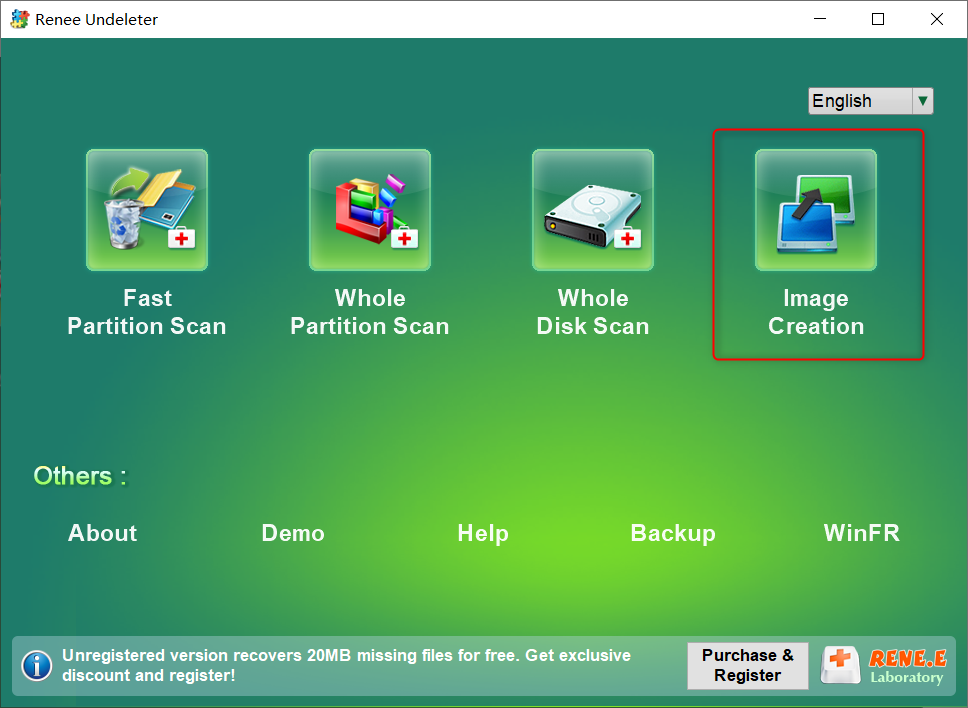
Open the program and choose the Image Creation module.
Creating a safe byte-to-byte image of Maxtor hard drive for recovery
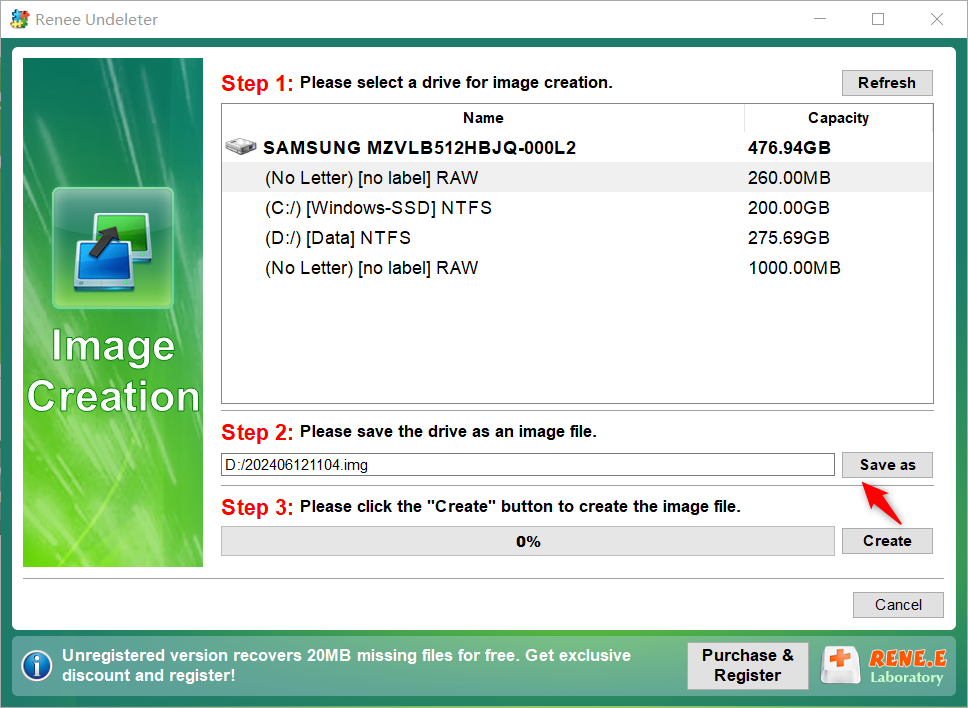
Step 2: Select your Maxtor drive from the list, pick a save location on another drive with enough free space, and click Create.
Selecting the Maxtor hard drive and save location for image backup
The process builds an exact mirror image you can safely scan later. This technique is especially helpful for older Maxtor models that may click or slow down during direct access.

Recovering Lost Files Using Renee Undeleter

With the image ready, load it into Renee Undeleter and run a thorough scan to locate your missing files.
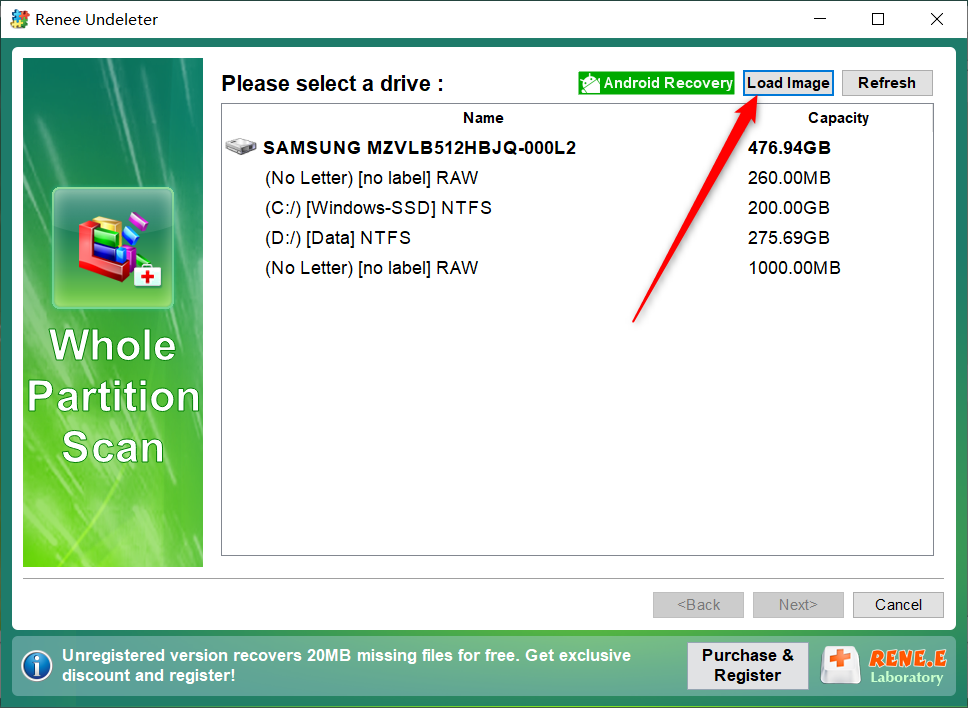
Step 1: Open the program and select Whole Disk Scan, then click Load Image to bring in the Maxtor backup you just created or Just select the disk drive directly.
Loading the Maxtor hard drive image into Renee Undeleter
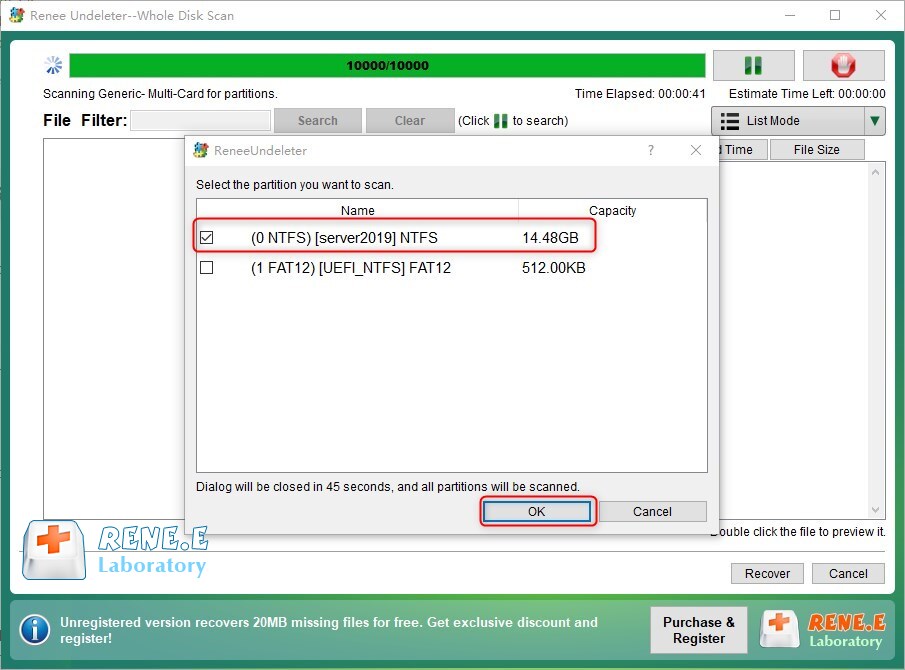
Step 2: Accept the default settings and proceed. The software first analyzes partition information before scanning every sector.
Selecting the partition inside the loaded Maxtor image
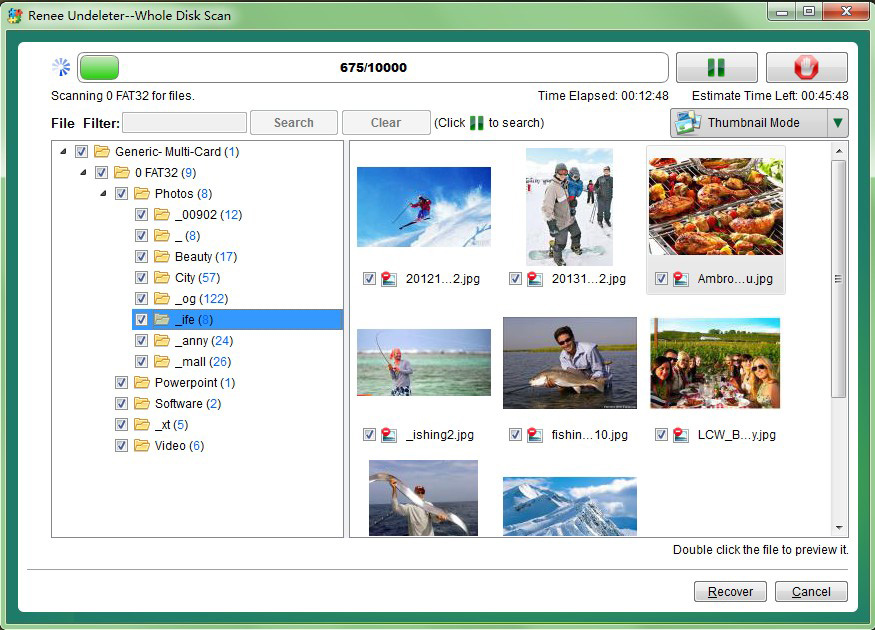
Step 3: When the scan finishes, double-click any file to preview it. Check the boxes for the items you need, click Recover, choose a different safe location, and confirm.
Previewing and recovering files from Maxtor hard drive image
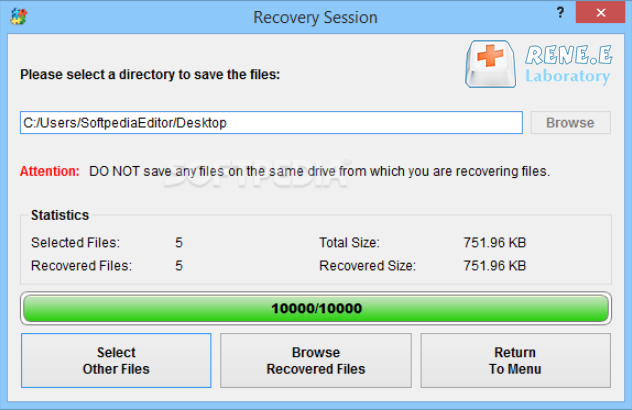
Final step saving recovered Maxtor data to another drive
Always save recovered files to a separate disk. This method gives you the highest possible success for maxtor hard drive recovery while protecting your original data.
Renee Undeleter - Powerful Data Recovery SoftwareRenee Undeleter data Recovery software

Easy to use Only simple steps to recover data from storage devices.

Multiple scan modes Fast partition scan, whole partition scan and whole disk scan for different recovery needs.

File types Support to recover pictures, videos, audios, documents, mails, etc.

Supported storage devices Recover data from recycle bin, SD card, external disk, etc.

Supported systems Windows 11,10, 8.1, 8, 7, Vista, XP, 2000 and Mac OS X10.6, 10.7, 10.8+.

Easy to use Only simple steps to recover data from storage devices.

Multiple scan modes - 3 scan modes for different recovery needs.

Supported storage devices Recover data from recycle bin, SD card, external disk, etc.
Free TrialFree TrialFree Trial

3000 users have downloaded Renee Undeleter and found data back!

How to Fix Failing or Corrupted Maxtor Hard Drive

Maxtor hard drives sometimes fail or become corrupted because of age, malware, sudden power loss, or improper disconnection. Typical warning signs include the drive disappearing from Windows or files vanishing without reason. The following built-in methods can repair many logical problems and restore access so you can continue with maxtor hard drive recovery.

Method 1: Chkdsk

If your hard drive is making unusual noises or Windows reports bad sectors, avoid running chkdsk. Using this tool on a physically failing drive can make the damage worse and reduce your chances of recovering data.

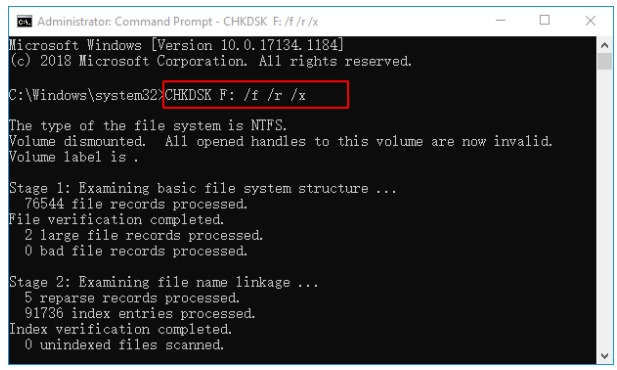
Chkdsk is Windows’ own utility for scanning hard drives and fixing file system errors or bad sectors. It serves as an excellent first step when your Maxtor drive shows minor corruption but is still detectable.
chkdsk F: /f /r /x
Advantages:
  • Completely free and already installed on Windows
  • Quickly repairs file system errors and bad sectors
  • Requires no extra downloads or setup

Disadvantages:

  • Cannot fix serious physical damage or mechanical issues
  • Does not recover permanently deleted files
  • May run slowly on very large drives

Steps for using Chkdsk:

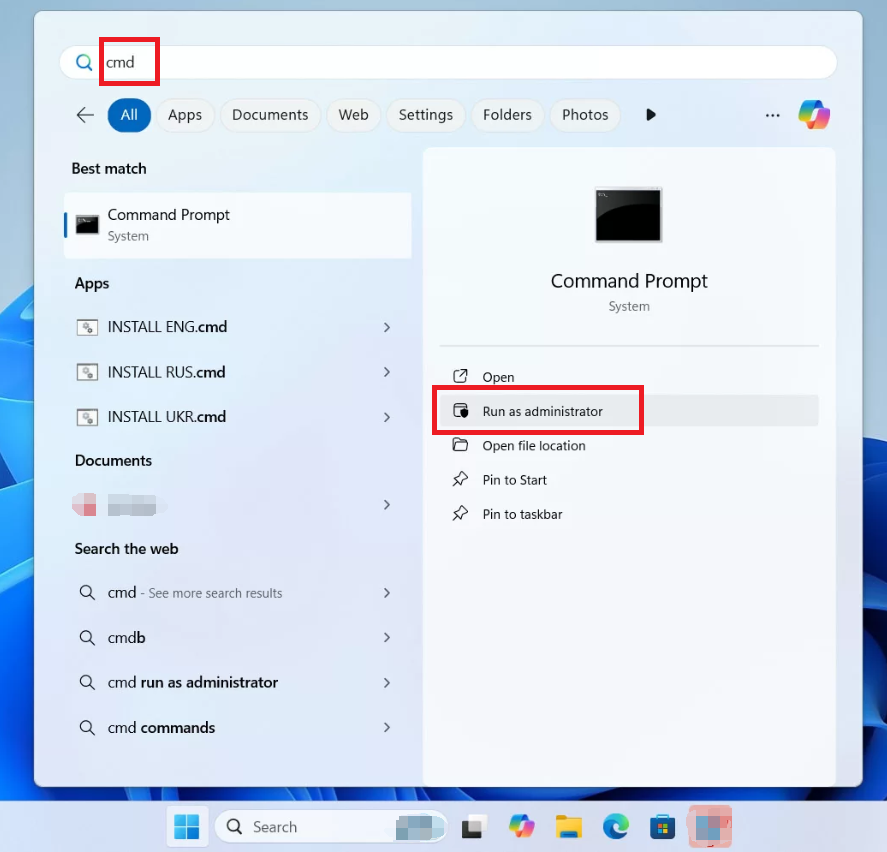
1. Press Windows key and enter cmd to open the console dialog,
Windows 11, run cmd as administrator
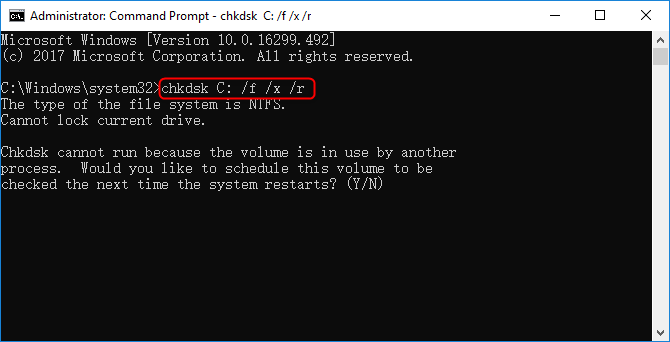
type chkdsk G: /f /x /r (replace G: with your Maxtor drive letter), and press Enter.
2. If prompted, hit Ctrl + Shift + Enter to run as administrator and confirm with Yes.
A command window will appear and automatically scan then repair any errors it finds.
check disk to fix bad sectors
After it completes, restart your PC and check whether the drive is now accessible. Chkdsk often resolves simple issues, letting you move on to full file retrieval if needed.

Method 2: Driver Update

Outdated or faulty drivers can make a perfectly healthy Maxtor hard drive invisible to Windows. Updating them is a fast, no-risk way to restore recognition during maxtor hard drive recovery.
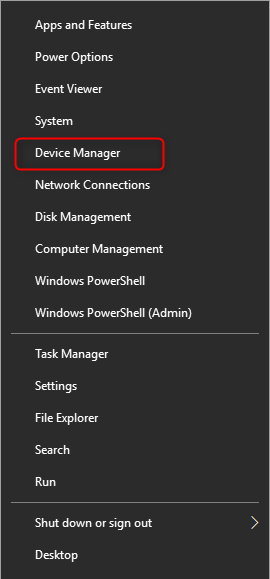
right click at start menu and select device manager
Advantages:
  • Totally free and built into Windows
  • Automatically finds and installs correct drivers
  • Fixes recognition and connection problems quickly

Disadvantages:

  • Will not repair file corruption or physical failure
  • Needs an internet connection for new driver downloads
  • May not resolve every Maxtor-specific issue

Steps:

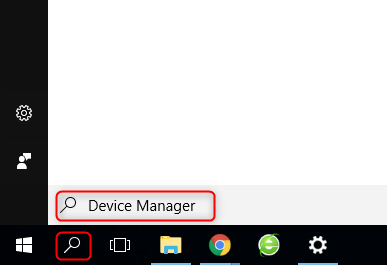
1. Type “device manager” into the Windows search bar and open the top result.
Open device manager
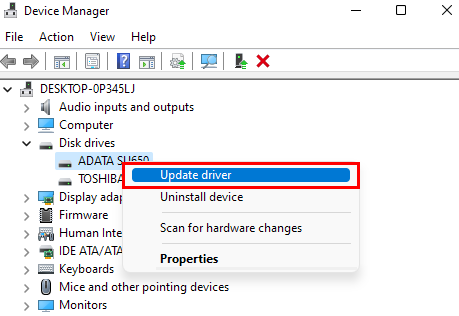
2. Expand the Disk drives section, right-click your Maxtor drive, and choose Update driver.
update driver disk
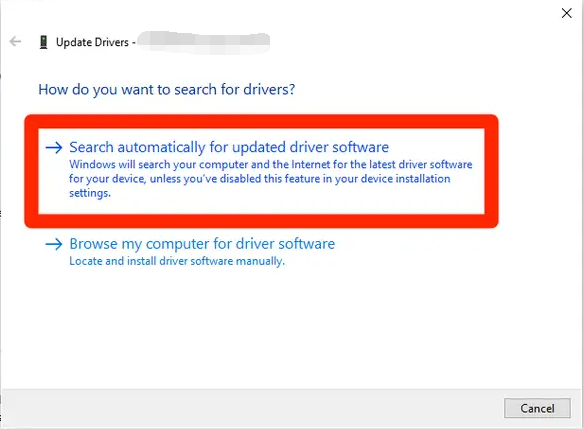
3. Select “Search automatically for drivers” and let Windows handle the rest.
update Driver Confirm
Once finished, reconnect the drive and test it. This step frequently brings inaccessible Maxtor drives back online without any data loss.

Method 3: Formatting

When other fixes fail, formatting can completely reset a corrupted Maxtor hard drive and make it usable again. Use this only after trying the previous methods and when the drive is still recognized.
Advantages:
  • Quickly eliminates deep file system corruption
  • Full format also scans and repairs bad sectors
  • Restores full drive functionality in minutes

Disadvantages:

  • Erases all existing data (recover afterward with software)
  • Quick format leaves data recoverable but Full format is more permanent
  • Not suitable if the drive has mechanical problems

Steps:

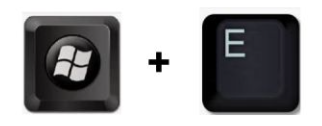
1. Press Windows + E to open File Explorer and go to This PC.
Press Windows Key and E
2. Right-click the Maxtor drive and select Format.
Windows format volume/partition
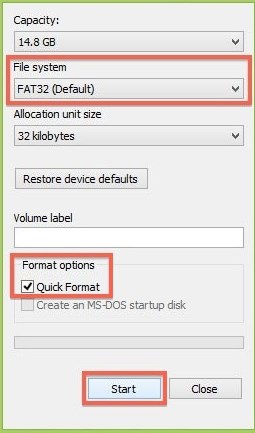
3. Set a new volume label and file system, leave Quick format checked for speed or uncheck for a deeper clean, then click Start.
Format the SD card

Note: Quick format erases data rapidly but leaves enough traces for tools like Renee Undeleter to recover files later. Full format wipes everything and scans for bad sectors, making recovery much harder without a prior image.

After formatting, if your files were important, run a recovery scan immediately to bring them back.

FAQ

How do I recover deleted files from my Maxtor hard drive using Renee Undeleter?

Renee Undeleter makes recovering deleted files simple and reliable. First stop using the drive, then launch the program and choose Fast Partition Scan for recently deleted items. It quickly searches the file system and shows results you can preview instantly. If files do not appear, switch to Whole Partition Scan for a deeper search. Select what you need, recover to a different location, and you are done. The trial version lets you test everything up to 500 MB before deciding to purchase.

Is CHKDSK safe for Maxtor hard drive recovery on a failing drive?

CHKDSK is safe and recommended for logical errors when the drive still appears in Windows. Run it with the /f /r switches to repair issues without causing extra damage. However, if the drive makes clicking noises or refuses to spin, skip CHKDSK entirely because mechanical stress could worsen the situation. In those cases, create an image first with Renee Undeleter and recover from the copy.

Can I recover data from a formatted Maxtor hard drive?

Yes, formatted Maxtor drives are often recoverable, especially after a Quick format. Renee Undeleter uses powerful signature scanning to locate files even when the file system is gone. Run a Whole Partition Scan right after formatting and save results elsewhere. Success is highest when you act quickly and avoid writing new data to the drive. For Full formats the process takes longer but still works in many cases when an image was created beforehand.

What is the best way to prevent data overwriting during Maxtor hard drive recovery?

The safest practice is to install recovery software on a completely different drive or partition. Never save new files to the affected Maxtor drive until recovery finishes. Using the Image Creation feature in Renee Undeleter adds another layer of protection by letting you scan a perfect copy instead of the original. This combination almost eliminates the risk of permanent loss.
Renee Undeleter - Powerful Data Recovery SoftwareRenee Undeleter data Recovery software

Easy to use Only simple steps to recover data from storage devices.

Multiple scan modes Fast partition scan, whole partition scan and whole disk scan for different recovery needs.

File types Support to recover pictures, videos, audios, documents, mails, etc.

Supported storage devices Recover data from recycle bin, SD card, external disk, etc.

Supported systems Windows 11,10, 8.1, 8, 7, Vista, XP, 2000 and Mac OS X10.6, 10.7, 10.8+.

Easy to use Only simple steps to recover data from storage devices.

Multiple scan modes - 3 scan modes for different recovery needs.

Supported storage devices Recover data from recycle bin, SD card, external disk, etc.
Free TrialFree TrialFree Trial

3000 users have downloaded Renee Undeleter and found data back!

User Comments

Page 1

Leave a Comment


Your comment has been submitted and is awaiting moderation.