author avatar
    Senior Product Manager
Last update by William Davis at 18 March 2026

Summary
This article examines how bootable data recovery software recover data from laptop that won t boot by using independent boot environments to access internal drives. It categorizes recovery approaches including commercial bootable tools, built-in system media, WinPE-based solutions, and hardware-level alternatives based on feasibility and risk.



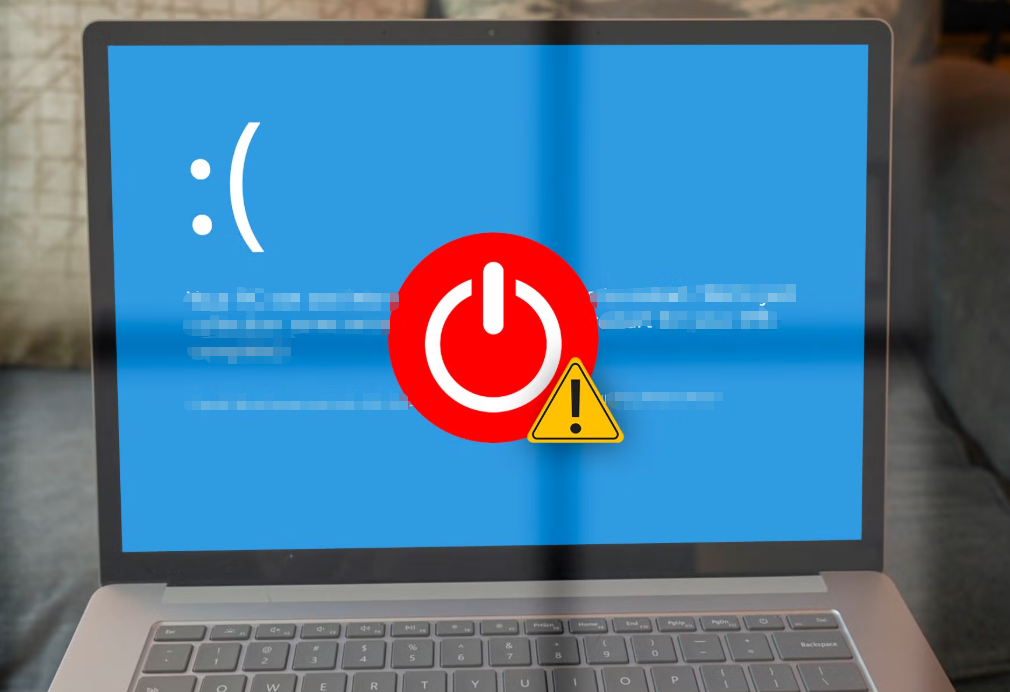
When your laptop suddenly stops starting, common signs include a black screen, endless restart loop, blue screen of death, or the power light turning on without any display or Windows logo. Users often feel confused and urgent because important work files, family photos, and documents seem trapped inside. These issues usually stem from corrupted system files, a failed Windows update, virus infection, damaged boot configuration, or even hardware glitches like faulty RAM.
Laptop That Won’t Boot

System cannot boot does not mean your data is lost

In most cases the hard drive is still intact and readable if you bypass the broken operating system. The core path in this guide is using a bootable environment that loads a separate mini-system to access the drive directly.

The most important first action: stop repeatedly powering the laptop on and off, and avoid any attempts to write new data or run repairs inside Windows. This prevents further overwriting or damage.

Different non-booting scenarios have typical features:
  • Blue screen or boot loop — Often software-related; BIOS usually detects the drive.
  • Black screen with no BIOS — Could be display or power issue; check external monitor first.
  • BIOS loads but no drive listed — Possible connection problem or early physical failure.
If BIOS recognizes the hard drive (you see it listed in setup), recovery with bootable software is usually feasible. If the drive is not detected or makes clicking/grinding noises, it points to physical damage and needs professional handling.

Quick Assessment Table

ScenarioBIOS Detects Drive?Recovery Approach with Bootable Software

Blue screen / restart loop

Yes

High chance — proceed with bootable USB

Black screen, no logo

Sometimes

Test with another monitor first

Drive not listed in BIOS

No

Stop and consider hardware specialist

Power on but no response

Varies

Check battery and charger first

This table helps you decide quickly whether bootable data recovery software is the right starting point.

Bootable Data Recovery Software

Bootable data recovery software works by creating a live USB or CD that loads its own lightweight operating environment outside your damaged Windows. Once booted, it mounts your laptop’s hard drive as a normal disk, letting you browse folders, preview files, copy them to an external drive, or scan for deleted items — all without risking further damage to the original system.
This approach is the preferred path for any laptop that won’t boot because it completely bypasses the broken OS. It requires only another working computer to make the bootable media and works as long as the hard drive itself is not physically damaged. All other methods in this article are measured against this standard: if they are simpler or free, they are listed for reference; if they are more complex, they are presented with clear limitations.

Renee PassNow

Renee PassNow is a versatile Windows recovery tool that simplifies access to your files even when the system fails to boot. It lets you create a bootable USB that loads a safe environment, then use built-in features to transfer or restore data without any risk of loss. The software supports Windows 11, 10, 8.1, 8, 7, Vista, and XP, works in multiple languages, and includes useful extras like secure file preview and disk erasure.
Renee Passnow – Professional Windows Password Remover

Remove Windows Login Password 3 steps for whole password remove process.

Recover the files Recover the deleted files without Windows system.

Transfer the data Transfer the important files of the computer with system.

Multifuctional Data transfer, data recovery, bootable problem recovery can be run without system.

Highly compatible Windows 11/10/8.1/8/7/XP/Vista. UEFI boot.

Remove Login Password Support Windows 11/10/8.1/8/7/XP/Vista. UEFI boot.

Recover the files Recover the deleted files without Windows system.

Transfer the data Transfer the important files of the computer with system.

Free TrialFree TrialNow 2000 people have downloaded!
If your Windows system fails to boot due to a blue screen, bootable data recovery software is essential. Tools like Renee PassNow allow you to create a bootable USB and access your files directly. Boot your computer from this disk and utilize the software’s features to transfer or restore files.

Follow these steps

Step 1: Install Renee PassNow on a functioning computer. Connect a USB drive to this PC, launch Renee PassNow, and select “Create a Live USB” in “Step 1: Choose the creation method”. Ensure all important USB drive files are backed up elsewhere, as this process will erase its contents.
Step 2: Next, select (x64) or (x86) according to the system type, click the Download Now button to download the ISO file, click the Create Live USB button after the file is downloaded, and click the Eject USB button.
use renee passnow to create usb to reset passnword
Step 3: Insert the boot device into the target laptop, power it on, and immediately press the BIOS access key shown on-screen (note: the prompt may only appear for 1-2 seconds).
Insert the boot device
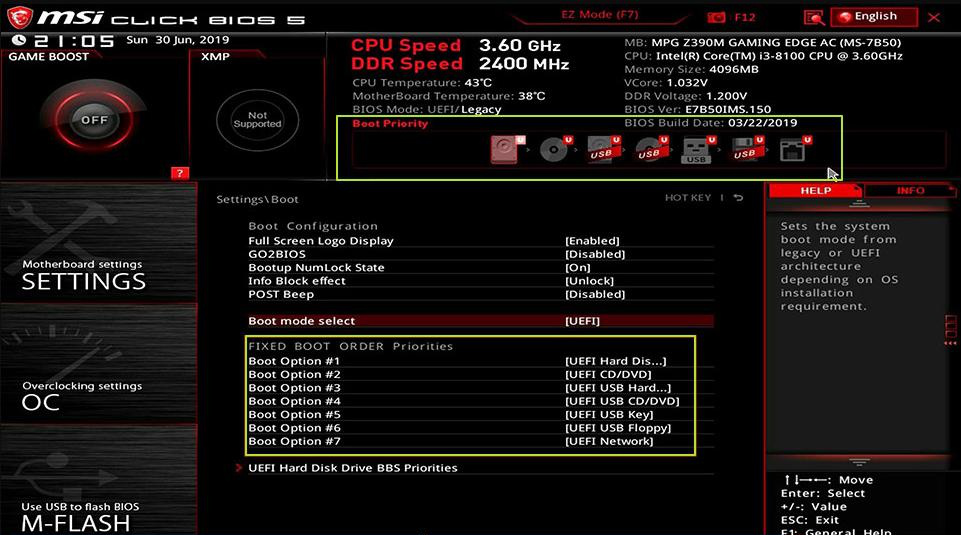
Continuously tap this key to enter the BIOS settings. In the Boot Priority menu, set the USB drive as the primary boot device, save the changes, and reboot the computer.
select boot order
Common Server:
Server TypeEnter boot menu method

DELL

Press the F12 key repeatedly before the Dell logo appears on the screen.

HP

Press the F9 key multiple times when the HP logo is displayed.

Common Computers:
BIOS NameEnter boot menu method

ASRock

DEL or F2

ASUS

DEL or F2 for PCs/ DEL or F2 for Motherboards

Acer

DEL or F2

Dell

F12 or F2

ECS

DEL

Gigabyte / Aorus

DEL or F2

Lenovo (Consumer Laptops)

F2 or Fn + F2

Lenovo (Desktops)

F1

Lenovo (ThinkPads)

Enter then F1

MSI

DEL

Microsoft Surface Tablets

Press and hold Power and Volume Up buttons

Origin PC

F2

Samsung

F2

Toshiba

F2

Zotac

DEL

HP

Esc/ F9 for Boot Menu/ Esc/ F10/ Storage tab/ Boot Order/ Legacy Boot Sources

INTEL

F10

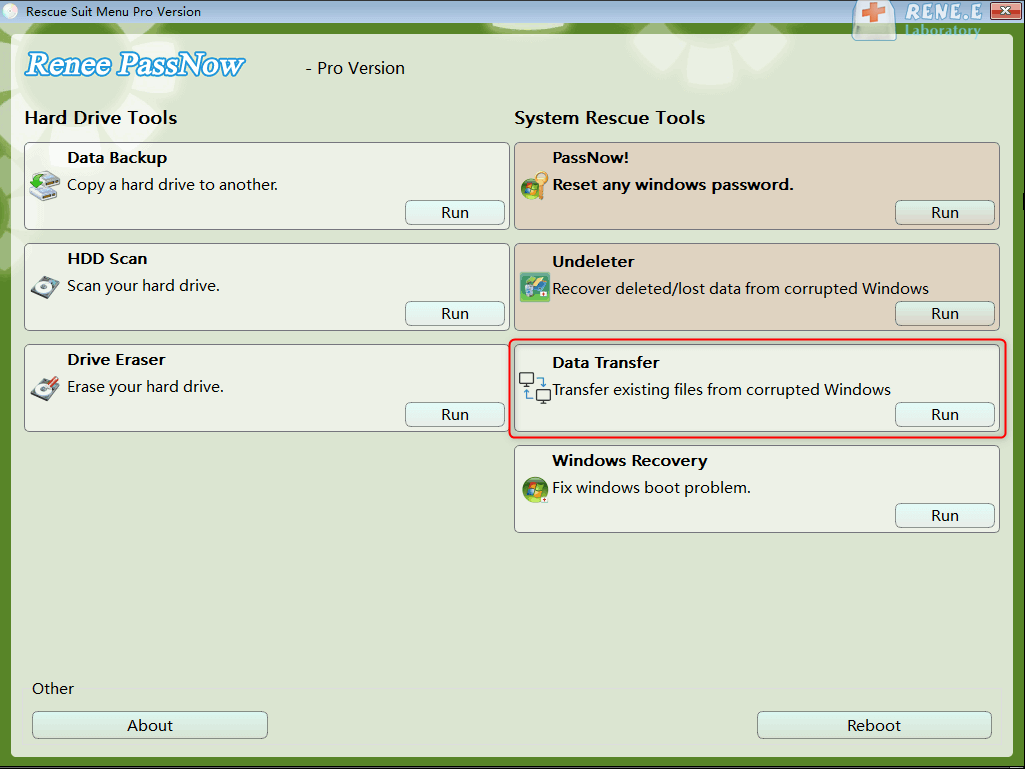
Step 4: Wait for a while, after Renee PassNow is loaded, select the “Data Transfer” option. If you need to transfer or backup the data of the entire hard disk, you can select the Data backup option.
data transfer
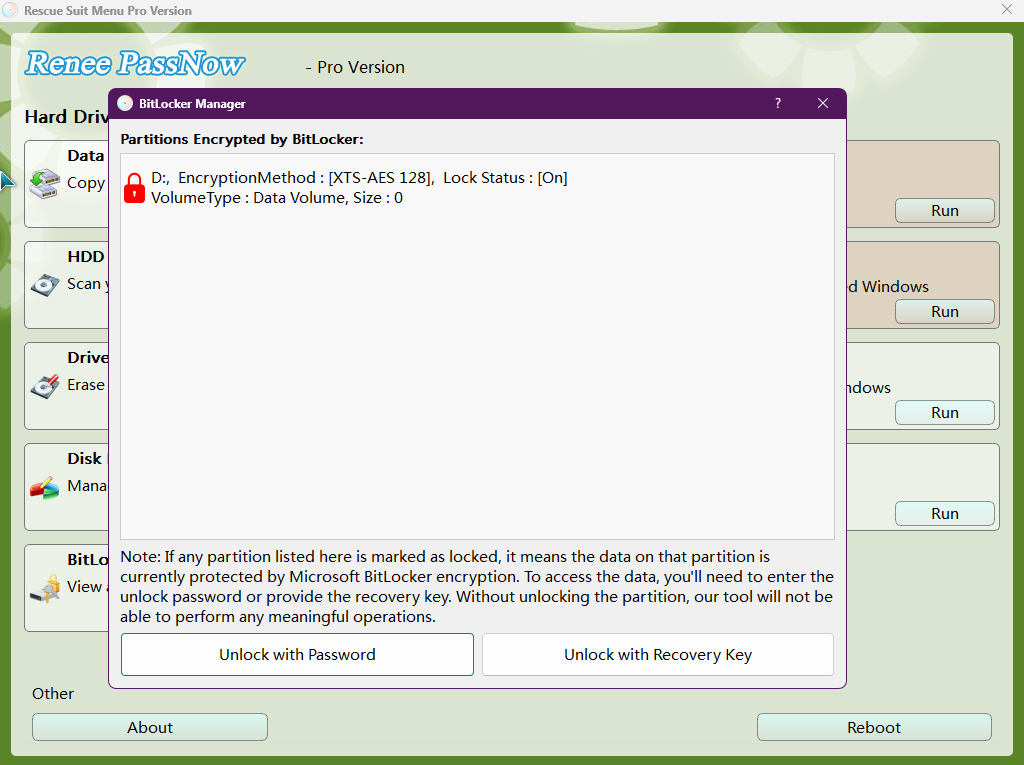
If your laptop hard drive is encrypted by Bitlocker, Renee PassNow will notify you to enter the recovery key or password to unlockit.
unlock Bitlocker with Bitlocker Manager
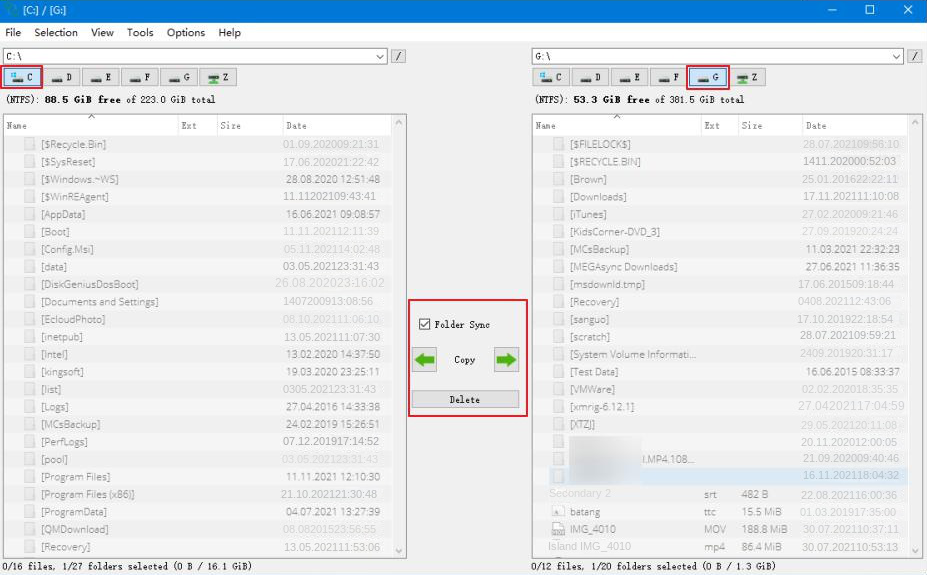
Step 5: Click on each disk drive letter (C/D/E/F, etc.) to verify no important files are missing. If all files are accounted for, transfer them to an external disk for safety. To move data, select the source drive (e.g., C) on the upper left, then the destination drive (e.g., G) on the upper right. Choose the files from the source drive and click the “Copy” button in the middle to start the transfer. To delete a file, select it and press the “Delete” button, but remember this action is irreversible, so proceed with caution.
transfer data interface
📁 Where a User’s Personal Files Are Stored on the C Drive
LocationWhat It StoresWhy It Matters

C:\Users

All personal data and profile settings

This is the user’s home directory; nearly everything tied to the account lives here.

C:\Users\Documents

Personal documents (Word, PDF, spreadsheets)

Default save location for most apps; main place for user‑created files.

C:\Users\Pictures

Screenshots, photos, image libraries

Windows and many apps use this as the default image folder.

C:\Users\Downloads

Browser and app downloads

Central place for downloaded files unless the user changes the default path.

C:\Users\Desktop

Items shown on the desktop

Files appear visually on the desktop but are stored here.

C:\Users\Videos

Videos, screen recordings, editor exports

Default location for video‑related apps and recording tools.

C:\Users\Music

Music files, audio projects

Media players and audio apps save content here.

C:\Users\AppData

User‑specific app data, caches, browser profiles

Hidden folder storing essential configuration and temporary files.

C:\Users\Public

Shared files accessible to all users

Useful for documents or media meant to be shared across accounts.

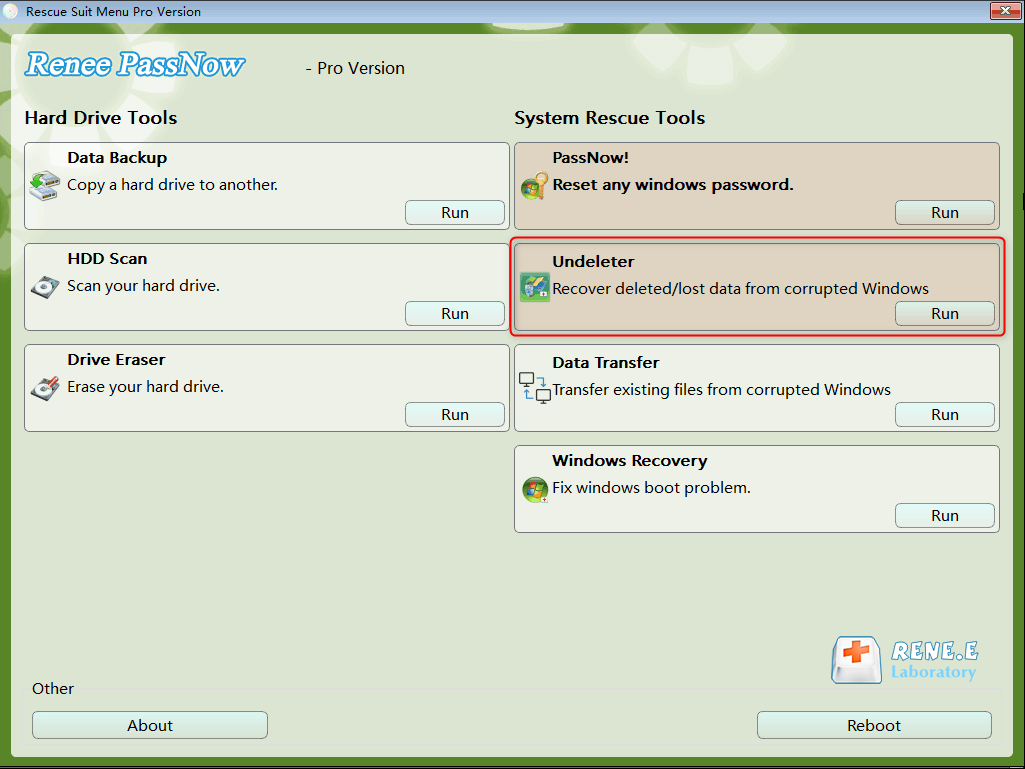
Step 6: If you find that there is data loss, please select the “Undeleter” option on the main interface of the function, and click the Run button.
data recovery function in Renee PassNow
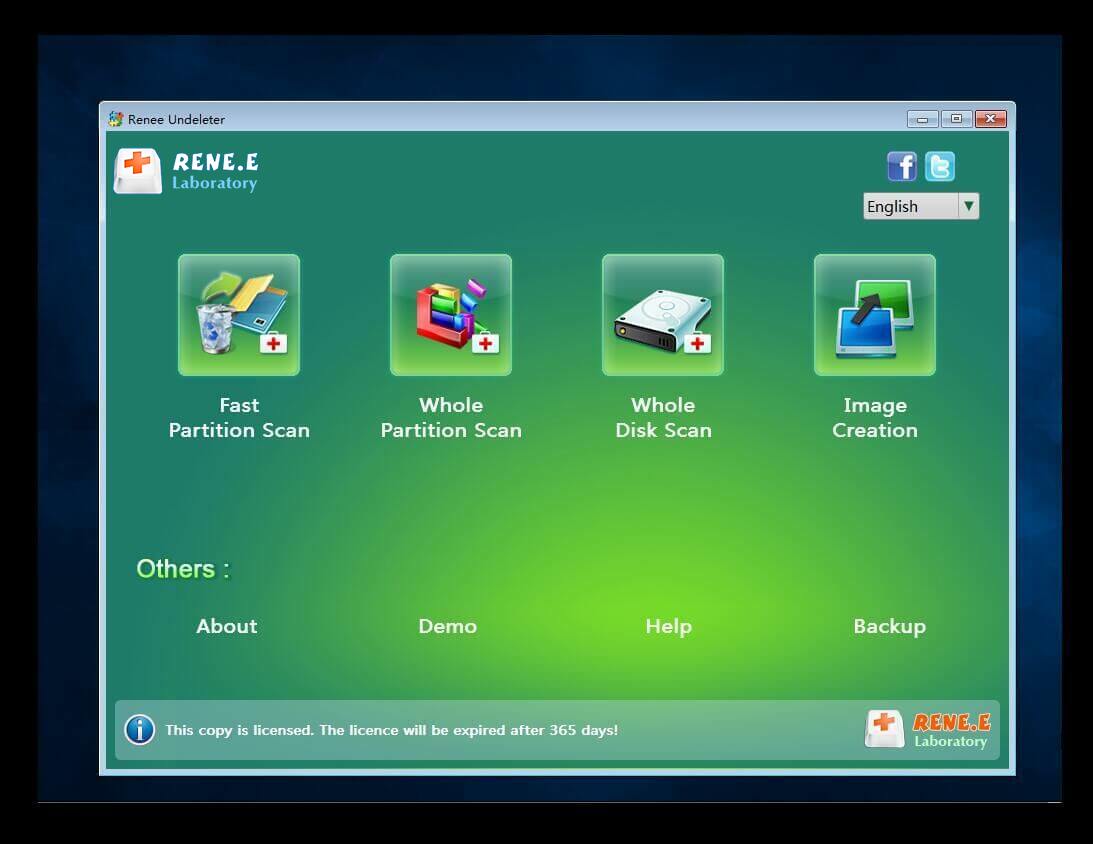
Step 7: Select a function in menu to scan the target hard disk.
scan the whole partition with renee passnow recovery function to reinstall windows 7
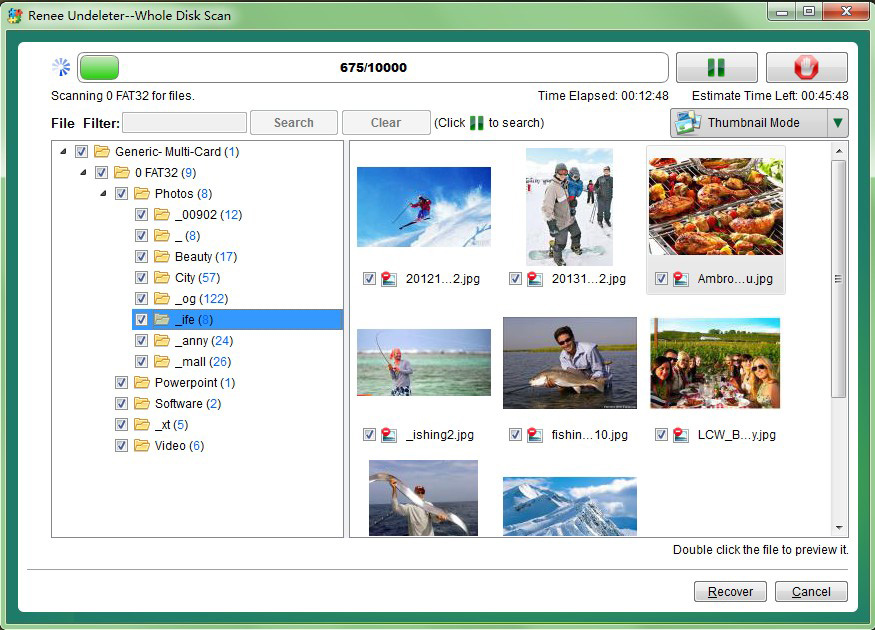
Step 8: After the scan completes, select the desired file for recovery and click “Recover” to start the restoration. Ensure to save the recovered file on a different external disk. Following a successful recovery, safely eject the USB stick before continuing with further computer repairs.
preview before recovery
After transferring or restoring the important data, you can safely repair or reinstall your system.
Renee Passnow – Professional Windows Password Remover

Remove Windows Login Password 3 steps for whole password remove process.

Recover the files Recover the deleted files without Windows system.

Transfer the data Transfer the important files of the computer with system.

Multifuctional Data transfer, data recovery, bootable problem recovery can be run without system.

Highly compatible Windows 11/10/8.1/8/7/XP/Vista. UEFI boot.

Remove Login Password Support Windows 11/10/8.1/8/7/XP/Vista. UEFI boot.

Recover the files Recover the deleted files without Windows system.

Transfer the data Transfer the important files of the computer with system.

Free TrialFree TrialNow 2000 people have downloaded!

Other Commercial Bootable Data Recovery Software

Common commercial examples include Disk Drill and R-Studio Emergency, both of which create bootable media and offer file preview before recovery. They handle logical issues well but still require the drive to be physically healthy. Pricing usually involves one-time purchase or subscription, and success depends on how much the drive has been overwritten.
SoftwareBootable USB CreationFile Transfer (Copy Existing Files)Deleted File RecoveryTypical Price Model

Renee PassNow

Yes

Yes

Yes

One-time license(lifetime )

Disk Drill

Yes

Yes

Yes

One-time license with optional upgrades

R-Studio Emergency

Yes

Yes

Advanced

One-time license

EaseUS Data Recovery WinPE

Yes

Yes

Yes

Subscription license

MiniTool Power Data Recovery Bootable

Yes

Yes

Yes

Tiered one-time license

Active@ Boot Disk

Yes

Yes

Yes

One-time license

Different tools vary in user experience and complexity. For most users facing a laptop that won’t boot, the primary solution already covers the core needs of safe data transfer and recovery without extra steps.

Free Built-In and WinPE-Based Methods to Recover Data

This section introduces completely free, non-commercial alternatives for basic file access when your laptop won’t boot. These options rely on official Microsoft tools or open WinPE environments and are suitable for users who prefer not to install any extra software. They focus on manual browsing and copying of existing files rather than deep scanning. Keep in mind that these methods do not match the integrated safety and features of the primary solution above, so use them only for straightforward cases.

Option One: Accessing Files via Windows Installation Media

The Windows installation media method lets you boot directly into Microsoft’s official repair environment using a USB created from a working computer. It provides access to a command-line interface where you can locate and copy your personal files to an external drive without loading the damaged Windows installation. This approach is built into every Windows version and requires no third-party downloads beyond the official ISO.
Windows Installation Media

Key benefits include

complete compatibility with your existing Windows edition and no risk of additional software conflicts. It works well when the file structure is still intact but the OS itself is corrupted. However, it offers no automatic scanning for deleted files and requires basic command knowledge.
Advantages:
  • Uses official Microsoft tools
  • No extra software to install
  • Works on any Windows version

Disadvantages:

  • Limited to manual copying only
  • Requires typing commands
  • Cannot recover deleted files

Step-by-step usage instructions:

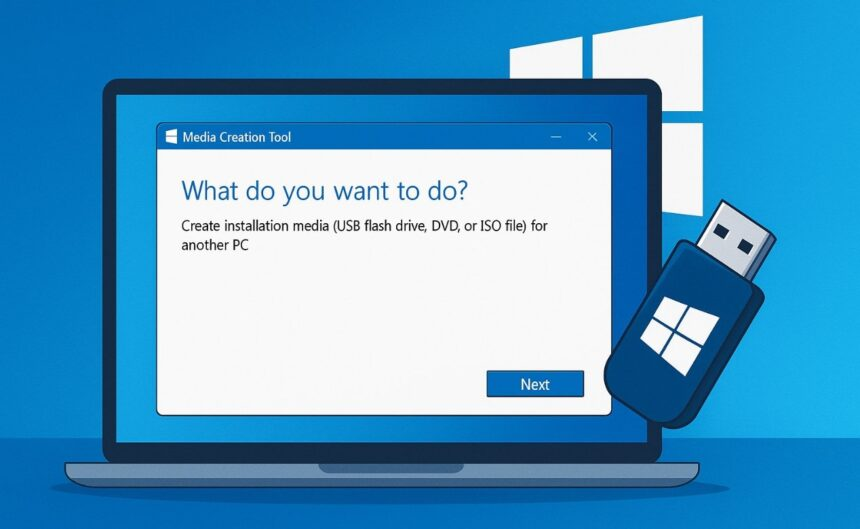
1. On another working Windows PC, download the Media Creation Tool from the official Microsoft page and create a Live USB:
https://www.microsoft.com/software-download/windows10
https://www.microsoft.com/software-download/windows11
create windows 11 installation media USB
2. Insert the USB into the non-booting laptop and enter BIOS to set USB as first boot device.
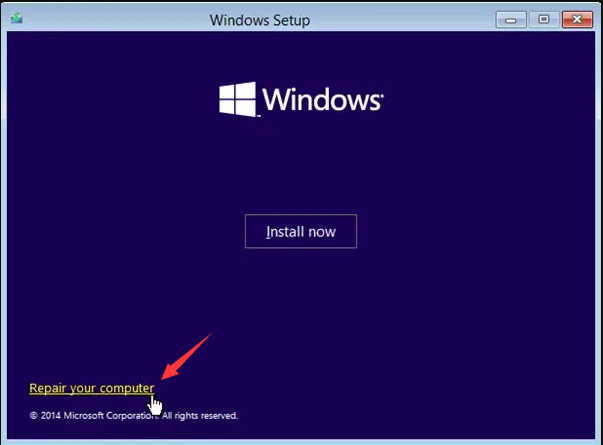
3. Boot from the USB, select your language, then click “Repair your computer” at the bottom left.
windows installation repair your computer
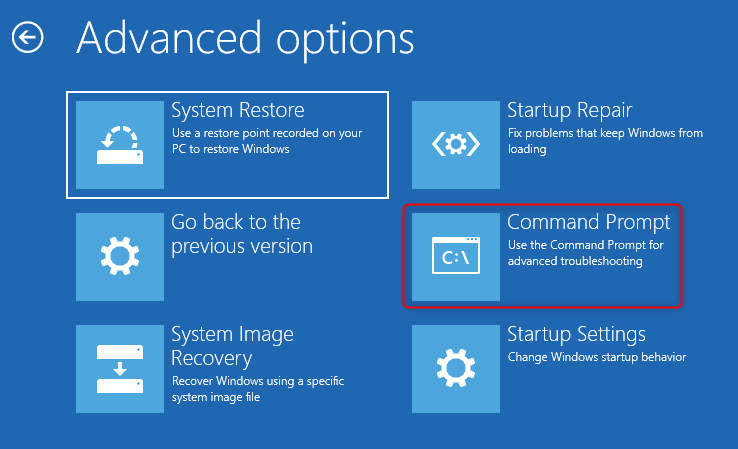
4. Choose Troubleshoot > Advanced options > Command Prompt.
command prompt
5. Type diskpart, then list vol to identify your laptop drive (usually C:) and external drive.
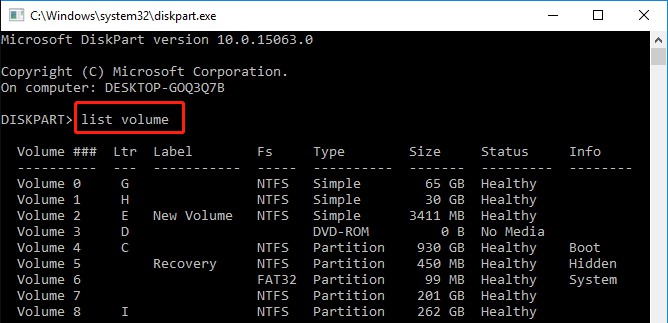
enter diskpart and list volume to check drive info
6. Exit diskpart and use commands like copy C:\Users\YourName\Documents\*.* G:\Backup\ to transfer folders.
7. Type exit and safely remove the USB.
While this free method offers a basic way to copy existing files safely, it lacks advanced preview or deleted-file recovery options. For those features or a simpler graphical interface, the next WinPE option provides more flexibility.
Renee Passnow – Professional Windows Password Remover

Remove Windows Login Password 3 steps for whole password remove process.

Recover the files Recover the deleted files without Windows system.

Transfer the data Transfer the important files of the computer with system.
Multifuctional Data transfer, data recovery, bootable problem recovery can be run without system.

Highly compatible Windows 11/10/8.1/8/7/XP/Vista. UEFI boot.

Remove Login Password Support Windows 11/10/8.1/8/7/XP/Vista. UEFI boot.

Recover the files Recover the deleted files without Windows system.

Transfer the data Transfer the important files of the computer with system.

Free TrialFree TrialNow 2000 people have downloaded!

Option Two: Using Hiren’s BootCD PE for File Access

Hiren’s BootCD PE is a free, all-in-one WinPE collection that boots into a familiar Windows-like desktop packed with file management tools. It allows graphical browsing of your hard drive and simple drag-and-drop copying to an external USB without ever starting the broken system. This method suits users comfortable with basic computer navigation and provides several built-in utilities for checking drive health.
Hiren’s BootCD PE

Key benefits include

A full graphical interface instead of command lines and multiple helper tools for partitions or diagnostics. It works on most modern laptops and requires only a single ISO download. Limitations include a larger learning curve for beginners and the fact that it is a community-built tool rather than an official Microsoft product.
Advantages:
  • Graphical file manager included
  • Many diagnostic utilities
  • Completely free and portable

Disadvantages:

  • Slightly overwhelming menu
  • Community tool (not official)
  • May need extra drivers on rare hardware

Step-by-step usage instructions:
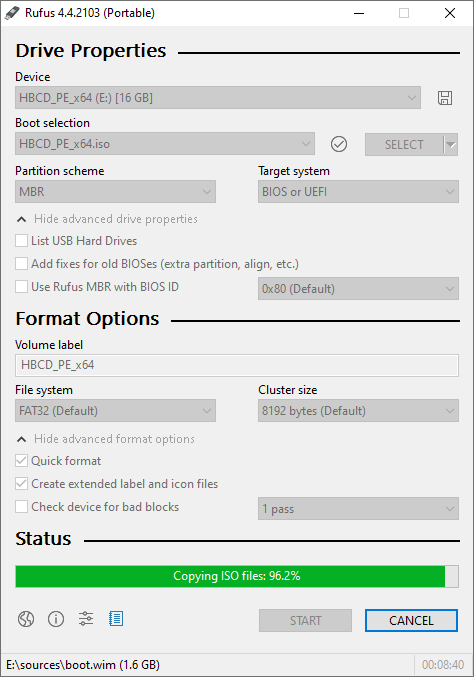
1. Download the latest Hiren’s BootCD PE ISO from the official site and create a bootable USB using Rufus(Download from rufus.ie).
use rufus to create a live USB for Hirens BootCD PE
2. Insert the USB, enter BIOS, and set it as the first boot device.
3. Boot into the PE environment and select the Mini Windows or desktop mode.
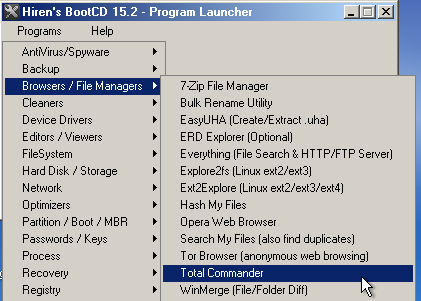
4. Open Explorer++ or Total Commander from the desktop.
hirens bootcd file browser
5. Locate your laptop’s internal drive (usually C:) and your external backup drive.
6. Drag and drop important folders (Documents, Pictures, Downloads) to the external drive.
7. Safely eject the USB after copying finishes.
This WinPE method provides more visual flexibility than basic installation media for users who prefer clicking through folders. For deeper scanning or one-click data transfer, the primary commercial solution offers stronger capabilities.

High-Risk Alternative: Removing the Laptop Drive for External Recovery

Only consider removing the hard drive from your laptop if the device will not power on at all or the BIOS never detects the drive. The idea is to take the drive out and connect it directly to another working computer using a SATA-to-USB adapter or external enclosure. This lets the second PC read the files as a normal external disk.
This method carries high technical risk: opening the laptop can void the warranty, static electricity can damage components, and incorrect handling may make the drive unreadable. It also requires specific tools and knowledge of your laptop model’s disassembly. Because of these factors, it is best left to professional data recovery services unless you have prior experience with hardware upgrades.

Frequently Asked Questions (FAQ)

Can bootable data recovery software recover data from laptop that won t boot without overwriting my original files?

Yes. All methods described here read from the drive in a non-destructive way. The software only copies or scans — it never writes back to the original drive unless you deliberately choose to delete something.

Will free methods like Windows installation media recover deleted files?

No. Free options only let you copy files that are still visible in the folder structure. For recovering accidentally deleted items, you need the scanning feature available in Renee PassNow or other commercial tools.

Does Renee PassNow work if my drive is BitLocker encrypted?

It can, but you will need the BitLocker recovery key (found in your Microsoft account online). The software prompts you to enter it before accessing the drive.

How do I know if my hard drive has physical damage and I should stop DIY attempts?

If the drive makes clicking or grinding sounds, does not appear in BIOS, or the laptop won’t power on at all, stop immediately. Continuing may worsen the damage — contact a professional service instead.

What should I do if none of the bootable methods let me access my data?

First try a different USB port or another bootable tool. If the drive is still not detected, the issue is likely physical. At that point, professional clean-room recovery is the safest next step, and Renee PassNow remains the quickest way to confirm the drive status before deciding.
For most laptop won’t boot situations, starting with Renee PassNow gives you the best balance of simplicity, safety, and complete data access features.
Renee Passnow – Professional Windows Password Remover

Remove Windows Login Password 3 steps for whole password remove process.

Recover the files Recover the deleted files without Windows system.

Transfer the data Transfer the important files of the computer with system.

Multifuctional Data transfer, data recovery, bootable problem recovery can be run without system.

Highly compatible Windows 11/10/8.1/8/7/XP/Vista. UEFI boot.

Remove Login Password Support Windows 11/10/8.1/8/7/XP/Vista. UEFI boot.

Recover the files Recover the deleted files without Windows system.

Transfer the data Transfer the important files of the computer with system.

Free TrialFree TrialNow 2000 people have downloaded!

User Comments

Page 1

Leave a Comment


Your comment has been submitted and is awaiting moderation.