author avatar
    Specialist of Customer Service Dept.
Last update by William Davis at 4 September 2025

Summary
Learn how to recover NEF files from your SD card with straightforward, proven methods. This guide explains what affects your chances, key NEF file details, and the best recovery tips for photographers.



Losing NEF files—those high-quality RAW photos from your Nikon camera—can feel like a punch to the gut. Whether you accidentally deleted them or something else went wrong, don’t lose hope just yet. This guide walks you through practical ways to recover NEF files, but let’s be real: it doesn’t always work out. Success depends on a few key factors, and we’ll break them down so you can figure out your next steps. With the right approach, you might just get those precious NEF files back.

When Can You Recover NEF Files?

Before diving into recovery methods, let’s talk about when it’s possible to recover NEF files. Several things affect your chances, and understanding them can save you time and frustration.

NEF File Format Versions

First, let’s take a look at how the NEF file format has evolved over different periods. Understanding these changes can help you choose the right data recovery tools or services, and if you ever need to repair NEF files after recovery, it will allow you to target the process more effectively.
Era / Camera RangeBit DepthCompression OptionsMetadata CharacteristicsCompatibility Notes

Early NEF (\~2004, D1/D100 series)

12‑bit

Uncompressed

Basic EXIF, minimal Nikon MakerNote fields

Only supported by a few older apps; requires Nikon Capture or conversion to TIFF/DNG

Mid‑generation NEF (2005–2007, D2X/D200/D80, etc.)

12‑bit

Uncompressed / Lossless Compressed

Adds Picture Control profiles, lens data

Supported in Adobe Camera Raw 3.x and later; some models need plugin updates

High Bit‑Depth NEF (2008–2011, D3/D700/D300/D90, etc.)

12‑bit or 14‑bit selectable

Uncompressed / Lossless Compressed

Richer MakerNote data, Active D‑Lighting info

Older software may not read 14‑bit files

Lossy Compressed NEF (2012–2016, D4/D800/D750, etc.)

12‑bit / 14‑bit

Uncompressed / Lossless Compressed / Lossy Compressed

Adds video metadata, more lens correction data

Lossy NEF requires newer decoders (ACR 7.x+)

Z‑series NEF (2018–present, Z6/Z7/Z9, etc.)

12‑bit / 14‑bit

Uncompressed / Lossless Compressed / High Efficiency (HE/HE*)

Includes phase‑detect point maps, electronic shutter state, HE* compression

HE/HE* needs Nikon NX Studio or ACR 14.x+ to decode

Special‑case NEF (some Coolpix models)

10‑bit / 12‑bit

Uncompressed

Some models use little‑endian storage

Poor compatibility; needs Nikon software or DNG conversion

Now that you know these parameters, you should have a clearer understanding of the different versions and characteristics of NEF files. Next, let’s evaluate the likelihood of recovering them.
Renee Undeleter - Powerful Data Recovery SoftwareRenee Undeleter data Recovery software

Easy to use Only simple steps to recover data from storage devices.

Multiple scan modes Fast partition scan, whole partition scan and whole disk scan for different recovery needs.

File types Support to recover pictures, videos, audios, documents, mails, etc.

Supported storage devices Recover data from recycle bin, SD card, external disk, etc.

Supported systems Windows 11,10, 8.1, 8, 7, Vista, XP, 2000 and Mac OS X10.6, 10.7, 10.8+.

Easy to use Only simple steps to recover data from storage devices.

Multiple scan modes - 3 scan modes for different recovery needs.

Supported storage devices Recover data from recycle bin, SD card, external disk, etc.

Free TrialFree TrialFree Trial

3000 users have downloaded Renee Undeleter and found data back!

Possibility of Recovery

Data is Still There

When you delete NEF files from an SD card, they don’t disappear right away. The camera or computer simply marks their space as available for new data. Until something overwrites that space, the files remain hidden but intact. That’s why the first rule after accidental deletion is simple: stop using the card immediately. Don’t take more photos, don’t save anything else to it—just remove it from the camera and set it aside until you’re ready to attempt recovery.

How the Files Were Deleted Matters

How the files were deleted matters a lot. If you deleted them normally—say, through your camera’s menu or a file manager—recovery is often possible as long as no new data has overwritten them. A quick format of the SD card wipes the file system metadata, but the NEF files themselves might still be recoverable with the right tools.
A full format, though, is bad news. It overwrites the entire card with zeros and ones, making it nearly impossible to recover NEF files. If that’s your situation, your chances are slim.

Card Condition Can Affect Recovery (Backup is Necessary)

The condition of your SD card also plays a role. If it’s acting up—disconnecting randomly, overheating, or showing error messages—you need to act fast. Create a byte-for-byte backup of the card while it’s still functional. This backup could be your lifeline to recover NEF files later. If the card has physical damage, like cracks or scorched contacts, don’t try to fix it yourself. Take it to a professional data recovery service with the tools and expertise to handle hardware issues safely.
Here’s a quick checklist to assess your situation:
SituationWhat It MeansRecommended Action

Deleted NEF files with no new data written, or performed a quick format

The original data is likely still intact and recoverable.

You have a good chance of getting the files back. Follow the recovery steps before writing anything new to the card.

SD card showing minor issues

The card is still readable but may be unstable.

Create a full backup immediately, then proceed with recovery.

Physical damage to the card

Hardware issues such as cracks, bent pins, or burnt contacts.

Stop using the card and contact a professional data recovery service.

Performed a full format

The card’s data has been overwritten, making recovery extremely unlikely.

Accept the loss and focus on capturing new shots.

How to Recover NEF Files on Windows

First, pinpoint where your NEF files were when they got deleted. Were they still on the SD card, or had you transferred them to your computer? This detail shapes which method to try first.
Most often, NEF files are deleted directly from the SD card, so we’ll start with the best approach for that scenario.

Method 1: Use Data Recovery Software to Recover NEF Files from an SD Card

Since Nikon cameras don’t have built-in storage or a recycle bin, you’ve got two main options to recover NEF files from an SD card: hire a professional data recovery service or use software to do it yourself. Data recovery software scans the SD card for traces of deleted files and tries to restore them. It’s often the most practical first step.
Picking the right software is key. Not all programs handle RAW formats like NEF files well, and some struggle with camera-specific file systems. After testing many options, we recommend starting with Renee Undeleter to recover NEF files.

What is Renee Undeleter?

Renee Undeleter is a reliable software tool crafted to help restore lost NEF files and other data from your devices. If you’ve accidentally deleted your Nikon RAW photos, cleared them from the recycle bin after transferring, or even formatted your SD card by mistake, this program steps in to retrieve them. It comes with four handy modules: Fast Partition Scan, Whole Partition Scan, Whole Disk Scan, and Image Creation, covering pretty much every type of data loss situation you might run into when trying to recover NEF files.
Undeleter nef file format
Renee Undeleter - Powerful Data Recovery SoftwareRenee Undeleter data Recovery software

Easy to use Only simple steps to recover data from storage devices.

Multiple scan modes Fast partition scan, whole partition scan and whole disk scan for different recovery needs.

File types Support to recover pictures, videos, audios, documents, mails, etc.

Supported storage devices Recover data from recycle bin, SD card, external disk, etc.

Supported systems Windows 11,10, 8.1, 8, 7, Vista, XP, 2000 and Mac OS X10.6, 10.7, 10.8+.

Easy to use Only simple steps to recover data from storage devices.

Multiple scan modes - 3 scan modes for different recovery needs.

Supported storage devices Recover data from recycle bin, SD card, external disk, etc.

Free TrialFree TrialFree Trial

3000 users have downloaded Renee Undeleter and found data back!

How to Recover NEF Files from an SD Card with Renee Undeleter?
From what we’ve seen in user experiences and common searches, one big concern is avoiding further damage to the SD card during recovery, especially if it’s already acting finicky. That’s why creating a backup image first is a smart move—it lets you work on a copy without risking your original data. Here’s how to go about it, tailored for pulling back those valuable NEF files.
Tips: Make sure you have a free partition on your computer that’s at least as big as your SD card to store the backup image.
Step 1: Download, install, and launch Renee Undeleter.
Note: Avoid installing it on the same disk where your lost NEF files were, to prevent any overwriting of data.
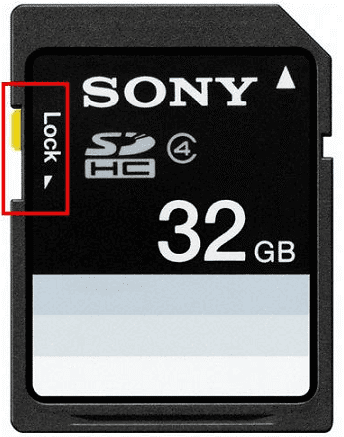
Step 2: If your SD card has a write-protect switch, slide it to the locked position. This stops any new data from being written, which could overwrite your recoverable NEF files.
SD card lock switch
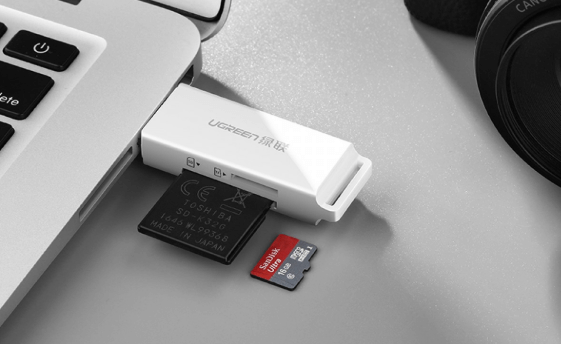
Hook up your SD card to the computer using a card reader.
SD card connect to pc
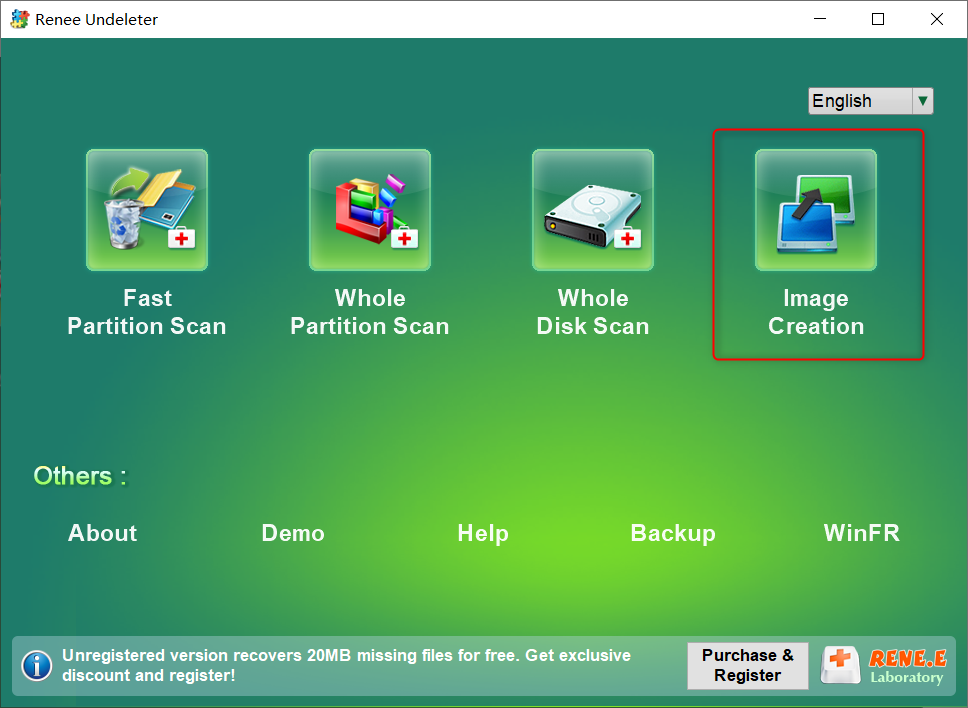
Step 3: [ Optional ] Pick the (Image Creation) option from the main screen. Skip this if you prefer scanning the SD card directly.
Create image in Renee Undeleter
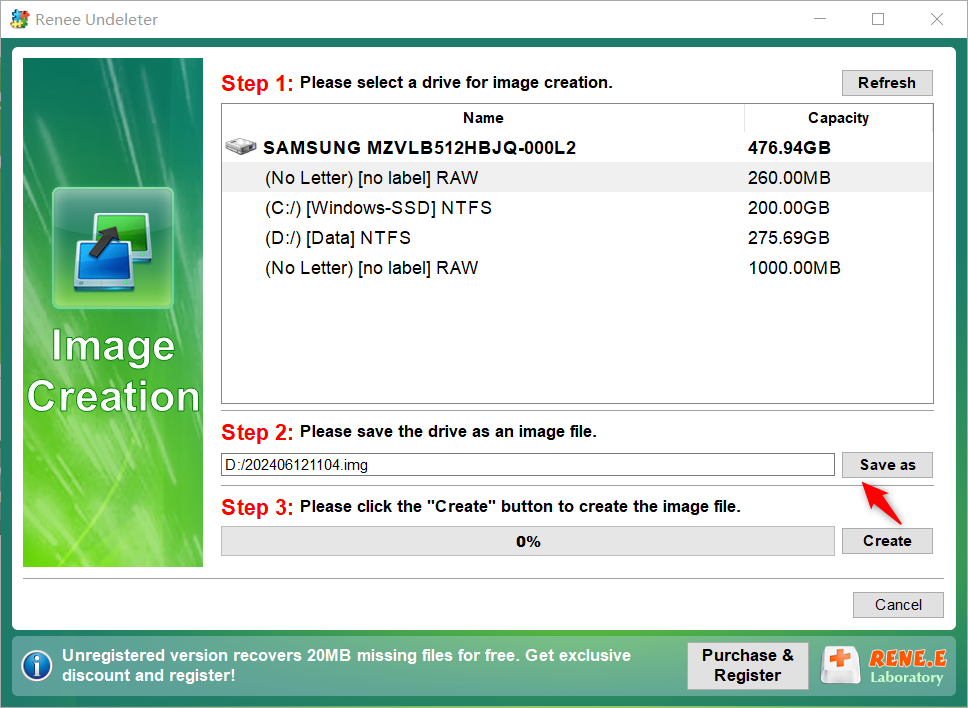
Choose the hard drive (Disk) from the list, pick a spot to save the image, and hit “Create“.
Select disk drive in Image Creation
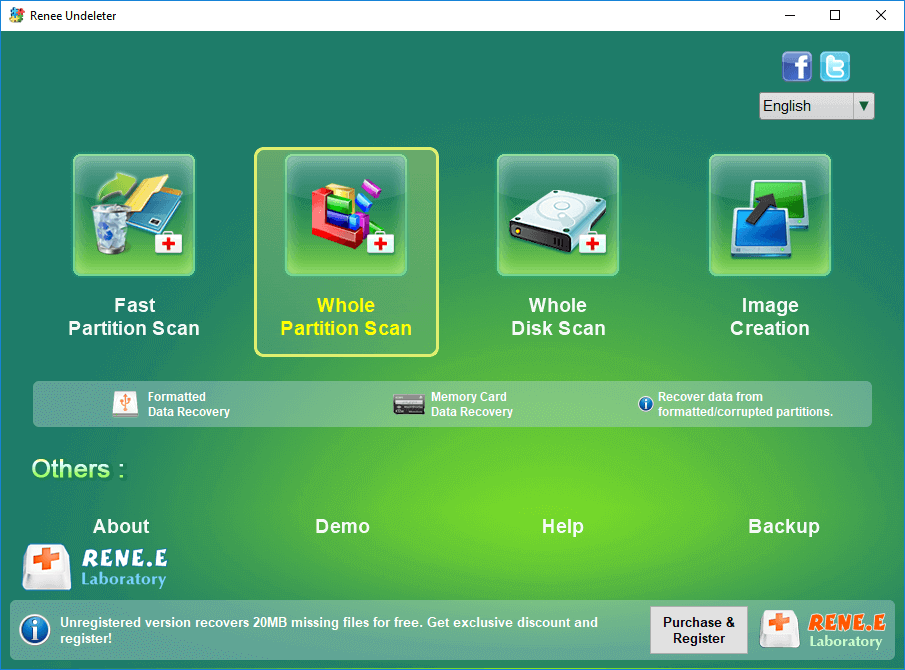
Step 4: Go with the (Whole Partition Scan) option on the main interface.
select whole partition scan in renee undeleter to recover deleted video from sd card
Data Recovery Function
Fast Partition Scan – Great for getting back NEF files lost from quick deletions or emptying the recycle bin.
Whole Partition Scan – Ideal for recovering NEF files from partitions that are inaccessible or have been formatted.
Whole Disk Scan – Digs deep to analyze partition info and scan the entire disk for lost NEF files.
Image Creation – Lets you back up the current state of your partition safely.
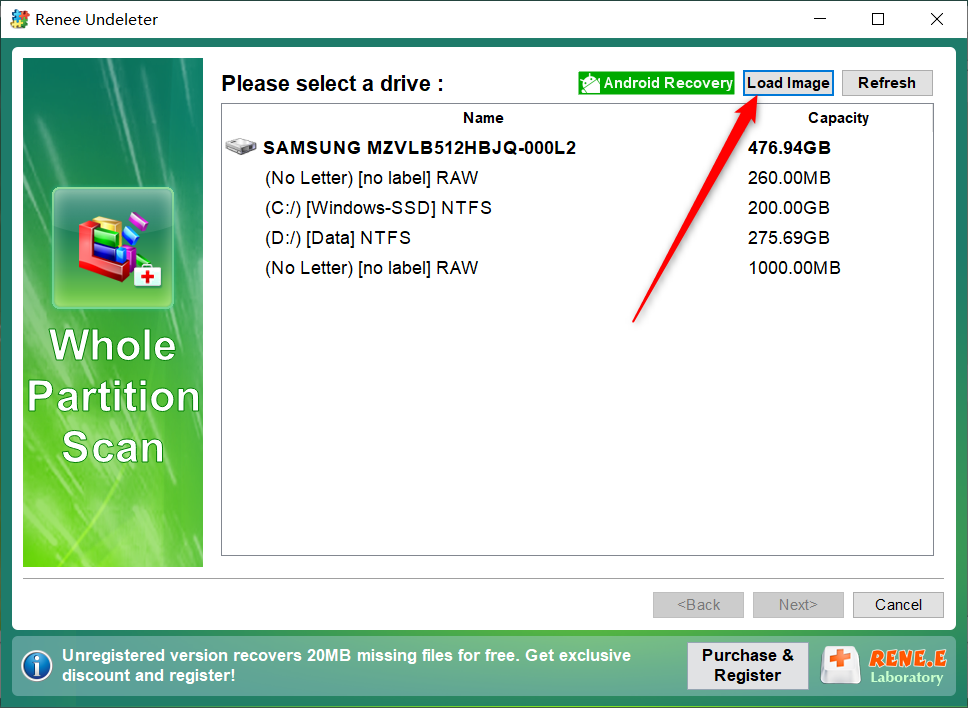
Step 5: Click “Load Image” to bring in the SD card image you made in Step 3.
load image of Whole Partition Scan
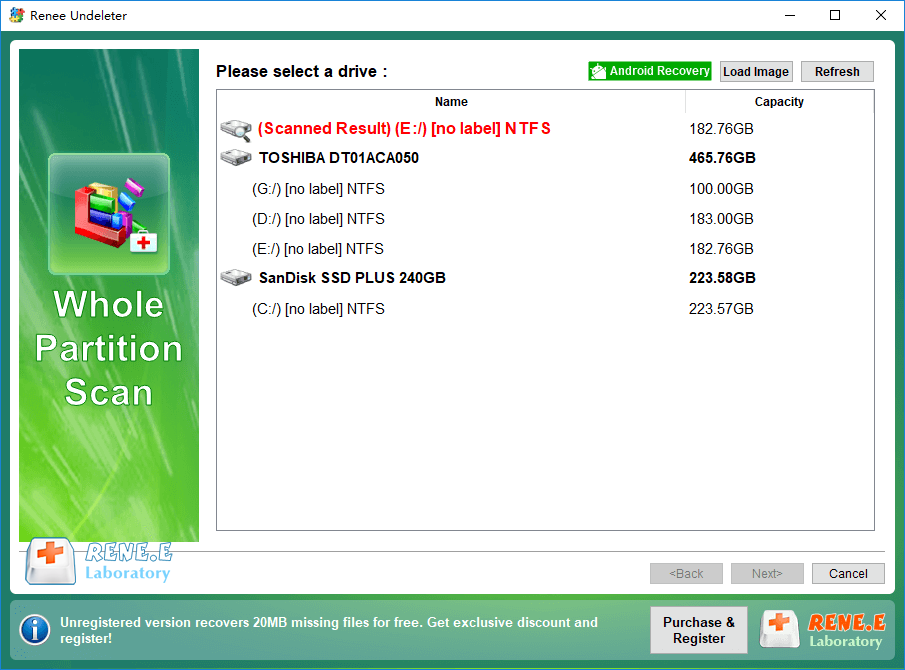
If you didn’t create an SD card image, just select the SD card partition and click (Next).
Renee Undeleter Whole Partition Scan
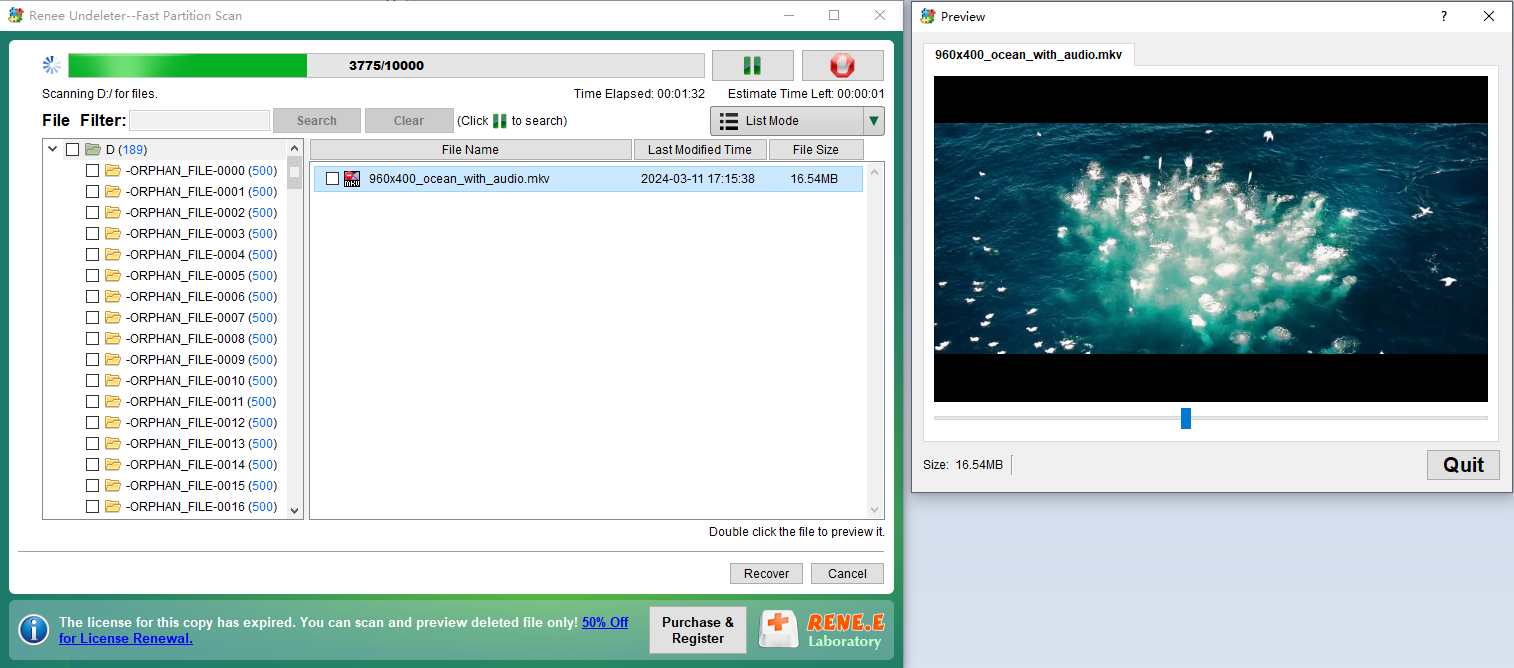
Step 6: Hang tight while it scans—the time depends on your SD card’s size. You can double-click files to preview them during the process. If you spot your NEF files, check them off and hit Recover to stop the scan and save them. Or, let it finish, select what you need, and then recover.
Undeleter Preview NEF files
preview deleted mkv video file
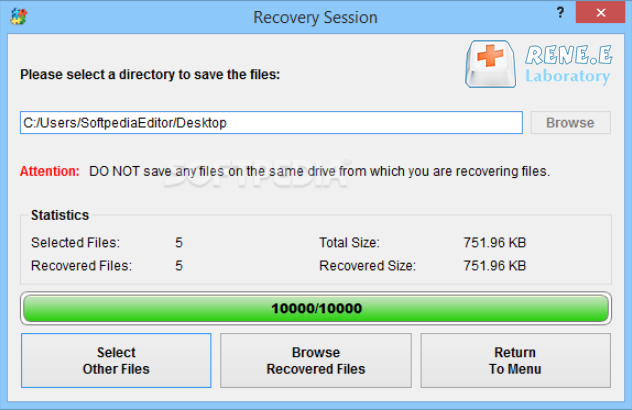
Note: Save the recovered NEF files to a different partition or drive, not back on the original SD card, to avoid overwriting anything.
recover the whole disk data

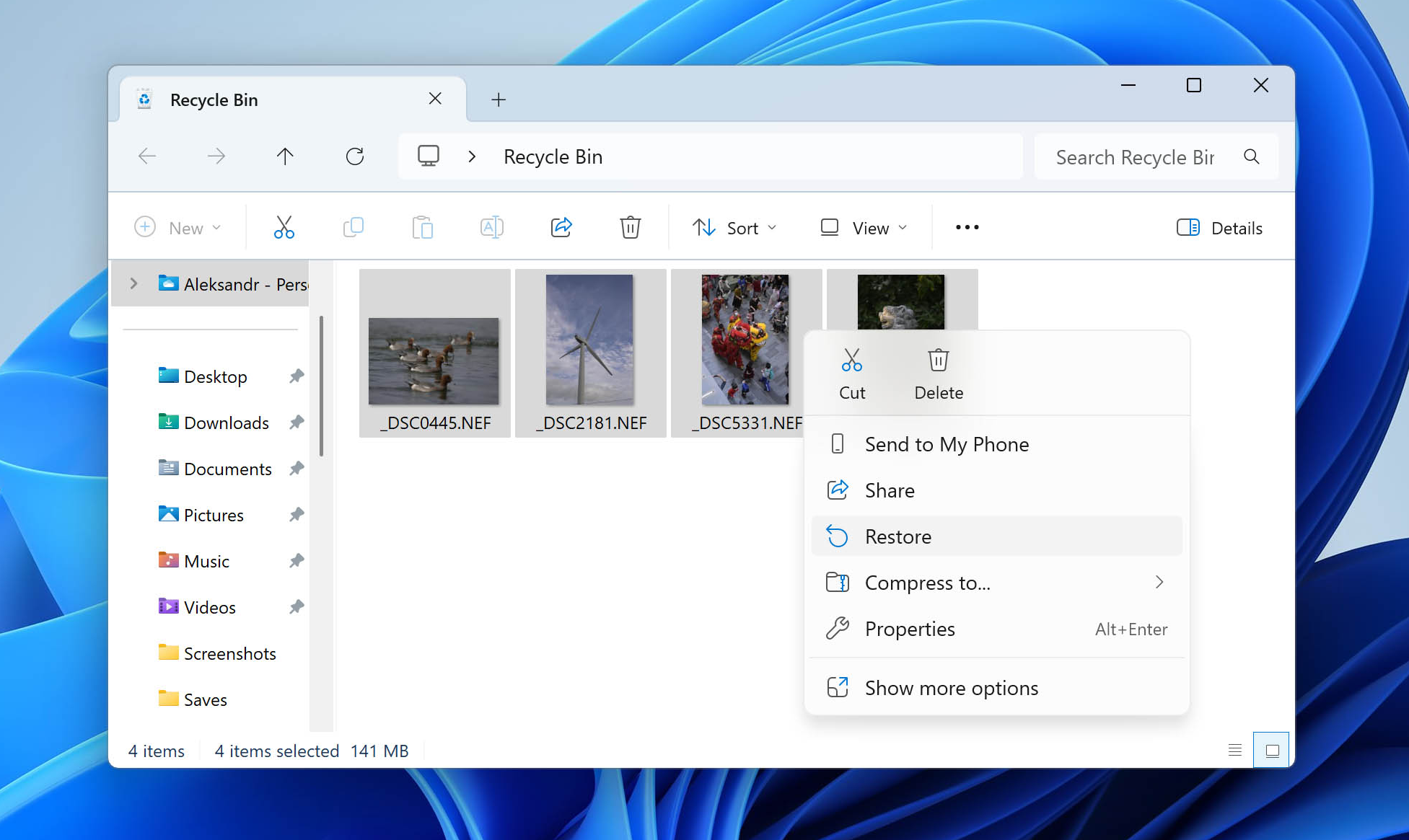
Method 2: Check Your PC’s Recycle Bin to Recover NEF Files

If you transferred your NEF files to your computer’s hard drive before deleting them, they might still be sitting in the Recycle Bin. Files stay there until you empty the Bin or your system clears out older files to free up space. This is the easiest way to recover NEF files if they were deleted on your PC.
This method only works if the NEF files were copied or moved to your computer before deletion. If you deleted them directly from the SD card while it was connected, they won’t go to the Recycle Bin. In that case, go back to Method 1 and use Renee Undeleter. The same applies if you used Shift + Delete to bypass the Bin.
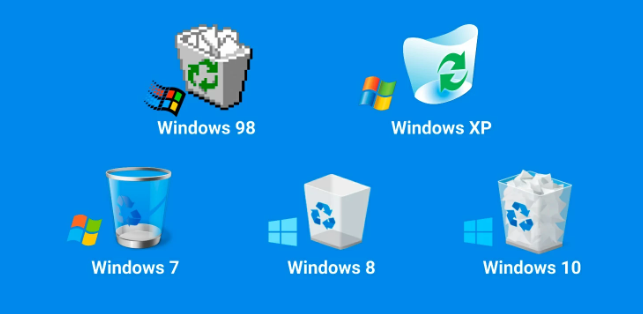
1. Open the Recycle Bin from your desktop or search for it in the Start menu (press the Windows key and type “Recycle Bin”).
Windows Recycle Bin
2. Look for your NEF files in the list.
3. Right-click the files you want to recover and select “Restore”. They’ll return to their original folder.
recover nef files

Method 3: Recover NEF Files Using Windows File History

If the Recycle Bin didn’t have your NEF files, Windows File History might save the day—but only if you set it up before the files were deleted. This built-in backup tool can help recover NEF files stored on your computer’s internal drive, but it won’t work for files deleted directly from an SD card.
File History only backs up files in certain folders, like Pictures, Documents, Videos, Music, Desktop, and parts of AppData. If your NEF files weren’t in one of those locations, this method won’t help.
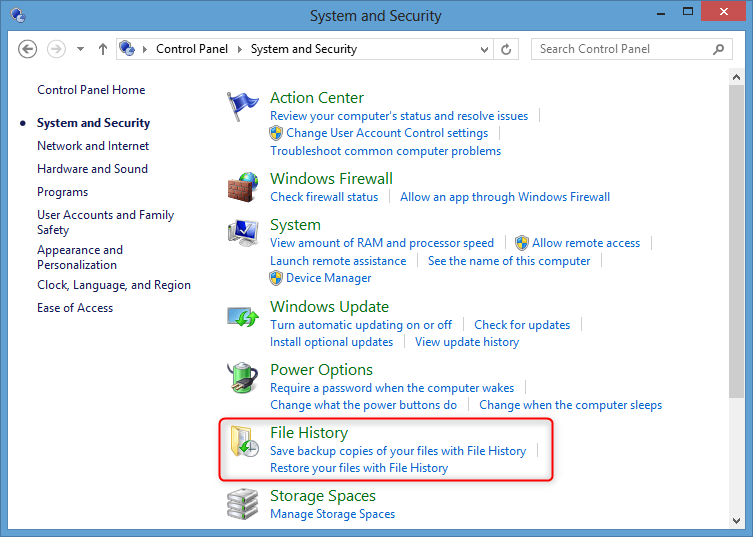
1. Open the Control Panel.
2. Navigate to System and Security, then select File History.
open file history
3. Ensure your backup drive or network location is connected.
4. In the left panel, click “Restore personal files”.
restore personal files
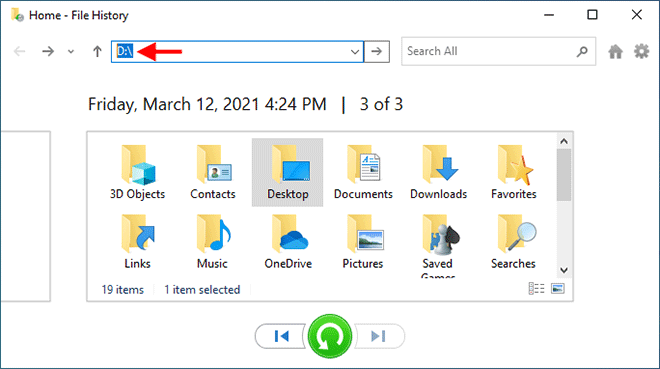
4. Use the arrows at the bottom to browse through backup versions and locate the folder with your NEF files.
5. Select the files you want and click the green “Restore” button to return them to their original spot.
recover nef files with file history
Renee Undeleter - Powerful Data Recovery SoftwareRenee Undeleter data Recovery software

Easy to use Only simple steps to recover data from storage devices.

Multiple scan modes Fast partition scan, whole partition scan and whole disk scan for different recovery needs.

File types Support to recover pictures, videos, audios, documents, mails, etc.

Supported storage devices Recover data from recycle bin, SD card, external disk, etc.

Supported systems Windows 11,10, 8.1, 8, 7, Vista, XP, 2000 and Mac OS X10.6, 10.7, 10.8+.

Easy to use Only simple steps to recover data from storage devices.

Multiple scan modes - 3 scan modes for different recovery needs.

Supported storage devices Recover data from recycle bin, SD card, external disk, etc.

Free TrialFree TrialFree Trial

3000 users have downloaded Renee Undeleter and found data back!

What to do if the Recovered NEF file is corrupted

If the NEF files you recovered with data recovery software won’t open, look distorted, or show errors, it usually means parts of the file structure or image data were damaged during loss or recovery. NEF is Nikon’s proprietary RAW format, built on a TIFF base, and it relies on both the header/metadata and the image data blocks being intact. Even if the file name and size look right, the contents may not be usable.
corrupted nef files
Here’s what you can do:

1. Identify the type of problem

Won’t open at all – The file header or critical metadata may be corrupted.
Opens but looks wrong (odd colors, banding, pixelation) – Some image data blocks are missing or misaligned.
Thumbnail shows but full image fails – The embedded preview is intact, but the main RAW data is damaged.

2. Try different software

Some programs handle damaged NEFs better than others:
- Nikon NX Studio or Capture NX‑D (official Nikon software)
- Adobe Lightroom or Photoshop (with the latest Camera Raw)
- IrfanView with Nikon plugins
- RawTherapee or Darktable (open‑source RAW processors)

3. Use NEF repair tools

Specialized photo repair utilities can sometimes rebuild headers and metadata by referencing a healthy NEF from the same camera model. Examples include Stellar Repair for Photo, Hetman File Repair, or Rescue Digital Media.
MethodKey FeaturesProsConsBest For

Use ExifTool’s fix_corrupted_nef utility

Repairs NEF corruption caused by certain Nikon software (e.g., older Transfer/ViewNX); supports 12‑/14‑bit depth selection.

Free; non‑destructive (creates fixed copies); tailored for specific models (e.g., D800, D850).

Requires manual bit‑depth selection; not for card/disk errors; works on Windows/Mac/Linux only.

Software‑induced corruption; not for other damage types.

Convert NEF to another format (e.g., DNG, JPG)

Uses online converters or software to open damaged files in another format.

Free online tools; simple process.

May lose RAW data; requires the file to be at least partially readable.

Light corruption where viewing is more important than full repair; not for completely unreadable files.

Open in another image viewer or install a codec pack

Try Nikon ViewNX, Photoshop, etc., or install Microsoft Camera Codec Pack for preview support.

Free or built‑in; improves compatibility.

Doesn’t repair damage, only resolves opening issues; limited to certain software.

Compatibility issues preventing file opening; not for structural corruption.

Use image editors to reduce noise (e.g., Photoshop, Lightroom)

Manually adjust noise, blur, or pixelation.

Visual enhancement; uses existing tools.

Can’t fix structural errors; only for mild visual issues.

Light noise damage; not for file system errors.

4. Extract the embedded JPEG preview

Even if the RAW data is gone, NEFs usually contain a high‑res JPEG preview. You can pull it out with a tool like:

exiftool -b -PreviewImage damaged.nef > preview.jpg

Some NEF files—especially those that have been processed by certain software—may not contain an embedded preview image. In such cases, the command will either produce an empty file or return an error.

5. If the card or drive is failing

  • Stop using it immediately to avoid further damage.
  • If there’s physical damage (cracks, burnt contacts), don’t attempt DIY fixes—send it to a professional recovery lab.

Conclusion

Recovering NEF files is often possible if you act quickly and choose the right method. By assessing your situation carefully—whether it’s a simple deletion, a quick format, or a card with issues—you can maximize your chances to recover NEF files. If you’re not confident or the process feels overwhelming, a professional data recovery service might be the safer bet.
One last piece of advice: make backups a habit. Use Windows’ built-in tools or third-party software to save copies of your NEF files once you transfer them to your computer. Also, avoid deleting photos directly from the SD card. Move them to your PC first, where you’ve got a safety net like the Recycle Bin. These small steps can prevent a lot of heartache down the road.
Renee Undeleter - Powerful Data Recovery SoftwareRenee Undeleter data Recovery software

Easy to use Only simple steps to recover data from storage devices.

Multiple scan modes Fast partition scan, whole partition scan and whole disk scan for different recovery needs.

File types Support to recover pictures, videos, audios, documents, mails, etc.

Supported storage devices Recover data from recycle bin, SD card, external disk, etc.

Supported systems Windows 11,10, 8.1, 8, 7, Vista, XP, 2000 and Mac OS X10.6, 10.7, 10.8+.

Easy to use Only simple steps to recover data from storage devices.

Multiple scan modes - 3 scan modes for different recovery needs.

Supported storage devices Recover data from recycle bin, SD card, external disk, etc.

Free TrialFree TrialFree Trial

3000 users have downloaded Renee Undeleter and found data back!

User Comments

Page 1

Leave a Comment


Your comment has been submitted and is awaiting moderation.