How to Recover Deleted Excel Files on Windows 11/10 : Free Methods + Best Local App
2 February 2026Jennifer Thatcher Technology Manager of Test Dept.
Last update by Emma Johnson at 7 February 2026
Summary Learn the most effective ways to Recover Deleted Excel Files in Windows 11/10 for 2026, from checking the Recycle Bin to using advanced recovery tools. Quick action improves your chances of successful Excel file restoration.
Accidentally deleted an important Excel file (.xlsx or .xls) using Shift+Delete, emptied the Recycle Bin, or lost it due to a crash or glitch? Losing critical budgets, reports, or records can be stressful—but recovery is often possible if you act immediately. Stop using the affected drive right away to avoid overwriting data. This updated 2026 guide for Windows 11 and Windows 10 users covers the latest proven methods: from Recycle Bin and Excel AutoRecover to system backups, Microsoft’s free Windows File Recovery, and powerful local tools like Renee Undeleter. Follow these steps in order for the highest success rate. (Works best before new data is written.)
1. Check the Recycle Bin – The Simplest Way to Recover Deleted Excel Files
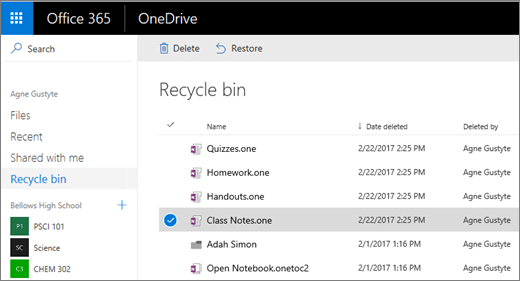
The first and easiest place to look for a deleted Excel file is the Recycle Bin on Windows or Trash on macOS. When you delete a file normally, it goes there instead of being permanently removed.
On Windows:
1. Open the Recycle Bin from your desktop.
2. Look for your Excel file (.xlsx or.xls).
3. Right-click it and select Restore. The file will return to its original location.
On macOS:
1. Open Trash from the Dock.
2. Find the file, right-click, and choose Put Back.
This works perfectly if you haven’t emptied the bin. However, if you used Shift+Delete or emptied the Recycle Bin, the file skips this step and needs stronger recovery methods .Cloud storage like OneDrive or Google Drive has its own recycle bins. Check there if your file was saved online—For personal Microsoft accounts, deleted files are kept in the Recycle Bin for 30 days; for work or school accounts, it is up to 93 days total.
If the file isn’t in the Recycle Bin, move to the next method.
2. Use Excel’s Built-in Recovery Features
Microsoft Excel has helpful features to recover unsaved or recently changed files, especially if you use AutoSave or cloud storage.
Recover Unsaved Workbooks
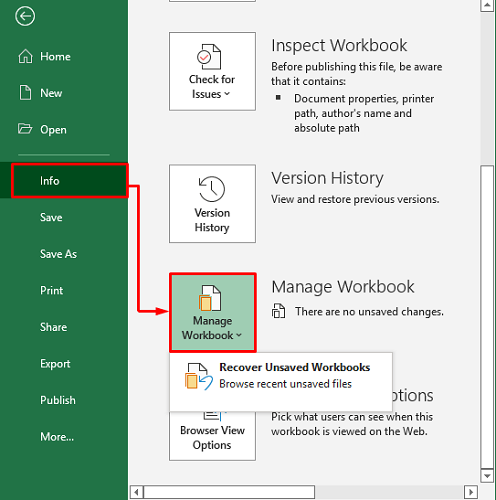
Go to File > Info > Manage Workbook > Recover Unsaved Workbooks. Excel saves temporary versions every few minutes if AutoRecover is on.
Under File > Info > Manage Workbook, you can see and restore earlier versions.
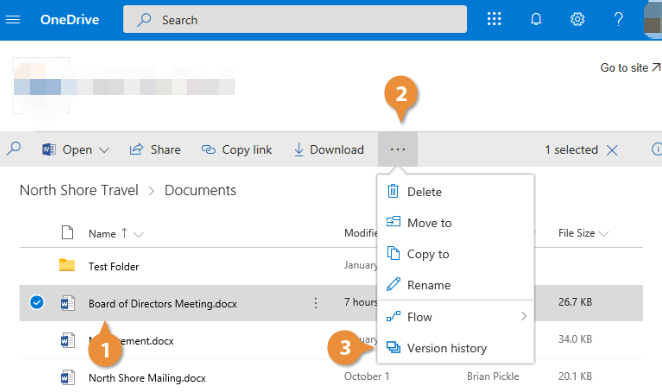
OneDrive or Office 365 Version History
If the file was on OneDrive, right-click it in File Explorer or open it online, then go to File > Info > Version History to browse and restore older copies.
These options work best if AutoSave was enabled or the file was stored in the cloud. They won’t help with permanently deleted local files or if the features were turned off. If none of these recover your file, try system backups next.
3. Recover Deleted Excel Files Using Windows System Backups
Windows has built-in backup tools that can restore deleted Excel files if you had them enabled beforehand.
If Windows backup is not enabled, you can not use the following functions.
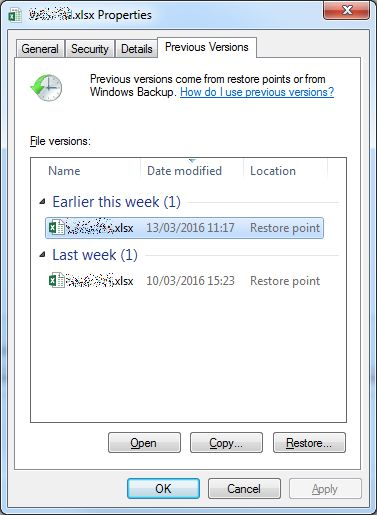
• Previous Versions: Right-click the folder where the file was stored, select Properties, then the Previous Versions tab. Choose a version from before the deletion and click Restore.
• File History: If File History was set up, open Control Panel > System and Security > File History, then browse for your Excel file and restore it.
These methods are completely free and safe since they use your own backups. However, they only work if you turned on the features in advance—many users don’t. If no backups exist, you’ll need third-party data recovery software for permanently deleted files.
4. Best Data Recovery Software to Recover Deleted Excel Files
When built-in methods fail, third-party data recovery software can scan your drive for traces of deleted Excel files. These tools are designed for permanent deletions and often succeed where other options can’t.
Renee Undeleter – Recommended Solution for Permanently Deleted Excel Files
Renee Undeleter is a professional data recovery tool that can help you retrieve lost or deleted files from your computer, including Excel spreadsheets. It is a user-friendly and comprehensive tool that offers a high success rate for file recovery. With Renee Undeleter, you can find and recover around 400 file formats after overwriting, and the process is incredibly simple thanks to its modern user interface and numerous quality-of-life features.
Renee Undeleter - Powerful Data Recovery Software
Easy to use Only simple steps to recover data from storage devices.
Multiple scan modes Fast partition scan, whole partition scan and whole disk scan for different recovery needs.
File types Support to recover pictures, videos, audios, documents, mails, etc.
3000 users have downloaded Renee Undeleter and found data back!
In addition to signature scanning, Renee Undeleter also supports file system-based recovery, with support for all major Windows file systems, so you can use it to also find files that haven’t actually been overwritten but simply misplaced.
Steps to recover files:
Step 1: Download, install and run Renee Undeleter on your Windows computer.
Renee Undeleter is also available for macOS. If you’re using a MacBook, you can download the macOS version to recover your files as well.
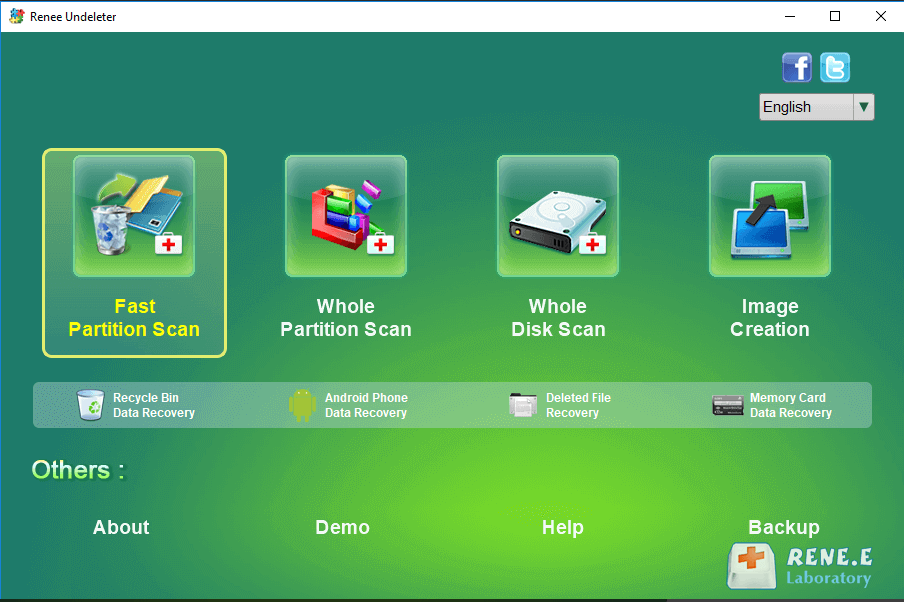
Step 2: Select the [ Fast Partition Scan ] option in the main interface.
Tips: Please avoid installing the software on the disk containing the data to be recovered in order to prevent data overwriting. Also, refrain from saving new data to the same disk partition after a file is lost to avoid further damage or complete loss of the lost file.
Data Recovery Features
Fast Partition Scan: Recovers files from accidental deletions or recycle bin clearance.
Whole Partition Scan: Restores files from inaccessible or formatted partitions.
Whole Disk Scan: Analyzes partition information for a comprehensive disk scan.
Image Creation: Generates a partition mirror image for backup purposes.
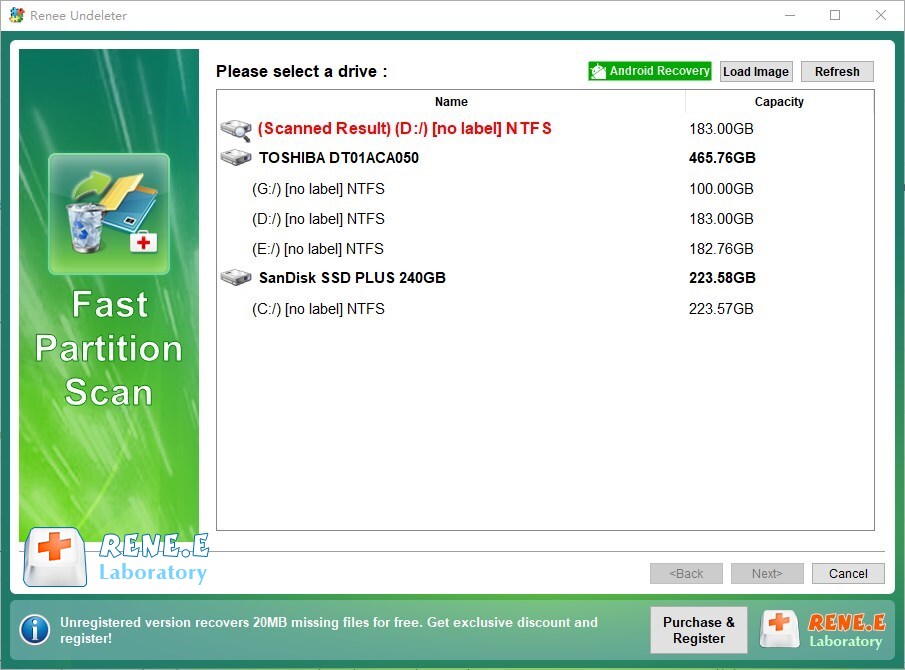
Step 3: Next, select the partition where the lost data is located, and click [ Next ] .
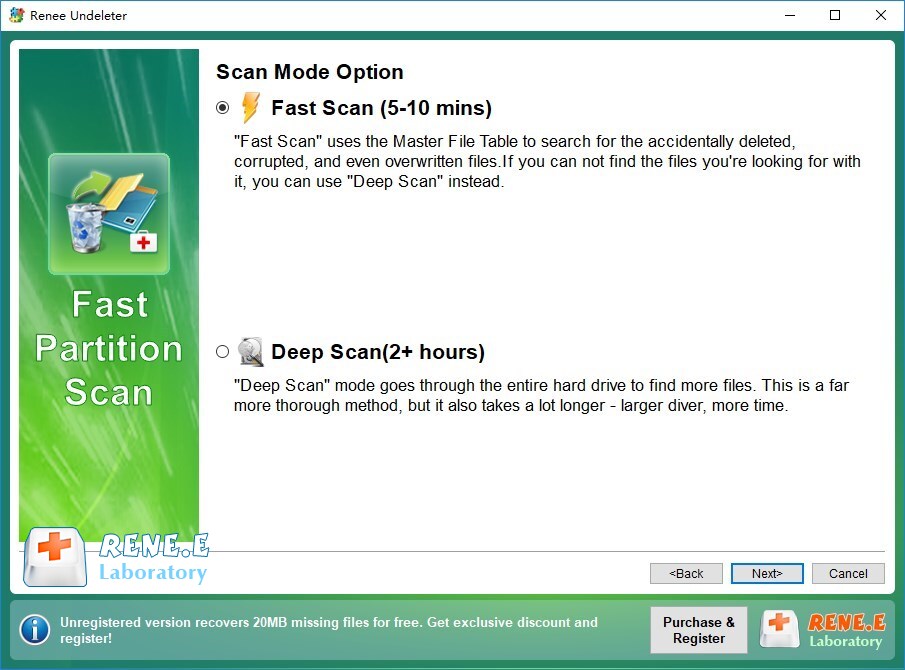
Step 4: Select the [ Fast Scan ] option and click the [ Next ] button to scan.
The [Fast Scan] mode scans the initial 30GB of available space on the chosen disk. If desired files are not found, the [Deep Scan] mode can be used for a thorough scan of the hard disk partition, though it will require additional time.
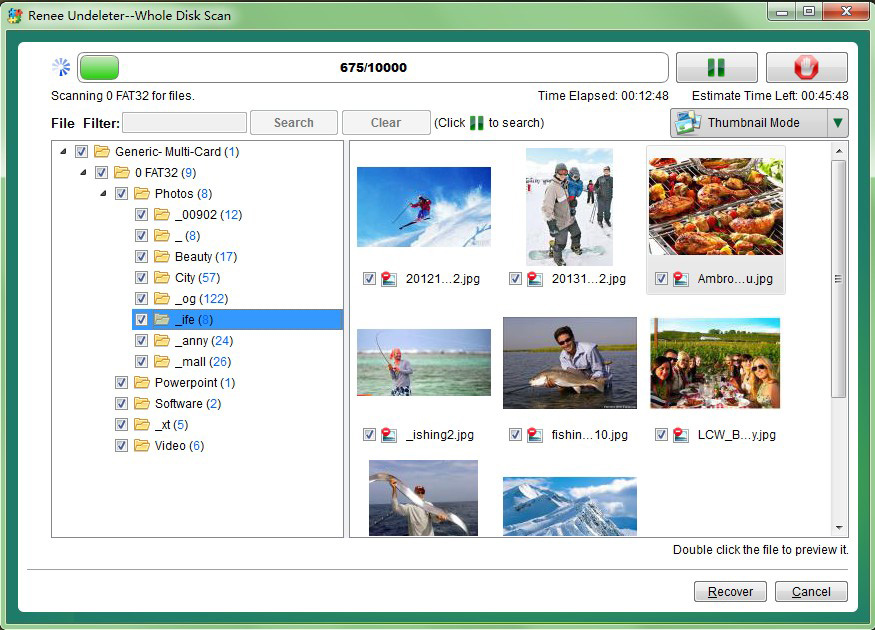
Step 5: Wait for the scan to complete
You can double-click the file to preview, then check the files that need to be recovered, and click the [ Recover ] button to recover the files to other disks.
Tips: Please select a disk without any important data when installing the software to avoid overwriting it. If the quick scan mode doesn’t find the necessary files, we suggest trying the deep scan mode for a full search.
Using professional software like Renee Undeleter can significantly improve your chances of recovering lost files. However, the sooner you act, the better—delaying recovery attempts may reduce the likelihood of success.
QPhotoRec – Powerful Free Open-Source Tool for Deep Recovery
QPhotoRec is a graphical user interface version of PhotoRec, developed by CGSecurity. It is completely free, open-source, and has no recovery limits, making it a strong choice for recovering permanently deleted Excel files through file carving. Unlike traditional tools that rely on the file system, QPhotoRec scans raw data for file signatures, which allows it to recover files even from formatted or corrupted drives. It supports hundreds of file formats, including Microsoft Office documents like.xlsx and.xls, and works on Windows, macOS, and Linux.
This tool is especially effective in advanced scenarios where other methods fail, such as after emptying the Recycle Bin or drive formatting. No installation is required—it runs portably—and it ignores file system damage entirely. Many users successfully recover office files with it when standard recovery fails.
Advantages:
Completely free with no limits on recovery size
Powerful signature-based scanning ignores file system damage
Supports a wide range of file types including Excel spreadsheets
Disadvantages:
Recovered files often lose original names and folder structure
Scans can take a long time on large drives
Interface is functional but less modern than commercial tools
Step-by-step usage instructions:
1. Download QPhotoRec from the official CGSecurity website and run it (no installation needed).
2. Select the disk where the Excel file was deleted.
3. Choose the partition (or whole disk) and file system type.
4. Select file types to search—enable ole (for older .xls) and office formats or choose all.
5. Pick a safe destination folder (not the original drive).
6. Start the search and wait for results; recovered files appear in numbered folders.
QPhotoRec is an excellent free option for tough cases, but sorting through renamed files can take time. If you prefer a simpler wizard-based experience, consider the alternatives below.
Windows File Recovery – Advanced Command-Line Recovery tool
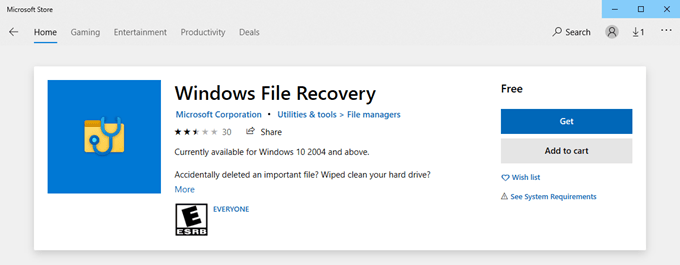
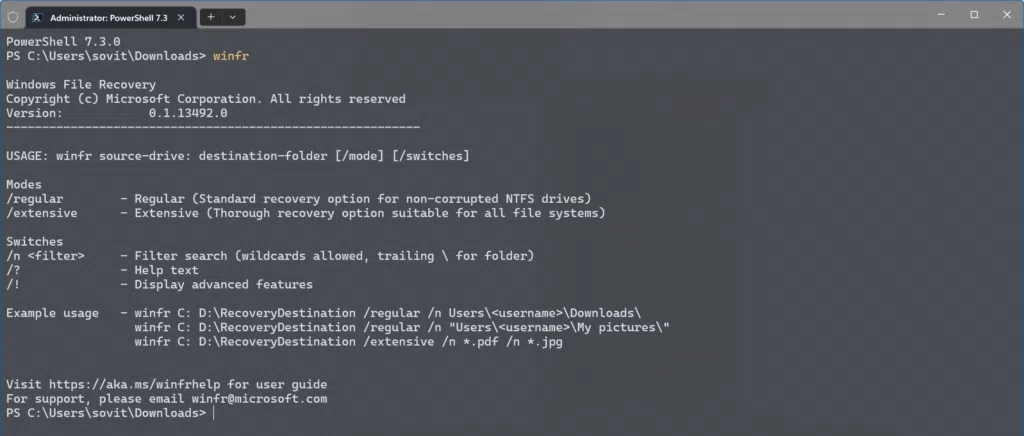
Windows File Recovery is a free, official Microsoft utility designed for users who prefer command‑line control when restoring deleted files. The tool is not built into Windows by default—you must download it from the Microsoft Store before you can run the winfr command. Without installing it, the tool cannot be used.
Advantages and Disadvantages using:
Advantages:
Official Microsoft tool
Command‑line precision and scripting
No third‑party installer required
Disadvantages:
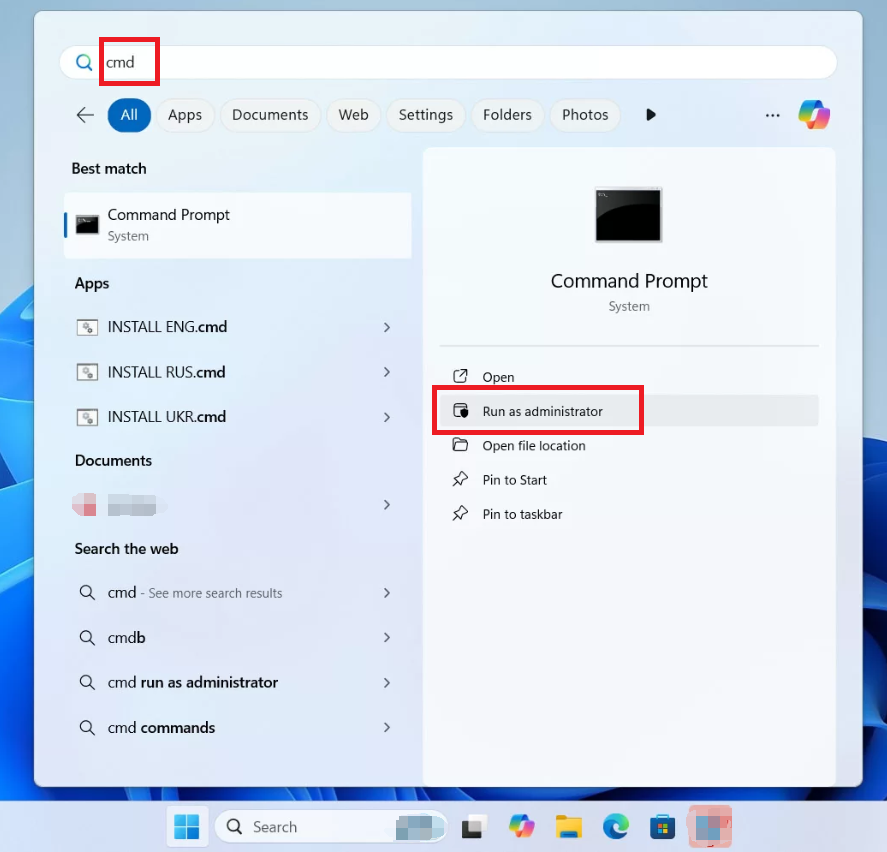
Requires admin and CLI familiarity
Risk of incorrect commands
Less user‑friendly than GUI
Step-by-step usage instructions
1. Prepare a separate destination drive (external or different internal volume) to receive recovered files.
2. Install Windows File Recovery from the Microsoft Store if it is not already present.
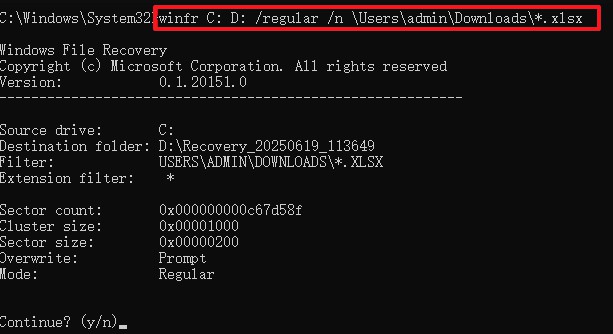
The source drive is ‘C:’. The destination drive is ‘D:’. The /regular switch is used, and the /n switch is used to filter the search to the Downloads folder.
5. Run the command and monitor progress in the console; recovered files will be written to the destination folder you specified.
6. Inspect recovered files on the destination drive and move valid spreadsheets back to their original location.
Windows File Recovery is best suited for advanced users who are comfortable with command‑line operations and need precise, repeatable recovery workflows. If you prefer a more intuitive, graphical interface, you may want to use one of the earlier mentioned recovery tools, such as Renee Undeleter.
Other Free and Paid Data Recovery Tools
Two popular alternatives are Recuva (completely free) and EaseUS Data Recovery Wizard Free (limited free recovery).
Recuva, from the makers of CCleaner, uses a simple wizard to scan for deleted files and supports Excel formats. EaseUS offers preview features and recovers up to 2GB free, with a clean interface.
Here’s a comparison of common tools:
Tool
Price
Ease of Use
Recovery Rate
Notes
Renee Undeleter
Paid (free trial)
High
High
GUI; preview support; trial scan only
QPhotoRec (PhotoRec GUI)
Free
Medium
High (signature carving)
GUI front‑end for PhotoRec; no limits; recovered files may lose original filenames
Recuva
Free
High
Medium
GUI; lightweight wizard; best for simple deletions
EaseUS Data Recovery
Free/Paid
High
High
GUI; up to 2GB free (varies by version); strong preview features
Windows File Recovery (winfr.exe)
Free
Medium (CLI)
High for targeted cases
Microsoft command‑line tool; requires admin rights and separate destination drive; Regular/Extensive modes
A good choice ultimately depends on what matters most to you—cost, ease of use, or recovery success. If you want a balanced option with a friendly interface and dependable results, Renee Undeleter is a solid starting point. For fully free or open‑source alternatives, PhotoRec and Recuva remain reliable picks for everyday recovery needs. Selecting the tool that fits your situation will always give you the best chance of getting your files back efficiently.
FAQ: Common Questions About Recovering Deleted Excel Files
How soon should I try to recover a deleted Excel file?
Act as quickly as possible. The longer you continue using the drive, the higher the chance new data overwrites the deleted file, making recovery impossible.
Can I recover an Excel file deleted months ago?
It depends. If the space hasn’t been overwritten, yes—tools like Renee Undeleter or QPhotoRec can still find it. Success drops significantly over time.
Is data recovery software safe to use?
Yes, when downloaded from official sites. Avoid saving recovered files back to the original drive to prevent issues.
What if the deleted Excel file was on an SSD?
Recovery is possible, but SSDs use TRIM, which can erase data faster. Stop using the drive immediately for the best chance.
Will recovered Excel files be corrupted?
Most tools let you preview files first. If the data wasn’t overwritten, files usually open normally.
Do I need technical skills for these methods?
Basic methods like Recycle Bin require none. Advanced tools like QPhotoRec need some patience, but GUI versions are straightforward.
Prevention Tips: Avoid Losing Excel Files in the Future
To prevent future loss, enable AutoSave in Excel and use cloud storage like OneDrive for automatic backups. Set up regular system backups with File History or external drives. Get in the habit of double-checking before deleting and avoid Shift+Delete for important files.Always try methods in order: start with the Recycle Bin, then Excel features, backups, and finally software. Acting quickly gives you the best shot at full recovery.
Renee Undeleter - Powerful Data Recovery Software
Easy to use Only simple steps to recover data from storage devices.
Multiple scan modes Fast partition scan, whole partition scan and whole disk scan for different recovery needs.
File types Support to recover pictures, videos, audios, documents, mails, etc.














User Comments
Leave a Comment