author avatar
    Technology Manager of Test Dept.
Last update by William Davis at 4 November 2025

Summary
Learn how to recover deleted JPEG files on Windows and Mac with easy-to-follow steps, prevention tips, and essential tools. This concise guide ensures you get your important photos back quickly and securely, minimizing the risk of permanent loss.



Losing precious JPEG photos—whether from a family vacation, wedding, or everyday moments—can be heartbreaking. If you’ve accidentally deleted JPEG files and need to recover deleted JPEG files quickly, this guide is for you. We’ll cover simple methods to get your images back without hassle, including checking basic spots, using backups, powerful tools and fixing corrupted jpeg files.
Recover Deleted JPEG Files 
Note: Stop using the affected drive right away to avoid overwriting data!

Common Causes of JPEG File Loss and Prevention Tips

JPEG files can vanish due to accidental deletion (like hitting Shift+Delete or emptying the Recycle Bin), formatting a drive, sudden power failures, virus attacks, or hardware issues like a damaged SD card or hard drive. These incidents happen more often than you think—maybe you cleared space on your camera’s memory card or reformatted an external drive without backing up.
Immediate action is key: As soon as you notice the loss, stop adding new files to the device. New data can overwrite the deleted JPEGs, making recovery impossible.
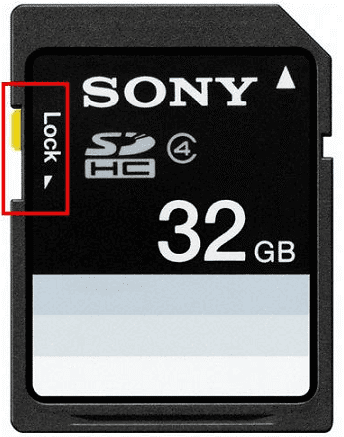
If your deleted files were originally stored on an SD card, please lock the card to prevent new data from being written.
sd card write lock 
For prevention, regularly back up your photos to cloud services like Google Drive, an external hard drive, or built-in tools like Windows File History or macOSTime Machine, and consider disabling TRIM on SSDs for better future recovery chances. This habit saves you from future panic.

The Simplest Way: Check the Recycle Bin First

Before anything else, look in the Recycle Bin—it’s often the quickest fix for recovering deleted JPEG files on Windows.
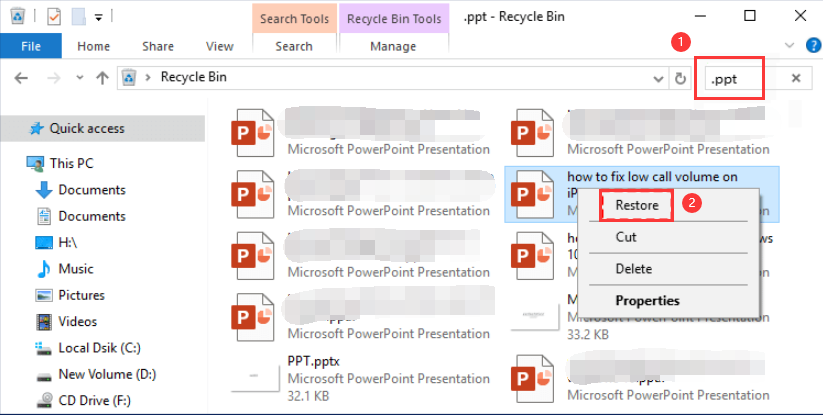
Open the Recycle Bin on your desktop, use the search bar to type “.jpg” or “.jpeg”, and browse for your missing photos. If you find them, right-click and select “Restore” .” They’ll return to their original location.
restore files from Windows Recycle Bin 
Note: This works great for internal hard drives, but SD cards and external hard drives usually don’t use the Recycle Bin due to how they’re connected or formatted. Files deleted from these go straight to permanent loss unless recovered with tools.
This method needs no software and takes seconds. If your JPEGs aren’t there, move on to backups or specialized recovery options.

When Built-In Fixes Fail: Turn to Recovery Software

If your deleted JPEGs aren’t in the Recycle Bin and you don’t have a backup, don’t panic—there’s still hope. Specialized recovery software can dig deep into your storage devices and retrieve files that seem permanently lost. These tools are especially useful for recovering photos from SD cards, USB drives, or formatted partitions where traditional methods fall short.
Let’s explore one of the most trusted solutions available today.

1. Renee Undeleter – Your Go-To Professional Tool

For reliable recovery of deleted JPEG files from hard drives, SD cards, USB drives, or even formatted partitions, Renee Undeleter stands out as a safe, efficient solution. This professional data recovery software supports both Windows and macOS, handling over 400 file formats including JPEGs. It excels at retrieving photos after accidental deletion, formatting, or emptying the Recycle Bin.
Renee Undeleter - Powerful Data Recovery SoftwareRenee Undeleter data Recovery software

Easy to use Only simple steps to recover data from storage devices.

Multiple scan modes Fast partition scan, whole partition scan and whole disk scan for different recovery needs.

File types Support to recover pictures, videos, audios, documents, mails, etc.

Supported storage devices Recover data from recycle bin, SD card, external disk, etc.

Supported systems Windows 11,10, 8.1, 8, 7, Vista, XP, 2000 and Mac OS X10.6, 10.7, 10.8+.

Easy to use Only simple steps to recover data from storage devices.

Multiple scan modes - 3 scan modes for different recovery needs.

Supported storage devices Recover data from recycle bin, SD card, external disk, etc.
Free TrialFree TrialFree Trial

3000 users have downloaded Renee Undeleter and found data back!

The interface is intuitive, scans are lightning-fast, and it can even auto-repair some corrupted images during recovery. Users love how it previews files before restoring, ensuring you get exactly what you need. Best of all, you can download the trial version to scan and see recoverable JPEGs for free—perfect for most deletion scenarios without risking overwrites.
Step 1: Download and install Renee Undeleter. Head to the official site, grab the installer, and run it. Avoid installing on the drive with lost files to prevent overwriting—choose a different partition.
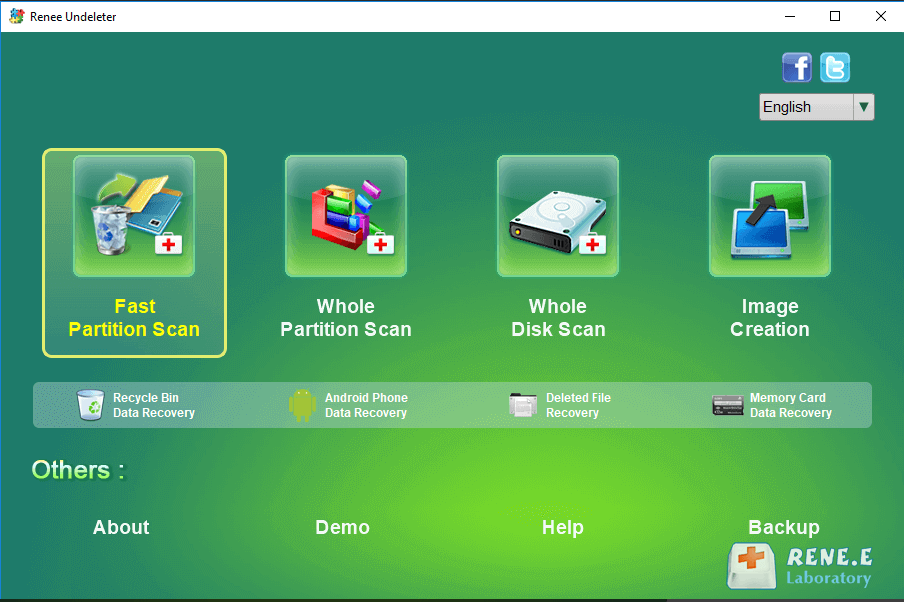
Step 2: Launch the software and select “Fast Partition Scan” .” This mode is ideal for recently deleted JPEGs.
Renee Undeleter main interface
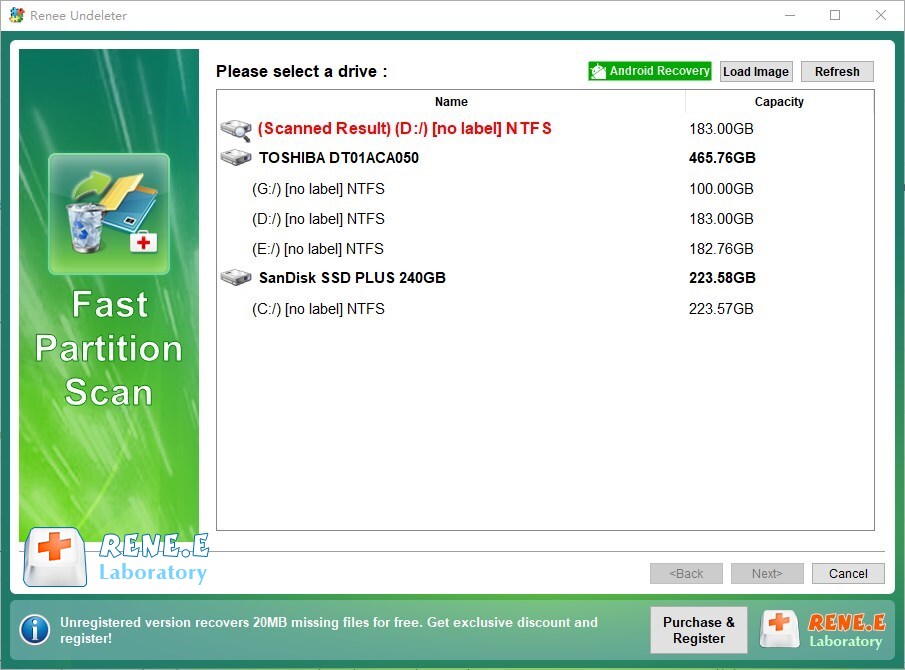
Step 3: Choose the partition or drive where your JPEGs were stored, then click “Next” .” For example, select your SD card if photos were deleted from a camera.
select partition to scan for fast partition scan
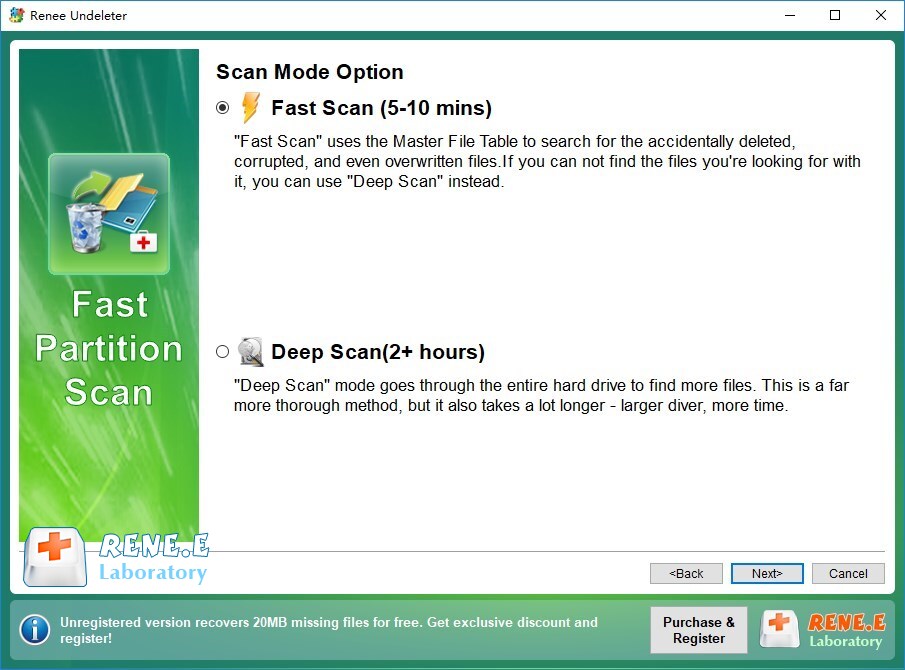
Step 4: Pick “Fast Scan” and hit “Next” to start. It checks the first 30GB quickly; switch to “Deep Scan” if needed for thorough coverage (though it takes longer).
Select Fast scan in Fast Partition Scan
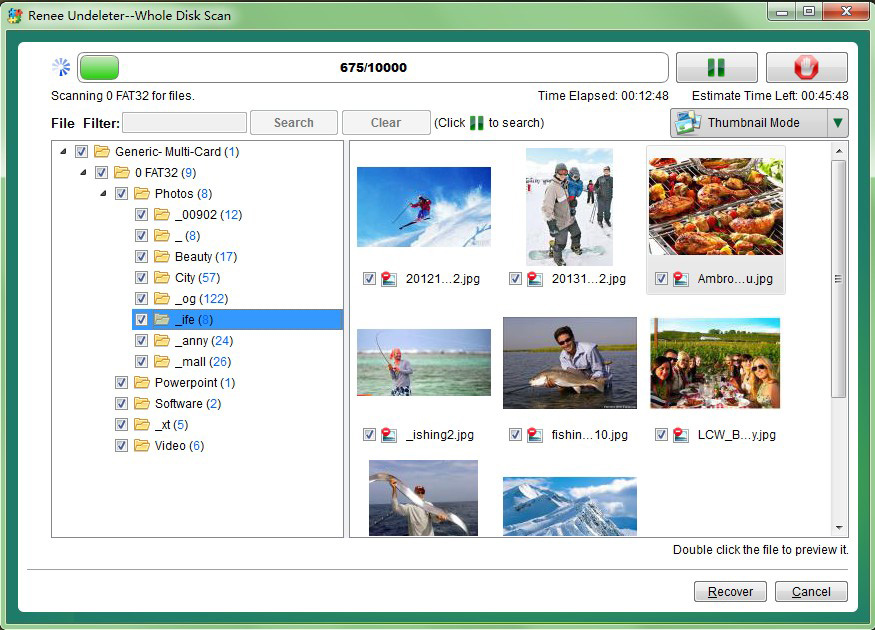
Step 5: Preview and recover. As results appear, double-click JPEGs to preview. Check the ones you want, click “Recover”, and save to a different safe location.
preview before recovery
Renee Undeleter makes recovering deleted JPEG files straightforward and effective. If this resolves your issue, great! Otherwise, let’s explore backup options next.
SSD drives are common in modern computers, but recovering deleted JPEG files from them can be trickier due to TRIM—a feature that automatically erases deleted data to optimize performance. If TRIM is enabled (default on most Windows systems), recovery chances drop quickly.
Renee Undeleter - Powerful Data Recovery SoftwareRenee Undeleter data Recovery software

Easy to use Only simple steps to recover data from storage devices.

Multiple scan modes Fast partition scan, whole partition scan and whole disk scan for different recovery needs.

File types Support to recover pictures, videos, audios, documents, mails, etc.

Supported storage devices Recover data from recycle bin, SD card, external disk, etc.

Supported systems Windows 11,10, 8.1, 8, 7, Vista, XP, 2000 and Mac OS X10.6, 10.7, 10.8+.

Easy to use Only simple steps to recover data from storage devices.

Multiple scan modes - 3 scan modes for different recovery needs.

Supported storage devices Recover data from recycle bin, SD card, external disk, etc.
Free TrialFree TrialFree Trial

3000 users have downloaded Renee Undeleter and found data back!

2. Restore from Backups: Your Built-In Safety Net 🛡️

If you’ve set up backups, recovering deleted JPEG files can be quick and painless. Whether you’re using a PC, macOS, or cloud service, these built-in tools are designed to protect your data from accidental loss.

On Windows: UseFile History.

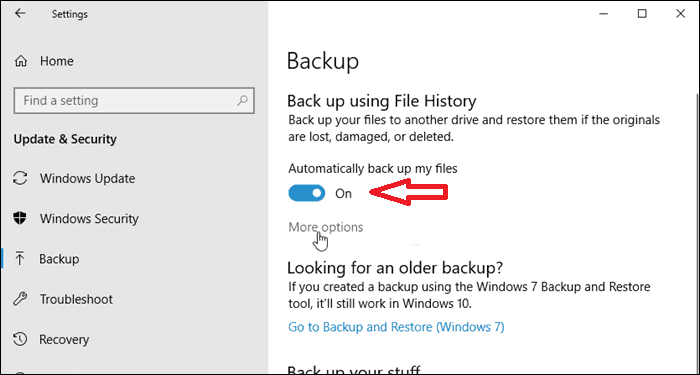
Go to Settings > Update & Security > Backup (on Windows 11, it may appear as Settings > Windows Update > Backup) and check if File History is enabled.
check if File History is enabled 
If File History is enabled, you can browse to the folder where your photos were originally stored.
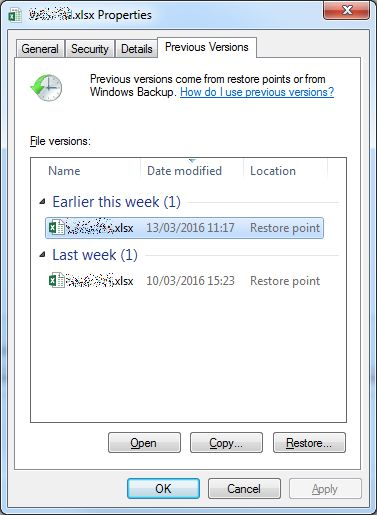
Right-click the folder, select “Properties”, then go to the “Previous Versions” tab.
file previous versions, file history 
There, you’ll see available backup snapshots. Choose a version from before the files were deleted, open it to check for your missing JPEGs, and click “Restore” to recover them.
Compatibility Tip: File History works across Windows 10 and 11. The layout might look slightly different, but the recovery process is the same.

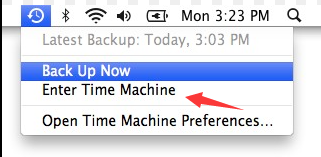
On macOS: LaunchTime MachinefromSystem Preferences.

Scroll through the timeline, find your deleted JPEGs, and click Restore to bring them back.
Mac Time Machine 
Cloud backups like Google Drive or OneDrive also help: Log in via browser or app, check the Trash or version history, and download your files. These services often retain deleted items for days or weeks, giving you a second chance.
Pro Tip: Backups preserve original image quality and cost nothing if configured in advance. They’re your best defense against permanent data loss—enable them early and often.
No backup in place? Don’t worry—there are still free recovery options available. Let’s explore those next.

3. Try Free Alternatives: Recuva for Simple Scans

Recuva is a popular free tool from Piriform (makers of CCleaner) that’s excellent for beginners recovering deleted JPEG files on Windows. It scans drives for traces of deleted photos, supports quick and deep modes, and lets you preview images before recovery. It’s lightweight, installs in minutes, and works on internal/external drives, SD cards, and even some formatted partitions.
Recuva shines in user-friendliness with a wizard-guided process, making it less intimidating than command-line options. For instance, a user recently recovered vacation JPEGs from a formatted USB drive in under 10 minutes. While it’s Windows-only and free forever, the pro version adds extras like virtual hard drive support.
Recuva interface example – imagine wizard screen here 
Advantages:
  • Completely free with no limits on basic use
  • Easy wizard for non-tech users
  • File preview to confirm JPEGs
  • Portable version available
  • Good for recently deleted files

Disadvantages:

  • Windows-only, no Mac support
  • Less effective on heavily overwritten data
  • No auto-repair for corrupted files
  • Interface feels dated compared to modern tools

Recuva is a solid free start for recovering deleted JPEG files. If it falls short, try the next option or professional software.

4. Another Free Option: QPhotoRec for GUI-Based Recovery

QPhotoRec provides a graphical interface to the powerful TestDisk/PhotoRec suite, making it accessible for recovering deleted JPEG files without command-line hassle. It’s open-source, free, and cross-platform (Windows, macOS, Linux).
It carves files based on signatures, ignoring file systems—perfect for formatted or corrupted drives like SD cards from cameras. Users praise its ability to recover thousands of photos in one go; for example, it salvaged wedding JPEGs from a crashed external HDD. Supports hundreds of formats, runs from USB, and needs no installation.
QPhotoRec interface – imagine file type selection here
Advantages:
  • Free and open-source forever
  • Works on damaged/formatted media
  • Multi-platform support
  • Recovers files by signature reliably
  • No install needed

Disadvantages:

  • Can recover unrelated files, requiring sorting
  • Slower on very large drives
  • No built-in preview for all files
  • Steeper learning for absolute beginners

QPhotoRec handles tough cases well. For disk errors, consider command-line tools next.

5. Windows File Recovery Tool - Command Line

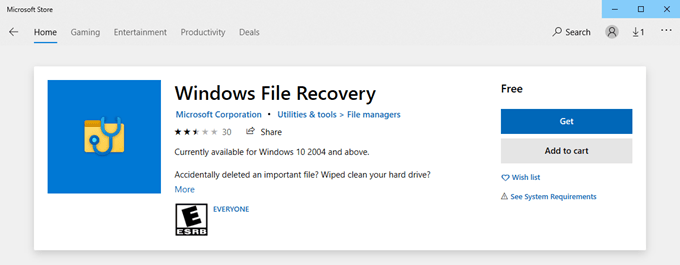
Windows File Recovery is Microsoft’s free command-line app from the Microsoft Store, designed for recovering deleted JPEG files using modes like Regular (recent deletions) or Extensive (formatted drives). It supports signatures for photos, works on NTFS/FAT, and recovered a batch of holiday JPEGs from a Recycle Bin for one user. Powerful for tech-savvy folks.
To install Windows File Recovery, you need to be running at least Windows 10 version 2004 or Windows 11.
Windows File Recovery parameters
Advantages:
  • Official Microsoft tool, free
  • Segment and signature modes for flexibility
  • Handles NTFS, exFAT, etc.
  • No third-party risks

Disadvantages:

  • Command-line only, no GUI
  • Steep learning curve
  • Slower previews
  • Windows 10+ required

Step 1: Install from Microsoft Store.
Windows File Recovery
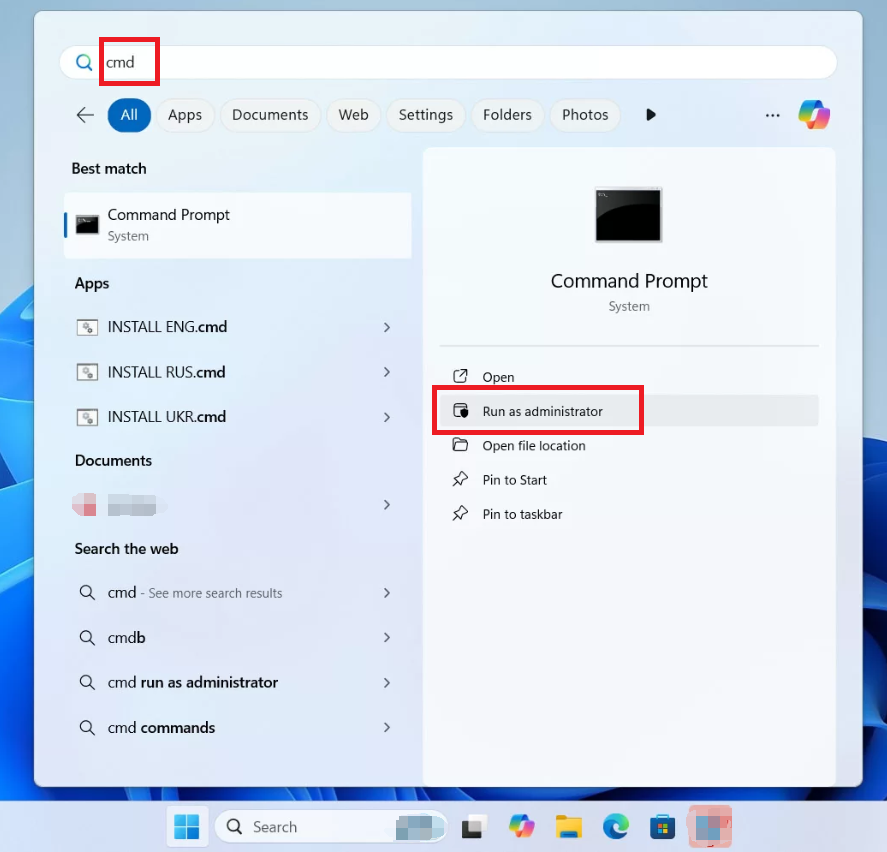
Step 2: Run as admin:
run cmd as Administrator

winfr C: D: /regular /n *.jpg

(source C:, target D:).
Windows File Recovery scan result 
Step 3: For deep: use /extensive.
While data recovery software is powerful, it doesn’t always guarantee perfect results. Sometimes, recovered JPEGs may be partially damaged or won’t open at all. That’s when you’ll need to go beyond recovery—and into repair.
Renee Undeleter - Powerful Data Recovery SoftwareRenee Undeleter data Recovery software

Easy to use Only simple steps to recover data from storage devices.

Multiple scan modes Fast partition scan, whole partition scan and whole disk scan for different recovery needs.

File types Support to recover pictures, videos, audios, documents, mails, etc.

Supported storage devices Recover data from recycle bin, SD card, external disk, etc.

Supported systems Windows 11,10, 8.1, 8, 7, Vista, XP, 2000 and Mac OS X10.6, 10.7, 10.8+.

Easy to use Only simple steps to recover data from storage devices.

Multiple scan modes - 3 scan modes for different recovery needs.

Supported storage devices Recover data from recycle bin, SD card, external disk, etc.
Free TrialFree TrialFree Trial

3000 users have downloaded Renee Undeleter and found data back!

Advanced Repair for Corrupted JPEG Files

Even if you successfully recover your deleted JPEGs, there’s a chance some of them might be corrupted—refusing to open, displaying only part of the image, or showing strange artifacts. This can happen when:
  • The file was only partially overwritten or fragmented
  • The storage device had bad sectors
  • The recovery process didn’t fully reconstruct the file header or data blocks
corrupted jpeg file
In these cases, recovery alone isn’t enough—you’ll need to repair the JPEG file itself to make it viewable again.

Repairing a JPEG with a Hex Editor

If you’re comfortable with low-level tools, a hex editor lets you manually inspect and fix the internal structure of a JPEG file—think of it as editing the file’s “DNA” to restore missing parts. This can be useful for restoring broken headers, aligning file markers, or copying valid segments from a similar working file. It’s not for beginners, but it can be a lifesaver when automated repair tools fall short.
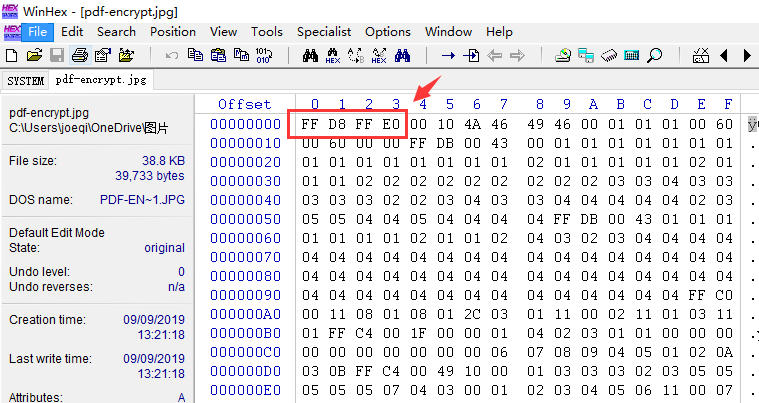
JPEG files follow a very specific structure: they always begin with the SOI (Start of Image) marker FF D8 FF and end with the EOI (End of Image) marker FF D9. Everything in between is made up of metadata (EXIF, thumbnails) and the actual image data. If the header is damaged or missing, the file won’t open—but in some cases, you can manually repair it.
jpg File Signature

JPEG File Structure at a Glance

Offset / PositionHex Value(s)Meaning / Content
0FF D8 FFSOI – Start of Image
Next 2–20 KBvariesEXIF metadata + embedded thumbnails
Middle sectionvariesCompressed image data (pixels)
Last 2 bytesFF D9EOI – End of Image
By aligning the corrupted file with a known‑good JPEG in a hex editor, you can often identify and restore the missing header or footer, giving the image a chance to open again.
A practical approach is to use a free hex editor such as HxD. Open the corrupted JPEG and search for the FF D8 FF sequence. If it’s missing or incomplete, take a similar, intact JPEG created by the same camera or device (ideally with the same resolution and settings) and copy its header. Paste that header at the beginning of the damaged file, then make sure the file ends with FF D9. Save it under a new name to avoid overwriting the original.
💡 Pro Tip: Use a side-by-side hex comparison with a similar JPEG to spot missing segments, misaligned markers, or corrupted metadata. Matching file structure makes manual repair far more reliable.
Beyond Compare hex view

🛠️ Step-by-Step Repair Strategy

1 . Open the corrupted JPEG in a hex editor like HxD.
2 . Search for the SOI marker FF D8 FF. If it’s missing or malformed, the file likely won’t open.
3 . Find a similar, working JPEG—ideally from the same camera or device, with matching resolution and settings.
4 . Copy the header (from the start up to the beginning of image data) from the healthy file.
5 . Paste it into the damaged file, replacing the broken or missing header.
6 . Ensure the file ends with FF D9, the proper EOI marker.
7 . Save the repaired file under a new name to preserve the original.

Repair Damaged JPEGs with Free AI Assistance (For beginner)

If your JPEG image can still be opened but appears visually corrupted—such as distorted colors, missing sections, or partial rendering—you may be able to restore it using a free AI model.
Modern large language models (LLMs) and image restoration tools can intelligently reconstruct damaged visuals by analyzing patterns and filling in missing data. You don’t need any technical expertise—just a simple prompt.

How to Use It

Upload your damaged JPEG image to any AI platform that supports image input and restoration (such as Microsoft Copilot, ChatGPT with vision, Grok, or other public tools), and enter the following prompt:

Please fix this photo for me. Restore to natural state.

The AI will attempt to reconstruct the image based on its understanding of natural scenes, textures, and photographic patterns. This method works best for:
  • Portraits with minor glitches
  • Landscape photos with color distortion
  • JPEGs that open but look partially scrambled
Use AI to repair and fix jpeg image files
This method does not work for completely unreadable or zero-byte files.

Dedicated Tool: JpegDigger

JpegDigger specializes in carving and repairing JPEGs from raw disk data. Free trial, deep scans for fragments, rebuilds partial files. Recovered half-corrupted event photos for a photographer.
JpegDigger interface 
Advantages:
  • Targets JPEG carving specifically
  • Repairs partial/corrupted images
  • Preview rebuilt files
  • Works on raw drives

Disadvantages:

  • Paid for full features
  • Complex for casual users
  • Time-consuming on big disks

If All Else Fails: Seek Professional Help

Still no luck recovering deleted JPEG files? Contact data recovery services like DriveSavers or local experts—they use cleanrooms for physical damage. Costs start high ($100+), but worth it for irreplaceable memories. Always prioritize backups to avoid this!

FAQ

Can I recover deleted JPEG files from an SD card without a computer?

Yes, some cameras have built-in recovery menus, but success is low. Connect the SD card to a PC and use tools like Renee Undeleter for better results—its Deep Scan mode thoroughly checks memory cards for deleted photos.

What if my deleted JPEG files are overwritten?

If new data has been written over the space, recovery chances drop significantly. Act fast after deletion. Renee Undeleter’s signature scan can sometimes find fragments, but full overwrite means permanent loss. Prevention via backups is crucial.

How long does deep scanning take to recover deleted JPEG files?

It depends on drive size—30 minutes for a 128GB SD card, hours for 1TB HDDs. Start with quick scans. In Renee Undeleter, Fast Scan checks initial areas swiftly; switch to Deep only if needed.

Can Mac users recover deleted JPEG files with these methods?

Yes! Renee Undeleter has a macOSversion with similar steps. Time Machine for backups, QPhotoRec for free recovery. Avoid Windows-only tools like Recuva.

Will changing a JPEG's extension fix corruption?

Sometimes, renaming.jpg to.png opens it in another viewer if the issue is minor header mismatch. But for real damage, use hex editing or repair tools—don’t rely on this alone.

Are there risks in using command-line tools like CHKDSK?

Yes, it can lock drives or mark bad sectors, potentially losing more data if the disk is failing. Run on non-system drives, backup first. It’s a repair tool, not primary recovery.
Renee Undeleter - Powerful Data Recovery SoftwareRenee Undeleter data Recovery software

Easy to use Only simple steps to recover data from storage devices.

Multiple scan modes Fast partition scan, whole partition scan and whole disk scan for different recovery needs.

File types Support to recover pictures, videos, audios, documents, mails, etc.

Supported storage devices Recover data from recycle bin, SD card, external disk, etc.

Supported systems Windows 11,10, 8.1, 8, 7, Vista, XP, 2000 and Mac OS X10.6, 10.7, 10.8+.

Easy to use Only simple steps to recover data from storage devices.

Multiple scan modes - 3 scan modes for different recovery needs.

Supported storage devices Recover data from recycle bin, SD card, external disk, etc.
Free TrialFree TrialFree Trial

3000 users have downloaded Renee Undeleter and found data back!

User Comments

Page 1

Leave a Comment


Your comment has been submitted and is awaiting moderation.