author avatar
    Technology Manager of Test Dept.
Last update by Emma Johnson at 26 August 2025

Summary
Learn how to recover raw SD card data quickly and fix the card for future use. This authoritative guide explains causes, prevention, and practical recovery steps to help you securely recover raw sd card files without losing data.



When your SD card turns RAW, it might seem like a total disaster. But don’t panic—your files are often still intact, just tucked away behind a messed-up file system. The good news is you can recover raw SD card data pretty easily. In this guide, we’ll walk you through pulling your stuff back from a RAW SD card and getting the card fixed up so it’s usable again.

What is a RAW SD Card and When to Recover Raw SD Card?

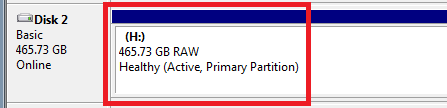
disk show to be raw
Picture the file system as the roadmap your computer follows to locate, open, and store files on the card. It handles details like file names, sizes, and creation dates. Without this setup, your system is clueless about accessing the data, even if it’s sitting right there. Basically, an SD card appears as RAW when its file system is broken or gone.
If corruption hits your SD card’s file system, you could get a message urging you to format it. Sure, formatting might fix things, but it’ll wipe out all your data. If those files matter to you, skip the format for now—just dismiss the popup and hold tight.
Let’s break down some common culprits behind an SD card going RAW, which often pushes you to recover raw SD card data:
ReasonDescription

🔌 Power failure

A sudden power cut can mess up your data big time. If your device shuts off while reading or writing to the card, it can botch the file allocation table updates, leading to corruption that makes the card RAW.

🦠 Malware infection

Viruses or malware can corrupt files, though it's rare for them to target the file system directly. When it does happen, the card becomes RAW and your computer can't read it anymore.

👴 Aging SD card

Over time, SD cards wear out from constant use. Physical degradation can harm the file system, making data hard to reach. These cards have a finite number of write cycles—hit that limit, and glitches like a RAW state can crop up.

⚠️ Wrong formatting

Formatting with an incompatible file system for your device can cause this issue. Say you use NTFS on a card meant for FAT32 devices; it'll show as RAW. Even fresh cards might arrive this way due to manufacturing flaws or no file system at all.

Tip: Most SD cards don’t display their remaining lifespan, but if yours suddenly slows down, corrupts files, turns into a RAW format, or becomes read-only, it’s likely nearing the end of its life. Recover any lost data from the RAW SD card and consider replacing it—especially if it’s been used heavily.

How to Recover Raw SD Card Files

Once an SD card goes RAW, your OS can’t make sense of it, so you’ll need dedicated recovery software to dig in and grab your files. These programs skip the file system hassle and go straight to the data. A top pick is Renee Undeleter, designed for all sorts of data mishaps, including when you need to recover raw SD card files.

What is Renee Undeleter?

Renee Undeleter is a powerful tool built to recover lost data from RAW SD cards, formatted drives, or accidentally deleted files. Whether your SD card turned RAW due to corruption, improper formatting, or a sudden power failure, this software can retrieve photos, videos, documents, and more. It offers four key modes: Fast Partition Scan for quick recovery, Whole Partition Scan for deeper searches, Whole Disk Scan for comprehensive analysis, and Image Creation to back up your card’s state before recovery. This makes it a reliable choice for tackling RAW SD card issues.
Renee Undeleter - Powerful Data Recovery SoftwareRenee Undeleter data Recovery software

Easy to use Only simple steps to recover data from storage devices.

Multiple scan modes Fast partition scan, whole partition scan and whole disk scan for different recovery needs.

File types Support to recover pictures, videos, audios, documents, mails, etc.

Supported storage devices Recover data from recycle bin, SD card, external disk, etc.

Supported systems Windows 11,10, 8.1, 8, 7, Vista, XP, 2000 and Mac OS X10.6, 10.7, 10.8+.

Easy to use Only simple steps to recover data from storage devices.

Multiple scan modes - 3 scan modes for different recovery needs.

Supported storage devices Recover data from recycle bin, SD card, external disk, etc.
Free TrialFree TrialFree Trial

3000 users have downloaded Renee Undeleter and found data back!

How to Recover RAW SD Card Data with Renee Undeleter?

Follow these steps to recover your files from a RAW SD card using Renee Undeleter. The process is straightforward and designed to maximize your chances of getting your data back safely.
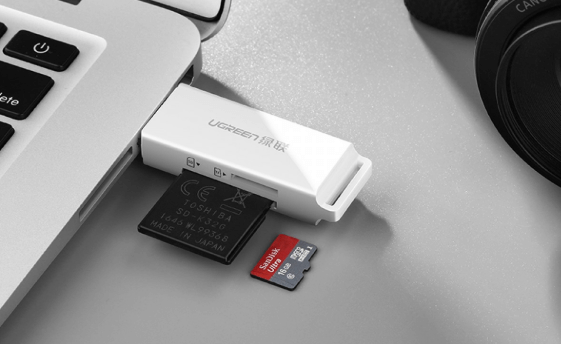
Step 1: Connect your RAW SD card to your computer using a card reader.
how to recover deleted pictures from the SD card when it is connected to pc
Download and install Renee Undeleter on your computer, then launch the program.
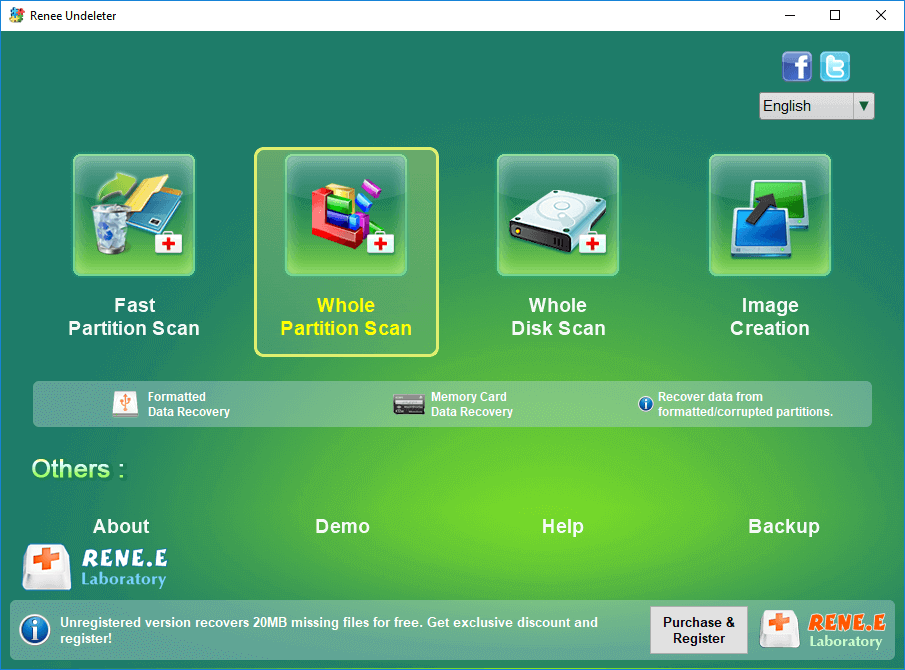
On the main interface, choose the Whole Partition Scan option to scan the RAW SD card thoroughly.
Note: Avoid installing Renee Undeleter on the RAW SD card or saving any new data to it, as this could overwrite your lost files and make recovery impossible.
select whole partition scan in renee undeleter to recover deleted video from sd card
Renee Undeleter Recovery Modes
  • Fast Partition Scan: Ideal for recovering files lost due to accidental deletion or emptying the recycle bin.
  • Whole Partition Scan: Perfect for RAW SD cards or inaccessible partitions, as it scans deeper to recover files from corrupted or formatted drives.
  • Whole Disk Scan: Analyzes the entire disk for lost partition information and performs a full scan.
  • Image Creation: Creates a backup image of the SD card’s current state to protect data during recovery.
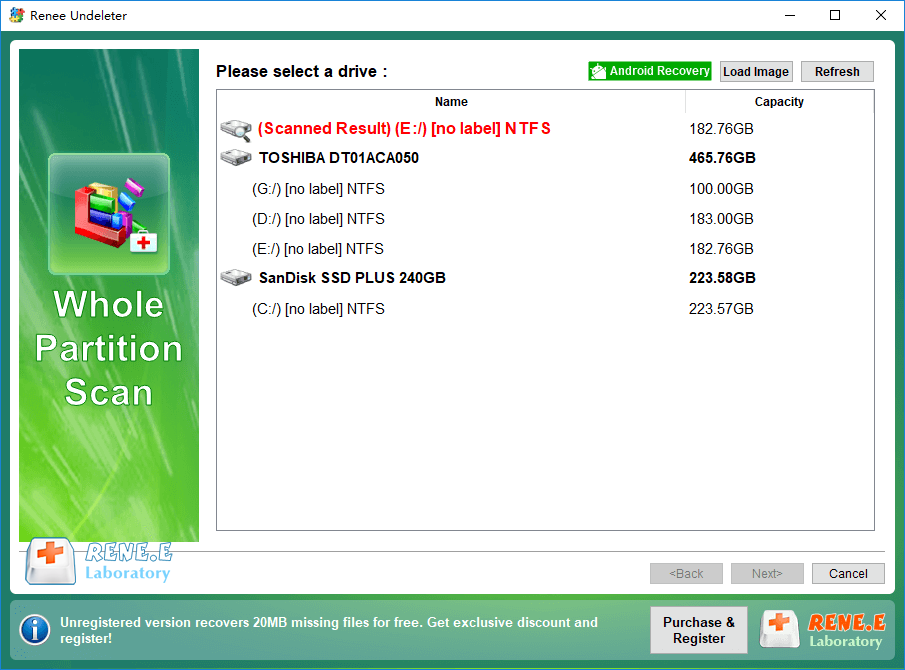
Step 2: Select your RAW SD card from the list of detected drives and click Next to begin the scanning process.
Renee Undeleter Whole Partition Scan
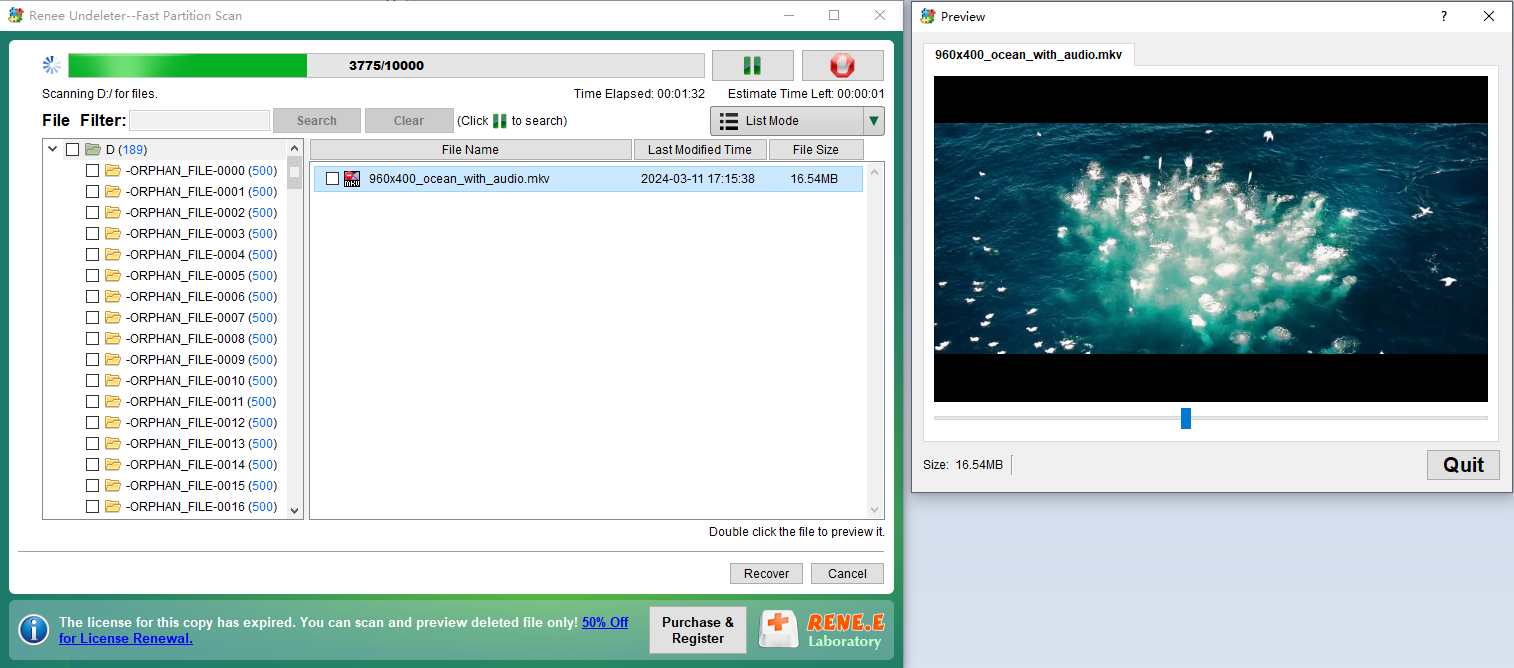
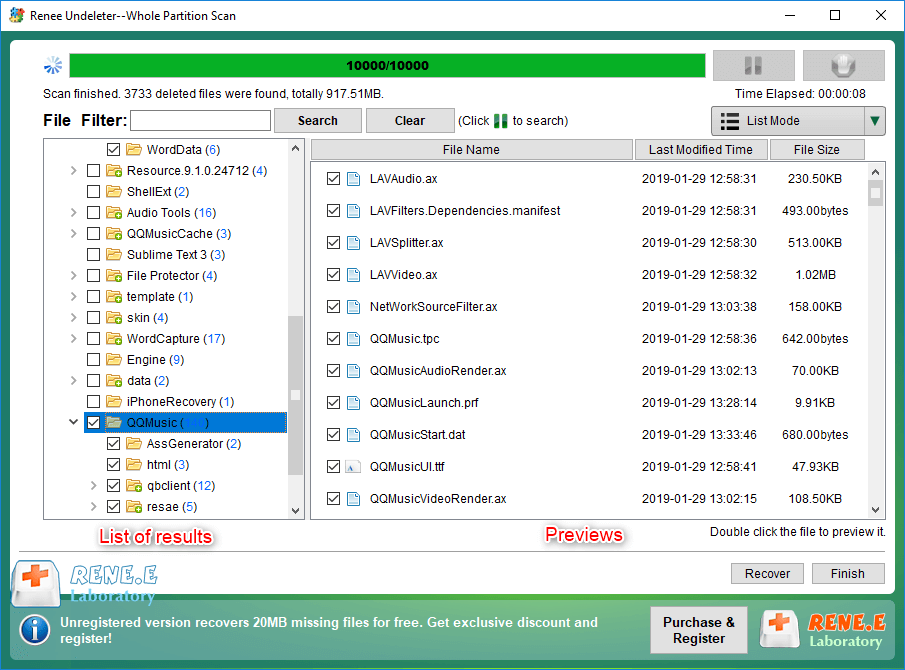
Step 3: Wait for the scan to complete. The duration depends on your SD card’s storage size. You can double-click files during the scan to preview them. If you spot the files you need, select them and click Recover to stop the scan and save the files. Alternatively, let the scan finish, then choose the files you want to recover and click Recover.
preview deleted mkv video file
preview and select the files to recover in renee undeleter
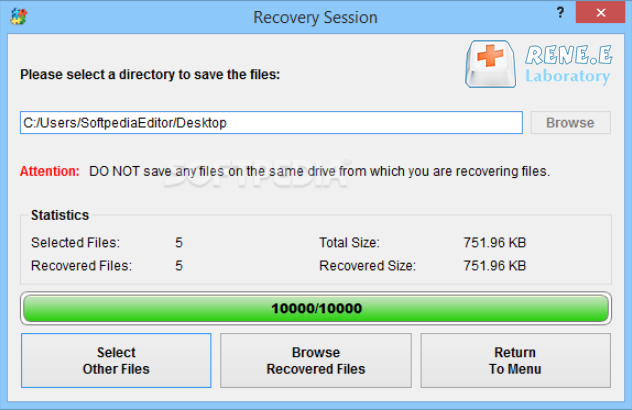
Note: Save the recovered files to a different drive (like your computer’s hard disk or an external drive) to avoid overwriting data on the RAW SD card.
recover the whole disk data

Advanced Technique: Using CHKDSK to Attempt Further Data Recovery

If Renee Undeleter has successfully recovered most of your files but you suspect there might be more data to salvage, or if you’re looking for an alternative approach before moving to formatting, you can try using the Windows CHKDSK tool as an advanced recovery method. While CHKDSK is designed to fix file system errors, it can sometimes help recover fragmented data from a RAW SD card by converting lost chains into.CHK files—though it’s not guaranteed to work on fully RAW drives, as Windows may report “CHKDSK is not available for RAW drives.” This method is worth trying if your card has a drive letter assigned in Disk Management.
Tips: Ensure you’ve backed up any recoverable data using Renee Undeleter, as CHKDSK might alter the card’s state.

Here's how to proceed and make the most of CHKDSK for potential data recovery:

1. Connect your SD card and note its drive letter (e.g., E: or F:) in File Explorer or Disk Management.
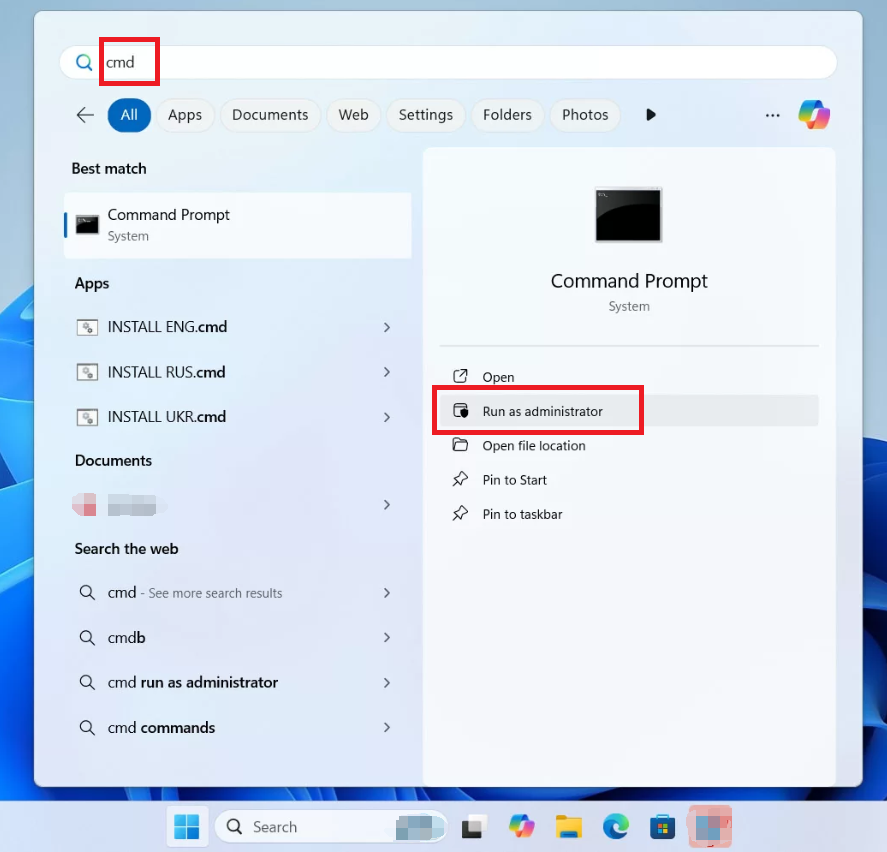
2. Open Command Prompt as Administrator: Search for “cmd” in the Start menu, right-click, and select “Run as administrator.”
Windows 11, run cmd as administrator
3. Type the command:

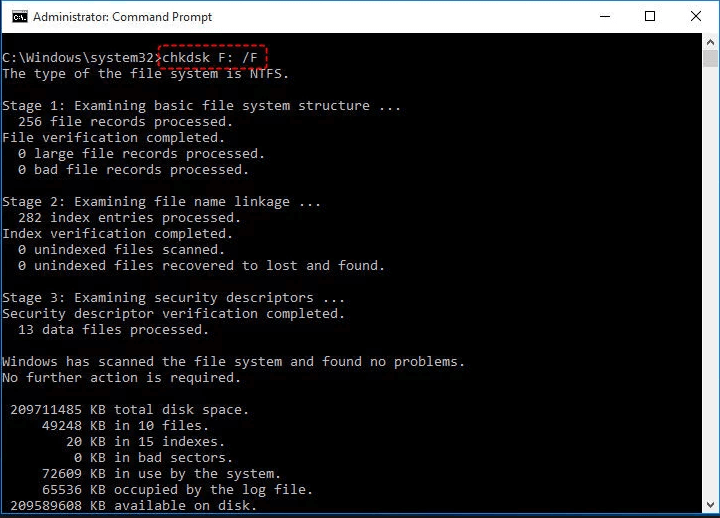
chkdsk X: /f /r

(replace X: with your SD card’s drive letter). The /f parameter fixes file system errors, while /r locates bad sectors and attempts to recover readable information.
4. Press Enter and follow any prompts. If CHKDSK runs, it will scan and attempt repairs, which could take a while depending on the card’s size.
chkdsk f /f to fix sd card recovery
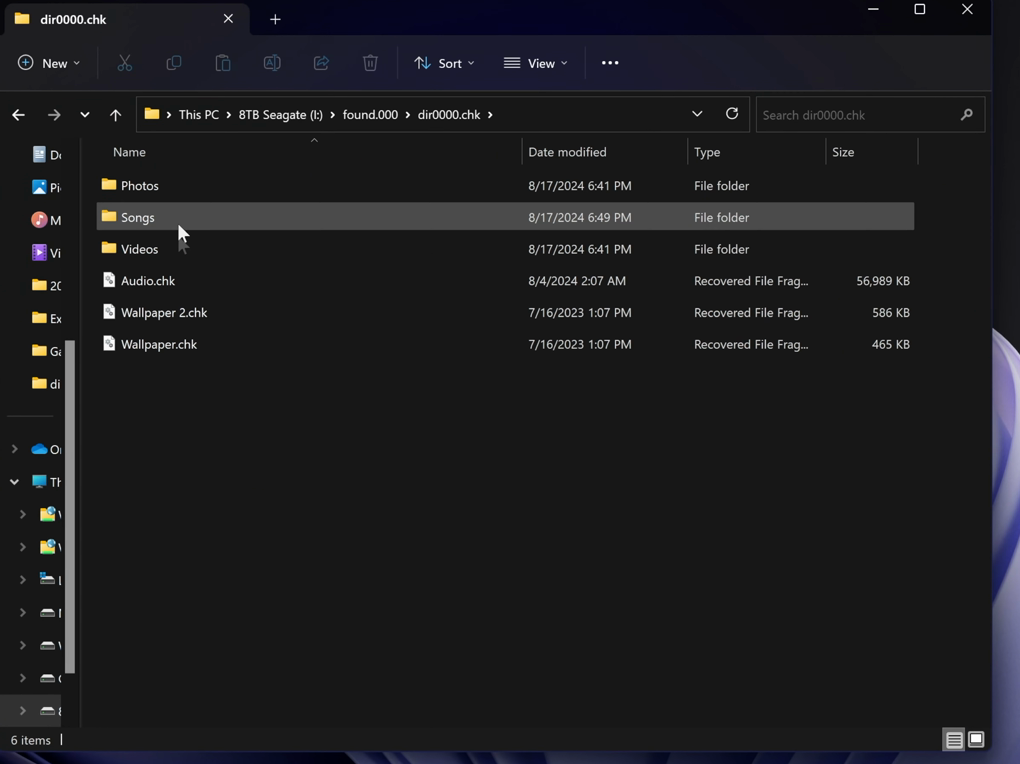
5. If CHKDSK detects lost data, it may save it as.CHK files in a hidden folder called FOUND.000 on the SD card’s root (enable “Show hidden files” in File Explorer to see it). These.CHK files are fragments of your original files without proper extensions, but you can attempt to restore them to their original formats.
Found.000 Folder on Windows

To convert .CHK files back to normal files

Manual Method: Open each .CHK file in a hex editor like HxD (free to download) or even Notepad to check the file header. Look for signatures like “ÿØÿà” for JPEG images or “RIFF” for AVI videos, then rename the file with the correct extension (e.g., file.chk to file.jpg) and test if it opens.
Using Tools: Use a free tool like UnCHK or FileCHK. These programs analyze .CHK files, identify their file types based on headers, and rename them automatically. For example, with FileCHK, point it to the FOUND.000 folder, let it process, and save the recovered files to a new location.
Be cautious: CHKDSK isn’t a foolproof solution for RAW SD cards, and success is limited if the file system is severely corrupted. If it doesn’t work or reports errors, proceed to formatting or consult a professional. Always save recovered files to a separate drive to avoid overwriting data on the SD card.
With your data safely recovered, you can now focus on restoring the SD card’s usability, but first, it’s worth checking if the card’s age is the root cause of the issue.
Renee Undeleter - Powerful Data Recovery SoftwareRenee Undeleter data Recovery software

Easy to use Only simple steps to recover data from storage devices.

Multiple scan modes Fast partition scan, whole partition scan and whole disk scan for different recovery needs.

File types Support to recover pictures, videos, audios, documents, mails, etc.

Supported storage devices Recover data from recycle bin, SD card, external disk, etc.

Supported systems Windows 11,10, 8.1, 8, 7, Vista, XP, 2000 and Mac OS X10.6, 10.7, 10.8+.

Easy to use Only simple steps to recover data from storage devices.

Multiple scan modes - 3 scan modes for different recovery needs.

Supported storage devices Recover data from recycle bin, SD card, external disk, etc.
Free TrialFree TrialFree Trial

3000 users have downloaded Renee Undeleter and found data back!

Assessing Your SD Card's Lifespan: When to Replace Instead of Repair

Before diving into repairs, it’s smart to check if your SD card is simply wearing out from age and heavy use. SD cards aren’t built to last forever—they have a limited number of write cycles, and once those are exhausted, problems like turning RAW become more common. If your card is nearing the end of its life, fixing it might only be a temporary band-aid, and you’re better off replacing it to avoid losing more data down the line.
Here’s a simple way to estimate your SD card’s remaining life, especially if you use it mainly for photos. This isn’t exact science, but it gives you a rough idea based on typical usage.

SD Card Lifespan Estimate (Based on Photo Usage)

You can use this formula:
Remaining Life (%) = 100 × (Max Photo Capacity – Total Photos Taken) ÷ Max Photo Capacity
Where:
  • Max Photo Capacity = Estimated total number of photos the card can handle before wearing out
  • Total Photos Taken = Monthly average × number of months used

Example

Let’s say:
  • Your SD card is rated for around 100,000 photo writes (typical for consumer-grade flash)
  • You take 1,000 photos per month
  • You’ve used the card for 24 months
Then:
  • Total Photos Taken = 1,000 × 24 = 24,000
  • Remaining Life = 100 × (100,000 – 24,000) ÷ 100,000 = 76%
Notes:

  • This is a rough estimate—actual endurance depends on file size, write amplification, and card quality.
  • If you shoot video or RAW files, adjust the formula based on total data written (in GB or TB).
  • Industrial-grade cards may offer more precise metrics like TBW or erase cycles.
If your calculation shows less than 20-30% life left, or if the card has been in use for 3-5 years with heavy writing (like in cameras or phones), consider buying a new one. Continuing to repair an old card could lead to repeated failures and more frustration. Brands like SanDisk or Samsung offer reliable replacements with better warranties for peace of mind.
Renee Undeleter - Powerful Data Recovery SoftwareRenee Undeleter data Recovery software

Easy to use Only simple steps to recover data from storage devices.

Multiple scan modes Fast partition scan, whole partition scan and whole disk scan for different recovery needs.

File types Support to recover pictures, videos, audios, documents, mails, etc.

Supported storage devices Recover data from recycle bin, SD card, external disk, etc.

Supported systems Windows 11,10, 8.1, 8, 7, Vista, XP, 2000 and Mac OS X10.6, 10.7, 10.8+.

Easy to use Only simple steps to recover data from storage devices.

Multiple scan modes - 3 scan modes for different recovery needs.

Supported storage devices Recover data from recycle bin, SD card, external disk, etc.

Free TrialFree TrialFree Trial

3000 users have downloaded Renee Undeleter and found data back!

How to Fix and Recover Raw SD Card Usability

With your key files safely recovered from the RAW SD card, you can now tackle fixing it to browse normally in your file manager. Sequence is crucial here—fixing first risks nuking your data forever. If files are lurking unseen, a premature repair could erase them beyond recovery.

Format to Recover Raw SD Card Functionality via File Explorer

If repairs didn’t stick or you’re skipping ahead, formatting is your go-to. It slaps on a fresh file system, letting your OS see the card, give it a letter, and store new stuff.
Multiple ways exist, but they achieve the same. We’ll use File Explorer here; for alternatives, see our safe formatting guide.
1. In File Explorer, locate your SD card.
2. Right-click and pick Format.
Windows format volume/partition
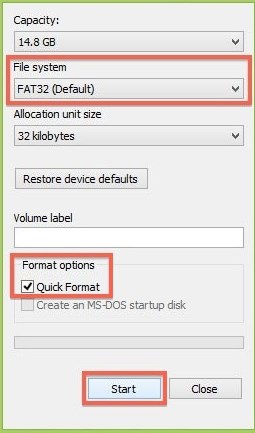
3. Select FAT32 or exFAT, uncheck Quick for a thorough job, and Start.
Format the SD card
4. Acknowledge the data wipe warning and formatting begins.
Done? Verify it opens fine in Explorer.
This should revive it. If RAW persists post-format, suspect hardware trouble—replace or consult pros.

Wrap Up on Recover Raw SD Card Strategies

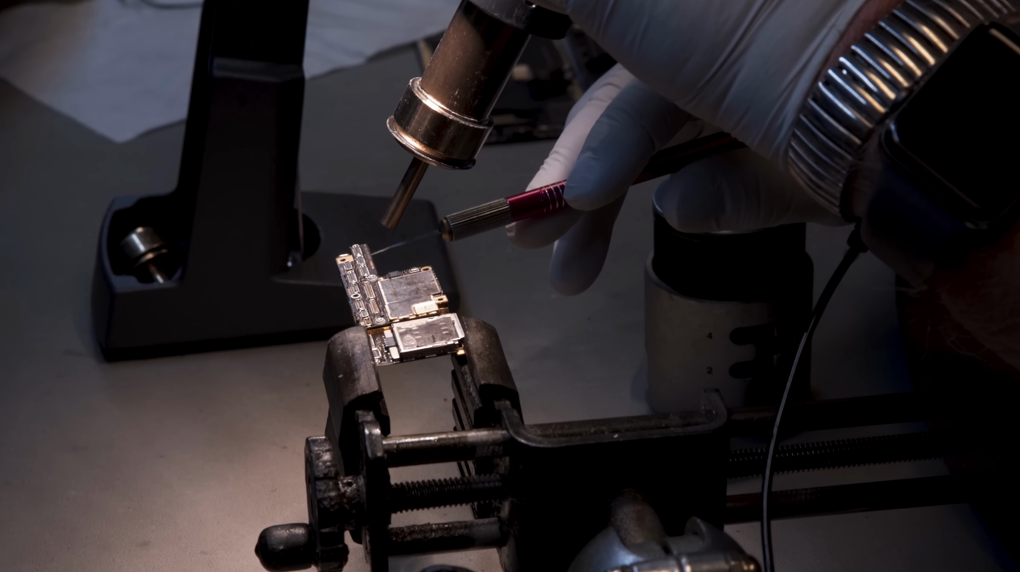
There you have it—if your SD card hits RAW, your data isn’t necessarily toast. Software like Renee Undeleter can rescue it, or go pro with a recovery service if you’re uneasy. Pros might cost more than software, though.
fix damaged cards in clean room
Prioritize recovery before fixes; reversing that could trash files. Formatting pre-recovery demands tougher tactics, with no sure success—especially full formats that overwrite everything.
Handle SD cards right: always safely eject, dodge sketchy downloads to avoid malware, and skip risky ops. They’re not eternal—most endure about 10,000 writes per block. If yours is flaky or ancient, grab a fresh one to dodge headaches.

FAQ

How can I change my SD card from RAW to a usable system to recover raw SD card?

Changing a RAW SD card back to a usable file system like FAT32 or exFAT typically involves formatting it, but remember that formatting will erase all data on the card, so it’s crucial to recover your files beforehand using recovery tools. Once your data is safe, you can format the card through File Explorer or Disk Management to restore functionality. If formatting doesn’t work, it could indicate deeper hardware issues, and you might need to replace the card.

What to do if the RAW SD card won't format from File Explorer to recover raw SD card?

If your RAW SD card won’t format via File Explorer—whether it throws an error or stalls—try a more direct method using Command Prompt and Diskpart:

  1. Open Command Prompt as Administrator
  2. Type diskpart and press Enter
  3. Type list disk to identify your SD card (⚠️ double-check to avoid selecting the wrong drive)
  4. Type select disk X (replace X with your SD card’s number)
  5. Type format fs=FAT32 and press Enter

If formatting still fails, the card may be physically damaged or severely corrupted. In that case, it’s safer to consult professional data recovery services rather than risk permanent data loss.

Can I recover data from a RAW SD card without using any software?

Recovering data from a RAW SD card without software is tricky because the RAW state means the file system is unreadable, so built-in tools like File Explorer won’t help much. However, if the card is partially recognized, you could try Command Prompt tricks like CHKDSK (though it often doesn’t work on fully RAW drives) or assigning a drive letter in Disk Management. In reality, for reliable recovery, software is almost always necessary as it can scan the raw data directly—free options exist, but skipping software altogether often leads to incomplete or no recovery.

Is it possible to fix a RAW SD card using only Command Prompt commands?

Yes, you can attempt to fix a RAW SD card using Command Prompt, especially if it has a drive letter assigned. For instance, running CHKDSK /f /r on the drive might repair some errors, or using Diskpart to clean and format the card can restore it. But these methods risk data loss if not done after recovery, and they don’t always succeed on severely RAW cards. It’s a good free alternative if you’re comfortable with commands, but for safety, recover files first with dedicated tools.

What should I do if my SD card is physically damaged and showing as RAW?

If your SD card is physically damaged—like it’s bent, cracked, or has visible wear—and it’s appearing as RAW, software fixes might not cut it because the issue could be hardware-based. In such cases, stop trying DIY methods to avoid worsening the damage, and take it to a professional data recovery service. They have specialized equipment to repair or extract data from physically compromised cards, though it can be pricey depending on the extent of the damage.

How can I prevent my SD card from becoming RAW in the future?

Preventing an SD card from turning RAW involves good habits like always safely ejecting the card from your device or computer before removing it, avoiding sudden power losses by not pulling it out during read/write operations, and keeping your devices free from malware with regular scans. Also, format the card in the device it’s used with (like your camera) to ensure compatibility, and replace old cards every few years since they wear out over time. Backing up data regularly to cloud or hard drives is key too, so even if it happens, you’re not starting from scratch.
Renee Undeleter - Powerful Data Recovery SoftwareRenee Undeleter data Recovery software

Easy to use Only simple steps to recover data from storage devices.

Multiple scan modes Fast partition scan, whole partition scan and whole disk scan for different recovery needs.

File types Support to recover pictures, videos, audios, documents, mails, etc.

Supported storage devices Recover data from recycle bin, SD card, external disk, etc.

Supported systems Windows 11,10, 8.1, 8, 7, Vista, XP, 2000 and Mac OS X10.6, 10.7, 10.8+.

Easy to use Only simple steps to recover data from storage devices.

Multiple scan modes - 3 scan modes for different recovery needs.

Supported storage devices Recover data from recycle bin, SD card, external disk, etc.
Free TrialFree TrialFree Trial

3000 users have downloaded Renee Undeleter and found data back!

User Comments

Page 1

Leave a Comment


Your comment has been submitted and is awaiting moderation.