author avatar
    Senior Program Developer
Last update by James Smith at 17 September 2026

Summary
This guide details the technical procedures required to unlock encrypted pen drive before data recovery operations can commence. It covers authentication methods for BitLocker, VeraCrypt, and hardware-encrypted USB drives to ensure readable file systems prior to scanning.


Recovery software cannot access a locked, encrypted pen drive. This guide walks you through how to unlock encrypted pen drive before data recovery—whether you’re using BitLocker To Go, VeraCrypt, or a hardware-encrypted USB. You’ll also learn how to safely scan the unlocked drive with Renee Undeleter and confirm it’s ready for recovery. Follow the step-by-step instructions below for unlocking, mounting, and verifying your drive.

Do you need to unlock an encrypted pen drive before data recovery?

Yes—you must unlock and mount the drive first. Recovery software can only scan readable sectors, and a locked, encrypted pen drive hides all file data. You need to unlock encrypted pen drive before data recovery can begin.

Important: Consumer tools cannot bypass real encryption. You must have the password, recovery key, keyfile, PIN, or fingerprint to access your data.
If you already know your encryption type, jump to BitLocker, VeraCrypt, or hardware-encrypted pen drives.

Use Renee Undeleter after the encrypted drive is unlocked

Renee Undeleter is a Windows data recovery tool for deleted files, formatted drives, and inaccessible storage. It does not unlock or remove encryption. Once you’ve unlocked and mounted your pen drive as a readable volume, Renee Undeleter can scan the file system and recover your data.
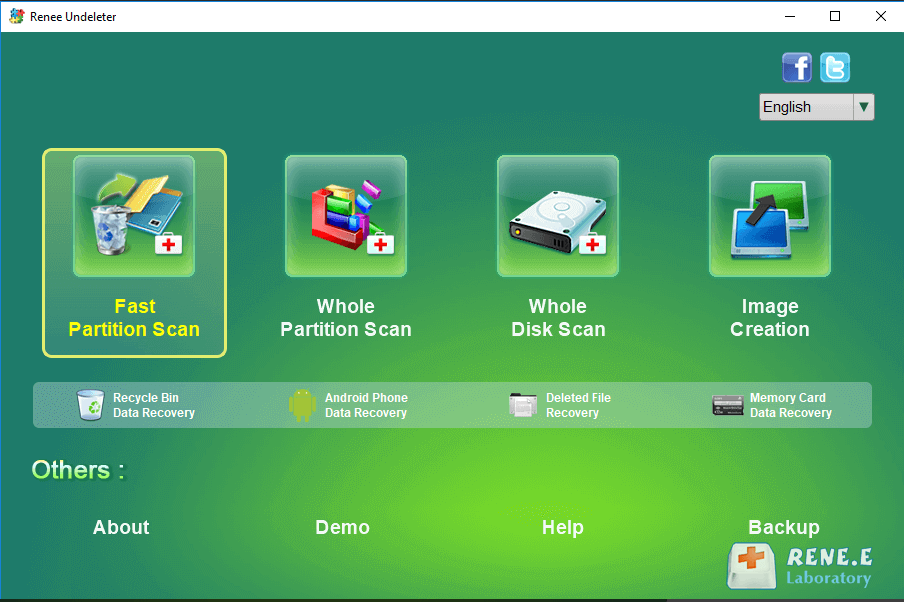
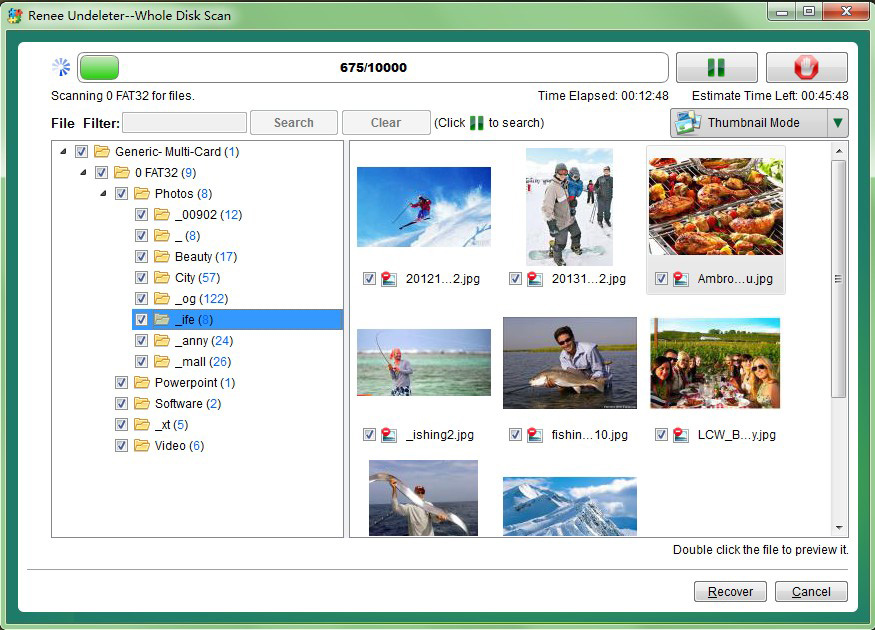
It supports NTFS, FAT, FAT32, and exFAT, plus macOS and Linux file systems. Main recovery modes include Fast Partition Scan, Whole Partition Scan, and Whole Disk Scan. The Image Creation feature lets you create a byte-to-byte backup before scanning—especially useful if your pen drive is unstable. You can also preview files before recovery.
Renee Undeleter, select Fast Partition Scan
Advantages:
  • Multiple scan modes for different data loss scenarios
  • Supports 400+ file formats and major Windows file systems
  • Image Creation provides a byte-to-byte backup option

Disadvantages:

  • Must be installed on a different drive to avoid overwriting lost data
  • USB scanning speed can be slow
  • Deep scans take time to complete

preview before recovery
Hot Topic Recover Data from Bad Sectors with Renee Undeleter

Strong to recover Recover data from the storage devices sustaining many bad sectors.

Supported devices SD card, SDHC, SDXC, USB flash drive, hard disk, computer, etc.

Supported file types Image, video, audio, text, email, etc.

Easy to use Recover by 3 steps and support to preview scan results.

Multiple scan modes Fast partition/whole partition/whole disk scan.

Easy to use Recover by 3 steps.

Multiple scan modes Fast partition/whole partition/whole disk scan.

Supported devices SD card/USB/hard disk, etc.

Free TrialFree TrialFree Trial 800 people have downloaded!
How to unlock the pen drive and scan it safely step by step

Follow this safe workflow before scanning:
1. Stop writing data to the encrypted pen drive.
2. Unlock the drive using the appropriate method below.
3. Verify that File Explorer shows the expected file system.
4. Scan the unlocked volume with Renee Undeleter.
5. Save any recovered files to a different drive.

Do not format the drive or run chkdsk unless you’re willing to risk damaging the data you need.

1. Unlock a BitLocker-encrypted pen drive

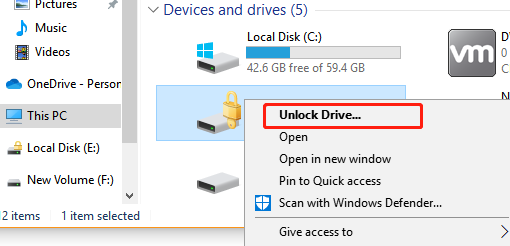
BitLocker To Go is Windows’ built-in encryption for removable drives. When you insert a BitLocker-encrypted pen drive, it may appear as a locked drive in File Explorer, display a padlock icon, or prompt for a password.
unlock bitlocker to go
The quickest way to unlock is by entering the password, but a valid 48-digit recovery key also works if you’ve lost the password. This setup is common in offices, on IT-managed drives, and on personal drives encrypted with Windows tools.

After the BitLocker To Go volume is unlocked, the recovery software can successfully scan the unlocked logical volume or mounted BitLocker volume, but a direct scan of the physical drive will typically return encrypted sectors unless the BitLocker layer is explicitly unlocked or decrypted by the software.

After unlocking, check that File Explorer shows the correct file system. If the drive opens normally, proceed to the verification step before scanning.

2. Mount a VeraCrypt-encrypted pen drive

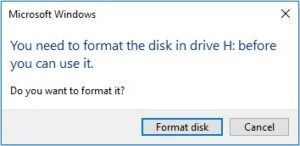
VeraCrypt is a free, open-source encryption tool for creating encrypted volumes or encrypting entire partitions. A VeraCrypt-encrypted pen drive typically doesn’t display a normal file system when plugged in—Windows may label it as unallocated or RAW.
Windows 'You need to format the disk' error message

Don’t format it. You must mount the encrypted structure through VeraCrypt before any recovery software can see your files.

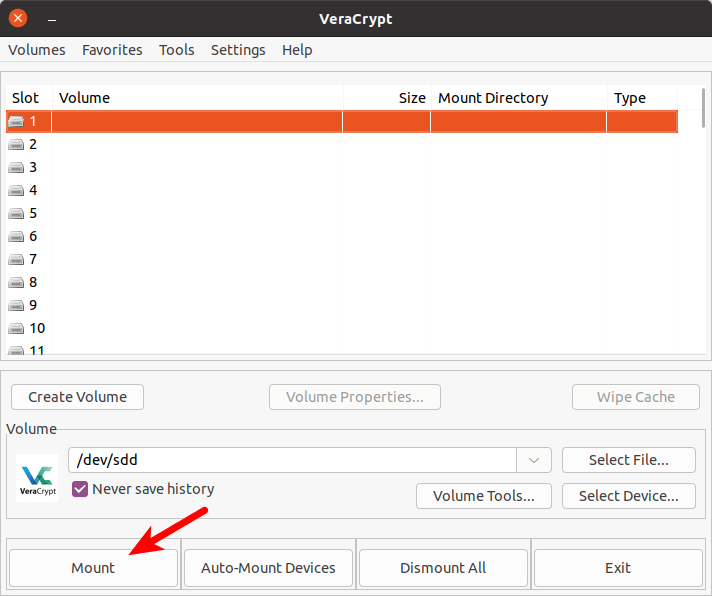
Mounting assigns the encrypted partition to a new drive letter. After mounting, use this new drive letter for file access and scanning.
Mount a VeraCrypt-encrypted pen drive
Scanning the raw encrypted partition will only return scrambled, unreadable data. VeraCrypt supports passwords, keyfiles, and hidden volumes, but you’ll need the exact credentials used at creation. This is especially important if the drive was set up on another computer and Windows prompts to initialize it.

In Renee Undeleter, scan the mounted drive letter—not the raw encrypted partition.

Once you see the new drive letter and can access files, move on to verification. If the drive letter appears but is empty, unmount and try again with the correct partition.

3. Unlock a hardware-encrypted pen drive

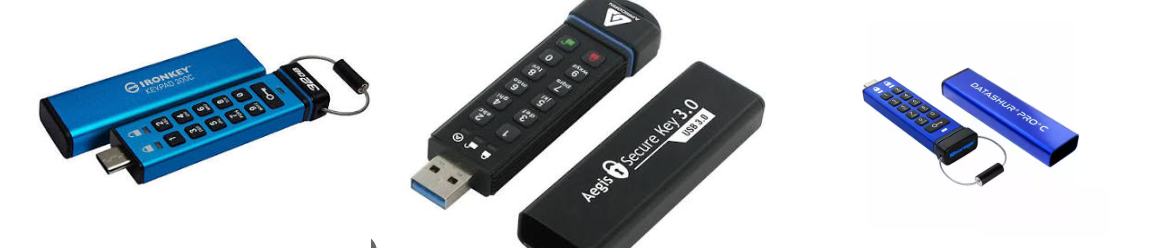
Some secure USB drives use a built-in keypad or fingerprint reader instead of software encryption. Examples include Kingston IronKey, Apricorn Aegis Secure Key, and iStorage datAshur. These drives remain hidden from Windows until you unlock them using the onboard controller—by entering a PIN or scanning your fingerprint. This unlocking happens on the device itself, not through BitLocker or VeraCrypt.
hardware encrypted pen drive
This approach lets you unlock the drive on any computer, but you must follow the vendor’s procedure. If you lose your PIN, recovery is difficult—and repeated wrong attempts may cause a lockout or even trigger crypto-erase. Always check the manual before guessing. It’s normal for the drive to remain invisible until unlocked.

Repeated wrong attempts can trigger permanent lockout or crypto-erase. Don’t guess—refer to the vendor manual.

For example, a keypad drive may require pressing the unlock button, entering your PIN, then pressing unlock again. A fingerprint drive might need the vendor utility open during scanning. Always follow the manufacturer’s quick-start guide.
Once the drive is visible and shows a normal file system, you’re ready to verify. If the drive is visible but files are missing or the partition shows as RAW, scan the unlocked drive with Renee Undeleter rather than attempting manual repairs.

How to confirm the drive is truly unlocked before recovery

Before starting a scan, quickly check the following:
- File Explorer displays the expected capacity and a supported file system (NTFS, FAT32, or exFAT)—not RAW.
- Folders open without prompting for a password, PIN, or recovery key.
- No padlock icon or locked badge remains on the drive.
As a practical test, open a known small file, such as a .txt document or image. If it opens, the volume is readable for scanning. You can also copy a small, unimportant file to another drive as a read test.

If these checks fail, stop and resolve the unlock issue first. Scanning a locked or RAW drive wastes time and produces no useful results.

FAQ

Where can I find a lost BitLocker recovery key for my USB drive?

Check your Microsoft account’s BitLocker recovery keys if the drive was encrypted with a personal account. For work or school drives, consult your organization’s IT portal or look for the key file saved during encryption. The key might also be printed or saved as a .txt file. If you can’t find the key, the data remains encrypted—recovery software cannot bypass BitLocker.

Why does my pen drive show as RAW after unlocking, and can I still recover data?
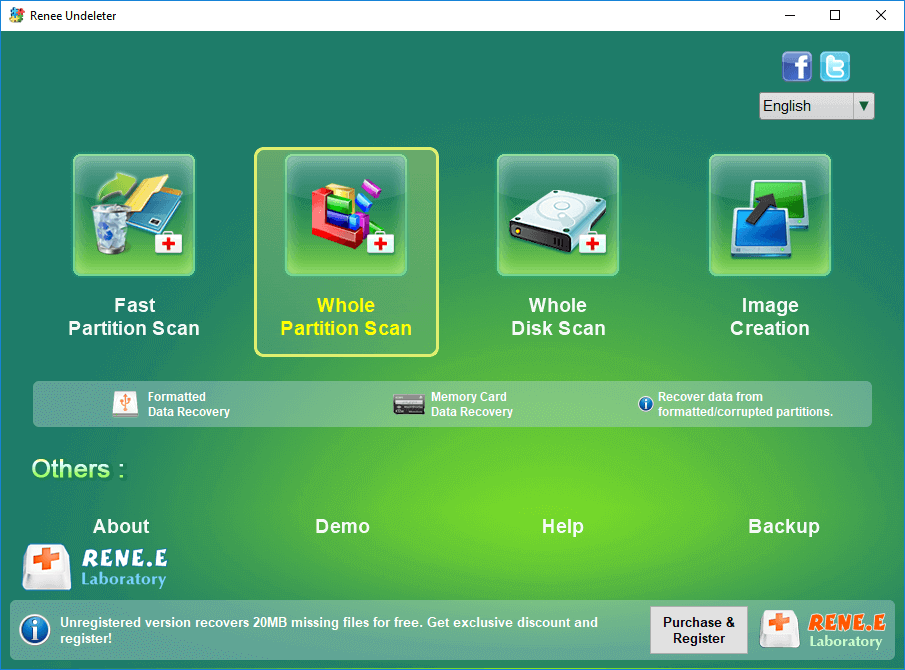
A RAW file system means Windows can’t recognize the partition structure, but the drive may still contain recoverable files. Do not format it. Once the drive is unlocked, scan it using Whole Partition Scan or Whole Disk Scan in Renee Undeleter. If the drive is still locked, RAW status means it’s not ready for recovery.
Renee Undeleter Whole Partition Scan option for formatted pen drive

Should I format the encrypted pen drive to make it readable before recovery?

No. Formatting an encrypted drive can erase the partition or volume structure and make recovery harder. Always unlock the drive with its password, recovery key, keyfile, PIN, or fingerprint first. If it’s unlocked but still RAW, scan it with Renee Undeleter instead of formatting.
Renee Undeleter - Powerful Data Recovery SoftwareRenee Undeleter data Recovery software

Easy to use Only simple steps to recover data from storage devices.

Multiple scan modes Fast partition scan, whole partition scan and whole disk scan for different recovery needs.

File types Support to recover pictures, videos, audios, documents, mails, etc.

Supported storage devices Recover data from recycle bin, SD card, external disk, etc.

Supported systems Windows 11,10, 8.1, 8, 7, Vista, XP, 2000 and Mac OS X10.6, 10.7, 10.8+.

Easy to use Only simple steps to recover data from storage devices.

Multiple scan modes - 3 scan modes for different recovery needs.

Supported storage devices Recover data from recycle bin, SD card, external disk, etc.

Free TrialFree TrialFree Trial

3000 users have downloaded Renee Undeleter and found data back!

User Comments

Page 1

Leave a Comment


Your comment has been submitted and is awaiting moderation.