
How to Clone a Failing or Unbootable Windows Drive Using a WinPE Rescue USB

Summary
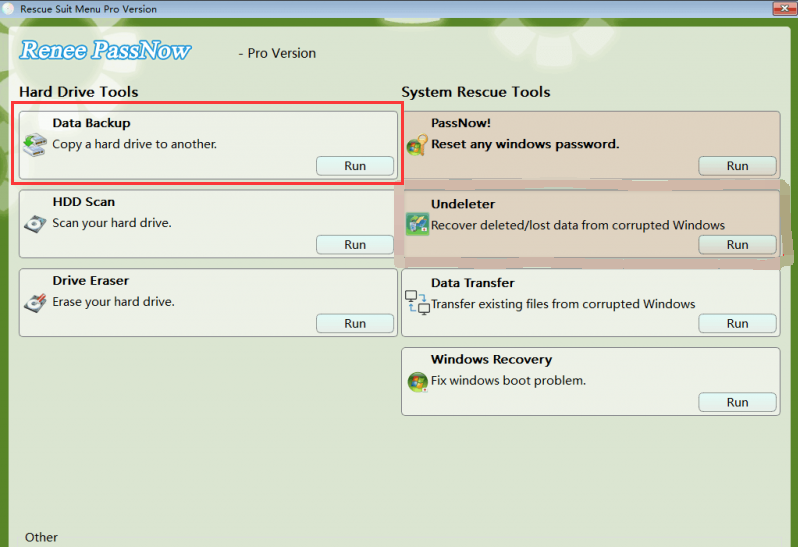
This comprehensive guide outlines the technical procedures required to clone dead Windows drive using WinPE USB, focusing on pre-clone diagnostics and offline data extraction. It details the utilization of specialized recovery software to execute secure disk cloning and verify bootability without relying on a functional operating system.


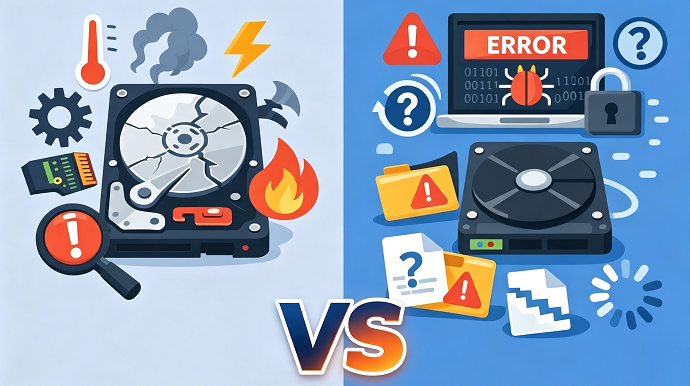
| Check | What to Look For | Action if Issue Found |
|---|---|---|
Physical noise |
Clicking, grinding, or repetitive beeping from the drive |
Stop immediately and contact a professional recovery service. |
BIOS/UEFI detection |
Drive is missing from the disk list |
Check SATA/NVMe cables or try the drive in an external enclosure; if still missing, stop. |
SMART / bad sectors |
Read errors, extreme lag, or freezing during file access |
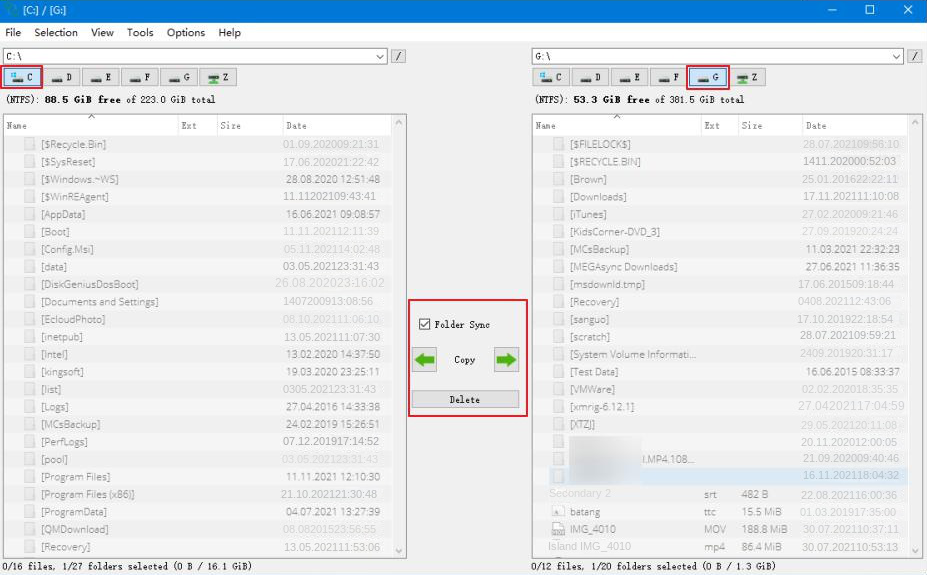
Prioritize Data Transfer over full cloning; rescue files first. |
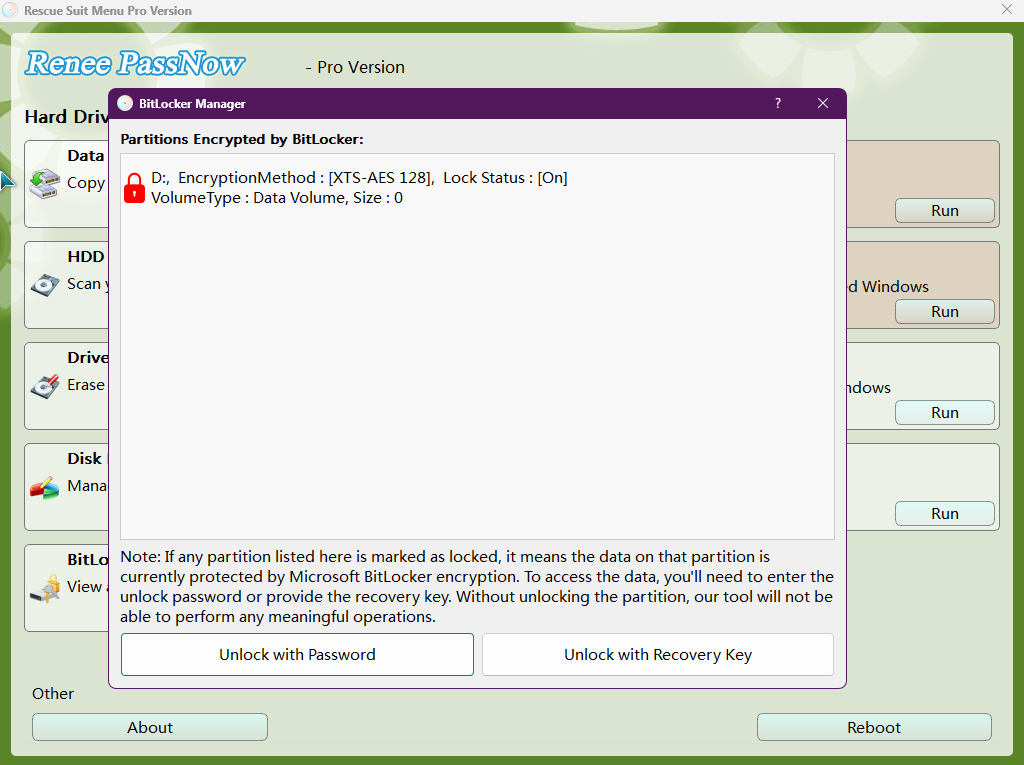
BitLocker encryption |
Drive appears locked or asks for a recovery key |
Locate the BitLocker password or 48-digit recovery key before cloning. |
Target capacity |
New drive is smaller than the old drive |
Make sure the new drive can hold all used space from the source, not just the total capacity. |
Boot mode |
UEFI vs. Legacy/CSM mismatch |
Note the original boot mode in BIOS/UEFI to ensure the clone will be bootable. |
| WinPE Rescue CD | Linux‑based Live CD |
|---|---|
Renee PassNow, Hiren’s BootCD PE, AOMEI PE Builder, EaseUS WinPE Disk |
🐧 GParted Live, Clonezilla, SystemRescue, Ubuntu Live USB |
👍 Pros: Familiar Windows‑style GUI, easier for beginners, supports BitLocker unlocking, integrates with Windows recovery workflows |
👍 Pros: Free/open‑source, highly customizable, powerful command‑line tools, broad hardware support |
👎 Cons: Often paid or limited free versions, heavier footprint, less flexible for advanced scripting |
👎 Cons: Steeper learning curve, many tools are CLI‑only, GUI options less polished, Not support Bitlocker |
🎯 Best For: Windows users needing guided recovery, GUI‑based cloning, or encrypted drive access |
🎯 Best For: Tech‑savvy users comfortable with Linux, advanced partitioning, or forensic recovery |
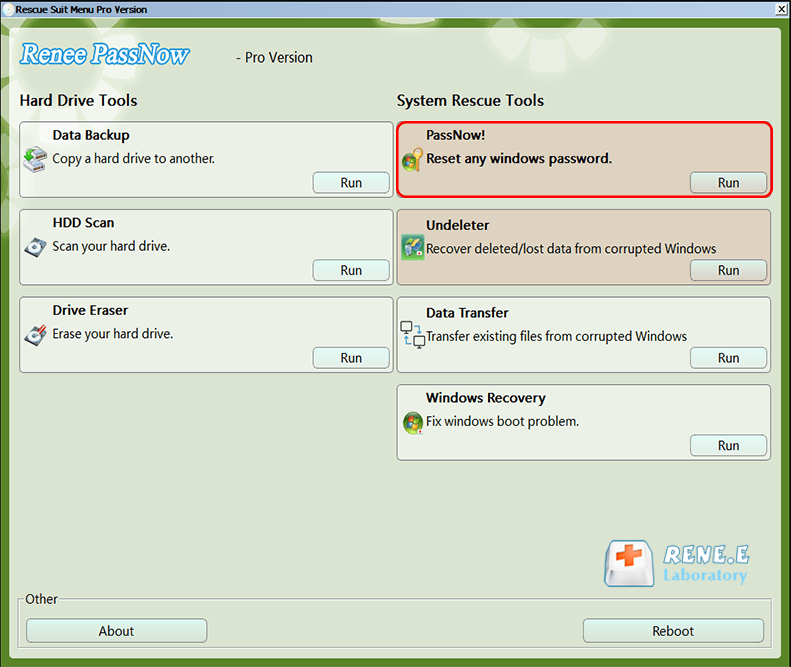

Remove Windows Login Password 3 steps for whole password remove process.
Recover the files Recover the deleted files without Windows system.
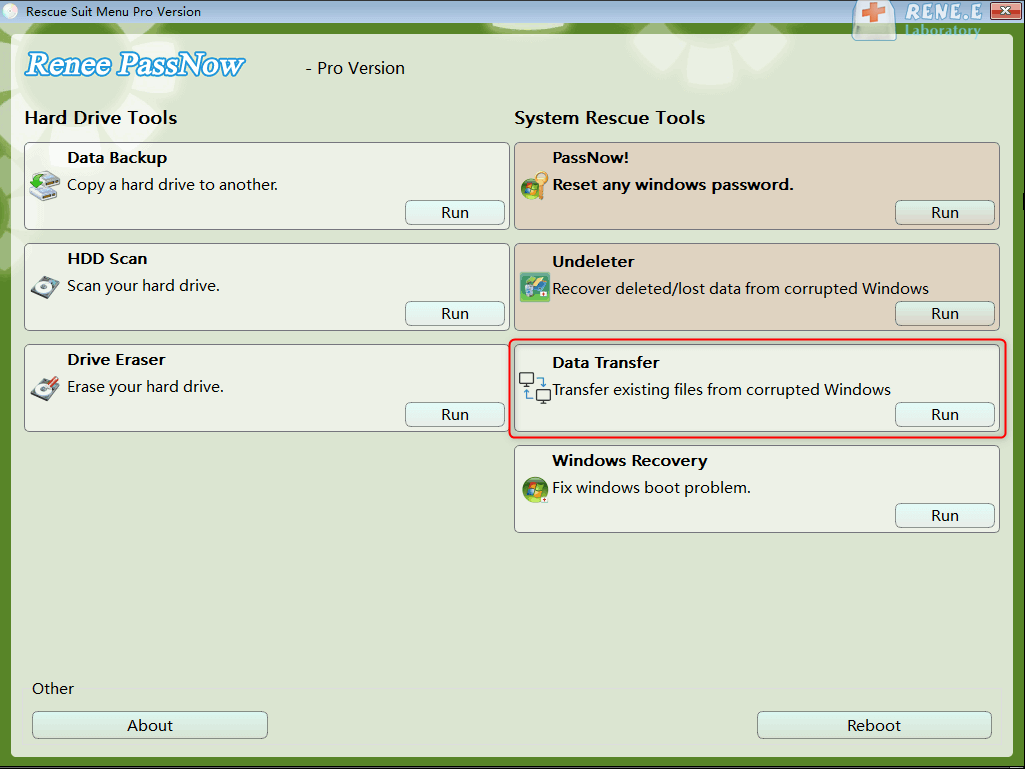
Transfer the data Transfer the important files of the computer with system.
Multifuctional Data transfer, data recovery, bootable problem recovery can be run without system.
Highly compatible Windows 11/10/8.1/8/7/XP/Vista. UEFI boot.
Remove Login Password Support Windows 11/10/8.1/8/7/XP/Vista. UEFI boot.
Recover the files Recover the deleted files without Windows system.
Transfer the data Transfer the important files of the computer with system.

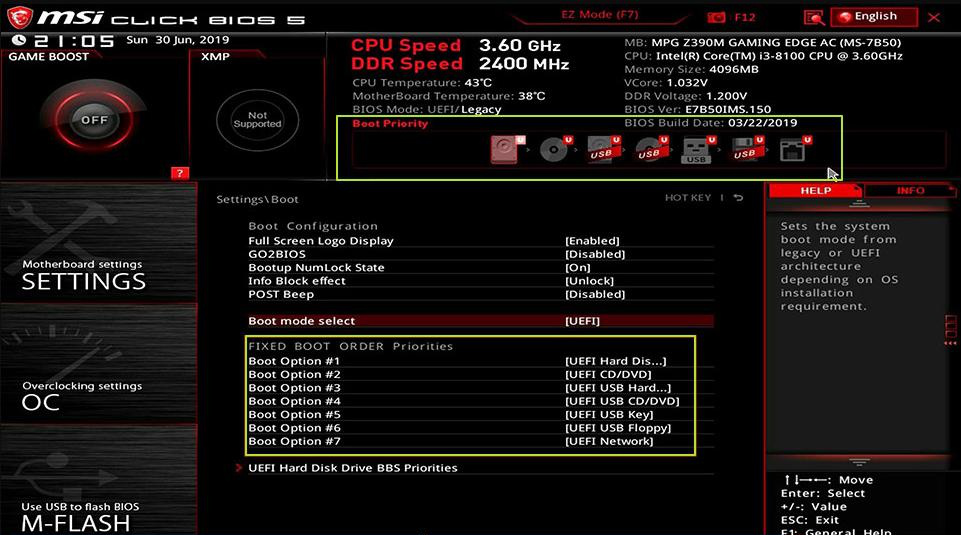
| BIOS / Computer Brand | Boot Menu Key | BIOS Setup Key |
|---|---|---|
DELL |
F12 |
F2 |
HP |
F9 (boot menu) / Esc → F9 |
Esc → F10 (some models F10 direct) |
ASUS |
Esc (laptops) / F8 (desktops) |
F2 or Delete |
Acer |
F12 (must be enabled in BIOS) |
F2 or Delete |
Lenovo (Consumer Laptops) |
F12 (some models Novo Button) |
F2 |
Lenovo (Desktops) |
F12 |
F1 |
Lenovo (ThinkPads) |
F12 |
F1 |
MSI |
F11 |
Delete |
Samsung |
F10 or F11 (varies by model) |
F2 |
Gigabyte / Aorus |
F12 |
Delete |
Intel (NUC / Boards) |
F10 |
F2 |
Microsoft Surface Tablets |
Hold Volume Down + Power |
Hold Volume Up + Power |
| Location | What It Stores |
|---|---|
C:\Users\YourUserName\Documents |
Word docs, PDFs, spreadsheets |
C:\Users\YourUserName\Pictures |
Photos, screenshots, image libraries |
C:\Users\YourUserName\Downloads |
Browser and app downloads |
C:\Users\YourUserName\Desktop |
Desktop shortcuts and files |
C:\Users\YourUserName\Videos |
Videos, screen recordings, exports |
C:\Users\YourUserName\Music |
Music files, audio projects |
C:\Users\YourUserName\AppData |
App data and browser profiles |
What if my source drive has bad sectors—will the clone still work?
Can I clone to a smaller SSD than the original drive?
The cloned drive boots to a black screen—what should I check first?
Remove Windows Login Password 3 steps for whole password remove process.
Enable/Create Administrator One click for creating new administrator and enable the disabled account.
Widely Use New version supports UEFI boot model, which can be used on more computers, laptops and even surfaces.
Multifuctional Data transfer, data recovery, bootable problem recovery can be run without system.
Highly compatible Windows 11/10/8.1/8/7/XP/Vista.
Remove Login Password Support Windows 11/10/8.1/8/7/XP/Vista.
Enable/Create Administrator One click for creating new administrator and enable the disabled account.
Easy to use No need of any professional knowledge or password reset disk.
Relate Links :
How to Safely Test a Cloned Drive for Bootability Before Swapping
15-07-2026
Amanda J. Brook : This resource details the standard procedures to test cloned drive before swapping, ensuring bootability and data integrity during...
How to Safely Clone HDD to HDD: Complete Preparation, Tools, and Troubleshooting

08-07-2026
Ashley S. Miller : The provided resource details the technical procedures required to clone hdd to hdd, covering essential prerequisites such as...
How to Repair a Non‑Booting Cloned Drive with Bootrec (fixmbr/rebuildbcd)
07-07-2026
Amanda J. Brook : This comprehensive technical guide outlines the procedures to use bootrec fixmbr rebuildbcd on cloned drive systems to resolve...
Clonezilla Alternative: Easy Windows Tools for Disk Cloning & SSD Migration

25-05-2026
John Weaver : This guide evaluates multiple clonezilla alternative solutions for Windows-based disk cloning, SSD migration, and backup workflows. It compares...



User Comments
Leave a Comment