
When to Stop DIY: Signs Your Pen Drive Has Physical Damage and Needs a Professional Recovery Lab

Summary
This article outlines the diagnostic indicators that necessitate pen drive physical damage professional recovery over standard software solutions. It details the hardware failure symptoms, safe preliminary checks, and the specific conditions where specialized laboratory intervention becomes the only viable data retrieval method.

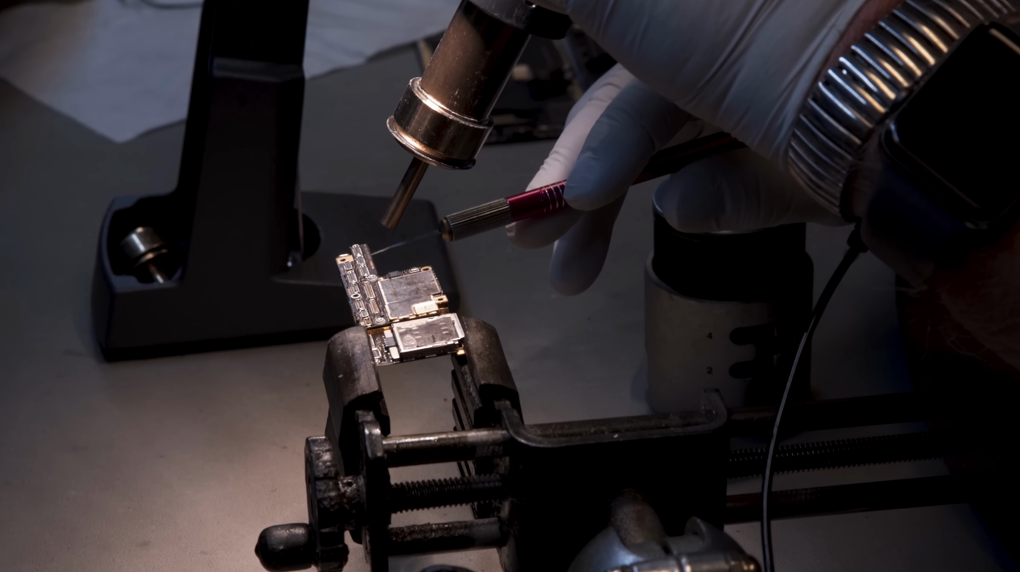
| Sign | What it means | Recommended next step |
|---|---|---|
Broken or bent connector |
Power/data pins may not connect or could short |
Stop plugging in; professional repair likely needed |
Burnt smell or scorch marks |
A component may have shorted or overheated |
Remove immediately and consult a lab |
Cracked housing |
Internal PCB may be cracked or components dislodged |
If detected, make a backup image; if not, seek a lab |
No LED activity |
Drive isn’t receiving power or controller is dead |
Try once on another port/PC, then stop |
Not detected on any PC |
Controller isn’t enumerating—likely PCB/NAND damage |
Software recovery not possible; lab required |
Detected but zero capacity |
Controller sees the device, but NAND isn’t fully accessible |
Try software recovery, but drive is unstable |

Strong to recover Recover data from the storage devices sustaining many bad sectors.
Supported devices SD card, SDHC, SDXC, USB flash drive, hard disk, computer, etc.
Supported file types Image, video, audio, text, email, etc.
Easy to use Recover by 3 steps and support to preview scan results.
Multiple scan modes Fast partition/whole partition/whole disk scan.
Easy to use Recover by 3 steps.
Multiple scan modes Fast partition/whole partition/whole disk scan.
Supported devices SD card/USB/hard disk, etc.
Free TrialFree TrialFree Trial 800 people have downloaded!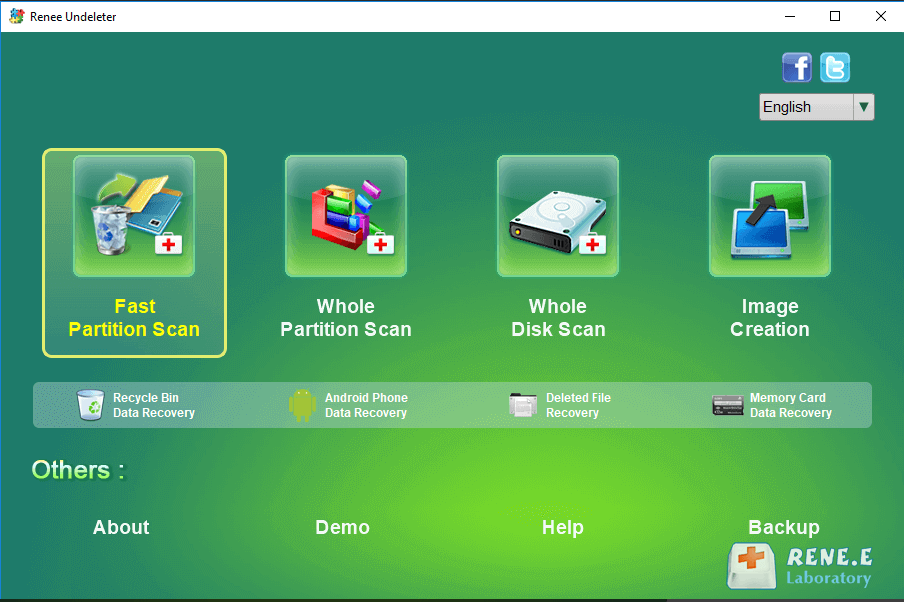
What should I do if my USB flash drive is not detected on any computer?
Is it safe to keep plugging in a physically damaged pen drive to test it?
Easy to use Only simple steps to recover data from storage devices.
Multiple scan modes Fast partition scan, whole partition scan and whole disk scan for different recovery needs.
File types Support to recover pictures, videos, audios, documents, mails, etc.
Supported storage devices Recover data from recycle bin, SD card, external disk, etc.
Supported systems Windows 11,10, 8.1, 8, 7, Vista, XP, 2000 and Mac OS X10.6, 10.7, 10.8+.
Easy to use Only simple steps to recover data from storage devices.
Multiple scan modes - 3 scan modes for different recovery needs.
Supported storage devices Recover data from recycle bin, SD card, external disk, etc.
Relate Links :
How to Clone a Failing or Unbootable Windows Drive Using a WinPE Rescue USB

09-09-2026
Amanda J. Brook : This comprehensive guide outlines the technical procedures required to clone dead Windows drive using WinPE USB, focusing on...
Crashed Hard Drive Recovery: How to Rescue Your Files and Fix the drive
28-07-2026
Ashley S. Miller : Crashed hard drive recovery requires accurate diagnosis of logical corruption versus physical failure to determine the appropriate retrieval...
How to Fix a RAW Hard Drive When Your Laptop Won’t Boot (Without Formatting or Losing Data)
27-07-2026
Ashley S. Miller : This guide outlines comprehensive methods to fix RAW hard drive issues without formatting or data loss. It covers...
Fatal Hard Drive Recovery Mistakes to Avoid When Your Drive Crashes

27-07-2026
John Weaver : This article outlines critical hard drive recovery mistakes that can lead to permanent data loss during a drive...



User Comments
Leave a Comment