author avatar
    Senior Product Manager
Last update by Olivia Brown at 30 October 2025

Summary
Learn how to install Windows 10/11 without losing data on other drives. This authoritative guide covers essential tips for users in the US and India to refresh or upgrade safely while protecting all your important files.



Planning to reinstall Windows 10/11 but terrified of accidentally wiping your precious photos, documents, and game libraries on your D: or E: drive? You’re not alone. The fear of seeing a “Format” prompt and clicking the wrong button is a major reason why many people put off refreshing their PC.
But what if your computer has become sluggish, you’re upgrading to a new, faster SSD, or you’re recovering from a system crash? A fresh installation is often the best solution.
This guide is here to put your mind at ease. We’ll show you several proven methods to safely install Windows 10/11(old drive or a fresh copy) without losing a single file on your other drives. Whether you want a quick refresh or a completely clean slate, we have a solution that fits your needs.

Before You Begin: The Unbreakable Rule of Data Safety

Before you touch any installation media, let’s establish the golden rule: Always back up your data. Even with the safest methods, unexpected power outages or hardware failures can occur. A backup is your ultimate safety net.
Here are a few essential pre-flight checks:
1. For bootable systems: At a minimum, copy your most critical files to an external hard drive or a cloud service (like Google Drive or OneDrive). Make a checklist:
  • Documents, Photos, Videos, and Music folders.
  • Your Desktop and Downloads folders.
  • Browser bookmarks (export them from Chrome, Firefox, etc.).
  • Specific application settings, often found in the C:\Users\YourUsername\AppData folder.

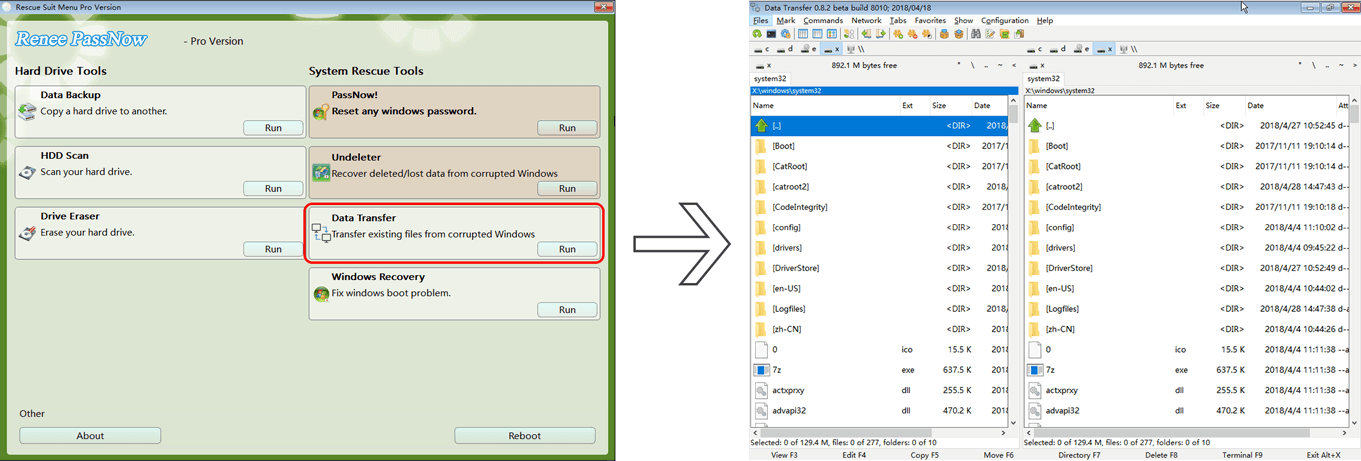
2. For Un-bootable Systems: If your PC won’t even start, you can’t back up files the usual way. In this critical situation, a tool like Renee PassNow is invaluable. It lets you create a bootable USB drive to start your computer and transfer all your important files to an external drive before you begin the reinstallation process.
The Data transfer function in Renee PassNow is absolutely FREE to use!
Renee Passnow – Professional Windows Password Remover

Remove Windows Login Password 3 steps for whole password remove process.

Recover the files Recover the deleted files without Windows system.

Transfer the data Transfer the important files of the computer with system.
Multifuctional Data transfer, data recovery, bootable problem recovery can be run without system.

Highly compatible Windows 11/10/8.1/8/7/XP/Vista. UEFI boot.

Remove Login Password Support Windows 11/10/8.1/8/7/XP/Vista. UEFI boot.

Recover the files Recover the deleted files without Windows system.

Transfer the data Transfer the important files of the computer with system.
Free TrialFree TrialNow 2000 people have downloaded!
Data transfer function of Renee PassNow 

The Ultimate Safety Net: Create a Full System Image with Renee Becca

For complete peace of mind, the best approach is to create an image backup of your entire drive. Think of this as a perfect snapshot of your system and data. This ensures you can restore everything if needed.
If anything goes wrong during the installation—even if you accidentally format the wrong drive—you can restore this image and get everything back exactly as it was.
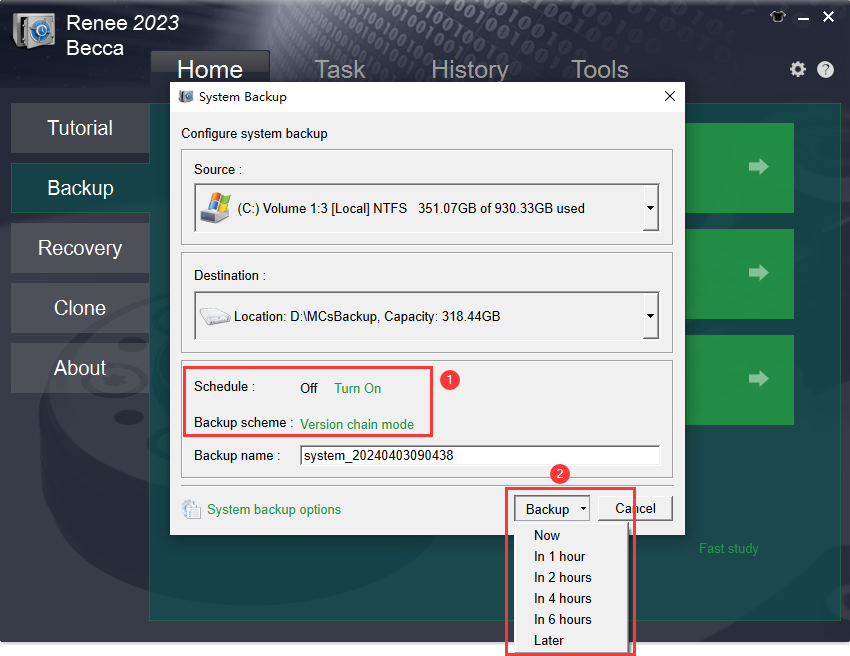
We highly recommend Renee Becca for this task. It’s a professional backup and restore tool that makes creating a system image simple and fast. This is your “undo button” for the entire operation.
backup system to an image with Renee Becca 
Renee Becca – Safe and Quick System Migration to SSD

Automatic 4K alignment Improves SSD performance during system migration.

Support GPT and MBR Automatically adapt to the suitable partition format.

Support NTFS and FAT32 Redeploy various files in different file systems.

Back up quickly Back up files at up to 3,000MB/min.

Overall backup schedule Support system redeployment/system backup/partition backup/disk backup/disk clone.

Automatic 4K alignment Improve SSD performance

Support GPT and MBR Intelligently adapt to a partition format

Support NTFS and FAT32 Redeploy files in different file systems

Free TrialFree TrialNow 56337 people have downloaded!

Method 1: The Quick Refresh Using Windows' Built-in Tools

Best for: Your PC is just a bit slow or has minor software glitches. You want to refresh Windows without the hassle of a full reinstallation and without affecting your installed programs or files on any drive.
This approach uses tools already inside Windows and is the least likely to cause issues. It will not affect your data on other drives like D: or E:.

Option A: Reset This PC

This feature reinstalls Windows 10/11 using files already on your computer. Crucially, it gives you an option to keep your personal files.
✅ Pros
  • Keeps your personal files safe: Your documents, photos, and other personal data on the C: drive stay intact. Files on other drives like D: or E: aren’t touched at all.
  • No need for external tools or USB drives: It uses built-in Windows recovery files, so you don’t have to download anything or mess with bootable media.
  • Fixes minor system issues quickly: Great for resolving slow performance, glitches, or weird behavior without doing a full reinstall.
  • Much safer than a clean install: Since it doesn’t wipe your entire system, there’s less risk of losing important data or misconfiguring partitions.

⚠️ Cons
  • Removes all installed apps: Any third-party programs you’ve added (like Chrome, Photoshop, or Office) will be wiped. You’ll need to reinstall them manually.
  • Resets your system settings: Customizations like display settings, Wi-Fi setups, and preferences will go back to default.
  • May not fix deeper issues: If your system has serious corruption, malware, or driver conflicts, this reset might not be enough—you’d need a full clean install.
⚙️ Steps
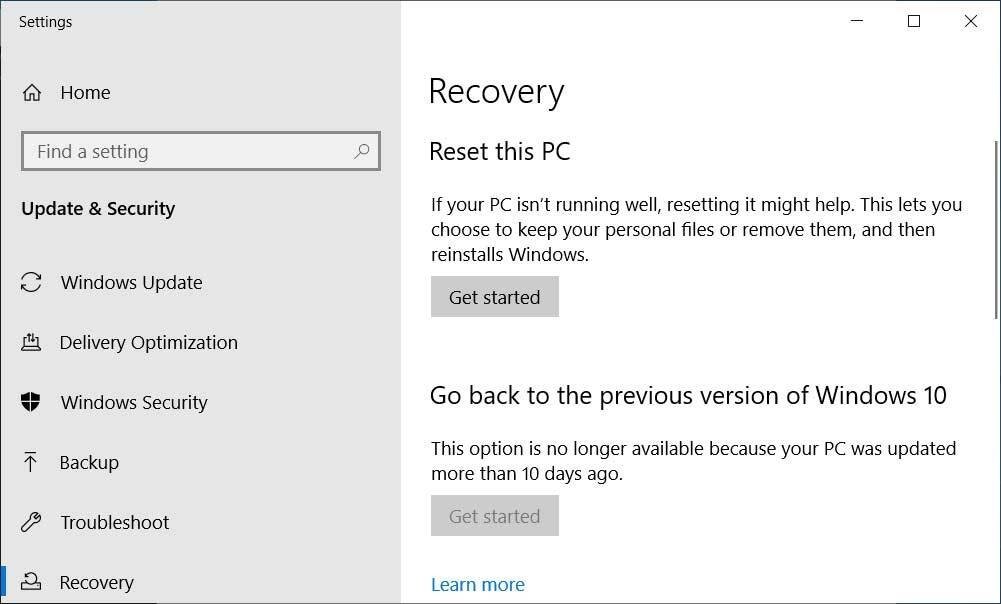
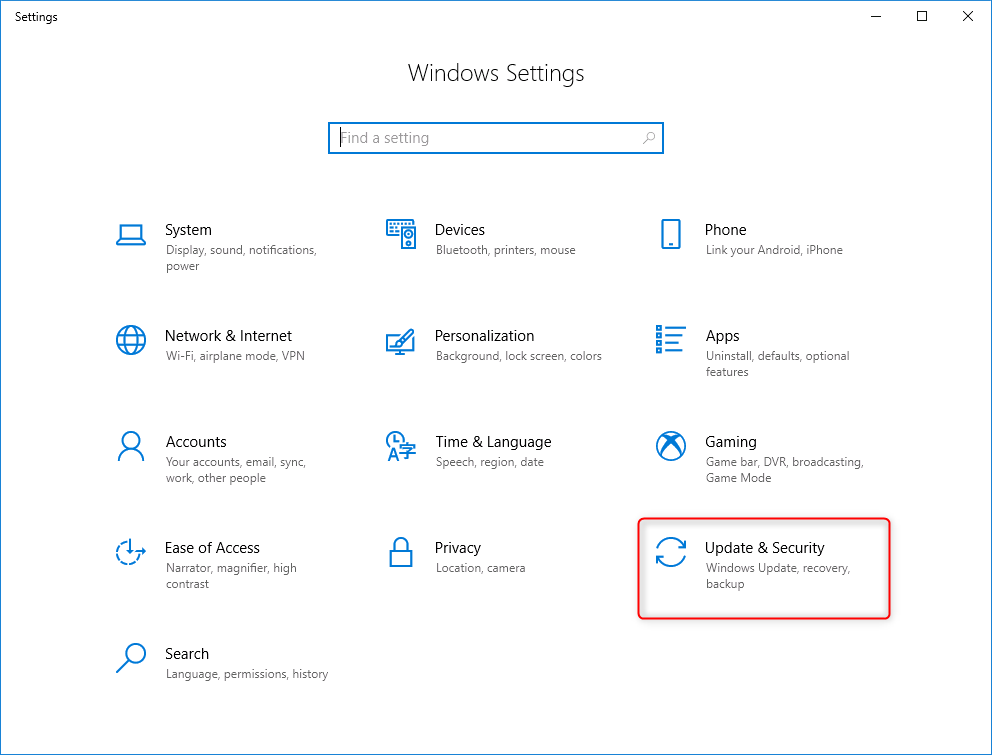
1. Go to Settings > Update & Security > Recovery.
Update & Security 
2. Under the “Reset this PC” section, click Get started.
Reset this PC -> get started 
3. Crucially, select the “Keep my files” option. This will remove apps and settings but preserve your personal files on the C: drive. It will not touch any of your other drives.
keep my files 
4. Follow the on-screen prompts to complete the reset. Windows will be refreshed, and your data on other drives will remain untouched.
While Reset This PC is great for fixing light system issues, it doesn’t always go deep enough—especially if your Windows installation is seriously corrupted or acting up in ways a basic refresh can’t fix. That’s where Option B: In-place Upgrade / Repair Install comes in. It’s a more powerful fix that keeps everything—your files, apps, and settings—right where they are.

Option B: In-place Upgrade / Repair Install

This method uses a Windows 10/11 installation file (an ISO) to essentially “upgrade” your existing installation. It’s a great way to fix deep-rooted system errors while keeping everything intact.
✅ Pros
  • Keeps all files, apps, and settings: Unlike Option A, this method doesn’t remove your installed programs or reset your preferences. Your system gets repaired, but your stuff stays put.
  • Fixes deeper system problems
  • No need to reinstall anything: Since your apps and data remain untouched, you won’t have to spend hours reinstalling software or restoring backups.
  • Works even if Reset fails: If your built-in recovery files are damaged or missing, this method still works—because it uses a fresh ISO downloaded from Microsoft.

⚠️ Cons
  • Takes longer to set up
  • Needs internet and disk space
  • Won’t fix hardware issues
⚙️ Steps
1. Download the official Windows Media Creation Tool from the Microsoft website.

Windows 10 download page

Windows 11 download page

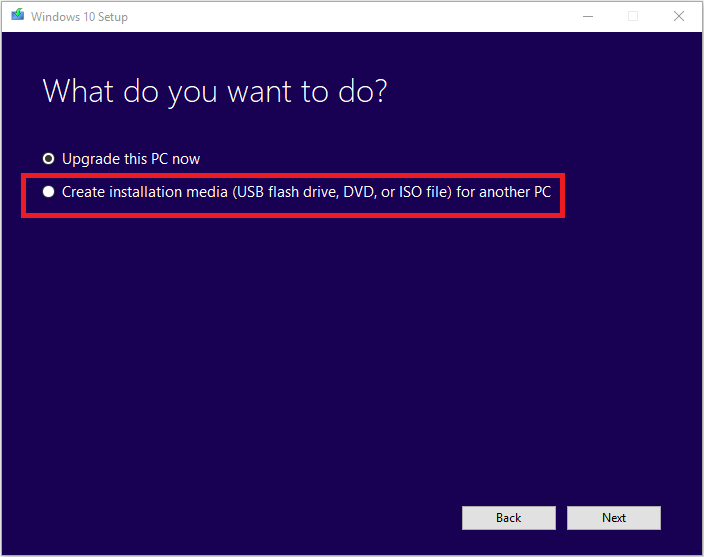
2. Run the tool and select “Create installation media (USB flash drive, DVD, or ISO file) for another PC.”
select Create installation media for another PC 
3. Save the ISO file to your computer.
4. Once downloaded, right-click the ISO file and choose Mount. This will create a virtual DVD drive.
If you don’t see the “Mount” option, it might be because the ISO file is associated with another program (like WinRAR or 7-Zip). In that case: Right-click the ISO → Open with → Windows Explorer.
5. Open the virtual drive and run setup.exe.
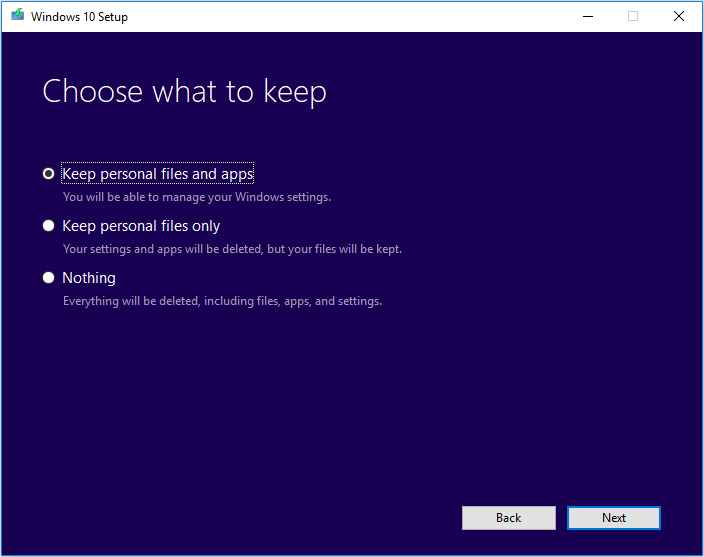
6. In the installation window, make sure you select “Keep personal files and apps”.
install Windows 10, Keep personal files and apps 
7. Let the installation complete. This process will repair your Windows system files without affecting any of your drives.

Method 2: The Easiest Upgrade — Move Your System to a New Drive with Renee Becca

Best for: You’ve purchased a new, faster SSD and want to move your entire Windows system—including all your programs, settings, and files—to the new drive without reinstalling anything from scratch.

Renee Becca

A clean install is one thing, but migrating an existing, perfectly configured system is often much more convenient. Cloning your drive is the ideal solution here, and Renee Becca makes this process straightforward and reliable.
Renee Becca – Safe and Quick System Migration to SSD

Automatic 4K alignment Improves SSD performance during system migration.

Support GPT and MBR Automatically adapt to the suitable partition format.

Support NTFS and FAT32 Redeploy various files in different file systems.

Back up quickly Back up files at up to 3,000MB/min.

Overall backup schedule Support system redeployment/system backup/partition backup/disk backup/disk clone.

Automatic 4K alignment Improve SSD performance

Support GPT and MBR Intelligently adapt to a partition format

Support NTFS and FAT32 Redeploy files in different file systems

Free TrialFree TrialNow 56337 people have downloaded!
You can clone your entire existing hard drive to the new SSD, or just migrate the operating system itself if you plan to use the old drive for data storage.

Install New Drive First

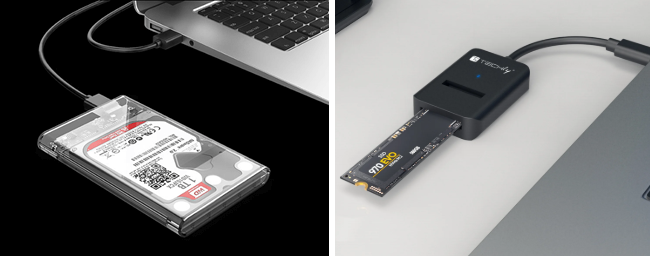
Make sure your new SSD is connected to your computer, either installed internally or via a USB-to-SATA/M.2 adapter.
Install the new SSD: Insert the drive at a 30-degree angle, then press down and secure with the provided screw.
How to Install an M.2 SSD 
If you’re connecting an external drive temporarily for cloning purposes, use a USB-to-M.2 adapter or external enclosure to connect your new SSD via USB.
usb ssd / disk enclosure 

Step 1. Download and install Renee Becca on your computer.

Step 2. Choose the right cloning function for your needs.

Renee Becca offers two powerful options:
Function NameFeatureSuitable For
Hard Disk Clone/Clone System DiskCreates an exact 1:1 copy of your entire original drive, including all partitions (system, data, recovery).Replacing your old hard drive completely with a new SSD.
System RedeployMigrates only the essential Windows system partitions to the new drive, saving time and space.Moving your OS to a new SSD while keeping your old HDD as a secondary data drive.
Option 1: Clone the Entire Drive Using the “Hard Disk Clone” Feature
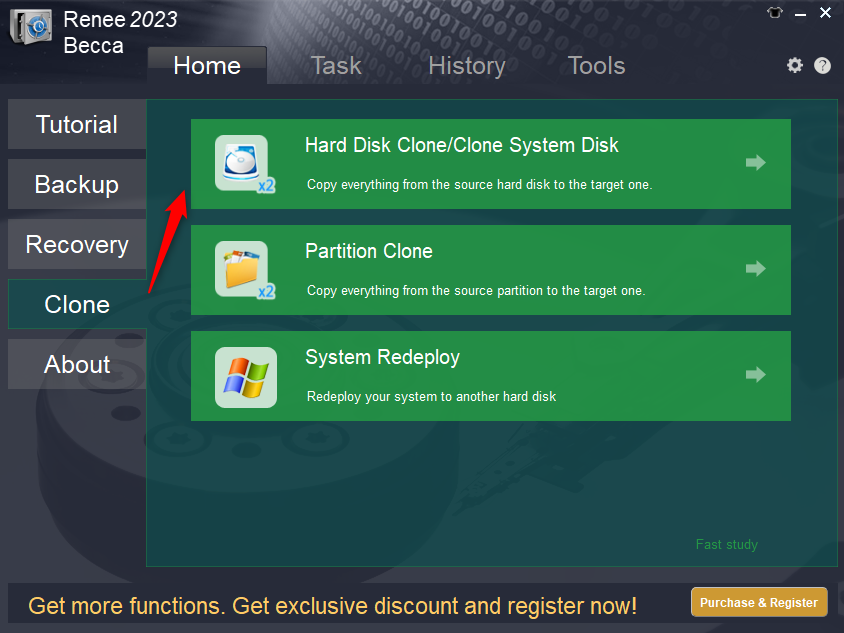
If your original drive contains both system and data partitions, you can use the “Hard Disk Clone/Clone System Disk” option found under the “Clone” section of the main interface. This feature copies all partitions and volumes—including both system and user data—to your new target drive in full.
renee becca disk clone 
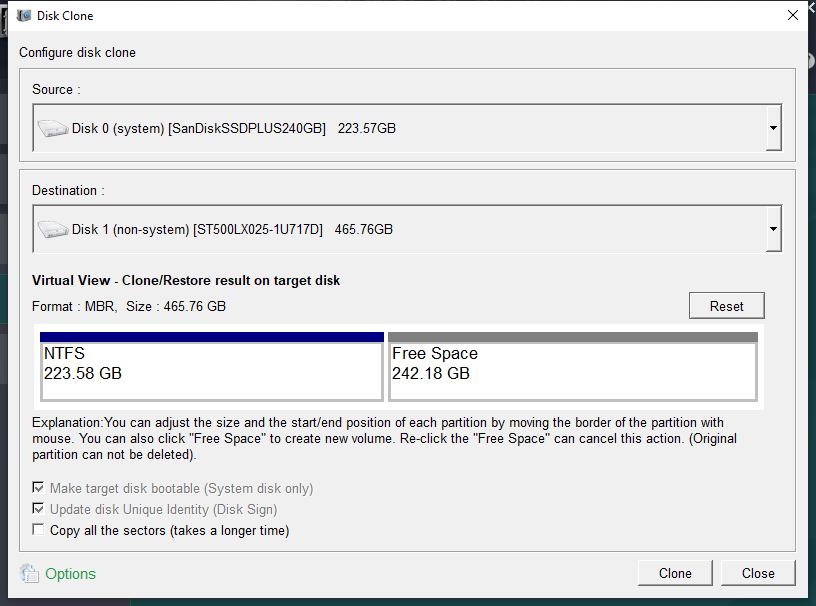
1. Configure Source and Destination Drives.Next, in the “Hard Disk Clone” pop-up window, select your original disk as the source and the new hard disk as the destination.
Choose your laptop’s internal drive as the source, and your connected external USB drive (or another replacement drive) as the destination. This step is essential to make sure the cloning process copies data to the correct device.
clone the hard disk 
2. Configure Advanced Settings and Begin Cloning.Before starting the clone laptop hard drive operation, Renee Becca provides customization options through these advanced features:
- ‘Copy all the sectors’ capability
This feature allows you to copy all sectors from the source disk to the target disk, including reserved areas and unused space. In some cases, software may store license information in reserved sectors, which are usually skipped during a standard cloning process—this option ensures even those areas are included.
- Universal disk type compatibility.
Renee Becca maintains compatibility with diverse HDDs, SSDs, and USB devices. Regardless of your specific hard drive and USB combination, you can successfully clone laptop hard drive to another.
- Customizable disk layout configuration.
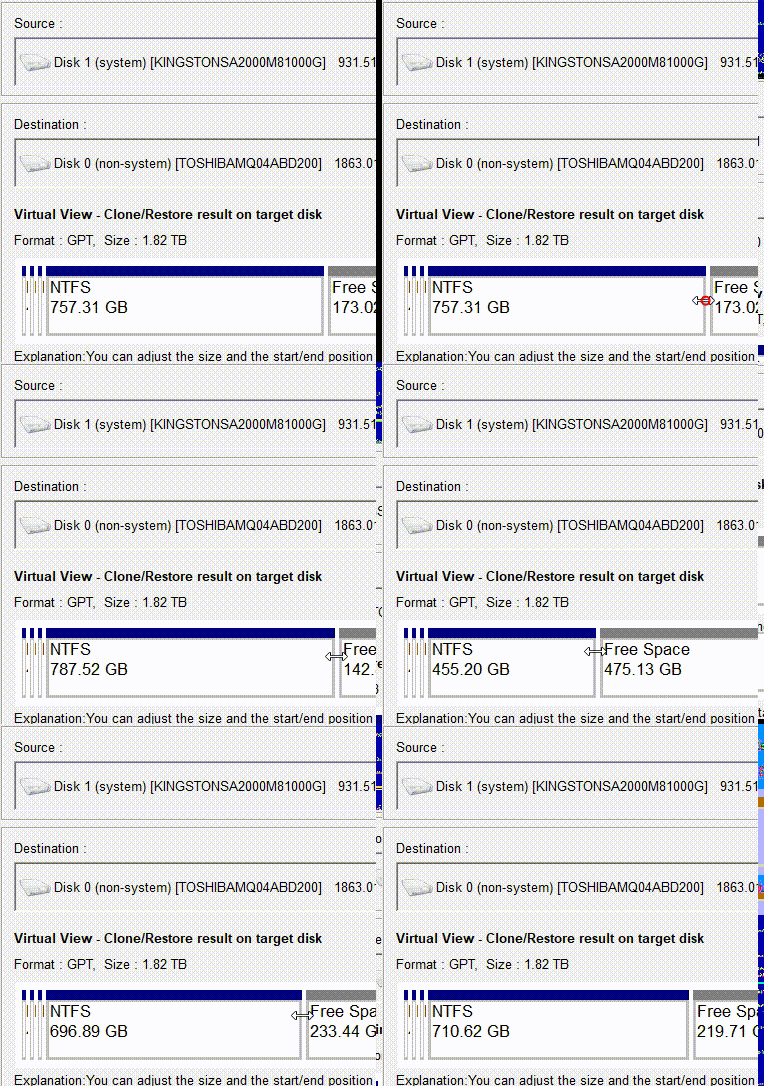
You can resize the partition by clicking and dragging its edge with your mouse based on your specific requirements when you clone laptop hard drive to another.
adjust partitions 
Finally, Once you’ve configured your preferred settings, click the “Clone” button to begin the cloning process.
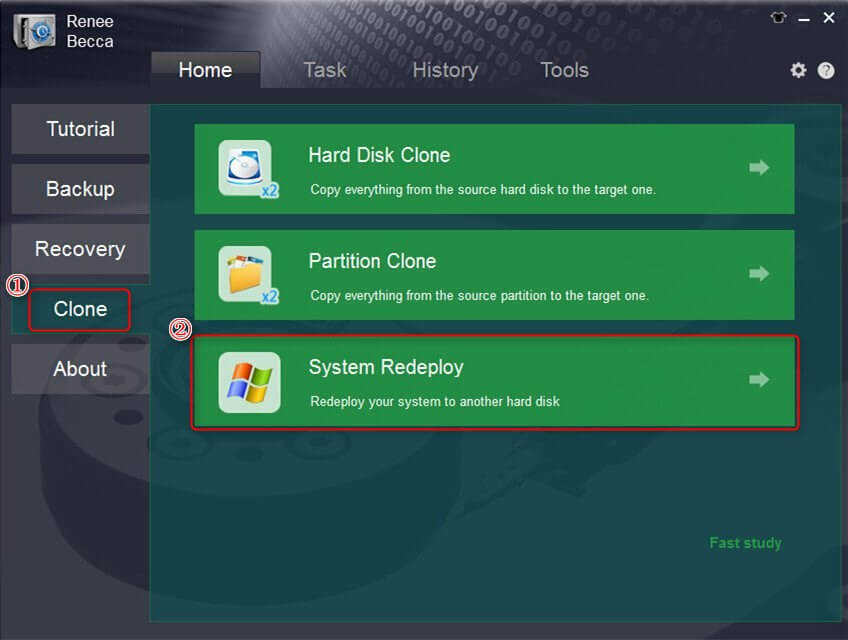
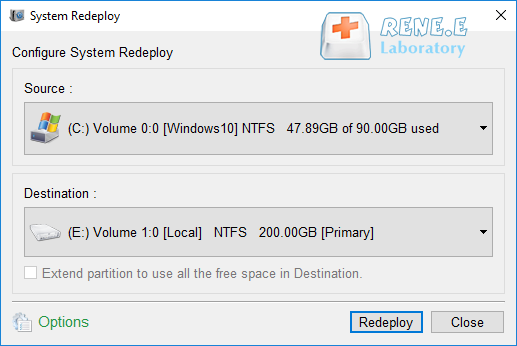
Option 2: For system-only cloning, use the ‘System Redeploy’ function to save time.
Launch the application and select the “System Redeploy” option in the main interface under the “Clone” column. This feature is specifically designed for migrating your entire Windows system to a new drive.
select system redeploy function in clone 
Choose your new SSD as the target location and select your current system partition as the source.
This step is crucial for a successful system redeploy process, so double-check your selections to avoid any data loss.
select a destination to redeploy system with renee becca 

Step 3. Wait for the progress bar to reach 100% to indicate successful migration.

The duration depends on your source disk’s data volume, typically ranging from 30 minutes to several hours. Once completed, your new SSD will contain an exact copy of your original system, ready for your next operations.
Important Note: The total capacity of the new drive needs to be greater than the size of the system being migrated. Since all data on the target disk will be erased during the system migration, please verify that you’ve selected the correct target drive and backup any important data beforehand. If you want to migrate all data from the original system drive (not just the system partition) to the new drive, you can choose the hard disk clone function instead.

Step 4. Use softwares like CrystalDiskInfo to verify your new drive status.
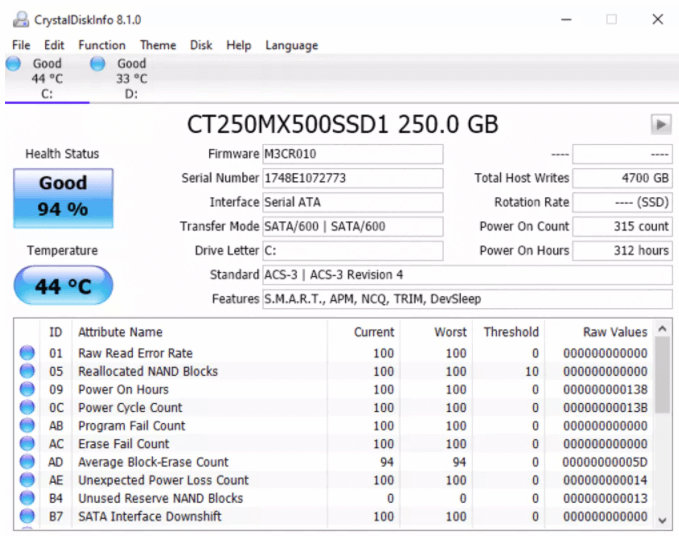
CrystalDiskInfo – Monitors the health and status of your hard drives and SSDs using S.M.A.R.T. (Self-Monitoring, Analysis, and Reporting Technology) data. In a word, It helps users quickly identify second-hand or fake SSDs.
how to check ssd health with crystaldiskinfo
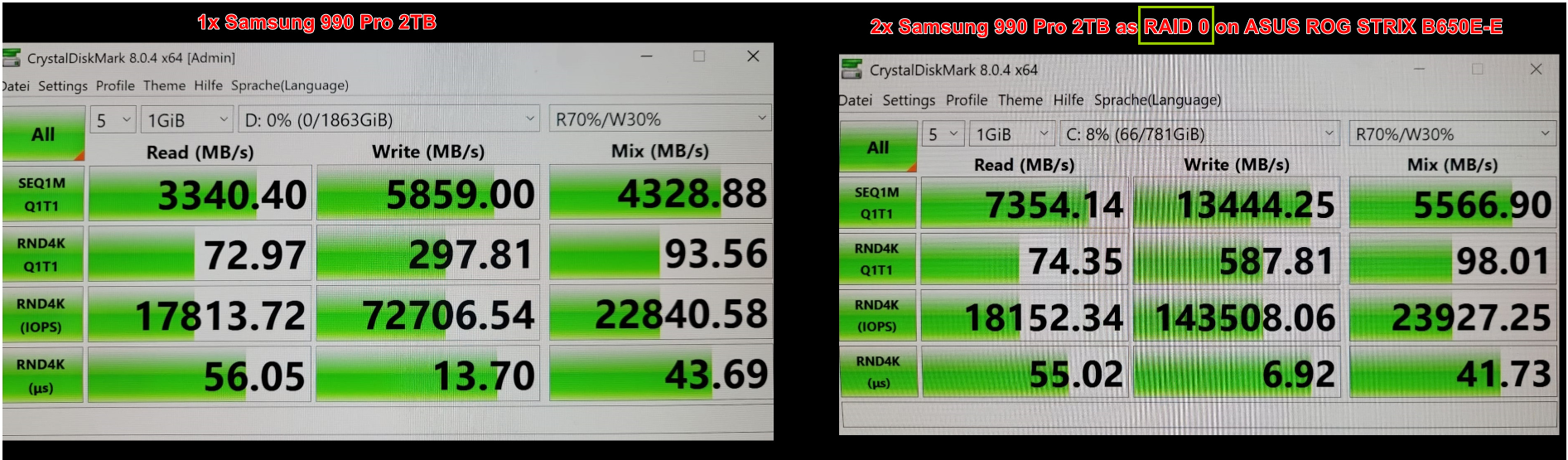
CrystalDiskMark – Measures the read/write speed of storage devices to evaluate performance. It helps you to confirm your SSD configuration is correct.
raid 0 speed

Other Cloning Tools

While we recommend Renee Becca for its ease of use and powerful features, here are a couple of other popular alternatives:
  • Macrium Reflect Free: A well-regarded tool for creating disk images and cloning drives. The free version has some limitations but is very capable for basic cloning tasks.
  • Clonezilla: A powerful, open-source cloning tool. It’s extremely versatile but has a text-based interface and a steeper learning curve, making it more suitable for advanced users.

Method 3: The Fresh Start — A Manual Clean Install of Windows 10/11

Best for: Your system is severely corrupted, infected with a virus, or you simply want a completely clean, bloat-free environment. This method gives you a brand-new Windows installation.
This is the process where you need to be the most careful, but it is 100% safe for your other drives if you follow these steps precisely.

Stage 1: Create a Bootable Windows 10/11 USB

1. On a working computer, go to the official:

Microsoft Windows 10 or Microsoft Windows 11

download page to download the Windows Media Creation Tool.

2. Run the Media Creation Tool. Accept the license terms.
3. Select Create installation media (USB flash drive, DVD, or ISO file) for another PC and click Next.
select Create installation media for another PC 
4. Confirm the language, edition, and architecture (it should default to the correct settings for your PC). Click Next.
5. Choose USB flash drive and plug in a USB drive with at least 8 GB of free space.
Note: All data on the USB drive will be erased.
6. Select your USB drive from the list and let the tool download Windows 10/11 and make the drive bootable.

Stage 2: Boot from the USB Drive

1. Plug the newly created USB drive into the computer where you want to install Windows.
2. Restart the computer and enter the BIOS/UEFI settings. This is usually done by pressing a specific key during startup, such as F2, F12, Del, or Esc. The screen will briefly show which key to press.
Common Server:
Server TypeEnter boot menu method
DELLPress the F12 key repeatedly before the Dell logo appears on the screen.
HPPress the F9 key multiple times when the HP logo is displayed.
Common Computers:
BIOS NameEnter boot menu method
ASRockDEL or F2
ASUSDEL or F2 for PCs/ DEL or F2 for Motherboards
AcerDEL or F2
DellF12 or F2
ECSDEL
Gigabyte / AorusDEL or F2
Lenovo (Consumer Laptops)F2 or Fn + F2
Lenovo (Desktops)F1
Lenovo (ThinkPads)Enter then F1
MSIDEL
Microsoft Surface TabletsPress and hold Power and Volume Up buttons
Origin PCF2
SamsungF2
ToshibaF2
ZotacDEL
HPEsc/ F9 for Boot Menu/ Esc/ F10/ Storage tab/ Boot Order/ Legacy Boot Sources
INTELF10
3. In the BIOS menu, find the Boot or Boot Order section.
4. Set the USB drive as the first boot device.
5. Save your changes and exit the BIOS. The computer will now restart and boot from the USB drive.

Stage 3: The Installation - Pay Close Attention!

This is the most critical part. Your PC will boot into the Windows Setup screen.
1. Choose your language and keyboard preferences, and click Next, then Install now.
Windows 10/11 install now 
2. Enter your product key if you have one, or select “I don’t have a product key” to activate later.
3. Choose the edition of Windows 10/11 you want to install and accept the license terms.
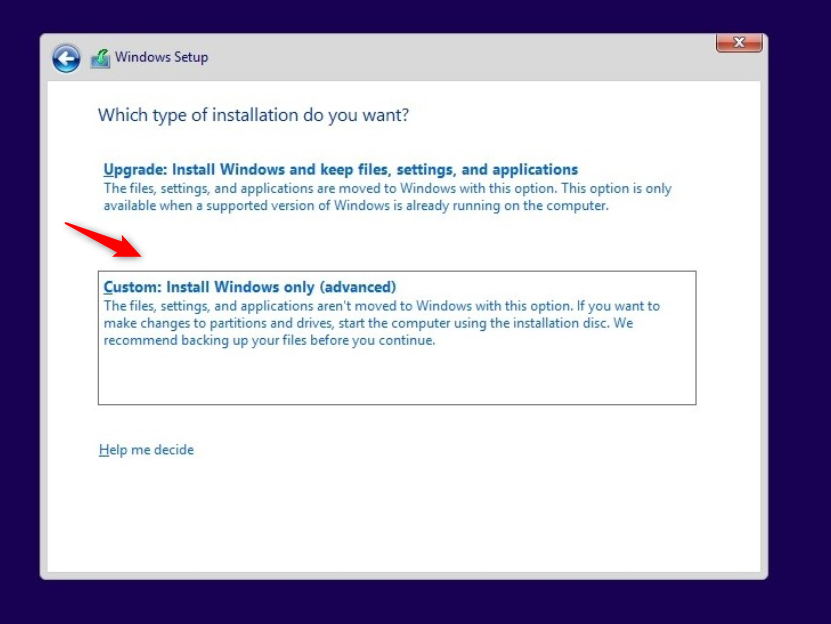
4. On the “Which type of installation do you want?” screen, select Custom: Install Windows only (advanced). This is essential for a clean install.
Windows 10/11 install custom install 
5. You will now see a list of all drives and partitions on your computer. STOP AND LOOK CAREFULLY.
* Identify your main system drive (usually “Drive 0“). It will likely contain several partitions, including one labeled “Primary” or “System” that matches the size of your old C: drive. Your data drives (D:, E:, etc.) will be listed as separate partitions, often on “Drive 0″ or with a familiar size and label.
* Select the primary partition where your old Windows was installed.
* To ensure a truly clean install, you can select that partition and click Delete. Do the same for any other system-related partitions on that same drive (like “System Reserved” or “Recovery”). This will merge them into “Unallocated Space”.
DO NOT DELETE PARTITIONS ON YOUR OTHER DRIVES.
choose the for Clean Install Windows 10/11 
6. Select the “Unallocated Space” on your main drive (Drive 0) and click Next. Windows will automatically create the necessary partitions and begin installing.
Windows will handle the rest of the installation. Once it’s finished, you’ll have a fresh, clean system, and all your other drives will be accessible with their data perfectly intact.

Troubleshooting: What to Do If Things Go Wrong

🚫 PC Won’t Boot After Installation

If your PC won’t boot after a clean install, it’s usually a boot order issue.Go into your BIOS settings and make sure Windows Boot Manager on your newly installed drive is set as the first boot option.
If that doesn’t fix it, you can try repairing the boot records manually:
1. Boot into the Windows installation environment using your USB installer.
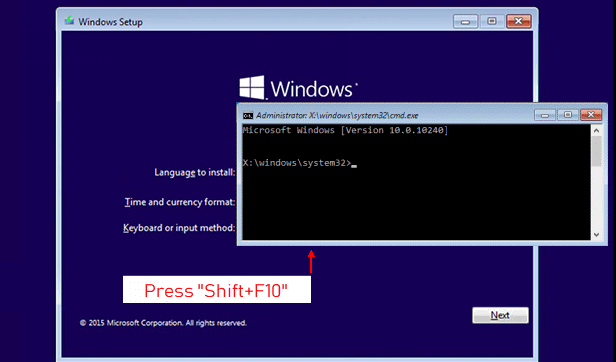
2. When you reach the setup screen, press Shift + F10 to open Command Prompt.
Press Shift + F10 to show a console prompt
3. Run the following commands one by one:

bootrec /fixmbr
bootrec /fixboot
bootrec /scanos
bootrec /rebuildbcd

These commands rebuild the boot configuration and often resolve startup issues.
This method works for both Windows 10 and Windows 11, as the bootrec tool is still supported in the latest versions.

I Accidentally Formatted the Wrong Drive!
This is the scenario we wanted to avoid, but here’s how to handle it:
The Best Solution (Restore from Backup): If you created a system image with Renee Becca before you started, now is the time to use it. Boot from the Renee Becca recovery media you created, select the restore option, and point it to your backup image. Your drive will be restored to its pre-installation state.
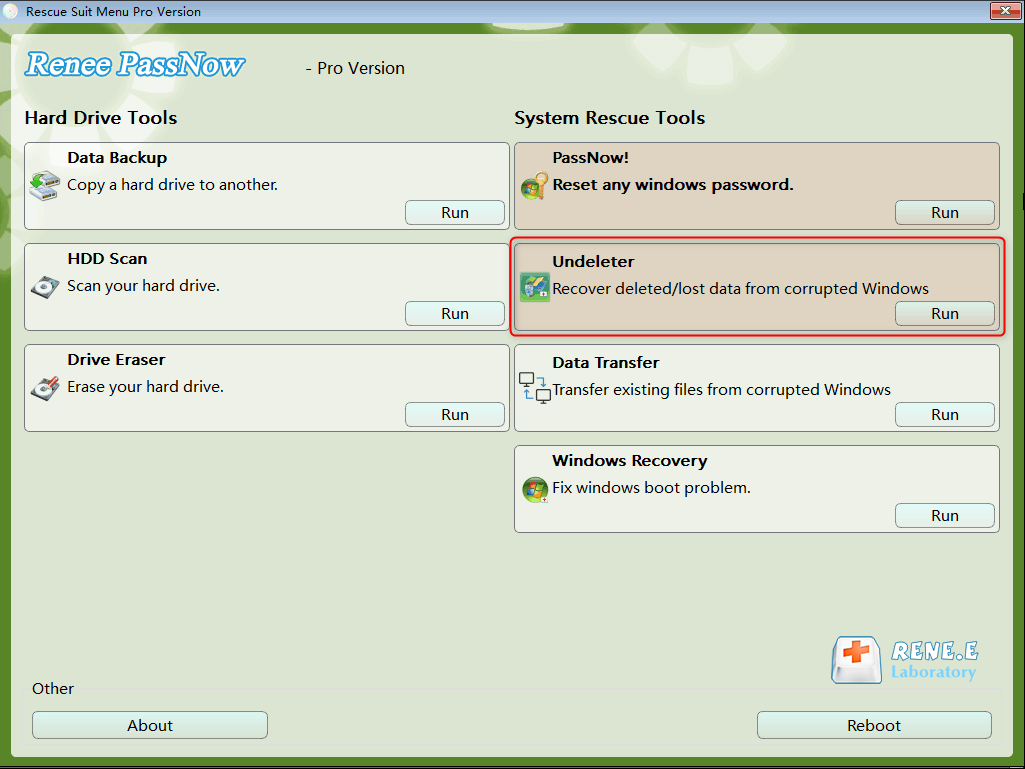
The Last Resort (Data Recovery): If you did not make a backup, stop using the drive immediately. Do not write any new files to it. You can use a tool like Renee PassNow, which includes an “Undeleter” feature. Boot from the PassNow USB, run the data recovery scan on the formatted drive, and you may be able to recover some or all of your lost files. Success is not guaranteed, which is why a backup is so critical.
undeleter in passnow 

Frequently Asked Questions (FAQ)

Will upgrading from Windows 10/11 to Windows 11 delete my files on other drives?

No, the standard upgrade process for Windows 11 is designed to keep all your files, applications, and settings intact, regardless of which drive they are on. It functions similarly to an in-place upgrade, only modifying the main system files on your C: drive. Your D:, E:, and other data drives will not be affected.

How can I be 100% sure I don’t format my data drive during a clean install?

The most foolproof method is to physically unplug your other data drives before you begin the installation. Turn off your computer, open the case, and disconnect the SATA or power cables from your D:, E:, etc., drives. Leave only the target drive connected. Install Windows, and once it’s fully set up and running, shut down the computer and plug your other drives back in. They will appear with all their data safe and sound.

What’s the real difference between “cloning” a drive and a “clean install”?

A clean install creates a brand-new, factory-fresh Windows environment. You have to reinstall all your applications, reconfigure your settings, and copy your personal files back. It’s great for performance and fixing deep-seated issues.
Cloning, on the other hand, creates an exact, bit-for-bit copy of your old drive onto a new one. When you boot from the cloned drive, it’s like nothing ever changed—all your apps, files, and settings are exactly where you left them. Cloning is ideal for upgrading your hardware without the hassle of starting over.

My other drive isn't showing up after I installed Windows 10. What should I do?

This is usually a simple driver or drive letter issue. First, press Win + X and select Disk Management. Look for your missing drive in the list. If it’s there but doesn’t have a letter (like D:), right-click on it, select “Change Drive Letter and Paths,” and assign it a new letter. If it’s not visible there at all, you may need to check your physical connections or install storage controller drivers from your motherboard manufacturer’s website.

Can I install Windows 10/11 on my D: drive and keep my old Windows on the C: drive?

Yes, this is called “dual-booting.” During the “Custom Install” step, you can simply choose a partition on your D: drive as the installation target without formatting your C: drive. After installation, your computer will present a menu at startup asking which version of Windows you want to load. However, this can sometimes lead to complications with boot loaders, so it’s generally recommended for more advanced users.

Is it true that a fresh install only deletes data on the C: drive partition?

Yes, that’s correct. The Windows installer only modifies the specific partition you select for installation. If your hard drive is partitioned into C: (System) and D: (Data), and you tell the installer to install Windows on C:, the D: partition will be completely untouched. The risk only comes from accidentally selecting the wrong partition from the list during the installation process.
Renee Becca – Safe and Quick System Migration to SSD

Automatic 4K alignment Improves SSD performance during system migration.

Support GPT and MBR Automatically adapt to the suitable partition format.

Support NTFS and FAT32 Redeploy various files in different file systems.

Back up quickly Back up files at up to 3,000MB/min.

Overall backup schedule Support system redeployment/system backup/partition backup/disk backup/disk clone.

Automatic 4K alignment Improve SSD performance

Support GPT and MBR Intelligently adapt to a partition format

Support NTFS and FAT32 Redeploy files in different file systems

Free TrialFree TrialNow 56337 people have downloaded!

User Comments

Page 1

Leave a Comment


Your comment has been submitted and is awaiting moderation.