factory reset laptop
author avatar
    Specialist of Customer Service Dept.
Last update by Emma Johnson at 27 August 2025

Summary
This guide explains how to use command prompt to reset computer to factory settings, covering essential precautions to protect your data, and providing solutions if you’re locked out or facing system issues.



Struggling with a slow, crashing, or locked Windows PC? Whether you’re dealing with persistent blue screens, malware infections, software glitches, or a forgotten password, using command prompt to reset computer to factory settings can be a good solution. This method is especially effective when the graphical interface is inaccessible or fails, offering a precise way to restore your system. From full resets to refreshing your system while keeping files, we’ve got you covered with clear instructions and an alternative solution for password issues.
factory reset laptop

Essential Preparations Before Resetting Your PC

Before you reset your computer to factory settings using the command prompt, take these critical steps to safeguard your data and ensure a seamless process:
* Backup important files. Save documents, photos, and other critical data to an external drive or cloud storage to avoid permanent loss.
* Document software licenses. Record activation keys or deactivate licensed software for smooth reinstallation post-reset.
* Confirm your Windows version. Ensure you’re running a legitimate copy of Windows to prevent reset complications.
* Clear drives after backup. Run Disk Cleanup or delete temporary files to remove potential corrupted residuals for a cleaner reset.
* Allow system stabilization. Let drivers and programs fully load before starting the reset to avoid interruptions.
These precautions reduce risks and ensure a smooth reset process using the command prompt.
With your data secured and system prepared, you’re ready to explore the methods to reset your Windows PC. The following sections detail how to perform a reset using the command prompt when your system is still accessible, as well as alternative approaches for more severe issues like being locked out of Windows.

Resetting Your PC Using Command Prompt in Windows 10/11

Prerequisites for Running System Reset Commands

To successfully reset your PC using Command Prompt, ensure the following conditions are met:
1. A Usable Windows Account: You’ll need a Windows account with active login access. If you’re locked out of your Windows system, you can use Renee PassNow to reset the login password. See the section “Regaining Access Without a Full Reset: Using Renee PassNow” for details.
2. Administrator Privileges: Command Prompt must be run as an administrator, requiring an administrator account. If you lack one, Renee PassNow can help create a new administrator account.
Renee PassNow is a user-friendly Windows recovery tool that resets or removes login passwords—no prior credentials needed. It supports secure data transfer even on unbootable systems and includes features like disk erasure, file preview, and extension modification. Compatible with Windows XP to 11 and available in multiple languages, it’s a versatile solution for password recovery and system maintenance.
Renee Passnow – Professional Windows Password Remover

Remove Windows Login Password 3 steps for whole password remove process.

Recover the files Recover the deleted files without Windows system.

Transfer the data Transfer the important files of the computer with system.
Multifuctional Data transfer, data recovery, bootable problem recovery can be run without system.

Highly compatible Windows 11/10/8.1/8/7/XP/Vista. UEFI boot.

Remove Login Password Support Windows 11/10/8.1/8/7/XP/Vista. UEFI boot.

Recover the files Recover the deleted files without Windows system.

Transfer the data Transfer the important files of the computer with system.
Free TrialFree TrialNow 2000 people have downloaded!
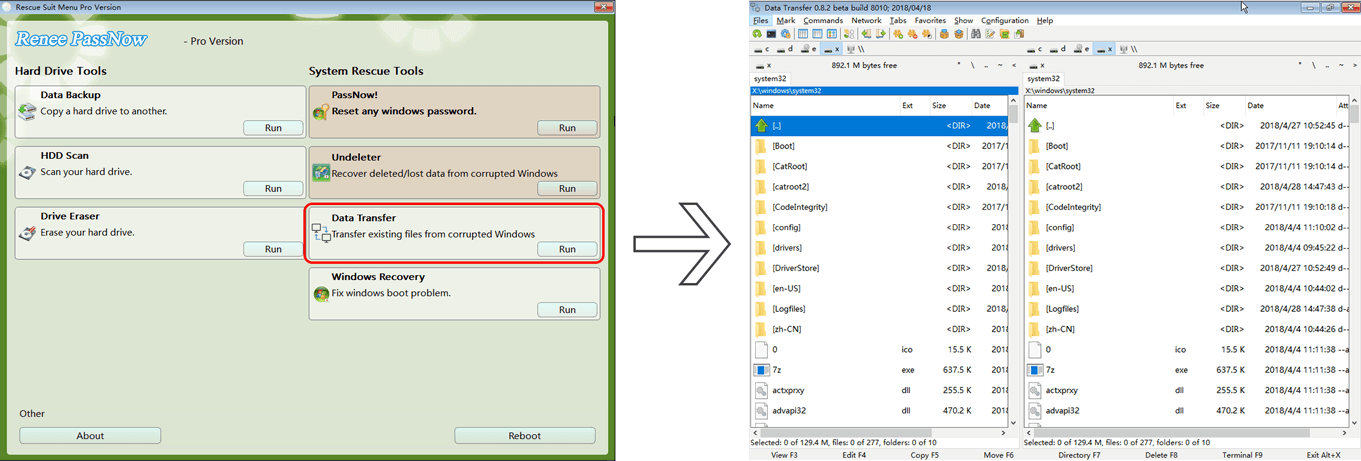
Recommendation: Before proceeding, back up your important data. You can use Renee PassNow’s Data Transfer feature to safely transfer files from your PC.
data transfer

Method 1: Perform a Complete Factory Reset

This method reinstalls Windows, wiping all personal files, apps, and settings. It’s perfect for starting fresh or preparing your device for resale.
Step 1: Launch Command Prompt with Admin Privileges
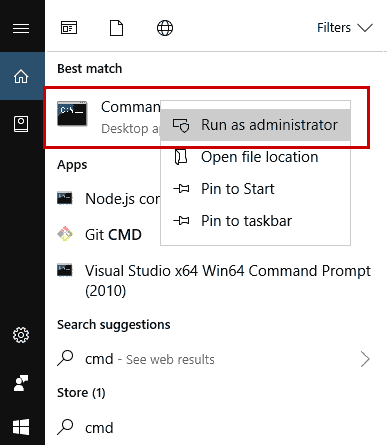
Open the Start menu, type cmd, right-click Command Prompt, and select Run as administrator.
run as administrator
Step 2: Start the System Reset
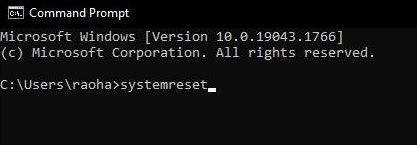
In the command window, enter:

systemreset

system reset
Tip: The systemreset command opens the “Reset this PC” tool via WinRE, letting users reinstall Windows from local files or the cloud. It usually installs a clean system image and won’t restore OEM-specific content like drivers or preinstalled software unless the OEM has included it in the recovery environment.
Step 3: Select the Reset Option
When prompted, choose Remove everything.
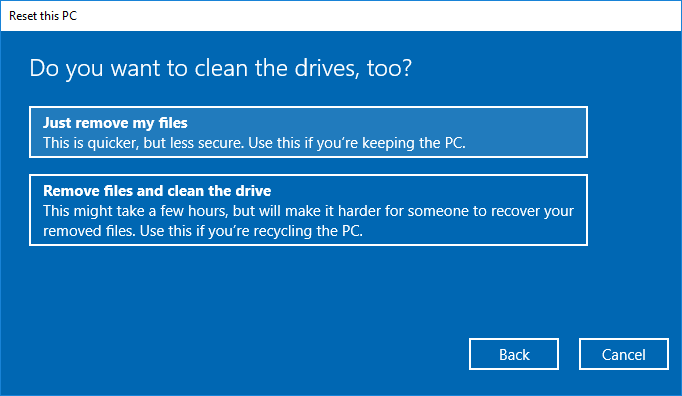
Step 4: Choose the Reset Type
For a faster reset, select Just remove my files.
For a more secure wipe, choose Remove files and clean the drive to prevent data recovery.
remove files and clean the drives
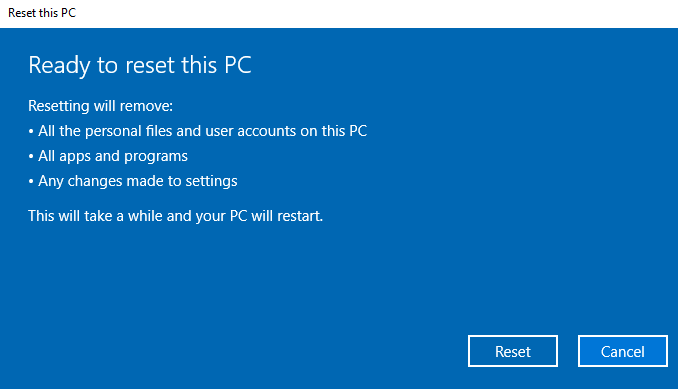
Step 5: Begin the Reset
Click Reset to start the process.
reset pc
The reset typically takes 20–30 minutes, after which your PC will restart with a fresh Windows installation.
Note: If BitLocker encryption is enabled, you may need to provide your recovery key. Some reset options may also require your Windows account password.

Method 2: Refresh Windows While Preserving Personal Files

This option reinstalls Windows system files while keeping your personal data intact, removing third-party apps. It’s ideal for fixing system corruption without losing documents or media.
Step 1: Open Command Prompt as Administrator
Type cmd in the Windows search box, right-click Command Prompt, and select Run as administrator.
run as administrator
Step 2: Initiate a Fresh Start
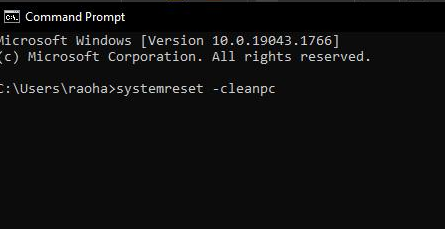
In the command window, type:

systemreset -cleanpc

system reset
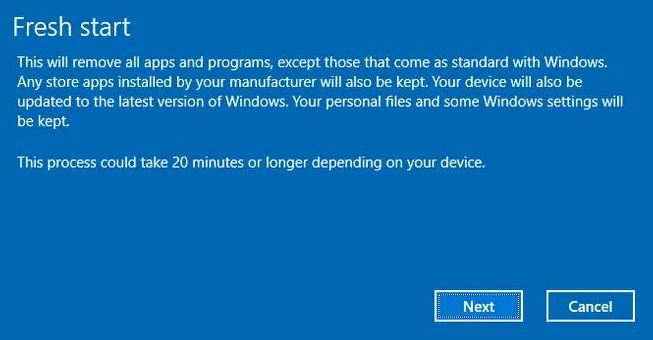
Step 3: Proceed with Fresh Start
On the Fresh Start screen, click Next.
fresh start
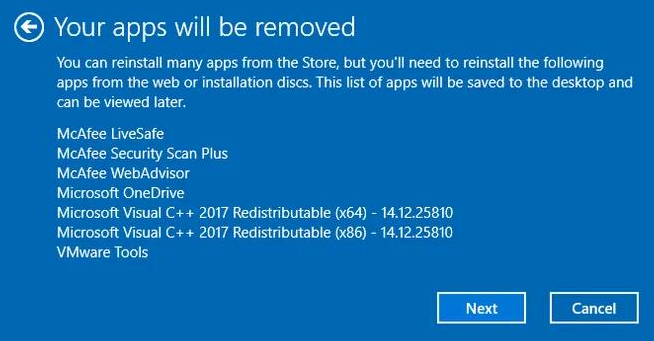
Step 4: Review Apps to Be Removed
Check the list of apps that will be removed, then click Next again.
apps will be removed
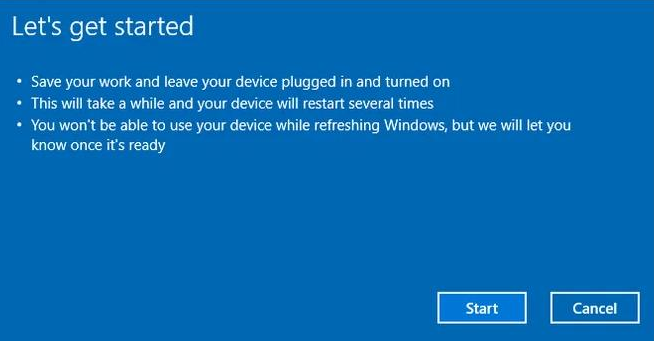
Step 5: Start the Refresh
Click Start to begin the refresh process.
get started
Once complete, your PC will reboot with restored system files, while your personal files remain intact. You’ll need to reinstall any removed apps manually.
If you can’t access Windows due to a forgotten password or system failure, the command prompt’s systemreset command may not be viable, as it often requires a logged-in account. The next section covers how to reset your PC using the Windows Recovery Environment (WinRE) when normal login access is the issue.

Resetting Your PC When Locked Out of Windows

If you’re unable to log in due to a forgotten password, a system crash, or a frozen login screen, you can reset your PC to factory settings through the Windows Recovery Environment (WinRE). This method is reliable when the standard command prompt approach isn’t accessible.

Important Note About Account Credentials

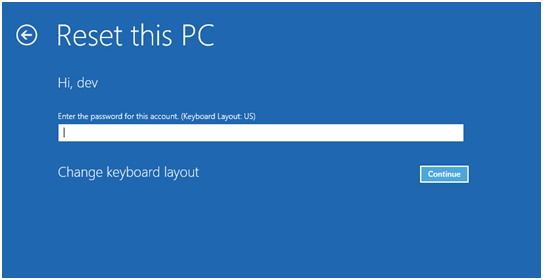
A factory reset via WinRE may require your Windows account password, particularly if your account is linked to a Microsoft account or if BitLocker encryption is enabled. If you’ve forgotten your password, you may be unable to proceed with the reset. In such cases, refer to the section “Regaining Access Without a Full Reset: Using Renee PassNow” for guidance on recovering access.
enter password for the account

Method: Factory Reset via Windows Recovery Environment (WinRE)

Step 1: Access WinRE
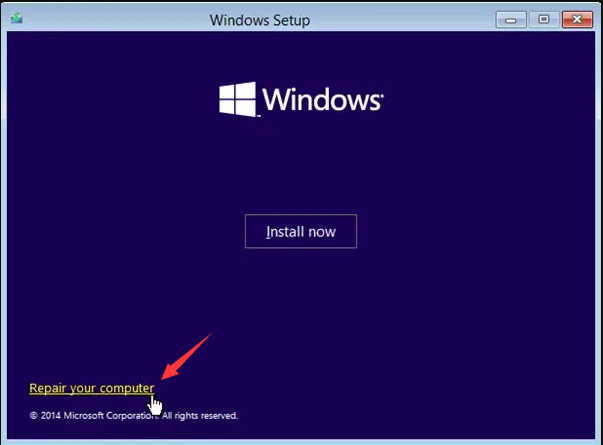
Restart your PC and interrupt the boot process three times (e.g., by powering off) to access the Automatic Repair screen. Alternatively, boot from a Windows installation USB or recovery drive and select Repair your computer.
windows installation repair your computer
Step 2: Navigate to Reset Options
Go to: Troubleshoot > Reset this PC.
Step 3: Select Reset Type
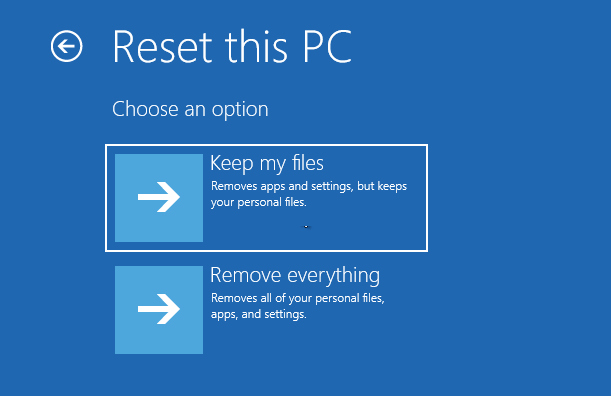
Choose either:
* Keep my files: Removes third-party apps but retains personal files.
* Remove everything: Deletes all data and removes malware.
Keep my files or remove everything in reset this pc
Step 4: Verify BitLocker Status
If BitLocker encryption is enabled, you’ll need to enter your recovery key, which can be retrieved from https://account.microsoft.com/devices/recoverykey if linked to your Microsoft account.
Step 5: Initiate the Reset
Click Reset to start the process, which takes about 20–30 minutes. Your PC will then reboot with a fresh Windows installation, ready for setup.
Tip: If you’re unsure about BitLocker, check for a recovery key prompt during the reset process.
If you’re locked out of your Windows PC due to a forgotten password, a full factory reset isn’t your only choice. Renee PassNow is a robust tool that can reset or remove Windows login passwords without losing your data, providing a less drastic way to regain access.

Regaining Access Without a Full Reset: Using Renee PassNow

Introduction to Renee PassNow

Renee PassNow is an intuitive Windows recovery tool that simplifies resetting or removing login passwords for local accounts, administrators, and Microsoft accounts—no prior password details needed. Its user-friendly interface guides you through the process in a few steps, ensuring quick access without risking your data. Even if your system fails to boot, Renee PassNow’s Data Transfer feature allows secure file transfers between drives or partitions. Compatible with Windows 11, 10, 8.1, 8, 7, Vista, and XP, it supports multiple languages and offers additional features like secure disk erasure, file extension modification, file preview, and safe data transfer. It’s a versatile solution for password recovery and other system needs.
Renee Passnow – Professional Windows Password Remover

Remove Windows Login Password 3 steps for whole password remove process.

Recover the files Recover the deleted files without Windows system.

Transfer the data Transfer the important files of the computer with system.

Multifuctional Data transfer, data recovery, bootable problem recovery can be run without system.

Highly compatible Windows 11/10/8.1/8/7/XP/Vista. UEFI boot.

Remove Login Password Support Windows 11/10/8.1/8/7/XP/Vista. UEFI boot.

Recover the files Recover the deleted files without Windows system.

Transfer the data Transfer the important files of the computer with system.

Free TrialFree TrialNow 2000 people have downloaded!
Tip: For Microsoft accounts, Renee PassNow converts them to a local account during the reset process. You’ll need to reconnect to your Microsoft account afterward.

How to Use Renee PassNow to Reset Your Windows Password

Follow these clear steps to use Renee PassNow to clear your Windows password, potentially avoiding a full factory reset.
Step 1: Download and Install Renee PassNow
On an accessible computer, visit the official Renee PassNow website and download the software. Install it by following the on-screen instructions, ensuring compatibility with your system.
Step 2: Create a Bootable USB or CD/DVD
Launch Renee PassNow on the accessible computer and insert a USB flash drive or blank CD/DVD. Select the option to create bootable media and follow the prompts to prepare it for password reset.
Create New Windows 10 Password Reset Disk with Renee PassNow
Step 3: Boot the Locked PC from the Bootable Media
Insert the bootable USB or CD/DVD into the locked PC. Restart and access the BIOS key (typically F2 or Delete). Set the boot order to prioritize the bootable media.
Boot the target PC with the created password reset USB/CD/DVD.
Common Servers:
Server TypeEnter boot menu method

DELL

Press the F12 key repeatedly before the Dell logo appears on the screen.

HP

Press the F9 key multiple times when the HP logo is displayed.

Common Computers:
BIOS NameEnter boot menu method

ASRock

DEL or F2

ASUS

DEL or F2 for PCs/ DEL or F2 for Motherboards

Acer

DEL or F2

Dell

F12 or F2

ECS

DEL

Gigabyte / Aorus

DEL or F2

Lenovo (Consumer Laptops)

F2 or Fn + F2

Lenovo (Desktops)

F1

Lenovo (ThinkPads)

Enter then F1

MSI

DEL

Microsoft Surface Tablets

Press and hold Power and Volume Up buttons

Origin PC

F2

Samsung

F2

Toshiba

F2

Zotac

DEL

HP

Esc/ F9 for Boot Menu/ Esc/ F10/ Storage tab/ Boot Order/ Legacy Boot Sources

INTEL

F10

Step 4: Select the Password Reset Function
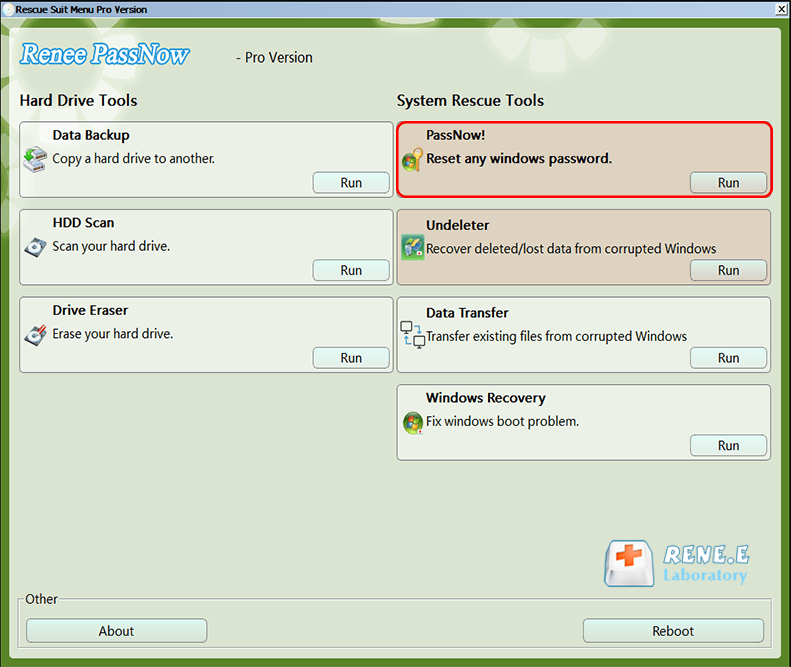
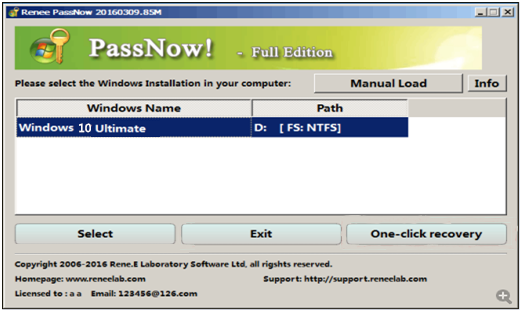
Once the PC boots from the media, Renee PassNow loads its interface. Select the “PassNow!” function to start the password reset process.
After loading into main interface, please select the “PassNow!” function.
Step 5: Reset the Password
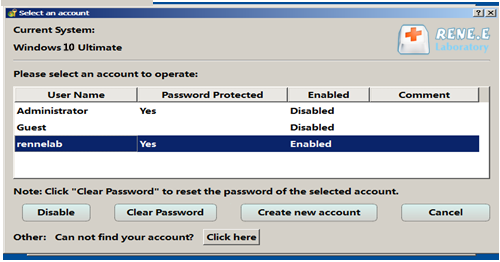
Choose the target user account from the list and click the “Clear Password” button to remove or reset the password. If you need to create a new administrator account, you can click “Create new account” to create it.
Select target Windows system in the list
Select target user account in the list
Step 6: Reboot the PC
Remove the bootable media and restart your PC. You can now log in without a password.
By using Renee PassNow, you can quickly regain access to your PC while preserving your files and settings, making it a great alternative to a factory reset for password-related issues. For Microsoft accounts, reconnect to your Microsoft account post-reset to restore full functionality.

Frequently Asked Questions (FAQ)

Will a factory reset remove all types of malware from my PC?

A factory reset with the “Remove everything” option effectively eliminates most malware by wiping all data and reinstalling Windows. However, some advanced malware may persist on other partitions or drives. To ensure complete removal, consider running antivirus scans before and after the reset, or opt for the “Remove files and clean the drive” option for a more thorough wipe.

Can I reset my PC using Command Prompt if I’m in Safe Mode?

The systemreset command typically requires access to a logged-in user account and may not work in Safe Mode. Instead, use the Windows Recovery Environment (WinRE) reset option, as described in the “Resetting Your PC When Locked Out of Windows” section, which is designed for such scenarios.

How long does a factory reset take to complete?

A factory reset generally takes 20–30 minutes, depending on your system’s speed and the reset type (“Just remove my files” is faster than “Remove files and clean the drive”). Your PC will restart automatically once the process is complete.

Will I need to reinstall Windows after a factory reset?

A factory reset reinstalls Windows automatically, using the system’s built-in recovery partition or the latest Windows version available. You won’t need to manually reinstall Windows, but you may need to reinstall third-party apps and drivers post-reset.

Can Renee PassNow help with other system issues besides passwords?

Yes, Renee PassNow offers additional tools like secure disk erasure, file extension modification, file preview, and data transfer, making it useful for various recovery needs. It’s particularly effective for moving files between drives or partitions when your system fails to boot, in addition to password resets.

Wrapping Up

Whether you’re tackling system crashes, malware, or a forgotten password, resetting your PC to factory settings via the command prompt is a robust solution when the GUI fails. This guide provides detailed steps for a full reset or a refresh within Windows, as well as using WinRE for situations like system failures or lockouts. For password-specific issues, Renee PassNow offers a data-preserving alternative. With these methods, you can restore your PC to optimal performance or prepare it for a new owner. Thanks for following along, and best of luck getting your system running smoothly again!
Renee Passnow – Professional Windows Password Remover

Remove Windows Login Password 3 steps for whole password remove process.

Enable/Create Administrator One click for creating new administrator and enable the disabled account.

Widely Use New version supports UEFI boot model, which can be used on more computers, laptops and even surfaces.

Multifuctional Data transfer, data recovery, bootable problem recovery can be run without system.

Highly compatible Windows 11/10/8.1/8/7/XP/Vista.

Remove Login Password Support Windows 11/10/8.1/8/7/XP/Vista.

Enable/Create Administrator One click for creating new administrator and enable the disabled account.

Easy to use No need of any professional knowledge or password reset disk.

Free TrialFree TrialNow 2000 people have downloaded!

User Comments

Page 1

Leave a Comment


Your comment has been submitted and is awaiting moderation.