author avatar
    Senior Product Manager
Last update by William Davis at 24 June 2026

Summary
This article explains multiple ways to make image of hard drive using imaging software, built-in utilities, and open-source tools. It outlines preparation steps, method comparisons, verification practices, and troubleshooting categories for restoring system functionality.


A hard drive image is a single compressed file that captures the entire contents of a drive, including the operating system, installed applications, files, settings, and partition structure. Unlike copying individual files, imaging preserves the exact layout and boot information, allowing you to restore the drive to a previous working state.
make image of hard disk
Users often need this when preparing for a major OS upgrade or risky software installation, migrating from an old HDD to a faster SSD, or creating a disaster-recovery snapshot before traveling or major hardware changes. It is also useful for deploying identical setups across multiple machines in small offices or for family tech support.

As Windows 11 increasingly ships with BitLocker enabled by default, creating a reliable disk image has become more complicated than it used to be. Encrypted volumes can’t be captured or restored like ordinary partitions, and users often run into locked drives, missing recovery keys, or imaging tools that fail to read protected sectors. Renee Becca can solve these problems for you.

Renee Becca – Safe and Quick System Migration to SSD

Automatic 4K alignment Improves SSD performance during system migration.

Support GPT and MBR Automatically adapt to the suitable partition format.

Support NTFS and FAT32 Redeploy various files in different file systems.

Back up quickly Back up files at up to 3,000MB/min.

Overall backup schedule Support system redeployment/system backup/partition backup/disk backup/disk clone.

Automatic 4K alignment Improve SSD performance

Support GPT and MBR Intelligently adapt to a partition format

Support NTFS and FAT32 Redeploy files in different file systems

Free TrialFree TrialNow 56337 people have downloaded!
Everyday users search for how to make image of hard drive because they want a practical safety net. A good image can save hours or days of reinstallation and data recovery when something goes wrong. The process is straightforward once you follow the right steps and use suitable tools.

Imaging vs. Cloning: Choosing the Right Strategy

Imaging creates a compressed, single-file snapshot that you can store externally and restore later. Cloning makes an immediate, bootable copy directly onto another physical drive.
AspectImagingCloning

Output

Compressed file(s) with versions

Exact byte-for-byte copy on target drive

Best for

Long-term backups, multiple restore points

Quick drive replacement or migration

Storage

Efficient, external or network

Requires equal or larger target drive

Bootable

After restore

Immediately on target drive

Flexibility

High with incremental options

Lower, one-to-one usually

For most home users focused on backup and recovery, imaging is the safer and more flexible choice. It lets you keep multiple versions without tying up extra drives.
Advantages of Imaging:
  • Imaging creates a compressed
  • single-file snapshot that allows multiple restore points
  • saves storage space
  • safer for long-term backup without overwriting target drives.

Disadvantages of Cloning:

  • Cloning requires a target drive of equal or larger size
  • overwrites existing data on the target drive immediately
  • and does not inherently create a compressed backup file for versioned storage.

Pre-Imaging System Preparation: Stability Checks and Rescue Media

Preparing the source drive before imaging is critical. Any existing corruption or boot problems will be baked into the image, making future restores unreliable.

1. Common Windows Startup Issues to Address First

Modern Windows systems often face boot loops, very slow loading times, corrupted registry entries, or missing system files. Fixing these issues first ensures your image represents a healthy, stable system rather than preserving problems. Ignoring these warning signs before creating a backup will only result in a compromised snapshot that fails when you need it most.

2. Run System File and Disk Error Checks
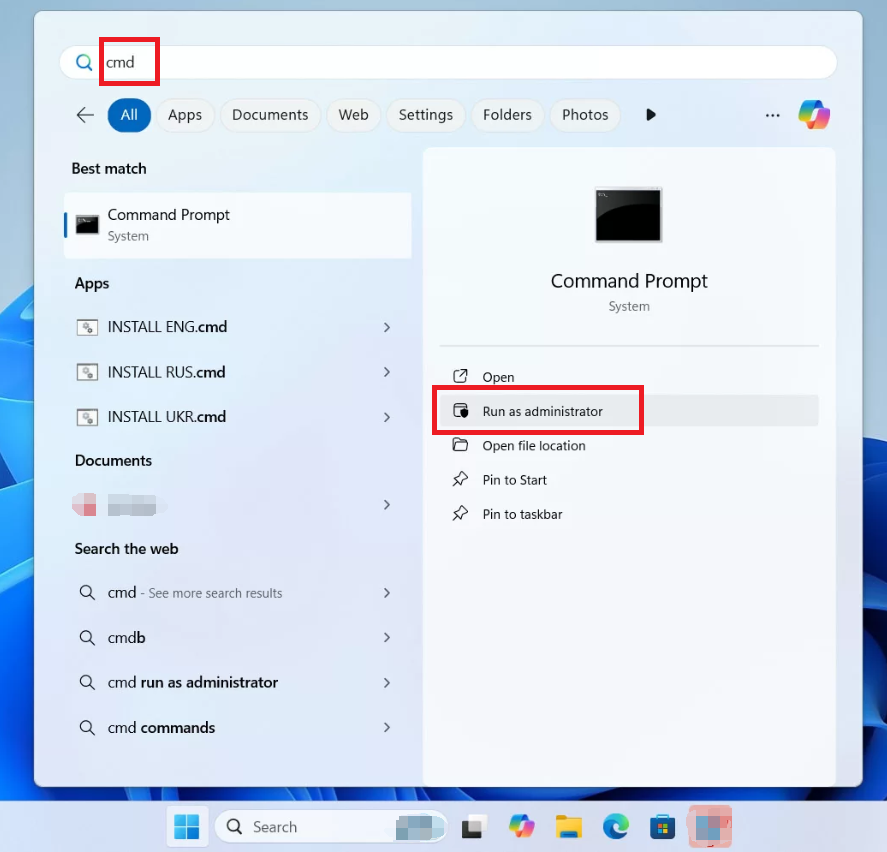
To repair system files and fix disk errors, you must open an elevated Command Prompt. Follow these steps:
1. Type “cmd” in the Start menu search, right-click Command Prompt, and choose Run as administrator.
Windows 11, run cmd as administrator
2. Click Yes if prompted by User Account Control.
Once the elevated Command Prompt is open, run these commands one at a time:

sfc /scannow

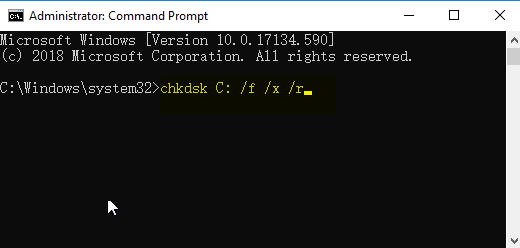
chkdsk C: /f /r /x

chkdsk
Restart when prompted to let the checks complete. Address any reported errors before proceeding with imaging.
Before backing up your system, it’s smart to run sfc /scannow and chkdsk C: /f /r /x to make sure everything is healthy. The first command scans and repairs corrupted or missing system files so you don’t capture a broken Windows state in your image. The second checks your drive for file system errors and bad sectors, fixing them before data is copied. Running both helps ensure your backup is clean, reliable, and won’t cause issues when restoring later.

3. Create a Bootable Rescue Disk Before You Need It

A rescue USB or CD is essential if Windows refuses to boot after a restore. Renee Becca includes a simple built-in tool to create a Windows PE-based rescue disk from any working computer. Create one now while your system is stable—full steps appear later in the troubleshooting section.

Recommended Solution: Create a Hard Drive Image with Renee Becca

Renee Becca is a reliable tool for system and hard disk data backup and restoration. It supports incremental and differential backup technology to save time and space while handling full hard disk images, partition backups, system backups, and cloning.
Renee Becca – Safe and Quick System Migration to SSD

Automatic 4K alignment Improves SSD performance during system migration.

Support GPT and MBR Automatically adapt to the suitable partition format.

Support NTFS and FAT32 Redeploy various files in different file systems.

Back up quickly Back up files at up to 3,000MB/min.

Overall backup schedule Support system redeployment/system backup/partition backup/disk backup/disk clone.

Automatic 4K alignment Improve SSD performance

Support GPT and MBR Intelligently adapt to a partition format

Support NTFS and FAT32 Redeploy files in different file systems

Free TrialFree TrialNow 56337 people have downloaded!
If you only need to back up the system to save time, use its system backup function instead of imaging the entire drive.

Important Before You Start: Suspend BitLocker First

If your system drive is protected with BitLocker, you should temporarily suspend BitLocker before creating the image, then re‑enable it after the restore. This prevents encryption‑related issues during imaging and avoids boot problems after recovery.

Why suspend BitLocker?

- Imaging an actively encrypted drive can cause inconsistencies.
- Restoring an encrypted volume may trigger BitLocker recovery mode.
- Suspending keeps the drive decrypted temporarily without removing protection.

How to suspend BitLocker (Windows 10/11)
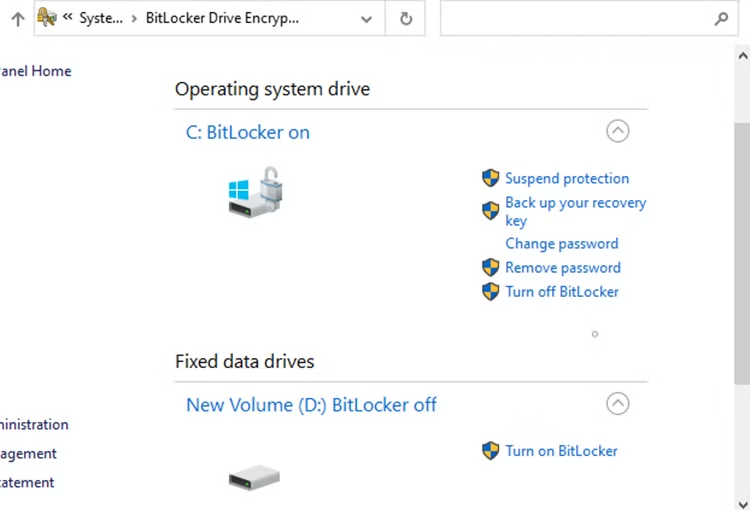
1. Open Control Panel → System and Security → BitLocker Drive Encryption.
2. Next to the system drive (usually C:), click Suspend protection.
suspend bitlocker protection
3. Confirm with Yes. Windows will pause encryption until the next reboot.

After restoring the image:

1. Return to the same BitLocker settings page.
2. Click Resume protection to re‑enable encryption.
3. Restart the PC if prompted.
Notes: Suspending does not decrypt the entire drive; it only pauses protection.

- Do not reboot the PC before imaging, or BitLocker may automatically resume.

- If you forget to suspend BitLocker, the restored system may ask for a recovery key.

Step-by-Step: Full Hard Disk/Partition Backup

Step 1: Download, install, and run Renee Becca.
download now
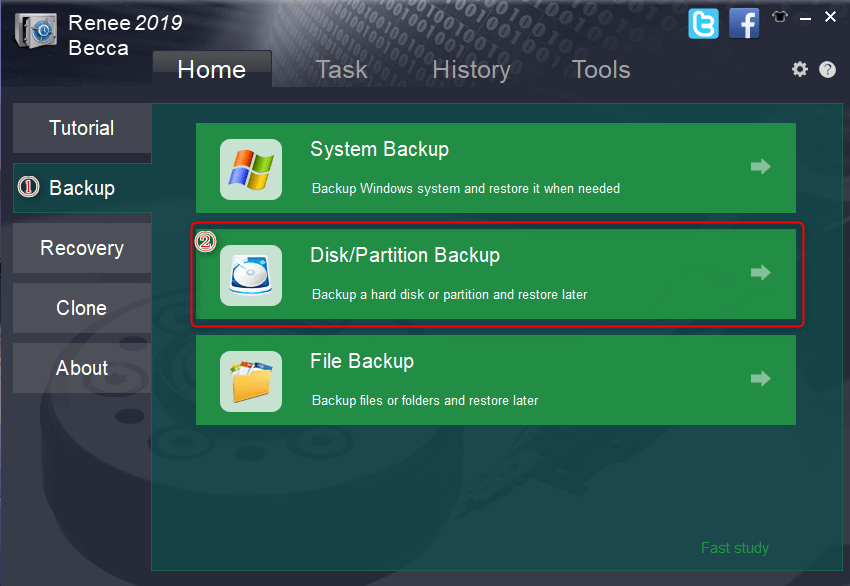
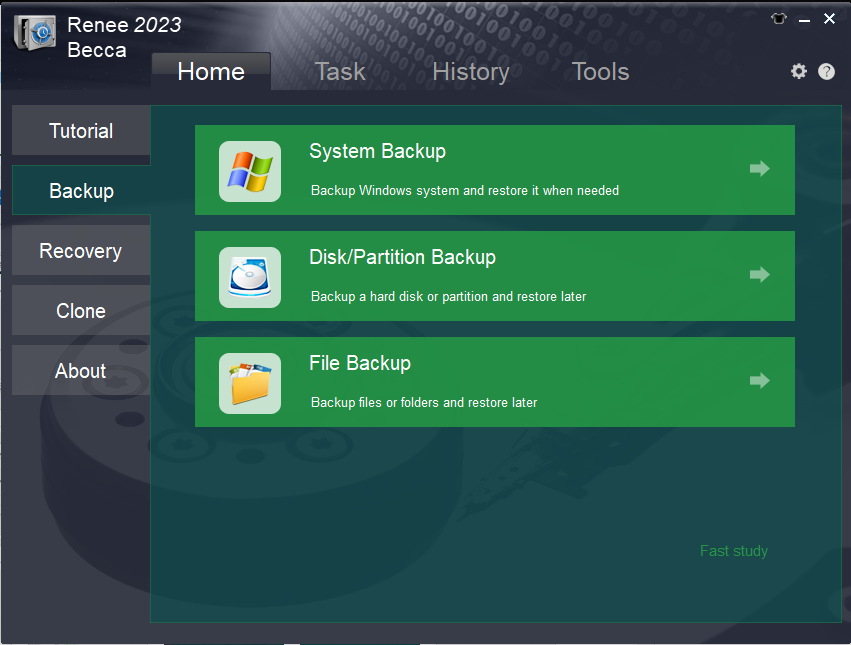
Step 2: Select the (hard disk/partition backup) option in the main interface under the (Backup) column.
backup data in disks and partitions
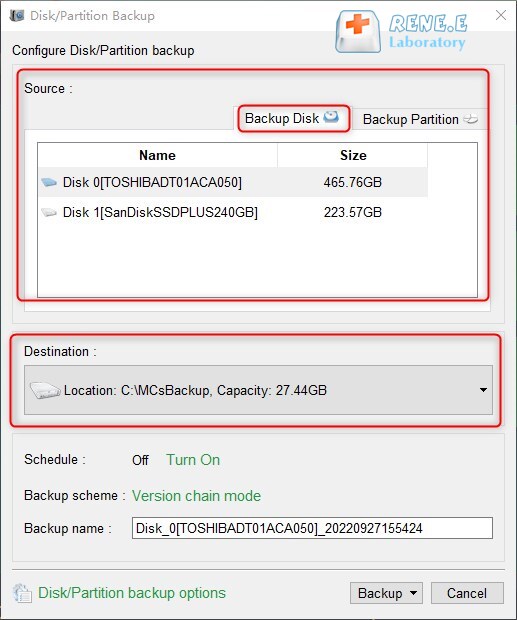
Step 3: Select the hard disk to be backed up as the source and choose a hard disk partition (ideally on an external drive) as the destination. For partition-only backup, select the appropriate option in the upper right.
back up disk in Renee Becca
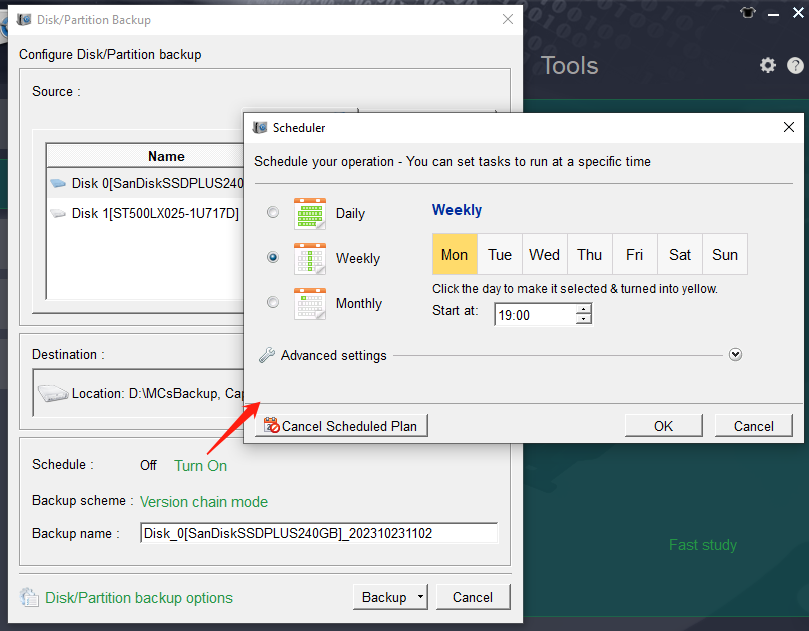
Step 4: In (Schedule), set daily, weekly, or monthly regular backups.
backup disk daily, weekly or monthly
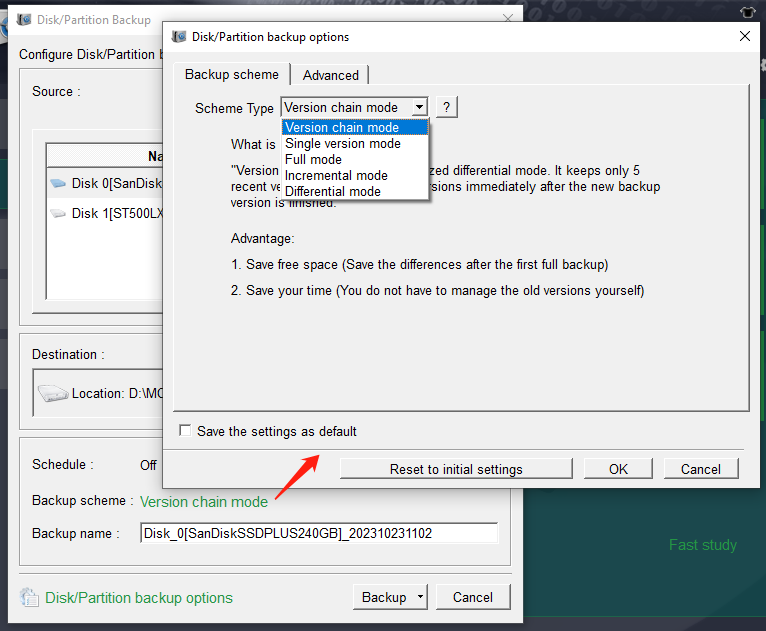
Step 5: In (Backup Scheme)(Scheme Type), choose from five modes: version chain, single version, overall (full), incremental, or differential.
backup mode of Renee Becca
Renee Becca provides five distinct backup options:
Version Chain Mode: This mode keeps the most recent five versions, automatically removing outdated versions after backup.
Single Version Mode: This mode keeps only the latest version, automatically deleting the previous version after backup.
Overall Pattern: This mode performs a thorough backup.
Incremental Mode: This mode generates incremental backups following the initial full backup.
Differential Mode: This mode creates differential backups after the first full backup.
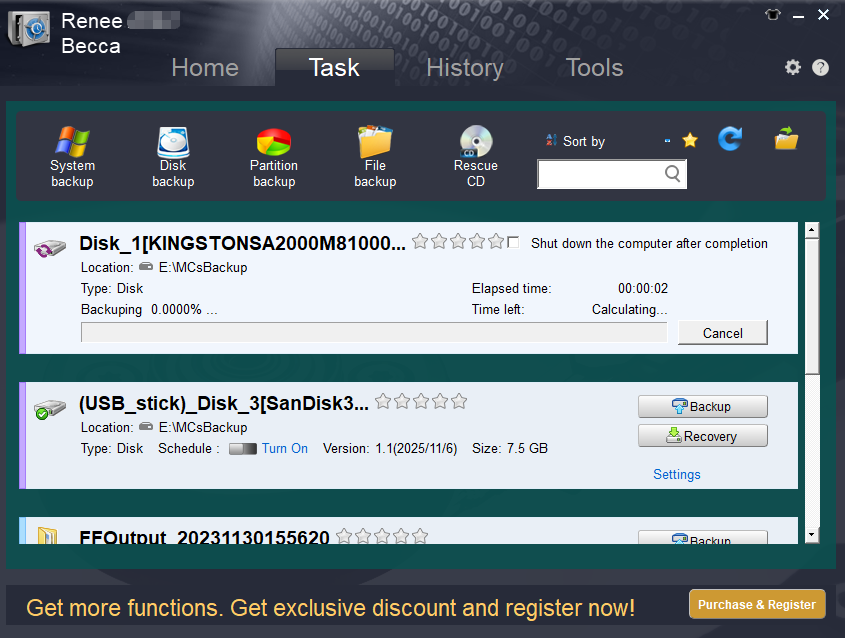
Step 5: Click (Backup Now) to start the process. Monitor progress in the taskbar.
becca_bakcup_disk_progress

Quick Alternative: System Backup for OS-Only Image

If you only want to image the operating system, choose the (System Backup) option in the main interface. It automatically selects required system partitions for a faster, smaller backup. This approach is highly recommended for users who primarily need to protect their Windows environment and installed applications without duplicating personal data stored on other drives.
Renee Becca backup function
Renee Becca – Safe and Quick System Migration to SSD

Automatic 4K alignment Improves SSD performance during system migration.

Support GPT and MBR Automatically adapt to the suitable partition format.

Support NTFS and FAT32 Redeploy various files in different file systems.

Back up quickly Back up files at up to 3,000MB/min.

Overall backup schedule Support system redeployment/system backup/partition backup/disk backup/disk clone.

Automatic 4K alignment Improve SSD performance

Support GPT and MBR Intelligently adapt to a partition format

Support NTFS and FAT32 Redeploy files in different file systems
Free TrialFree TrialNow 56337 people have downloaded!

Alternative Methods: Windows Built-in Tool and Clonezilla

1. Windows Built-in System Image Backup

Windows includes a native tool for creating system images without installing extra software. It is suitable for users who prefer staying within the Microsoft ecosystem for basic backups.
The built-in Backup and Restore feature lets you create a complete system image. It works on most Windows versions but has notable limitations compared to specialized tools. It does not support incremental or differential backups, scheduling is basic, and Microsoft has largely deprecated the feature in newer releases. Still, it remains a no-cost option for occasional full snapshots.
Advantages:
  • No extra software needed
  • Free with Windows
  • Simple wizard interface

Disadvantages:

  • No incremental backups
  • Limited scheduling
  • Deprecated in recent Windows versions
  • Larger image sizes

Step-by-step usage instructions

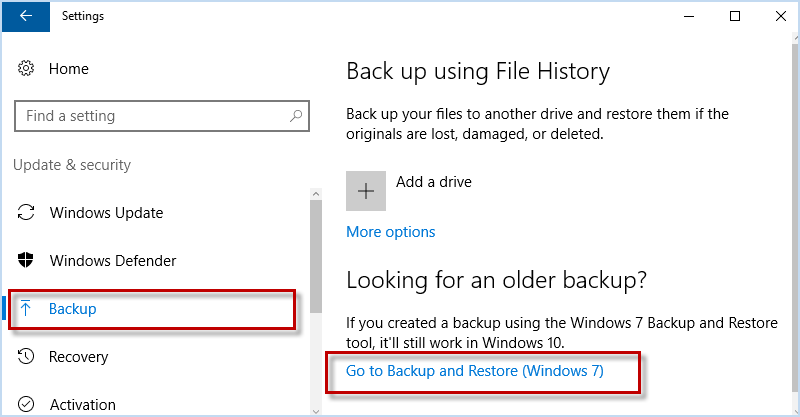
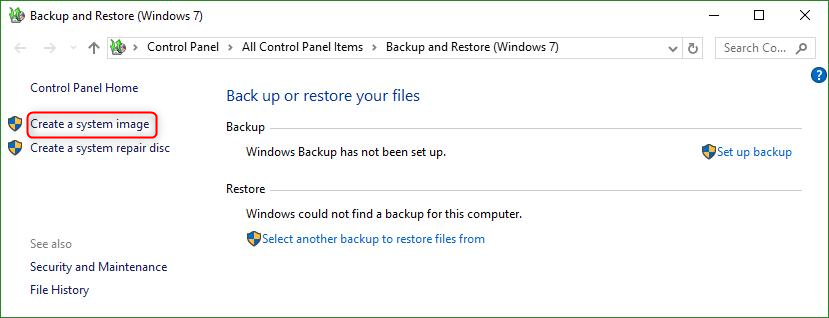
1. Search for “Backup and Restore (Windows 7)” in the Control Panel.
backup and restore windows 7
2. Click Create a system image on the left.
create a system image windows 10
3. Select destination (external drive recommended) and let it run.
The built-in tool works for basic needs, but many users prefer more flexible options like Renee Becca or open-source solutions for better automation and recovery features.

2. Clonezilla (For Advanced Users)

Clonezilla is a free, open-source tool popular among IT professionals for disk imaging and cloning. It excels at exact copies but uses a text-based interface that requires booting from external media.
device to device Clonezilla
Clonezilla runs from a live USB and supports many file systems. It is powerful for full disk or partition imaging and works across different hardware. However, the menu-driven workflow can feel intimidating for beginners, and selecting the wrong drive risks data loss. It shines when you need a no-cost, highly customizable solution for multiple machines or advanced scenarios.
Advantages:
  • Completely free and open source
  • Excellent for exact imaging and cloning
  • Supports many file systems and compression

Disadvantages:

  • Text-based interface can be confusing
  • Requires creating bootable media
  • Higher risk of selecting wrong drive
  • Less user-friendly scheduling

Clonezilla is a solid advanced choice, but for most users, tools with graphical interfaces and built-in rescue options provide a smoother experience.
Renee Becca – Safe and Quick System Migration to SSD

Automatic 4K alignment Improves SSD performance during system migration.

Support GPT and MBR Automatically adapt to the suitable partition format.

Support NTFS and FAT32 Redeploy various files in different file systems.

Back up quickly Back up files at up to 3,000MB/min.

Overall backup schedule Support system redeployment/system backup/partition backup/disk backup/disk clone.

Automatic 4K alignment Improve SSD performance

Support GPT and MBR Intelligently adapt to a partition format

Support NTFS and FAT32 Redeploy files in different file systems
Free TrialFree TrialNow 56337 people have downloaded!

Post-Imaging Verification and Troubleshooting Boot Failures

How to Verify Your Disk Image Is Healthy

After creation, check that the image file size roughly matches the used space on the source drive. Use Renee Becca’s recovery preview to browse contents without full restoration. For critical data, perform a test restore to a spare drive.
Additionally, you can use the Renee Becca Rescue Media mentioned below to verify the integrity of the image.

How to Restore Using Renee Becca Rescue Media

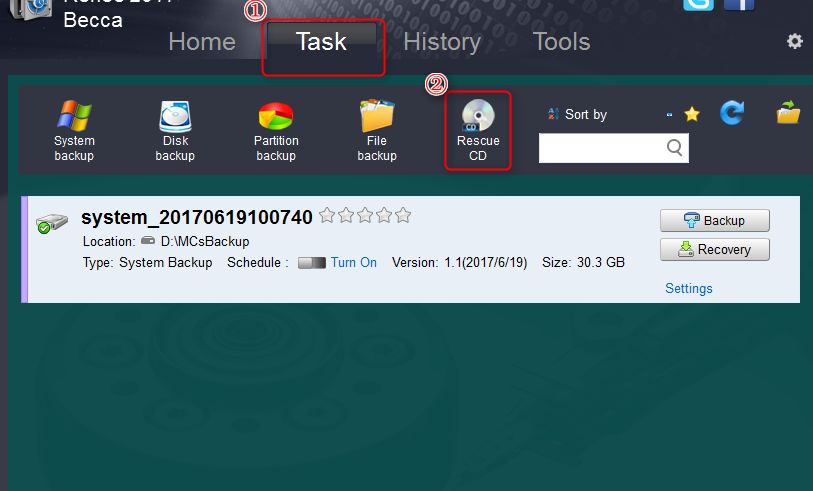
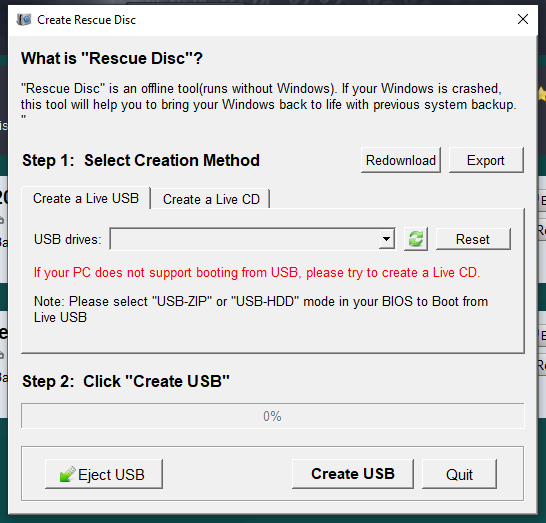
1. Click “Task” -> “Rescue CD” to create a Renee Becca Rescue Media.
create rescue disc
create a rescue CD
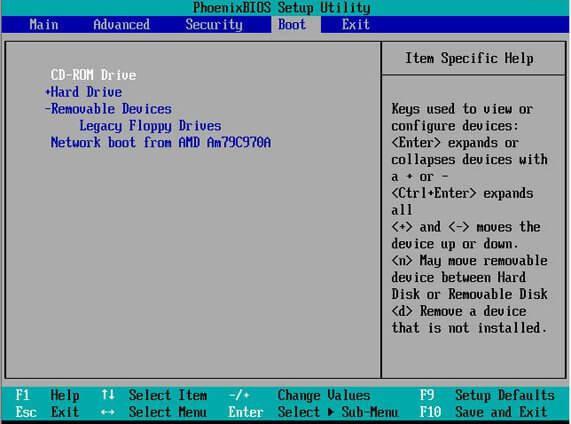
2. If Windows will not start, insert the rescue USB/CD you created earlier and adjust BIOS/UEFI boot order to boot from it. Booting from this external media bypasses the corrupted internal drive and loads a lightweight Windows PE environment.
Change bios startup items
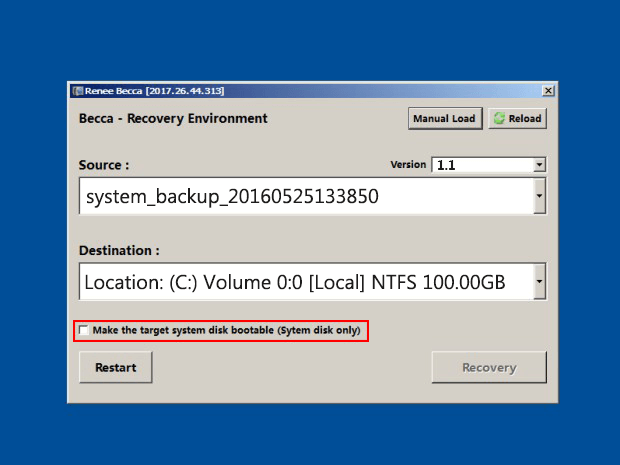
3. In the Renee Becca recovery environment, select the desired backup version, target location, check (Make the target system disk bootable), and start recovery.
recover-system-from-backup-files

Troubleshooting: Handling a Drive That Won’t Boot After Restore

Boot failures after restoration can stem from hardware differences, driver mismatches, or partition issues.
SymptomsPossible causesPotential BSOD codesTypical fixes

System crashes immediately upon loading Windows

Storage controller driver mismatch (e.g., AHCI vs. IDE/RAID)

INACCESSIBLE_BOOT_DEVICE

Change SATA controller mode in BIOS; inject storage drivers into the image.

Black screen with "Operating System not found"

Incorrect boot order or corrupted Boot Configuration Data (BCD)

0xc000000e

Rebuild BCD via Windows Recovery Environment; verify BIOS boot sequence.

Boot loop or automatic repair failure

Corrupted system files captured in the image or partition style mismatch (MBR/GPT)

0xc0000225

Run Startup Repair; re-image ensuring target disk matches source partition style.

Frequently Asked Questions

What is the exact difference between a system image and a regular file backup?

A system image captures the entire drive or partitions—including OS files, boot sectors, and registry—for full restoration. Regular file backups only copy visible documents and folders. Use imaging for complete recovery scenarios and file backups for quick access to specific data.

Can I make an image of a hard drive while Windows is still running and in use?

Yes. Tools like Renee Becca support live imaging of the running system, especially for system and partition backups. For the most consistent results, close heavy applications and ensure the system is stable.

How long does it typically take to create a full hard drive image?

Time varies based on drive size, data volume, and hardware speed. A typical 500 GB drive with moderate usage may take 30–90 minutes. Incremental backups after the first full image are much faster.

Can I restore a hard drive image onto a different computer or a larger SSD?

Yes, with some preparation. Renee Becca handles many hardware differences well. For different computers, you may need to adjust drivers or BIOS settings afterward. Always verify partition styles (MBR/GPT) match and test on non-critical hardware first.
Renee Becca – Safe and Quick System Migration to SSD

Automatic 4K alignment Improves SSD performance during system migration.

Support GPT and MBR Automatically adapt to the suitable partition format.

Support NTFS and FAT32 Redeploy various files in different file systems.

Back up quickly Back up files at up to 3,000MB/min.

Overall backup schedule Support system redeployment/system backup/partition backup/disk backup/disk clone.

Automatic 4K alignment Improve SSD performance

Support GPT and MBR Intelligently adapt to a partition format

Support NTFS and FAT32 Redeploy files in different file systems
Free TrialFree TrialNow 56337 people have downloaded!
Renee Becca – Safe and Quick System Migration to SSD

Automatic 4K alignment Improves SSD performance during system migration.

Support GPT and MBR Automatically adapt to the suitable partition format.

Support NTFS and FAT32 Redeploy various files in different file systems.

Back up quickly Back up files at up to 3,000MB/min.

Overall backup schedule Support system redeployment/system backup/partition backup/disk backup/disk clone.

Automatic 4K alignment Improve SSD performance

Support GPT and MBR Intelligently adapt to a partition format

Support NTFS and FAT32 Redeploy files in different file systems
Free TrialFree TrialNow 56337 people have downloaded!

User Comments

Page 1

Leave a Comment


Your comment has been submitted and is awaiting moderation.