author avatar
    Senior Product Manager
Last update by William Davis at 19 February 2026

Summary
Scope covers how to clone usb drive to ssd using Renee Becca, Windows utilities, and Linux tools such as dd and Clonezilla. It also outlines bootability considerations (MBR vs superfloppy), sector-by-sector options, verification steps, and post-clone boot troubleshooting.


If you previously backed up your system to a USB device—whether it’s a portable OS – Live CD/USB, recovery environment, or a full system image—you can also use the methods described in this article to restore that system onto an SSD.
USB drives are convenient for portability and bootable media, but they often feel slow for daily use and can fail unexpectedly due to wear or physical damage. If you’ve ever waited ages for files to transfer or worried about your USB drive corrupting important recovery tools or portable OS setups, you know the frustration. Cloning your USB drive to an SSD addresses these issues by moving everything to a faster, more durable drive that handles heavy use better.
clone usb drive to ssd
Cloning goes far beyond dragging and dropping files. You need to copy the complete disk layout, including all partitions, boot loaders, and system files, so the SSD works exactly like the original USB—especially if it’s meant to be bootable. Simple copy methods usually break the boot functionality.

Types of Bootable USB Drives

Bootable USB drives generally fall into two main categories, and understanding the difference is critical when cloning or migrating them.
MBR-based USB HDD: Uses a traditional Master Boot Record (MBR) and partition table, behaving much like a standard hard drive.
Superfloppy-style USB: Has no MBR or partition table and is treated as a single, raw volume, similar to legacy floppy disks.
Because these two formats rely on fundamentally different disk layouts, the cloning process must preserve the original structure exactly. This is why sector-by-sector copying is often required.

Bootable USB Format Comparison

AspectMBR-based USB HDDSuperfloppy-style USB

Partition table

Present (MBR)

None

Disk layout

Multiple partitions supported

Entire device is one volume

How firmware detects it

Recognized as a hard drive

Recognized as removable or legacy media

Typical boot mode

Legacy BIOS, some UEFI (CSM), often marks as "USB-HDD" in BIOS

Primarily Legacy BIOS

Common use cases

OS installers, recovery tools, system migration media

DOS boot disks, firmware update tools, legacy utilities

File-level copy works

No

No

Risk when using “smart” clone tools

Partition table or boot code may be altered

Tools may incorrectly add a partition table

SSD cloning compatibility

Generally high

Limited and tool-dependent

The cloning process must preserve whichever structure your USB uses, which is why sector-by-sector copying is often essential.
Switching to an SSD can dramatically speed up boot times and file access. The easiest and most reliable way to clone usb drive to ssd is with a specialized tool that handles these technical details for you.

The Easiest Method to Clone a USB Drive to SSD

Most people benefit most from using a dedicated disk cloning program rather than manual workarounds. These tools take care of the tricky parts like boot sectors and partition alignment, making the process much less error-prone. This method shines for bootable USBs (like Windows installers or Linux live drives), recovery media, or portable applications where you want the SSD to boot or run smoothly right away.

Why Use Renee Becca for USB‑to‑SSD Cloning

Renee Becca is a user-friendly yet powerful tool that excels at disk cloning tasks like this. It supports full hard disk cloning, which treats your USB drive as the source disk and copies everything—including the boot structure—to the target SSD. This preserves bootability whether your USB is MBR or superfloppy style.
It offers flexibility like resizing partitions for larger SSDs and advanced options such as sector-by-sector copying. The interface is clear for beginners, with safety checks to avoid selecting the wrong drive. Many users appreciate how it also includes backup features for extra peace of mind before major changes. Relevant screenshots of the process are included below to guide you visually.
Renee Becca – Safe and Quick System Migration to SSD

Automatic 4K alignment Improves SSD performance during system migration.

Support GPT and MBR Automatically adapt to the suitable partition format.

Support NTFS and FAT32 Redeploy various files in different file systems.

Back up quickly Back up files at up to 3,000MB/min.

Overall backup schedule Support system redeployment/system backup/partition backup/disk backup/disk clone.

Automatic 4K alignment Improve SSD performance

Support GPT and MBR Intelligently adapt to a partition format

Support NTFS and FAT32 Redeploy files in different file systems

Free TrialFree TrialNow 56337 people have downloaded!
After installing Renee Becca, you can quickly start the cloning workflow. Connect your USB drive as the source and your SSD as the destination (use an enclosure or adapter if the SSD is external for cloning). The software will walk you through the selections safely.

How to Clone USB Drive to SSD with Renee Becca:

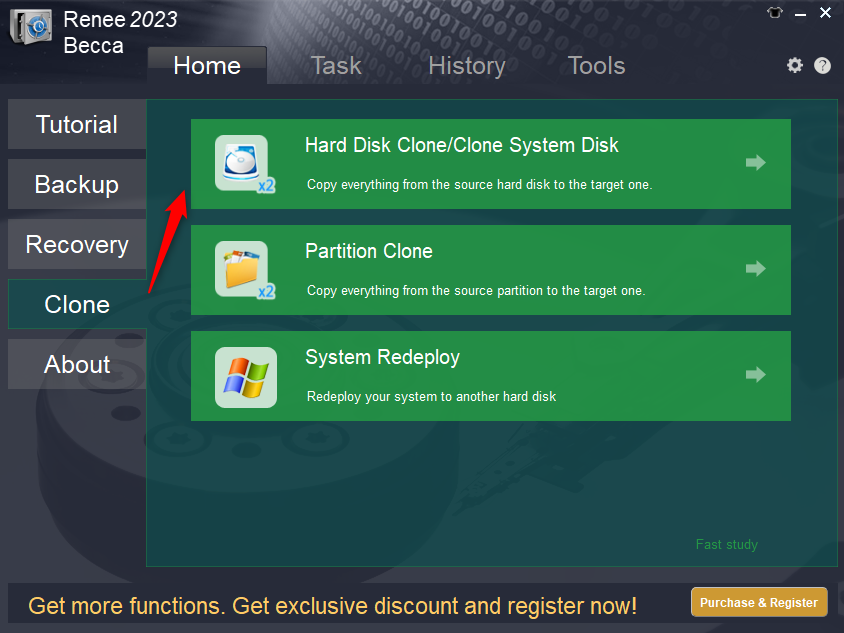
Step 1: Download, install, and launch Renee Becca on your Windows PC. Go to the “Clone” section in the main interface and select Hard Disk Clone/Clone System Disk.
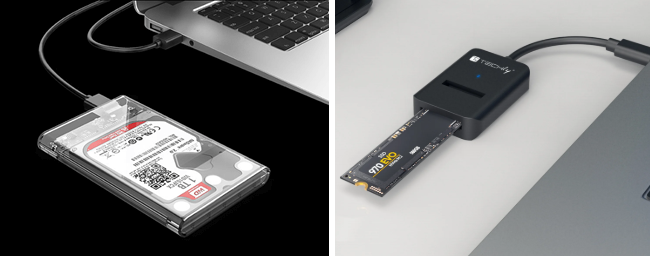
If the SSD is internal, insert the drive at a 30-degree angle, then press down and secure with the provided screw. For external SSD temporarily, use a USB-to-M.2 adapter or external enclosure.
How to Install an M.2 SSD
usb ssd / disk enclosure
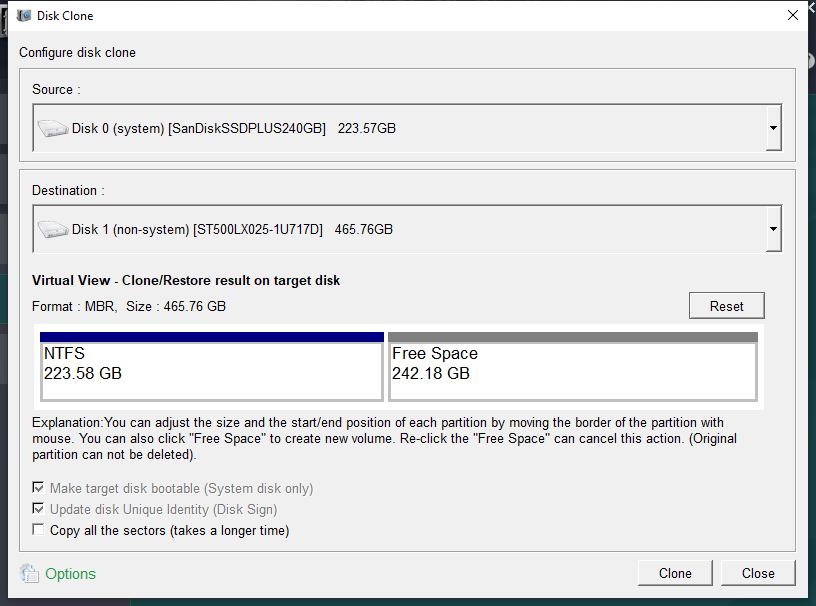
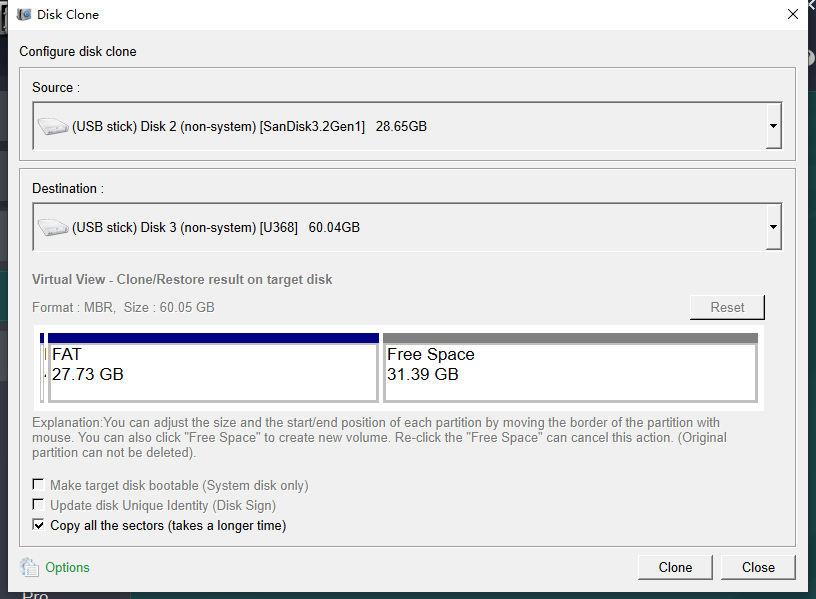
Step 2: In the pop-up, choose your USB drive as the source disk and the SSD as the destination disk. Always double-check the drive letters and sizes to prevent accidental data loss.
renee becca disk clone
clone the hard disk
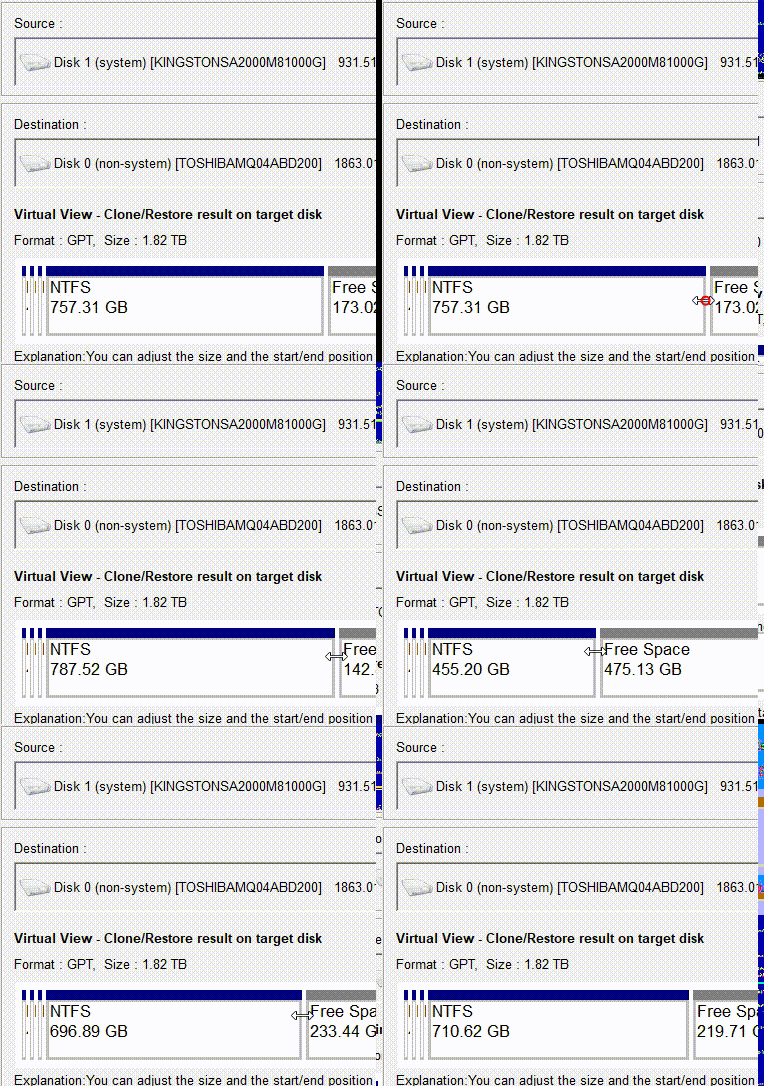
Step 3: Configure advanced settings. For a complete bootable clone that preserves all structures, select the “Copy all the sectors” option. If your SSD is larger, use the mouse to drag partition boundaries and resize to use the extra space.
adjust partitions
Renee Becca select copy all sector
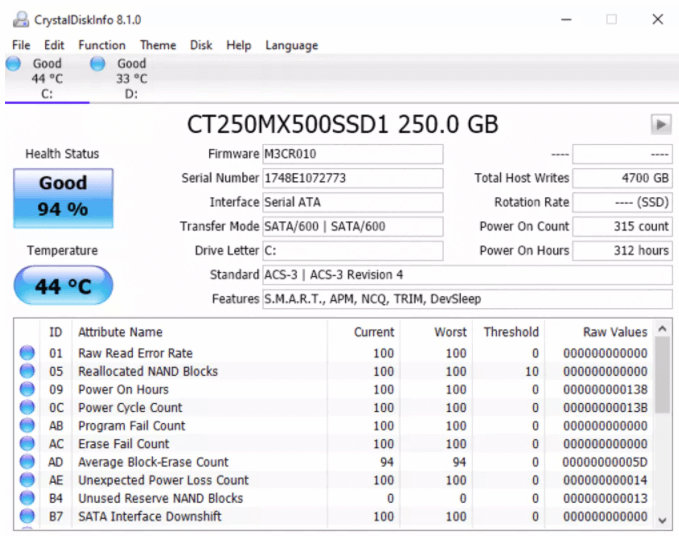
Step 4: Review your choices and click “Clone” to begin. The process may take from several minutes to a few hours depending on the data size. Once finished, safely eject the drives and verify the SSD health with tools like CrystalDiskInfo to confirm everything transferred correctly.
how to check ssd health with crystaldiskinfo
Renee Becca makes this reliable with verification steps and works well for both full disk and specific needs. It also supports other functions like backups if you want to create an image first.
Renee Becca – Safe and Quick System Migration to SSD

Automatic 4K alignment Improves SSD performance during system migration.

Support GPT and MBR Automatically adapt to the suitable partition format.

Support NTFS and FAT32 Redeploy various files in different file systems.

Back up quickly Back up files at up to 3,000MB/min.

Overall backup schedule Support system redeployment/system backup/partition backup/disk backup/disk clone.

Automatic 4K alignment Improve SSD performance

Support GPT and MBR Intelligently adapt to a partition format

Support NTFS and FAT32 Redeploy files in different file systems

Free TrialFree TrialNow 56337 people have downloaded!

Alternative Methods Using Built‑In Tools or Command Line

If you prefer not to install extra software or have specific technical requirements, you can try built-in operating system tools or command line utilities. These approaches demand more attention to detail and carry a higher risk of mistakes, such as selecting the wrong drive. They work best when the USB has a simple structure and you’re comfortable verifying every step.

Windows Tools (Disk Management, Diskpart, Third‑Party Utilities)

Windows provides some native tools for disk management, but full cloning of a bootable USB to SSD isn’t straightforward with built-in features alone.

Disk Management - create partitions on target SSD
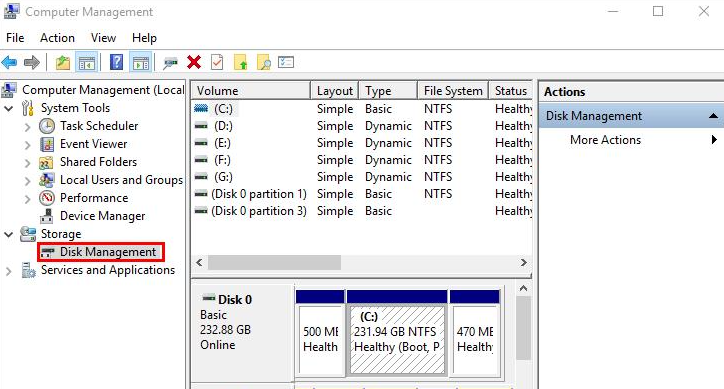
Disk Management lets you initialize the SSD, create partitions, and format them, while Diskpart (via Command Prompt) offers command-line control for cleaning disks and assigning letters.
For actual data transfer, people often combine these with tools like Robocopy for files, but this doesn’t always preserve boot sectors perfectly—making third-party free utilities like DiskGenius or Win32 Disk Imager popular supplements for imaging. The main challenge is ensuring the bootloader transfers correctly, especially for UEFI systems. This layered approach gives control but often requires extra repair steps for bootability, as seen when users clone a recovery USB for a new PC setup and then fix the BCD store.
disk management
Advantages:
  • Completely free and no additional downloads for basic prep
  • Gives full control over partitions
  • Familiar for Windows users

Disadvantages:

  • No true one-click cloning for bootable drives
  • High risk of data loss if wrong disk selected
  • Often requires additional tools for full sector copy
  • Time-consuming and technical

Step-by-step usage instructions:

1. Connect both USB and SSD. Open Disk Management (right-click Start), initialize the SSD as GPT or MBR matching the USB.
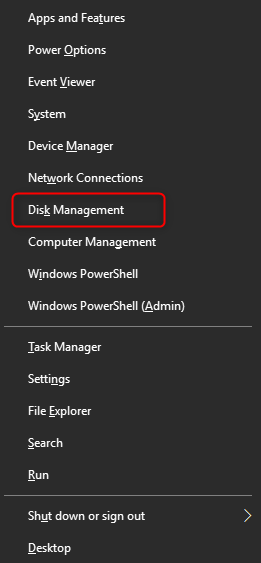
open windows disk management
2. Use Diskpart: Run cmd as admin, list disk, select disk X (for SSD), clean, then create partition create partition primary, format.
3. For data clone: Use third-party like Win32 Disk Imager to create.img from USB then write to SSD, or manual copy with care.
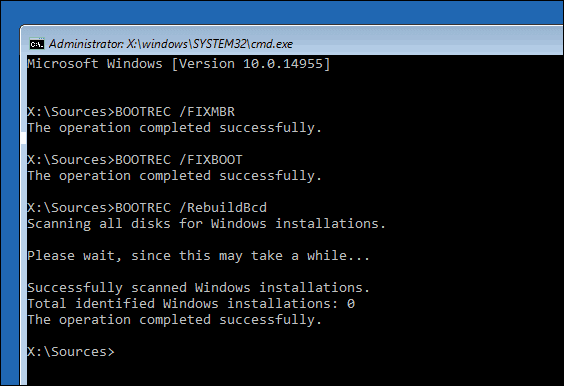
4. Repair boot if needed using bootrec commands. Since Win32 Disk Imager does not deal with the boot parameters, you may meet blue screen while loading Windows. You will need to use bootrec commands to fix it.
BOOTREC FIXBOOT
These methods can get the job done in a pinch but require patience and backups. For Linux users, more direct options exist.

Linux Tools (dd, rsync, Clonezilla)

Although these tools are Linux-based, they are not limited to Linux users. They work just as well for cloning USB drives created on Windows or other operating systems, as long as the disk structure and boot layout are preserved correctly.
Linux offers powerful open-source tools perfect for exact disk cloning. The dd command is a classic for bit-for-bit copies, while Clonezilla is a free live environment designed specifically for disk imaging and cloning. These are highly effective but require precise device identification to avoid wiping the wrong drive.
device to device Clonezilla
Advantages:
  • Free and very precise with dd or Clonezilla
  • Excellent for sector-level clones
  • Runs from live USB without installing

Disadvantages:

  • Steep learning curve for beginners
  • Easy to cause permanent data loss with one typo
  • Bootloader issues possible across hardware

While these Linux and Windows alternatives save on software costs, they demand technical confidence. If issues arise, switching to a guided tool often saves time.

Who Should Use These Methods

These alternative methods suit tech-savvy users, developers, or those on a tight budget who enjoy command line work or have Linux experience. Beginners or anyone prioritizing simplicity and safety should stick with dedicated software. They’re great for one-off tasks or when you need customization but expect to spend more time troubleshooting.

Fixing Boot Issues After Cloning USB to SSD

Even with a successful clone, the new SSD might not boot immediately due to hardware differences or BIOS/UEFI configurations. This is common when moving from USB to internal SSD or changing drive types. Understanding the causes helps you fix them quickly without starting over.
If your boot settings aren’t configured correctly, you may run into one of the following blue screen error codes:
Blue Screen CodeRelevanceExplanation

0x0000007B (INACCESSIBLE_BOOT_DEVICE)

★★★★★

The most common and direct sign of incorrect BCD configuration. Windows cannot locate the correct disk or partition during startup.

0xC000000E (REQUIRED DEVICE IS INACCESSIBLE)

★★★★★

Boot Manager cannot find the device specified in the BCD, often due to an invalid partition GUID or incorrect device/osdevice values.

0x000000ED (UNMOUNTABLE_BOOT_VOLUME)

★★★★☆

The volume referenced by the BCD exists but cannot be mounted, or the BCD points to the wrong partition.

Common Causes of Boot Failure

  • The EFI or boot partition wasn’t copied correctly or isn’t recognized.
  • BIOS/UEFI settings still point to the old USB or wrong boot mode (Legacy vs UEFI).
  • SSD not set as the first boot device in BIOS.
  • File system errors or missing drivers after hardware change.

Step‑By‑Step Troubleshooting Checklist

  1. Enter BIOS (usually Del, F2, or F10) and set the SSD as the primary boot device. Ensure Secure Boot is compatible or disabled if needed.
  2. Use Windows Recovery: Boot from install media, go to Command Prompt, run bootrec /fixmbr, bootrec /fixboot, bootrec /scanos, bootrec /rebuildbcd. If you need detail steps, please refer to: 2026 Updated – How to Fix 0x0000007B INACCESSIBLE BOOT DEVICE BSOD in Windows 11/10
  3. Check partition flags with disk tools to ensure active/boot flags are set.
  4. For UEFI, confirm the EFI system partition is FAT32 and has the boot files.
  5. Test with another port or re-clone if needed.

When to Re‑Clone Using a Professional Tool

If the troubleshooting steps don’t resolve the boot problem, it’s often faster to re-clone using a more robust tool that better handles boot configurations. Renee Becca is a solid fallback option in these cases, as its cloning engine is optimized for creating functional, boot-ready drives with minimal fuss.

Choosing the Best USB‑to‑SSD Cloning Method

Selecting the right method depends on your experience level, whether bootability is critical, and how much time you’re willing to invest. Beginners or those needing guaranteed results should prioritize ease and support. Advanced users might opt for free tools if they’re comfortable with risks.
Method/ToolDifficultyBoot SupportCostBest For

Renee Becca

Low

Excellent

Free trial / Paid

Most users, reliable boot clones

Windows Built-in + Utils

Medium-High

Fair

Free

Simple data, experienced Windows users

Linux dd/Clonezilla

High

Good-Excellent

Free

Precise control, Linux users

Other Free Cloners

Medium

Varies

Free

Budget-conscious

Renee Becca consistently offers the best balance of simplicity, success rate, and features for cloning USB drive to SSD. Head back to the download section to get started today and enjoy your faster SSD.
Renee Becca – Safe and Quick System Migration to SSD

Automatic 4K alignment Improves SSD performance during system migration.

Support GPT and MBR Automatically adapt to the suitable partition format.

Support NTFS and FAT32 Redeploy various files in different file systems.

Back up quickly Back up files at up to 3,000MB/min.

Overall backup schedule Support system redeployment/system backup/partition backup/disk backup/disk clone.

Automatic 4K alignment Improve SSD performance

Support GPT and MBR Intelligently adapt to a partition format

Support NTFS and FAT32 Redeploy files in different file systems

Free TrialFree TrialNow 56337 people have downloaded!

Frequently Asked Questions

How long does it take to clone USB drive to SSD?

The time varies based on the USB size and data amount, typically ranging from 10-30 minutes for small drives (under 32GB) to 1-3 hours for larger ones with lots of data. Faster interfaces and SSDs reduce this time significantly. Monitor progress in the tool to avoid interruptions.

Will the cloned SSD from USB be bootable?

Yes, if you use a proper cloning method like sector-by-sector copy in Renee Becca or dd, the boot structure is preserved. However, you may need to adjust BIOS settings to prioritize the SSD. Always test by setting it as first boot device.

Can I clone a USB drive to an SSD that is smaller in capacity?

It’s generally not recommended or possible for a full clone if the SSD has less usable space than the used space on the USB. You would need to use partition cloning or shrink partitions first. For best results, choose an SSD at least as large as the USB.

What should I do before cloning to avoid data loss?

Always back up important files from both the USB and the target SSD (as cloning erases the target). Use Renee Becca’s backup feature if available. Double and triple-check source and destination drives in the software.

How do I verify the clone was successful?

After cloning, use tools like CrystalDiskInfo to check SSD health and CrystalDiskMark for speed. Boot from the SSD if possible and compare file sizes/hashes. Check disk properties in File Explorer or Disk Management to confirm all partitions copied.

Is it safe to use free tools to clone usb drive to ssd?

Free tools like Clonezilla or DiskGenius can be safe if you follow instructions carefully and identify drives correctly. However, paid or dedicated software like Renee Becca often includes more safeguards, verification, and easier interfaces, reducing user error for critical tasks.
Renee Becca – Safe and Quick System Migration to SSD

Automatic 4K alignment Improves SSD performance during system migration.

Support GPT and MBR Automatically adapt to the suitable partition format.

Support NTFS and FAT32 Redeploy various files in different file systems.

Back up quickly Back up files at up to 3,000MB/min.

Overall backup schedule Support system redeployment/system backup/partition backup/disk backup/disk clone.

Automatic 4K alignment Improve SSD performance

Support GPT and MBR Intelligently adapt to a partition format

Support NTFS and FAT32 Redeploy files in different file systems

Free TrialFree TrialNow 56337 people have downloaded!

User Comments

Page 1

Leave a Comment


Your comment has been submitted and is awaiting moderation.