author avatar
    Specialist of Customer Service Dept.
Last update by William Davis at 13 August 2025

Summary
Learn how to transfer Windows from one Samsung SSD to another with confidence. This guide provides trusted, step-by-step methods for a smooth, error-free upgrade without data loss or reinstalling Windows, tailored for beginners.



Upgrading your Samsung SSD but dreading the hassle of reinstalling Windows and losing your data? This comprehensive guide delivers step-by-step solutions to clone your entire system seamlessly, whether for more storage, better performance, or replacing a failing drive. Discover reliable methods tailored to your needs, from user-friendly software to advanced tools, ensuring a smooth transition without starting from scratch.
samsung ssd upgrade
Samsung SSDs stand out for their exceptional speed and dependability, making them a preferred option for PC enthusiasts seeking storage upgrades. If your existing Samsung SSD is nearing capacity or you’re looking to enhance your system’s efficiency with a superior drive, migrating Windows to a new one is an effective approach. This tutorial details the procedure for duplicating your Samsung SSD onto a fresh one—like a Samsung 990 PRO or T9 Portable SSD—while preserving all data and avoiding a full Windows reinstall.
Tip: The Windows migration methods outlined in this guide are fully compatible with mainstream Windows operating systems, such as Windows 11, 10, 8/8.1, 7, Vista and even older versions like XP/2000.
Here, we detail four proven techniques for migrating Windows from one Samsung SSD to another, complete with setup instructions, capacity guidelines, and responses to frequent inquiries.
MethodDescriptionEffectivenessDifficulty

1️⃣ Using Renee Becca 🔥

Effortlessly migrate Windows from one Samsung SSD to another, compatible even with different brands.

High 👍

2️⃣ Using Clonezilla

A free, open-source tool for precise disk-to-disk cloning, ideal for exact replicas.

High 👍

⭐⭐

3️⃣ Using DD Command

A command-line method via Linux for low-level copying, suitable for technical users.

Medium

⭐⭐⭐

4️⃣ Using Samsung Magician Software

Perfect for migrating Windows specifically between Samsung SSDs Only.

Medium

What to Prepare to Transfer Windows from One Samsung SSD to Another

To guarantee a seamless experience when migrating Windows from one Samsung SSD to another, thorough preparation is essential. Here’s what you’ll require:
* Purchase a new Samsung SSD. Select a new SSD with sufficient capacity to accommodate your data and operating system. A size of 500GB to 1TB is advisable for most individuals.
* Conduct an SSD surface test. Perform a disk surface scan to detect any bad sectors on the new SSD. Bad sectors could lead to cloning issues, so utilize a utility like Windows Disk Management or external software to assess the drive’s condition. If you suspect that the low-cost SSD you purchased might be problematic, this step is even more important. It’s a reliable way to check whether you’ve ended up with a fake SSD. Popular tools for this include CrystalDiskInfo and H2testw
* Download dependable cloning software. For migrating Windows from one Samsung SSD to another, specialized cloning software is necessary, since Windows lacks native cloning capabilities.
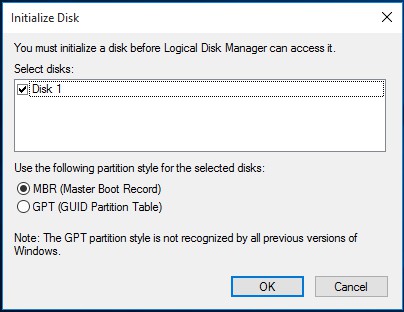
* Initialize the new SSD (optional). Many SSDs require initialization to show up in File Explorer. Certain cloning applications, such as Renee Becca, manage this automatically, so review your software’s specifications.
disk unknown not initialized 3
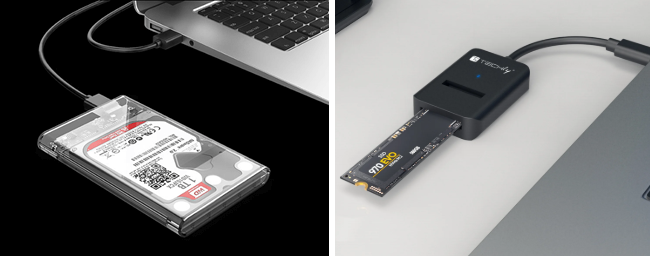
* Obtain a connection cable. Employ a USB-to-SATA cable or adapter to link the new SSD to your computer throughout the cloning procedure.
* Tidy up the old SSD. Clear space on your source SSD by removing unneeded files. This shortens cloning duration and promotes a more efficient transfer.

Method 1 : Transfer Windows from One Samsung SSD to Another with Renee Becca

Best for: Individuals seeking to migrate Windows from one Samsung SSD to another, including drives from other brands.
When enhancing your storage, a professional cloning utility is vital, particularly if you’re migrating Windows from one Samsung SSD to another, encompassing non-Samsung options. Although Samsung supplies its own cloning application, it frequently restricts usage to Samsung products. A third-party solution like Renee Becca delivers broader adaptability, accommodating SSDs from multiple makers.
Renee Becca is a robust yet intuitive cloning program crafted to simplify migrating Windows from one Samsung SSD to another. It facilitates cloning drives of varying sizes, shifting the C drive to a new SSD, and even handling cloning with just one laptop SSD slot—all without any data loss. Featuring options like adjustable partition resizing and support for assorted drive varieties, Renee Becca guarantees a fluid migration, whether you’re expanding capacity or substituting a defective drive.
Renee Becca – Safe and Quick System Migration to SSD

Automatic 4K alignment Improves SSD performance during system migration.

Support GPT and MBR Automatically adapt to the suitable partition format.

Support NTFS and FAT32 Redeploy various files in different file systems.

Back up quickly Back up files at up to 3,000MB/min.

Overall backup schedule Support system redeployment/system backup/partition backup/disk backup/disk clone.

Automatic 4K alignment Improve SSD performance

Support GPT and MBR Intelligently adapt to a partition format

Support NTFS and FAT32 Redeploy files in different file systems

Free TrialFree TrialNow 56337 people have downloaded!
Acquire Renee Becca to effortlessly migrate Windows from one Samsung SSD to another without needing to reinstall the operating system.
Important: Renee Becca automatically detects the new SSD, even if it’s uninitialized.

Step-by-Step Guide to Transfer Windows from One Samsung SSD to Another Using Renee Becca

Step 1: Install the new SSD. If you’re fitting an M.2 SSD internally, place the drive at a 30-degree angle, press it into position, and fasten it with the included screw.
How to Install an M.2 SSD
For interim cloning, attach the new SSD via a USB-to-M.2 adapter or external case.
USB SSD / Disk Enclosure
Step 2: Download and install Renee Becca. Go to the official Renee Becca site to obtain and set up the software on your PC or laptop.
Step 3: Select the suitable cloning function. Start Renee Becca and pick from two cloning choices according to your requirements:
Function NameFeatureSuitable For

Hard Disk Clone/Clone System Disk

Produces an identical duplicate of the whole disk, encompassing system and data partitions, with modifiable partition dimensions.

Total SSD replacement, covering all data.

System Redeploy

Shifts solely the Windows system partition to the new SSD.

Migration of the system alone or configurations with dual drives.

Option 1: Clone the Entire Drive Using “Hard Disk Clone”

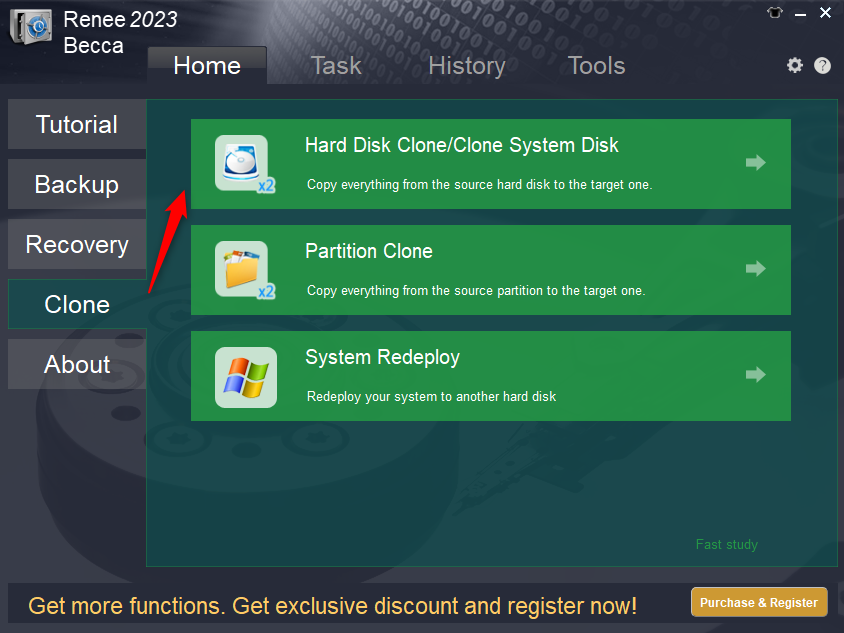
For a complete migration of Windows and all data from one Samsung SSD to another, employ the “Hard Disk Clone/Clone System Disk” option within the “Clone” area.
Renee Becca Disk Clone
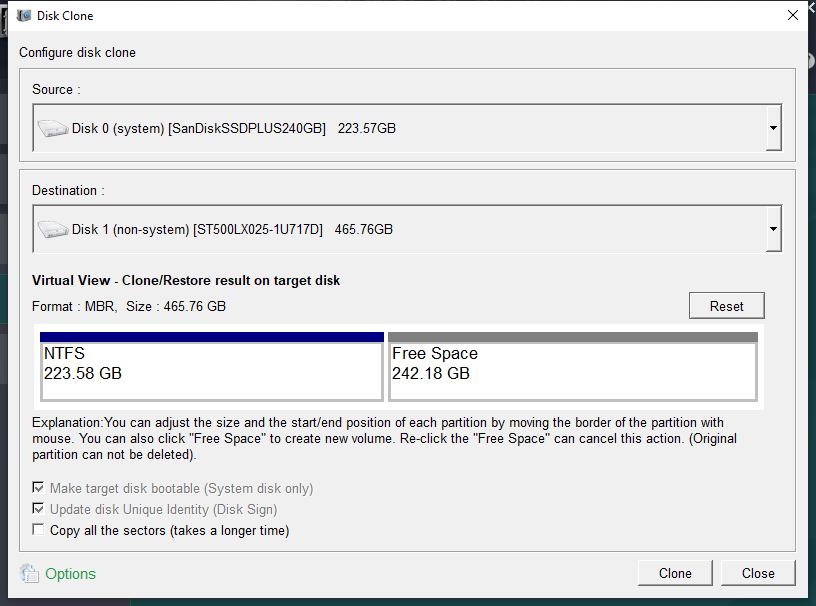
1. Set up source and destination drives. Pick your existing Samsung SSD as the source and the new SSD as the destination in the “Hard Disk Clone” dialog. Verify twice to confirm the right drives are chosen to prevent data erasure.
Clone the Hard Disk
2. Personalize advanced settings. Renee Becca provides choices to customize the cloning procedure:
* Copy all sectors: Encompasses reserved zones and unoccupied space, assuring vital data such as software licenses is transferred. Opt for this if you desire an precise duplicate of the source SSD.
* Universal compatibility: Accommodates diverse SSDs, HDDs, and USB drives, rendering it perfect for migrating Windows from one Samsung SSD to another, irrespective of brand.
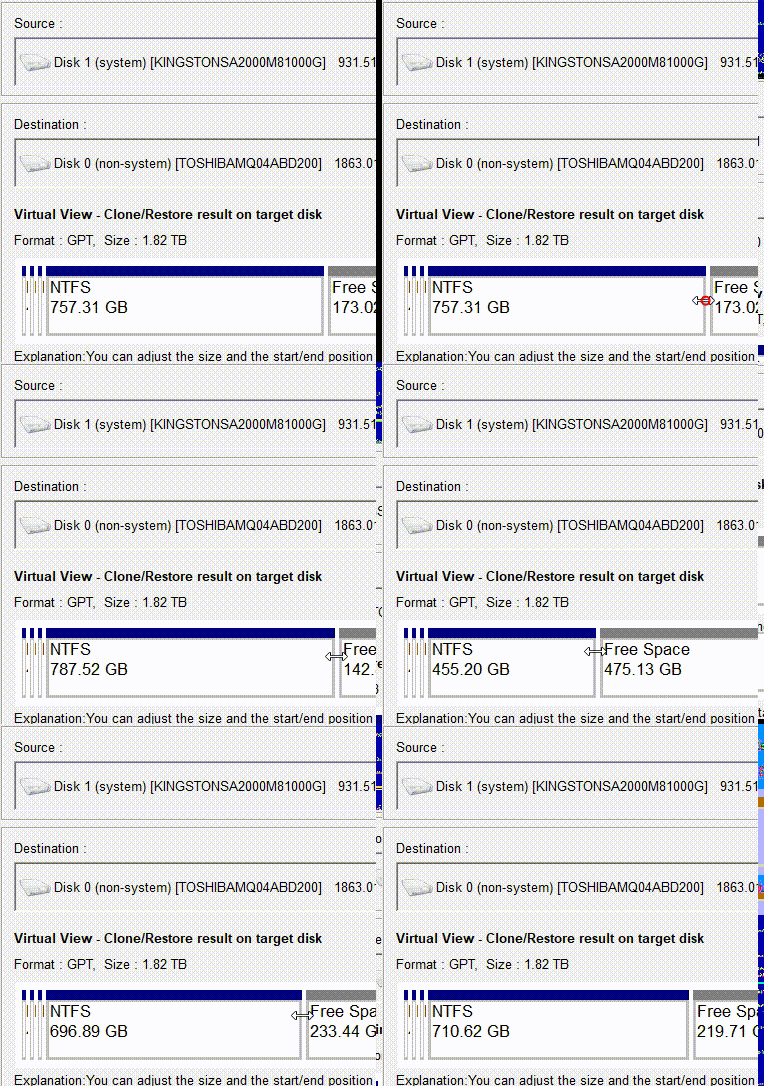
* Adjustable partitions: Modify partition sizes by dragging their boundaries to match the new SSD’s capacity.
Adjust Partitions
3. Begin cloning. After configuring settings, press “Clone” to initiate the migration of Windows and data to the new SSD.

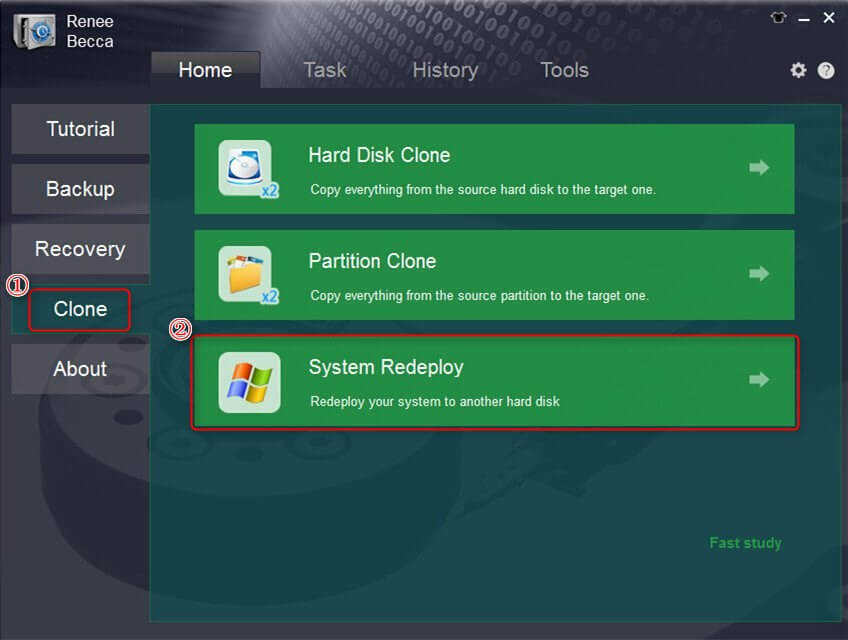
Option 2: System-Only Cloning with “System Redeploy”

If you wish only to migrate the Windows system partition, choose “System Redeploy” in the “Clone” area. This is quicker for those not needing to duplicate non-system data.
Select System Redeploy
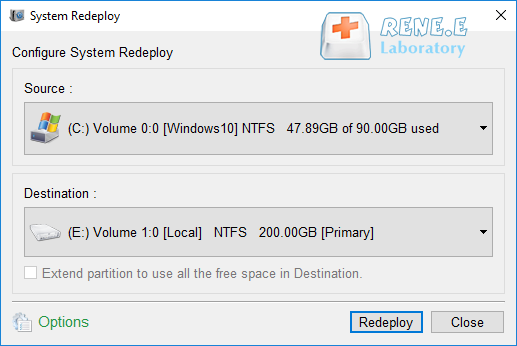
1. Choose source and destination. Select your current Samsung SSD’s system partition as the source and the new SSD as the destination.
Select Destination for System Redeploy
2. Start redeployment. Click “Redeploy” to shift the Windows system to the new SSD.
Step 4: Track the cloning process. Await the progress indicator reaching 100%. The timeframe varies with data amount, usually spanning 30 minutes to several hours. Keep the computer powered during this.
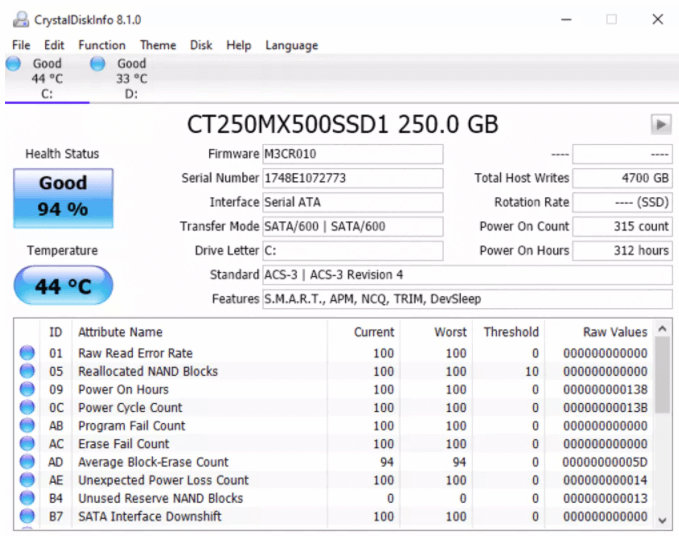
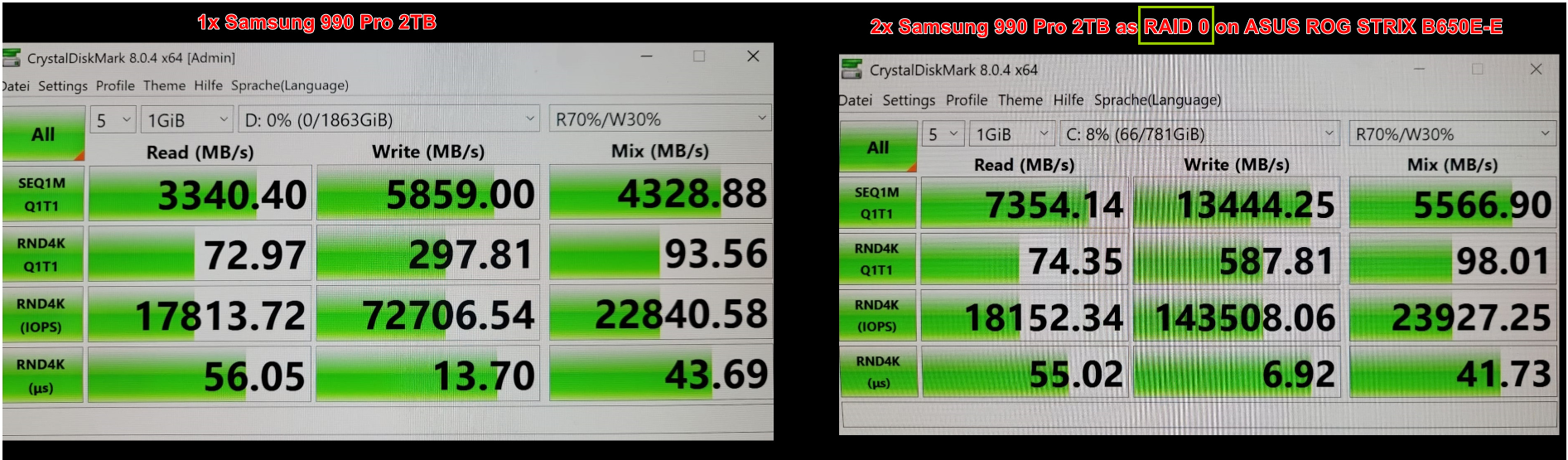
Step 5: Confirm the new SSD’s status. Post-cloning, employ utilities like CrystalDiskInfo to evaluate the new SSD’s health and CrystalDiskMark to verify its speed. These ensure your new SSD operates properly and lacks problems like bad sectors or fake components.
Check SSD Health with CrystalDiskInfo
Check SSD Speed with CrystalDiskMark
Warning: All data on the target SSD will be overwritten during cloning, so safeguard any crucial files in advance.
By adhering to these instructions, you can assuredly migrate Windows from one Samsung SSD to another, preparing your new drive for seamless system booting.
To provide more options for users with varying technical expertise and preferences, the following sections explore additional free and advanced methods that align with the goal of efficient system migration.
Renee Becca – Safe and Quick System Migration to SSD

Automatic 4K alignment Improves SSD performance during system migration.

Support GPT and MBR Automatically adapt to the suitable partition format.

Support NTFS and FAT32 Redeploy various files in different file systems.

Back up quickly Back up files at up to 3,000MB/min.

Overall backup schedule Support system redeployment/system backup/partition backup/disk backup/disk clone.

Automatic 4K alignment Improve SSD performance

Support GPT and MBR Intelligently adapt to a partition format

Support NTFS and FAT32 Redeploy files in different file systems
Free TrialFree TrialNow 56337 people have downloaded!

Method 2 : Transfer Windows from One Samsung SSD to Another with Clonezilla

Best for: Users preferring a free, open-source solution for exact disk duplication across various setups.
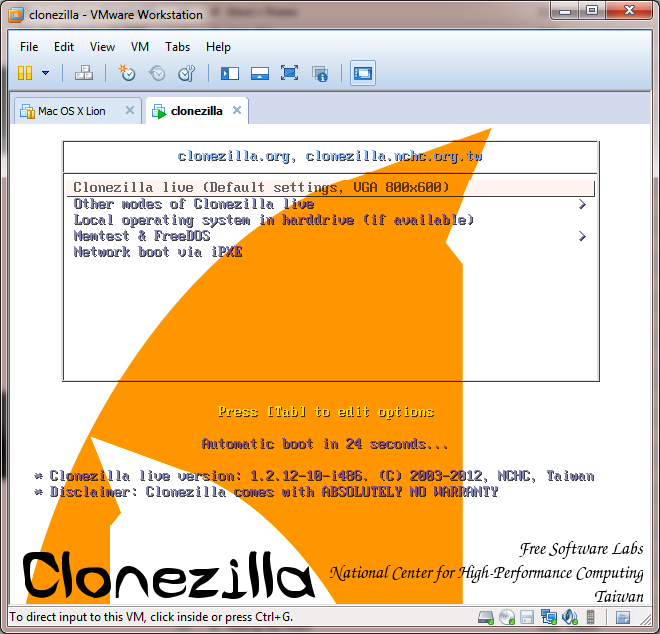
Clonezilla is a powerful, no-cost partitioning and disk imaging tool that excels at creating precise copies of drives, making it suitable for migrating Windows from one Samsung SSD to another. As an open-source alternative, it runs from a bootable USB and supports sector-by-sector cloning, which ensures all data, including the operating system, applications, and files, transfers accurately. This method is particularly useful for those comfortable with booting into a live environment and handling basic selections, offering reliability without relying on installed software.
use ssd clone software clonezilla
Important: Clonezilla works independently of your operating system, so it’s ideal for scenarios where Windows might be unstable, but always back up data first to avoid risks.

Step-by-Step Guide to Transfer Windows from One Samsung SSD to Another Using Clonezilla

1. Download Clonezilla and create a bootable USB. Visit the official Clonezilla website to download the ISO file. Use a tool like Rufus or balenaEtcher to burn the ISO onto a USB drive, making it bootable.
2. Connect the new SSD. Attach your new Samsung SSD to your computer using a USB-to-SATA adapter or by installing it internally if your system allows multiple drives.
3. Boot into Clonezilla. Insert the bootable USB, restart your computer, and enter the BIOS/UEFI settings (usually by pressing F2, F10, or Delete) to set the USB as the first boot device. Save and exit to boot into Clonezilla Live.
4. Select the cloning mode. Once loaded, choose your language and keyboard layout. Opt for “device-device” mode for direct disk-to-disk cloning.
Clonezilla - Opt for "device-device" mode for direct disk-to-disk cloning
5. Choose the source and destination drives. Identify your current Samsung SSD as the source (e.g., /dev/sda) and the new SSD as the destination (e.g., /dev/sdb). Use commands like lsblk in the terminal if needed to confirm drive labels—be extremely careful to avoid selecting the wrong drive, as this will overwrite data.
Choose the source and destination drives
The lsblk command helps you list all block devices and their details, making it easier to spot the source disk.

lsblk -o NAME,SIZE,FSTYPE,MOUNTPOINT,LABEL,UUID

command lsblk result
6. Configure cloning options. Select “expert” mode if you need advanced settings, such as resizing partitions proportionally for larger drives. Otherwise, proceed with beginner mode for a straightforward clone. Enable options like “icds” to skip disk size checks if cloning to a larger SSD.
7. Start the cloning process. Confirm your selections and begin the clone. The process may take 30 minutes to several hours depending on drive size and data volume.
8. Verify and reboot. After completion, shut down, remove the old SSD if replacing it, and boot from the new one. Use tools like Disk Management to check partitions and ensure everything transferred correctly.
This method provides a cost-free way to achieve a bootable duplicate, bridging to more command-line oriented approaches for those seeking even greater control.

Method 3 : Transfer Windows from One Samsung SSD to Another Using the DD Command

Best for: Technically adept users wanting a low-level, precise copy through Linux tools, adaptable for Windows environments.
The DD (Disk Duplicator) command is a Linux utility for bitwise copying of drives, offering a direct way to migrate Windows from one Samsung SSD to another without intermediate software. For Windows users, this involves either the Windows Subsystem for Linux (WSL) for simpler tasks or booting from a Linux live USB for full hardware access, as WSL has limitations with direct disk cloning. This approach ensures an exact replica but requires caution, as errors can lead to data loss—hence its nickname “data destroyer.”
Important: Always verify drive identifiers multiple times; DD does not prompt for confirmations and overwrites without recovery options.

Step-by-Step Guide to Transfer Windows from One Samsung SSD to Another Using the DD Command

Option 1: Using a Linux Live USB (Recommended for Full Cloning)

1. Create a Linux live USB. Download an Ubuntu ISO from the official site and use Rufus or balenaEtcher to make a bootable USB.
2. Connect the new SSD. Link your new Samsung SSD via a USB adapter or internal slot.
3. Boot into Linux live environment. Insert the USB, restart, and adjust BIOS to boot from it. Select “Try Ubuntu” to enter the live session without installation.
Try Ubuntu
4. Open a terminal and identify drives. Launch the terminal and run lsblk or fdisk -l to list drives. Note the source (old SSD, e.g., /dev/sda) and destination (new SSD, e.g., /dev/sdb). Ensure the destination is larger or equal in size.
The lsblk command helps you list all block devices and their details, making it easier to spot the source disk.

lsblk -o NAME,SIZE,FSTYPE,MOUNTPOINT,LABEL,UUID

lsblk result
5. Execute the DD command. Enter a command like

sudo dd if=/dev/sda of=/dev/sdb bs=4M status=progress conv=noerror,sync

This copies the source to the destination block-by-block. The bs=4M optimizes speed, and status=progress shows transfer info.
6. Monitor and complete. The process duration varies by size (e.g., 500GB might take 1-2 hours). Once done, use sync to flush caches.
7. Verify and reboot. Run fsck on the new drive if needed, then reboot, swap drives, and test booting.

Option 2: Using Windows Subsystem for Linux (For Limited or Partition-Level Copies)

1. Enable WSL. Install WSL via Windows Features, then get Ubuntu from the Microsoft Store.
Install WSL via Windows Features
2. Access drives. In WSL, drives mount under /mnt, but for raw access, use tools like

wsl –mount \.\PHYSICALDRIVE1 –bare

(requires Insider builds or elevated privileges)
3. Run DD. Identify devices (WSL sees them as /dev/sdX sometimes), then use

dd if=/dev/sda of=/dev/sdb bs=4M status=progress

Note: Full disk cloning may require admin rights and could be unreliable due to WSL limitations—fall back to live USB if issues arise.
This hands-on method transitions well to scenarios where a complete reset is preferred, as outlined next.
Renee Becca – Safe and Quick System Migration to SSD

Automatic 4K alignment Improves SSD performance during system migration.

Support GPT and MBR Automatically adapt to the suitable partition format.

Support NTFS and FAT32 Redeploy various files in different file systems.

Back up quickly Back up files at up to 3,000MB/min.

Overall backup schedule Support system redeployment/system backup/partition backup/disk backup/disk clone.

Automatic 4K alignment Improve SSD performance

Support GPT and MBR Intelligently adapt to a partition format

Support NTFS and FAT32 Redeploy files in different file systems
Free TrialFree TrialNow 56337 people have downloaded!

Method 4 : Transfer Windows from One Samsung SSD to Another with Samsung Magician Software

Best for: Individuals migrating Windows exclusively between Samsung SSDs.
Samsung supplies its dedicated cloning utility, Samsung Data Migration, integrated within Samsung Magician Software. This application is engineered specifically for migrating Windows from one Samsung SSD to another, offering a handy choice for transfers within the Samsung ecosystem. That said, its capabilities might be constrained when duplicating to non-Samsung SSDs, so it’s optimally fitted for Samsung-specific drives.
Here’s how to utilize Samsung Magician to migrate Windows from one Samsung SSD to another:
1. Download Samsung Magician from Samsung’s official website.
2. Connect the new Samsung SSD to your PC using a USB-to-SATA cable.
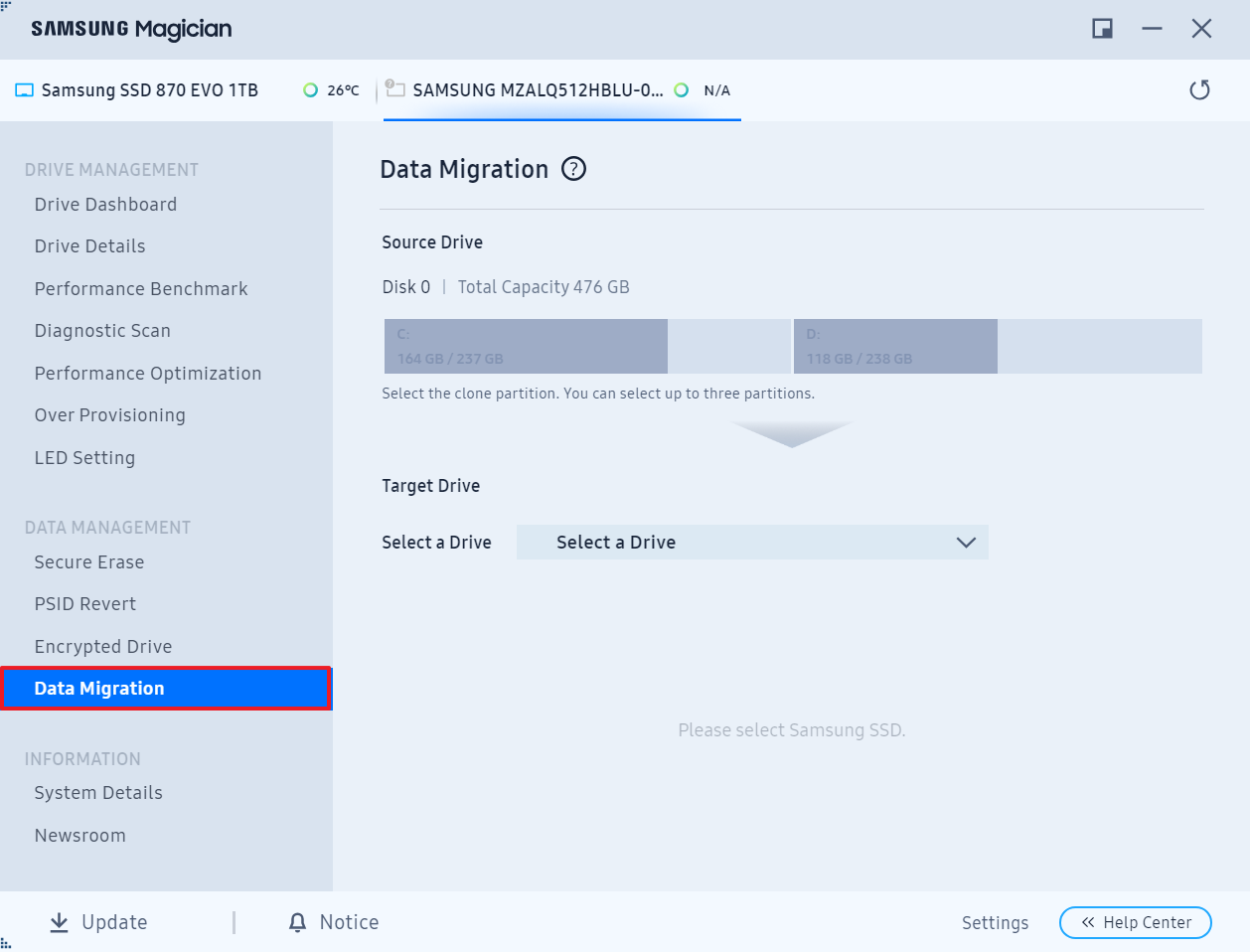
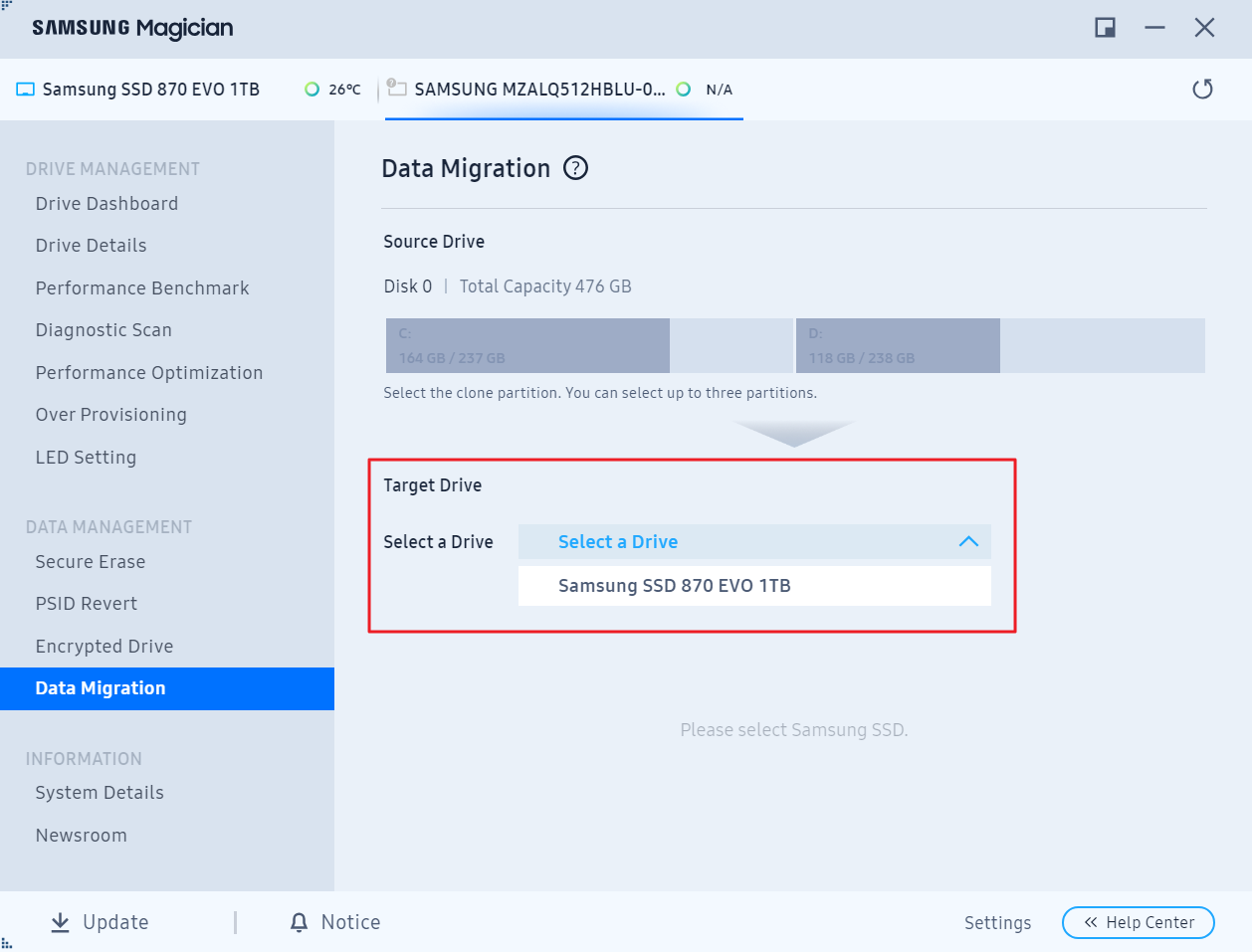
3. Open Samsung Magician and select “Data Migration.”
Launch Samsung Magician and click Data Migration
4. Choose the new SSD as the target drive.
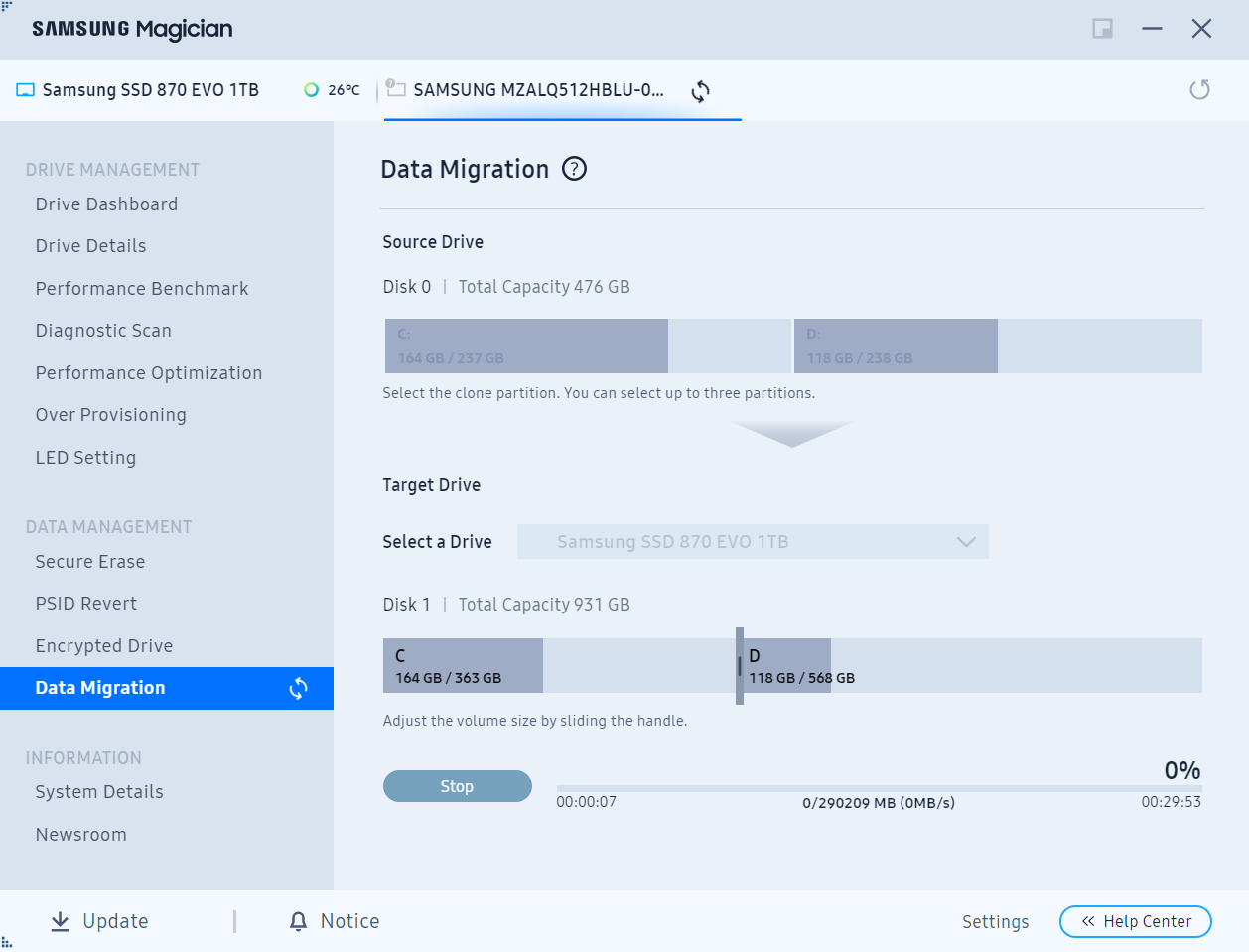
Select the target drive
5. Select the partitions you want to clone, including the Windows system partition.
6. Adjust the disk layout as needed and click “Start.”
7. Confirm the warning message by clicking “OK.”
8. Wait for the cloning process to finish.
Wait for the cloning process to complete
Once the cloning concludes, you can exchange the old SSD for the new one and start your PC from the fresh SSD.

Comparison of the Methods

MethodFeaturesApplicable ScopeSuitable Audience

Renee Becca

User-friendly interface with partition resizing, supports cross-brand cloning, automatic initialization, and options for full or system-only migration.

Windows 7/8/10/11, ideal for SSD upgrades of varying sizes or brands, especially when avoiding reinstalls.

Beginners to intermediate users who value ease and flexibility without deep technical knowledge.

Clonezilla

Free open-source tool for disk-to-disk cloning via bootable USB, supports expert modes for custom settings like partition adjustments.

Any Windows version, suitable for exact replicas on same or larger SSDs, works offline for unstable systems.

Intermediate users comfortable with BIOS tweaks and live environments, seeking cost-free precision.

DD Command

Command-line bitwise copying through Linux (WSL or live USB), offers speed optimizations and progress tracking, but no built-in resizing.

Windows via Linux access, best for identical or larger SSDs in technical setups, handles raw data transfer.

Advanced users proficient in terminals and drive identification, preferring manual control over GUI.

Samsung Magician Software

Official tool with simple partition selection and layout adjustments, integrated data migration for quick Samsung-specific transfers.

Windows 10/11, limited to Samsung SSDs of equal or larger size, focused on seamless brand-internal upgrades.

Beginners with Samsung hardware, prioritizing manufacturer support and straightforward processes.

To Wrap Things Up

This tutorial has delineated four trustworthy techniques for migrating Windows from one Samsung SSD to another: employing Renee Becca for adaptable cloning across diverse SSD brands, Clonezilla for open-source precision, DD Command for command-line control, and Samsung Magician for Samsung-specific shifts.
Renee Becca distinguishes itself with its versatility, accommodating non-Samsung SSDs and providing functionalities like partition cloning sans Windows reinstall. Samsung Magician, though complimentary, is customized for Samsung SSDs and could encounter restrictions with alternate brands.
For an uninterrupted journey, prepare sufficiently by inspecting the new SSD’s condition, employing appropriate cables, and picking a fitting storage volume. Whether advancing for velocity or volume, migrating Windows from one Samsung SSD to another is uncomplicated with the proper utilities.
Renee Becca – Safe and Quick System Migration to SSD

Automatic 4K alignment Improves SSD performance during system migration.

Support GPT and MBR Automatically adapt to the suitable partition format.

Support NTFS and FAT32 Redeploy various files in different file systems.

Back up quickly Back up files at up to 3,000MB/min.

Overall backup schedule Support system redeployment/system backup/partition backup/disk backup/disk clone.

Automatic 4K alignment Improve SSD performance

Support GPT and MBR Intelligently adapt to a partition format

Support NTFS and FAT32 Redeploy files in different file systems
Free TrialFree TrialNow 56337 people have downloaded!

FAQs

1. Can Samsung Magician transfer Windows to a non-Samsung SSD?

Samsung Magician is fine-tuned for Samsung SSDs. Although it might function with non-Samsung SSDs, available features are restricted, and the procedure could encounter errors. For non-Samsung SSDs, opt for a third-party utility like Renee Becca to migrate Windows from one Samsung SSD to another reliably.

2. Does Samsung provide cloning software?

Yes, Samsung supplies Samsung Data Migration, integrated into Samsung Magician Software, engineered to migrate Windows from one Samsung SSD to another Samsung drive effectively.

3. What should I do if the cloning process fails midway?

If cloning halts due to issues like bad sectors, connection problems, or software glitches, ensure you have backed up important data, then verify the new SSD’s health with a surface test and ensure stable power and cables. Restart the process after cleaning up the source drive. For persistent errors, switch to an alternative method like Clonezilla or consult forums for specific error codes, as this often stems from hardware incompatibilities during upgrades or fault replacements.

4. How long does it typically take to transfer Windows from one Samsung SSD to another?

The duration depends on the SSD size, data volume, and method chosen—ranging from 30 minutes for a 500GB drive with minimal data using Renee Becca or Samsung Magician, to 2-3 hours for larger drives or sector-by-sector methods like DD. Factors like system speed and whether you’re cloning the entire disk or just the system partition influence time, especially in scenarios of capacity upgrades or performance boosts.

5. Can I transfer Windows to a smaller Samsung SSD if it has enough free space?

Most methods, including Renee Becca, allow cloning to a smaller SSD as long as the used space on the source fits the target’s capacity, with options to resize partitions. However, tools like Samsung Magician may restrict this, and it’s inadvisable for DD without manual adjustments, to avoid boot issues—ideal for users downsizing due to cost but ensuring essential data fits.

6. What if my new Samsung SSD isn't detected during the cloning setup?

If the SSD doesn’t appear, initialize it in Disk Management (right-click > Initialize Disk > GPT), update drivers via Device Manager, or try a different cable/port. For bootable methods like Clonezilla or DD via live USB, ensure BIOS recognizes it. This common hurdle arises in hardware swaps or upgrades, often resolved by firmware updates or compatibility checks beforehand.

7. Is it necessary to activate Windows again after transferring to a new Samsung SSD?

Typically, no—cloning methods like Renee Becca or Samsung Magician preserve your license, as the hardware remains similar. For fresh installs, reactivate using your product key or digital license linked to your Microsoft account. In cases of major hardware changes beyond just the SSD, you might need to contact support, but for simple drive replacements, activation usually carries over automatically.
Renee Becca – Safe and Quick System Migration to SSD

Automatic 4K alignment Improves SSD performance during system migration.

Support GPT and MBR Automatically adapt to the suitable partition format.

Support NTFS and FAT32 Redeploy various files in different file systems.

Back up quickly Back up files at up to 3,000MB/min.

Overall backup schedule Support system redeployment/system backup/partition backup/disk backup/disk clone.

Automatic 4K alignment Improve SSD performance

Support GPT and MBR Intelligently adapt to a partition format

Support NTFS and FAT32 Redeploy files in different file systems
Free TrialFree TrialNow 56337 people have downloaded!

User Comments

Page 1

Leave a Comment


Your comment has been submitted and is awaiting moderation.