author avatar
    Technology Manager of Test Dept.
Last update by James Smith at 20 August 2026

Summary
This guide outlines effective methods to translate a pdf document using free online services and offline software. It compares layout retention, translation quality, and security features across major platforms while explaining how to handle scanned files with OCR.


Translating a PDF isn’t always straightforward. Two files that look similar can behave very differently—one may have selectable text, while another is just a collection of scanned images. Choosing the wrong method can lead to garbled text, broken tables, or missing pages in your translation.
This risk is especially high with contracts, medical reports, application forms, or technical manuals. And if your document contains sensitive data, uploading it to a free online service may not be an option. This article walks you through the essential checks, tools, and cleanup steps to avoid these common pitfalls.

Before you start: check what kind of PDF you have

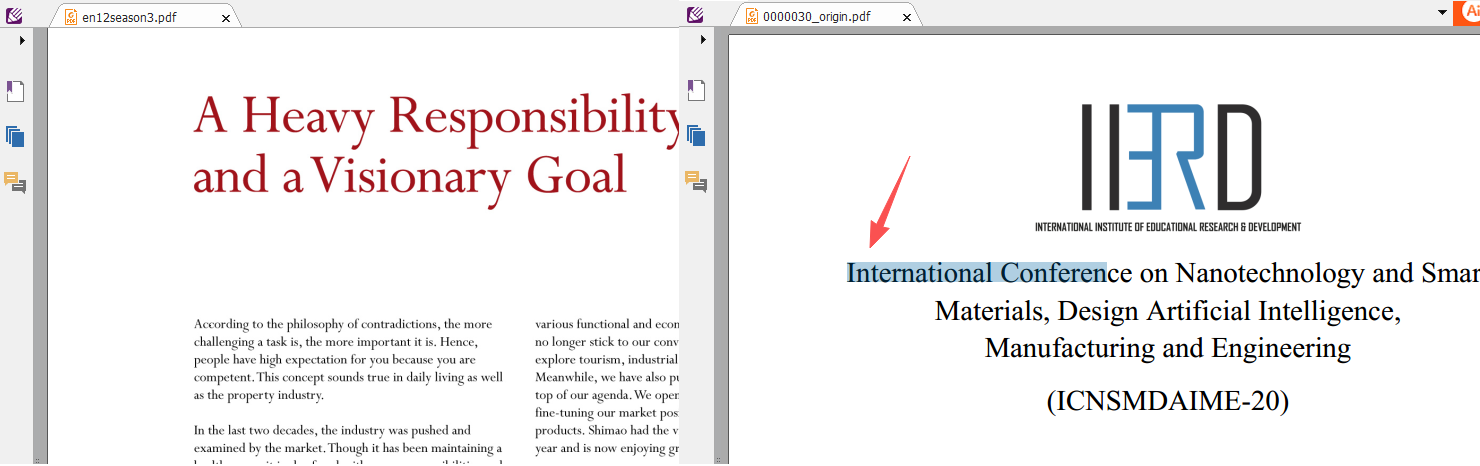
Before choosing a translation method, open your PDF and try selecting a sentence with your mouse(Make sure your viewer is set to text‑selection mode). If you can highlight and copy the text, your file is text-based. If you can’t select any words, you’re dealing with a scanned or image-based PDF.
Side-by-side comparison of non-selectable scanned PDF text and selectable native PDF text
Your PDF typeWhat to checkTool approach

Selectable text

Can highlight/copy text?

Free online translators

Large PDF files (> 10MB)

File Size

Desktop PDF tools split into multiple small files (e.g., Renee PDF Aide) + online Translator

Scanned/Image

Text cannot be selected

Tools with OCR + online Translator

Scanned PDFs require OCR first; most basic free online translators will fail or produce unreadable results on image-only pages.

How Renee PDF Aide helpsbeforetranslation

Renee PDF Aide can help you prepare complex PDFs locally before you upload them to any online translator. For large or tricky documents, prepping the file first can make a big difference in the final translation. Online translators often have strict file size limits and can struggle with messy page layouts. With a dedicated offline tool, you can sidestep these issues and make sure your translation workflow goes smoothly. This step is especially important for scanned files or PDFs with complicated formatting.
Prepare the PDF files before Translating them with Renee PDF Aide

Convert to Editable Convert to Word/Excel/PPT/Text/Image/Html/Epub

Multifunctional Encrypt/decrypt/split/merge/add watermark

OCR Support Extract Text from Scanned PDFs, Images & Embedded Fonts

Quick Convert dozens of PDF files in batch

Compatible Support Windows 11/10/8/8.1/Vista/7/XP/2K

Convert to Editable Word/Excel/PPT/Text/Image/Html/Epub

OCR Support Extract Text from Scanned PDFs, Images & Embedded

Support Windows 11/10/8/8.1/Vista/7/XP/2K
Free TrialFree TrialNow 800 people have obtained the free version!

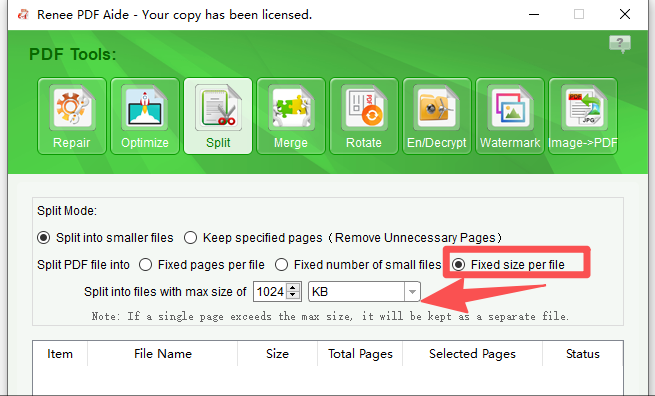
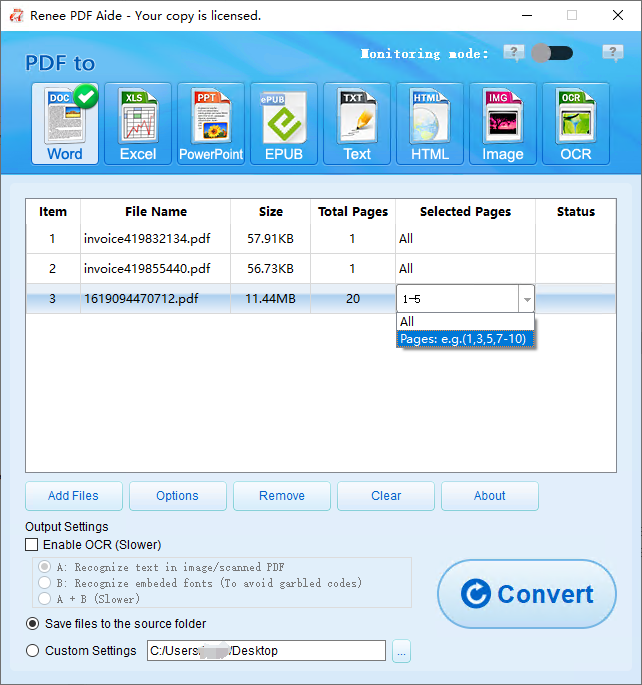
Split/Merge PDF

Large PDFs often exceed DeepL or Google Translate upload limits. Use Renee PDF Aide to split your file into smaller sections, translate each part, and then merge them back together.
Renee PDF Aide's editing toolset
Pre-clean formatting — Remove watermarks, rotate pages, or fix page order before translation to minimize layout problems later.

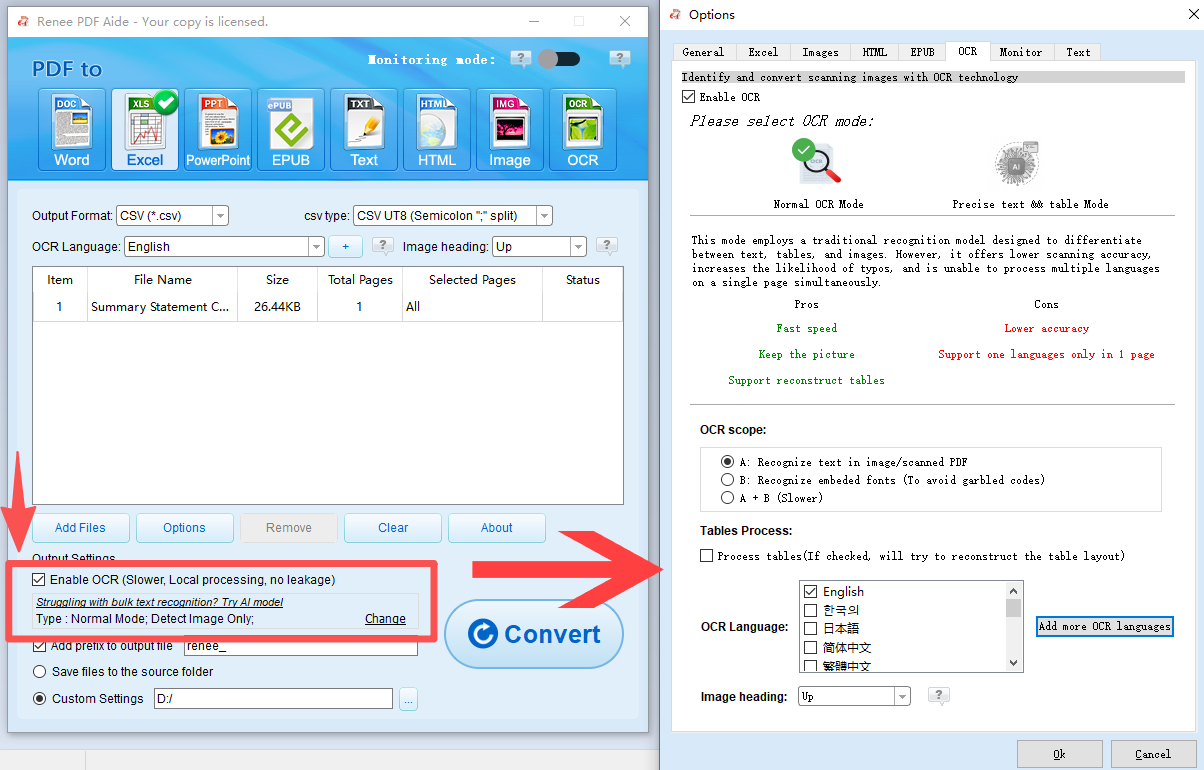
OCR for scanned PDFs

Convert image-based pages into selectable text so online translators can process them accurately.
PDF Aide using OCR

Best free ways to translate a PDF online

If your PDF is text-based and you’re comfortable uploading it, these five services let you translate your document directly in the browser. The table below compares their features for upload support, cost, layout quality, and translation accuracy.
ToolPDF UploadFreeLayout RetentionTranslation QualityFile Size LimitDaily Limit

Microsoft Translator

⭐⭐⭐⭐

⭐⭐⭐

~20–30 MB

No strict daily cap

Google Translate

⭐⭐

⭐⭐⭐

~10 MB

No strict daily cap

DeepL

Partially Free

⭐⭐⭐

⭐⭐⭐⭐⭐

~5 MB (free tier)

Limited tasks per day (varies by plan)

Yandex

⭐⭐

⭐⭐

~10 MB

No strict daily cap

DocTranslator

⭐⭐⭐

⭐⭐

~200 MB

Generally unlimited

How to choose the right translator

If your PDF is text-based → Use DeepL for the best translation quality; Microsoft Translator if you want the best layout retention.
If your PDF is scanned → Run OCR in Renee PDF Aide first (see preparation), then upload the resulting text-based PDF to your chosen translator.
If your PDF is confidential → Avoid online tools; use offline translation software only.
If your PDF is very large → Use Renee PDF Aide to split it before uploading.
Below are details on each service to help you decide which fits your document best.

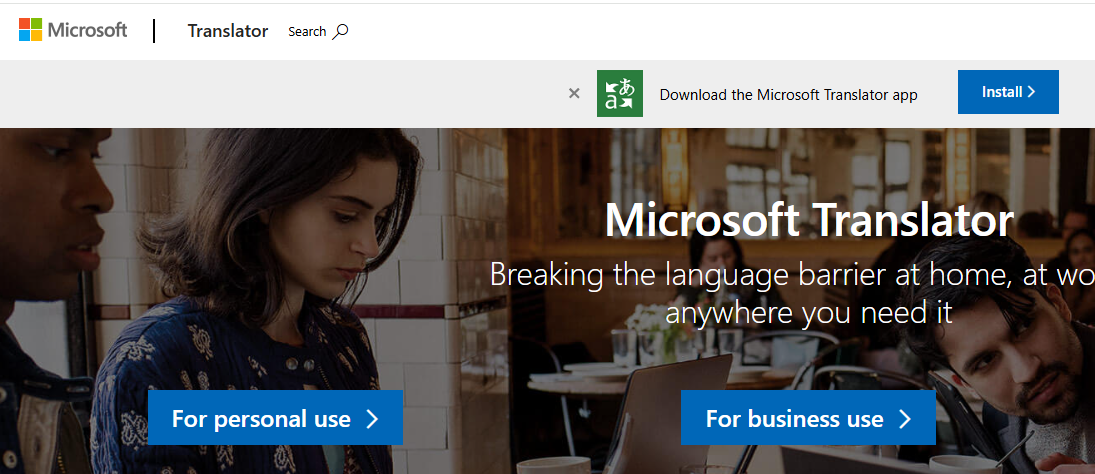
Microsoft Translator

Microsoft Translator is a strong choice for translating PDFs while keeping the overall layout readable. The free web version accepts PDF uploads and attempts to retain the document’s structure—useful for reports, brochures, and forms where headings and paragraph order matter. Access it at https://translator.microsoft.com; you don’t need a Microsoft account for basic features. The service is free for standard PDF uploads, but very large files may need to be split. Translation quality is solid for general business and everyday language, but specialized legal or medical terms may need manual review. Its main advantage is layout retention: among free tools, it usually preserves page formatting better than Google Translate or Yandex.
microsoft translator
If your PDF is scanned, run OCR first.
Advantages:
  • Free document upload
  • Better layout retention than many free tools
  • Simple browser-based workflow

Disadvantages:

  • Large files may need splitting
  • Some language pairs are stronger than others
  • Technical terms still need review

If you need higher translation accuracy for European languages, DeepL is often the better choice.

Google Translate

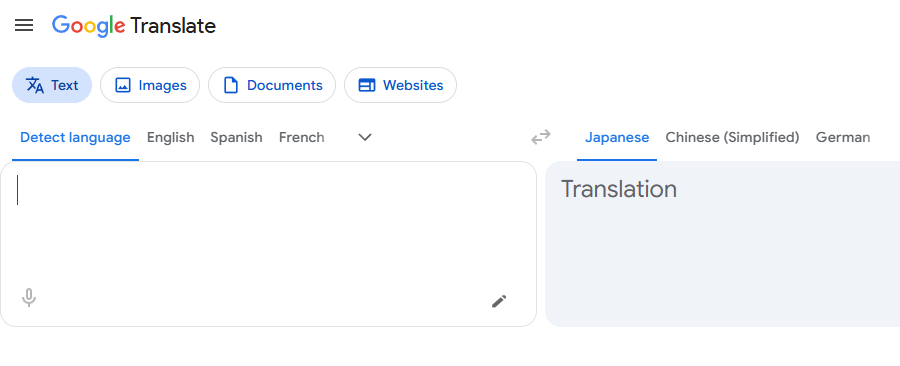
Google Translate is the most widely known free option and can handle PDF documents via its browser interface at https://translate.google.com. It supports a vast number of language pairs and is completely free within file size and page limits. The process is straightforward: upload your PDF, select the target language, and download the translated copy. Google Translate works best for simple, short, text-based documents like letters or invoices. However, layout retention is weak: columns, fonts, and images are often lost or rearranged. Translation quality is useful for general meaning, but not as nuanced as DeepL for formal or technical content. If your PDF has complex tables or branding, expect to do some repair work afterward. For scanned PDFs, Google Translate may not extract text unless the file is already searchable.
google translate
Advantages:
  • Free and no account required
  • Very wide language support
  • Quick document upload

Disadvantages:

  • Weak layout retention
  • Struggles with scanned PDFs without OCR
  • File size and page limits apply

For European languages and more natural phrasing, DeepL generally delivers better results.

DeepL

DeepL is your best bet when translation quality is the top priority, especially for European languages like English, French, German, Spanish, Dutch, Polish, and Portuguese. The online translator at https://www.deepl.com/translator accepts PDF uploads and uses DeepL’s advanced neural machine translation engine, producing more natural sentences than most free alternatives. The free plan is partially free: it allows personal document translation, but there are file size and monthly usage limits, and some features require a paid plan. Layout retention is moderate: the translated PDF keeps basic structure, but tables, fonts, and graphics may shift. DeepL is ideal for contracts, academic notes, business emails, or any document where precise language matters. If your PDF is scanned, you’ll need to run OCR first. For confidential documents, avoid uploading them to any online service.
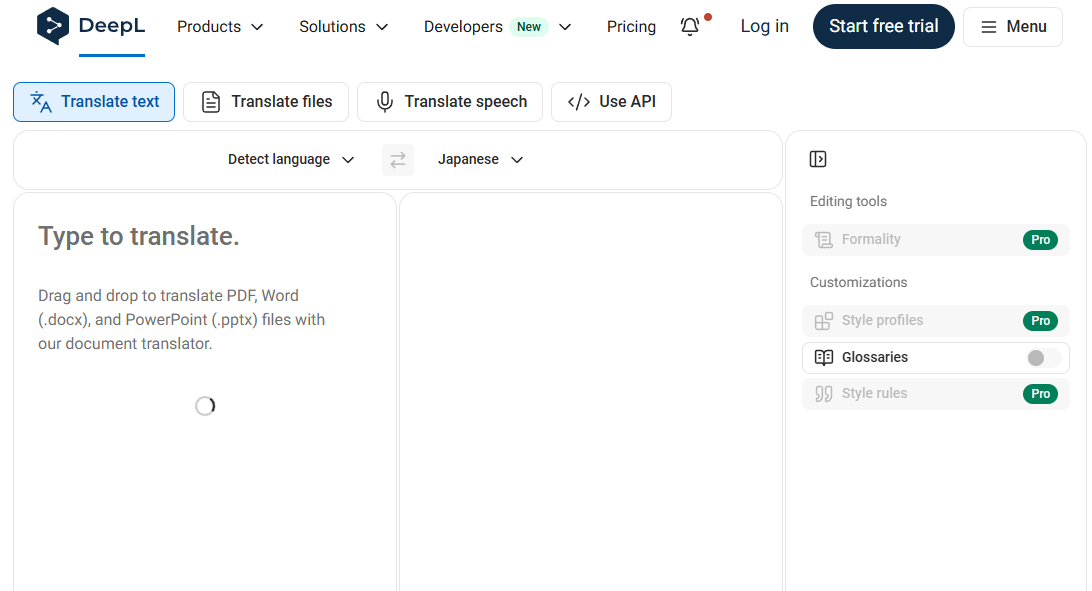
deepl translator
Advantages:
  • Very high translation quality
  • Strong for European language pairs
  • Simple PDF upload workflow

Disadvantages:

  • Free plan has upload limits
  • Layout retention is moderate
  • Online version not suitable for sensitive files

If you need broader language coverage or a fully free service, Yandex is an alternative, but expect more manual cleanup.

Yandex Translate

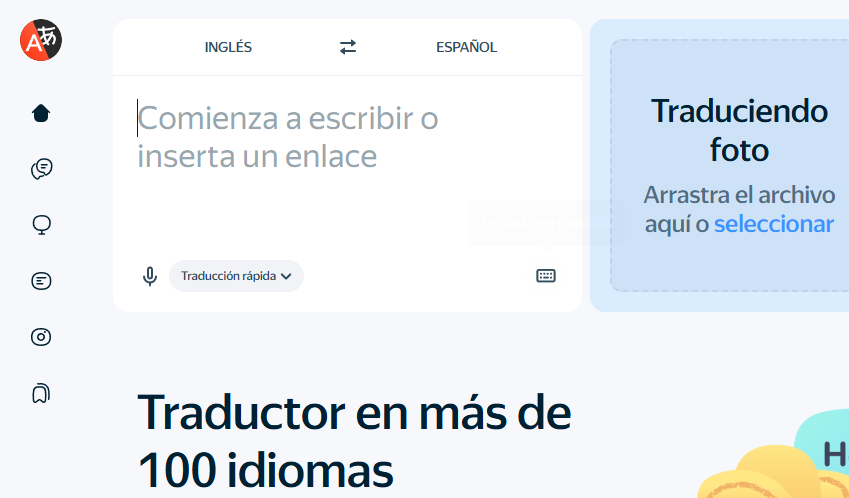
Yandex Translate is a free browser-based translator at https://translate.yandex.com. It accepts PDF uploads and is especially strong for Russian, Ukrainian, Turkish, and regional languages. The service is completely free, but its translations are less polished than DeepL or Microsoft Translator for Western European languages. Layout retention is weak, so you’ll likely need to reformat the output. Translation quality is basic for general text: it captures the gist but may produce awkward phrasing or miss context in technical, legal, or medical content. Yandex works for personal notes or non-critical files when other options aren’t available. As always, don’t upload sensitive PDFs. If your PDF is scanned, use offline OCR first; otherwise, Yandex may return incomplete or unreadable output.
yandex translator
Advantages:
  • Free document upload
  • Good for Russian and regional language pairs
  • No account required for basic use

Disadvantages:

  • Weak layout retention
  • Average translation quality
  • Not suitable for confidential documents

For a dedicated document translator that supports many formats, DocTranslator is another fallback—though its quality and layout retention are limited.

DocTranslator

DocTranslator is a straightforward online document translation service at https://www.onlinedoctranslator.com. It’s designed for document uploads and supports PDF and common office formats. The service is free for basic use, but it often relies on machine translation from other providers, so translation quality is average—not as strong as DeepL or Microsoft Translator. Its main advantage is document-level conversion and the ability to return a downloadable PDF without splitting. Layout retention is moderate: headings and paragraphs are generally preserved, but fonts, tables, and images may shift. DocTranslator is best for low-risk documents like draft notes, brochures, or simple forms. Avoid it for legal, medical, or financial PDFs due to uneven translation and privacy risks.
Advantages:
  • Free document translation
  • Supports PDF and office files
  • Simple upload-and-download workflow

Disadvantages:

  • Average translation quality
  • Moderate layout retention
  • Not suitable for sensitive documents

Even after using these online tools, you may find the translated PDF difficult to edit. The next section explains how Renee PDF Aide can help you convert the result to Word and repair formatting.

When you need to edit the translated file, use Renee PDF Aide after translation

Most online translators return a translated PDF, but editing a PDF directly is rarely practical. If you want to fix a broken table, adjust the wording, or reuse the content, convert the translated PDF to Word. Renee PDF Aide is a Windows desktop suite that handles this conversion entirely offline, so your translated document stays private.
Renee PDF Aide is compatible with Windows 11/10/8.1/8/7/Vista/XP/2000, both 32- and 64-bit. It offers PDF-to-Word conversion, PDF-to-Excel/CSV extraction, three OCR modes, and XFA format support for bank and government PDFs.
Streamline Your Translated PDF Workflow with Renee PDF Aide

Convert to Editable Convert to Word/Excel/PPT/Text/Image/Html/Epub

Multifunctional Encrypt/decrypt/split/merge/add watermark

OCR Support Extract Text from Scanned PDFs, Images & Embedded Fonts

Quick Convert dozens of PDF files in batch

Compatible Support Windows 11/10/8/8.1/Vista/7/XP/2K

Convert to Editable Word/Excel/PPT/Text/Image/Html/Epub

OCR Support Extract Text from Scanned PDFs, Images & Embedded

Support Windows 11/10/8/8.1/Vista/7/XP/2K

Free TrialFree TrialNow 800 people have obtained the free version!

How Renee PDF Aide helpsaftertranslation

Once you’ve completed the online translation, you’ll likely have a PDF that still needs some adjustments. PDFs are notoriously tough to edit directly, which is where Renee PDF Aide comes in for post-translation cleanup. By converting the file to a more flexible format, you can easily refine the text and restore any formatting lost during automated translation.
PDF Aide convert pdf to word
- Convert translated PDF to Word — Make the translated content fully editable.
- Fix broken tables or layout — Word output lets you manually correct formatting issues caused by online translators.
- Batch processing — Convert multiple translated PDFs at once.

Advantages & Limitations

Before downloading any software, it’s smart to weigh the pros and cons. Renee PDF Aide offers robust offline document management, but also has specific system requirements and licensing terms. Review the following to see if it fits your post-translation editing needs.
Advantages:
  • Works completely offline
  • Fast batch conversion
  • Clean interface
  • Free trial without watermarks

Disadvantages:

  • Windows only
  • Paid after trial
  • Advanced OCR mode (A+B) can be slower

FAQ

Can I translate a PDF document for free without uploading it anywhere?

Yes, but only in specific situations. If the PDF is text-based, you can copy the text into a local desktop translator or translation app. For scanned PDFs, run local OCR first to make the text selectable. Renee PDF Aide can handle OCR and PDF conversion offline, but does not provide machine translation. This approach keeps your sensitive files off the internet.

Are these free PDF translation services safe for confidential documents?

No. Free browser-based translation services require uploading your PDF to third-party servers. For financial, medical, legal, or business-sensitive documents, avoid online tools. Use an offline translator where possible, and use offline OCR or conversion tools like Renee PDF Aide for preparation and post-translation editing.
Streamline Your Translated PDF Workflow with Renee PDF Aide

Convert to Editable Convert to Word/Excel/PPT/Text/Image/Html/Epub

Multifunctional Encrypt/decrypt/split/merge/add watermark

OCR Support Extract Text from Scanned PDFs, Images & Embedded Fonts

Quick Convert dozens of PDF files in batch

Compatible Support Windows 11/10/8/8.1/Vista/7/XP/2K

Convert to Editable Word/Excel/PPT/Text/Image/Html/Epub

OCR Support Extract Text from Scanned PDFs, Images & Embedded

Support Windows 11/10/8/8.1/Vista/7/XP/2K

Free TrialFree TrialNow 800 people have obtained the free version!

User Comments

Page 1

Leave a Comment


Your comment has been submitted and is awaiting moderation.