author avatar
    Specialist of Customer Service Dept.
Last update by William Davis at 14 August 2026

Summary
Technical procedures for a Windows Hello PIN reset without password encompass built-in recovery protocols and third-party bootable utilities. Additional documentation addresses BitLocker encryption prerequisites and system-specific troubleshooting parameters.


remove_pin_password
If you’re stuck at the Windows Hello PIN screen and don’t remember your old password, it can feel urgent and frustrating. The most important thing to know is that a forgotten PIN is never “recovered”—it can only be replaced or removed. Your account type and whether BitLocker is enabled on your device will determine your best course of action.
Direct answer: You cannot recover a forgotten PIN. You can only replace or remove it.
First step: Identify your account type—Microsoft, local, or work/school—and check which recovery options are available. If your PIN is BitLocker-bound, you must unlock the drive before attempting any reset.

Important Note: When Your PIN Is Bound to BitLocker

On many Windows 10/11 devices, the Windows Hello PIN is linked to BitLocker through the TPM.
- Resetting the PIN requires that the drive be unlocked first.
- You must provide the BitLocker recovery key or the original password used as a protector.
- Without the key, no PIN reset method will work—including Safe Mode, WinRE, OEM recovery, or any third-party tool.
- Tools like Renee PassNow help you regain account access, but cannot bypass BitLocker encryption.
The BitLocker recovery key is essential when resetting a Windows PIN. If you’re not sure how to locate it, refer to this guide: How to Find and Use Your BitLocker Recovery Key to reset Windows Password
For practical removal instructions, see Renee PassNow steps.
Some community posts suggest removing your Windows PIN by deleting the %Windows%\ServiceProfiles\LocalService\AppData\Local\Microsoft\NGC folder. However, this approach is extremely risky. If you haven’t backed up your BitLocker recovery key, deleting the NGC folder can immediately lock your system and leave you with no way to recover it.

When Renee PassNow is the practical way to regain access

Renee PassNow is a bootable Windows recovery tool that removes the account barrier when official PIN reset methods aren’t available. It doesn’t recover your old PIN; instead, it clears the PIN or password requirement so you can sign in and set up a new Windows Hello PIN.
Bypass Windows Hello PIN & Local Account Locks – Renee PassNow

Remove Windows Login Password 3 steps for whole password remove process.

Recover the files Recover the deleted files without Windows system.

Transfer the data Transfer the important files of the computer with system.

Multifuctional Data transfer, data recovery, bootable problem recovery can be run without system.

Highly compatible Windows 11/10/8.1/8/7/XP/Vista. UEFI boot.

Remove Login Password Support Windows 11/10/8.1/8/7/XP/Vista. UEFI boot.

Recover the files Recover the deleted files without Windows system.

Transfer the data Transfer the important files of the computer with system.

Free TrialFree TrialNow 2000 people have downloaded!
Renee PassNow is the go-to solution when official reset paths fail, password sign-in is hidden or forgotten, or local accounts have no recovery options. It removes the PIN/account barrier—it does not recover the old PIN.

Prerequisite

It require the recovery key if your system is protected by the Bitlocker.

Best for

- The “I forgot my PIN” flow is missing or blocked.
- Password sign-in is hidden or forgotten.
- Local accounts with no Microsoft recovery path.
- Supports both local and Microsoft accounts; includes a built-in BitLocker unlocker. (Note: The Basic edition does not support BitLocker.)

How to reset or remove the Windows Hello PIN with Renee PassNow

You’ll need a second working PC and a USB drive that can be erased.

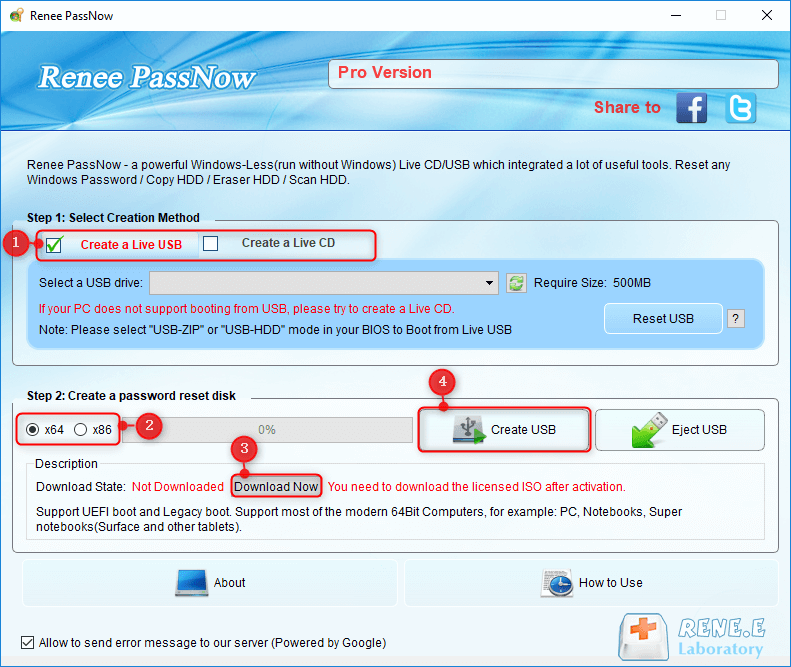
Step 1: Create a bootable USB

Create bootable USB with Renee PassNow
- Install Renee PassNow on a working computer.
- Connect a USB drive, launch Renee PassNow, and select “Create a Live USB” under “Step 1: Choose the creation method”.
- Choose (x64) or (x86) based on your target system, download the ISO file, and click “Create Live USB”.
Warning: All data on the USB drive will be erased.

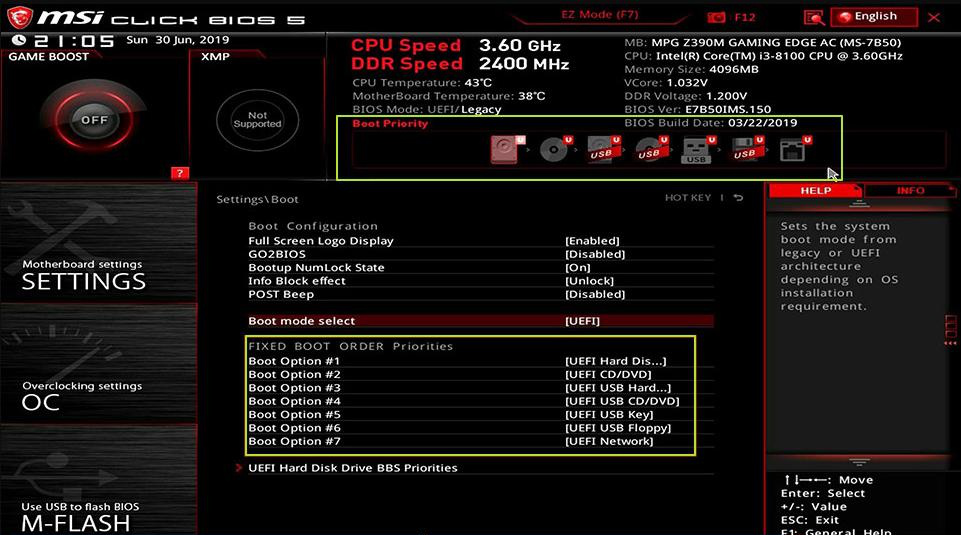
Step 2: Boot the locked computer from the USB

Insert the bootable USB into the locked computer, restart it, and repeatedly press the boot-menu key.
Insert the boot device
In the boot menu or BIOS, set the USB drive as the first boot device.
Set USB as boot device
BrandBoot Menu KeyBIOS Setup Key

DELL

F12

F2

HP

F9 (boot menu) / Esc → F9

Esc → F10

ASUS

Esc (laptops) / F8 (desktops)

F2 or Delete

Acer

F12

F2 or Delete

Lenovo

F12 (some models use Novo Button)

F2

MSI

F11

Delete

Samsung

F10 or F11

F2

Microsoft Surface Tablets

Hold Volume Down + Power

Hold Volume Up + Power

Step 3: Unlock BitLocker (if prompted)

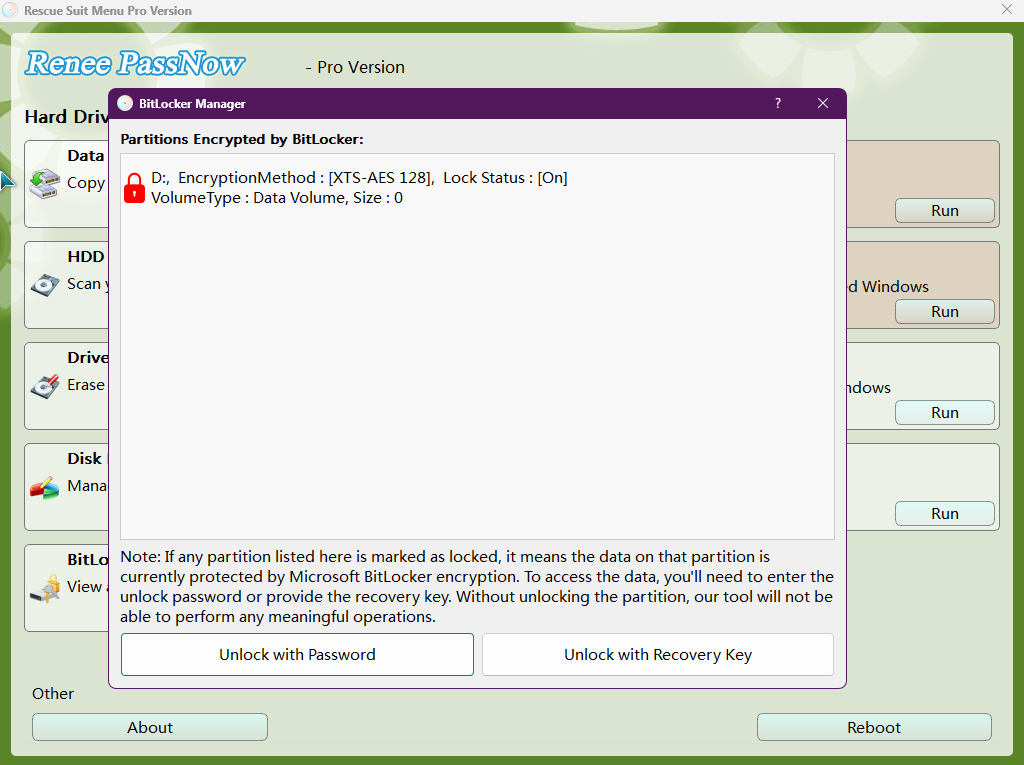
If PassNow detects that the system drive is encrypted, the BitLocker Manager will appear.
The BitLocker recovery key is essential when resetting a Windows PIN. If you’re not sure how to locate it, refer to this guide: How to Find and Use Your BitLocker Recovery Key to reset Windows Password
BitLocker unlock prompt
Enter the BitLocker password or the BitLocker recovery key. If you do not have either, you must stop here. No tool can bypass this encryption lock.
If your Windows Hello PIN is tied to BitLocker, PassNow can still clear the PIN or convert the account, but only after the drive is unlocked. If you don’t have the recovery key or original password, your only remaining option is a full reinstall.

Step 4: Reset the PIN/password

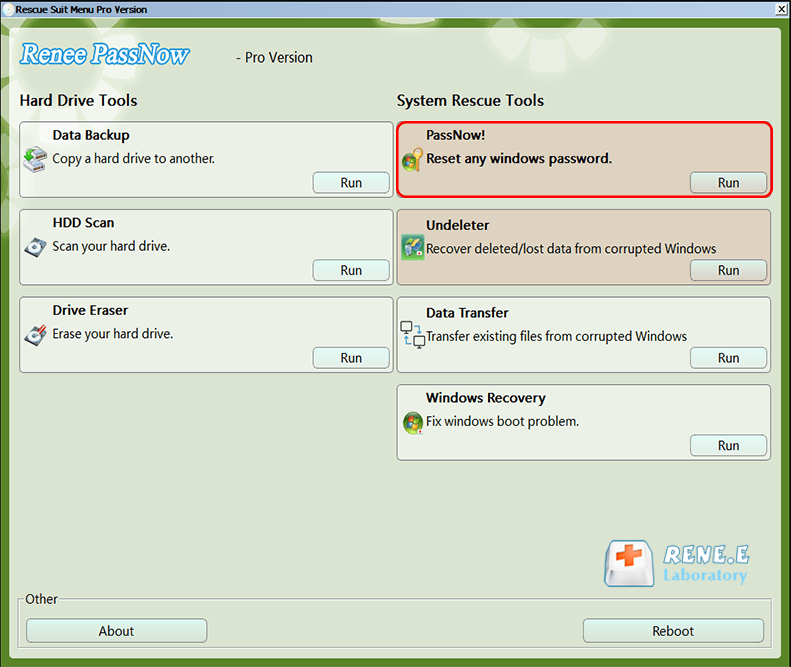
Once Renee PassNow loads, select the “PassNow!” function.
Select PassNow function
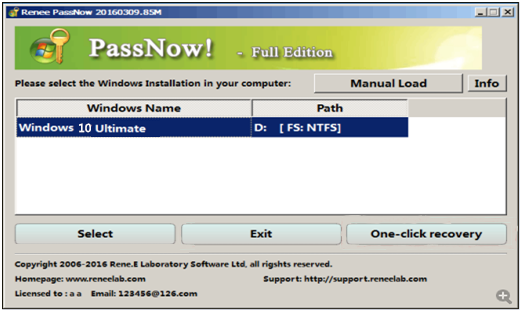
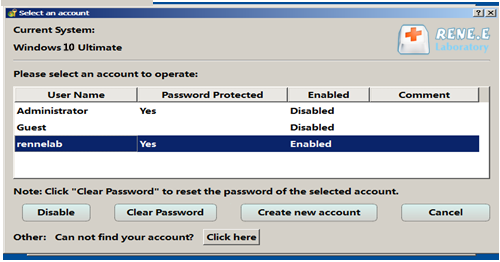
Choose your target account, then click “Clear Password” to remove the PIN/password barrier.
Select target Windows system
Clear account password/PIN
The latest version supports clearing PINs in Windows 10/11.
Tip: If the account is a Microsoft account, Renee PassNow may convert it to a local account during the process. After regaining access, you can reconnect it to your Microsoft account.

Step 5: Restart and set a new PIN

Remove the USB drive and boot into Windows as usual.
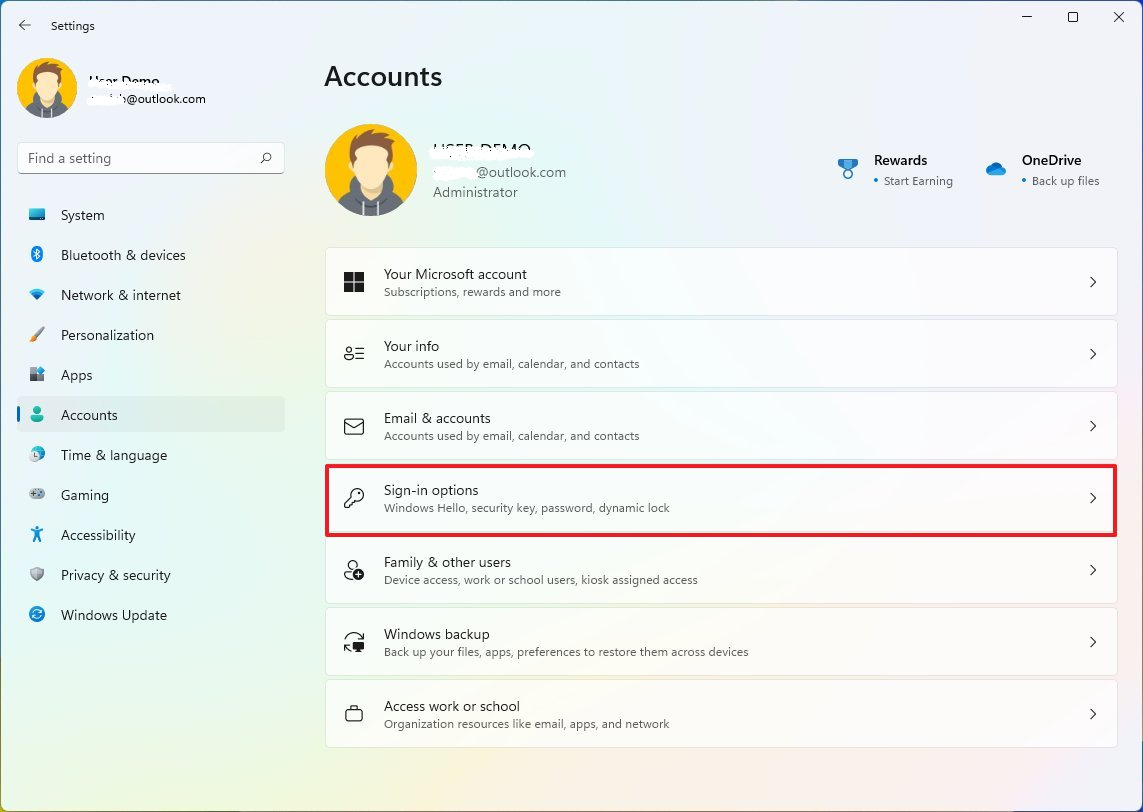
Go to Settings > Accounts > Sign-in options and set up a new Windows Hello PIN.
Windows 11 Settings > Accounts > Sign-in options
Do not manually delete the NGC folder.

Bypass Windows Hello PIN & Local Account Locks – Renee PassNow

Remove Windows Login Password 3 steps for whole password remove process.

Recover the files Recover the deleted files without Windows system.

Transfer the data Transfer the important files of the computer with system.

Multifuctional Data transfer, data recovery, bootable problem recovery can be run without system.

Highly compatible Windows 11/10/8.1/8/7/XP/Vista. UEFI boot.

Remove Login Password Support Windows 11/10/8.1/8/7/XP/Vista. UEFI boot.

Recover the files Recover the deleted files without Windows system.

Transfer the data Transfer the important files of the computer with system.

Free TrialFree TrialNow 2000 people have downloaded!

If you prefer built-in methods first: official PIN reset and last-resort options

Before turning to bootable tools, try the built-in Windows options that fit your account.
Option / FeatureDetailed Description

Lock-screen “I forgot my PIN”

Windows 10/11 Microsoft account only. Requires Internet and secondary verification. Not available for local accounts or offline devices.

Password sign-in

Windows 10/11 local or Microsoft account. Requires the account password; then reset the PIN from Settings > Accounts > Sign-in options.

Work/school account resets

Windows 10/11 Pro/Enterprise managed devices. May be disabled by IT policy; contact your organization’s support team.

Reset this PC

Windows 10/11. Option to keep personal files, but removes apps and settings; requires sufficient disk space and may take some time.

Official methods (least invasive)

- Lock-screen “I forgot my PIN” requires a Microsoft account and secondary verification.
- Password sign-in lets you reset the PIN in Settings.
- Work/school accounts may require IT support; local resets can be blocked by policy.

Last-resort options

“Reset this PC” with Remove Everything or a full Windows reinstall if no other recovery path is available.
Critical warning: If your PIN is BitLocker-bound, never delete the NGC folder manually. Doing so removes the BitLocker protector and could permanently lock your data if you don’t have the recovery key.

FAQ

Does BitLocker affect the PIN recovery process?

Yes. If your Windows Hello PIN is tied to BitLocker, the PIN acts as a BitLocker protector. You must unlock the drive with the BitLocker recovery key before you can reset or remove the PIN. Without the key, no tool or method—including WinRE, Safe Mode, OEM recovery, or Renee PassNow—can reset the PIN.

Can I reset the PIN if I only have a local account and no password?

If your local account has no password and you’ve only forgotten the PIN, you can boot into Safe Mode or use a bootable tool like Renee PassNow to remove the PIN barrier. However, if the drive is BitLocker-protected, you’ll still need the recovery key first.

What should I do if the “I forgot my PIN” option does not appear?

This typically happens with local accounts, work/school accounts, or devices without a Microsoft account Internet connection. Use password sign-in if available, or boot from a Renee PassNow USB to clear the PIN barrier. If the drive is BitLocker-encrypted, unlock it first.

Is it safe to delete the NGC folder?

No. If the PIN is BitLocker-bound, deleting the NGC folder removes the PIN as a BitLocker protector. Windows may then require the BitLocker recovery key at the next startup, and without that key, your data can become permanently inaccessible.
Renee Passnow – Professional Windows Password Remover

Remove Windows Login Password 3 steps for whole password remove process.

Enable/Create Administrator One click for creating new administrator and enable the disabled account.

Widely Use New version supports UEFI boot model, which can be used on more computers, laptops and even surfaces.

Multifuctional Data transfer, data recovery, bootable problem recovery can be run without system.

Highly compatible Windows 11/10/8.1/8/7/XP/Vista.

Remove Login Password Support Windows 11/10/8.1/8/7/XP/Vista.

Enable/Create Administrator One click for creating new administrator and enable the disabled account.

Easy to use No need of any professional knowledge or password reset disk.

Free TrialFree TrialNow 2000 people have downloaded!

User Comments

Page 1

Leave a Comment


Your comment has been submitted and is awaiting moderation.