author avatar
    Technology Manager of Test Dept.
Last update by William Davis at 8 July 2025

Summary
Learn how to remove Windows 11 login password using practical and reliable methods tailored for both local and Microsoft accounts. This authoritative guide covers simple steps to bypass or delete your password for faster, hassle-free access.



Windows login passwords are meant to protect your system, but they can quickly become a nuisance—especially if you tend to forget them or don’t feel they’re necessary for your setup. That’s why many users look for reliable ways to remove or bypass their Windows 11 password and speed up the login process. Whether you’re locked out due to a forgotten password or just want faster access to your desktop, this guide provides safe and practical solutions.

Types of Windows 11 Accounts

Before we dive into the steps, it’s important to understand that how you remove your login password depends on whether you’re using a local account or a Microsoft account. With a local account, you can remove the password entirely and log in instantly without entering credentials, using either Windows’ built-in options or third-party tools.
For Microsoft accounts, however, you can’t completely remove the password through standard settings due to built-in security measures. While Windows doesn’t offer a built-in way to locally reset your Microsoft account password, this article provides a step-by-step guide using third-party software to help you easily remove the login password from your account right on your device.
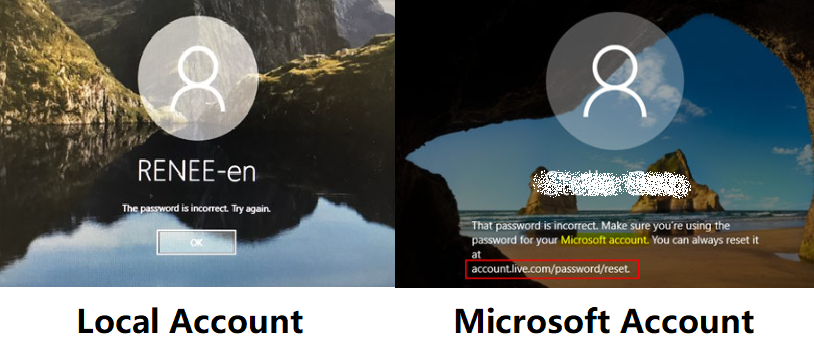
Local Account and Microsoft Account of Windows 11 
If your computer isn’t storing sensitive data and you’re comfortable with the reduced security, removing or bypassing your Windows 11 login password can save you time and hassle. In this guide, we’ll walk you through three trusted methods to do it safely and efficiently.

Method 1: Remove Windows 11 Login Password—If You’ve Forgotten It

This method supports both local and Microsoft accounts.
When you need to remove Windows 11 login password quickly and reliably, professional password recovery tools offer the most straightforward solution. These specialized applications are designed to handle password removal without risking data loss or system damage.
One effective tool for this purpose is Renee PassNow, which provides a user-friendly approach to remove Windows 11 login password. This method works even when you can’t access your system normally, making it ideal for locked-out situations where you’ve forgotten your password completely.
Renee PassNow is a comprehensive password recovery solution that allows you to create a bootable USB drive to reset your Windows 11 password. This software is particularly useful when you don’t have a password reset disk prepared beforehand and find yourself locked out of your system.
Tips: If your account is Microsoft Account, Renee PassNow will convert this account to Local account. After resetting login password, you need to connect your account to your Microsoft Account again.
To remove your Windows 11 login password using Renee PassNow, follow these detailed steps:

Step 1: Download and Install Renee PassNow

Start by downloading Renee PassNow from the official website and install it on a different computer that you can access. You can choose the appropriate version based on your computer’s operating system.
Renee Passnow – Professional Windows Password Remover

Remove Windows Login Password 3 steps for whole password remove process.

Enable/Create Administrator One click for creating new administrator and enable the disabled account.

Widely Use New version supports UEFI boot model, which can be used on more computers, laptops and even surfaces.

Multifuctional Data transfer, data recovery, bootable problem recovery can be run without system.

Highly compatible Windows 11/10/8.1/8/7/XP/Vista.

Remove Login Password Support Windows 11/10/8.1/8/7/XP/Vista.

Enable/Create Administrator One click for creating new administrator and enable the disabled account.

Easy to use No need of any professional knowledge or password reset disk.

Free TrialFree TrialNow 2000 people have downloaded!

Step 2: Create a Bootable USB or CD/DVD

Launch Renee PassNow and insert a USB flash drive or blank CD/DVD into the computer. Select the option to create a bootable media. Follow the on-screen instructions to complete the process.
Create New Windows 10 Password Reset Disk with Renee PassNow 

Step 3: Boot the Locked Server from the Bootable Media

Insert the bootable USB or CD/DVD into the locked Windows computer.
Boot the target PC with the created password reset USB/CD/DVD.
Restart the computer and enter the BIOS settings by pressing the appropriate key (usually F2 or Delete). Configure the boot order to prioritize the bootable media.
Common Servers:

Server Type

Enter boot menu method

DELL

Press the F12 key repeatedly as soon as the computer starts, before the Dell logo appears.

HP

Press the F9 key multiple times when the HP logo is displayed.

Common Computers:

BIOS Name

Enter boot menu method

ASRock

DEL or F2

ASUS

DEL or F2 for PCs/ DEL or F2 for Motherboards

Acer

DEL or F2

Dell

F12 or F2

ECS

DEL

Gigabyte / Aorus

DEL or F2

Lenovo (Consumer Laptops)

F2 or Fn + F2

Lenovo (Desktops)

F1

Lenovo (ThinkPads)

Enter then F1

MSI

DEL

Microsoft Surface Tablets

Press and hold Power and Volume Up buttons

Origin PC

F2

Samsung

F2

Toshiba

F2

Zotac

DEL

HP

Esc/ F9 for Boot Menu/ Esc/ F10/ Storage tab/ Boot Order/ Legacy Boot Sources

INTEL

F10

Step 4: Select password reset function

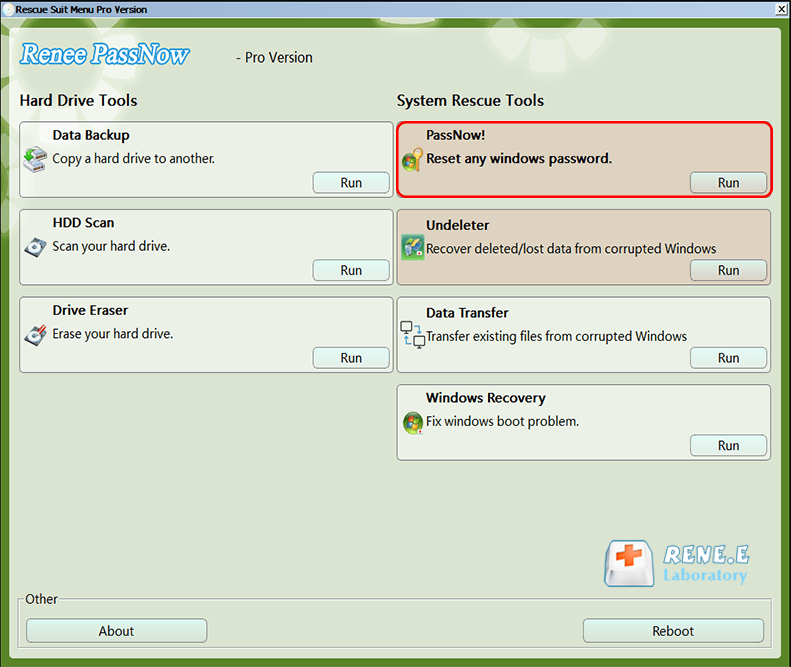
After successfully booting from the bootable media, Renee PassNow will load. Select “PassNow!” function (Which is the main password reset feature) after booting from the new created Windows password reset disk.
click on passnow to reset login password

Step 5: Resetting the Password

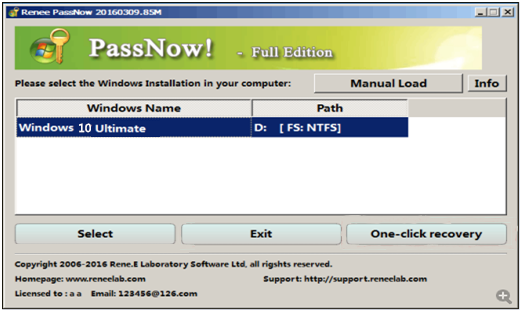
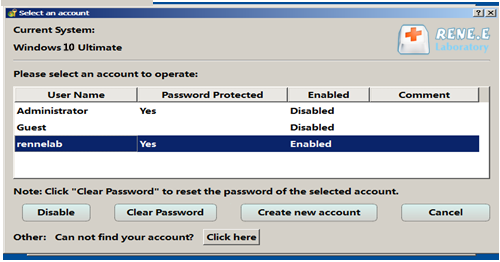
Choose the user account for which you want to reset the password. Then, click on the “Clear Password” button. Renee PassNow will remove or reset the password for the selected user account.
Select target Windows system in the list 
Select target user account in the list 

Step 6: Reboot the PC

Once the password is reset, remove the bootable media from the PC and restart the computer. You will now be able to log in to Windows Account without a password.
Using a third-party software like Renee PassNow can be a fast and efficient way to remove your Windows 11 login password when you’ve forgotten it completely.
Renee Passnow – Professional Windows Password Remover

Remove Windows Login Password 3 steps for whole password remove process.

Enable/Create Administrator One click for creating new administrator and enable the disabled account.

Widely Use New version supports UEFI boot model, which can be used on more computers, laptops and even surfaces.

Multifuctional Data transfer, data recovery, bootable problem recovery can be run without system.

Highly compatible Windows 11/10/8.1/8/7/XP/Vista.

Remove Login Password Support Windows 11/10/8.1/8/7/XP/Vista.

Enable/Create Administrator One click for creating new administrator and enable the disabled account.

Easy to use No need of any professional knowledge or password reset disk.

Free TrialFree TrialNow 2000 people have downloaded!
Tips: If you have a Microsoft account, you will need to connect it to your account again after resetting the password.

Method 2: How to Remove Windows 11 Login Password Using Built-in Methods

This method only supports local accounts.
If you still have access to your Windows 11 system, you can use built-in methods to remove Windows 11 login password without additional software. These approaches work well when you know your current password and want to eliminate it for convenience.

Approach 1: Remove Windows 11 Login Password via Command Prompt

The Command Prompt method provides a direct way to remove Windows 11 login password while preserving all your data and settings. This built-in approach is completely free and doesn’t require any third-party tools.
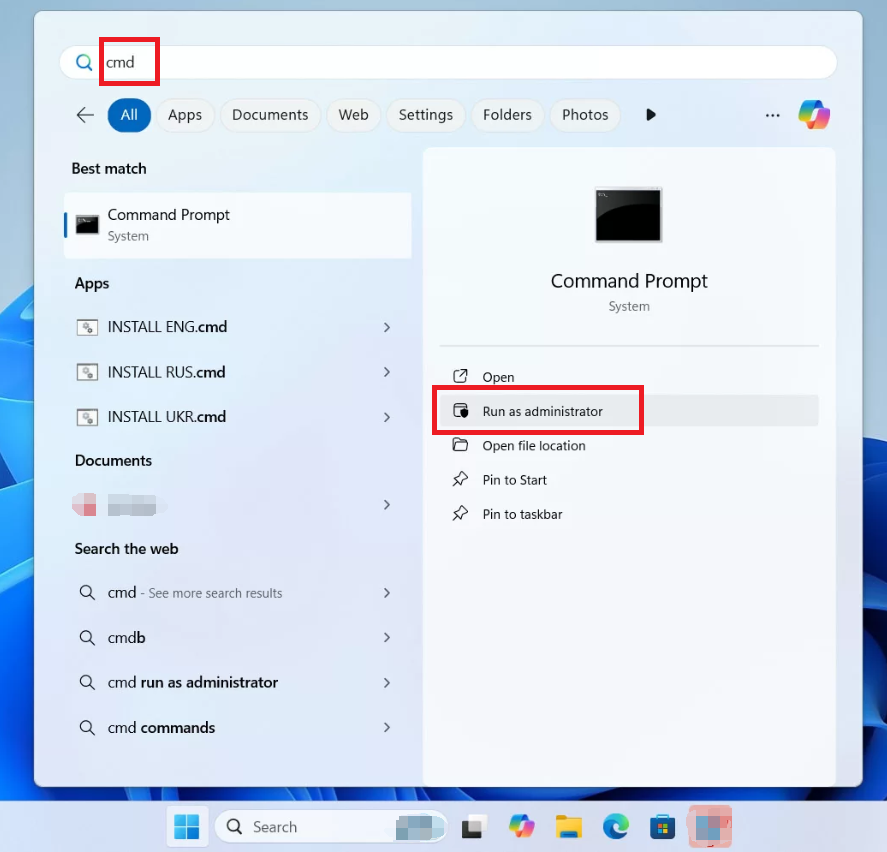
1. Click the Start button at the bottom of your screen, then use the search bar to type cmd. When “Command Prompt” appears, right-click it and select “Run as administrator”.
Windows 11, run cmd as administrator
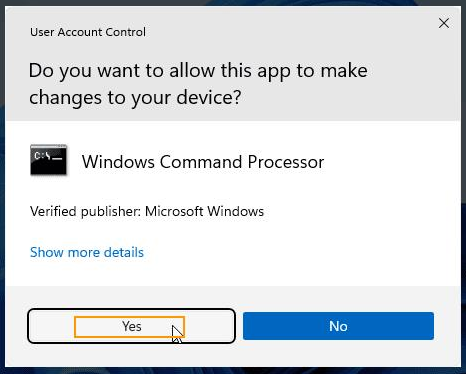
2. A security prompt will ask if you want to allow changes to your device—click Yes.
Windows 11, command prompt, A security prompt will ask if you want to allow changes to your device
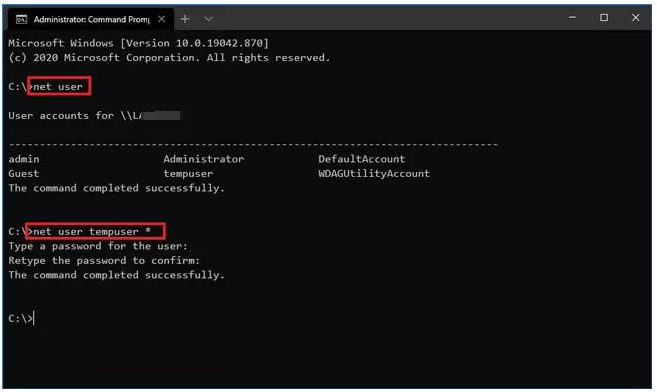
3. In the Command Prompt window, type the following and press Enter:

net user

net user command
This will display a list of all local user accounts on your system.
4. Find the username whose password you want to remove. Then, type the following command using that username. For example, to remove the password for the user Renee, type:

net user Renee

5. To change or remove the password, type:

net user Renee *

6. You should see a message confirming that the command completed successfully.
Repeat these steps for any other local accounts you want to update.

Approach 2: Remove Windows 11 Login Password via Microsoft Account Settings

This method helps you configure automatic sign-in for your Microsoft account, effectively bypassing the need to enter your password each time you start your computer.
Important Note: Microsoft accounts don’t allow complete password removal due to integrated online authentication. However, you can set up automatic sign-in to avoid entering your password repeatedly.
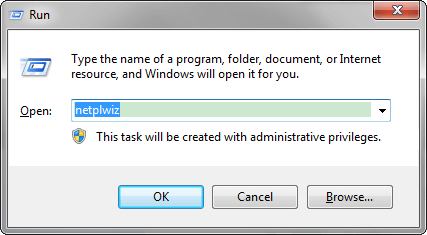
1. First of all, press “Win + R".
windows Key + R
2. Now, type netplwiz and press Enter, and open the control panel window.
enter netplwiz
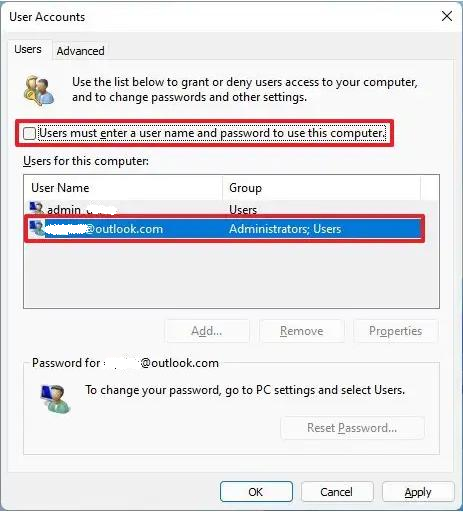
3. Then you’ll see an option under “users for this computer”, so select your account to remove the password. And don’t forget to enter your username and password. Without entering your credentials, you cannot use this option.
Make sure “Users must enter a user name and password to use this computer.” is unchecked also.
netplwiz, Users must enter a user name and password to use this computer
Quick Tip: If you don’t see this option, go to Settings > Accounts > Sign-in options and turn off “Only allow Windows Hello sign-in for Microsoft accounts” for this device.
After completing these steps, your computer will automatically sign in without requiring password input at startup.

Bonus: How to Remove Windows 11 Login Password PIN

In addition to passwords, Windows 11 allows PIN-based login, which you may also want to remove for convenience.
Learning how to remove Windows 11 login password also includes understanding PIN removal. While PINs provide convenient security, you might want to remove them for various reasons.
Important Reminder: Removing your PIN will also disable fingerprint and face recognition login options, as well as reduce your account’s security protection.

Steps to Remove Windows 11 Login Password PIN

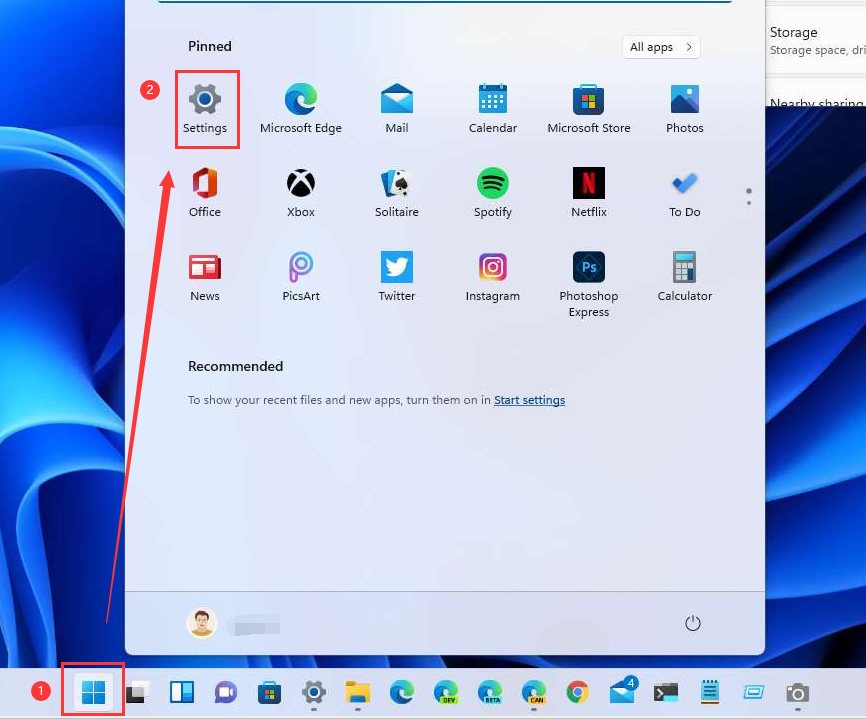
1. Firstly, you can tap on the Windows + I or click on the settings from the start menu. You can also use the search box on your Windows taskbar and then search for settings. So, open the settings and it should look the same as the pic you see below.
Windows 11 settings
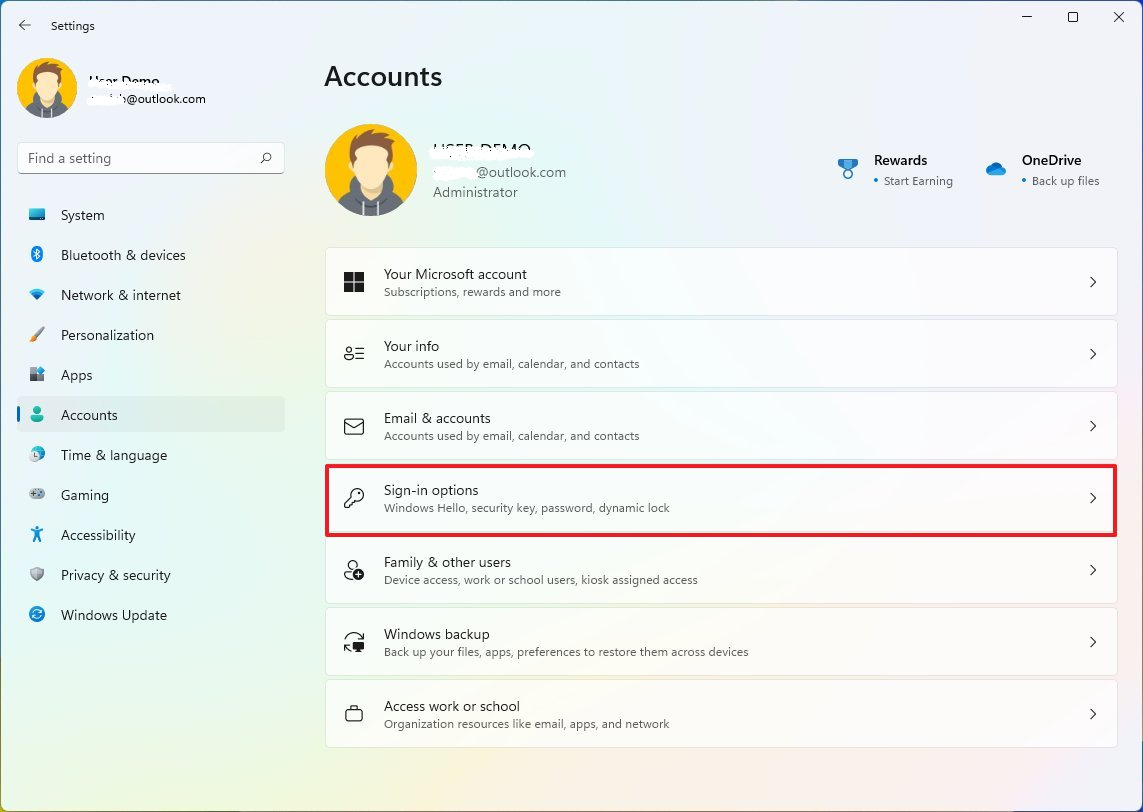
2. Now, click accounts on the left side and tap on the Sign-in options on the right side of your screen.
Windows 11 account settings, sign-in options
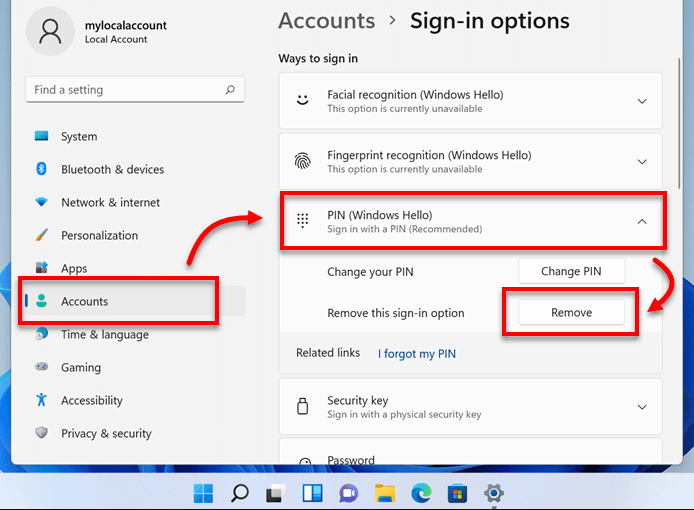
3. Next, you’ll see the option “ways to sign in“, so tap on the PIN (windows hello) to expand the further options.
Then to remove the PIN from your account, click on the Remove button for the PIN sign-in option.
Now tap on remove to confirm.
Windows 11 remove Hello PIN
4. Lastly, enter your account password of Windows 11 to verify (make a sure password, not PIN), and click on OK.
Your PIN has been successfully removed, and you can now use your computer without it or set up a new PIN later if desired.

Final Thoughts on How to Remove Windows 11 Login Password

Important: Removing your login password reduces the security of your system. Ensure that you understand the risks before proceeding, especially if your device contains sensitive information.
Removing your Windows 11 login password gives you more flexibility when managing your system’s security settings. While passwords and PINs help protect your data, there are valid reasons you might want to remove them—especially for personal devices in secure environments.
This guide covers safe, proven methods for removing your login password, whether you’ve forgotten it or simply want to speed up access to your desktop. Choose the approach that best fits your setup and comfort level.
Keep in mind that removing your password lowers your system’s security. Make sure it’s the right move for your situation, and remember—you can always re-enable it later through system settings.
Renee Passnow – Professional Windows Password Remover

Remove Windows Login Password 3 steps for whole password remove process.

Enable/Create Administrator One click for creating new administrator and enable the disabled account.

Widely Use New version supports UEFI boot model, which can be used on more computers, laptops and even surfaces.

Multifuctional Data transfer, data recovery, bootable problem recovery can be run without system.

Highly compatible Windows 11/10/8.1/8/7/XP/Vista.

Remove Login Password Support Windows 11/10/8.1/8/7/XP/Vista.

Enable/Create Administrator One click for creating new administrator and enable the disabled account.

Easy to use No need of any professional knowledge or password reset disk.
Free TrialFree TrialNow 2000 people have downloaded!