author avatar
    Senior Program Developer
Last update by Emma Johnson at 3 September 2026

Summary
This guide details the technical specifications and compatibility requirements for selecting an M.2 NVMe USB enclosure for cloning solid-state drives. It outlines procedural workflows for drive migration, partition management, and post-cloning verification protocols.


Choosing the right M.2 NVMe USB enclosure can feel confusing, especially with so many speeds, features, and use‑case‑specific designs on the market. To make the decision easier, the table below breaks down the most common enclosure types, what they’re best suited for, and the key trade‑offs to consider.

Once you’ve identified the type that fits your workflow, you can move on to the essential compatibility checks to ensure your SSD will install and perform correctly.

Enclosure Type Best Use Speed Compatibility Pros Cons

Single‑bay 10Gbps

Simple upgrade, portable SSD

USB 3.2 Gen 2 (~1000 MB/s)

M‑key NVMe, common sizes

Affordable, easy, works on most PCs

Not as fast as high‑end SSDs, needs PC

Single‑bay 20Gbps/40Gbps

Large drives, future‑proof

USB 3.2 Gen 2x2 / USB4 / TB

M‑key NVMe, common sizes

Very fast, good sustained transfers

Higher price, requires fast host port

Dual‑bay offline cloner

IT use, clone without PC

Often supports USB 10Gbps+

Two M‑key NVMe slots

One‑button clone, no PC needed

Expensive, target ≥ source size

Mixed NVMe+SATA dock

Workbench, reuse old drives

5–10 Gbps per slot

NVMe + SATA (M.2 B+M/M)

Supports multiple SSD types

Bulkier, slower per slot

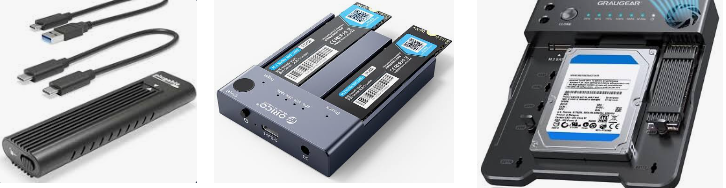
different type nvme dock

Key Compatibility Checks Before Buying

Once you’ve identified the right enclosure type for your needs, the next step is making sure your SSD will actually fit and perform correctly. Think of this as a quick checklist before you hit “buy.”

Drive Type

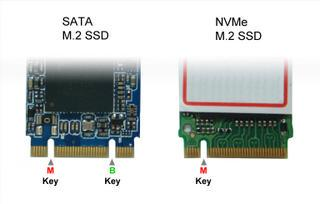
Make sure the enclosure is built for M.2 NVMe PCIe SSDs. NVMe and SATA look similar, but they’re not interchangeable. If you accidentally pick a SATA-only enclosure, your NVMe drive won’t work.
M.2 sata vs M.2 nvme

Look closely at the connector on your SSD. NVMe drives use an M-key notch, while B+M key drives are usually SATA. If your SSD has the wrong notch, it won’t slide into the enclosure properly.

Physical Size (Length)

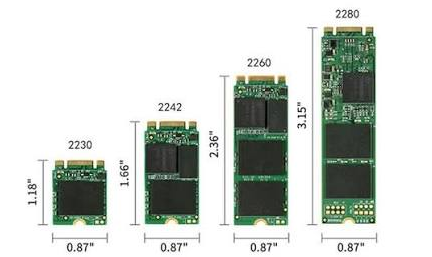
SSDs come in different lengths — the most common is 2280, but you’ll also see 2230, 2242, and 2260. Check that the enclosure supports your drive’s length. Most enclosures include standoffs or screws to secure shorter drives, but it’s worth confirming.
M.2 NVMe 2280 2230, 2242, and 2260
Thickness / Heatsink : If your SSD has a built-in heatsink or is thicker than usual, make sure the enclosure has enough clearance. Otherwise, the lid may not close, or the drive could overheat.

USB interface

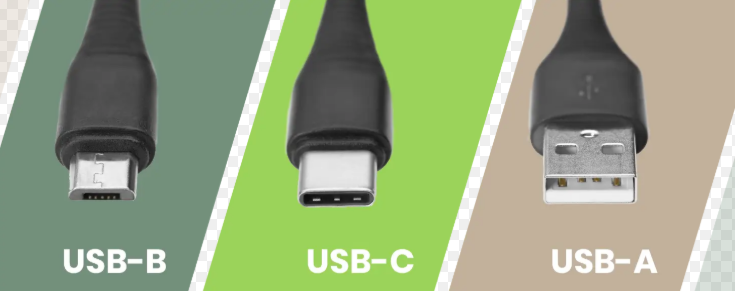
Before choosing an enclosure, check which USB ports your computer or laptop supports. Common options include Type‑A, Type‑B, and Type‑C. Matching the enclosure’s connector to your system’s port ensures proper compatibility and the best performance.
USB interface, TYPE-A, TYPE-B, TYPE-C

Single-Bay vs Dual-Bay Offline Clone

Single-Bay: Requires a PC and cloning software. Ideal for one-time upgrades and later use as portable storage.
Dual-Bay Offline: Works without a PC using a one-button clone process—great for IT or batch jobs.

For dual-bay offline cloners, the target drive must be at least as large as the source drive.

USB Speed, Cooling, and Power

You’ll see enclosures rated at 10Gbps, 20Gbps, or 40Gbps. Actual speeds depend on your host port, cable, and SSD. For most PCIe 3.0 NVMe drives, 10Gbps is sufficient. Higher speeds (20Gbps, 40Gbps) are only beneficial if your SSD and computer both support them.
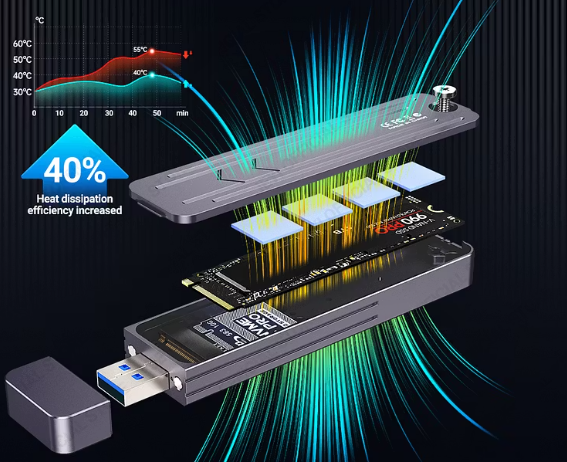
Look for UASP/TRIM support and aluminum construction for better cooling during long clone operations.
m2 nvme cooling system
Good cooling is essential for a USB enclosure, especially during long SSD cloning sessions. Heavy read and write activity generates heat, and without proper cooling the enclosure can overheat, causing crashes or interrupted clones.

Quick Decision Summary

After reviewing the enclosure types and compatibility checks, you can use this quick summary table to match your situation with the right enclosure. It’s designed to help you decide fast without digging through technical details.
Enclosure Choice Best Use Case Key Reminder Before Buying

Single‑bay 10Gbps

One‑time software clone, later portable SSD

Confirm drive type and M‑key notch

Dual‑bay offline cloner

IT work, batch cloning without a computer

Compare single vs. dual‑bay needs; target ≥ source

USB4 / 40Gbps single‑bay

Large NVMe drives, future‑proof performance

Make sure your host port supports USB4/Thunderbolt

Using Renee Becca for a Safer SSD Clone

The enclosure simply makes your SSD visible to Windows as a USB drive. Renee Becca handles the actual cloning, ensuring your boot partitions remain aligned and the new drive is ready to use. You don’t need to create intermediate images or manually copy partitions—Renee Becca sees both the internal source and USB target drives as standard disks.
Clone Your System to M.2 NVMe SSD with Renee Becca

Automatic 4K alignment Improves SSD performance during system migration.

Support GPT and MBR Automatically adapt to the suitable partition format.

Support NTFS and FAT32 Redeploy various files in different file systems.

Back up quickly Back up files at up to 3,000MB/min.

Overall backup schedule Support system redeployment/system backup/partition backup/disk backup/disk clone.

Automatic 4K alignment Improve SSD performance

Support GPT and MBR Intelligently adapt to a partition format

Support NTFS and FAT32 Redeploy files in different file systems

Free TrialFree TrialNow 56337 people have downloaded!
Key cloning features:
Hard Disk Clone: Copies the entire source drive, including all partitions and boot files.
System Redeploy: Migrates only the Windows OS and necessary boot partitions.
Adjustable Partition Sizing: Automatically resizes partitions when cloning to a larger drive.
Free for non-Windows disk cloning operations.
Advantages:
  • Simple clear interface
  • Hard Disk Clone and System Redeploy for different migration needs
  • Adjustable partition sizing for larger target drives
  • Incremental/differential backup support
  • Free for non-Windows disk cloning operations

Disadvantages:

  • Windows-only tool
  • Advanced features may require the full version
  • Target drive data is erased during cloning
How to Clone an M.2 NVMe SSD Using a USB Enclosure and Renee Becca

Once you’ve confirmed your enclosure is M-key NVMe and Windows recognizes the target SSD, follow these steps:

1. Preparation Before Cloning

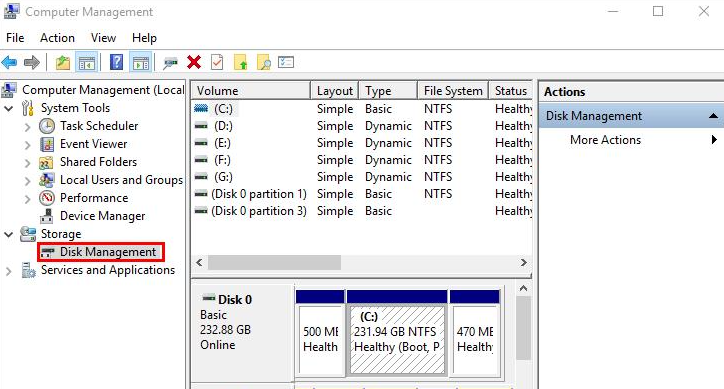
Windows Disk Management tool interface
- Install the new SSD into the enclosure and connect it directly to a stable USB port. Avoid using hubs or long cables.
- Back up any important data on the target drive.

The target drive will be completely erased during cloning. Be sure to move anything important off it first.

If Windows detects the enclosure but not the SSD, open Disk Management. Look for a disk marked Not Initialized, initialize it as GPT, but don’t create a volume. If the disk doesn’t appear at all, check your enclosure, cable, and port compatibility.

2. Choose the Cloning Mode

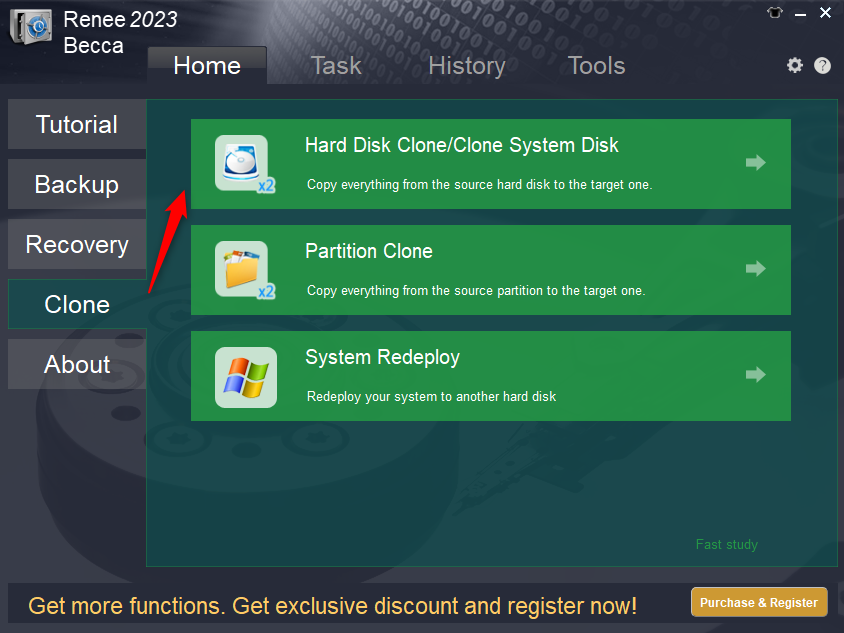
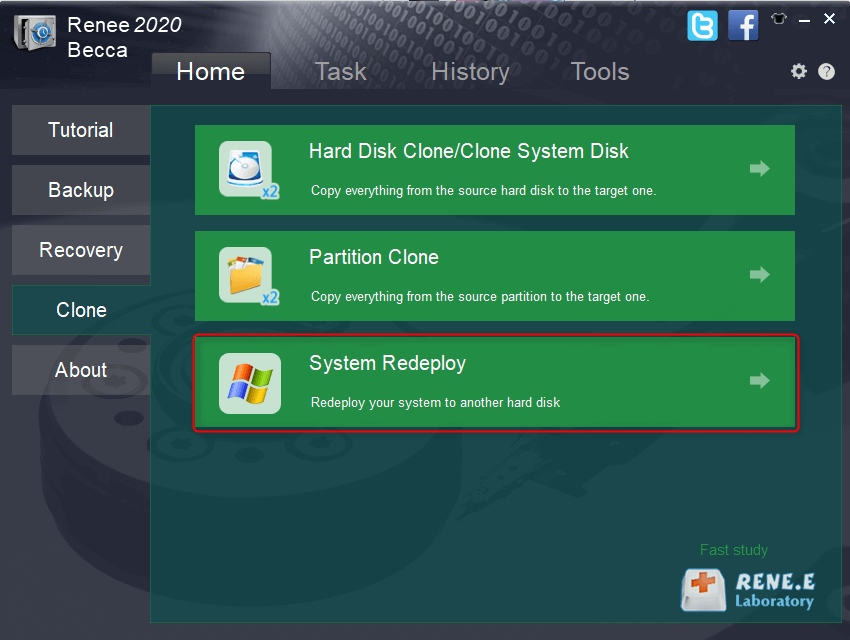
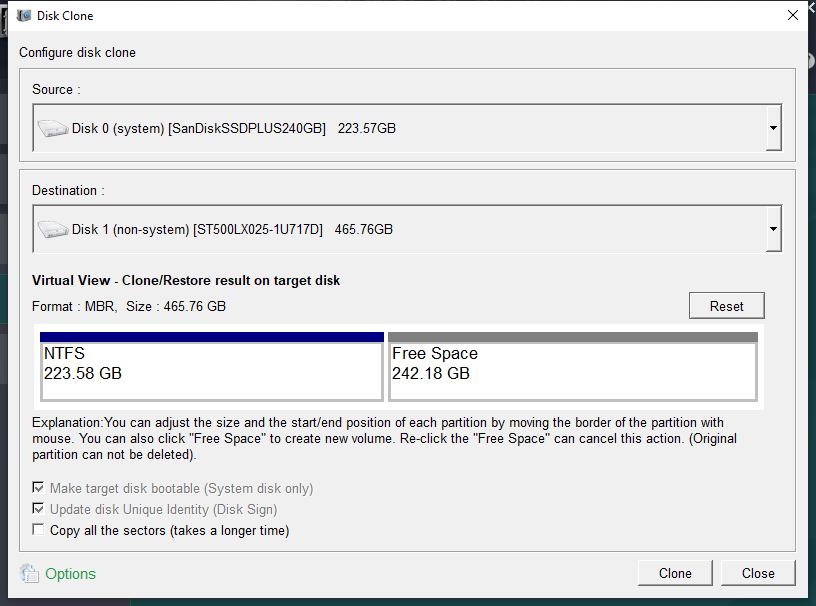
Hard Disk Clone

Use for a full 1:1 disk replacement—including all partitions, boot files, and data.
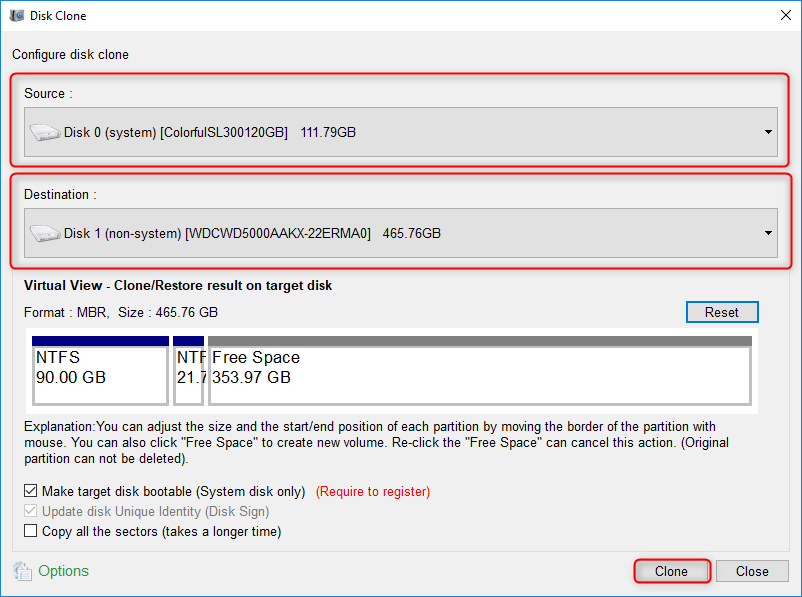
Renee Becca clone menu with Hard Disk Clone and Clone System Disk options highlighted, showing source and destination selection, used as step 1 for disk cloning.
clone data to a new disk when there is not enough space on ssd
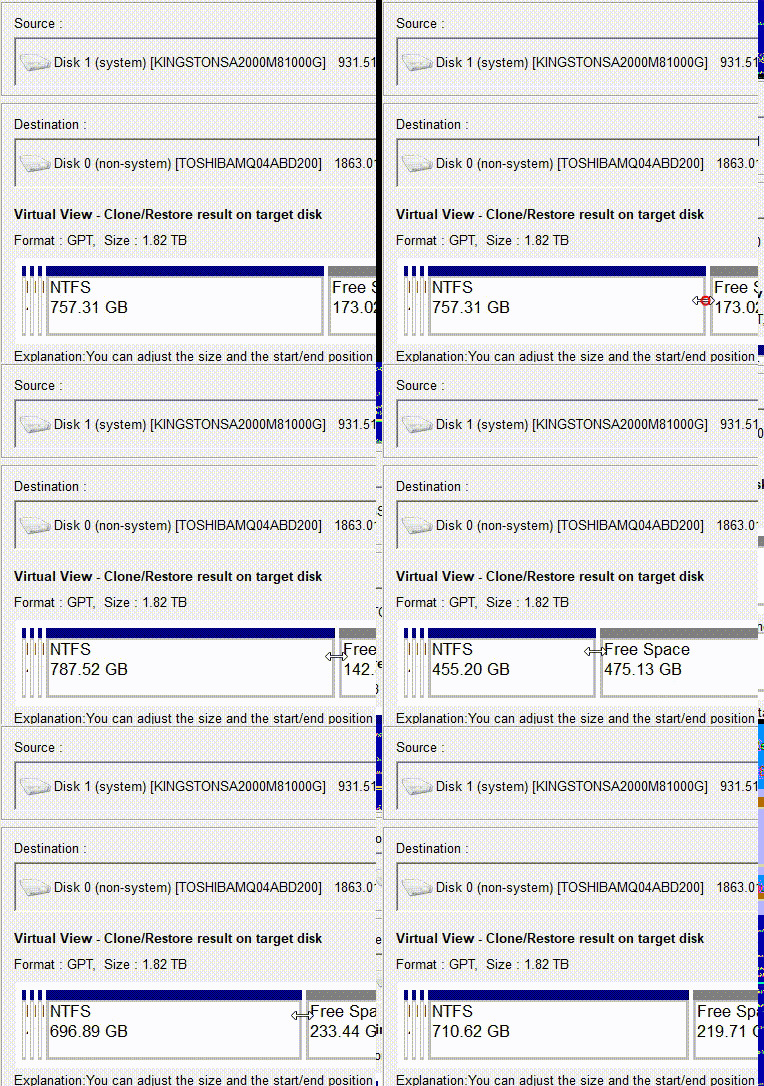
If the target drive is larger, drag the partition boundaries to adjust sizes.
Adjust partitions

System Redeploy

Use for a clean OS migration, leaving out unnecessary data partitions.
migrate system with renee becca
clone the hard disk

3. Run the Clone and Swap the Drive

Keep your laptop plugged in and do not disconnect the USB during the process.

Once cloning is complete, shut down your PC. Replace the old internal drive with the newly cloned SSD.

FAQ

Can I clone a larger SSD to a smaller one using an enclosure?

Full disk clones work best when the target drive is the same size or larger than the source. You can only clone to a smaller drive if the used data on the source fits and the cloning software supports shrinking partitions. Offline cloners typically do not allow source-to-smaller clones. For boot SSDs, make sure your new drive can hold your current installation, or use a migration mode that resizes partitions.

Does the enclosure need UASP or TRIM support for cloning to work?

No, cloning will work without UASP or TRIM. However, UASP improves speed and reduces CPU load, while TRIM helps maintain SSD performance after cloning. It’s best to choose an enclosure with both features if possible.

What if my laptop only has USB-C and no USB-A?

Use a USB-C enclosure or a high-quality adapter. Make sure the enclosure’s rated speed matches your port; an adapter can slow things down. A direct USB-C cable is preferable.

Can I use the enclosure as regular external storage after cloning?

Yes. Once your new SSD is installed internally and working, you can put the old SSD in the enclosure and use it as external storage. Only delete its old boot partitions after you’re sure everything is working on the new drive.
Renee Becca – Safe and Quick System Migration to SSD

Automatic 4K alignment Improves SSD performance during system migration.

Support GPT and MBR Automatically adapt to the suitable partition format.

Support NTFS and FAT32 Redeploy various files in different file systems.

Back up quickly Back up files at up to 3,000MB/min.

Overall backup schedule Support system redeployment/system backup/partition backup/disk backup/disk clone.

Automatic 4K alignment Improve SSD performance

Support GPT and MBR Intelligently adapt to a partition format

Support NTFS and FAT32 Redeploy files in different file systems

Free TrialFree TrialNow 56337 people have downloaded!

User Comments

Page 1

Leave a Comment


Your comment has been submitted and is awaiting moderation.