author avatar
    Specialist of Customer Service Dept.
Last update by Olivia Brown at 7 July 2026

Summary
This comprehensive resource outlines the technical procedures to fix disk signature collision after cloning, covering both graphical user interface and command-line troubleshooting methods. The documentation details disk management adjustments, diskpart execution, and boot configuration data repairs to restore system functionality.


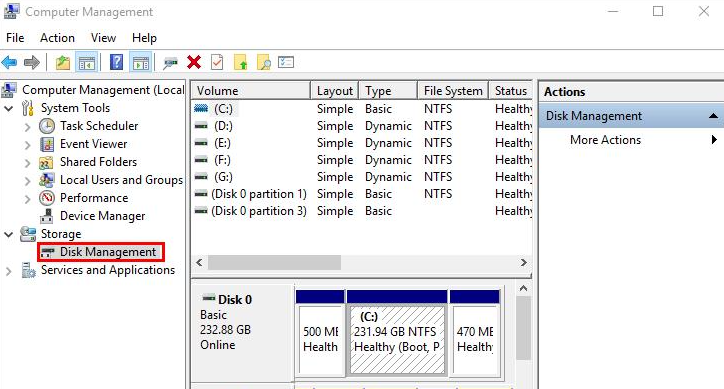
You’ve finished cloning your drive, connected the new disk, and suddenly Windows throws up a roadblock. In Disk Management, the cloned disk appears with a gray “Offline” label and a tooltip that says: “The disk is offline because it has a signature collision with another disk that is online.” It’s frustrating, but rest assured—your data is almost certainly intact. Windows is simply refusing to interact with two drives that look identical at the hardware ID level.
disk offline signature collision

What is a disk signature?

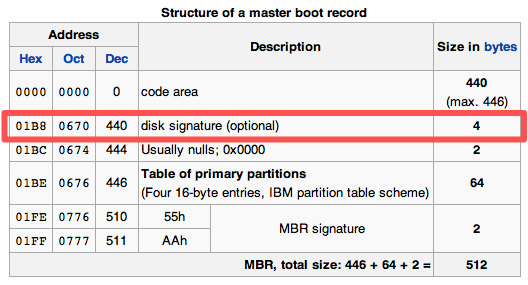
Every MBR disk has a unique 4‑byte disk signature written to the master boot record; GPT disks use a GUID instead. Think of this as a hardware serial number Windows uses to keep track of disks, mount partitions, and assign drive letters. When a drive is connected, Windows reads this identifier and stores it in the registry. If it sees the same identifier twice, it flags a problem.
mbr structure disk signature

Why does the collision happen?

Most cloning tools perform a sector‑by‑sector or partition‑level copy, replicating the original disk signature byte‑for‑byte. When both the source and the clone are connected at the same time, Windows detects the duplicate ID and immediately takes one disk offline. This is a protective measure—without it, two identical system volumes could cause serious file system corruption.
Common real‑world triggers:
- Upgrading from an HDD to an SSD and leaving both drives connected internally after cloning.
- Cloning a system drive to an external NVMe/USB enclosure, then connecting the enclosure while the original internal drive is still present.
- Creating backup clones and accidentally booting the PC with both the original and backup drives attached.

Different drive roles, different consequences.

If the cloned drive is a secondary or data-only disk, the symptom is simple: the disk goes offline, but your files remain safe on the source drive. Fixing the collision is quick and low-risk.
If the clone is a system/boot volume, things can get more complicated. A duplicate signature can confuse the Boot Configuration Data (BCD) and trigger boot errors like 0xc000000e—“The boot selection failed because a required device is inaccessible.” In these cases, you may not be able to start Windows at all unless you disconnect the old drive or perform advanced boot repairs.
Windows Disk Management tool interface
If you are cloning a system drive, simply changing the MBR disk signature is not enough; you also need to use tools to update the locations in the Windows Registry where that signature is recorded.
Pre-assessment table (Symptom vs. Drive Role):
Cloned Drive RolePrimary SymptomRisk LevelRecommended Action Path

Data / Secondary Drive

Shows “Offline” in Disk Management

Low

Fix 1 (GUI) or Fix 2 (Diskpart)

System / Boot Drive

Boots normally but second drive is offline

Medium

Fix 1 (GUI)Disconnect old drive afterward

System / Boot Drive

Fails to boot, Error 0xc000000e

High

Fix 3 (BCD Repair) or Re‑clone

General Troubleshooting Logic

Before jumping into any fix, take a moment to match your situation to the right solution. Your approach depends entirely on whether the cloned drive is currently acting as a data disk or the boot drive, and whether your PC can still start normally.
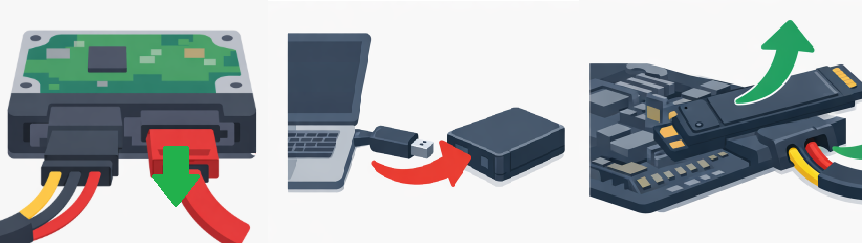
The “Disconnect First” rule is the safest, most universal shortcut for system drives. If your PC won’t boot or you see a collision after booting, power off and physically disconnect the old source drive (remove its SATA cable, unplug the M.2, or detach the USB enclosure).
unplug disk from computer
Then power on. Windows will see only one disk with that signature and should boot normally from the clone. Once you confirm everything works, you can reconnect the old drive (and bring it online safely using the methods below) or reformat it to permanently eliminate the duplicate ID.

When to use manual fixes vs. re‑cloning

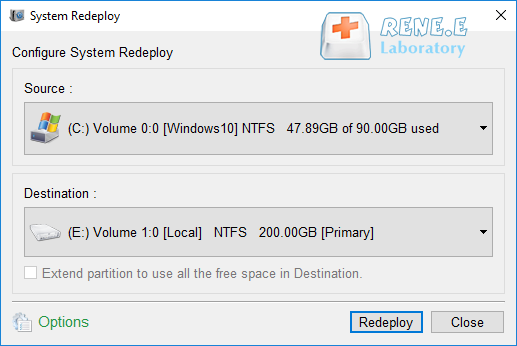
For a secondary data drive, Windows Disk Management or Diskpart is fast, free, and usually all you need—they force Windows to generate a new signature on the spot. For a system drive, manual command-line BCD repairs are more involved and carry some risk if the wrong volume is selected or the boot configuration is left incomplete. In these cases, re‑cloning the system disk with software that automatically handles disk ID translation—like Renee Becca’s System Migration wizard—can save you time and hassle. This tool creates a fresh, unique identifier for the cloned drive and ensures boot files, partition layout, and the BCD store are mapped correctly, so you avoid signature collisions altogether.
Renee Becca interface showing source and destination drives for system redeploy
Renee Becca – Safe and Quick System Migration to SSD

Automatic 4K alignment Improves SSD performance during system migration.

Support GPT and MBR Automatically adapt to the suitable partition format.

Support NTFS and FAT32 Redeploy various files in different file systems.

Back up quickly Back up files at up to 3,000MB/min.

Overall backup schedule Support system redeployment/system backup/partition backup/disk backup/disk clone.

Automatic 4K alignment Improve SSD performance

Support GPT and MBR Intelligently adapt to a partition format

Support NTFS and FAT32 Redeploy files in different file systems

Free TrialFree TrialNow 56337 people have downloaded!

Step-by-Step Fixes for Existing Clones

If you’ve already cloned a disk and need to fix the collision without starting over, these two methods will get your offline drive back up and running. Both assume your PC still boots normally from the original drive. If it doesn’t, skip ahead to the advanced recovery section.

Method 1: Bring the Disk Online via Windows Disk Management

This method is ideal when the cloned drive is a secondary or data disk that shows as offline after cloning. It’s also a safe first step if the cloned system drive is offline but you’re still booting from the original. When you right-click and select “Online,” Windows recognizes the duplicate ID and automatically assigns a new, unique identifier to the offline disk. The disk reappears with all its volumes intact.

Why the GUI route is often the smartest

Disk Management requires no command-line work, so there’s little risk of affecting the wrong disk. The process is quick and your data remains untouched.
Advantages:
  • Built‑in and requires no third‑party tools
  • One‑click operation — no command line needed
  • Automatically generates a new signature without manual ID handling

Disadvantages:

  • Only works while both drives are connected and the original disk is online
  • Temporary fix if the drive enumeration changes; may need to be repeated after disconnecting and reconnecting
  • Cannot repair a corrupted BCD or boot configuration

Operational steps
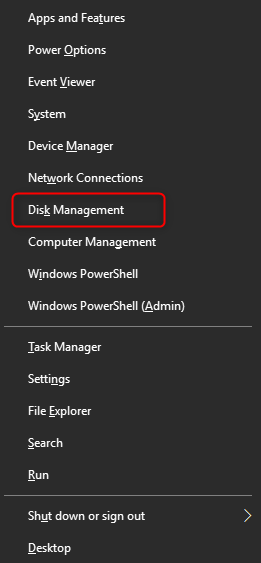
1. Right-click on Start to open Disk Management.
Right-click on Start to open Disk Management
2. In the bottom pane, find the disk marked “Offline”—look for a red circle with a down-arrow in the left panel under “Disk X.”
disk offline signature collision
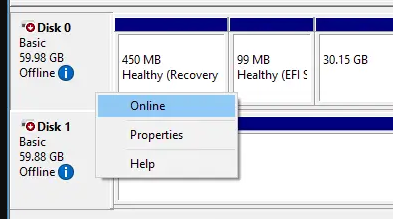
3. Right-click the left panel where it says “Disk X, Offline” (not a partition bar), and choose Online from the context menu.
make disk online in disk management
4. Windows will detect the collision, generate a new disk signature, and the disk should immediately change to “Online” and display its volumes.
5. If the drive letter is missing, right-click the partition and select Change Drive Letter and Paths to assign one.

Limitations to keep in mind

This fix works as long as both drives are attached. If you later disconnect and reconnect the clone, Windows might briefly see the old identifier and take the disk offline again, especially if the boot disk hasn’t been restarted. For a permanent solution—if you plan to keep both drives connected—consider reformatting the old drive after you’ve confirmed the clone works (see Verification & Best Practices).

What to do next

Once the disk is online, open File Explorer to confirm all folders are accessible. For data drives, you’re done. For system drives you want to boot from, power down, disconnect the old source drive (if you haven’t already), and start the PC from the clone to ensure it boots without errors.

Method 2: Assign a New Signature Using Diskpart

Diskpart is your go-to when the Online option is greyed out, fails, or you prefer a command-line approach. The uniqueid disk command (with no parameters) tells Diskpart to generate a new MBR disk signature and update the partition table instantly. This is especially useful for MBR disks and for admins who need precise control over disk identification.
Warning: Using the wrong disk number in select disk can permanently change the signature of the wrong drive. Always double-check the disk number and capacity against what you see in Disk Management or the list disk output.

Advantages:
  • Works even when the GUI “Online” option is unavailable
  • Can be scripted for IT deployment or automation
  • Provides immediate feedback via detail disk and list disk

Disadvantages:

  • Selecting the wrong disk will change an unintended drive’s signature — there is no undo
  • Requires an elevated Command Prompt; less intuitive for casual users
  • Works on MBR disks; GPT uniqueness relies on the GUID, though the command still regenerates the MBR signature for hybrid or MBR‑only setups

Operational steps
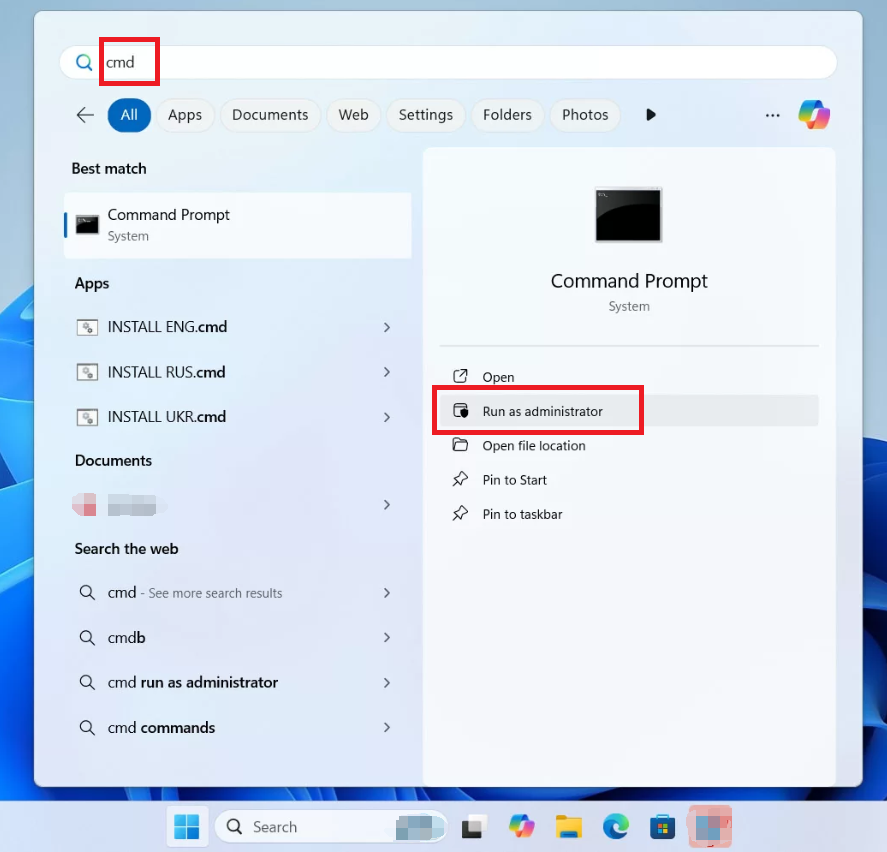
First, open an elevated Command Prompt by searching cmd in start menu:
Windows 11, run cmd as administrator
1. Launch Diskpart:

diskpart

2. List all disks to identify the offline clone:

list disk

The offline disk will show as Offline and match the expected capacity. Note its disk number.
3. Select the disk (replace X with the correct number):

select disk X

4. Generate a new unique signature:

uniqueid disk

Diskpart will confirm with output like DiskPart successfully set the disk ID: followed by the new signature.
5. Bring the disk online:

online disk

6. Verify the new details:

detail disk

Confirm the “Disk ID” has changed and the disk is now Online.
Windows 11, run cmd as administrator
For IT admins, the PowerShell equivalent is Set-Disk -Number X -UniqueId (New-Guid). Note that PowerShell’s Set-Disk modifies the GPT GUID, not the MBR signature. For MBR disks, stick with Diskpart.

After the procedure

Exit Diskpart (exit), close Command Prompt, and open Disk Management to verify the disk is online and has a drive letter. If the cloned disk is a system disk you plan to boot from, power off and test-boot with only that drive attached before reconnecting others.
When this method falls short
If the cloned drive’s boot configuration is damaged (for example, after trying to boot with both disks connected), bringing the disk online won’t fix startup errors. Move on to the boot-repair commands in the next section.

Advanced Recovery: Fix Boot Errors (0xc000000e)

If you’ve cloned a system drive, disconnected the old disk, and now your PC won’t start—showing error 0xc000000e or “The boot selection failed because a required device is inaccessible”—the duplicate signature has confused the Boot Configuration Data, and Windows can’t find the OS even though all files are present on the clone.

Golden rule before any repair

Always disconnect the old source drive before the first attempt to boot from the clone. If both drives are attached for the first boot, the system may write mixed BCD entries referencing the old disk’s identifier. With the old drive removed, repair commands can target the new disk cleanly.

Entering the recovery environment

You’ll need a Windows installation USB(matching your OS edition and architecture). If you don’t have one:
1. On a working PC, visit Microsoft’s Software Download page and use the Media Creation Tool to create a bootable USB.
For Windows 10 Users: https://www.microsoft.com/software-download/windows10
For Windows 11 Users: https://www.microsoft.com/software-download/windows11
2. Insert the USB, restart the problem PC, and press the boot menu key (commonly F12, Esc, F9, or Del).
3. Select the USB drive and let it load.
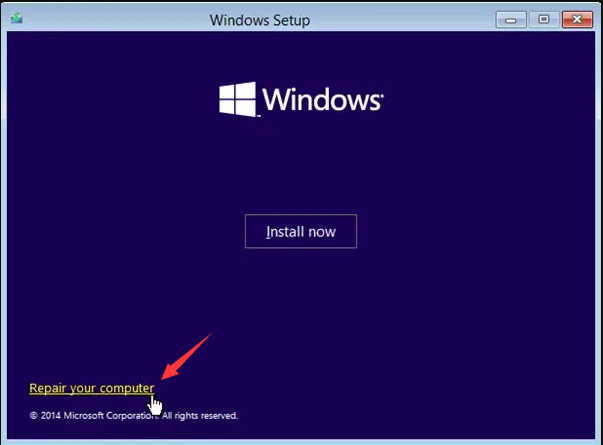
4. On the “Install now” screen, click Repair your computer in the bottom-left corner.
windows installation repair your computer
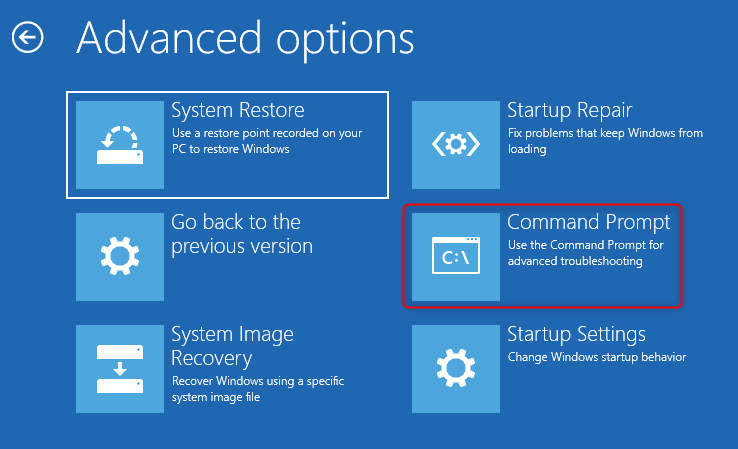
5. Go to Troubleshoot > Advanced options > Command Prompt.
command prompt
Run these repair commands in order, noting any errors:

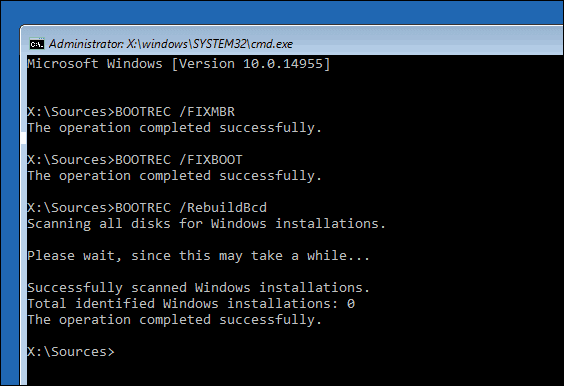
bootrec /fixmbr

Writes a new Master Boot Record, clearing reference to the old drive’s identifier.

bootrec /fixboot

Writes a fresh boot sector. On UEFI systems, this may fail with “Access is denied” unless the EFI system partition is mounted first. If so, use diskpart to assign a temporary letter to the EFI partition (commonly S:), then run bcdboot C:\Windows /s S: /f UEFI.

bootrec /rebuildbcd

Scans all drives for Windows installations and lets you add them to the BCD store. Accept the prompt when your cloned Windows installation is found.

bcdboot C:\Windows /s S:

Copies boot files to the system or EFI partition. Replace C: with your Windows drive letter and S: with the EFI partition letter (assign it in Diskpart if needed: select disk 0, list part, select part X, assign letter=S).
Command Prompt showing execution of bootrec /fixboot command

If command-line repair doesn’t work

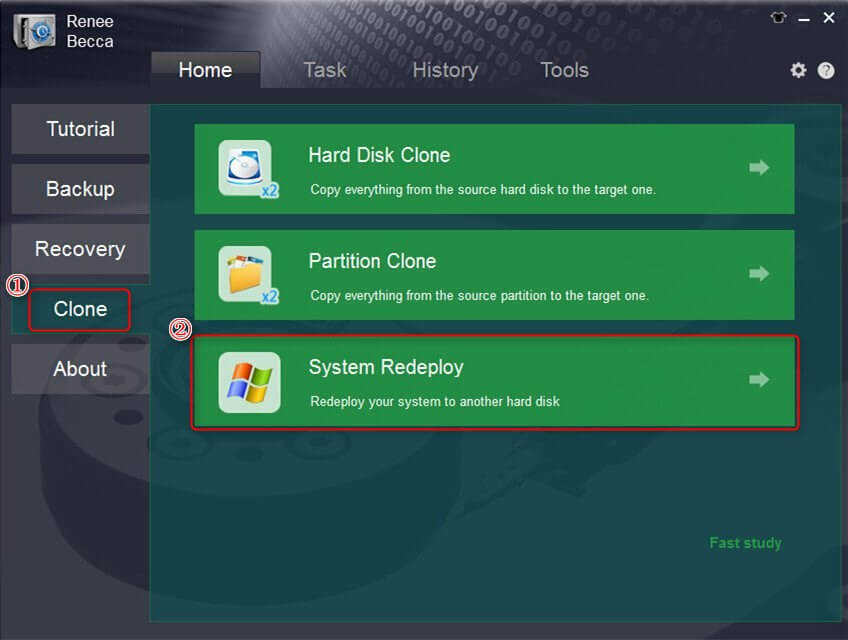
Manually fixing the EFI partition and BCD entries can be tricky, especially if there are multiple drives. As an alternative, re‑cloning the system disk with Renee Becca’s System Migration wizard automatically resolves signature conflicts, boot partition mapping, and BCD configuration in one guided process. This is a reliable fallback if command-line repairs fail.
Renee Becca System Redeploy option selected for OS-only migration

Verification & Best Practices

Once the signature collision is resolved, take a few minutes to ensure everything is working as expected.
Data safety check: Open File Explorer, browse the cloned drive, and open files to confirm they’re readable. For a system drive, boot the PC from the clone (with the old drive disconnected) and make sure Windows loads to the desktop without errors.
If you plan to keep both drives: After confirming the clone works perfectly, reconnect the old drive (if you’d previously disconnected it) and format it. This removes the old signature and partitions, eliminating any future collision risk.
Remember: formatting erases all data, so back up anything you need first.

External enclosure note: If the cloned disk will stay in a USB or NVMe enclosure, Windows treats it as removable and may handle the signature more flexibly. Still, it’s safest to keep it offline in Disk Management until needed, or format the old internal source after confirming the clone works. This way, you won’t face unexpected offline disks when connecting the enclosure.

Frequently Asked Questions

Will changing the disk signature or bringing the disk online delete my personal data or installed programs?

No. The “Online” action in Disk Management and the uniqueid disk command only change the disk’s identification area (the MBR or GPT header). They don’t affect partition tables, file systems, or your data. Your files and programs remain exactly as they were after the clone. If the clone is a system drive that’s suffered BCD corruption, you may still need boot-repair commands, but these also won’t delete user files.

What if Disk Management still shows the disk as “Offline” or the “Online” option is greyed out after clicking it?

First, make sure you’re right-clicking the left “Disk X” label, not a partition. If the option is greyed out, the disk might be in a “read-only” state, or Windows may have locked it due to a pending signature conflict that needs a reboot. Try restarting with both drives attached. If it’s still greyed out, use Diskpart (Method 2)—the online disk command often works when the GUI fails.

Is the disk signature collision problem relevant for USB external drives and enclosures used for backups?

Yes, it can still happen. If you clone an internal drive to an external USB enclosure and connect it while the original is still in the PC, Windows will detect the duplicate signature and show the external disk as offline. The fix is the same: bring it online via Disk Management or Diskpart. You may need to repeat this if you disconnect and reconnect the enclosure while the source disk is present.
Renee Becca – Safe and Quick System Migration to SSD

Automatic 4K alignment Improves SSD performance during system migration.

Support GPT and MBR Automatically adapt to the suitable partition format.

Support NTFS and FAT32 Redeploy various files in different file systems.

Back up quickly Back up files at up to 3,000MB/min.

Overall backup schedule Support system redeployment/system backup/partition backup/disk backup/disk clone.

Automatic 4K alignment Improve SSD performance

Support GPT and MBR Intelligently adapt to a partition format

Support NTFS and FAT32 Redeploy files in different file systems

Free TrialFree TrialNow 56337 people have downloaded!

User Comments

Page 1

Leave a Comment


Your comment has been submitted and is awaiting moderation.