author avatar
    Senior Program Developer
Last update by Emma Johnson at 25 May 2026

Summary
This guide evaluates multiple clonezilla alternative solutions for Windows-based disk cloning, SSD migration, and backup workflows. It compares GUI-driven tools like Renee Becca with free bootable options, focusing on features such as incremental backups, partition resizing, and system redeployment capabilities.


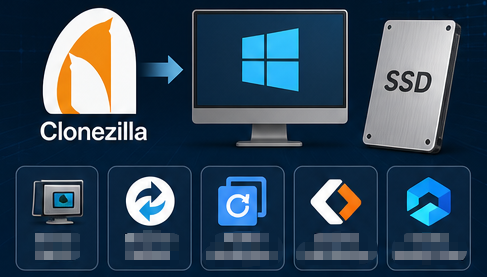
Finding a reliable Clonezilla alternative matters when you want simpler disk cloning, SSD migration, and backup tools without booting into Linux. This guide walks through intuitive GUI options like Renee Becca for full disk clones, system-only migration, file backups, and scheduled tasks. It also looks at free and advanced alternatives for different skill levels. Read on to find the right fit and get the job done safely.
Clonezilla Alternative

Why Users Need a Reliable Clonezilla Alternative

A lot of people upgrade from HDD to SSD for better speed, create system backups before making major changes, or duplicate drives to set up multiple machines. Clonezilla works, but it frustrates many with its text-based interface and reliance on a Linux environment.

User Interface

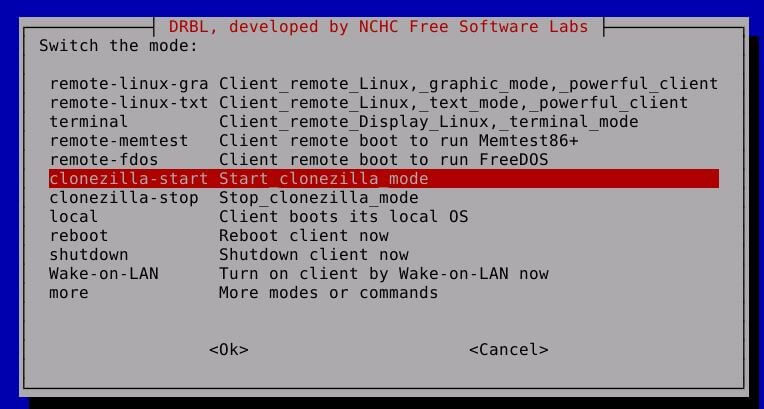
The main pain points are pretty common: the menu system looks intimidating, it’s easy to pick the wrong source or destination drive without clear warnings.
Clonezilla live USB boot menu – open-source disk cloning tool
In addition, you always need a bootable USB. Those are exactly the things people look to avoid when searching for a clonezilla alternative. Clonezilla also lacks simple scheduling for automatic backups and doesn’t handle incremental workflows smoothly.
Home users upgrading their laptops, IT professionals who need faster workflows, and backup beginners all tend to look for GUI tools that run right inside Windows.

Double-check your source and destination drives before starting any clone. It’s the most common mistake.

Comparison Overview
FeatureClonezillaGUI Alternatives

Interface

Text-based

Visual GUI

Boot Requirement

USB/Linux required

Runs in Windows

Incremental Backups

Limited

Built-in support

Common Clonezilla Cloning Issues (Based on User Feedback)

1. Bootable USB Creation Problems

Many users report that Clonezilla fails to boot from a USB drive. Common causes include improperly created bootable media, Secure Boot blocking non‑signed ISOs, or mismatched UEFI/Legacy boot modes.
Solutions: recreating the USB with tools like Rufus, disabling Secure Boot, or switching USB ports.
refer: https://www.reddit.com/r/techsupport/comments/1bgwlhi/clonezilla/

2. Partition Size and “Smaller Target Drive” Errors

Clonezilla struggles when the target drive is slightly smaller than the source, even if the actual used data would fit. For example, a 1TB source SSD showing as 1025GB could not be cloned to a 1000GB NVMe drive.
Solutions: Advanced options like -icds and -k1 sometimes help, but users still encounter errors or unbootable partitions.
refer: https://www.reddit.com/r/techsupport/comments/16xfm2v/clonezilla_refuses_to_clone_from_dying_ssd_to_nvme/

3. NTFS Partition Cloning Failures

Users cloning large NTFS partitions have reported “no space left on device” errors despite shrinking partitions beforehand. Even after running chkdsk and resizing with GParted, Clonezilla sometimes fails midway through the process, especially with drives containing multiple partitions.
refer: https://www.reddit.com/r/techsupport/comments/1d973cv/clonezilla_not_cloning_my_windows_10_c_drive/

4. Performance and Speed Issues

Cloning large drives (e.g., 1.5TB of data) can take 6–7 hours or more. While slow performance is expected with big partitions, users often find Clonezilla’s progress stalling or failing midway, requiring manual intervention or alternative tools.
refer: https://www.reddit.com/r/techsupport/comments/1d973cv/clonezilla_not_cloning_my_windows_10_c_drive/

5. Driver and Hardware Compatibility

When migrating Windows installations to different hardware, users encounter driver conflicts and boot failures.
Solutions: Clonezilla does not automatically inject drivers or repair bootloaders, so manual fixes (e.g., using Windows recovery tools) are often required.
refer: https://www.reddit.com/r/techsupport/comments/1d973cv/clonezilla_not_cloning_my_windows_10_c_drive/

Understanding Your Cloning Needs: Quick Self-Assessment

Before you pick a clonezilla alternative, figure out what you actually need. Are you after a full disk clone that copies everything—system and data partitions alike? Or just a system-only migration to move Windows to a new SSD while keeping the old hard drive for storage?

Features List

File-level backups work well for photos, documents, and settings. Scheduled automatic backups are better for ongoing protection over time.
Decision TypeRecommended ActionKey Features to Look For

Full disk clone

Select tools that can duplicate the entire drive, including partitions and boot data. Ideal for upgrading or replacing a disk.

Partition resizing, sector-by-sector cloning, SSD alignment, boot record preservation.

System-only migration

Use software with a dedicated “System Redeploy” or “OS Migration” feature to move only the operating system to a new drive.

Hardware-independent restore, automatic boot repair, driver injection, partition mapping.

Regular backups

Choose backup utilities that support scheduled incremental and differential backups for ongoing protection.

Backup scheduling, version control, compression, encryption, cloud sync support.

Knowing what you actually need stops you from grabbing a tool that’s either too basic or way too complicated.

Recommended Solution: Renee Becca – The Easiest GUI-Driven

Renee Becca stands out as a powerful Windows-native Clonezilla alternative that focuses on ease and reliability. It handles system backup, partition backup, hard disk backup, file backup, disk cloning, and system migration all from one interface.
Renee Becca – Safe and Quick System Migration to SSD

Automatic 4K alignment Improves SSD performance during system migration.

Support GPT and MBR Automatically adapt to the suitable partition format.

Support NTFS and FAT32 Redeploy various files in different file systems.

Back up quickly Back up files at up to 3,000MB/min.

Overall backup schedule Support system redeployment/system backup/partition backup/disk backup/disk clone.

Automatic 4K alignment Improve SSD performance

Support GPT and MBR Intelligently adapt to a partition format

Support NTFS and FAT32 Redeploy files in different file systems
Free TrialFree TrialNow 56337 people have downloaded!
The key advantages are easy to appreciate: an intuitive GUI with no Linux or bootable USB needed, incremental and differential backup technology that saves both time and disk space, and a handy System Redeploy feature for fast HDD-to-SSD migrations.
It also supports automatic backup plans and works well for both home users and professionals. A free trial lets you test it out before buying.
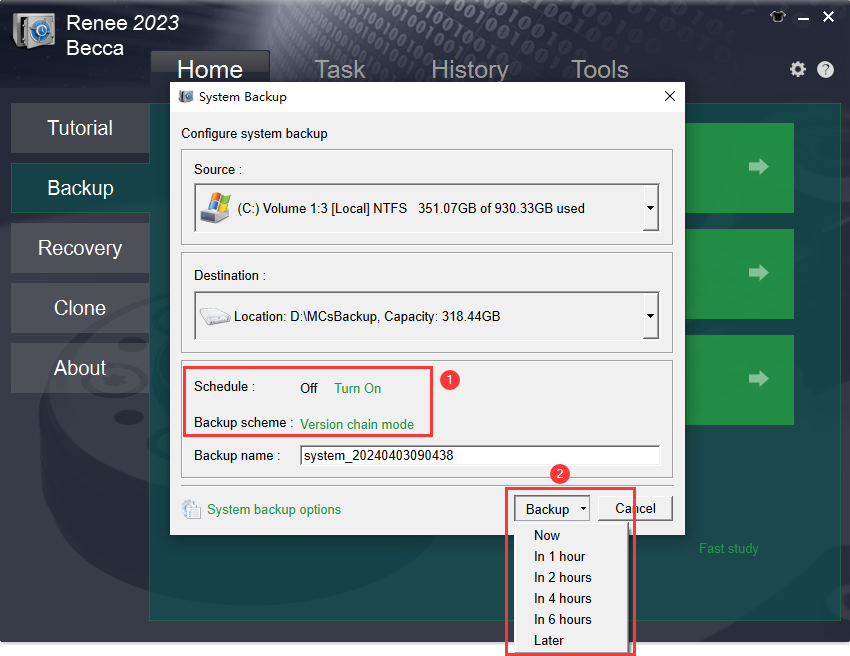
Screenshot of Renee Becca backup system image interface

Step-by-Step: How to Perform a Safe Disk Clone or System Migration with Renee Becca

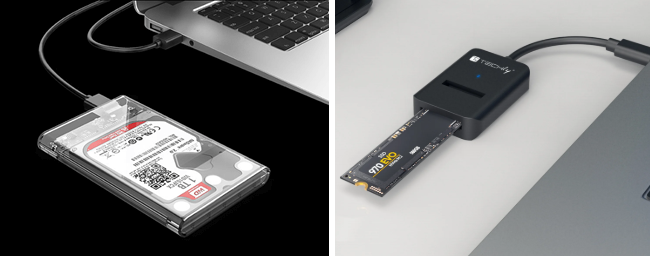
Prerequisite: Install the new SSD either internally in the M.2 slot
Animated demonstration: How to install an M.2 SSD
or externally via a USB adapter or enclosure.
USB to SATA/M.2 SSD enclosure for external connection
Pre-cloning checklist:
  • Stop writing new data to the source drive
  • Confirm the new SSD has enough capacity for your used space
  • Connect the new SSD
  • Back up important files separately just to be safe

Option 1: Full Disk Clone Using 'Hard Disk Clone / Clone System Disk'

download now
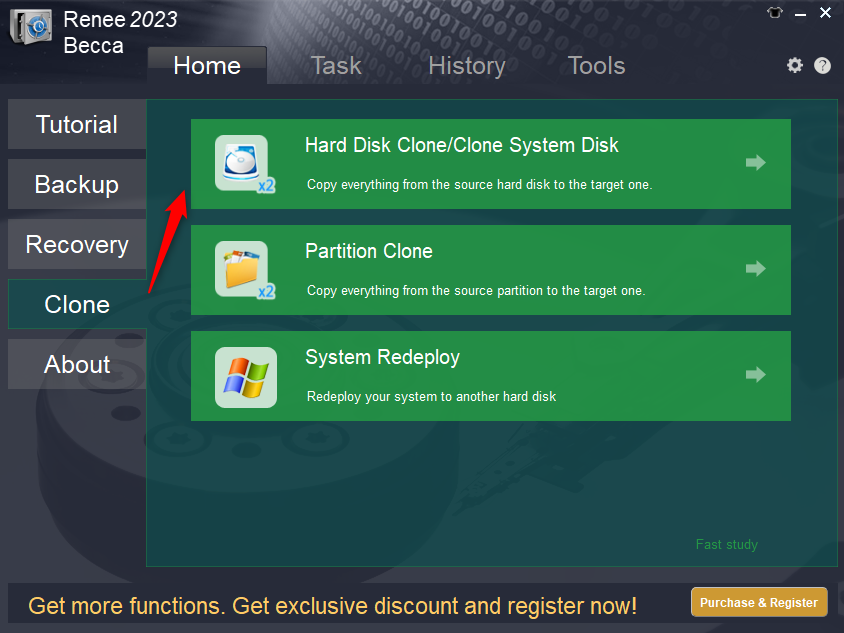
1 . Launch Renee Becca and select Hard Disk Clone/Clone System Disk under the Clone section.
renee becca disk clone
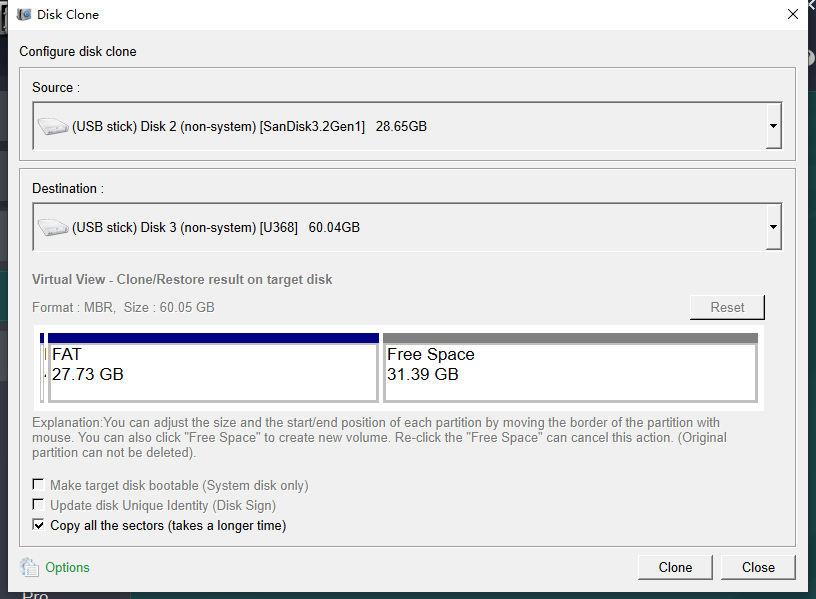
2. Pick your original drive as the source and the new SSD as the destination.
Renee Becca select copy all sector
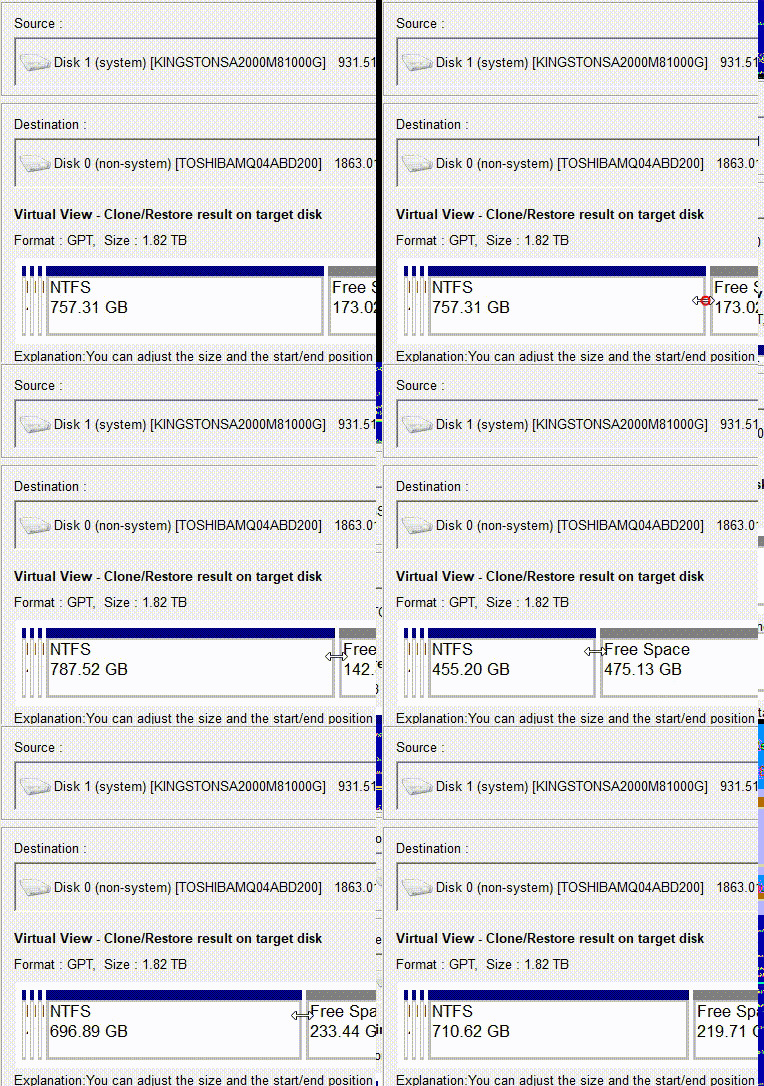
Adjust partition sizes by dragging the edges with your mouse if needed. Turn on Copy all sectors if you need to copy reserved areas that contain license data.
adjust partitions
Click Clone and wait for it to finish.

All data on the target disk will be erased during cloning.

Option 2: System-Only Migration Using 'System Redeploy'

download now
This method is faster and works great for dual-drive setups where you keep the old HDD for storage.
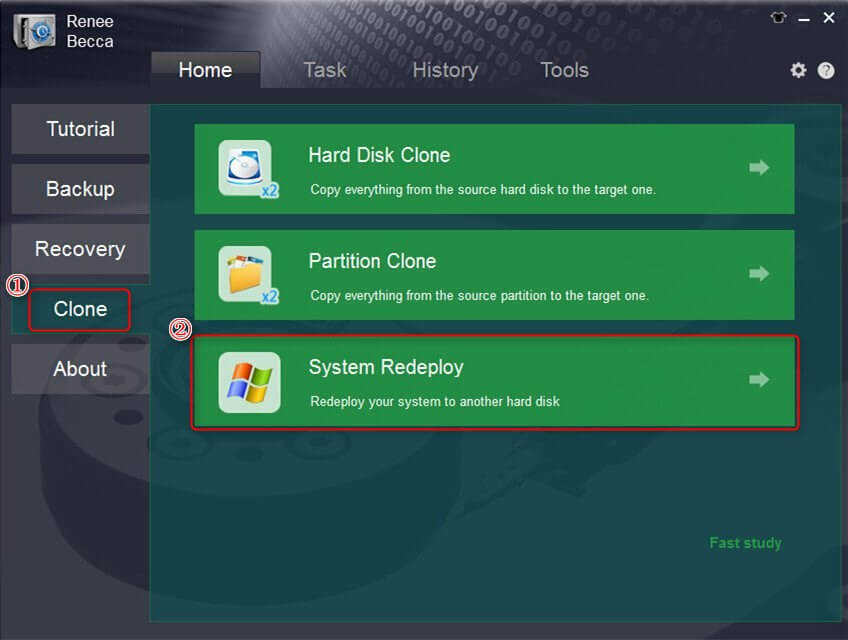
1 . Select System Redeploy under the Clone section.
select system redeploy function in clone
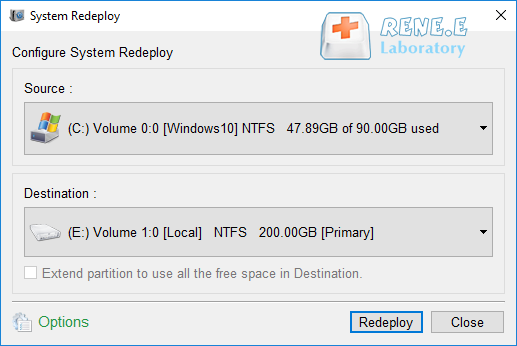
2 . Choose the current system partition as the source and the new SSD as the destination. Click Redeploy.
select a destination to redeploy system with renee becca
Note: The new drive’s total capacity must be larger than the system size you’re migrating.
Renee Becca – Safe and Quick System Migration to SSD

Automatic 4K alignment Improves SSD performance during system migration.

Support GPT and MBR Automatically adapt to the suitable partition format.

Support NTFS and FAT32 Redeploy various files in different file systems.

Back up quickly Back up files at up to 3,000MB/min.

Overall backup schedule Support system redeployment/system backup/partition backup/disk backup/disk clone.

Automatic 4K alignment Improve SSD performance

Support GPT and MBR Intelligently adapt to a partition format

Support NTFS and FAT32 Redeploy files in different file systems

Free TrialFree TrialNow 56337 people have downloaded!

Comparison: Clonezilla vs. Renee Becca vs. Other Alternatives

ToolEase of UseRuns in Windows?Backup TypesPrice

Clonezilla

Text menus

No

Full, limited incremental

Free

Renee Becca

Intuitive GUI

Yes

Full, incremental, differential

Paid (trial)

Rescuezilla

GUI on Linux

No

Full

Free

AOMEI Backupper

Good GUI

Yes

Full, incremental

Free/Paid

For non-technical users, Renee Becca offers the best mix of power and simplicity in a Windows environment.

Advanced & Free Options (Bootable Tools / Command Line)

If you’re comfortable with more technical setups, Rescuezilla gives you a GUI version of Clonezilla that still needs a bootable USB
Clonezilla live USB boot menu – open-source disk cloning tool
—making it another viable clonezilla alternative for the right person. Foxclone offers a similar Linux-based bootable option.
For the truly brave, the dd command on Linux works, but it carries a much higher risk of mistakes.
Example of dd command for cloning SD card in Linux terminal
Most users should start with Renee Becca for its Windows-native experience. Only turn to bootable tools if you need a completely free solution and you’re already comfortable creating bootable USBs and managing partitions.
Renee Becca – Safe and Quick System Migration to SSD

Automatic 4K alignment Improves SSD performance during system migration.

Support GPT and MBR Automatically adapt to the suitable partition format.

Support NTFS and FAT32 Redeploy various files in different file systems.

Back up quickly Back up files at up to 3,000MB/min.

Overall backup schedule Support system redeployment/system backup/partition backup/disk backup/disk clone.

Automatic 4K alignment Improve SSD performance

Support GPT and MBR Intelligently adapt to a partition format

Support NTFS and FAT32 Redeploy files in different file systems
Free TrialFree TrialNow 56337 people have downloaded!

After Cloning: Verification and Best Practices

Once the clone finishes, change the boot order in BIOS to start from the new SSD. To check the file system, open Command Prompt with administrator privileges:
1 . Input cmd in the search bar of the start menu and select “Command Prompt“. Click the “Run as administrator” option.
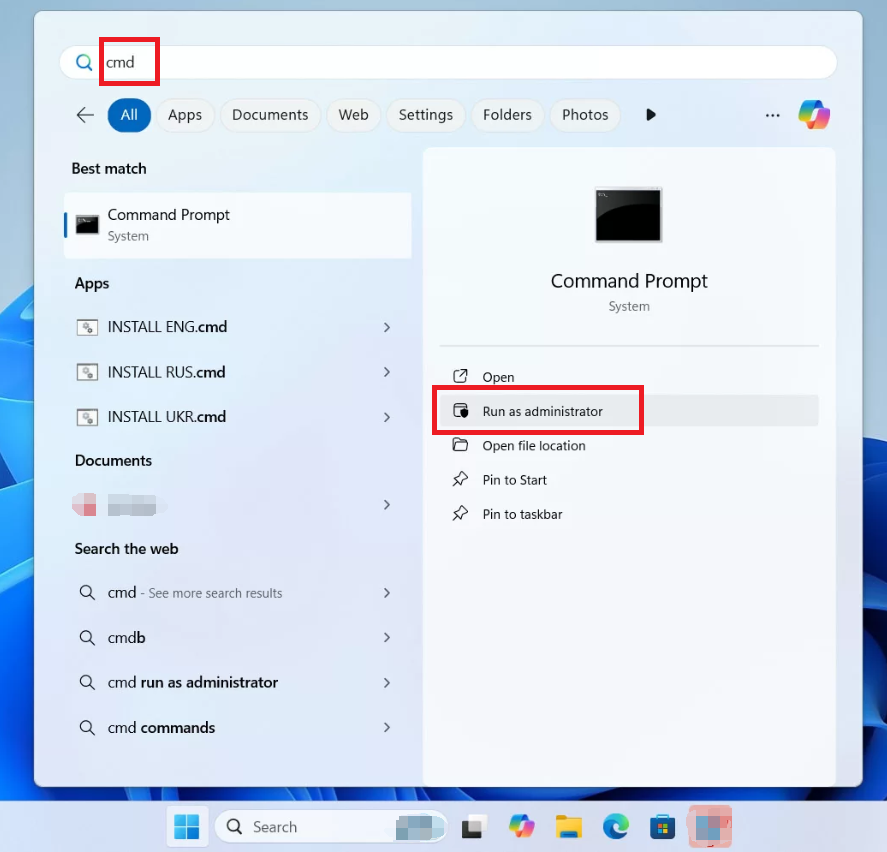
Windows 11, run cmd as administrator
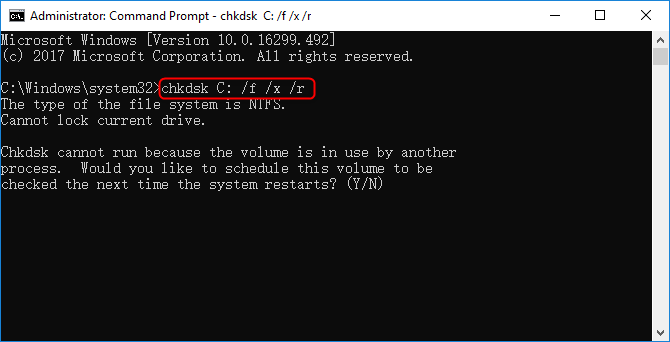
2. Then run this command:

chkdsk C: /f /x /r

Command Prompt output after running chkdsk C: /f /x /r, showing bad sector repairs
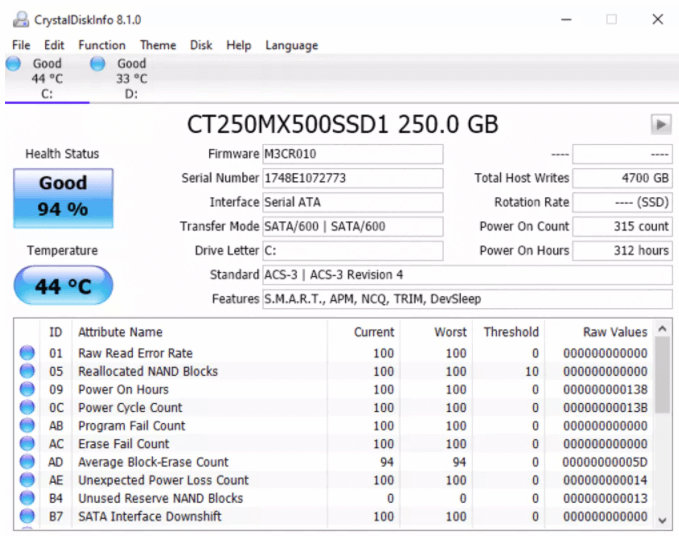
3. Use CrystalDiskInfo to verify the new SSD’s health, and confirm that all your applications and files work correctly.
Keep the original drive untouched for at least 7 days as a safety net. Test system stability for a few days before wiping the source drive.
how to check ssd health with crystaldiskinfo

Frequently Asked Questions (FAQ)

Is Renee Becca completely free, or is there a trial limitation?

Renee Becca offers a free trial so you can test core features like cloning and backups. Full functionality requires a purchase, but the trial helps confirm it meets your needs before you buy.

Can I clone a larger HDD to a smaller SSD using Renee Becca?

Yes, using the System Redeploy option or by resizing partitions during a full disk clone. Just make sure the target SSD has enough room for the actual used data on the source drive.

Does Renee Becca work with Windows 11 and Windows 10?

Yes, Renee Becca fully supports Windows 10 and Windows 11 for backup, cloning, and migration tasks.

Do I need to create a bootable USB like Clonezilla when using Renee Becca?

No. Renee Becca runs directly inside Windows, which makes the whole process much simpler for most people.
Renee Becca – Safe and Quick System Migration to SSD

Automatic 4K alignment Improves SSD performance during system migration.

Support GPT and MBR Automatically adapt to the suitable partition format.

Support NTFS and FAT32 Redeploy various files in different file systems.

Back up quickly Back up files at up to 3,000MB/min.

Overall backup schedule Support system redeployment/system backup/partition backup/disk backup/disk clone.

Automatic 4K alignment Improve SSD performance

Support GPT and MBR Intelligently adapt to a partition format

Support NTFS and FAT32 Redeploy files in different file systems

Free TrialFree TrialNow 56337 people have downloaded!

User Comments

Page 1

Leave a Comment


Your comment has been submitted and is awaiting moderation.