author avatar
    Senior Program Developer
Last update by Olivia Brown at 12 September 2026

Summary
This comprehensive guide outlines the technical procedures required to clone c drive to larger ssd while preserving Windows installations, hidden partitions, and user data. It details direct disk-to-disk migration, image and restore workflows, and essential troubleshooting steps for boot configuration and BitLocker management.


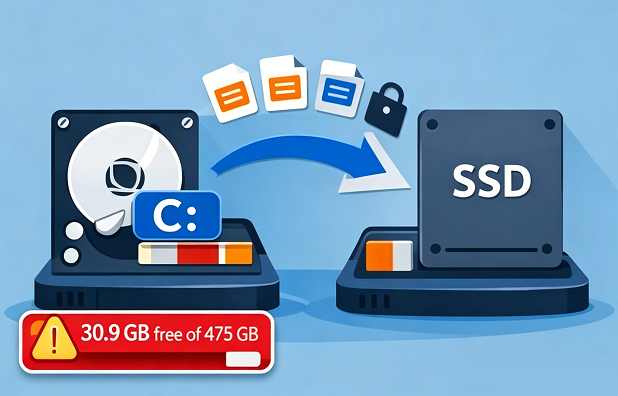
clone full c drive to larger ssd
When your C: drive is nearly full, you might experience failed Windows updates, frequent application crashes, or be forced to delete files just to install new software. Reinstalling Windows from scratch means tracking down license keys, reinstalling drivers, reconfiguring accounts, and spending hours getting your system back to its previous state.
By cloning the C drive to a larger SSD, you retain your entire Windows installation—boot files, hidden recovery partitions, installed programs, settings, and personal data—without the hassle. This is especially crucial for laptops with a single M.2 slot, where you only get one shot at migration once the original drive is removed.

Before you clone: Key checks

A successful migration starts with preparation. Use the checklist below to avoid common pitfalls related to capacity, drive connection, encryption, and backups.
✅ Check 💡 Why it matters 🔍 How to verify 🟢 Pass condition

💾 Used Space vs. SSD Size

Ensure all data fits on new drive

Right‑click C: → Properties

New SSD > current C: used space

🔌 Connection Method

Windows must detect new SSD

Open Disk Management

Drive visible & initialized

🔐 BitLocker Status

Encryption may block clone

Control Panel → BitLocker Drive Encryption

BitLocker suspended or off

☁️ Data Backup

Prevent data loss or mistakes

Confirm backup to external/cloud

Critical files backed up

How modern Windows boots: UEFI, GPT, and hidden partitions

Most Windows 10 and 11 PCs use UEFI firmware and the GPT partition style. Boot files aren’t just in the visible C: drive—they’re on hidden partitions like the EFI System Partition, Microsoft Reserved, and Recovery. If you clone only C:, the new drive won’t boot. Your tool must copy or rebuild all hidden system and boot partitions.
c drive partition structures
For older PCs using Legacy BIOS and MBR, the source and destination partition styles must match for the system to boot. If you clone from MBR to GPT (or vice versa) without adjusting for this, Windows may not start.
Download Renee Becca: Safely Clone Windows, UEFI, and Hidden Partitions

Clone Hidden Partitions Automatically detects and copies EFI, Recovery, and Reserved partitions to guarantee the new SSD boots without errors.

Support GPT and MBR Automatically adapt to the suitable partition format.

Support NTFS and FAT32 Redeploy various files in different file systems.

Back up quickly Back up files at up to 3,000MB/min.

Overall backup schedule Support system redeployment/system backup/partition backup/disk backup/disk clone.

Automatic 4K alignment Improve SSD performance

Support GPT and MBR Intelligently adapt to a partition format

Support NTFS and FAT32 Redeploy files in different file systems
Free TrialFree TrialNow 56337 people have downloaded!

Common ways to move Windows to a larger SSD

Before choosing a tool, it helps to understand the two main migration paths:
- Direct Disk-to-Disk Clone: Both old and new drives are connected at the same time (e.g., desktop with spare bays, or a laptop with a USB enclosure). The tool copies everything directly.
- Image and Restore: For single M.2 slot laptops without an enclosure. You create a system image on an external drive, swap the SSDs, then restore the image to the new SSD.
A simple copy-paste of the C: drive is not enough—hidden boot partitions and partition tables must be preserved for your system to boot.
For desktops, direct cloning is usually the best option—it’s quick and produces a bootable drive right away. For single-slot laptops, image and restore is safer if you don’t have a USB enclosure.

A simpler way to clone the system drive with Renee Becca

Renee Becca is a Windows backup, restore, and migration tool designed to make cloning easy for everyone. It supports system backup, disk backup, partition backup, file backup, and full disk cloning. For cloning your C drive to a larger SSD, Renee Becca automatically detects and copies hidden EFI, System Reserved, and Recovery partitions—eliminating the most common cause of boot failures.
- Automatic Partition Resizing: Expands your C: drive to fill the new SSD’s capacity.
- Hidden Partition Handling: Copies all necessary hidden partitions so the new SSD is bootable.
- Flexible Workflows: Supports direct disk cloning and system redeploy for laptops with only one M.2 slot.
Get Renee Becca for a Hassle-Free C Drive to SSD Upgrade

Bootable clone guarantee Automatically includes hidden EFI, System Reserved, and Recovery partitions so your new SSD boots without manual fixes.

Support GPT and MBR Automatically adapt to the suitable partition format.

Support NTFS and FAT32 Redeploy various files in different file systems.

Back up quickly Back up files at up to 3,000MB/min.

Overall backup schedule Support system redeployment/system backup/partition backup/disk backup/disk clone.

Automatic 4K alignment Improve SSD performance

Support GPT and MBR Intelligently adapt to a partition format

Support NTFS and FAT32 Redeploy files in different file systems

Free TrialFree TrialNow 56337 people have downloaded!

How to clone the C drive to a larger SSD with Renee Becca

Important: Don’t erase or repurpose your old drive until you’ve confirmed the new SSD boots and works correctly.

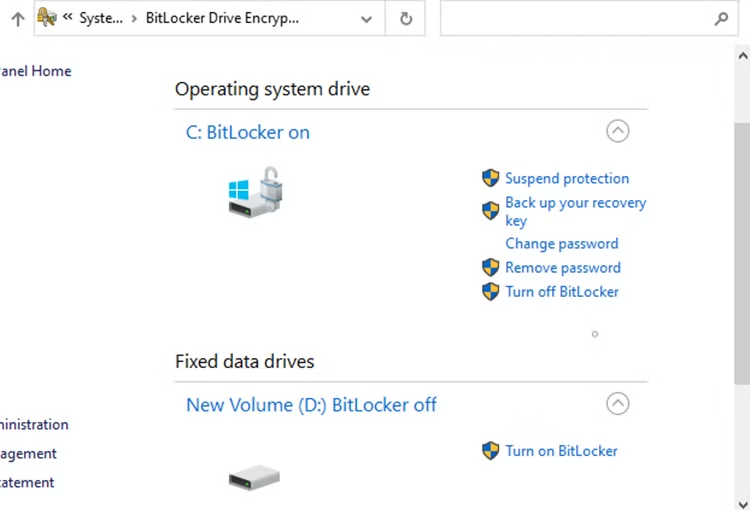
BitLocker Reminder: If your C: drive is encrypted, temporarily suspend BitLocker before cloning to avoid boot problems. Go to Control Panel > System and Security > BitLocker Drive Encryption, select Suspend protection next to your system drive, and confirm.
suspend bitlocker protection

1. Connect and prepare the larger SSD

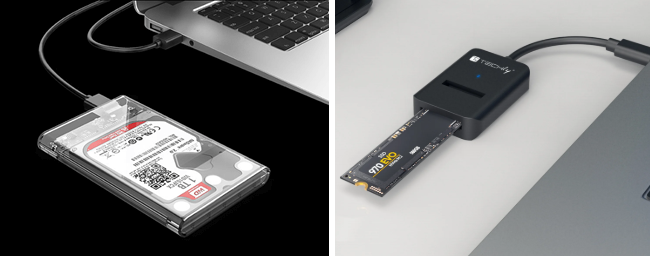
Connect your new SSD internally (SATA or M.2) or externally (USB-to-M.2 adapter or enclosure). If your laptop only has one M.2 slot and no USB enclosure, you’ll use the image/restore method later.
Open Disk Management and check that the new SSD is detected and has enough unallocated space. If it’s not visible, check cables, ports, or initialize the drive if needed.
How to Install an M.2 SSD
usb ssd / disk enclosure

2. Select the system redeploy function in Renee Becca

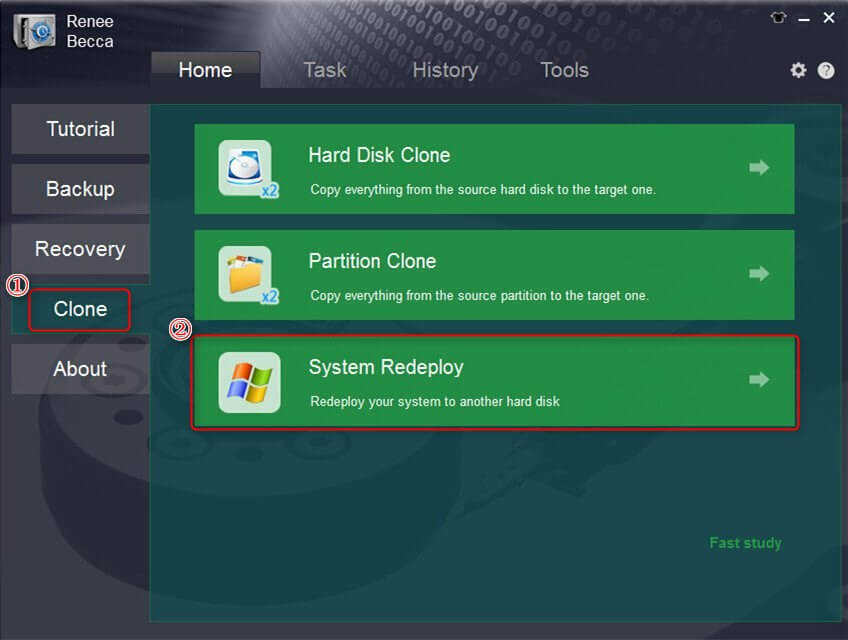
Open Renee Becca. In the main interface, go to the Clone column and select System Redeploy to migrate only the Windows system partition to the new SSD.
select system redeploy function in clone
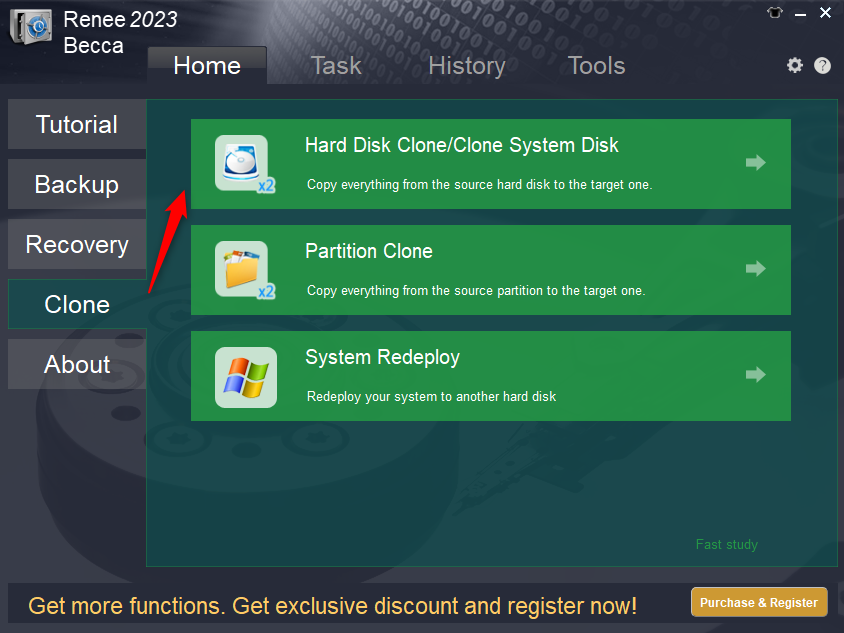
If you want to copy all partitions from your system disk to the new SSD, choose Hard Disk Clone/Clone System Disk instead.
renee becca disk clone

3. Choose the correct source and destination

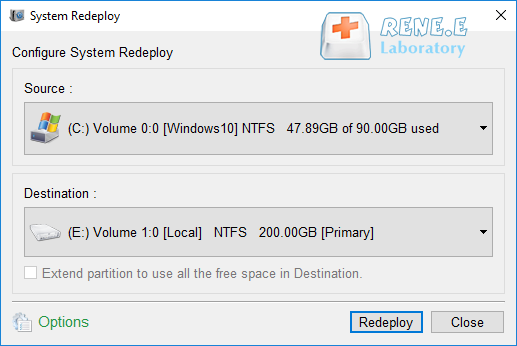
For System Redeploy, select your current system partition as the source and the new SSD as the destination.
select a destination to redeploy system with renee becca
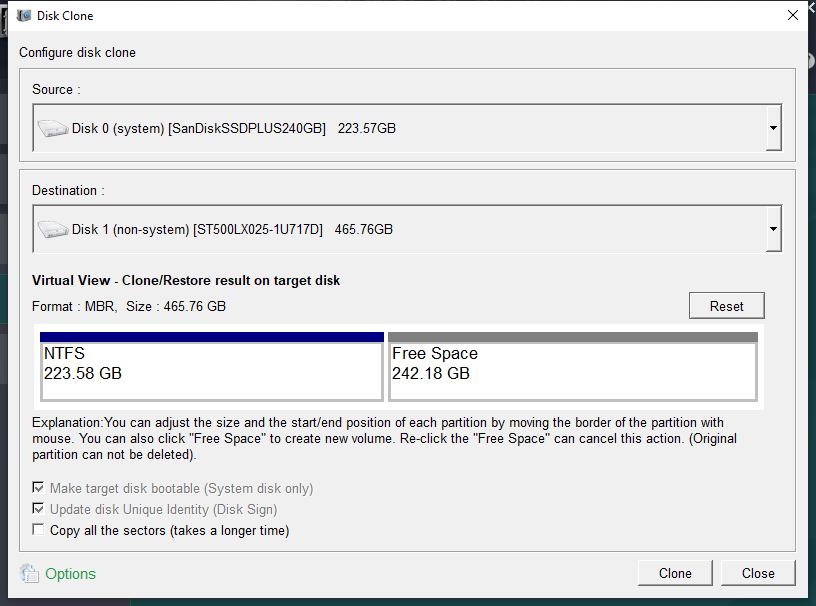
For Hard Disk Clone, select the entire original disk as the source and the new SSD as the destination.
clone the hard disk
Double-check you’ve selected the correct destination. The target SSD will be completely overwritten.

4. Resize partitions and check SSD alignment

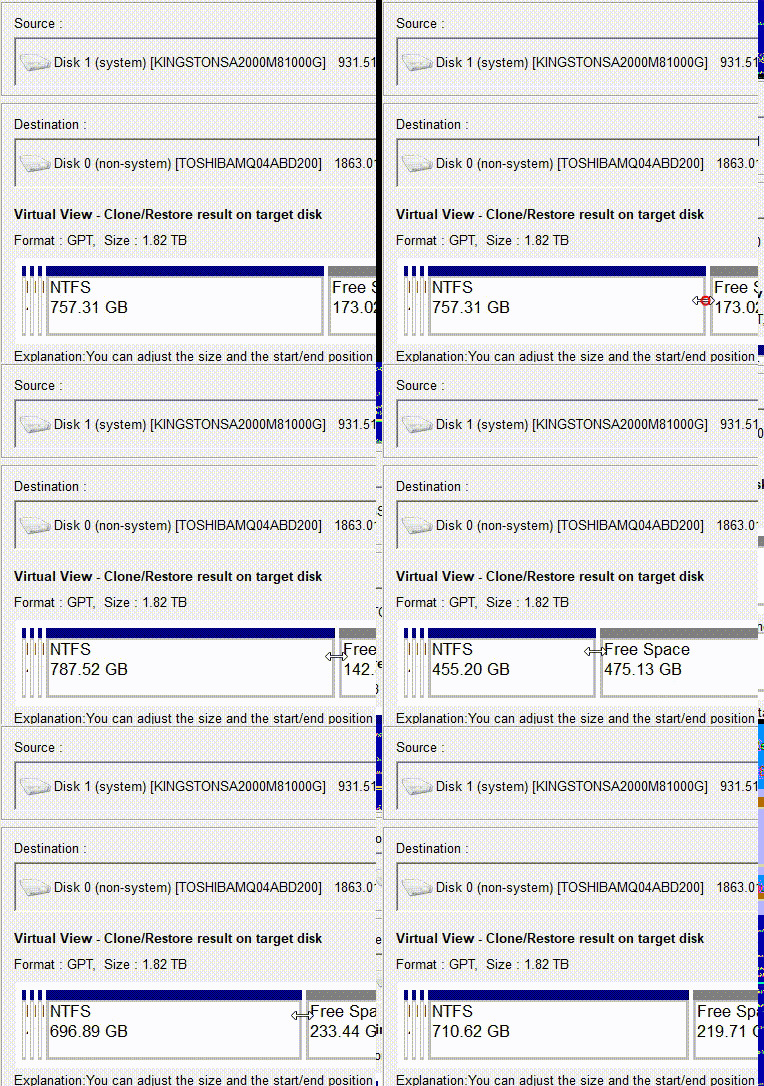
Enable the option to resize partitions so your cloned system uses the full space of the larger SSD. With Renee Becca, you can drag the partition border with your mouse to adjust the size. Keep 4K alignment enabled for best SSD performance and lifespan. Do not exclude any hidden boot partitions.
adjust partitions

5. Start the clone and wait for completion

Click Clone or the migration button to begin. If you’re on a laptop, keep it plugged in and don’t interrupt the process or let the computer sleep. Wait until you see a completion message.

6. Shut down and swap drives or change boot order

- Desktop: Shut down. Either swap SATA/M.2 cables so the new SSD is primary, or enter BIOS/UEFI and set the new SSD as the first boot device.
- Single M.2 Laptop: Shut down, open the chassis, replace the old SSD with the newly cloned one, and reassemble.

7. First boot and verification

Power on your PC. It should boot straight into your familiar Windows desktop from the new SSD. If all is well, proceed to verification below. If not, see the troubleshooting section.

Troubleshooting: What to do if the cloned drive will not boot

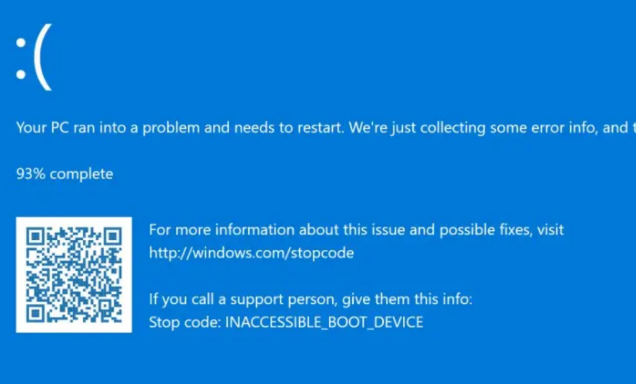
Windows BSOD: INACCESSIBLE_BOOT_DEVICE
If your PC doesn’t start from the new SSD, the issue is usually with boot order, a loose connection, missing hidden partitions, or a firmware setting. For fixes needing a Windows command prompt, use a Windows installation USB and open Command Prompt from the recovery environment.
Boot failures can present in several distinct patterns, and the table below summarizes the most common symptoms, causes, and fixes.
Symptoms Possible causes Potential BSOD codes Typical fixes

"No bootable device" in BIOS/UEFI

Boot order wrong, loose cable, or missing EFI partition

N/A

Change boot priority in BIOS; reseat SSD; rebuild BCD

Black screen or boot loop

Missing/corrupted Boot Configuration Data

0xc0000225, 0xc000000f

Boot from Windows USB, open Command Prompt, run bootrec commands below

Blue screen during Windows load

Storage controller driver mismatch or VMD/RAID settings changed

INACCESSIBLE_BOOT_DEVICE

Toggle SATA/VMD in BIOS; try Safe Mode to update drivers

Boots to Recovery Environment

Corrupted boot partition or incomplete clone of hidden partitions

N/A

Run Startup Repair from Windows Recovery Environment

To perform these fixes, you’ll need a proper Windows installation USB—here’s how to create one quickly and safely.

Create a Windows USB and Fix Boot problems

1. Download the Media Creation Tool from Microsoft’s Windows download page.
🖥️ System 🌐 Download Source 📥 What to Download ✅ Result

🟦 Windows 11

https://www.microsoft.com/software-download/windows11

Windows 11 Installation Assistant or Media Creation Tool

Creates USB installer or ISO for Windows 11

🟩 Windows 10

https://www.microsoft.com/software-download/windows10

Windows 10 Media Creation Tool

Creates USB installer or ISO for Windows 10

2. Run the tool, accept terms, and choose Create installation media for another PC.
3. Select your Windows edition and architecture, then choose USB flash drive.
4. Plug in an 8 GB or larger USB drive and follow the prompts.
5. Restart your PC and open the boot menu (often F12, Esc, F8, F9, or F11), or set USB as the first boot device in BIOS/UEFI.
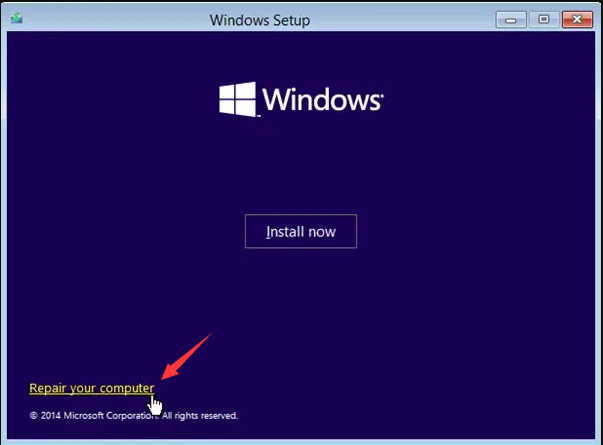
6. Boot from the USB, select your language, then choose Repair your computer > Troubleshoot > Command Prompt.
Windows Setup – Install now screen with Repair your computer link
From Command Prompt, try these commands:

bootrec /fixmbr
bootrec /fixboot
bootrec /rebuildbcd

- /fixmbr writes a new master boot record.
- /fixboot writes a new boot sector.
- /rebuildbcd scans disks and rebuilds Boot Configuration Data.

How to confirm the cloned SSD boots properly and uses the full space

After cloning and installing the new SSD, it’s important to make sure your system boots as expected and Windows recognizes the full drive capacity. Here’s how to check:

Basic Verification

1. Verify Boot: Make sure the PC boots from the new SSD with the old drive disconnected or boot order set.
2. Check Capacity: Open Disk Management. Confirm the C: partition shows the larger size. If there’s unallocated space, right-click C: and choose Extend Volume.
c drive partition structures
3. Check Drive Letters: The new system drive should be C:. The old drive will now be D: or E: if still connected.
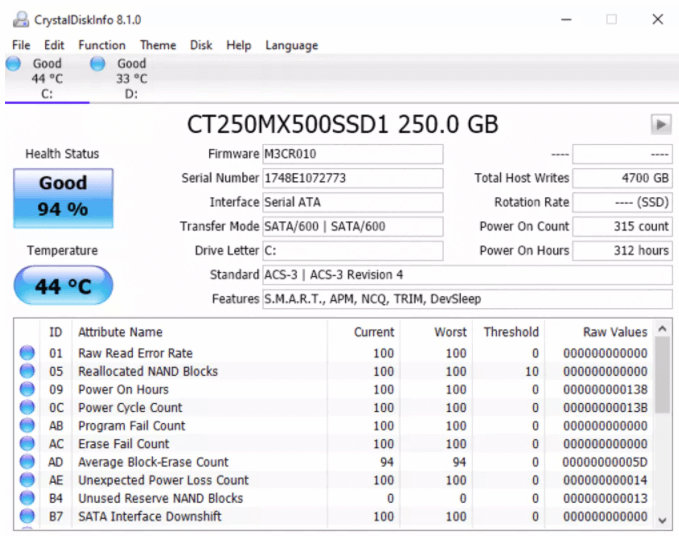
4. Verify System Health: Check Windows activation, launch key apps, and confirm your logins. Use CrystalDiskInfo to check SSD health and S.M.A.R.T. status.
how to check ssd health with crystaldiskinfo
Repurpose Old Drive: Only format or reuse the old drive after you’re sure the new SSD is stable.

Check if Windows Recovery Environment (WinRE) Is Still Working

Windows Recovery Environment (WinRE) provides the built‑in tools your PC needs to diagnose startup problems, repair boot files, and recover Windows when it can’t load normally.

WinRE isn’t always enabled or functional after a clone, so before running any repair commands, it’s important to confirm that the recovery environment is still available.
To quickly test if WinRE is available:
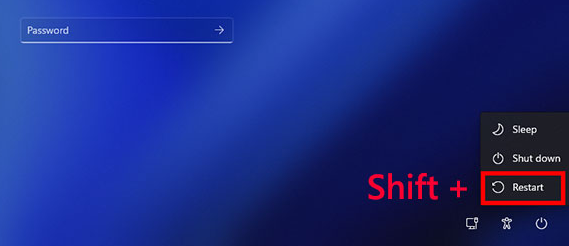
1. Click Start > Power.
2. Hold Shift and click Restart.
Windows, shift + restart
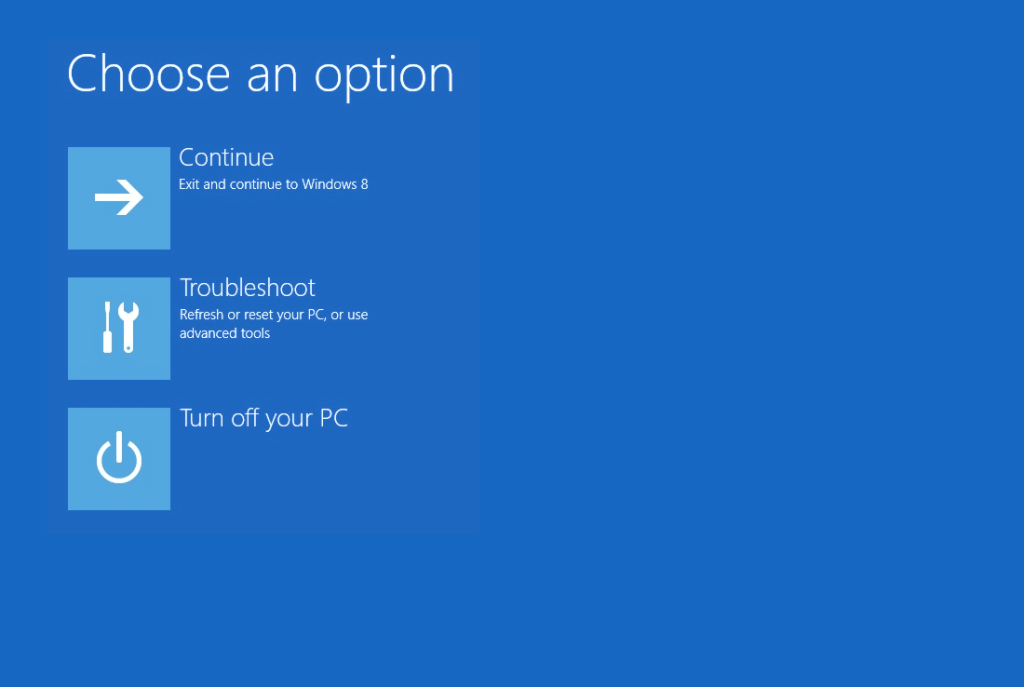
3. If Advanced Startup appears, WinRE is working.
selec to run windows recovery options screen troubleshoot
If Windows just restarts, the recovery partition may not have been cloned or configure correctly.

FAQ

Can I clone my C drive to a smaller SSD?

Yes, as long as the used space on your current C: drive fits on the smaller SSD. If the source is larger than the target, standard cloning will fail. Use a tool that supports partition shrinking, or delete enough data before cloning.

How do I clone my system on a laptop with only one M.2 slot?

Use a USB M.2 enclosure to connect the new SSD and perform a direct clone. If you don’t have an enclosure, create a system image on an external drive, swap the M.2 drives, and restore the image to the new SSD.

Why is my new SSD not showing the full capacity after cloning?

The cloned partition may match the original size, leaving unallocated space. Open Disk Management, right-click C:, and select Extend Volume. Many tools, including Renee Becca, can automatically resize partitions during the clone.
Renee Becca – Safe and Quick System Migration to SSD

Automatic 4K alignment Improves SSD performance during system migration.

Support GPT and MBR Automatically adapt to the suitable partition format.

Support NTFS and FAT32 Redeploy various files in different file systems.

Back up quickly Back up files at up to 3,000MB/min.

Overall backup schedule Support system redeployment/system backup/partition backup/disk backup/disk clone.

Automatic 4K alignment Improve SSD performance

Support GPT and MBR Intelligently adapt to a partition format

Support NTFS and FAT32 Redeploy files in different file systems
Free TrialFree TrialNow 56337 people have downloaded!

User Comments

Page 1

Leave a Comment


Your comment has been submitted and is awaiting moderation.