
How to Fix the INACCESSIBLE_BOOT_DEVICE BSOD After Cloning a Drive

Summary
This comprehensive guide outlines the technical procedures to fix inaccessible boot device after cloning a storage drive. It covers essential troubleshooting categories, including BIOS configuration adjustments, Windows Recovery Environment command-line repairs, and storage controller driver injection.
Table of contents

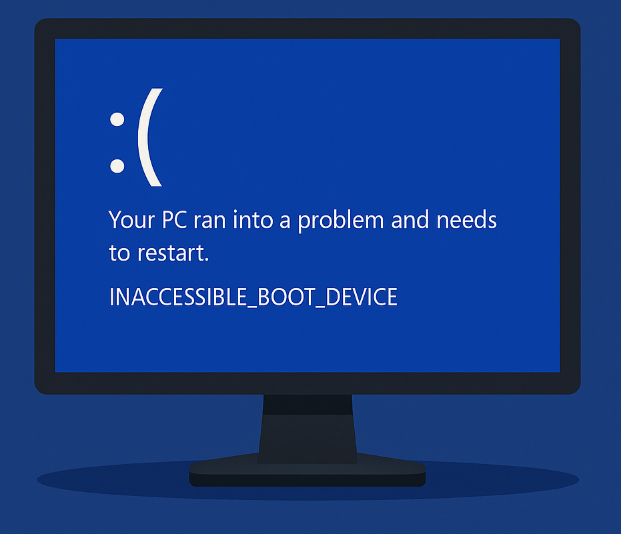
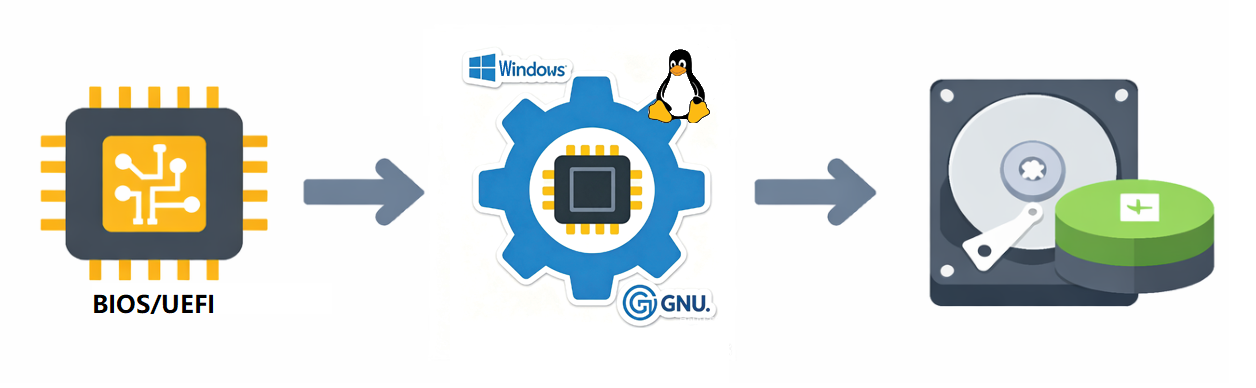
| Cause | Typical Scenario | Troubleshooting Focus |
|---|---|---|
UEFI/Legacy boot mode mismatch |
Cloned a Legacy (MBR) disk but the target system is set to UEFI only, or vice versa |
BIOS boot mode, CSM, Secure Boot |
AHCI/RAID/VMD or SATA controller change |
Migrated from a SATA SSD to an NVMe drive, or switched from AHCI to Intel RST/VMD |
SATA Operation, VMD, RAID-to-AHCI switch in firmware |
Missing or broken EFI/Boot files or BCD configuration |
Cloning software missed copying the ESP or system partition, or the Boot Configuration Data points to the wrong disk |
BCD rebuild, boot file repair, disk signature issues |
Missing NVMe or storage controller drivers |
Windows 10 or 11 installation lacked the built-in NVMe driver for the new hardware, especially on Intel 11th-gen and newer systems with VMD |
Driver injection, Safe Mode fallback, or fresh clone with driver alignment |
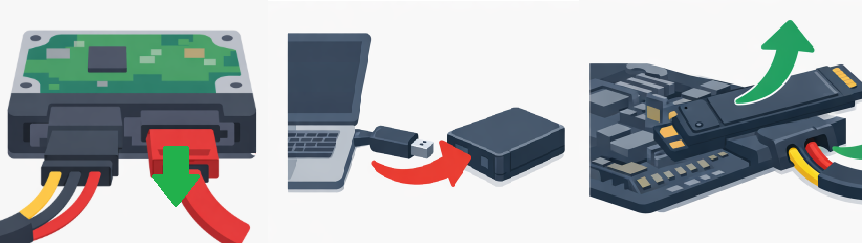
Old drive still connected causing bootloader confusion |
Both source and cloned drives are attached, and firmware loads the boot loader from the wrong disk |
Disconnect the old drive, check boot order |

Automatic 4K alignment Improves SSD performance during system migration.
Support GPT and MBR Automatically adapt to the suitable partition format.
Support NTFS and FAT32 Redeploy various files in different file systems.
Back up quickly Back up files at up to 3,000MB/min.
Overall backup schedule Support system redeployment/system backup/partition backup/disk backup/disk clone.
Automatic 4K alignment Improve SSD performance
Support GPT and MBR Intelligently adapt to a partition format
Support NTFS and FAT32 Redeploy files in different file systems

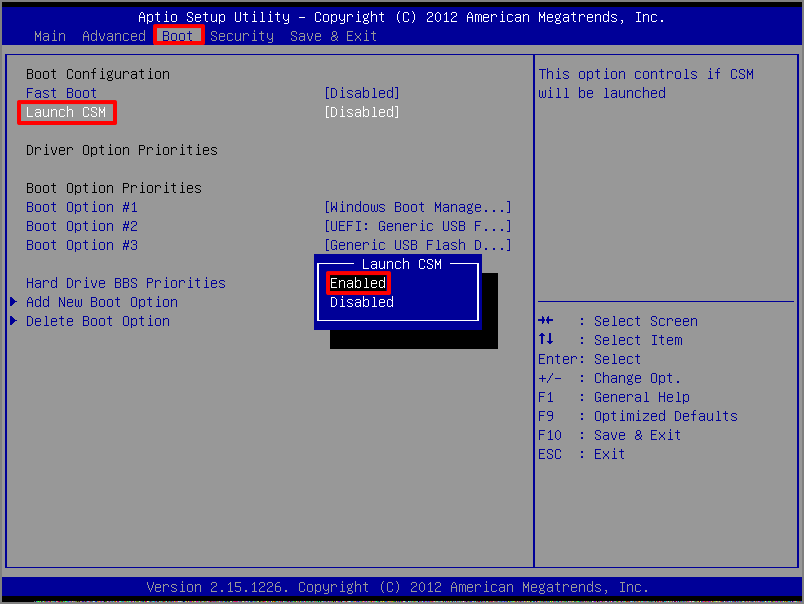
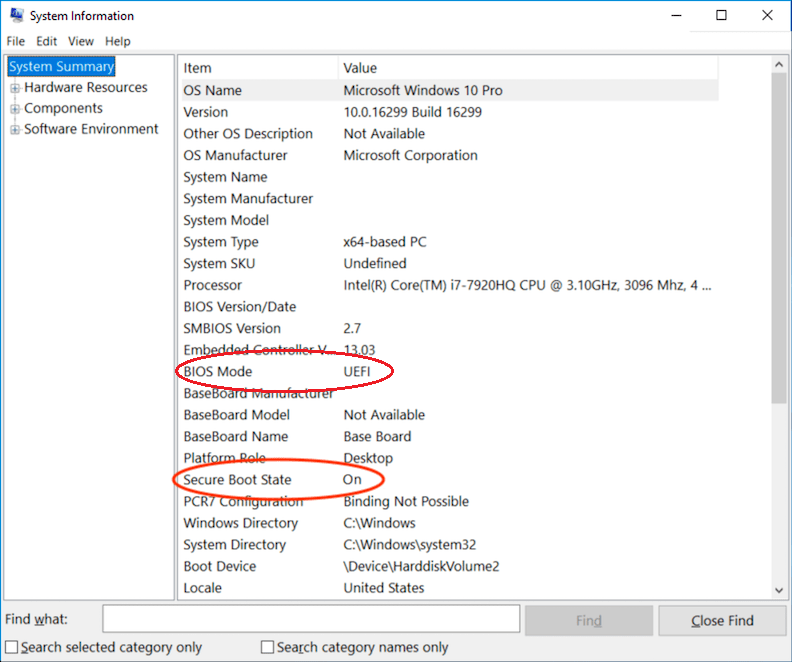
Boot mode (UEFI vs. Legacy/CSM)
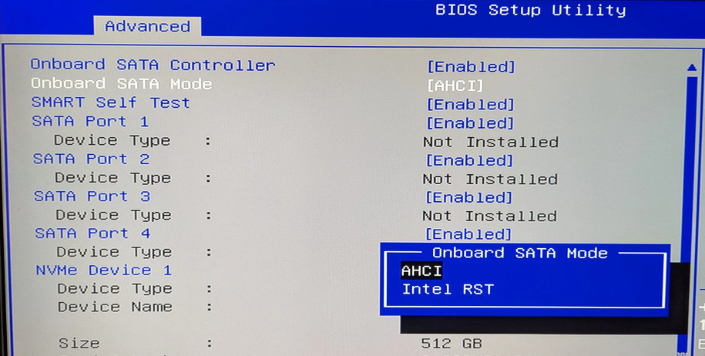
SATA controller mode
Secure Boot
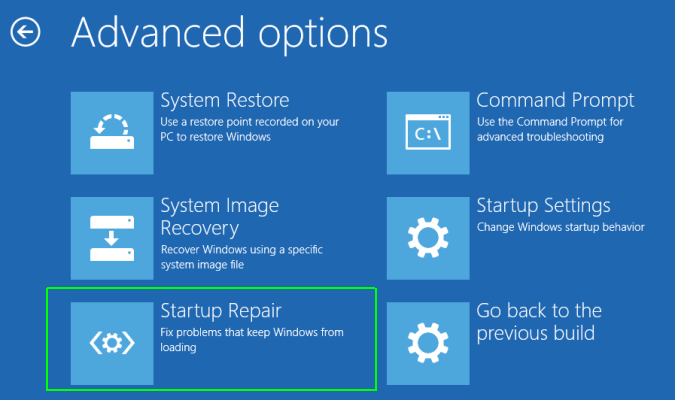
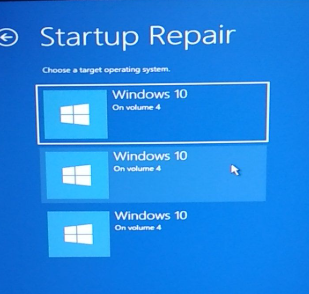
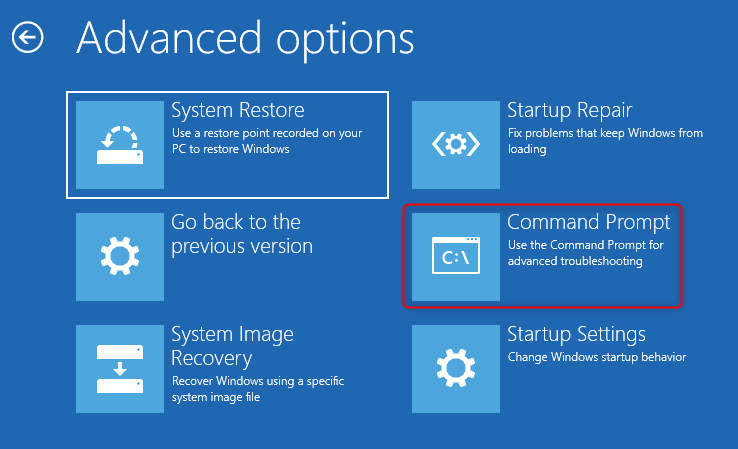
diskpart
list disk
select disk 0
list partition
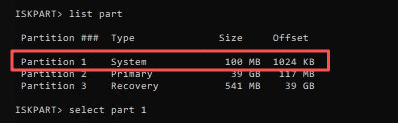
select partition X (replace X with the Windows partition number)
assign letter=C
select partition Y (replace Y with the ESP number)
assign letter=S
exit
bootrec /fixmbr
bootrec /fixboot
bootrec /rebuildbcd
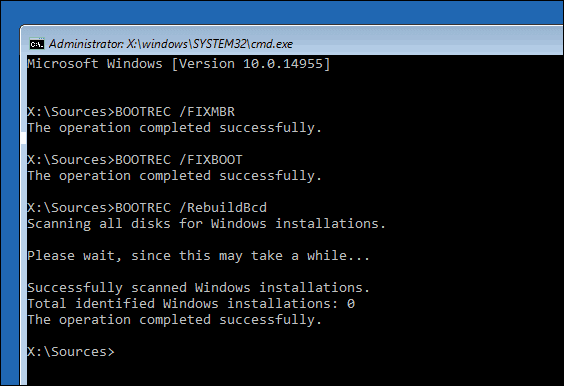
bcdboot C:\Windows /s S: /f UEFI
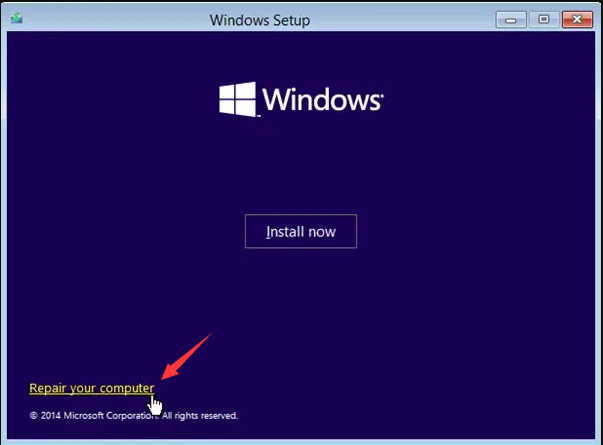
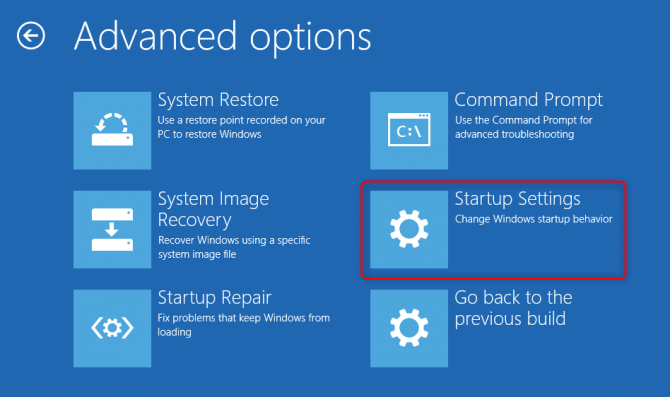
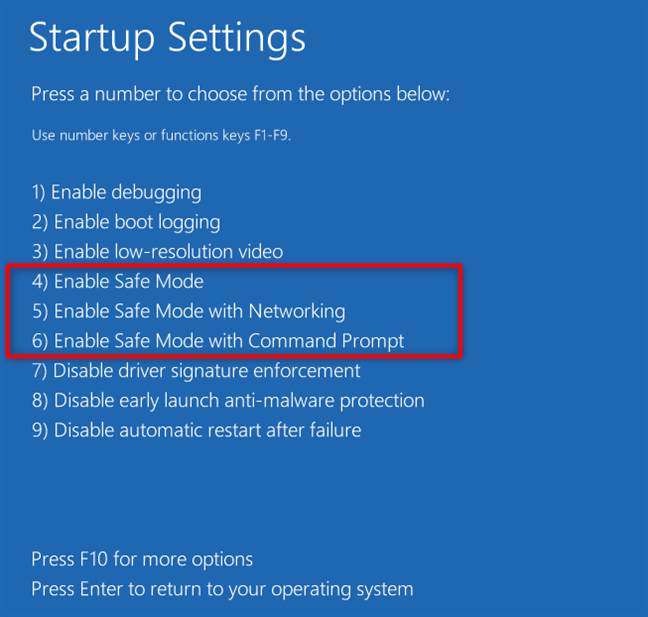
Inject the correct driver
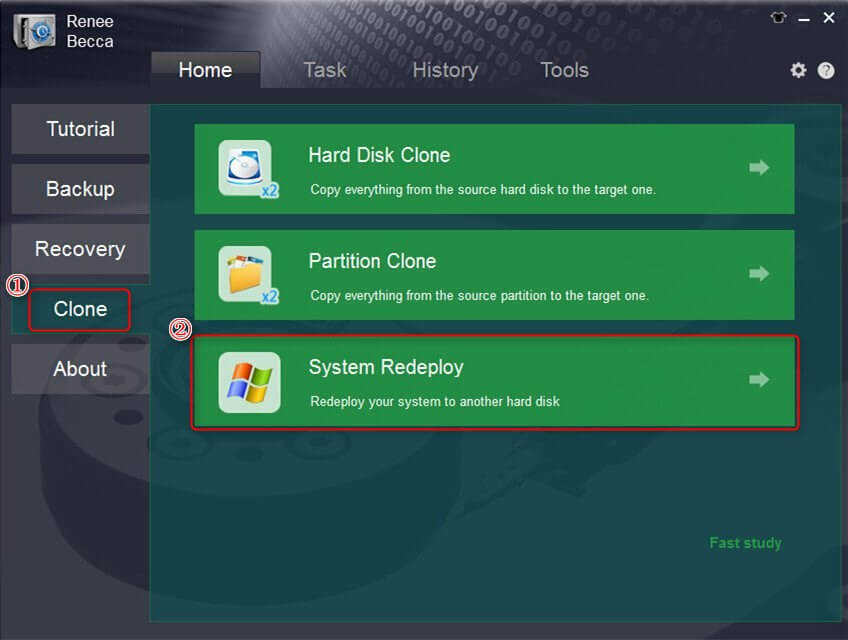
Re-clone using software
Automatic 4K alignment Improves SSD performance during system migration.
Support GPT and MBR Automatically adapt to the suitable partition format.
Support NTFS and FAT32 Redeploy various files in different file systems.
Back up quickly Back up files at up to 3,000MB/min.
Overall backup schedule Support system redeployment/system backup/partition backup/disk backup/disk clone.
Automatic 4K alignment Improve SSD performance
Support GPT and MBR Intelligently adapt to a partition format
Support NTFS and FAT32 Redeploy files in different file systems
Why does the clone work on one PC but throw INACCESSIBLE_BOOT_DEVICE on another?
Can I fix the error without a Windows installation disc or USB?
Will disconnecting the old drive delete my data or affect the clone?
Automatic 4K alignment Improves SSD performance during system migration.
Support GPT and MBR Automatically adapt to the suitable partition format.
Support NTFS and FAT32 Redeploy various files in different file systems.
Back up quickly Back up files at up to 3,000MB/min.
Overall backup schedule Support system redeployment/system backup/partition backup/disk backup/disk clone.
Automatic 4K alignment Improve SSD performance
Support GPT and MBR Intelligently adapt to a partition format
Support NTFS and FAT32 Redeploy files in different file systems
Relate Links :
Suspend BitLocker Before Cloning: A Complete Step-by-Step Guide

08-07-2026
John Weaver : This technical documentation details the operational procedures to suspend bitlocker before cloning encrypted volumes through native Windows utilities...
How to Repair a Non‑Booting Cloned Drive with Bootrec (fixmbr/rebuildbcd)

07-07-2026
Amanda J. Brook : This comprehensive technical guide outlines the procedures to use bootrec fixmbr rebuildbcd on cloned drive systems to resolve...
How to Fix Disk Signature Collision After Cloning a Hard Drive

07-07-2026
Ashley S. Miller : This comprehensive resource outlines the technical procedures to fix disk signature collision after cloning, covering both graphical user...
Critical Process Died ntoskrnl.exe: How to Fix the BSOD Error in Windows 10/11
17-03-2026
Jennifer Thatcher : This article analyzes the critical_process_died ntoskrnl exe Blue Screen of Death error in Windows environments. It outlines common...



User Comments
Leave a Comment