author avatar
    Specialist of Customer Service Dept.
Last update by William Davis at 25 September 2025

Summary
Learn how to factory reset Windows 7 without password using simple, reliable methods. Our updated guide covers step-by-step instructions to bypass your password and restore your PC.



Forgot your Windows 7 password and need to factory reset your desktop or laptop? Whether your desktop or laptop is running slowly, infected with malware, or you’re preparing to pass it on to someone else, a factory reset can restore it to its original state. No need to worry about being locked out—this guide provides a comprehensive approach to reset your Windows 7 system without the login password. We’ll first cover how to bypass the password using a third-party tool, Renee PassNow, and then detail four straightforward methods to factory reset your system. From built-in recovery options to a clean install, we’ve got you covered with step-by-step instructions.
How to Factory Reset Windows 7 Without Password
Note: Windows 7 officially reached the end of extended support on January 14, 2020, and its final security updates under the Extended Security Updates (ESU) program ended on January 10, 2023. That means Microsoft no longer provides patches or technical assistance for any version of Windows 7.

Reasons for Performing a Factory Reset on Windows 7

You might need to factory reset your Windows 7 desktop or laptop for several reasons, including:
Performance Issues: Over time, your desktop or laptop may slow down due to accumulated software, temporary files, or registry errors.
Malware or Viruses: Persistent infections can compromise system stability and security, requiring a full reset to eliminate threats.
Forgotten Password: If you’re locked out due to a forgotten password, a factory reset can restore access (see Part 1 for password bypass using Renee PassNow).
Preparing for Resale or Donation: Resetting the desktop or laptop ensures all personal data is wiped before transferring ownership.
Software Conflicts: Incompatible or corrupted applications may cause system instability, making a reset the best solution.
If you’re considering a factory reset due to a forgotten password, or if you encounter a password prompt during the reset process, refer to Part 1: Bypassing the Windows 7 Password with Renee PassNow to remove the password barrier before proceeding with the reset methods.
windows 7 reset require password in system recovery option

Part 1: Bypassing the Windows 7 Password with Renee PassNow

Renee PassNow is a reliable, user-friendly third-party tool that removes or resets login passwords for local accounts, admin users, or Microsoft accounts. It works across Windows versions, including Windows 7, and offers additional features like secure file transfers, disk wiping, and file previews.
Prerequisites: You’ll need access to another computer to create bootable media and a USB drive or blank CD/DVD.
Steps to Remove the Administrator Password Using Renee PassNow:
Step 1: Download and Install Renee PassNow
On another accessible computer, visit the official Renee PassNow website and download the software. Install Renee PassNow, ensuring compatibility with the computer’s operating system.
Step 2: Create a Bootable USB or CD/DVD
Open Renee PassNow, insert a USB flash drive or blank CD/DVD, and select the option to create bootable media. Follow the prompts to prepare the media.
Screenshot showing Renee PassNow interface for creating a bootable USB or CD/DVD to reset Windows 7 password
Step 3: Boot the Locked desktop or laptop from the Bootable Media
Insert the bootable USB or CD/DVD into the locked Windows 7 desktop or laptop . Restart the desktop or laptop and press the appropriate key (usually F2 or Delete) during the logo screen to enter BIOS. Navigate to the Boot Order tab and set USB or CD/DVD as the first boot device.
Boot from password reset USB/CD/DVD
Common Boot Menu Keys for Servers:
Server TypeBoot Menu Key

DELL

Press F12 repeatedly before the Dell logo appears.

HP

Press F9 multiple times when the HP logo appears.

Common Boot Menu Keys for PCs:
BIOS NameBoot Menu Key

ASRock

DEL or F2

ASUS

DEL or F2 (PCs/Motherboards)

Acer

DEL or F2

Dell

F12 or F2

ECS

DEL

Gigabyte / Aorus

DEL or F2

Lenovo (Consumer Laptops)

F2 or Fn + F2

Lenovo (Desktops)

F1

Lenovo (ThinkPads)

Enter then F1

MSI

DEL

Microsoft Surface Tablets

Press and hold Power and Volume Up buttons

Origin PC

F2

Samsung

F2

Toshiba

F2

Zotac

DEL

HP

Esc or F9 for Boot Menu / Esc or F10 for Storage tab / Boot Order / Legacy Boot Sources

INTEL

F10

Step 4: Select Password Reset Function
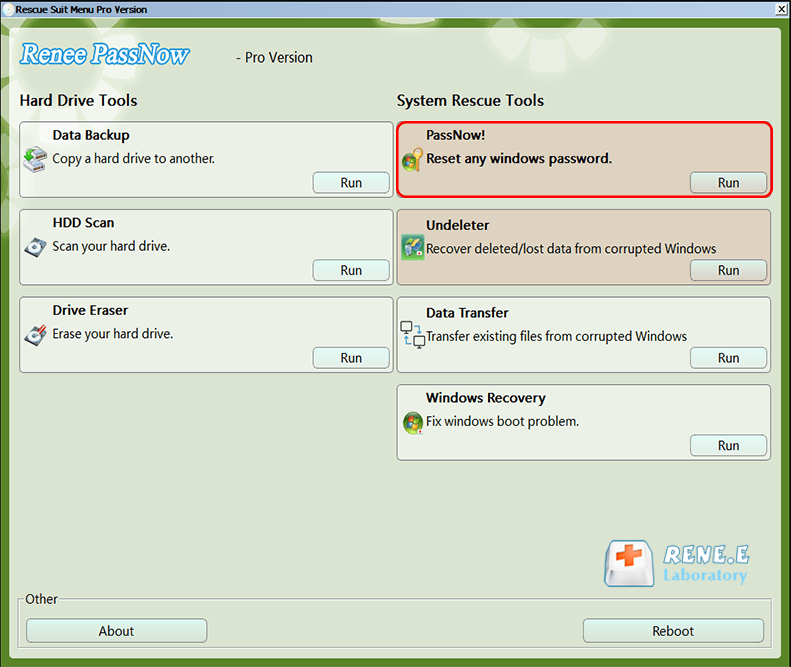
Once the PC boots from the media, Renee PassNow’s interface should load. Select the “PassNow!” function.
Renee PassNow main menu showing PassNow function button for password reset
Step 5: Reset the Password
Tip: If you’re using a Microsoft Account, Renee PassNow will temporarily convert it to a local account. After resetting the password, you’ll need to reconnect to your Microsoft Account. For Windows 7, Renee PassNow primarily resets local accounts, as Microsoft Accounts are less common.
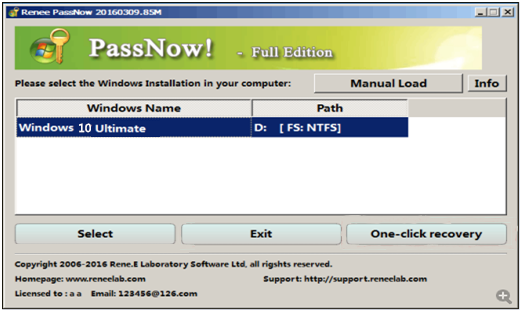
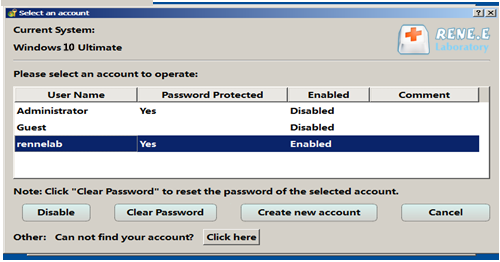
Select the user account you want to reset, then click “Clear Password” to remove or reset the password.
Select Windows system
Reset user account password
Step 6: Reboot the computer
Remove the bootable media and restart the computer. You can now log in without a password.
After removing the password using Renee PassNow, you can access the system to perform a factory reset. The following methods assume password access is resolved.

Part 2: Resetting Your Windows 7 Desktop or Laptop

After bypassing the password using Renee PassNow, you can choose from the following four methods to reset your Windows 7 desktop or laptop. Each method varies in scope, from restoring system settings to completely wiping and reinstalling the operating system. The table below summarizes these methods for quick reference, outlining their descriptions, steps, and whether a password is required (assuming the password has been removed).
MethodDescriptionStepsRequires Windows 7 Lock Screen Password

System Restore via Safe Mode

- Uses built-in system restore points.

- Free, no external tools needed.

- Focuses on system settings reset, not a full wipe.

1. After password removal, boot into Safe Mode.

2. Launch System Restore via rstrui.exe.

3. Select a restore point and follow prompts.

No (password removed via Renee PassNow)

Manufacturer Recovery Partition (via keys like F11/F8)

- Utilizes OEM recovery partition.

- Brand-specific (e.g., HP, Dell).

- Full factory reset.

1. After password removal, press brand-specific key (e.g., HP F11, Dell F8).

2. Enter Recovery Manager and select "System Recovery."

3. Follow prompts to erase data and restore factory settings.

No (password removed via Renee PassNow)

System Recovery via Control Panel

- Uses Windows 7 recovery settings.

- Requires access to system after password removal.

- OEM recovery image dependent.

1. After password removal, log in and go to Control Panel > Backup and Restore.

2. Select "Recover system settings" and choose "Return Your Computer to Factory Condition."

3. Follow prompts to complete reset.

No (password removed via Renee PassNow)

Clean Install (using ISO to create USB/DVD)

- Complete system reinstallation.

- Requires ISO and product key.

- Wipes everything, returns to a fresh state.

1. On another PC, download Windows 7 ISO and create bootable USB/DVD.

2. Boot locked PC, set USB/DVD as boot priority in BIOS.

3. Select "Custom (Advanced)" installation, format drive, and install Windows.

No

Method 1: Restore Your System Using Safe Mode

This method uses System Restore to revert your Windows 7 computer to a previous state, ideal for fixing performance issues without wiping personal files.
Note: This method is not a full factory reset—it restores system settings to a previous state but retains personal files. You’ll need a pre-existing restore point. Since Windows 7 reached end-of-life (EOL) in January 2020, consider upgrading to Windows 10 or 11 after restoration for ongoing security updates.
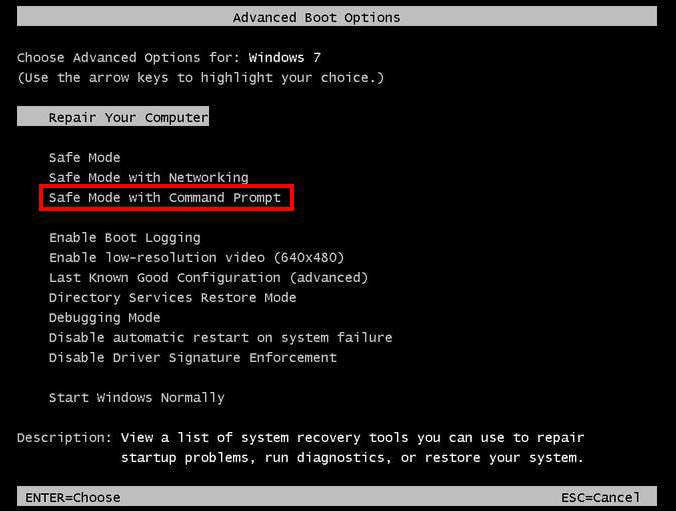
Step 1: Restart your computer and repeatedly press F8 during startup to access the Advanced Boot Options menu.
Step 2: Select Safe Mode with Command Prompt from the list.
Safe Mode with Command Prompt
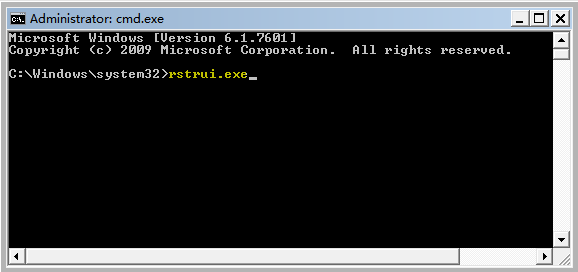
Step 3: In the Command Prompt, type:

rstrui.exe

Press Enter to open the System Restore wizard.
Type rstrui.exe to restore Windows 7
Step 4: Choose a restore point from the list and follow the on-screen instructions to complete the restoration process.
This method is quick and preserves personal files, but it doesn’t fully reset the computer to factory conditions. For a complete reset, consider the following methods.

Method 2: Reset Using the Manufacturer’s Recovery Partition

Most branded PCs (e.g., HP, Dell, Lenovo) include a recovery partition that allows you to reset your system to its factory state without external tools. This is a fast and effective option for a full reset.
Prerequisites: Your computer must have an intact recovery partition. Check your device’s manual or the manufacturer’s website for the specific boot key (e.g., F11 for HP, F8 for Dell). You can also click here to see how to access the Recovery Partition on different brands of computers.
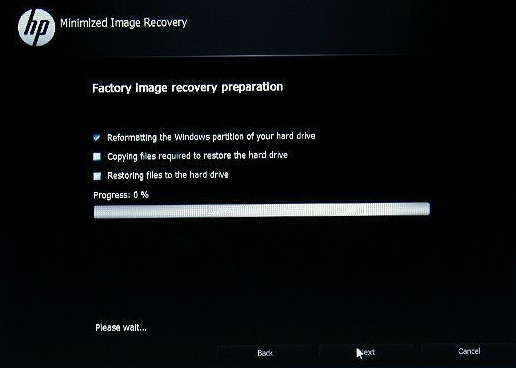
Step 1: Restart your computer and press the brand-specific key (e.g., F11 for HP or F8 for Dell) during startup.
Step 2: This opens the Recovery Manager; select System Recovery or a similar option.
Step 3: Follow the on-screen prompts to erase all data and restore factory settings.
Factory reset Windows 7 using recovery partition
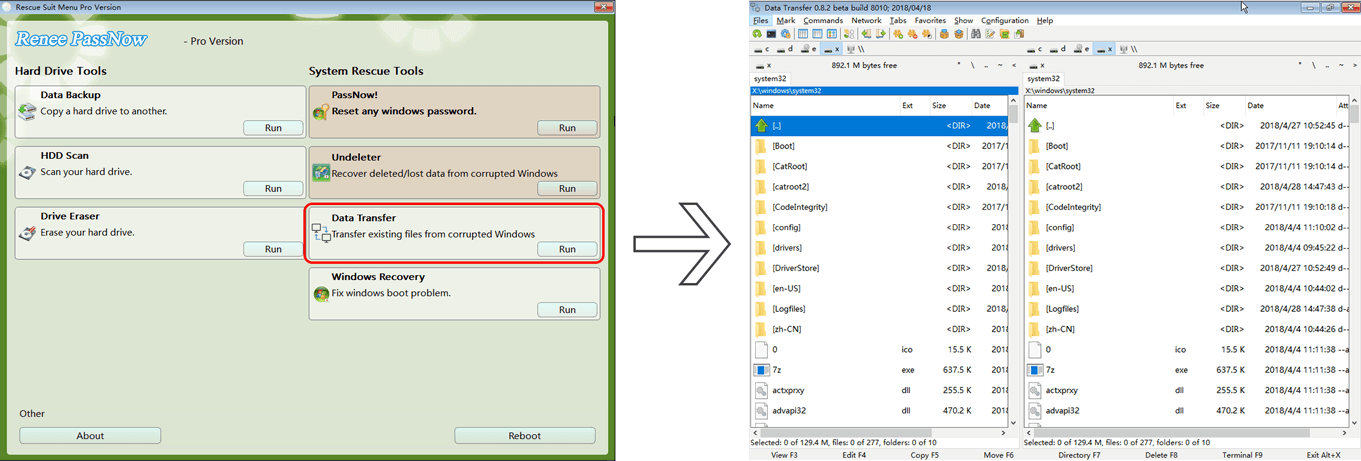
Warning: This process will erase all personal files. Back up important data to an external drive or cloud storage (e.g., Google Drive, Dropbox or OneDrive) beforehand. Renee PassNow’s data transfer feature can help safely move your data before resetting.
Data transfer function of Renee PassNow
If your computer lacks a recovery partition or the recovery option is inaccessible, the next method uses Windows 7’s built-in recovery settings for a factory reset.

Method 3: System Recovery via Windows 7 Recovery Settings

This method leverages Windows 7’s built-in recovery options to return your computer to factory condition, assuming an OEM recovery image is available.
Note: This method requires an OEM recovery image. If the “Return Your Computer to Factory Condition” option is missing, use Method 2 (Recovery Partition) or Method 4 (Clean Install). Always back up your data before proceeding.
Step 1: Log into Windows 7 after removing the password with Renee PassNow.
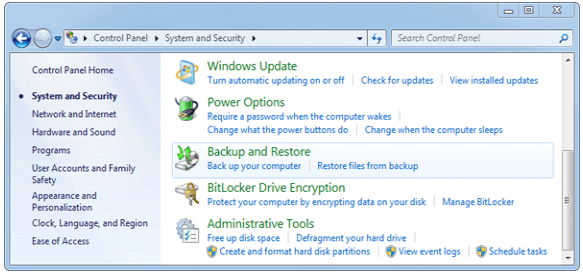
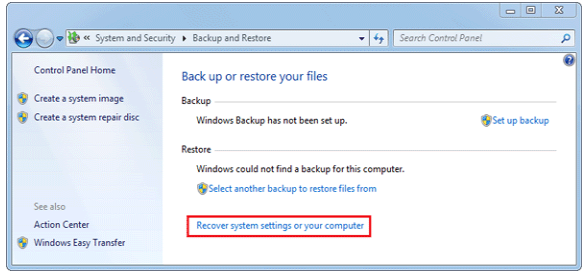
Step 2: Open Control Panel, go to System and Security, and select Backup and Restore.
Backup and Restore
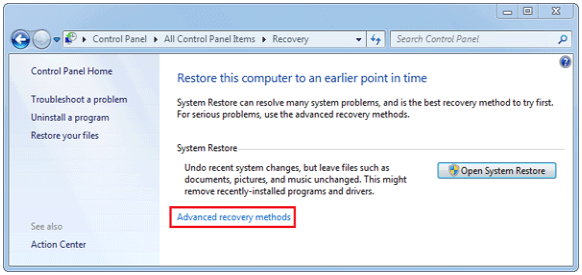
Step 3: Click Recover system settings or your computer, then select Advanced recovery methods in the Backup and Restore menu.
Recover system settings
Advanced recovery methods
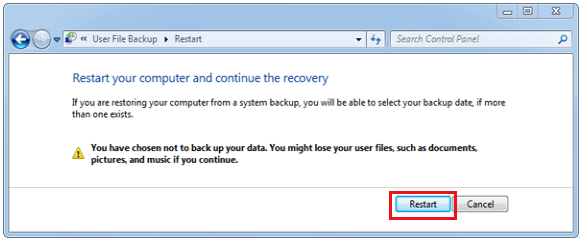
Step 4: Choose Return Your Computer to Factory Condition, skip the backup option, and click Restart to start the reset process.
Restart for recovery
For a completely fresh start that bypasses recovery partitions or system settings, the clean install method provides a thorough solution.

Method 4: Perform a Clean Install Using a Windows 7 ISO

A clean install wipes your PC’s hard drive and reinstalls Windows 7, ensuring a fresh, factory-like state without relying on recovery partitions or system settings.
Note: Windows 7 reached end-of-life in 2020 and no longer receives security updates, which may violate data privacy regulations. If performing a clean install, you’ll need a valid product key, a USB drive or DVD, and another computer to download the ISO—sourcing a legitimate copy in 2025 can be difficult, so use trusted sources only. Back up important files beforehand, as this process erases all data. After installation, manually install drivers (network, graphics, etc.) from official manufacturer websites. Upgrading to Windows 10 or 11 is strongly recommended.
Step 1: On another computer, download a Windows 7 ISO from a trusted source (note: As of 2025, Microsoft no longer provides official downloads; use a verified vendor, old DVD, or authorized archive) and use a tool like Rufus to create a bootable USB or burn it to a DVD. Verify the ISO’s SHA hash for integrity if available.
Step 2: On the locked computer, restart and enter the BIOS (typically via Delete, F2, or F10) to set the USB/DVD as the first boot device.
Note: Refer to the boot menu key table in the “Part 1: Bypassing the Windows 7 Password with Renee PassNow” section for specific BIOS access keys.
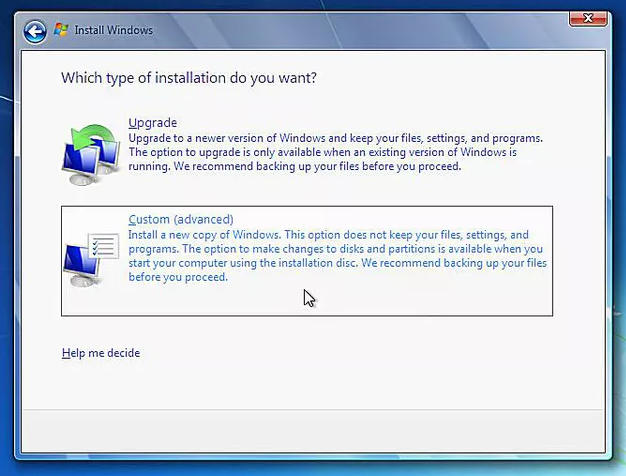
Step 3: Boot from the USB/DVD, select Custom (Advanced) installation, and format the existing drive to erase all data.
Custom (Advanced) installation option in Windows 7 setup
Step 4: Follow the prompts to install Windows and enter your product key to complete the setup.
Additional Tip: Before installation, back up files using an external drive or cloud service like Google Drive. After reset, install antivirus immediately due to Windows 7′s end-of-life status in 2020—no security updates available. Consider upgrading to Windows 10/11 for better security; check hardware compatibility on Microsoft’s site.

Frequently Asked Questions (FAQs)

Will resetting my Windows 7 computer erase all my personal files?

Yes, most reset methods (except System Restore via Safe Mode) will erase all personal files, applications, and settings. Methods like the manufacturer recovery partition, system recovery, or clean install completely wipe the drive. To avoid data loss, back up important files to an external drive or use Renee PassNow’s data transfer feature before proceeding with a reset.

Can I reset Windows 7 without a password if my computer doesn’t have a recovery partition?

Yes. After removing the password with Renee PassNow, you can use Method 3 (System Recovery via Control Panel) if an OEM recovery image is available, or Method 4 (Clean Install) to wipe and reinstall Windows 7 using a bootable USB or DVD. Both methods bypass the need for a recovery partition.

Is it safe to download a Windows 7 ISO for a clean install?

Downloading a Windows 7 ISO is safe if you use a trusted source, such as Microsoft’s official website or a verified vendor. Avoid unofficial or questionable websites, as they may distribute tampered ISOs containing malware. Always verify the ISO’s integrity (e.g., check SHA hash if provided) and ensure you have a valid product key for activation.

How long does a factory reset take on Windows 7?

The time varies depending on the method and your computer’s hardware. A System Restore via Safe Mode typically takes 15–30 minutes. A manufacturer recovery partition reset may take 30–60 minutes. A system recovery via Control Panel can take 30–60 minutes. A clean install can take 1–3 hours, including formatting and Windows 7 installation. Ensure your computer remains powered on during the process to avoid interruptions.
Renee Passnow – Professional Windows Password Remover

Remove Windows Login Password 3 steps for whole password remove process.

Enable/Create Administrator One click for creating new administrator and enable the disabled account.

Widely Use New version supports UEFI boot model, which can be used on more computers, laptops and even surfaces.

Multifuctional Data transfer, data recovery, bootable problem recovery can be run without system.

Highly compatible Windows 11/10/8.1/8/7/XP/Vista.

Remove Login Password Support Windows 11/10/8.1/8/7/XP/Vista.

Enable/Create Administrator One click for creating new administrator and enable the disabled account.

Easy to use No need of any professional knowledge or password reset disk.

Free TrialFree TrialNow 2000 people have downloaded!

User Comments

Page 1

Leave a Comment


Your comment has been submitted and is awaiting moderation.