author avatar
    Specialist of Customer Service Dept.
Last update by Olivia Brown at 18 December 2025

Summary
This guide walks you through the best Samsung SSD repair tools and proven techniques for fixing common issues, helping you maintain both reliability and performance. Whether you’re an experienced user or just getting started, you’ll learn how to diagnose problems, create backups, and restore your Samsung SSD with confidence.


If your Samsung SSD is slowing down, causing file corruption, frequent crashes, or even entering read-only mode, bad sectors could be the culprit. While physical bad sectors on SSDs can’t be truly repaired, most issues are logical and fixable with the right tools—without risking your data. In this updated 2025 guide, we’ll show you how to diagnose problems accurately, safely back up your files using reliable local Windows software, and apply the latest official fixes to restore performance.
Samsung SSD Bad Sector Repair Tools

Preparation

Understanding Bad Sectors on Samsung SSDs

Samsung SSDs, like the popular 970 EVO, 980 Pro, or 990 Pro series, are known for their speed and reliability, but they’re not immune to problems. Bad sectors are areas on the drive that become unusable, preventing you from reading or writing data properly. There are 3 main types:
TypeCauseRecommended action
Logical bad sectorsFile system errors, OS/driver bugs, firmware glitchesBackup; run chkdsk/fsck; update firmware (see Method 3); attempt data recovery
Physical bad blocksNAND wear, manufacturing defectsBackup immediately; replace drive; contact Samsung RMA if under warranty
Transient errorsPower loss, thermal throttling, cable/slot issuesCheck power/cables; improve cooling; test in another system
Typical symptoms include corrupted or disappearing files, noticeable slowdowns, frequent crashes or blue screens, and in severe cases, the drive switching to read-only mode. Causes range from long-term wear and overheating to firmware bugs or power surges.
Since most bad sector problems on Samsung SSDs are logical rather than physical, there’s a good chance you can fix them. But before attempting any repair, always back up your data—repairs can sometimes accelerate failure if the drive is already unstable.

Quick Diagnosis: Check Your Samsung SSD Health

Before attempting repairs, it’s important to diagnose your Samsung SSD to confirm whether bad sectors or wear are present. Unlike HDDs, SSDs rely on flash memory, so traditional disk tools may not apply. Instead, monitoring S.M.A.R.T. data is the most reliable way to assess health.
A recommended free tool is CrystalDiskInfo, which reads S.M.A.R.T. (Self-Monitoring, Analysis, and Reporting Technology) attributes directly from the drive.
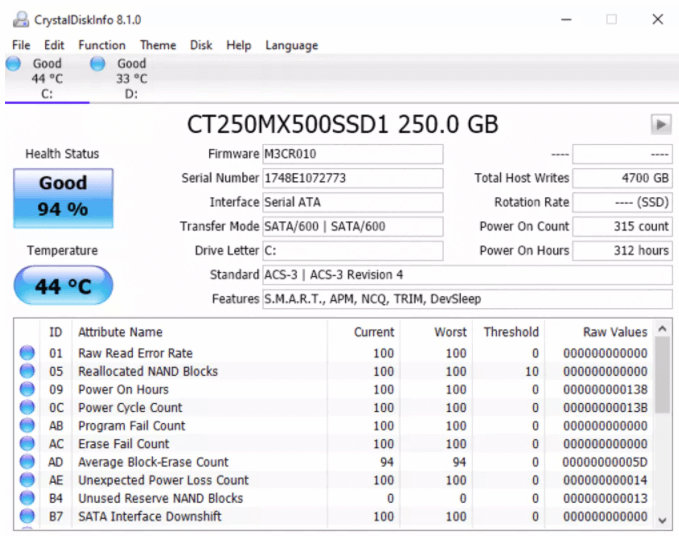
how to check ssd health with crystaldiskinfo
(Example of CrystalDiskInfo showing SSD health—focus on the overall status and key attributes.)
CrystalDiskInfo provides a clear overview of your SSD’s status, showing Good, Caution, or Bad health ratings. For SSDs, it highlights wear levels and potential issues early, helping you decide whether to back up or replace the drive.

Key S.M.A.R.T. Parameters for SSDs

ParameterMeaningWhat to Watch ForTypical Safe Range
Reallocated Sector CountNumber of bad sectors remapped to spare areaRising values indicate failing NAND cells0 (stable)
Wear Leveling Count / Percentage UsedEstimate of remaining lifespanHigh percentage means nearing end of life0–80% used
Uncorrectable Error CountErrors that cannot be corrected by ECCAny increase signals risk of corruption0
TemperatureOperating temperature of SSDOverheating reduces lifespan< 70°C under load
Power-On HoursTotal time the SSD has been poweredContext for usage historyVaries (informational)
Total Host WritesAmount of data written to SSDHelps estimate wearDepends on model endurance

Steps to Use CrystalDiskInfo

1. Download and install CrystalDiskInfo from the official site.
2. Launch the program and select your Samsung SSD from the dropdown list.
3. Check the Health Status at the top—if it shows Caution or Bad, review the highlighted attributes.
4. Monitor over several days; if reallocated sectors or error counts increase, the SSD is deteriorating.
5. If health is declining, back up your data immediately and plan for replacement.
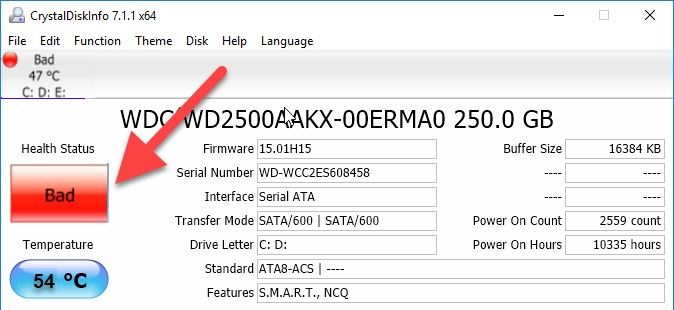
CrystalDiskInfo health is declining
If CrystalDiskInfo shows “Caution” or “Bad” status, or if reallocated sectors and error counts increase over time, back up your data immediately and prepare for replacement. If the health looks fine but issues persist, proceed with repair methods.
This quick check helps beginners spot issues without risking data. If everything looks good but problems persist, move to backups and repairs.

Essential Preparation: Back Up Your Data First with Renee Becca

Never attempt repairs without backing up—bad sector fixes can trigger further data loss if the drive is unstable.
Renee Becca is an excellent Windows tool for safely backing up or cloning your Samsung SSD, even if it has bad sectors. It supports full disk cloning, partition cloning, and creating restorable images, making it perfect for migrating to a new drive or safeguarding data before repairs.
OS: Supports Windows 11/10/8.1/7/Vista/2k …

Functions: Full disk cloning, partition-specific cloning, image creation and restoration

Renee Becca is a top-rated Windows tool for easily cloning multi-partition disks. Its straightforward interface is ideal for all skill levels, handling complex setups efficiently.
The software supports full disk cloning, partition-specific cloning, and system migration. Key features include adjustable partition sizing (perfect for upgrading to a larger drive) and cloning only used space (great for SSDs).
Renee Becca – Safe and Quick System Migration to SSD

Automatic 4K alignment Improves SSD performance during system migration.

Support GPT and MBR Automatically adapt to the suitable partition format.

Support NTFS and FAT32 Redeploy various files in different file systems.

Back up quickly Back up files at up to 3,000MB/min.

Overall backup schedule Support system redeployment/system backup/partition backup/disk backup/disk clone.

Automatic 4K alignment Improve SSD performance

Support GPT and MBR Intelligently adapt to a partition format

Support NTFS and FAT32 Redeploy files in different file systems

Free TrialFree TrialNow 56337 people have downloaded!
As a real-world example, imagine you’re dealing with a failing Samsung 980 Pro. Using Renee Becca, you can clone it to a new SSD, adjusting partitions to use the full capacity, or create a bootable backup image for quick restoration.
Advantages:
  • Simple, clear interface that's easy to navigate
  • Multiple cloning options to fit your needs, like full disk or partitions
  • Supports resizing partitions during clone for larger targets
  • Fast speeds and automatic backups for peace of mind
  • Reliable for drives with issues

Disadvantages:

  • Windows-only, so Mac/Linux users need alternatives
  • Advanced features might require the full version after trial
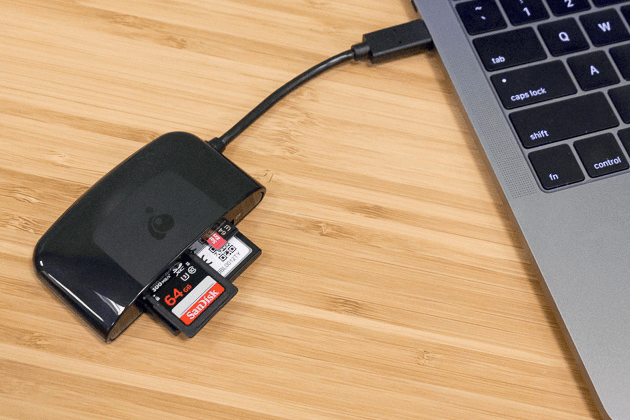
Step 1: Connect your target drive (new SSD or external) with a proper cable or reader.
SD card reader
Step 2: Download, install, and run Renee Becca on your PC.
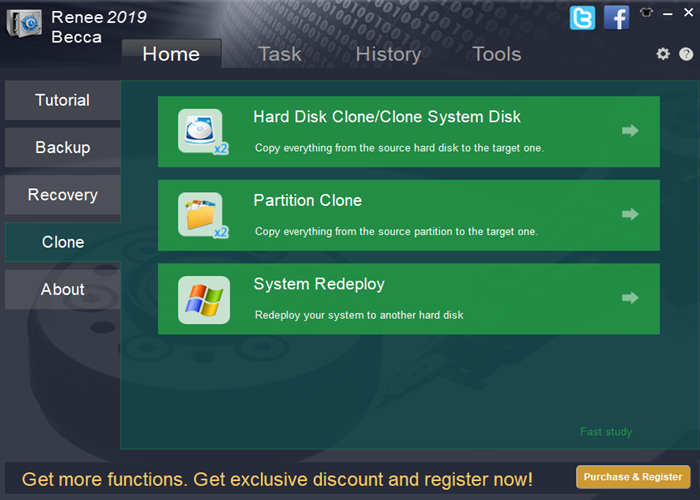
In the main interface, head to the “Clone” column and select “Hard Disk Clone/Clone System Disk”.
use the clone function in renee becca
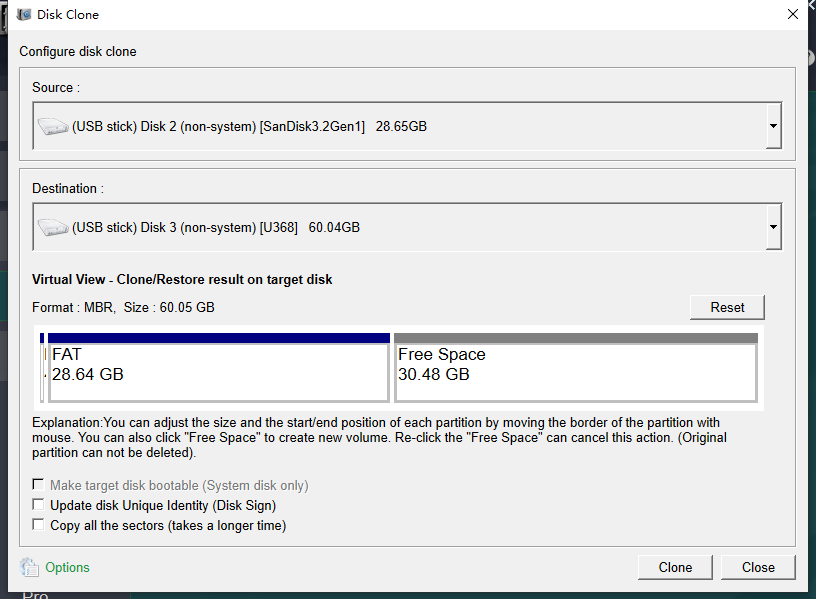
Step 3: In the pop-up window, pick your Samsung SSD as the source and the new drive as the destination.
Renee Becca clone SD card with multi partition
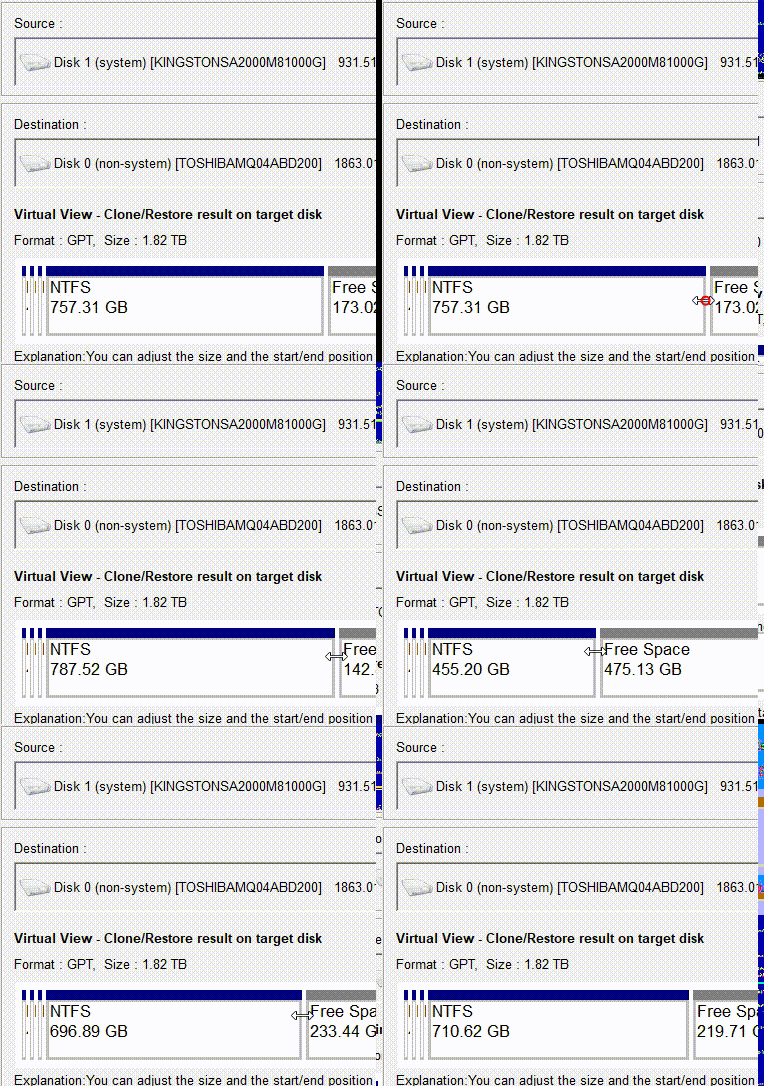
If the target is larger, drag the partition boundaries with your mouse to resize and use the extra space—super handy for upgrades.
adjust partitions
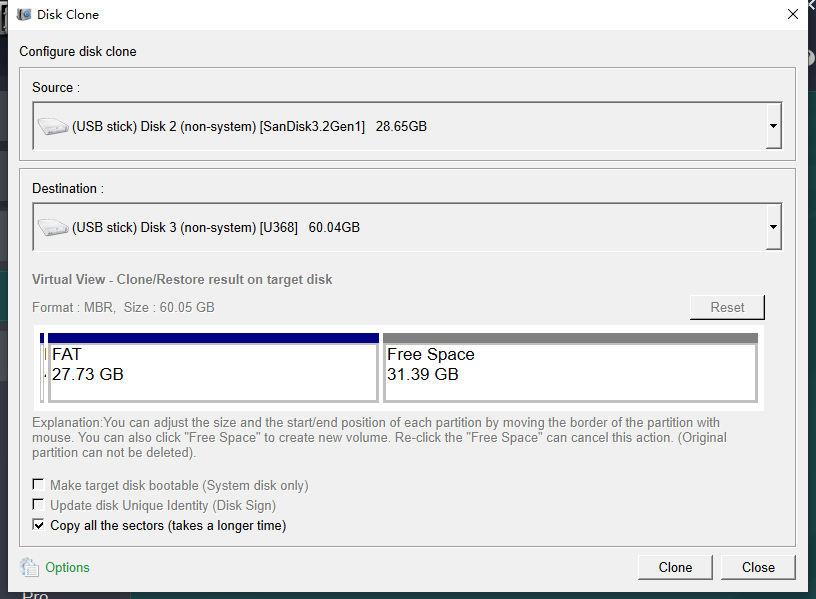
To create an exact copy and ensure bootability, select the “Copy all sectors” option.
Renee Becca select copy all sector
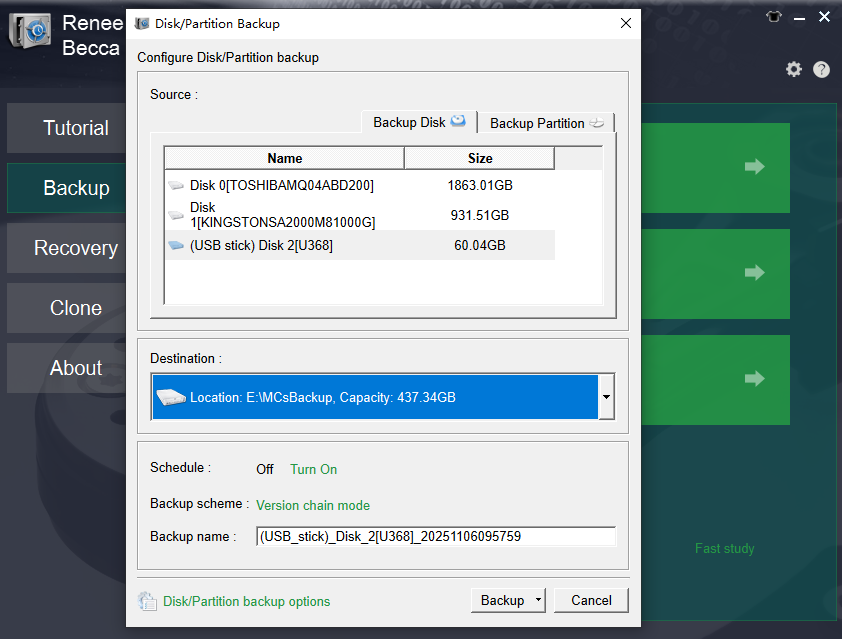
Step 4: Double-check settings, then hit “Clone.” It verifies data for accuracy. For image backups instead, go to Disk/Partition backup.
Disk backup with Renee Becca
Once backed up, you’re safe to proceed with repairs.
With your data securely backed up, you can now shift your focus to fixing the drive itself. The repair process varies depending on the tools you choose, but starting with the official software is often the most reliable path. Below, we’ll walk through several proven methods to restore performance and stability.

How to repair

Before diving into specific repair techniques, it’s important to start with the most straightforward option. For many users, the official Samsung utility provides a simple, guided way to diagnose and fix common SSD issues without requiring advanced technical knowledge.

Method 1: Use Samsung Magician (Official and Easiest for Beginners)

The simplest and safest starting point for Samsung SSD bad sector repair is the official Samsung Magician software. It’s designed specifically for Samsung drives and can diagnose issues, update firmware (which often resolves logical bad sectors), and run health checks.
Samsung Magician can diagnose issues, update firmware (which often resolves logical issues), and run health checks. It does not directly repair or remap physical bad sectors.
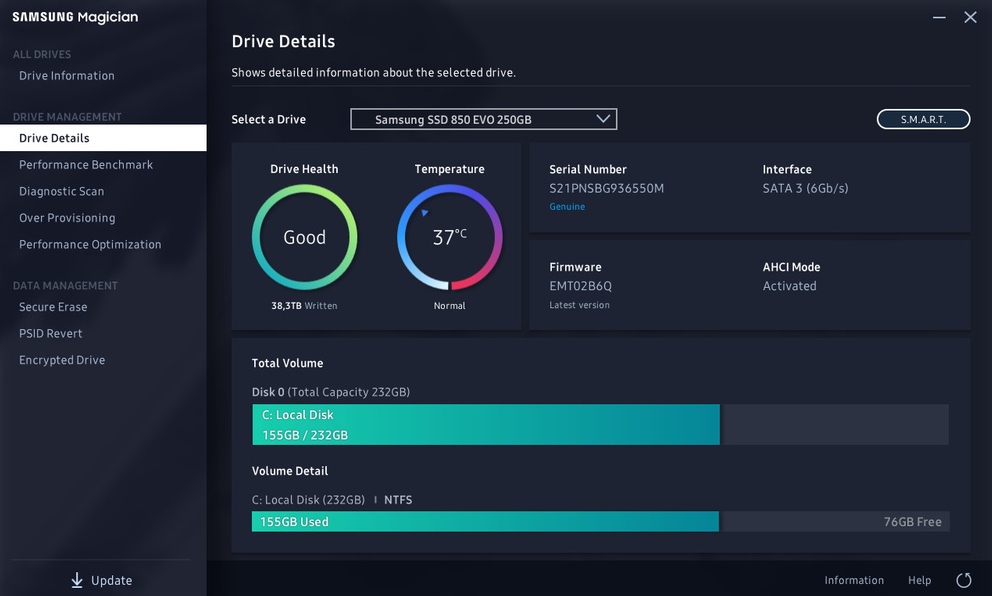
Samsung Magician interface
(Samsung Magician main dashboard—select your drive for diagnostics.)
Advantages:
  • Official tool tailored for Samsung SSDs
  • Free and easy to use for beginners
  • Firmware updates can fix many logical issues
  • Built-in diagnostic scans for health and bad sectors
  • Performance optimization features

Disadvantages:

  • Limited to Samsung drives only
  • May not repair severe physical damage
  • Diagnostic scans can take time on large drives

Steps to use Samsung Magician :
1. Download the latest version from the official Samsung website.
Link: https://semiconductor.samsung.com/consumer-storage/magician/
2. Install and launch it—your Samsung SSD should appear automatically.
3. Go to the Drive Health or Diagnostic Scan section and run a full scan (it checks for bad sectors and errors).
4. After scanning, recheck health—if bad sectors persist, try the next methods.
This method is ideal for most users as it’s risk-free and often resolves firmware-related bad sectors completely. If the scan shows persistent issues, you’ve likely got physical wear—consider warranty replacement.

Method 2: Run Built-in Windows Tools Like CHKDSK to repair minor errors

For logical bad sectors or file system errors, Windows’ CHKDSK command is a reliable built-in option. On SSDs, it primarily scans for errors, marks problematic areas (so the file system avoids them), and attempts to recover readable data—without excessive wear.
CHKDSK is effective for software-level issues on SSDs, as modern controllers handle physical remapping. It’s quick and doesn’t harm the drive when used properly.
check disk to fix bad sectors
Advantages:
  • No extra software needed—built into Windows
  • Free and straightforward
  • Can fix file system corruption causing 'bad sectors'
  • Recovers data from affected areas

Disadvantages:

  • Limited effectiveness on true physical SSD damage
  • May not run on system drive without reboot
  • Risk of minor data shifts if errors are severe
Always back up your data first, as these operations carry some risk.
Steps to run CHKDSK:
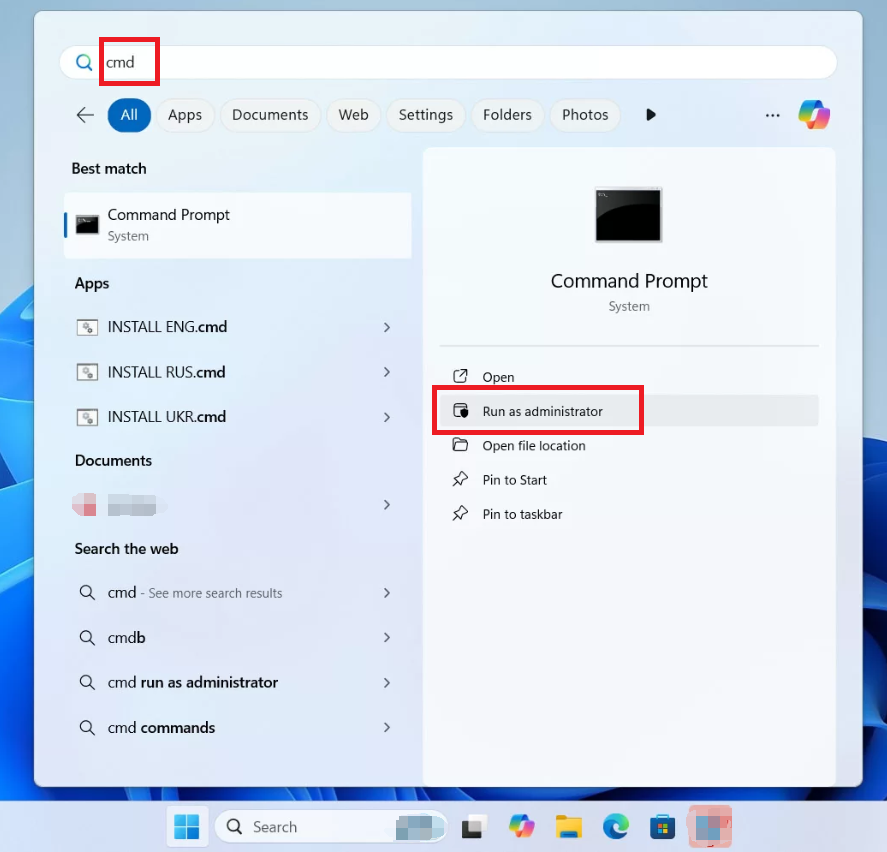
1. Search for “cmd” in the Start menu, right-click, and select “Run as administrator.”
Windows 11, run cmd as administrator
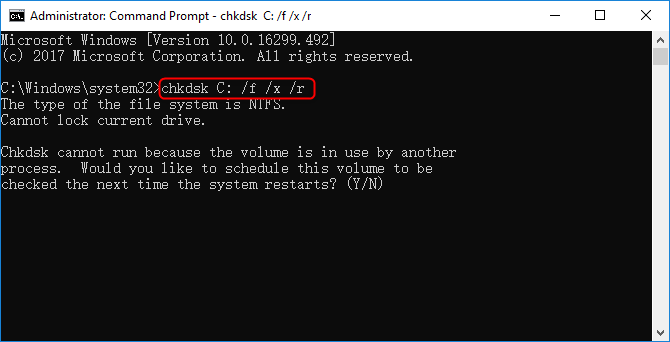
2. Type chkdsk C: /f /r (replace C: with your SSD’s letter) and press Enter.
  • /f fixes errors
  • /r locates bad sectors and recovers data.
3. If it’s your system drive, it’ll schedule for next restart—type Y and reboot.
4. Wait for completion (hours for large drives), then restart and check if issues resolve.
Note: On SSDs, CHKDSK won’t “repair” physical cells but helps the OS avoid bad areas.

Method 3: SSD Controller Issues and Firmware Updates for Significant errors

SSD controllers (Firmware) manage NAND read/write, garbage collection, wear leveling, and bad-block remapping. Firmware bugs or controller/host incompatibilities can cause logical failures such as incorrect bad-block mapping, failed garbage collection, or state-machine errors that leave the drive in a degraded or read-only state. These are software-level problems, not physical NAND damage, and they often show up as sudden media errors or unexplained drops in spare capacity.

Common Logical Bad Sector Issues in Samsung 980/990 Pro SSDs

These are not physical defects but firmware-related failures that corrupt logical sector access:
Firmware Bug (3B2QGXA7/6B2QJXD7/7B2QJXD7/8B2QJXD7)
Affects mostly 2TB 980/990 Pro units. Causes rapid accumulation of media errors (SMART ID 0E) and loss of available spare (SMART ID 03).

refer: https://us.community.samsung.com/t5/Monitors-and-Memory/Unable-To-Update-980-Pro-Firmware-to-5B2QGXA7-With-Magician-7-2/td-p/2497283

Read-Only Mode Trigger
Once enough logical errors accumulate, the SSD locks into read-only mode, making it impossible to write or boot from the drive.
SMART Value Degradation
  • ID 0E (Media/Data Integrity Errors): Indicates logical corruption in data access.
  • ID 03 (Available Spare): Drops below 100%, signaling impending failure.
Bad Block Mapping Failure
Logical bad sectors are not remapped properly due to controller bugs, leading to persistent access errors even when the physical NAND is healthy.
Delayed Failure Onset
Drives may appear fine for 6–12 months before errors spike suddenly, often after firmware-triggered wear-leveling or garbage collection routines.

refer: https://www.reddit.com/r/DataHoarder/comments/x8arle/psa_samsung_980_pro_users_in_china_are_observing/

Here is a table summary:
ModelFirmware VersionSymptomsFix Available
980 Pro 2TB3B2QGXA7Media errors, read-only lockoutYes (5B2QGXA7)
PM9A1Similar bugsBad block accumulationPartial
970 Evo Plus*Shared controllerInherits similar firmware issuesPartial
990 Pro6B2QJXD7Update failures, drive not recognizedWorkarounds only
990 Pro7B2QJXD7Non-recognition, BSODsYes (patch released)
990 Pro8B2QJXD7Read-operation instability improvementsYes (latest release)
Some 970 Evo Plus units use the same controller/NAND as 980 Pro and inherit similar bugs.

Safe Firmware Upgrade Steps (Detailed)
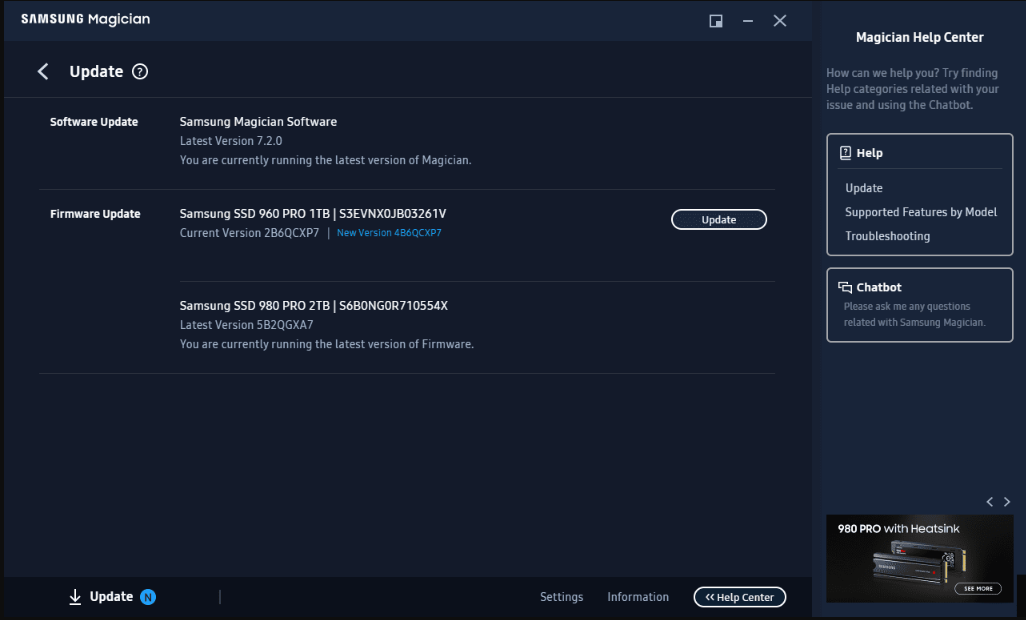
For the latest official instructions, always check: Samsung SSD Firmware Update Guide
1. Download Samsung Magician and check you SSD firmware version
open Samsung Magician (Windows only). In the Drive Details tab, you’ll see your current firmware version and whether an update is available.
Link: https://semiconductor.samsung.com/consumer-storage/magician/
2. Follow the vendor’s instructions
In Samsung Magician, navigate to Drive Details → Firmware Update. If an update is available, Magician will display a button labeled Update.
Samsung Magician Firmware Update
3. Apply the update
During the update, do not power off your PC or disconnect the SSD. Some updates require a reboot; Magician will prompt you if needed.
4. Verify after update
Reopen Samsung Magician and confirm the firmware version has changed to the latest release. Run a Diagnostic Scan in Magician or check SMART attributes with CrystalDiskInfo or smartctl (Linux).
5. Test the drive
Use Magician’s Performance Benchmark tool or a light workload (copying files, running apps) to confirm stability. Monitor SMART attributes like Media Errors (ID 0E) and Available Spare (ID 03) to ensure no new issues appear.
6. Rollback plan
Samsung generally does not provide rollback firmware, but check the release notes on the support site.

Risks, mitigations, and when to suspect firmware/controller problems

Risks: Power loss during flashing can brick a drive; using unofficial firmware can cause data loss; some updates may change behavior in edge cases.
Mitigations: Always use official firmware, ensure stable power, and keep a verified backup before flashing.
When to suspect controller/firmware issues: Multiple drives of the same model show the same failure pattern; SMART media errors (ID 0E) or available spare drops (ID 03) spike after specific operations; or problems resolve after a firmware update.

When to Seek Professional Help or Samsung Support

If the above methods don’t resolve bad sectors—especially if scans show increasing reallocated counts or the drive is read-only—it’s time for professional assistance. Severe physical damage requires lab-level recovery, and Samsung’s warranty (often 5-10 years) covers manufacturing defects.
Professional services use specialized tools to recover data from failing NAND chips, bypassing bad sectors.
Advantages:
  • High success rate for data recovery
  • Handles extreme physical failures
  • Samsung warranty may cover replacement

Disadvantages:

  • Can be expensive (hundreds of dollars)
  • Time-consuming (shipping and processing)
  • No guarantee for very damaged drives

When to consider this:
  • Bad sectors keep growing despite fixes.
  • Drive is undetectable or constantly errors.
  • Critical data is inaccessible.
Contact Samsung support via their website with your model and serial number for RMA (return merchandise authorization). For data recovery, look for reputable labs.
This is a last resort—most users resolve issues earlier with backups and software tools.

Conclusion & FAQ

Fixing bad sectors on your Samsung SSD starts with diagnosis (like CrystalDiskInfo), secure backups (Renee Becca is highly recommended), and progressing from easy official tools like Samsung Magician to built-in options like CHKDSK. For minor logical issues, these often fully restore performance. If bad sectors indicate hardware wear, prioritize data safety and consider replacement under warranty. Regular health checks and backups will keep your SSD running reliably for years.

Can bad sectors on a Samsung SSD be completely repaired?

Logical bad sectors (from software/firmware) often can be fixed with tools like Samsung Magician updates or CHKDSK, restoring normal operation. Physical bad sectors can’t be repaired—they’re permanently damaged NAND cells. The SSD controller remaps them using spares, but once spares run out, the drive fails. In many cases, early intervention prevents data loss.

Is it safe to run CHKDSK on an SSD?

Yes, CHKDSK is safe for SSDs and won’t cause significant wear. It mainly performs reads to check errors and marks logical bad areas for the file system to avoid. Avoid excessive scans, but one or two /r runs are fine and can resolve file system issues mimicking bad sectors.

How do I know if my Samsung SSD is failing due to bad sectors?

Use Samsung Magician or CrystalDiskInfo for diagnostics. Look for rising “Reallocated Sector Count,” high uncorrectable errors, or health dropping below 90%. Symptoms like slow performance, crashes, or read-only mode also point to failure. Monitor over time—if issues worsen, back up immediately.

Does updating firmware fix bad sectors on Samsung SSDs?

Firmware updates via Samsung Magician often resolve logical bad sectors caused by known bugs (common in models like 980/990 Pro). They improve controller handling and remapping. However, they won’t fix physical damage—check for updates regularly as Samsung releases fixes for health issues.
Renee Becca – Safe and Quick System Migration to SSD

Automatic 4K alignment Improves SSD performance during system migration.

Support GPT and MBR Automatically adapt to the suitable partition format.

Support NTFS and FAT32 Redeploy various files in different file systems.

Back up quickly Back up files at up to 3,000MB/min.

Overall backup schedule Support system redeployment/system backup/partition backup/disk backup/disk clone.

Automatic 4K alignment Improve SSD performance

Support GPT and MBR Intelligently adapt to a partition format

Support NTFS and FAT32 Redeploy files in different file systems

Free TrialFree TrialNow 56337 people have downloaded!

User Comments

Page 1

Leave a Comment


Your comment has been submitted and is awaiting moderation.