author avatar
    Technology Manager of Test Dept.
Last update by William Davis at 15 July 2026

Summary
This article provides a comprehensive technical guide to fix bootmgr is missing after cloning a hard drive. It outlines systematic recovery methods, including BIOS configuration adjustments, partition activation, and command-line boot configuration data reconstruction for both MBR and GPT systems.


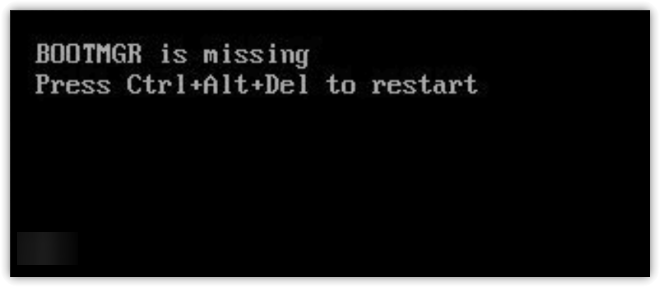
You’ve just finished cloning your hard drive, expecting a seamless swap and improved performance. But when you power on, instead of your familiar desktop, you’re met with a black screen and the dreaded message: BOOTMGR is missing. Press Ctrl+Alt+Del to restart.
bootmgr is missing
It’s a confusing moment—the cloning process seemed to complete without errors, so why won’t Windows start? You’re not alone. This is a common post-clone setback, often caused by a missing boot manager file, an inactive partition, or corruption in the boot configuration. The good news is that most of these issues can be resolved using tools built into Windows, even if you’ve never used the command prompt before. The next few minutes will guide you step by step from a dead screen back to a working clone.

Why ‘BOOTMGR is Missing’ Happens After Cloning

When you see “BOOTMGR is missing. Press Ctrl+Alt+Del to restart,” it means Windows can’t find the essential boot manager files (bootmgr, the BCD store, and sometimes winload.exe) it needs to start up. Cloning copies every sector or partition, but even small misalignments, partition table differences, or missing boot structures can leave the clone unbootable, even if your data is all there.
Use this troubleshooting table to quickly pinpoint the most likely cause before starting repairs:
CauseQuick Practical Check

Wrong boot order in BIOS/UEFI – The system tries to boot from the old drive or a non-bootable device.

Press F2, Del, or Esc during startup to enter BIOS setup. Check the boot priority and ensure your cloned drive is first.

Inactive system partition on MBR disks – The partition with boot files isn’t marked “active,” so BIOS skips it.

Boot from Windows installation media, open Command Prompt, run diskpart, then list disk, select disk X, list partition. Look for an asterisk in the “Active” column.

Missing or corrupt System Reserved / EFI partition – The cloning software may have skipped the small boot partition, or it’s damaged.

In WinRE, launch DiskPart and use list volume to check for a 100–500 MB FAT32 or NTFS system partition.

Corrupted BCD or boot files – The Boot Configuration Data store is invalid or bootmgr is damaged.

From a recovery command prompt, use the bootrec tool to see if any Windows installations are found.

Clone did not copy all boot-relevant partitions – Only the C: drive was cloned, leaving out the hidden boot partition.

Boot from a Windows installer, open Command Prompt, and use diskpart (list disk, select disk, list partition) to check if all expected partitions (System Reserved, EFI, recovery) are present.

Once you’ve identified which scenario fits your case, you can go straight to the most effective repair method.
Renee Becca – Safe and Quick System Migration to SSD

Automatic 4K alignment Improves SSD performance during system migration.

Support GPT and MBR Automatically adapt to the suitable partition format.

Support NTFS and FAT32 Redeploy various files in different file systems.

Back up quickly Back up files at up to 3,000MB/min.

Overall backup schedule Support system redeployment/system backup/partition backup/disk backup/disk clone.

Automatic 4K alignment Improve SSD performance

Support GPT and MBR Intelligently adapt to a partition format

Support NTFS and FAT32 Redeploy files in different file systems
Free TrialFree TrialNow 56337 people have downloaded!

Best Ways to Fix a Cloned Drive That Won’t Boot

Start with the simplest, least invasive fixes. If one method doesn’t work, move on to the next:
1. Correct the boot order (Beginner-friendly)
Power on your PC and enter the BIOS/UEFI firmware setup. Adjust the boot priority so the cloned drive is listed before any other hard disk or USB device. Save changes, exit, and restart. This alone resolves many “BOOTMGR is missing” errors when the system tries to boot from the wrong drive.
2. Windows Startup Repair (Beginner-friendly)
Boot from your Windows installation media, select “Repair your computer,” then go to Troubleshoot > Advanced Options > Startup Repair. This automated tool scans for missing boot files, invalid BCD entries, and partition issues. Often, it can fix the problem without any manual commands. If Startup Repair doesn’t work, try the next methods for more control.
3. Mark the system partition as active (Intermediate – MBR only)
On MBR-based systems, the bootable partition must be marked as “active.” Using DiskPart in the Windows Recovery Environment, you can set the correct partition as active in seconds. Note: This step is not needed on UEFI/GPT systems—skip it if your clone uses GPT.
4. Manual boot repair with bootrec and bcdboot (Intermediate/Advanced)
If graphical tools don’t solve the issue, command-line repair lets you rebuild the Master Boot Record, write a new boot sector, and recreate the BCD store from scratch. For Legacy BIOS/MBR, use bootrec. For UEFI/GPT, use bcdboot to set up the EFI system partition. Step-by-step details are in the next section.
Decision flow: Try boot order first → Startup Repair → active partition check → bootrec/ bcdboot commands. If you’re still stuck, follow the detailed guide below.

Step-by-Step: Repair BOOTMGR Missing After Cloning

These steps use the Windows Recovery Environment (WinRE) and a Windows installation USB or DVD. Commands differ slightly for Legacy BIOS (MBR) and UEFI (GPT) systems, and you’ll be guided to the right instructions.
You’ll need: A Windows installer disc or a bootable USB created with Microsoft’s Media Creation Tool on another PC. If you don’t have one, download the tool from Microsoft’s official site and use the “Create installation media” option.
Windows 10: https://www.microsoft.com/software-download/windows10
Windows 11: https://www.microsoft.com/software-download/windows11

1. Before You Begin: Prerequisites

Critical: You’ll be modifying boot structures. Double-check that you select the correct disk (the cloned drive) and the correct partitions. Changing the wrong disk can make a healthy system unbootable.

1. Back up any irreplaceable data from the cloned drive, just in case.

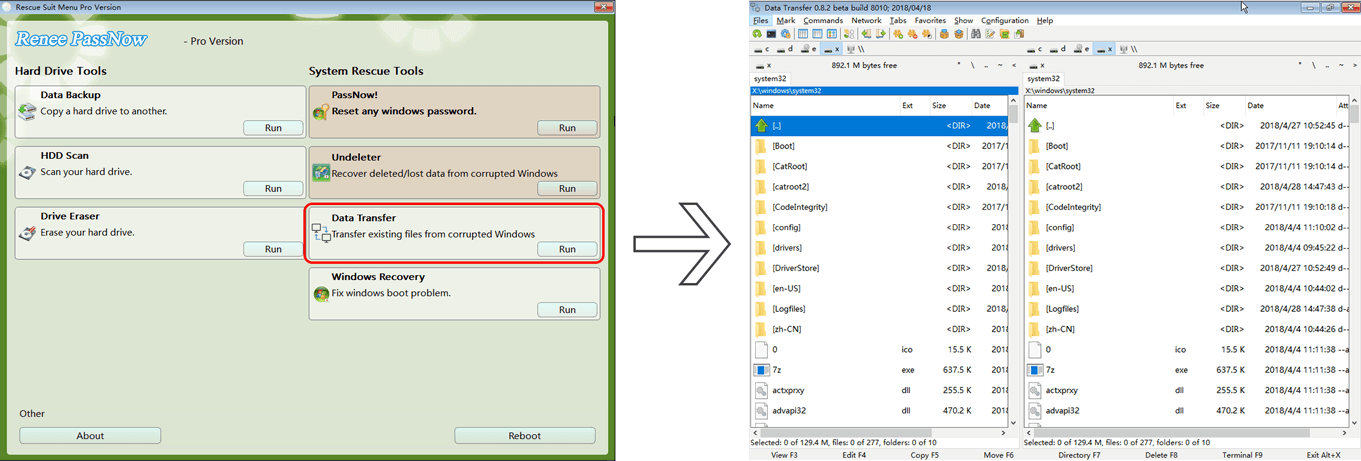
If you can not access your PC, you may use the Data Transfer function in Renee PassNow to backup your data.

Data transfer function of Renee PassNow
Renee Passnow – Professional Windows Password Remover

Remove Windows Login Password 3 steps for whole password remove process.

Recover the files Recover the deleted files without Windows system.

Transfer the data Transfer the important files of the computer with system.
Multifuctional Data transfer, data recovery, bootable problem recovery can be run without system.

Highly compatible Windows 11/10/8.1/8/7/XP/Vista. UEFI boot.

Remove Login Password Support Windows 11/10/8.1/8/7/XP/Vista. UEFI boot.

Recover the files Recover the deleted files without Windows system.

Transfer the data Transfer the important files of the computer with system.
Free TrialFree TrialNow 2000 people have downloaded!
2. Identify your disk layout if possible: MBR or GPT. In Windows, open Disk Management, right-click the disk in the left column, and go to Properties > Volumes tab to see the partition style.

2. Boot from the Installation Media

1. Insert your Windows installation USB you created with the “Create installation media” or existing DVD and restart your PC.
2. Press the key for the boot menu (often F12, F9, or Esc) or enter BIOS setup (F2 or Del) to set the USB/DVD as the first boot device.
3. When the Windows Setup screen appears, select your language and click Next.
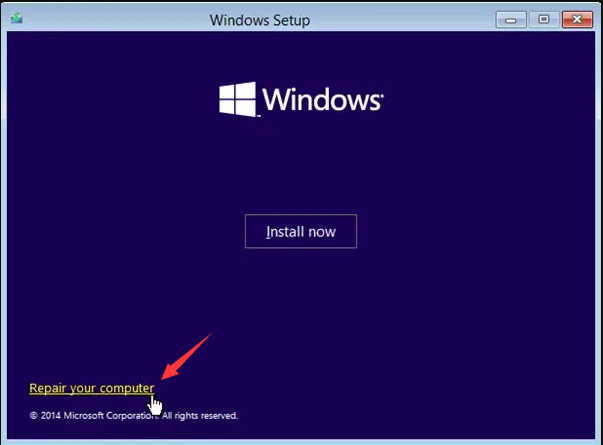
4. Click Repair your computer at the bottom left.
windows installation repair your computer
6. On the “Choose an option” screen, select Troubleshoot.
7. Then select Advanced options.
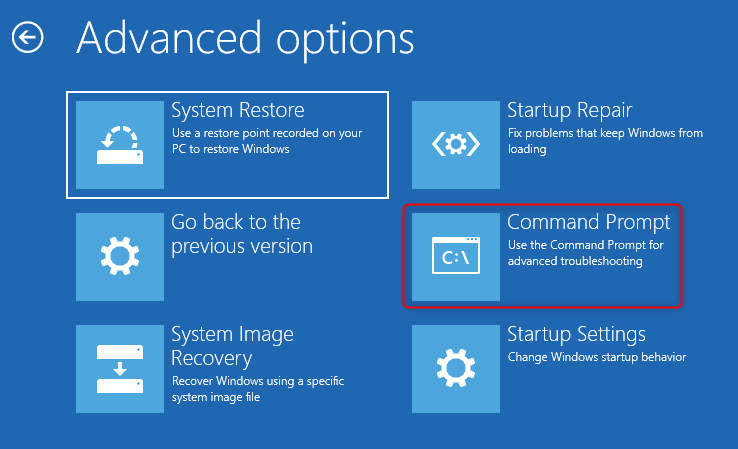
8. Click Command Prompt. WinRE will open an administrator command window.
Advanced options: Command Prompt in Windows Recovery Environment

3. Access Command Prompt and Identify Drive Letters

Drive letters in WinRE can differ from those in Windows. Find the partition that holds your Windows folder and any hidden system partition:
1. At the command prompt, type diskpart and press Enter.

diskpart

2. List all volumes to see drive letters:

list volume

3. Look for a volume labeled “Windows” or one matching your C: drive’s size. Note its drive letter (for example, D:).
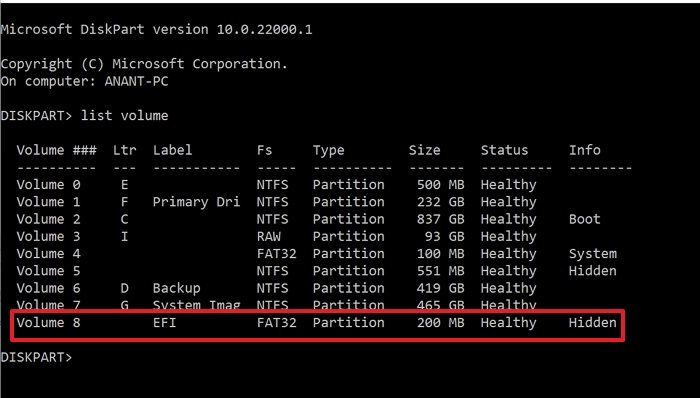
Also, look for a small FAT32 volume (100–300 MB)—that’s the EFI system partition on UEFI systems. If it doesn’t have a letter, you can assign one.
Diskpart list volume output, highlighting the EFI partition labeled as volume 8 with FAT32 format and 260 MB size
When using this image as an example, the EFI partition corresponds to Volume 8.Assign a drive letter that is not already listed under the Ltr column.For example:

select volume 8
assign letter=H

4. Exit DiskPart:

exit

Replace C: with your actual Windows partition letter and S: with the EFI system partition letter (if needed) in the following commands.

4.1 Run Bootrec Commands (For MBR/Legacy Systems)

If your disk uses Master Boot Record (MBR) partitioning and BIOS is set to Legacy boot, use these commands to repair the master boot code and BCD store.
Type each command and press Enter:

bootrec /fixmbr

Writes a new Windows-compatible MBR to the system partition without overwriting the partition table.

bootrec /fixboot

Writes a new boot sector to the system partition that points to bootmgr. If you get “Access Denied” (common on UEFI-capable systems even in Legacy mode), skip this command and proceed to the UEFI workflow, or use this workaround first:

bootsect /nt60 SYS /mbr

bootrec /scanos

Scans all disks for Windows installations. It should list your cloned Windows. If nothing is found, check that the system reserved partition is intact and assigned a letter.

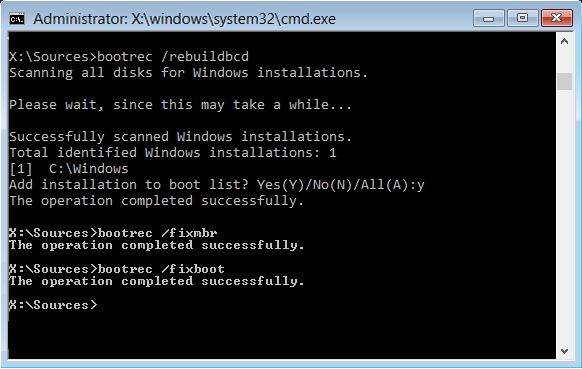
bootrec /rebuildbcd

Searches for Windows installations and offers to add them to the BCD store. Answer Y (Yes) when prompted.
Command prompt output of bootrec /rebuildbcd with zero Windows installations found
After running these commands, close Command Prompt and continue to the final reboot step.

4.2 Rebuild BCD for UEFI/GPT Systems

On GUID Partition Table (GPT) disks with UEFI firmware, the active partition flag doesn’t apply. Instead, bootmgfw.efi and the BCD store must be on the EFI System Partition (ESP), usually a 100 MB FAT32 volume.
1. In Command Prompt, start DiskPart and locate the ESP:

diskpart
list disk
select disk 0
list part
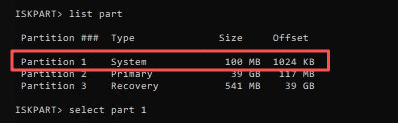
Find the small FAT32 partition (often labeled “System” or “EFI”).
select efi partiton
2. If the EFI partition already has a drive letter (e.g., S:), skip to the next step. If not, assign one:

select partition Y
assign letter=S
exit

3. Run bcdboot to copy the boot files and regenerate the BCD. Replace C: with your Windows partition letter and S: with the EFI partition letter:

bcdboot C:\Windows /s S: /f UEFI

- C:\Windows is the path to your Windows folder on the cloned drive.
- /s S: tells Windows where to write the boot files (the EFI partition).
- /f UEFI ensures the firmware type is set correctly.
4. When the command completes and you see “Boot files successfully created,” close Command Prompt.

6. Try Automatic Startup Repair (Alternative)

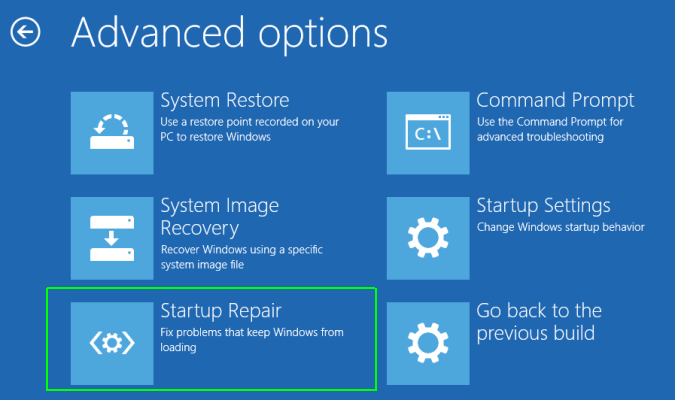
If you’d rather avoid manual commands, let Windows try an automatic fix. From the Advanced options screen (where you selected Command Prompt), choose Startup Repair. Pick your target operating system if prompted. The repair will run automatically. For many users, this resolves “BOOTMGR is missing” after cloning—no command line work needed. If it doesn’t, you can always return to the command prompt for the steps above.
Windows Advanced Options menu with Startup Repair selected

7. Final Reboot and Expected Outcome

1. Type exit and press Enter to close Command Prompt.
2. On the “Choose an option” screen, select Turn off your PC.
3. Remove the Windows installation media.
4. Power on the PC. It should now boot from the cloned drive without the “BOOTMGR is missing” error.
Renee Becca – Safe and Quick System Migration to SSD

Automatic 4K alignment Improves SSD performance during system migration.

Support GPT and MBR Automatically adapt to the suitable partition format.

Support NTFS and FAT32 Redeploy various files in different file systems.

Back up quickly Back up files at up to 3,000MB/min.

Overall backup schedule Support system redeployment/system backup/partition backup/disk backup/disk clone.

Automatic 4K alignment Improve SSD performance

Support GPT and MBR Intelligently adapt to a partition format

Support NTFS and FAT32 Redeploy files in different file systems

Free TrialFree TrialNow 56337 people have downloaded!

FAQ

Why does this happen even with good cloning software?

Even top cloning tools can miss subtle aspects of Windows boot architecture. If the software copies only the main data partition and skips the hidden system reserved or EFI partition, the clone will lack the files needed for bootmgr. Differences in disk geometry, partition alignment, or switching from MBR to GPT can also leave the boot configuration pointing to the wrong place. The fix is to either make the boot partition complete and active, or rewrite the boot files to match the clone’s current layout.

How do I know if my clone is using MBR or GPT?

From any Windows environment—including the recovery Command Prompt—use DiskPart:

diskpart
list disk

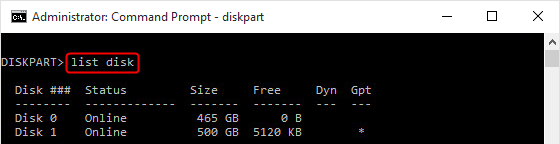
Disks with an asterisk under the “GPT” column use GPT; disks without are MBR. This quick check tells you whether to follow the MBR (bootrec) or UEFI/GPT (bcdboot) repair steps.
type list disk in diskpart to initialize disk

What is the difference between fixing the active partition and rebuilding the BCD?

On MBR disks, the “active” flag tells the BIOS which primary partition contains the boot loader. Fixing it only takes a few DiskPart commands. Rebuilding the BCD recreates the Boot Configuration Data store—the database that tells Windows where the OS files are located. An active partition without a valid BCD still can’t boot, and a perfect BCD on a non-active MBR partition will be ignored by the BIOS. Both repairs are often needed together.

Will fixing this cause any data loss on my cloned drive?

No. These procedures only update boot-related structures: the MBR, boot sector, BCD store, or EFI partition contents. Your files, apps, and Windows installation stay untouched. The main risk is accidentally selecting the wrong disk and overwriting its boot code—so always double-check disk numbers and sizes before running any commands.
Renee Becca – Safe and Quick System Migration to SSD

Automatic 4K alignment Improves SSD performance during system migration.

Support GPT and MBR Automatically adapt to the suitable partition format.

Support NTFS and FAT32 Redeploy various files in different file systems.

Back up quickly Back up files at up to 3,000MB/min.

Overall backup schedule Support system redeployment/system backup/partition backup/disk backup/disk clone.

Automatic 4K alignment Improve SSD performance

Support GPT and MBR Intelligently adapt to a partition format

Support NTFS and FAT32 Redeploy files in different file systems

Free TrialFree TrialNow 56337 people have downloaded!

User Comments

Page 1

Leave a Comment


Your comment has been submitted and is awaiting moderation.